
Troubleshooting
Connection Issues
Data/Forwarder Node Status Displayed as Gray in the Web Console
First, check whether the control node can connect to the web server of the data/forwarder node. Log in to the Logpresso shell on the control node and enter the data/forwarder node IP address and web server port as shown below to verify connectivity.
# tcpscan <data/forwarder node IP> 8443
tcpscan 203.0.113.161 8443
Diagnosing Firewall Policy Issues
Depending on the command execution result, there may be a firewall policy issue or a federation communication port issue as described below.
- timeout
-
If
timeoutis displayed after a certain period of time when running the tcpscan command as shown below, check all firewall policies along the communication path from the control node to the data/forwarder node and verify the local firewall policy on the node using thefirewall-cmd --list-allcommand.trying to connect /203.0.113.161:8443 timeout - not opened: Connection refused
-
If the
not opened: Connection refusedmessage is displayed, the federation communication port is not open. Run thehttpd.bindingscommand in the Logpresso shell on the data/forwarder node to recheck the port configuration. Under normal conditions, the output looks like this:# httpd.bindings command output /0.0.0.0:8443 (ssl: key logpresso-web, trust null), opened, default context: webconsole, idle timeout: 0seconds, log file prefix: null, access log: false, error log: false -
Run the
httpd.openSslcommand as follows to open the federation communication port:# httpd.openSsl <port> <context> <key alias> httpd.openSsl 8443 webconsole logpresso-web
Diagnosing Web Server Certificate Issues
If the tcpscan <data/forwarder node IP> 8443 command shows opened but the data/forwarder node connection status still appears gray in the web console, the SSL certificate or policy synchronization password may be incorrectly configured. To distinguish the cause, try accessing port 8443 of the node from a web browser on your workstation. If ERR_SSL_PROTOCOL_ERROR is displayed as shown below, it is a certificate issue.
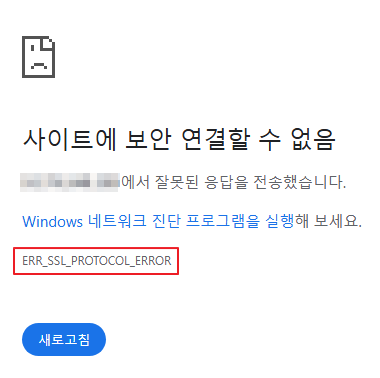
If it is a web server certificate issue on the data/forwarder node, re-run the master node connection setup using the sonar.setMaster command (this process downloads and installs the certificate while communicating with the master node). The following describes the values to enter when running the sonar.setMaster command.
host? 203.0.113.193    # Representative IP address of the control node pair
port? 8443             # Enter 8443
account? root          # Enter root, the control node federation account
password?              # Enter the control node federation account password
connect timeout? 10000 # Press Enter to use the default value
read timeout? 10000    # Press Enter to use the default value
secure? true           # Enter true (default is false)
skip cert check? true  # Enter true (default is false)
Diagnosing Policy Synchronization Password Issues
If the ENT web console screen displays normally when you access port 8443 of the data/forwarder node via a web browser, enter the federation account name and password on this screen to check whether you can log in successfully. If login is not possible, run the dom.resetPassword localhost root command in the Logpresso shell on the data/forwarder node to reset the password, then re-enter the reset password in the Password fields under Node A Settings and Node B Settings on the web console System > Cluster > Nodes page.
Data/Forwarder Node Fails to Connect to Control Node via RPC
Diagnosing RPC Connection Status
Run the following commands in the Logpresso shell on the data/forwarder node to check whether the connection to the control node RPC port is established successfully.
forwarder.connections # For forwarder nodes
sentry.connections    # For data nodes. Can also be run on forwarder nodes
The command output should display content similar to the following.
Connections
--------------------
[c1a] id=1317075310, peer=(39c2dd55-5bb5-4497-a327-ee6f8cae9ad9, /203.0.113.194:7140), trusted level=Low, ssl=true, props={phase=post_hello, ping_failure=0, type=command}
If no RPC connection related to the control node IP address is displayed as shown above, it may be a firewall policy issue or a certificate issue used for TLS mutual authentication.
Diagnosing Firewall Policy Issues
First, enter the control node IP address and RPC port in the Logpresso shell on the data/forwarder node as shown below to verify connectivity.
# tcpscan <control node IP> 7140
tcpscan 203.0.113.193 7140
If timeout is displayed after a certain period of time as shown below, check all firewall policies along the communication path from the data/forwarder node to the control node.
trying to connect /203.0.113.193:7140
timeout
Diagnosing SSL Certificate Issues
You can check the daemon logs by running the logger.tail command in the Logpresso shell on the data/forwarder node, or by viewing the /opt/logpresso/log/araqne.log file.
Certificate Password Error
If the keystore password was incorrect error occurs as shown below, the certificate password is incorrect.
[2025-01-30 09:24:10.812]  WARN (KeyStoreManagerImpl) - getKeyStore() error:
java.io.IOException: keystore password was incorrect
        at java.base/sun.security.pkcs12.PKCS12KeyStore.engineLoad(PKCS12KeyStore.java:2116)
        at java.base/sun.security.util.KeyStoreDelegator.engineLoad(KeyStoreDelegator.java:222)
        at java.base/java.security.KeyStore.load(KeyStore.java:1479)
        at org.araqne.keystore.KeyStoreManagerImpl.getKeyStore(KeyStoreManagerImpl.java:298)
        at org.araqne.keystore.KeyStoreManagerImpl.getKeyManagerFactory(KeyStoreManagerImpl.java:414)
        at org.araqne.rpc.RpcKeyStoreManagerImpl.__M_getKeyManagerFactory(RpcKeyStoreManagerImpl.java:62)
        at org.araqne.rpc.RpcKeyStoreManagerImpl.getKeyManagerFactory(RpcKeyStoreManagerImpl.java)
        at org.logpresso.sentry.impl.ConnectionWatchdogImpl.__M_connect(ConnectionWatchdogImpl.java:216)
        at org.logpresso.sentry.impl.ConnectionWatchdogImpl.connect(ConnectionWatchdogImpl.java)
        at org.logpresso.sentry.impl.ConnectionWatchdogImpl.__M_checkConnections(ConnectionWatchdogImpl.java:171)
        at org.logpresso.sentry.impl.ConnectionWatchdogImpl.checkConnections(ConnectionWatchdogImpl.java)
        at org.logpresso.sentry.impl.ConnectionWatchdogImpl.__M_checkNow(ConnectionWatchdogImpl.java:149)
        at org.logpresso.sentry.impl.ConnectionWatchdogImpl.checkNow(ConnectionWatchdogImpl.java)
        at org.logpresso.sentry.impl.ConnectionWatchdogImpl.__M_run(ConnectionWatchdogImpl.java:123)
        at org.logpresso.sentry.impl.ConnectionWatchdogImpl.run(ConnectionWatchdogImpl.java)
        at java.base/java.lang.Thread.run(Thread.java:829)
Caused by: java.security.UnrecoverableKeyException: failed to decrypt safe contents entry: javax.crypto.BadPaddingException: Given final block not properly padded. Such issues can arise if a bad key is used during decryption.
        ... 16 more
Untrusted Certificate Error
If the No trusted certificate found error occurs as shown below, the automatically generated certificate from the initial daemon startup is being used instead of the certificate issued by the control node.
[2025-01-30 09:28:14.623] ERROR (ConnectionWatchdogImpl) - logpresso-sentry: failed to connect, closing connection (No trusted certificate found)
[2025-01-30 09:28:14.624] ERROR (RpcHandler) - araqne rpc: ssl handshake exception from x.x.x.x:7140, channel 2ca2e90a (No trusted certificate found)
For both errors, re-run the master node connection setup using the sonar.setMaster command (this process downloads and installs the certificate while communicating with the master node). The following describes the values to enter when running the sonar.setMaster command.
host? 203.0.113.193    # Representative IP address of the control node pair
port? 8443             # Enter 8443
account? root          # Enter root, the control node federation account
password?              # Enter the control node federation account password
connect timeout? 10000 # Press Enter to use the default value
read timeout? 10000    # Press Enter to use the default value
secure? true           # Enter true (default is false)
skip cert check? true  # Enter true (default is false)
Syslog Reception Diagnostics
If Syslog is not collected properly through the forwarder node even after configuring a collector in the web console, diagnose the issue as follows. In the examples below, it is assumed that packets are being sent from IP address 172.20.100.100.
Forwarder Node Trace
-
Connect to the forwarder node via SSH and run the following command to enter the Logpresso shell.
ssh -p7022 root@localhost -
Run the
syslog.serverscommand to view the Syslog server configuration list.Syslog Servers ---------------- [logpresso] 0.0.0.0:514 (udp), charset=UTF-8 (override: 0), capacity=20000, rx_buf_size=0, receiver_cpu_id=-1, queue_count=1, buffer_file_path=./, buffer_file_size=10737418240, start from=2024-12-11 13:22:13, received=7 -
You can view Syslog reception statistics per client IP address using the
syslog.stats logpressocommand.Syslog Statistics ------------------- x.x.x.x => 1 (first seen 2025-01-20 10:58:44, last seen 2025-01-20 10:58:44) -
You can trace Syslog packets received in real time using the
syslog.trace logpressocommand. PressCtrl+Cto stop tracing.
Syslog Packet Verification
You can verify whether packets are reaching the Logpresso forwarder node by using the tcpdump command in the terminal as follows.
# tcpdump -i <interface> host <forwarder node IP address> port <forwarder node syslog port> -A
tcpdump -i any host 172.20.100.100 port 514 -A
Verifying Port Availability
-
If it has been confirmed that Syslog packets are reaching the forwarder node, run the
netstat -na | grep :514command to check whether the port is open.# netstat -na | grep :514 udp 0 0 0.0.0.0:514 0.0.0.0:* -
If the port is not open as shown above, the JVM privilege assignment step may have been skipped during installation, causing the port to fail to open, or the port configuration may have been changed. Run the following command to check whether
cap_net_bind_serviceis displayed.# getcap <java executable path> getcap /opt/logpresso/jdk/bin/java -
If the privilege has not been assigned, use the
setcapcommand to grant the required privileges to thejavaexecutable.# setcap cap_net_bind_service,cap_sys_time,cap_net_raw=+ep <java executable path> setcap cap_net_bind_service,cap_sys_time,cap_net_raw=+ep /opt/logpresso/jdk/bin/java
Verifying Host Firewall Policies
If there are no blocked segments in the connection path from the Syslog client to the forwarder node but Syslog packets are not arriving at the forwarder node at all, run the firewall-cmd --list-ports command to recheck the host firewall policies.
# firewall-cmd --list-ports
Verifying rp_filter Settings
If the firewall policies and port availability are all normal but you cannot verify reception using the syslog.trace command in the Logpresso shell, it may be a Linux kernel Reverse Path Filtering configuration issue.
The Linux kernel Reverse Path Filtering feature verifies the source of packets to block spoofed packets. The default value is 1, which drops packets arriving from invalid routes.
If the forwarder node has multiple network interface cards and packets can be received from the source through multiple network interface cards, change the rp_filter setting.
Checking the Current Settings
-
Run the
cat /proc/sys/net/ipv4/conf/<interface>/rp_filtercommand to check therp_filtersetting value.# cat /proc/sys/net/ipv4/conf/eth2/rp_filter # output 10(disabled): Does not perform Reverse Path Filtering1(default, strict): Checks the route for the interface based on the source IP address of the packet, and drops the packet if it does not match2(loose): Allows the packet if a valid route exists for a packet with the same source IP address through any interface
-
If the value is 1, add the following setting to the end of the
/etc/sysctl.conffile.
net.ipv4.conf.eth2.rp_filter = 2
-
Run the following command with administrator privileges to apply the kernel configuration change.
sysctl -p
MariaDB
Galera Cluster Cannot Be Restarted
If the cluster does not start after all Galera Cluster servers have been stopped and the database does not start even with the systemctl start mariadb command, restart MariaDB by following these steps.
-
(Control node A) Edit the
/var/lib/mysql/grastate.datfile with administrator privileges.# GALERA saved state Version: 2.1 Uuid: 5022f7e5-281a-11e8-98c9-9baa762d13e6 Seqno: -1 Safe_to_bootstrap: 1- Change the
Safe_to_bootstrapvalue from1to0.
- Change the
-
(Control node A) Restart the Galera Cluster server.
sudo galera_new_cluster -
(Control node B) Run the following command to start MariaDB and verify that
wsrep_start_positionhas the same value as control node A.sudo systemctl start mariadb && \ ps -ef | grep mysqlRunning this command should produce output similar to the following.
mysql 1141195 1 1 Apr15 ? 22:50:53 /usr/sbin/mariadbd --wsrep_start_position=c6609d0e-091a-11f0-86bb-3e7cc9ee21e7:40512CautionNode B is joining an already started Galera Cluster, so you must not run the galera_new_cluster command. The galera_new_cluster command should only be run on the first node to start in the cluster.
NoteIf the wsrep_start_position value is "00000000-0000-0000-0000-000000000000", run the systemctl restart mariadb command.
OOM and Memory Leak Diagnostics
Generating a Heap Dump
If an OutOfMemoryError (OOM) occurs on a node causing the logpresso process to stop, or if a memory leak is suspected, you can generate a heap dump to diagnose the cause.
-
Add the following lines to the end of the
/opt/logpresso/etc/logpresso.conffile.JAVA_OPTS="$JAVA_OPTS -XX:+HeapDumpOnOutOfMemoryError" JAVA_OPTS="$JAVA_OPTS -XX:HeapDumpPath=/data/heapdump.hprof" -
Restart the
logpressoprocess.sudo systemctl restart logpresso -
If an OOM occurs afterward, a heap dump file will be automatically created at the specified path. Verify the file with the following command.
ls -lh /data/heapdump.hprof
Collecting Data for Failure Analysis
-
Run the
jcmdcommand to find the PID of thejavaprocess runningaraqne-core. The following is an example of the command output.3370022 /logpresso/araqne-core-4.1.0-package.jar 2428126 jdk.jcmd/sun.tools.jcmd.JCmd -
Generate diagnostics artifacts based on the PID identified above.
# Run jcmd based on the PID identified above. # The file save path can be changed. # Ensure all artifact files are saved to a directory with sufficient free space. # Generate jmap jcmd 3370022 GC.class_histogram > /data/histogram_yyMMdd.txt # Generate JFR -> (The file will be created after 60 seconds.) jcmd 3370022 JFR.start duration=60s settings=profile filename=/data/jfr_yyMMdd.jfr # Generate jstack jcmd 3370022 Thread.print > /data/jstack_yyMMdd.txt # Generate HeapDump # The file size can be as large as the Java heap memory size. Run this in a directory with sufficient free space. jcmd 3370022 GC.heap_dump -all=true /data/heapdump_yyyyMMdd.hprof -
Export the generated diagnostics artifacts.
If the path is not registered in PATH, navigate to the directory containing the java file and prepend './' to each command to run the diagnostics artifact generation commands.