
Data Node configuration
This document describes the tasks to perform after you finish installing the package on the data node. You can proceed with this task after you finish control node configuration.
- Configuring the federation communication account: Sets the federation account password for the data node.
- Configuring the data node pair: Registers the data node pair in the web console and performs the related configuration.
Configuring the federation communication account
Connecting to the Logpresso shell
On data node A and B respectively, you must connect to the Logpresso shell and change the initial password. We recommend registering an SSH key in case you lose the password.
Changing the default password
-
In a terminal, run the following command to connect to the Logpresso shell. The port number may differ depending on the SSH_PORT setting in the
logpresso.conffile (default: 7022).ssh -p 7022 root@localhost -
When the password prompt appears, enter the Logpresso shell initial password.
-
When the new password prompt appears, enter a new password and press Enter. Because the Logpresso shell account is used only for SSH access to each node, you can set a different password on each node.
Please change the default password. New password: # Enter the new password, then Enter Retype password: # Re-enter the new password, then Enter Password changed successfully. Logpresso SNR-5.0.2605.1 (build 20260619) on Araqne Core 4.1.0 logpresso> # Logpresso shell promptCautionThe Logpresso shell rejects reuse of the default password. Never reuse the default password on any account. If a problem occurs because you used the default password, Logpresso is not responsible for it.
Depending on the operating system, the connection may fail during SSH key exchange and encryption algorithm negotiation when you connect to the Logpresso shell. Add the following content to the ~/.ssh/config file on data node A and B, and connect with the ssh sonar command.
Host sonar
    HostName 127.0.0.1
    Port 7022
    User root
    HostKeyAlgorithms +ssh-rsa
    PubkeyAcceptedAlgorithms +ssh-rsa
    KexAlgorithms +diffie-hellman-group14-sha1
    Ciphers +aes256-cbc
    PreferredAuthentications publickey # SSH key login
    IdentityOnly yes                   # SSH key login
    IdentityFile ~/.ssh/logpresso_rsa  # SSH key login
Registering an SSH key (optional)
You can connect to the Logpresso shell with SSH key authentication. Because you can connect even if you lose the password, we recommend registering an SSH key.
-
If you do not have an RSA key, run the following command to generate a key pair.
ssh-keygen -t rsa -b 2048 -f ~/.ssh/logpresso_rsaNoteThe Logpresso shell supports only ssh-rsa keys.
-
In the Logpresso shell, run the following command to register the SSH public key.
account.addSshKey root -
When the prompt appears, enter the SSH public key. The public key is in the
~/.ssh/logpresso_rsa.pubfile.SSH public key? ssh-rsa AAAAB3NzaC1yc2EAAAADAQABAAACAQ... # Enter the entire public key root password: # Enter the current password addedTipYou can also specify the absolute path of the public key file directly: account.addSshKey root /home/logpresso/.ssh/logpresso_rsa.pub
-
Run the following command to check the list of registered SSH keys.
account.sshKeys rootWhen you run the command, you can see the registered SSH keys as follows.
Authorized SSH keys --------------------- 1: ssh-rsa AAAAB3NzaC1yc2EAAAADAQABAAACAQ... -
Now you can connect to the Logpresso shell with the SSH key, without a password.
ssh -p 7022 -i ~/.ssh/logpresso_rsa root@localhost
Setting the federation account password
The federation account is the account used for communication between all nodes that make up the cluster. Use the same federation account password that is already assigned to the control node pair.
-
In the Logpresso shell of data node A and B, run the following command to change the federation account password.
dom.resetPassword localhost root -
When the new password prompt appears, enter the same federation account password assigned in the control node pair, and press Enter.
New Password: # Enter the password, then Enter- You can enter the password only once. If you entered the password incorrectly, run the
dom.resetPassword localhost rootcommand again.
NoteThe federation account root and the Logpresso shell account root have the same name, but they belong to different authentication domains. During the federation password change, ERROR logs may be recorded temporarily in araqne.log, but they are resolved after the change is complete.
- You can enter the password only once. If you entered the password incorrectly, run the
-
Following this document, change the Password Expiration of the federation account to Unlimited.
- Open a web browser, go to
https://<data node A IP address>:8443, and log in with the federation account. - In the left menu of the web console, go to the System > Users screen.
- In the federation account list, click root.
- In the Passwd. Expiration field, select Unlimited and click the Save button.
- Perform the same task on node B.
- Open a web browser, go to
Configuring the data node pair
Registering the data node pair
Register the data node pair on the web console System > Clusters > Node screen.
-
In the top-right corner of the cluster node list, click the Add button and configure the data node pair. For a description of each property, see Adding a node pair in the user guide.
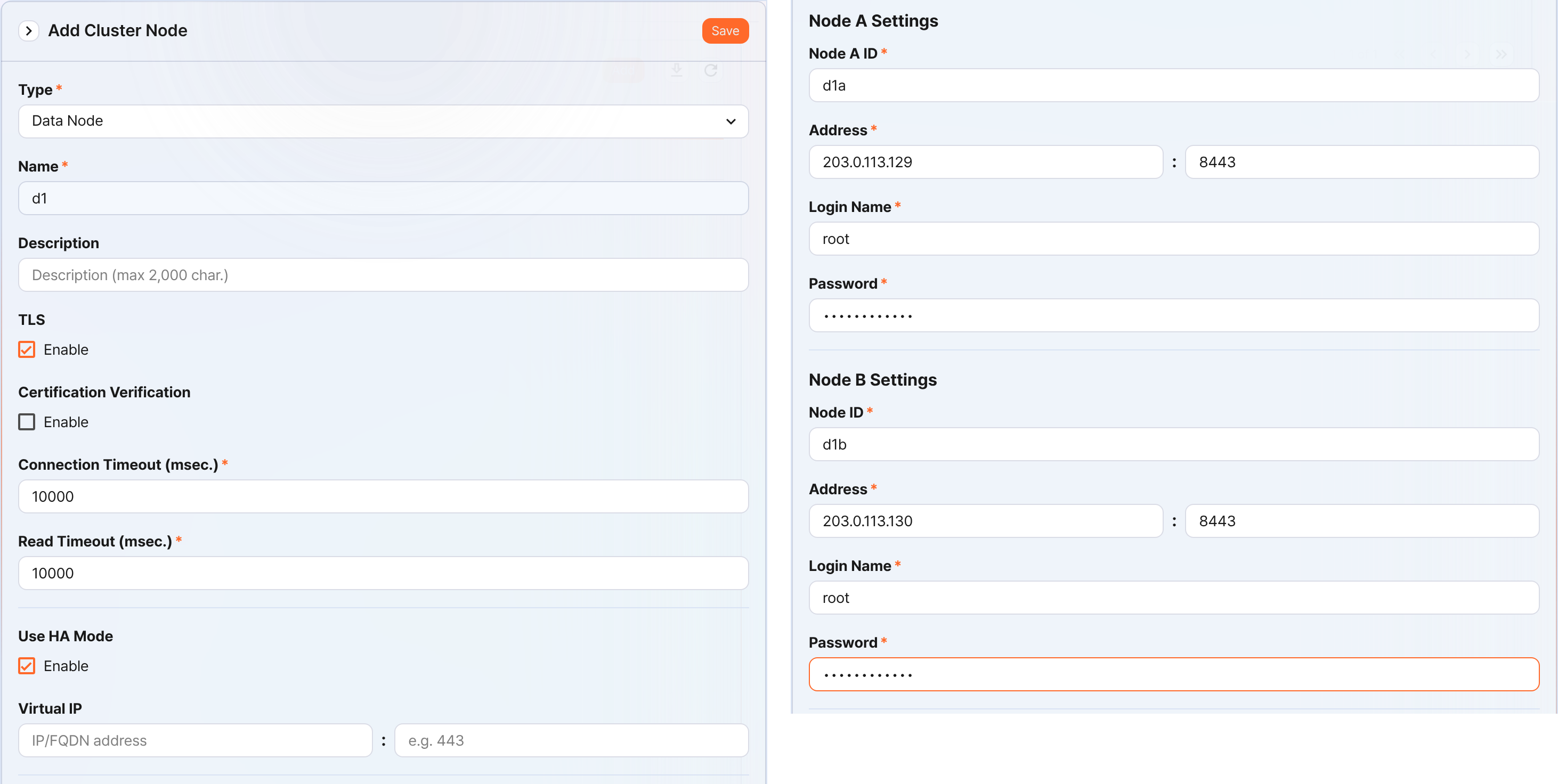
- Type: Select Data Node
- Name: Enter the data node pair identifier (for example,
d1)- You cannot change it after you click the Save button.
- Description: A description of the node pair (optional).
- TLS: Selected
- Certification Verification: Not selected
- Connection Timeout: Use the default value
- Read Timeout: Use the default value
- Use HA Mode: Selected
- Virtual IP: Not selected
- Node A Settings
- Node ID: Enter the node A identifier (for example,
d1a) - Address: The actual IP address and communication port of node A (for example,
203.0.113.129:8443)- The data node port number is
8443.
- The data node port number is
- Login Name: Enter
root - Password: Enter the federation account password
- Node ID: Enter the node A identifier (for example,
- Node B Settings
- Node ID: Enter the node B identifier (for example,
d1b) - Address: The actual IP address and communication port of node B (for example,
203.0.113.130:8443) - Login Name: Enter
root - Password: Enter the federation account password
- Node ID: Enter the node B identifier (for example,
-
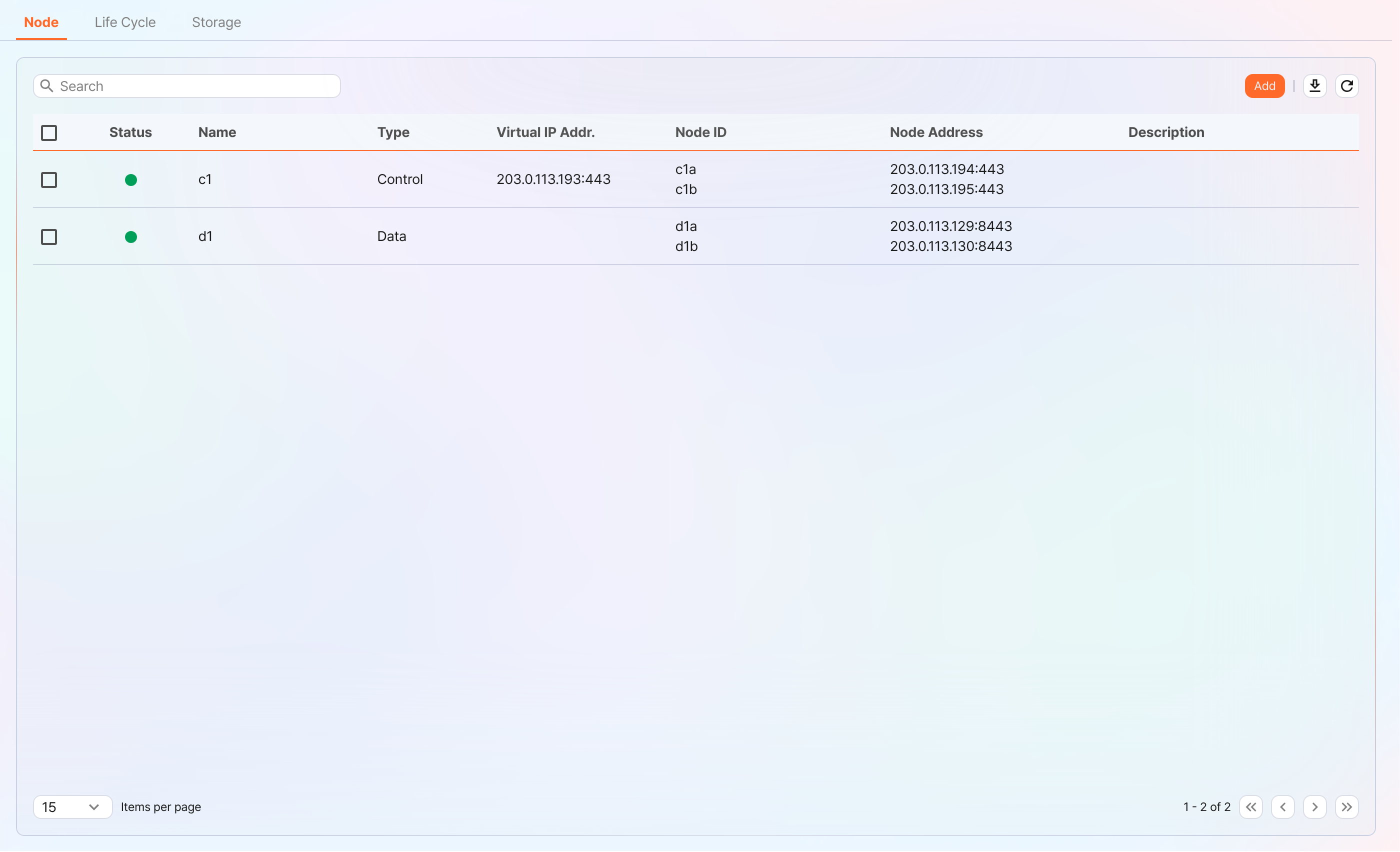
After you finish entering the values, click the Save button. Confirm that the data node pair is added as shown below.
-
You can click the Name of the added data node to view and modify its properties. If you specified the Name or Node ID incorrectly, you must delete the node pair and reconfigure it.
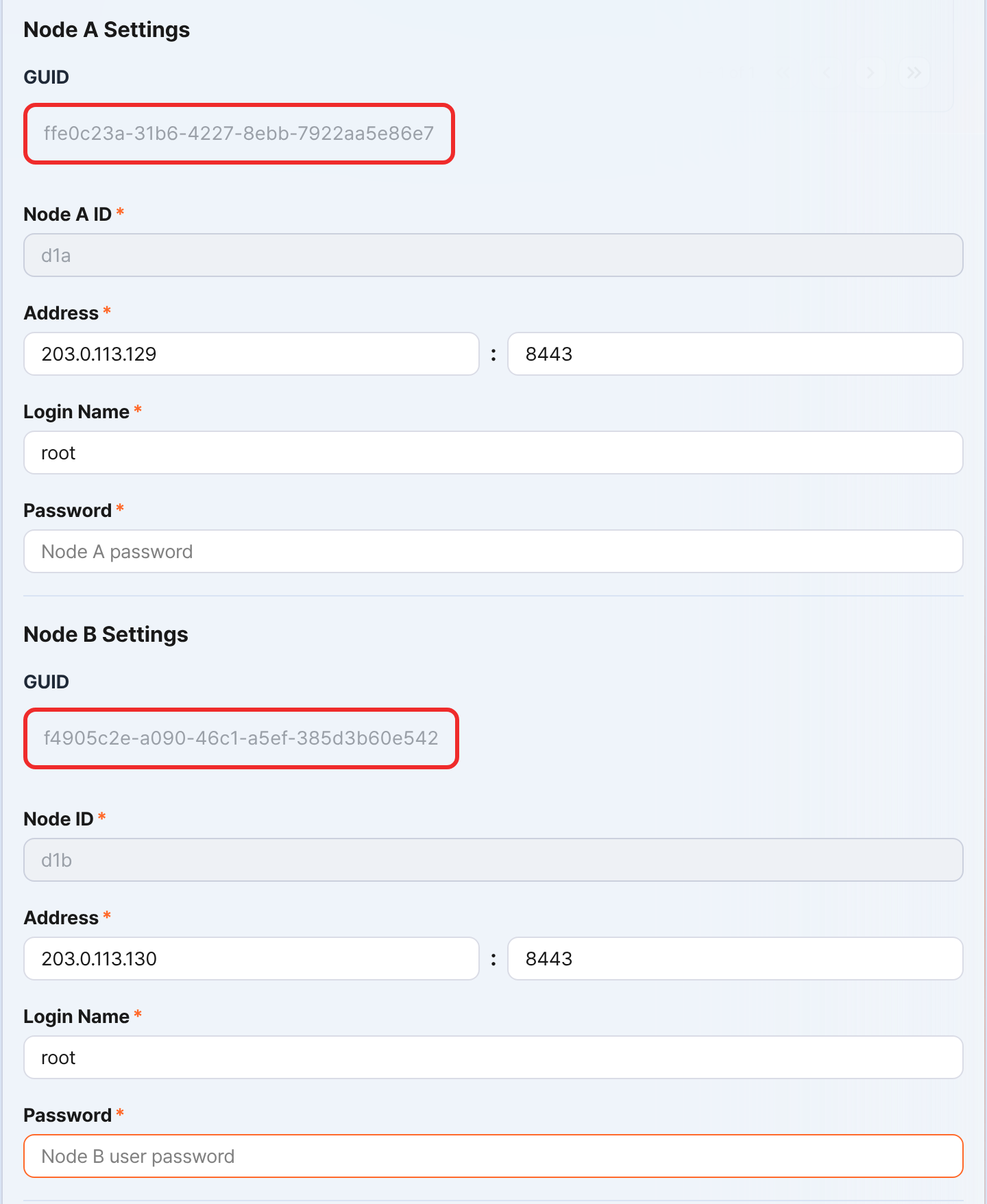
Record the GUIDs of node A and node B in a safe place. These values are used in Configuring the node GUID.
Replicating the key encryption key
Replicate the key encryption key (KEK, Key Encryption Key) of the control node identically to data node A and B.
-
In the Logpresso shell of control node A or B, run the following command to record the encryption key string in a safe place.
sonar.cipherKey -
In the Logpresso shell of data node A and B, run the following command respectively to configure the same encryption key.
KEY_STRINGis the encryption key string of the control node.sonar.setCipherKey KEY_STRING
Configuring the node GUID
Set the GUIDs of data node A and B, which you checked in the Registering the data node pair step, identically in the Logpresso shell of each node.
-
In the Logpresso shell of data node A and B, run the following command to set the GUID used for policy synchronization for each node in the Logpresso engine.
GUID_STRINGis the GUID string of each node.sonar.setGuid GUID_STRING # Enter the GUID that matches each node -
You can check the GUID used for policy synchronization for each node with the following command.
sonar.nodeConfig
Configuring the master node connection
The data node is controlled by the control node. Because communication takes place by the data node connecting to the control node, you must configure the information for the policy master node connection.
-
In the Logpresso shell of node A and node B, run the following command.
sonar.setMasterThe following describes the prompts displayed after you run the command and the values to enter. The account used here is the federation account.
host? 203.0.113.193    # Virtual IP address of the control node pair
port? 443              # Enter 443
account? root          # Enter root, the federation account
password?              # Enter the federation account password
connect timeout? 10000 # Press Enter to use the default value
read timeout? 10000    # Press Enter to use the default value
secure? true           # Enter true (the default is false)
skip cert check? true  # Enter true (the default is false)
Option Description Example host Virtual IP address of the control node pair 203.0.113.193 port Federation communication port of the control node 443 account Federation account root password Federation account password connect timeout Server connection wait time 10000 (ms) read timeout Response wait time 10000 (ms) secure Whether to apply TLS communication true skip cert check Whether to skip TLS certificate validation true -
Run the following command to check whether the node configuration was applied.
sonar.nodeConfigThe following is an example of the output you can see when it is configured correctly.
guid: ffe0c23a-31b6-4227-8ebb-7922aa5e86e7
host=203.0.113.193, port=443, account=root, connectTimeout=10000, readTimeout=10000, secure=true, skipCertCheck=true
crypto_file_path: null
Configuring the data replication mode
When you configure a node pair, you can replicate table data between the two nodes. Here, "table" does not mean a database table, but a file-based table where the Logpresso engine stores data.
If the same data exists on both nodes, duplicate searches can occur when running a distributed query. To prevent this, you must set the data replication mode of each node to either active (ACTIVE) or standby (STANDBY).
- Active node: Stores the original log tables and is a search target in distributed queries.
- Standby node: Receives real-time replication of the log table data of the active node. The replicated tables use the same table ID as the originals and are excluded from searches in distributed queries, so duplicate searches do not occur.
The logpresso.setActiveNode command designates the peer node as active and sets itself as standby.
Configuring node A (active)
-
In the Logpresso shell of node A, run the following command to check the name of the peer node (node B).
logpresso.nodeStatusesThe following is an example of the output. In the
Federation Nodessection,[d1b]is the name of node B.Local ------------------ Node GUID: b6b014f9-88c2-48c1-96c8-e23d8bdb65bc Instance GUID: af43a33f-7985-41cb-9c7b-31224e47c35a Federation Nodes ------------------ [d1b] node_guid=44494d5a-40c7-4e02-93bb-71adb50f3aec, instance_guid=3189e170-dae7-465a-a713-21e3da40cbb7, repl_mode=null, pair_guid=null, invalid_guid=false, alive=true, paired=true, failure=false, last connect=2025-06-09 13:39:20, last alive=2025-06-10 14:08:08, created=2025-06-09 13:39:20NoteThe Node GUID and Instance GUID shown in the logpresso.nodeStatuses command output are identifiers that the Logpresso engine uses for log table replication and distributed queries. The Node GUID is used to identify the database and is recorded in the DB_GUID file for permanent storage. The Instance GUID is the identifier of the currently running process and changes each time the node process starts.
-
Run the following command to designate node B as the standby node; node A then becomes the active node. In the command example,
d1bis the name of node B that you checked above.logpresso.setStandbyNode d1b -
When you run the
logpresso.nodeStatusescommand again, you can see thatReplication Modeis set toACTIVEin theLocalsection.------------------ Node GUID: b6b014f9-88c2-48c1-96c8-e23d8bdb65bc Instance GUID: af43a33f-7985-41cb-9c7b-31224e47c35a Replication Mode: ACTIVE Pair Node: d1b Federation Nodes ------------------ [d1b] node_guid=44494d5a-40c7-4e02-93bb-71adb50f3aec, instance_guid=3189e170-dae7-465a-a713-21e3da40cbb7, repl_mode=null, pair_guid=null, invalid_guid=false, alive=true, paired=true, failure=false, last connect=2025-06-09 13:49:36, last alive=2025-06-10 14:08:08, created=2025-06-09 13:49:36
Configuring node B (standby)
-
In the Logpresso shell of node B, run the following command to designate node A as active; node B then becomes the standby node.
d1ais the name of node A that you checked in the output of thelogpresso.nodeStatusescommand.logpresso.setActiveNode d1a -
When you run the
logpresso.nodeStatusescommand, you can see thatReplication Modeis set toSTANDBYin theLocalsection.Local ------------------ Node GUID: 44494d5a-40c7-4e02-93bb-71adb50f3aec Instance GUID: 3189e170-dae7-465a-a713-21e3da40cbb7 Replication Mode: STANDBY Pair Node: d1a Federation Nodes ------------------ [d1a] node_guid=6b6b014f9-88c2-48c1-96c8-e23d8bdb65bc, instance_guid=af43a33f-7985-41cb-9c7b-31224e47c35a, repl_mode=ACTIVE, pair_guid=44494d5a-40c7-4e02-93bb-71adb50f3aec, invalid_guid=false, alive=true, paired=true, failure=false, last connect=2025-03-26 17:03:11, last alive=2025-03-27 13:40:55, created=2025-03-26 17:03:11
Configuring system log transmission
Configure the data node to collect performance information such as CPU and memory. You can view the collected data on the web console System > Performance Monitor screen.
-
In the Logpresso shell of data node A and B, run the
sentry.setGuidcommand respectively to set the Sentry GUID. Here, the GUID means the node ID. For example, if the node ID of data node A isd1a, configure it as follows.sentry.setGuid d1a -
On data node A and B, run the following command to set the control node to which logs are transmitted.
# sentry.addBase BASE_NAME IP_ADDR PORT SENTRY_CERT CA_CERT SWAP_SIZE sentry.addBase c1 203.0.113.193 7140 logpresso-sentry logpresso-ca 1073741824BASE_NAME: The name of the control node pair (for example,c1)IP_ADDR: The virtual IP address of the control node pair (for example,203.0.113.193)PORT: The Sentry port (for example,7140)SENTRY_CERT: The Sentry certificate (for example,logpresso-sentry)CA_CERT: The Logpresso CA certificate (for example,logpresso-ca)SWAP_SIZE: The swap size (for example,1073741824(=1 GB), unit: bytes)
-
Run the following command to check the connection.
sentry.connectionsThe following is an example of the output you can see when it is configured correctly.
Connections
--------------------
[c1] id=2035698886, peer=(1b3fcc3f-61ce-41ae-9c45-d0096b8b7fff, /203.0.113.193:7140), trusted level=Low, ssl=true, props={phase=post_hello, type=command}
Configuring license sharing between nodes
Configure the cluster environment so that all nodes are covered by the same license. The license registered on the control node also applies to the data node and forwarder node. Here, this document describes how to apply the license of the control node to the data node.
-
In the Logpresso shell of node A and node B, run the following command to enable license sharing.
logpresso.setLicenseMode slave -
Run the following command to check the license master status.
logpresso.licenseModeWhen it is configured correctly, the following is displayed.
SLAVE -
(Control node A and B) Following this document, register the data node as a license slave.
- Open a web browser and go to
https://<control node A IP address>:8443. - Log in with the federation account, then go to Settings > License Management.
- In the All Node List, click Register Node.
- Enter the information for the license slave node and click Create.
- Name: A name to identify the data node (for example,
d1a,d1b) - Host Address: The IP address of the data node
- Port: The federation communication port of the data node. Enter 8443.
- User: The federation account ID (
root) - Password: The password of the federation account
- Secure: Select Enable.
- Verify Certification: If Enable is checked, clear it.
- Connection Timeout: Use the default value.
- Read Timeout: Use the default value.
- Name: A name to identify the data node (for example,
- Perform the same task on control node B.
- Open a web browser and go to
Enabling distributed queries
A distributed query (Distributed Query) is a feature that queries table data distributed across multiple nodes with a single, integrated query. To prevent duplicate searches when running a distributed query and to get correct query results, you must enable distributed queries on all nodes.
-
In the Logpresso shell of node A and node B, run the following command respectively to enable distributed queries.
logpresso.enablePlanner -
Run the following command to check the distributed query status.
logpresso.plannerStatusWhen it is enabled correctly, the following is displayed.
Running: true
Configuring the web server
There are web service ports that are open after the package installation. Close the unnecessary ports and open only the ports required to operate the data node.
-
In the Logpresso shell, run the following command to check the open web service ports.
httpd.bindingsThe following is an example of the output you can see after you run the command.
/0.0.0.0:8443 (ssl: key logpresso-web, trust null), opened, default context: webconsole, idle timeout: 0seconds, log file prefix: null, access log: false, error log: false /0.0.0.0:18443 (ssl: key logpresso-web, trust null), opened, default context: sonar-explanation, idle timeout: 0seconds, log file prefix: null, access log: false, error log: false /0.0.0.0:443 (ssl: key logpresso-web, trust null), opened, default context: sonar, idle timeout: 0seconds, log file prefix: null, access log: false, error log: false /0.0.0.0:44300 (ssl: key logpresso-web, trust null), opened, default context: deploy, idle timeout: 0seconds, log file prefix: null, access log: false, error log: false -
Run the following commands to close all open web ports, reflect the certificate change, and open only the port used for federation communication.
httpd.close 8443
httpd.close 18443
httpd.close 443
httpd.close 44300
httpd.openSsl 8443 webconsole logpresso-web
Configuring the WebSocket frame (optional)
Because federation communication uses WebSocket, if the distributed query result is large or there is a lot of data to transmit, transmission can fail with the default WebSocket frame size. To process large volumes of data smoothly, you must increase the frame size.
-
In the Logpresso shell of node A and node B, run the following command to check the current value.
webconsole.maxFrameSizeThe default is 8 MB, so the command result is as follows.
8,388,608 bytes -
Run the following command to change the frame size. The value set in the example is 84 MB.
webconsole.setMaxFrameSize 83886080 -
Run the
webconsole.maxFrameSizecommand again to check the changed value.83,886,080 bytes
Configuring the query cache
To optimize query performance, cache the table metadata, inverted index, and bloom filter in memory. The role of each cache is as follows.
- Table cache: Caches the log data read from disk during a query, so that when the same data is queried again, it is returned directly from memory without disk I/O.
- Inverted index cache: Caches the list of document IDs that contain a specific search term (term) for full-text search.
- Bloom filter 0/1 cache: A bloom filter is a probabilistic data structure that quickly determines whether a specific search term exists in a given segment. Bloom filter 0 is used for fast determination, and bloom filter 1 is used for precise determination.
In the Logpresso shell of node A and node B, run the following commands to set the cache size.
logpresso.tableCacheConfig max_weight CACHE_SIZE               # Table cache
logpresso.indexCacheConfig inverted max_weight CACHE_SIZE      # Inverted index cache
logpresso.indexCacheConfig bloomfilter0 max_weight CACHE_SIZE  # Bloom filter 0 cache
logpresso.indexCacheConfig bloomfilter1 max_weight CACHE_SIZE  # Bloom filter 1 cache
For CACHE_SIZE, enter the values from the following table, considering the daily throughput and memory capacity. The input unit for the cache size is bytes.
| Daily throughput | RAM | HEAP | DM | max_weight | inverted | bloomfilter0 | bloomfilter1 |
|---|---|---|---|---|---|---|---|
| 500 GB/day | 128GB | 26GB | 76GB | 4,294,967,296 | 53,687,091,200 | 12,884,901,888 | 1,073,741,824 |
- max_weight: Table cache
- inverted: Inverted index cache
- bloomfilter0: Bloom filter 0 cache
- bloomfilter1: Bloom filter 1 cache
- Do not enter commas (
,). The commas are shown to separate the units for readability.
Converted to GB units, the cache is as shown in the following table.
| Daily throughput | RAM | HEAP | DM | max_weight | inverted | bloomfilter0 | bloomfilter1 |
|---|---|---|---|---|---|---|---|
| 500 GB/day | 128GB | 26GB | 76GB | 4GB | 50GB | 12GB | 1GB |
Restarting the service
To apply the changed settings, you must restart the Logpresso service. The order of the tasks is as follows.
- Stop order: standby → active
- Start order: active → standby
By default, node A is active and node B is standby. During system operation, if you start the active node first, you can quickly recover the original data service, and the standby node can establish a replication connection immediately when it starts.
To stop the nodes,
-
On the standby node (node B), run the following command to stop the Logpresso service.
sudo systemctl stop logpresso -
After node B stops, run the same command on active node A to stop the service.
To start the nodes,
-
On node A, run the following command to start the Logpresso service.
sudo systemctl start logpresso -
After node A starts correctly, run the same command on node B to start the Logpresso service.
-
After you log in to the web console of node A, check on the System > Performance Monitor screen whether the status of each data node is displayed in green.
Connecting stream queries with the control node
Configure a pipeline so that the event data generated by the real-time detection rules on the data node is transmitted to the control node for final event processing (alert). The role of each component is as follows.
sonar_event_logger(data node): A stream logger that collects the output of thesonar_eventstream query on the data nodesonar_event_data(control node): A stream query that reads data fromsonar_event_loggeron the data nodesonar_event(control node): A stream query that takessonar_event_dataas input and runs thealertcommand to process and store events
Ultimately, the following data flow is configured: (data node A, B) sonar_event_logger → (control node A, B) sonar_event_data → (control node A, B) sonar_event
Creating the sonar_event_logger logger
-
(Data node A, B) In the Logpresso shell, run the following command to create the
sonar_event_loggerlogger.# logapi.createLogger LOGGER_FACTORY_NAME NAMESPACE LOGGER_NAME logapi.createLogger stream local sonar_event_loggerLOGGER_FACTORY_NAME: The logger factory name. Enterstream.NAMESPACE: The logger namespace. Enterlocal.LOGGER_NAME: The name of the logger to create. Entersonar_event_logger.
The following describes the prompts displayed after you run the command and the values to enter.
Stream query name (required)? sonar_event # Enter sonar_event
transformer (optional, enter to skip)?    # Press Enter to skip the input
Stream query name: The name of the data stream query that will receive the collected logs. Entersonar_event.transformer: Do not enter anything and press Enter.
When you enter all the values in the prompts, the created logger information is displayed as follows.
logger created: name=local\sonar_event_logger, factory=local\stream, status=stopped (passive), log count=0, log volume=0, last start=null, last run=null, last log=null -
(Data node A, B) Run the
logapi.loggerscommand to check whether thesonar_event_loggerlogger was created. The following is an example of the output; theenabledfield of thesonar_event_loggerlogger is displayed asdisabled, and thestatusfield asstopped.Loggers ---------------------- +------------------------------+--------------------+----------+---------+------------+----------+------------+-----------+---------------------------+-------------+-------+ | name | factory | enabled | status | intvl.(ms) | schedule | time range | log count | last log | stop reason | error | +------------------------------+--------------------+----------+---------+------------+----------+------------+-----------+---------------------------+-------------+-------+ | local\sonar_system_alert | system-alert | enabled | running | 0 | null | null | 17 | 2025-07-09 15:09:59 +0900 | | | | local\sonar_event_logger | stream | disabled | stopped | 0 | null | null | 0 | null | | | +------------------------------+--------------------+----------+---------+------------+----------+------------+-----------+---------------------------+-------------+-------+ -
(Control node A) In the Logpresso shell, run the
logapi.loggerscommand to query the list of loggers currently created. The loggers created on the data node are displayed with the namespace of each data node (d1a,d1b).Loggers ---------------------- +--------------------------------+--------------------+----------+---------+------------+----------+------------+-----------+---------------------------+-------------+-------+ | name | factory | enabled | status | intvl.(ms) | schedule | time range | log count | last log | stop reason | error | +--------------------------------+--------------------+----------+---------+------------+----------+------------+-----------+---------------------------+-------------+-------+ | d1a\sonar_event_logger | stream | disabled | stopped | 0 | null | null | 0 | null | | | | d1a\sonar_system_alert | system-alert | enabled | running | 0 | null | null | 17 | 2025-07-09 15:09:59 +0900 | | | | d1b\sonar_event_logger | stream | disabled | stopped | 0 | null | null | 0 | null | | | | d1b\sonar_system_alert | system-alert | enabled | running | 0 | null | null | 23 | 2025-07-09 15:09:59 +0900 | | | | local\sonar_system_alert | system-alert | enabled | running | 0 | null | null | 72 | 2025-07-09 16:17:10 +0900 | | | +--------------------------------+--------------------+----------+---------+------------+----------+------------+-----------+---------------------------+-------------+-------+ -
(Control node A) Run the following command to register the loggers of the data node as managed objects. A logger registered as a managed object starts automatically when the system restarts, and its status is synchronized in an HA environment.
# logpresso.createLogger NAMESPACE\LOGGER_NAME logpresso.createLogger d1a\sonar_event_logger logpresso.createLogger d1b\sonar_event_loggerNAMESPACE\LOGGER_NAME: The full name of the logger. Enter the logger name that you checked in step 3.
-
(Control node A) Run the following command to enable the loggers.
# logapi.startLogger NAMESPACE\LOGGER_NAME logapi.startLogger d1a\sonar_event_logger logapi.startLogger d1b\sonar_event_loggerNAMESPACE\LOGGER_NAME: The full name of the logger. Enter the logger name that you checked in step 3.
-
(Control node A) Run the
logapi.loggerscommand and, in the output logger list, check whether theenabledfield of thesonar_event_loggerlogger is displayed asenabledand thestatusfield asrunning.Loggers ---------------------- +--------------------------------+--------------------+---------+---------+------------+----------+------------+-----------+---------------------------+-------------+-------+ | name | factory | enabled | status | intvl.(ms) | schedule | time range | log count | last log | stop reason | error | +--------------------------------+--------------------+---------+---------+------------+----------+------------+-----------+---------------------------+-------------+-------+ | d1a\sonar_event_logger | stream | enabled | running | 0 | null | null | 0 | null | | | | d1a\sonar_system_alert | system-alert | enabled | running | 0 | null | null | 17 | 2025-07-09 15:09:59 +0900 | | | | d1b\sonar_event_logger | stream | enabled | running | 0 | null | null | 0 | null | | | | d1b\sonar_system_alert | system-alert | enabled | running | 0 | null | null | 23 | 2025-07-09 15:09:59 +0900 | | | | local\sonar_system_alert | system-alert | enabled | running | 0 | null | null | 72 | 2025-07-09 16:17:10 +0900 | | | +--------------------------------+--------------------+---------+---------+------------+----------+------------+-----------+---------------------------+-------------+-------+
Creating the sonar_event_data stream query
Perform the following steps to transmit the data collected by the logger on the data node to the sonar_event stream query on the control node.
-
(Control node A) In the Logpresso shell, run the following command to create the stream query.
# logpresso.createStreamQuery NAME SOURCE_TYPE logpresso.createStreamQuery sonar_event_data loggerNAME: The name of the stream query. Entersonar_event_data.SOURCE_TYPE: The data source type. Enterlogger.
The following describes the prompts displayed after you run the command and the values to enter.
interval? 60 # Enter 60 (seconds) query? bypass # Enter bypass loggers? d1a\sonar_event_logger, d1b\sonar_event_logger # Enter the list of logger full names of data node A and B owner? root # Enter the owner account name async [y/N]? N # Enter Ninterval: The execution cycle of the stream query. Enter60.query: The query string of the stream query. Enterbypass.loggers: The full name of the logger to connect. Enterd1a\sonar_event_logger.owner: The owner account name. Enterroot.async: Whether to run in async mode. EnterN.
-
Run the
logpresso.streamQueriescommand and check whether thesonar_event_datastream query is listed in the stream query list. The following is an example of the output; theenabledfield of thesonar_event_datastream query is displayed astrue, and therunningfield astrue.Stream Queries ---------------- +-----------------------------------------+-------------+--------------+---------------------+---------+---------+-------+-------+ | name | input count | output count | last refresh | running | enabled | async | error | +-----------------------------------------+-------------+--------------+---------------------+---------+---------+-------+-------+ | sonar_event | 0 | 0 | 2025-07-09 15:14:54 | true | true | false | null | | sonar_event_data | 0 | 0 | 2025-07-09 15:21:35 | true | true | false | null | | ..... | +-----------------------------------------+-------------+--------------+---------------------+---------+---------+-------+-------+
Connecting the sonar_event stream query
Now, on control node A, connect the data source stream query created above to the sonar_event stream query.
-
On the Logpresso web console Analysis > Queries screen, run the following command to generate a list of stream queries with sonar_event_data added.
system-streams | search name == "sonar_event" | eval streams = format("sonar_event_data,%s", strjoin(",", input_streams)) | fields streams -
Copy the value in the
streamsfield to a safe place. You need to enter this value at thestreamsprompt in the next step. -
Run the following command to connect the
sonar_eventstream query with thesonar_event_datastream query.# logpresso.updateStreamQuery NAME SOURCE_TYPE logpresso.updateStreamQuery sonar_event STREAM # Enter STREAM in uppercaseNAME: The name of the stream query. Entersonar_event.SOURCE_TYPE: The data source type. EnterSTREAM.
The following describes the prompts displayed after you run the command and the values to enter.
interval? 0 # Enter 0 query? alert # Enter alert streams? sonar_rule_00001,sonar_rule_00003,sonar_rule_00005, ..., sonar_rule_00051,sonar_event_data # The value copied from the streams field async [y/N]? N # Enter N owner? root # Enter the owner account nameCautionThe logpresso.updateStreamQuery command overwrites all existing data, so be careful. When you enter the value at the stream prompt, you must enter exactly the stream list queried from the input_streams field and sonar_event_data, separated by commas (,).
Synchronizing the control node pair
The sonar_event_logger logger and the sonar_event_data and sonar_event stream queries that you configured earlier are configurations created manually in the Logpresso shell, so automatic redundancy through synchronization is not supported.
You must stop cluster synchronization, perform the configuration process that you performed on control node A identically on control node B, and restart the cluster.
-
(Control node A) In a terminal, stop the
logpressoservice.sudo systemctl stop logpresso -
(Control node B) In the Logpresso shell, run the following command to remove the loggers remaining on control node B from the managed objects and delete the logger instances.
# logapi.removeLogger NAMESPACE\LOGGER_NAME logapi.removeLogger d1a\sonar_event_logger logapi.removeLogger d1b\sonar_event_loggerNAMESPACE\LOGGER_NAME: The full name of the logger
-
(Data node A, B) Create the loggers on data node A and B.
# Create the sonar_event_logger logger logapi.createLogger stream local sonar_event_logger -
(Control node B) Perform the tasks that you performed on control node A identically on control node B.
# Create the sonar_event_logger logger logpresso.createLogger d1a\sonar_event_logger logpresso.createLogger d1b\sonar_event_logger # Enable the sonar_event_logger logger logapi.startLogger d1a\sonar_event_logger logapi.startLogger d1b\sonar_event_logger # Create the sonar_event_data stream query logpresso.createStreamQuery sonar_event_data logger # Check the input_streams field value in the stream query list of control node B for sonar_event_data system streams | search name == "sonar_event_data" | order source_type, name, running, enabled, async, interval, query_string, owner, input_streams # Connect the sonar_event stream query logpresso.updateStreamQuery sonar_event STREAM -
(Control node B) In a terminal, run the following command to stop the
logpressoservice.sudo systemctl stop logpresso -
(In the order of control node A, then control node B) In a terminal, run the following command to start the
logpressoservice. When control node A starts first, the settings of A are synchronized to control node B.sudo systemctl start logpresso