
Indicator of Compromise
Overview
An Indicator of Compromise (IoC) is digital evidence that signifies a system or network may have been compromised. IoCs play a crucial role in detecting and responding to security threats. By registering IoCs in the system, users can detect threats in real time and mitigate security incidents through automated responses. Timely registration and utilization of IoCs help enhance an organization’s security posture.
IoCs can be registered and utilized in the following scenarios:
- When collecting external threat intelligence
-
If new threat intelligence is received from trusted external organizations or services such as CERTs, ISACs, or security vendors, register the information as IoCs for proactive use.
-
Example: If a report indicates that a specific IP address is associated with malicious activities, registering the IP address allows monitoring and blocking of all interactions with that IP.
- When suspicious activities are detected in internal security logs
-
If suspicious IP addresses, domains, or file hashes are identified through analysis of internal security logs or events, register them as IoCs.
-
Example: If logs show repeated connection attempts to a suspicious external IP, registering the IP as an IoC enables automatic blocking or enhanced monitoring.
- When phishing attempts or malicious emails are detected
-
If phishing emails or emails with malicious attachments are received, register the sender's email address, domain, or attachment hash as an IoC to prevent other users from being exposed to the same attack.
-
Example: If an email address is identified as a phishing source, registering it as an IoC ensures all emails from that address are blocked.
- When malware infections are confirmed
-
If a system is confirmed to be infected with malware, register the malware file’s MD5 hash as an IoC to prevent its spread to other systems.
-
Example: If a malware file is detected on a system, registering its hash as an IoC allows immediate action if the same file appears elsewhere.
- When similar attack patterns are identified during security investigations
-
If specific IPs, domains, or URL patterns are repeatedly used by attackers, register them as IoCs to preemptively block future attacks with similar patterns.
-
Example: If a malicious website’s URL pattern is discovered, registering it as an IoC prevents access to similar URLs.
Search IoC
IoCs can be viewed and searched under Policies > Indicators.
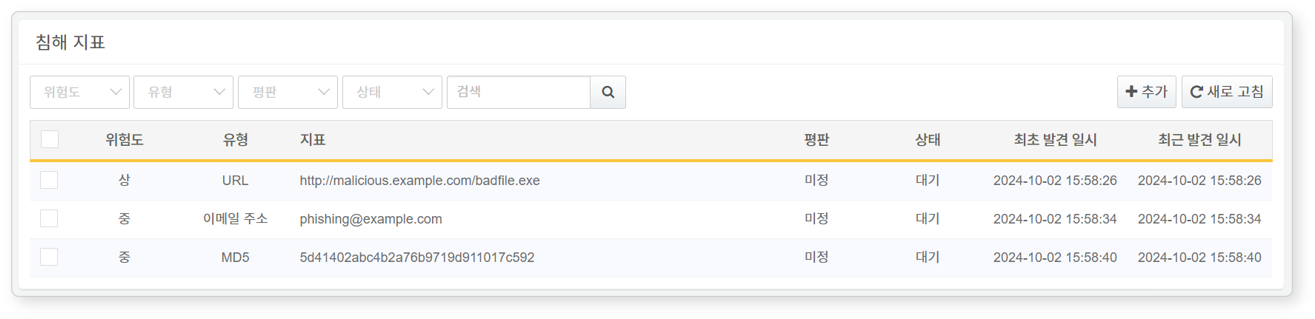
- Risk: Risk level of the IoC (Benign, Low, Medium, High)
- Type: IoC type (IP, Domain, URL, MD5, Email)
- Indicator: Value of the IoC
- Reputation: Assessment of the IoC’s credibility
- Suspicious: The IoC is suspected to be a threat based on reputation analysis.
- Unknown: The IoC has not yet been verified.
- Status: Current status of the IoC (Wait, Done, Error, Retry)
- First Seen: Date and time when the IoC was initially detected and registered
- Last Seen: Date and time when the IoC was most recently detected
To find a specific IoC, use the search tool in the toolbar. The search tool filters IoCs based on the entered keyword. The search is not case-sensitive.
Refresh IoC List
To update the IoC list with the latest information, click Refresh in the toolbar.
Download IoC List
To download the IoC list as a file, click Download in the toolbar. The currently viewed or searched IoC list is the target of the download.
In the download dialog box, you can select items (columns) to include. By default, the following items are included:
- Risk, Type, Reputation, Status, Indicator, First Seen, Last Seen
New Indicator
To add an IoC:
-
Navigate to Policies > Indicators and click Add in the toolbar.
-
In the New Indicator dialog box, configure the necessary settings.
- Type: Type of IoC (Options: IP, Domain, URL, MD5, Email)
- Value: Corresponding IoC value

Update IoC Risk
To change the risk level of an IoC:
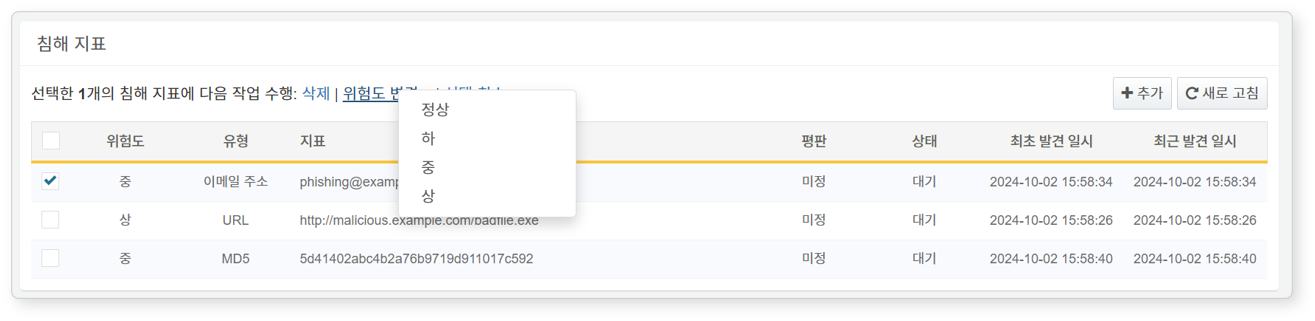
- Select the checkboxes of the IoC(s) you want to modify.
- Click Change Risk in the action menu that appears in the toolbar.
- Select the desired risk level (Options: Benign, Low, Medium, High).
Delete IoC
To delete an IoC:
- Select the checkbox of the IoC you wish to delete.
- The action menu will appear.
- Click Delete in the action menu.
Usage
- As triggers to initiate playbooks.
- For updating IoC-related commands in playbook command sets.