
Users
Overview
You can register and manage users in the Users page. All users can access the web console and the REST API within the scope of the data granted by their assigned roles and access rights.
User Roles
The user roles are as follows:
-
Cluster Administrator: The default administrator account provided upon installation of Logpresso Sonar. It has full configuration permissions, including server cluster settings.
-
Administrator: Has all configuration, data, and account management permissions, excluding those of the Cluster Administrator.
-
User: Has the right to view only the data that the (Cluster) Administrator has permitted access to.
-
Dashboard Publisher: Has the right to view only the data necessary for sharing Logpresso Sonar dashboards externally.
2FA
Two-factor authentication (2FA) can be applied when logging into an account to enhance security. Currently, only OTP is supported. Any OTP app that complies with Google Authenticator or RFC 6238 can be used.
API Key
An API key is required to use the Logpresso REST API. API keys are generated on a per-account basis and have permissions based on the roles assigned to the account.
Search User
Cluster Administrators and Administrators can view the user list on the Users > Users page. User-level accounts cannot view the user list.
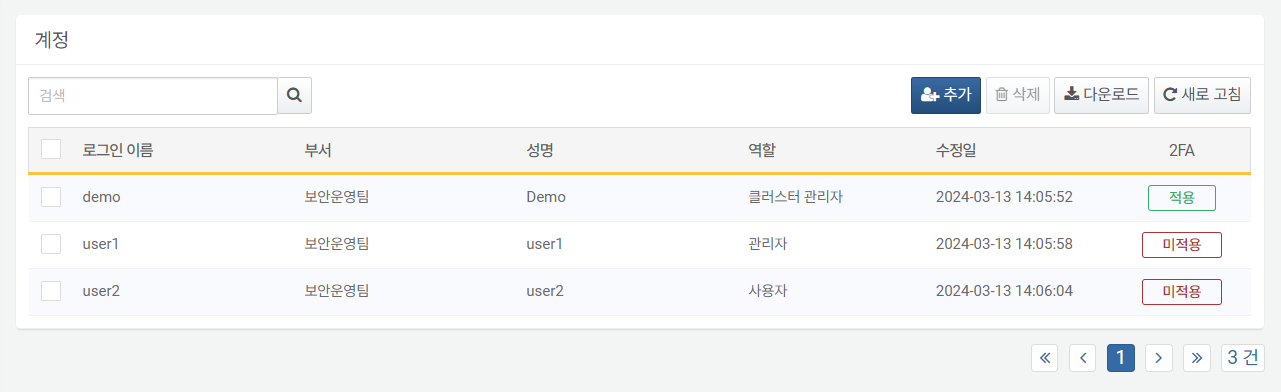
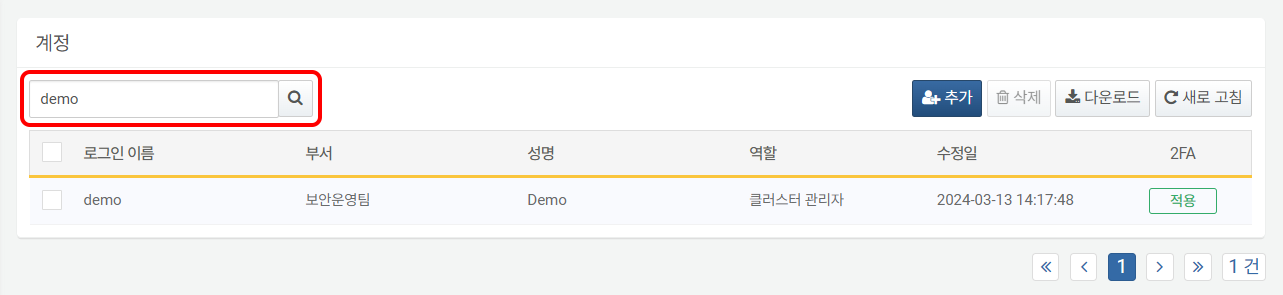
To find a specific account in the account list, use the search tool in the toolbar. The search tool will display accounts that contain the entered words in Username, Department, or Full Name. The search tool is case-sensitive.
Add User
To add a user:
-
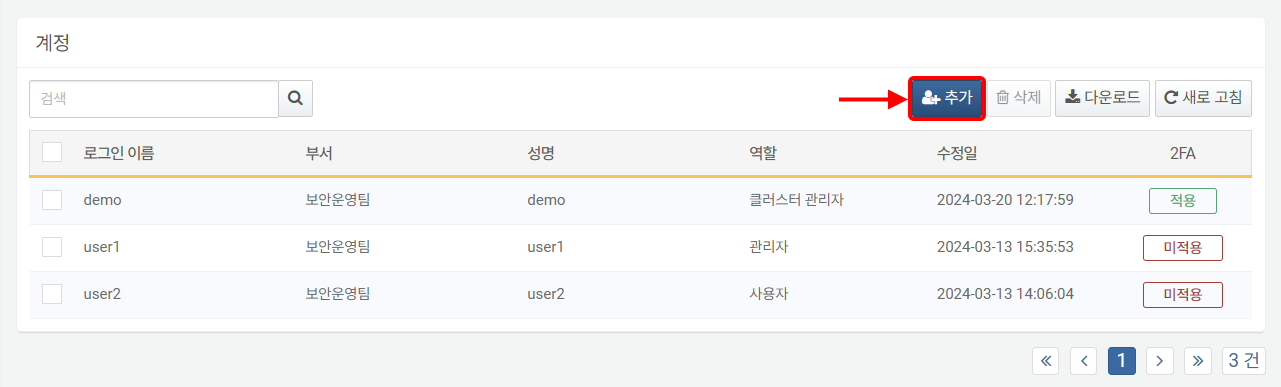
Click Add in the toolbar on the Users > Users page.
-
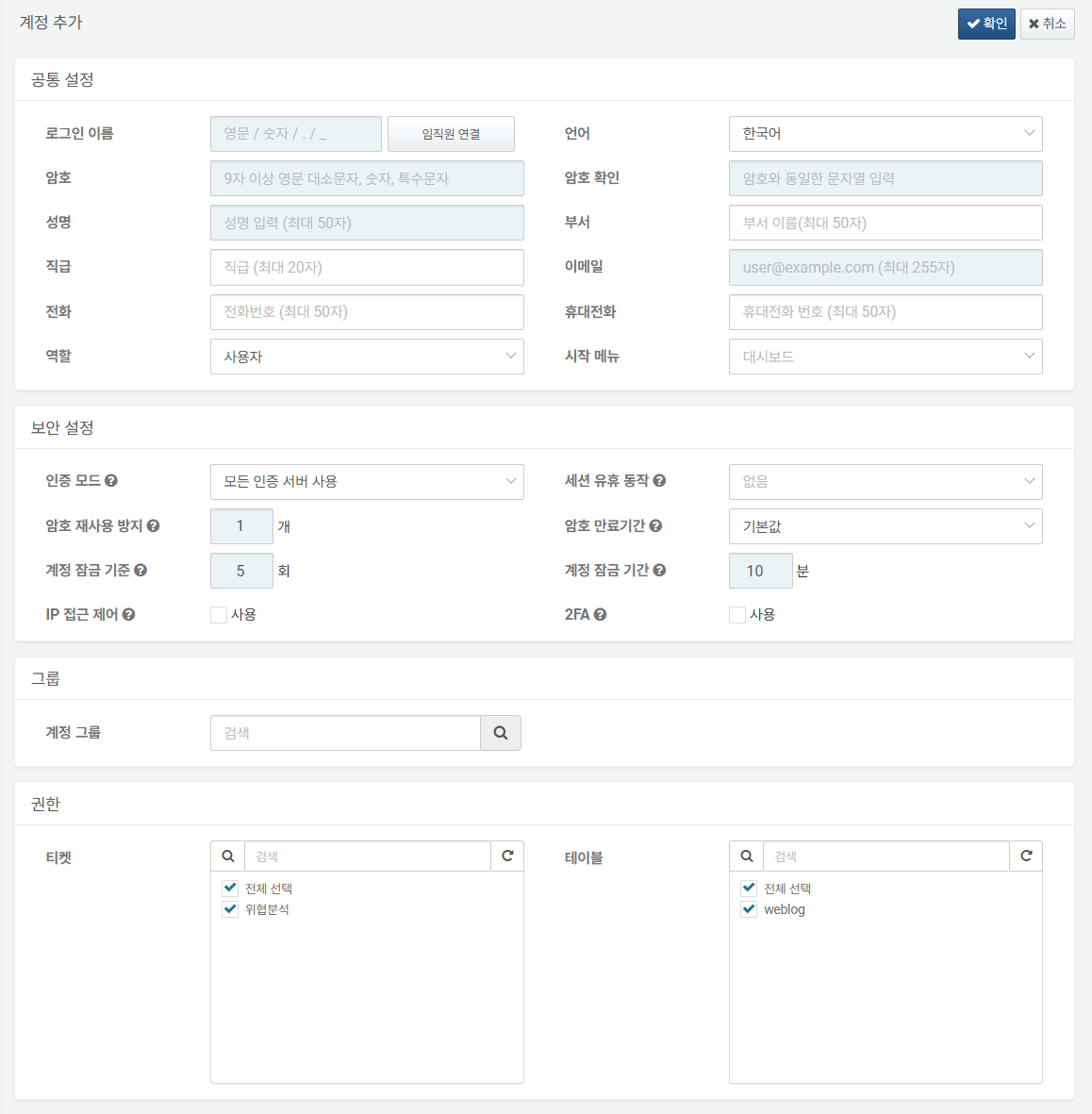
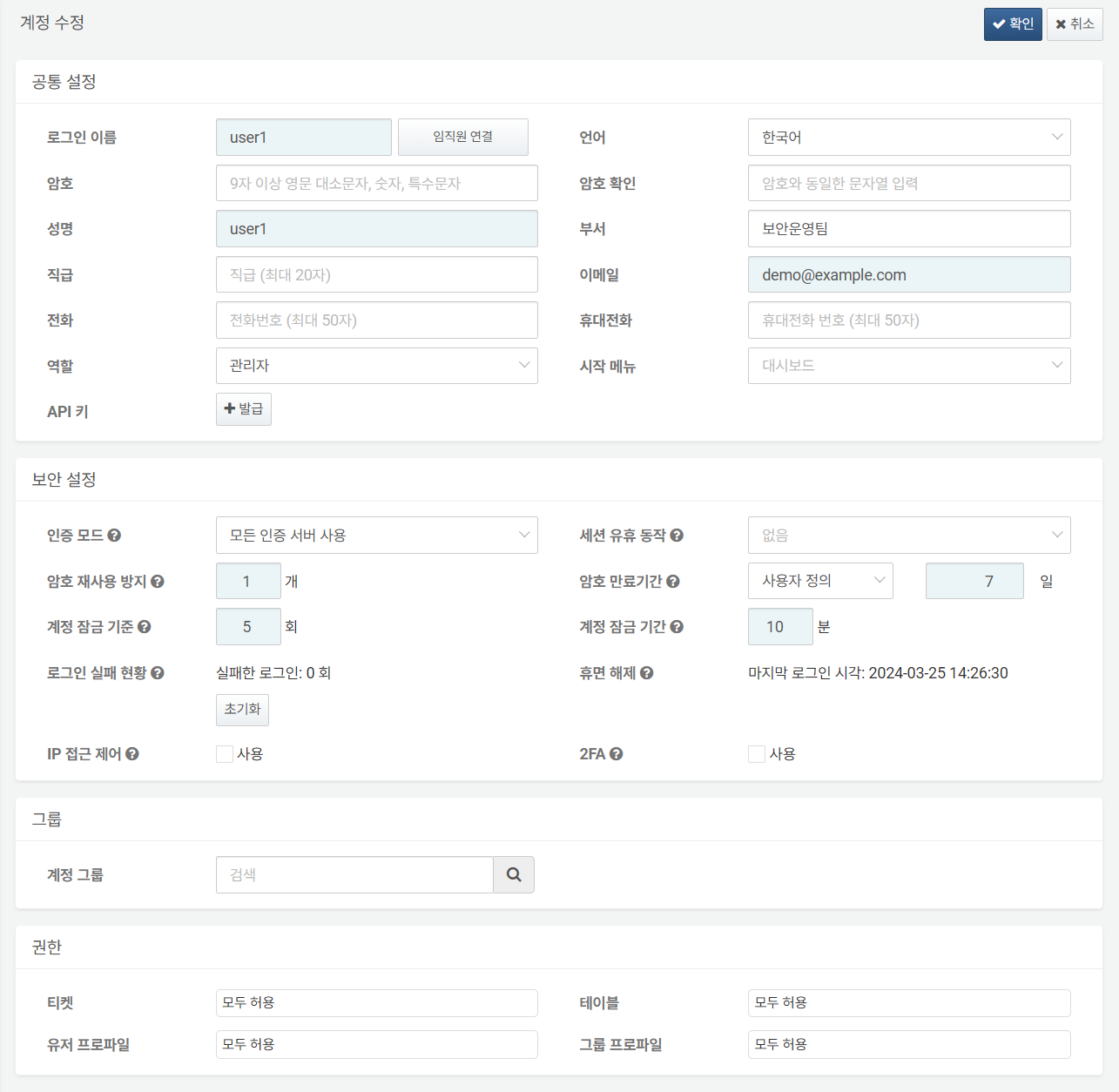
In the Add User screen, enter or select the properties for Basic Settings, Security Settings, Groups, and Permissions. Properties highlighted in sky blue are mandatory fields.
-
Review the entered or selected properties and click Confirm in the upper right corner.
The following describes options for common settings configuration.
Basic Settings
General unique settings for the user account.
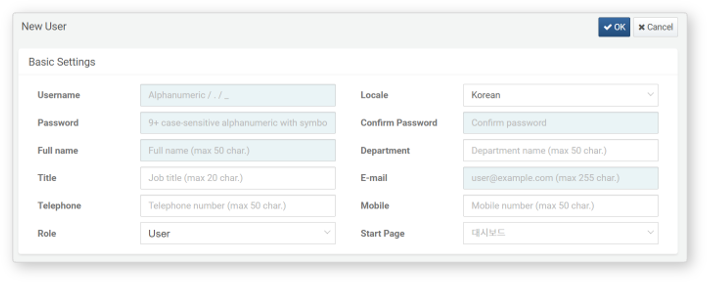
-
Username: The ID used to log into Logpresso Sonar. The Username can only contain English letters (case-sensitive), numbers, periods (
.), and underscores (_).CautionYou cannot use 'root', 'system', or 'logpresso' as a login name.
-
Locale: The language to be applied in the web console after logging into Logpresso Sonar. Choose between Korean and English.
-
Password, Confirm Password: The password used for authentication when logging in. Enter the same value in both the Password and Confirm Password fields. The password must satisfy the Password policy configured on the system. By default, it must be at least 9 characters long, include letters, numbers, and special characters, and must not repeat the same character three times in a row. (Required when creating a new account)
-
Full Name: The actual name of the user.
-
Department: The department to which the user belongs.
-
Title: The user's job title information.
-
Email: The email address to receive emails sent by Logpresso Sonar.
-
Telephone: The user's phone number.
-
Mobile: The user's mobile phone number. If SMS is configured to be sent to the user by Logpresso Sonar, the registered mobile phone number can be used.
-
Role: The user's role from Cluster Administrator, Administrator, User, or Dashboard Publisher (default: User).
-
Start Page: The screen to be used as the start page in the session of the logged-in account in the web console (default: Dashboards).
Security Settings
Various security settings for the account.
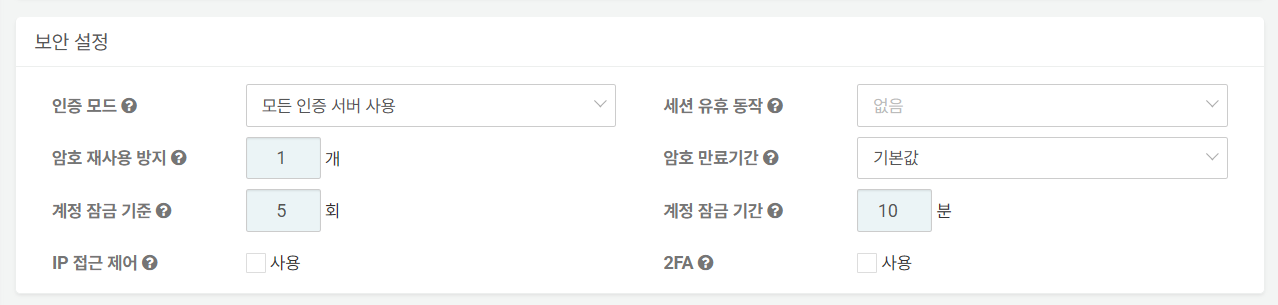
-
Authentication Server: The server for account authentication (default: Built-in first, external second).
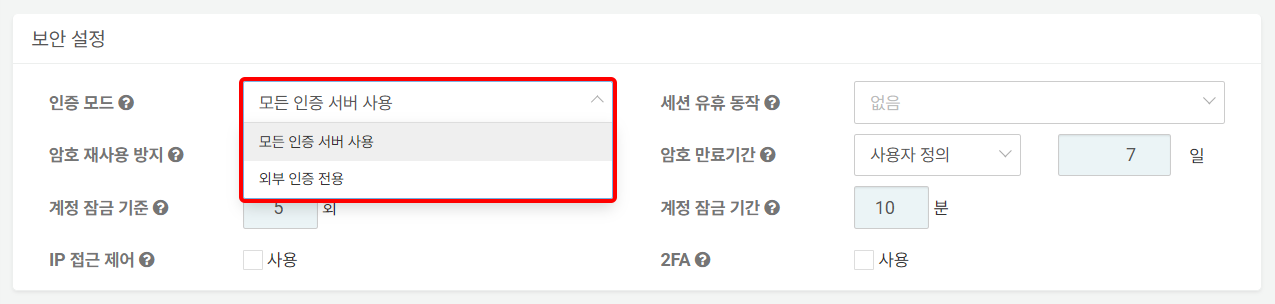
- Built-in first, external second: Attempts to authenticate the account matching the Username from all authentication servers configured on the server. It first attempts local account authentication registered on the server, followed by external authentication servers. The usernames for local accounts and external authentication servers must be the same.
- External server only: Authenticates the account using the authentication information provided by external authentication servers.
-
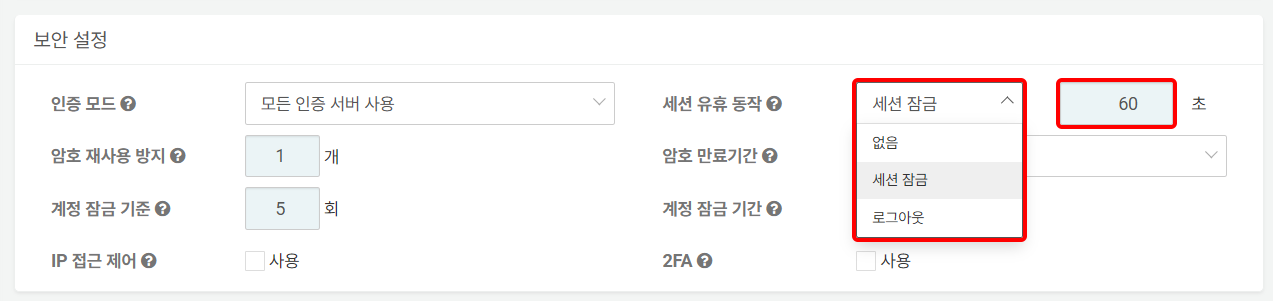
Idle Timeout: The behavior of a user session when there is no activity from the user for a specified period of time. Choose from None, Locking, or Logout (default: None). When Locking or Logout is selected, the default idle time is 60 seconds. You may configure a custom idle timeout value between 60 seconds and 604,800 seconds (7 days).
-
Block Password Reuse: A policy that prevents users from using previous passwords when changing their login password. The server remembers the hash values of the passwords used for the account for a specified number of times and blocks reuse (default: 1, valid range: 0-23).
-
Passwd. Expiration: The period during which the password can be used after being set. Choose from Default (365 days), Custom, or Indefinite. The server will display a password change popup when logging in and unlocking the session starting 7 days before the password expiration.
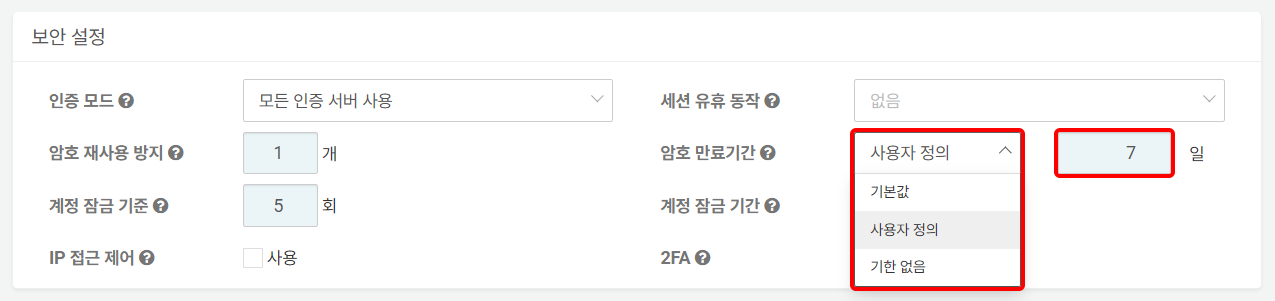
- Default: 365 days
- Custom: 7 days is the default, and it can be set between 7 and 3,650 days.
- Indefinite: No expiration period is specified for the password.
: If a user attempts to log in with an expired password, the password change window will appear as shown below.

-
Login Lock Threshold: The number of consecutive failed login attempts. If the user fails to log in the specified number of times, the account will be locked, and login will be blocked (default: 5, maximum: 50). Specifying '0' means that account locking will not be applied.
-
Account Lockout Duration: The duration for which the user's account lock will be applied. The default is 10 minutes, and the maximum is 100,000,000 minutes (approximately 39 months).
-
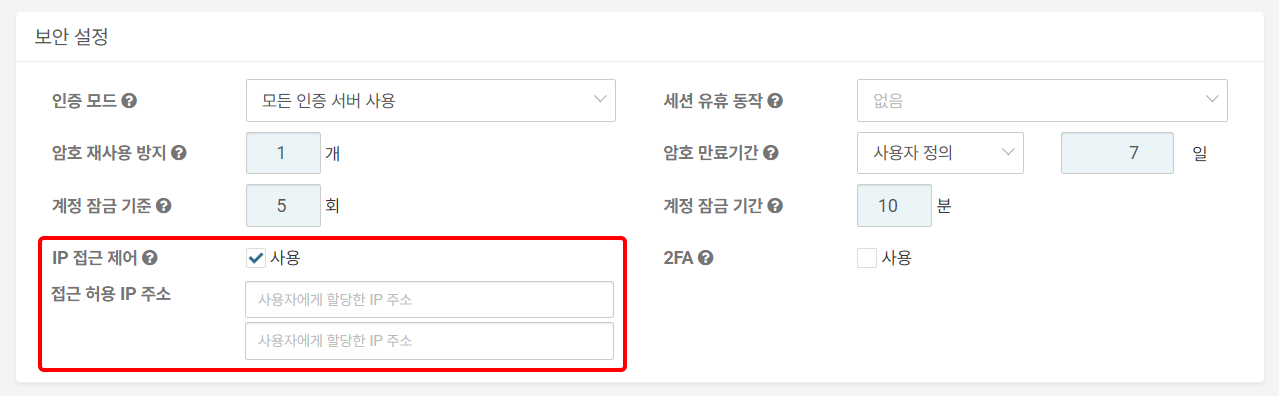
IP Control: Used to restrict the IP addresses from which the account can log in (default: Disabled). Checking Enable will display the Trusted IPs input field, where a maximum of 2 IP addresses can be specified.
-
MFA: Whether to apply 2FA (default: Disabled). The currently supported mode for 2FA is OTP, E-mail. Any OTP app that complies with Google Authenticator or RFC 6238 can be used.
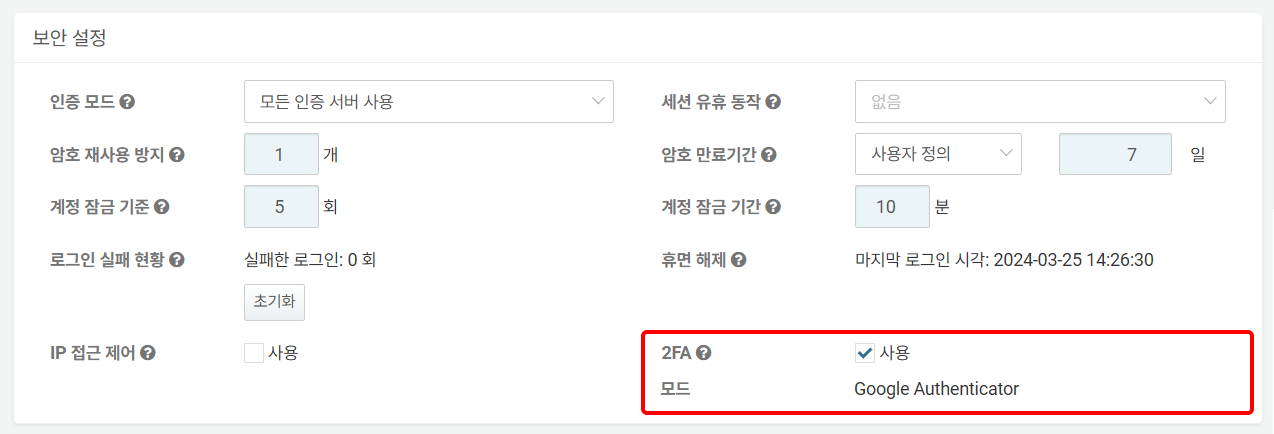
: For information on how account users can log in using 2FA, refer to here.
Group Settings
You can search for user groups and assign users to user groups.

-
Enter the user group name to which you want to assign the user account. A list of user groups containing the entered string will appear; click the user group to which you want to assign the user account.

-
To assign to more than one user group, repeat the above steps.

-
To remove a user from the assigned user group, click the [X] next to the user group name.
Permission Settings
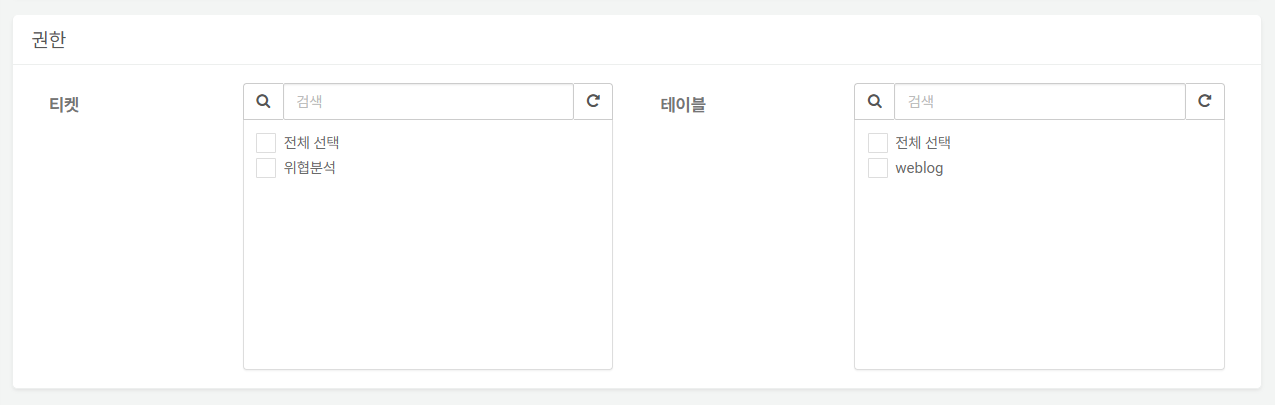
Permissions define the scope of access to Ticket Repositories and Tables for each user based on their assigned role. When the role assigned to the user is User or **Dashboard Publisher, access is granted only to the specified ticket repositories and tables. Cluster Administrators and Administrators have access to all tickets and tables.
-
Tickets: The ticket repositories that can be viewed with the user account. By default, no tickets are selected. Only select the ticket repositories that you want to allow access to for the user.
-
Tables: The tables that can be viewed with the user account. By default, no tables are selected. Only select the tables that you want to allow access to for the user.
Edit User
To edit user's properties such as the password or to unlock a user account:
-
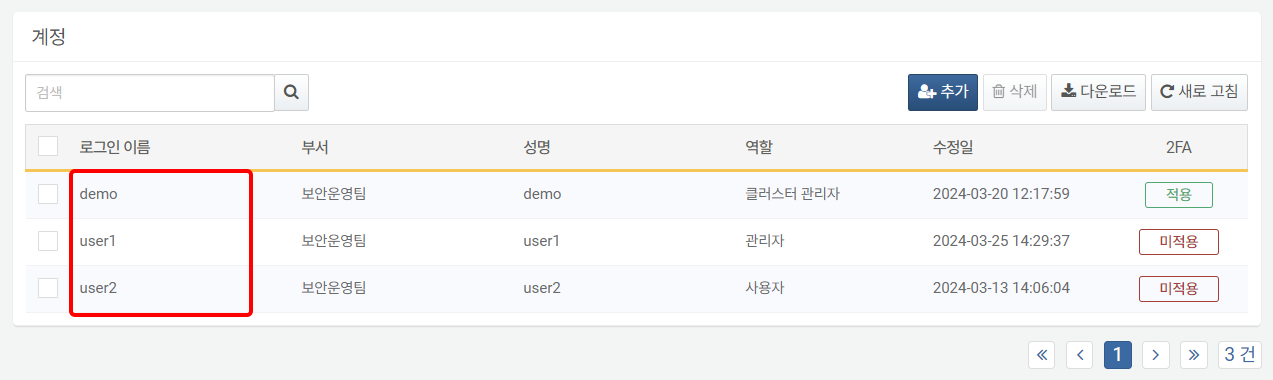
Click the Username of the user account from the list.
-
In the Edit User screen, modify the information and click OK. For descriptions of the properties to be modified, refer to Add User.
Reset 2FA
For user accounts that previously had 2FA set up, the 2FA setup information can be checked in Security settings as shown below. For information on how users can set up their 2FA authentication devices and log in, refer to here.
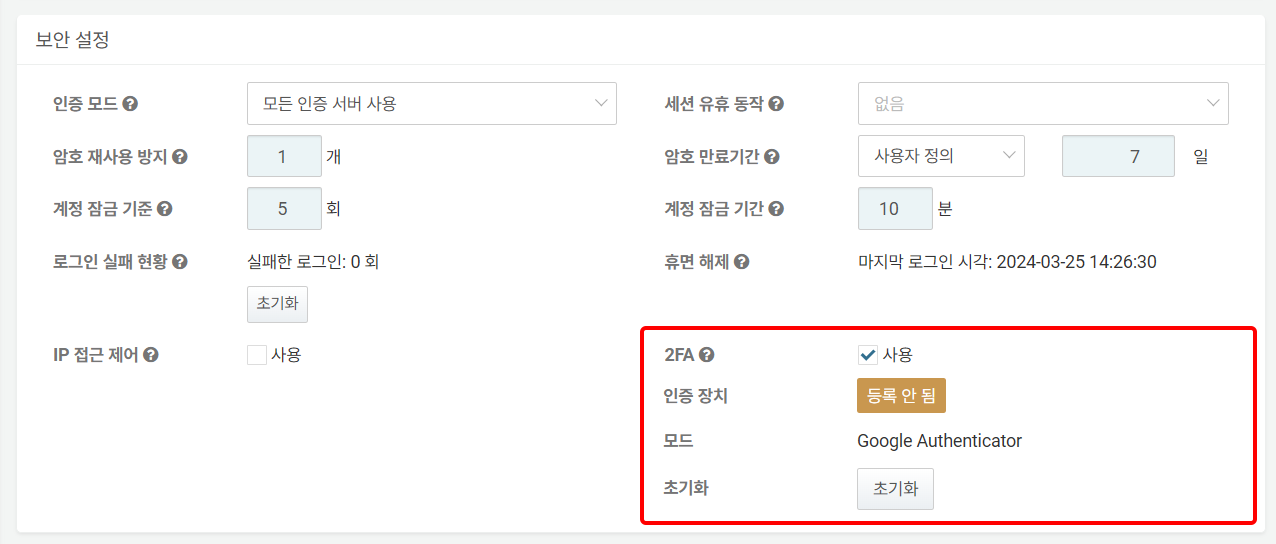
- MFA: Indicates whether the 2FA authentication device is registered. If marked as Not Registered, it indicates that the user account has not yet set up 2FA. If the user attempts to log in in this state, they will be redirected to the 2FA setup screen.
: If marked as Registered (in green), it indicates that an authentication device is registered to the account, and the user is ready to authenticate using 2FA.
- Reset: If the account user has lost their 2FA authentication device or needs to change it, they can request a 2FA reset from the administrator on the login screen. The user's 2FA reset request will be sent to the email account registered with the administrator. To remove the 2FA authentication device information registered to the account, click Reset.
Issue or Delete API Key
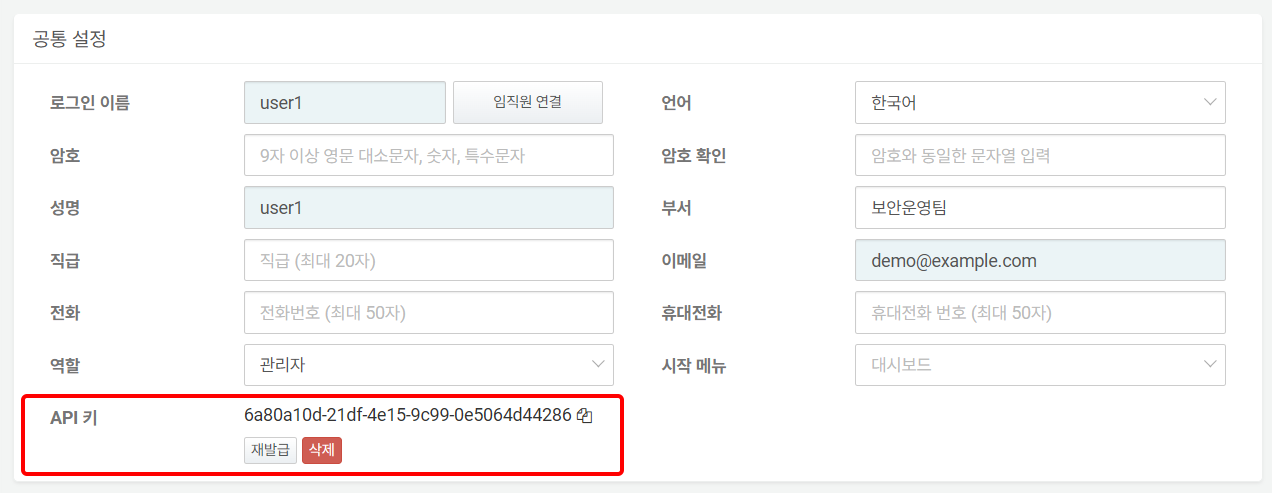
An API key is required to use the Logpresso REST API. To issue an API key, click Generate in the API key section under Basic Settings.
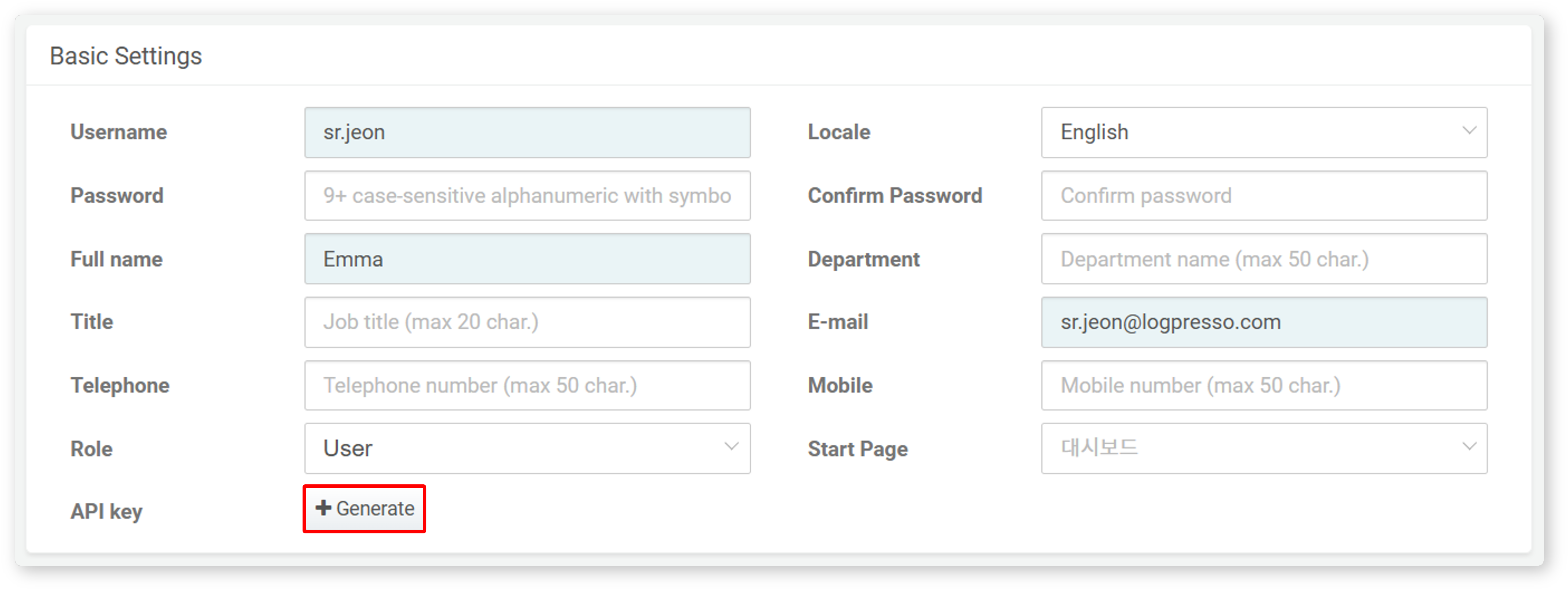
The following image is a screenshot of the screen where the API key has been generated.
-
Copy to Clipboard: Click the icon next to the generated API key to copy the API key to the clipboard.
-
Regenerate: Click to regenerate the API key.
-
Delete: Click to delete the issued API key.
Reset Login Failure Count and Unlock Account
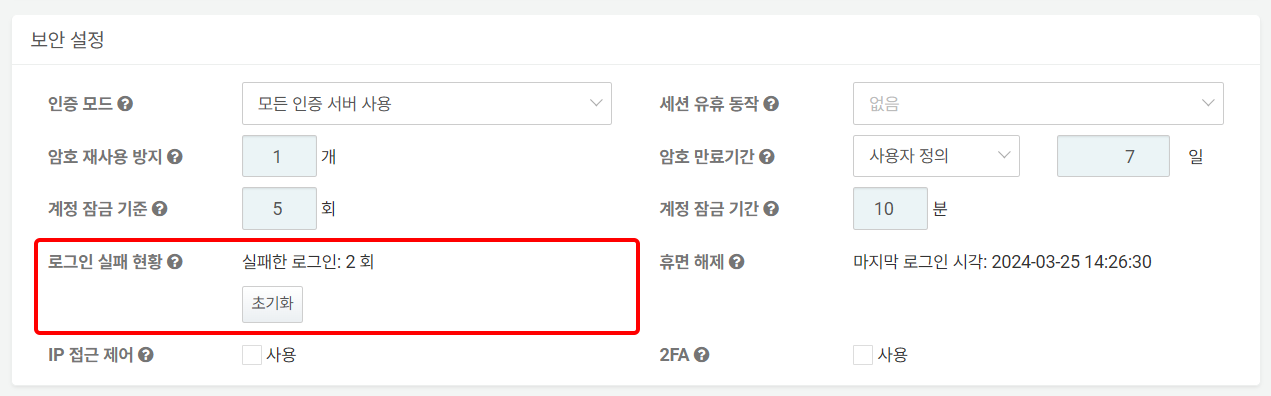
If a user fails to log in consecutively, the number of failed login attempts will be displayed as shown in the following image.
If the number of consecutive failures exceeds the account lock criteria, the unlock time will be displayed as shown in the following image.
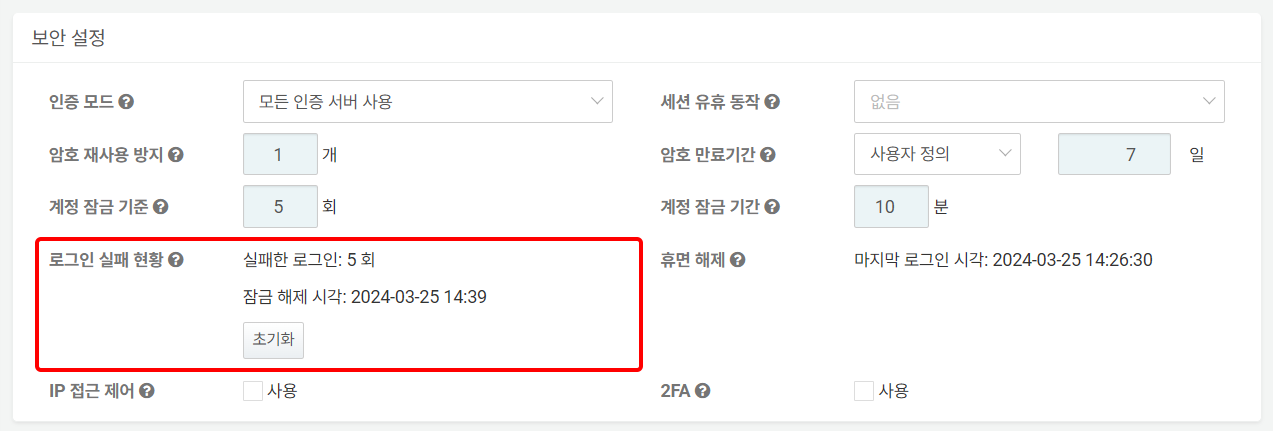
To reset the number of login failures or unlock the account, click Reset in the Login Failure Count section.
Reactivate Dormant Account
Depending on the server settings, accounts that haven’t logged in for a certain period may be marked as dormant. To reactivate a dormant account, click Reactivate.
Edit Permission
In addition to the ticket repositories and tables that the user can access, you can check the connect profiles available to the account.
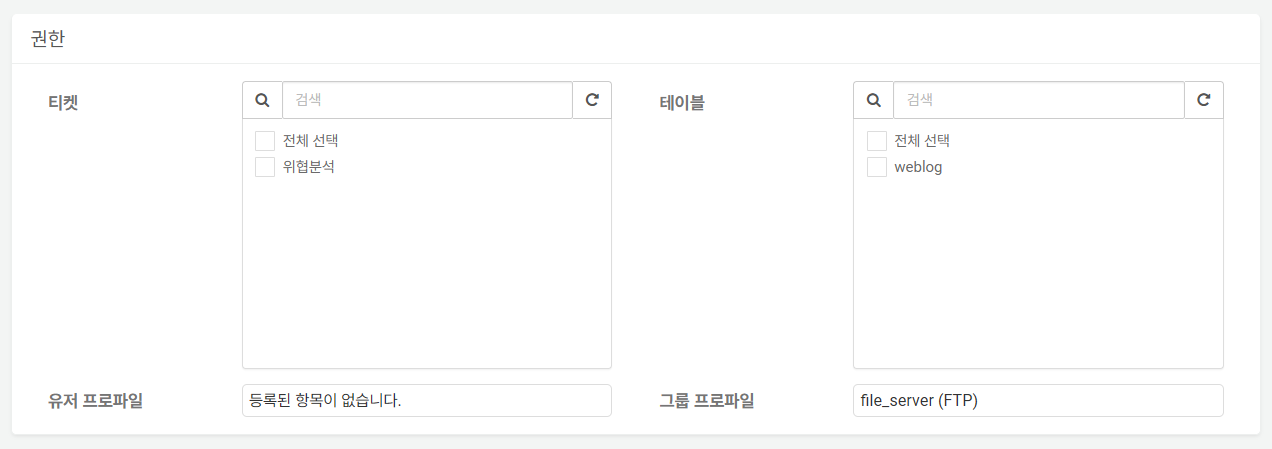
Ticket and Table permissions can be changed on this screen, but User Profile and Group Profile can be changed in the Connect Profiles.
-
User Profile: If the user has been granted access to a connect profile, the profile name will appear in the list.
-
Group Profile: If the user belongs to a group with connect profile access, the profile name will also appear in the list.
Enable and Disable 2FA
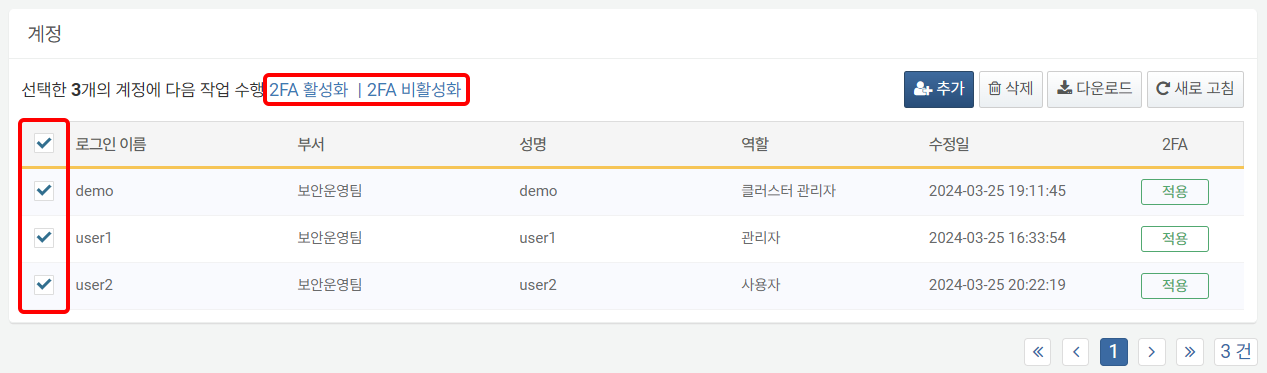
To enable or disable 2FA for one or more useraccounts:
-
Select the checkbox for the row containing the user information for which you want to enable or disable 2FA.
-
Click Change MFA Method or Enable MFA or Disable MFA in the toolbar.
Delete User
To delete a user:
-
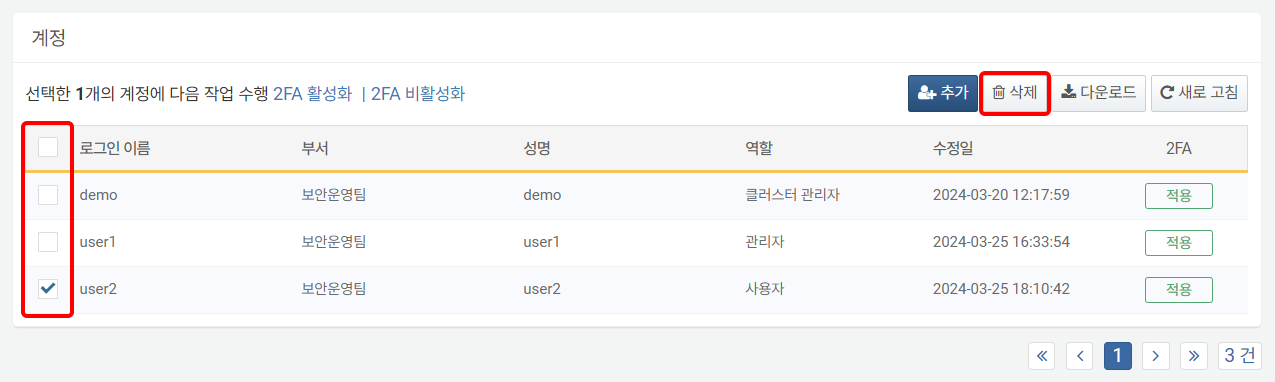
Select the checkbox for the row containing the user information you wish to delete.
-
Click Delete in the toolbar.
-
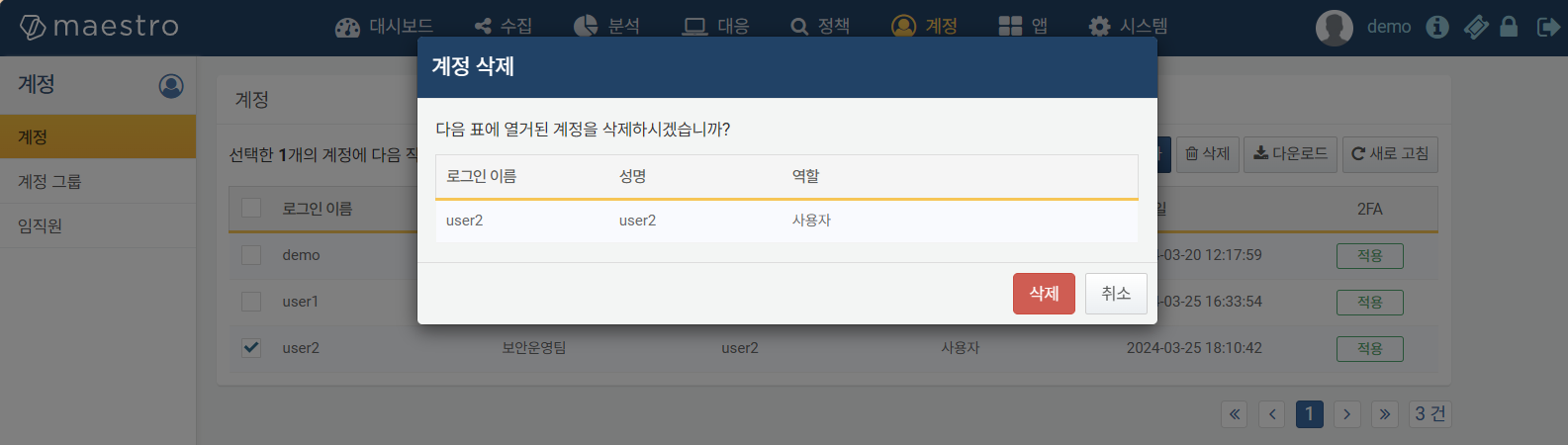
In the Delete User dialog, review the list of accounts to be deleted and click Delete. Click Cancel if you do not wish to delete.
When a user account is deleted, only the account itself is removed. Other related information remains unchanged. For example, if a ticket was assigned to the deleted account, the assignment history will still be retained.
Password policy
The password policy defines the length and complexity rules that a local account's password must satisfy, and it applies to all accounts. The server checks the policy when you create an account or change or reset a password. It does not apply when a local password is not used, such as for accounts that authenticate only through an external provider.
Even if you do not configure it, the following default policy applies:
- At least 9 characters
- Includes at least one letter, one number, and one special character
- Does not repeat the same character three times in a row
- Cannot contain the username
An administrator can change the policy from the Logpresso shell using the following global options.
| Option | Description | Default | Valid range |
|---|---|---|---|
| min_password_len | Minimum password length | 9 | 3-100 characters |
| max_password_len | Maximum password length | 100 | Above the minimum length, up to 100 |
| password_complexity | Complexity rules (comma-separated) | digit,special,no_repeat=3 | See the rules below |
You can specify the following rules for password_complexity:
upper: Includes at least one uppercase letterdigit: Includes at least one numberspecial: Includes at least one special characterno_repeat=N: Does not repeat the same character N times in a row (N is 2-5, default 3)
Regardless of the complexity rules, a password must always include at least one letter.
For example, to enforce a policy of at least 12 characters, at most 20 characters, mandatory uppercase letters, numbers, and special characters, and no same character repeated four times in a row, configure it as follows:
sonar.setGlobalOption min_password_len 12
sonar.setGlobalOption max_password_len 20
sonar.setGlobalOption password_complexity upper,digit,special,no_repeat=4
To unset an option you have configured, run sonar.unsetGlobalOption [option name]. If you specify an invalid value or a value outside the allowed range for an option, the server adjusts it to the valid range or uses the default value.