Mail Server
Overview
In Settings > Mail Server, you can register and manage the SMTP server that Logpresso Sonar will use to send emails.
Features Requiring Mail Server Configuration
The mail server must be configured to utilize the following features:
- Send explanation request emails
- Send notification emails for approval requests
- Notify ticket status
- Send emails to the accounts designated in the alarm groups
- (Playbook) Send report file via email
- (Playbook) Send email
- (Login Screen) Request 2FA reset for admin
- sendmail query command
Configure SMTP Server
In Basic Settings, specify the following properties and click Save.
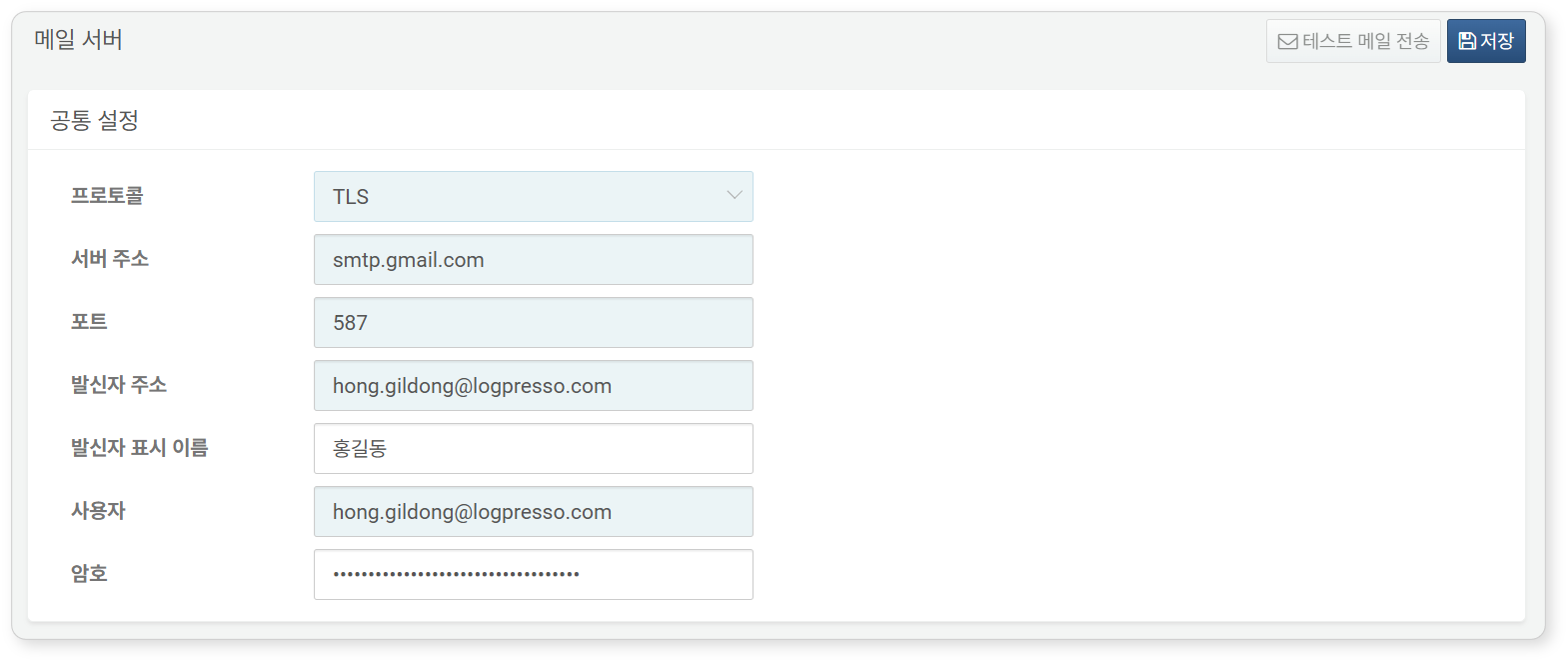
- Protocol: Email transmission protocol (default: TLS). Choose one of the following:
- PLAIN: Unencrypted SMTP communication.
- SSL: SMTPS communication. The default port is 465/tcp.
- TLS: SMTP over TLS (STARTTLS) communication. The default port is 587/tcp.
- Server Addr.: Address of the SMTP server.
- Port: TCP port for SMTP communication (default: 587).
- Sender Addr.: Email address of the sender.
- Display Name: Display name of the sender.
- User: Username for SMTP server login. You can also enter a plain string that is not an email address. However, a value consisting only of spaces, or a value with leading or trailing spaces, is not allowed, and the value can be up to 255 characters long.
- Password: Password for SMTP server login.
- Reset Password: Select this to connect to the mail server without a password (for example, a relay mail server used for internal email delivery).
- HTTP Proxy: HTTP proxy address, if a proxy is required for external communication.
Note
Typically, SSL uses port 465/tcp, and TLS uses port 587/tcp for SMTP communication. For Gmail, enter the same value for both the sender address and user.
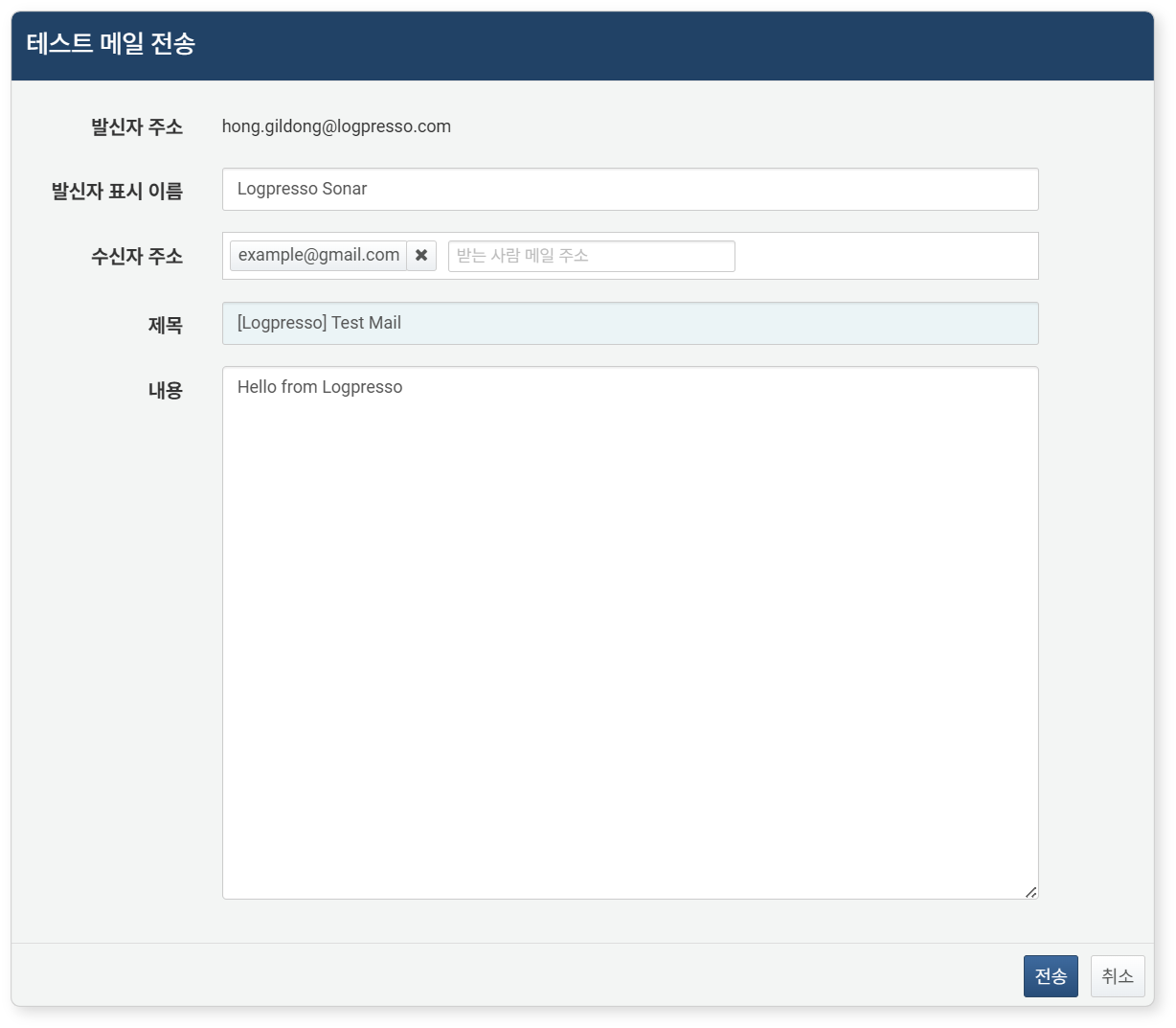
Send Test Mail
Once you have entered and saved the Basic Settings, the Send Test Mail button will be activated. Click this button to send a test email and verify that the mail server configuration is correct.