
Procedure
Overview
Procedures in Logpresso function similarly to procedures in traditional DBMS environments. They allow you to modularize complex queries and perform the same operation easily by passing different parameter values. For instance, if you frequently perform a complex query to find a specific IP address in a table, defining a procedure that takes the IP address as an input parameter allows you to execute the same task quickly and efficiently without having to write a long query each time you search for an IP address.
Procedures offer the following advantages:
-
Improved Reusability and Maintainability: By modularizing queries that provide specific functionalities through procedures, reusability is enhanced. Users only need to know the procedure name and the parameters to use. This eliminates the need to write repetitive queries and makes query statements easier to maintain.
-
Enhanced Security: Commands that access external systems, such as dbquery, ftp, and sftp, require permissions for connect profiles. Granting users direct access to a connect profile can be unsafe, as it allows them to perform arbitrary actions on external systems. By encapsulating commands that require administrative privileges—or that allow unrestricted operations on local or remote hosts—into procedures, you can manage user permissions without granting full administrative rights across the system. This approach can also be applied to restrict access to specific portions of the original data or to mask sensitive data.
-
Access to Logpresso Configuration Information: Access to Logpresso’s system tables requires administrative privileges. When users need to access system configuration information, you can configure procedures to provide controlled access without granting full administrative rights.
Notes
Keep the following points in mind when working with parameters:
- Parameters can only be used in specific parts of the query, such as filter expressions.
- Parameters cannot be used for query command names or table names.
- This restriction exists to ensure query execution stability and to prevent SQL injection attacks.
View Procedure List
You can view or search the list of procedures in Analysis > Procedures.
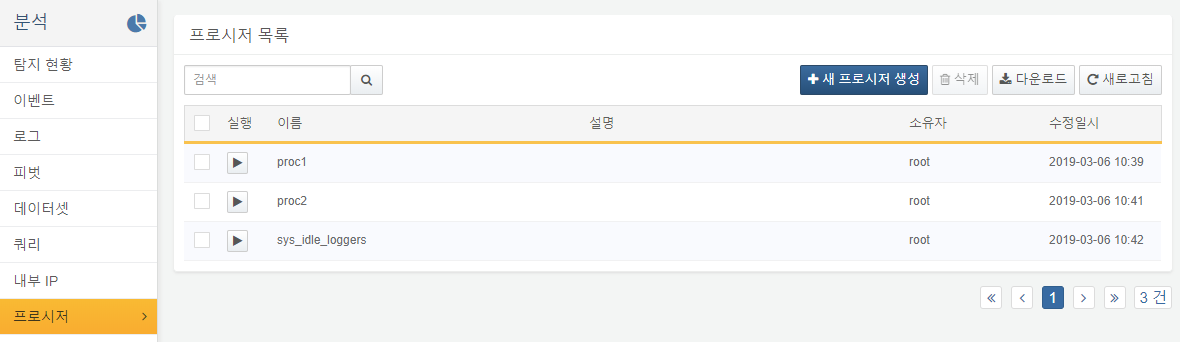
- Run: Execute the procedure
- Name: The name of the procedure
- Description: A description of the procedure
- Owner: The user account that created the procedure
- Modified At: The date the procedure was last modified (or created)
To find a specific procedure, use the search tool in the toolbar. The tool searches for procedures that contain the entered keyword in the Name or Description. The search tool is not case-sensitive.
Create Procedure
To create a procedure:
-
Click Add in the toolbar of the procedure list.
-
On the Add Procedure screen, enter the required values and click OK.

-
Name: The name of the procedure. Only letters, numbers, and underscores (_) are allowed.
-
Description: A detailed description of the procedure (up to 2,000 characters).
-
Query: Enter the query to be executed by the procedure.
-
Parameter: Query parameters.
- Parameter auto add: If your query contains parameters (e.g., $("arg1")), click this button to automatically detect and add them to the list.
- Add: Click to add query parameters. A new row will appear.
- Type: The data type of the parameter.
- Key: The parameter key. This must match the name used in the query.
- Name: Display name for the parameter
- Description: Description of the query parameter.
- Action: Click
 icon to remove the selected parameter row.
- Delete All: Click to remove all parameter items.
-
Sharing: Grant view/execute permission to all users.
-
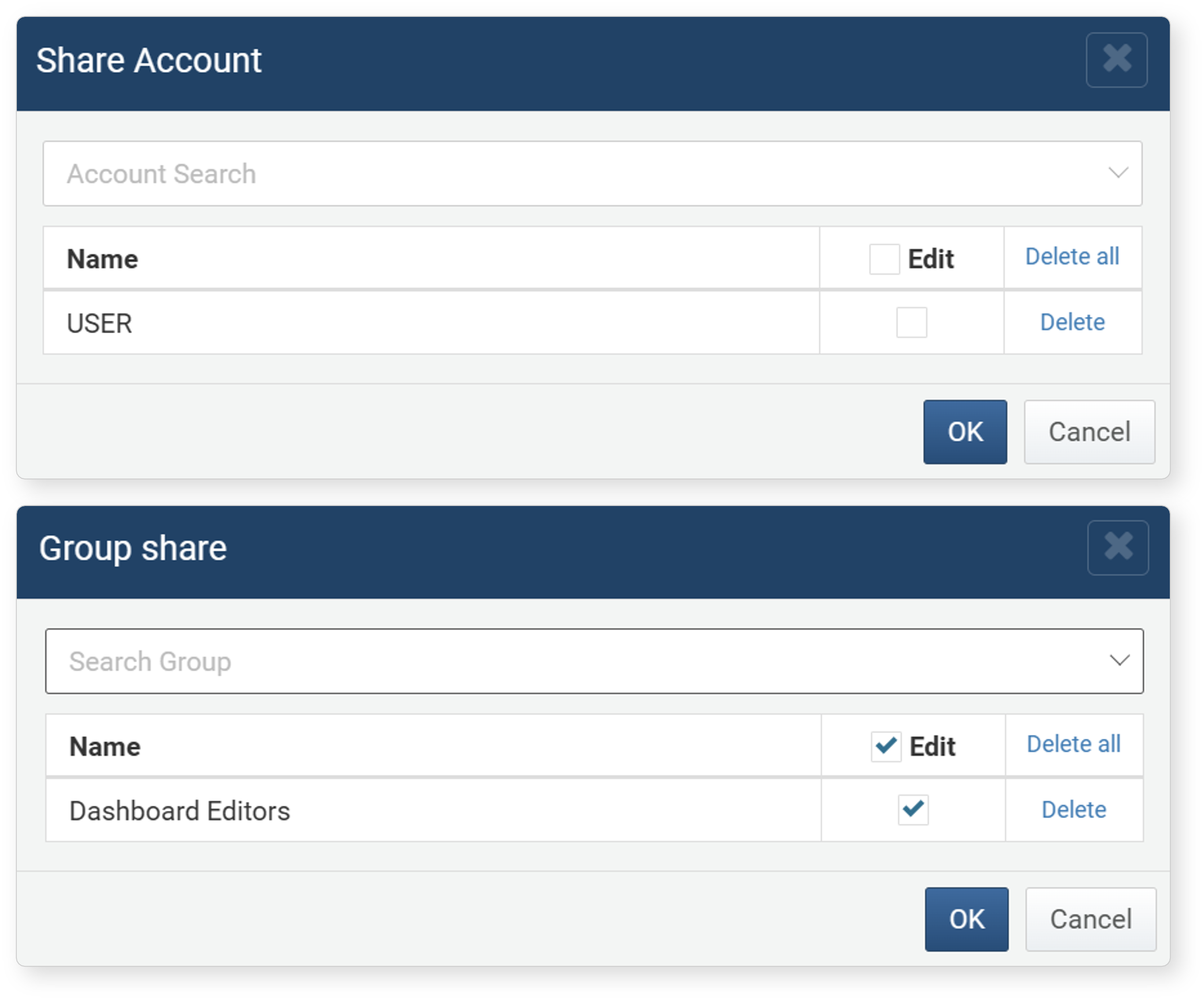
Granted Users/Granted Groups: List of users or user groups to grant permissions for the procedure. Click the settings icon to open the Granted Users/Granted Groups dialog and select users or groups.Check the Edit checkbox to grant modify/delete permissions.
-
Access permissions are granted based on the user and group sharing settings. Cluster Administrators and Administrators can add, modify, or delete procedures regardless of sharing configuration.
Procedure Query
The query used in a procedure can reference query parameters passed by the user at runtime using the $() reference function. For example:
# Let's name the procedure using this query cpu_overload.
| table duration=1d sys_cpu_logs
| search kernel + user >= $("threshold")
thresholdis an input parameter used to compare against the sum of thekernelanduserfields.
One of the most common mistakes when writing a procedure is assuming that the $() function behaves like a macro that performs text substitution. In reality, $() can only be used in places where an expression is allowed within a query command. For example, the following query is not valid because dbquery does not support arbitrary SQL statement input as an expression:
dbquery USERDB $("sql")
Run Procedure
There are two ways to execute a procedure:
- Call the procedure using the proc command in a query.
- Click Run on the desired procedure from the procedure list.
Call Procedure Using Query
Procedures can be executed in most areas that support query input. The example below shows how to execute a procedure from Analysis > Queries.
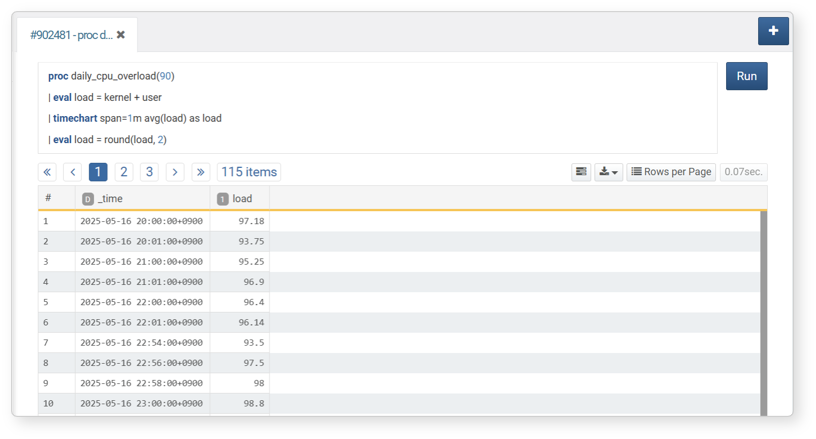
To call the cpu_overload procedure:
proc cpu_overload(90)
- The value inside the parentheses is passed to the query parameter
thresholddefined in the procedure. - If the procedure has no query parameters, simply call it with empty parentheses:
proc cpu_overload().
Run Proceure Manually
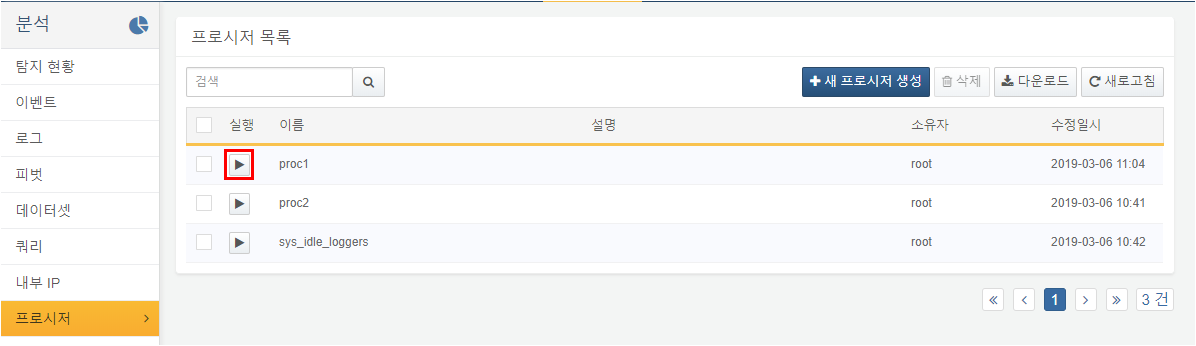
To run a procedure from the procedure list:
-
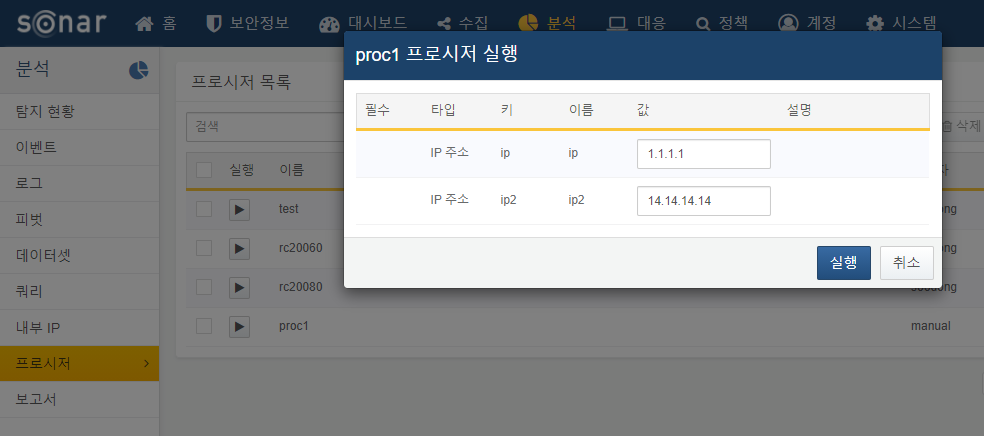
Click the ▶ icon next to the procedure you want to execute in the procedure list.
-
In the Run Procedure dialog, enter the required parameter values and click Run. Ensure that the entered values match the expected Type.
-
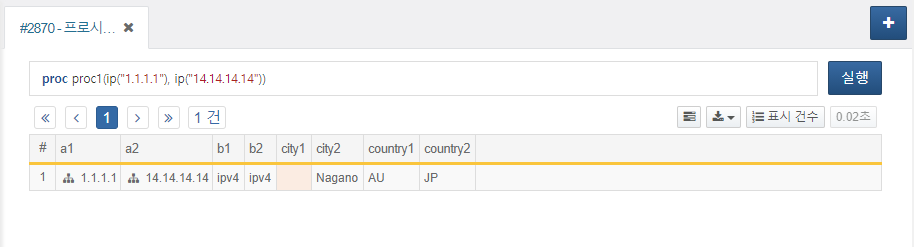
You will be redirected to Analysis > Queries, where the execution results will be displayed.
Edit Procedure
To edit a procedure:
- Click the Name of the pprocedure you want to modify in the procedure list.
- In the Edit Procedure screen, update the relevant fields and click OK.
- For details on editable properties, refer to Add Procedure.
Delete Procedure
To delete a procedure:
- Select the checkbox next to the procedure you want to delete in the procedure list.
- Click Delete in the toolbar.
- In the Delete Procedure dialog, review the list of procedures to be deleted and click Delete. Click Cancel to abort the operation.