AI Assistant
Overview
The AI Assistant, LoRo (Logpresso Robot), helps users make more effective use of Logpresso Sonar. When users ask conversational questions such as "Show me the recent ticket list," it responds in natural language or executes the requested action by calling Logpresso query commands or REST APIs.
Capabilities
AI Assistant can perform the following tasks:
-
Responding to User Questions: It provides answers when users ask about how to use Logpresso query commands or functions, account password expiration policies, or how to format and normalize sample logs.
-
Executing Logpresso Queries: The AI assistant analyzes the user's intent and constructs appropriate query commands to retrieve data, such as firewall logs, assigned tickets, or IP reputation results from integrated apps (e.g., AbuseIP, Criminal IP, Logpresso CTI). If an app includes AI prompts, the assistant can recognize and execute those extended commands.
-
Calling Logpresso REST APIs: It can execute functional and administrative tasks through the Logpresso REST API, such as retrieving ticket lists or adding loggers and parsers.
-
Multi-Step Queries or REST API Calls: When a user request involves multiple sequential steps, the assistant breaks the task into logical units and executes them using a series of queries or REST API calls.
The assistant operates by executing Logpresso queries or performing actions through REST API, as defined by AI Prompts. AI prompts provided with apps are immediately enabled upon app installation, extending the AI assistant's functionality.
Limitations
There are certain tasks that the AI assistant is not suitable for:
-
Extracting Information from Images: The AI assistant does not provide functionality for recognizing information from image files.
-
Unsupported Platform Features: The AI assistant cannot execute requests for features that are not provided by Logpresso.
-
Out-of-Scope Questions or Requests: The AI assistant can only handle questions or requests related to the functionalities provided by Logpresso Sonar.
-
Execution Scheduling or Conditional Actions: For example, it cannot process requests like "Notify me by email when user A logs in" or "Update all threat intelligence tomorrow at noon," which require specific conditions or timing for Logpresso Sonar to perform tasks.
-
Reinforcement Learning Feedback: Typically, large language models (LLMs) undergo reinforcement learning processes to improve accuracy through feedback, the AI Assistant does not retain learning between sessions. Therefore, feedback-based corrections do not guarantee future response improvements.
Confidentiality and Security
The AI assistant is subject to the OpenAI Business Terms. Provisions related to confidentiality, security, and privacy are outlined in Sections 4 (Confidentiality), 5 (Security), and 6 (Privacy). In accordance with these terms, information provided through the AI Assistant is handled confidentially. However, if you are concerned about the potential exposure of confidential or personal information while using the AI Assistant, we recommend refraining from using this feature.
Preparation for Use
To use the AI Assistant, follow these steps:
-
Obtain an AI assistant license.
-
Ensure that the Logpresso Sonar control node can access the Logpresso AI service at https://ai.logpresso.com.
-
Create a Logpresso AI Assistant Connect Profile after obtaining an API key from Logpresso. Go to Settings > Connect Profiles to create the connect profile. If the LLM server responds slowly, adjust the profile's Connect Timeout and Read Timeout values as needed.
-
Refresh your web browser or log out and log back in to access the AI Assistant interface.
NoteThe AI Assistant screen becomes available only after a connect profile has been created.
Screen Layout
You can access the AI Assistant under Analysis > AI Assistant. The AI Assistant screen is divided into a chat list and a chat window.
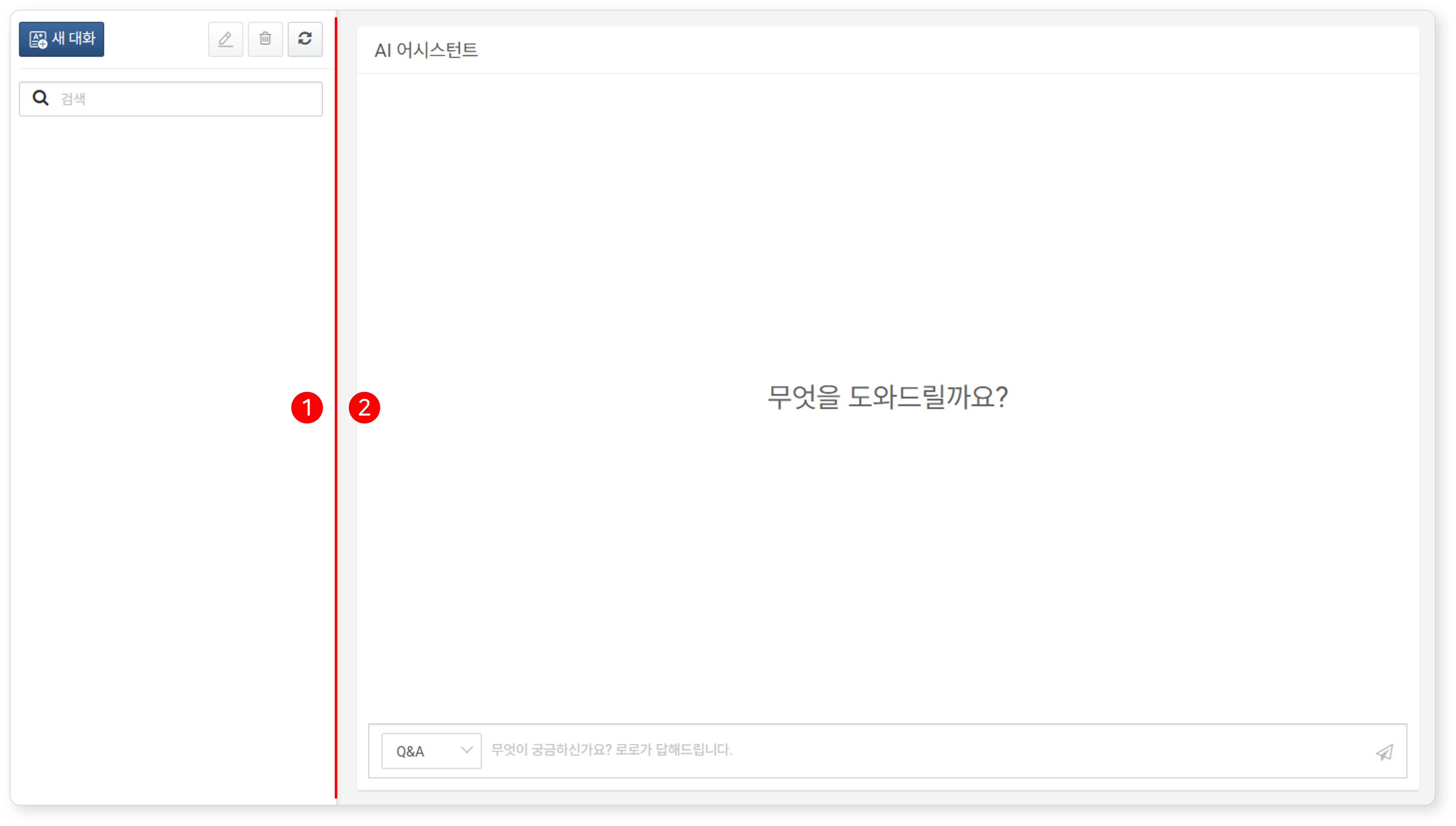
(1) Chat List
The left side of the screen displays the chat list. Each chat consists of a series of questions and responses exchanged between the user and the AI Assistant on a specific topic. Clicking a chat title allows you to view or resume the chat. The currently open chat is indicated with a gray background.
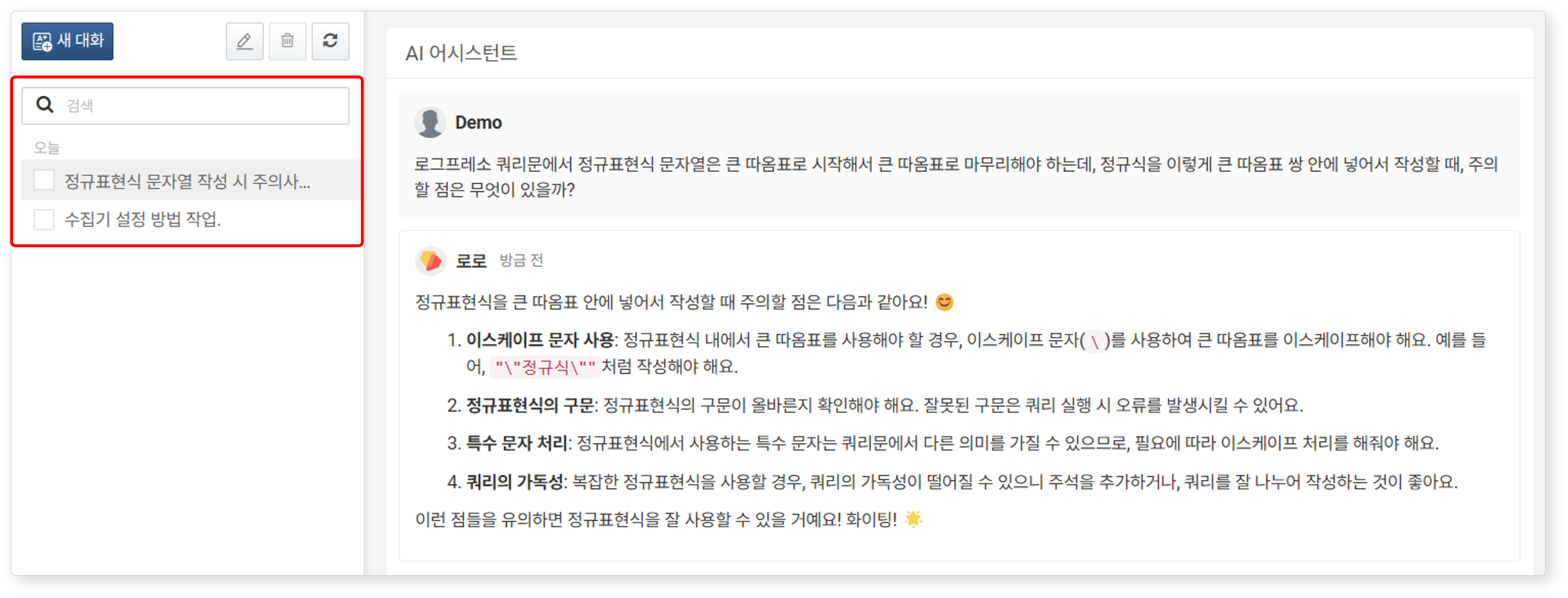
- Chat title is automatically generated based on the first question.
- To rename a chat, select the chat you wish to rename and click the
 .
. - To delete a chat, select the chat you wish to delete and click the
 .
. - To filter the chat list, enter a keyword or phrase into the search tool and press Enter. Only chats whose titles contain the entered string will be displayed.
(2) Chat Window
You can converse with the AI assistant as if you were talking to a person. The chat window includes:
- a dropdown menu to select the chat type,
- an input box (prompt field) for entering your messages,
- and a chat area showing both user inputs and AI Assistant responses.
The dropdown box next to the prompt field offers three options: Q&A, Action, and Plan (default: Q&A). The AI Assistant's behavior changes depending on the selected type.
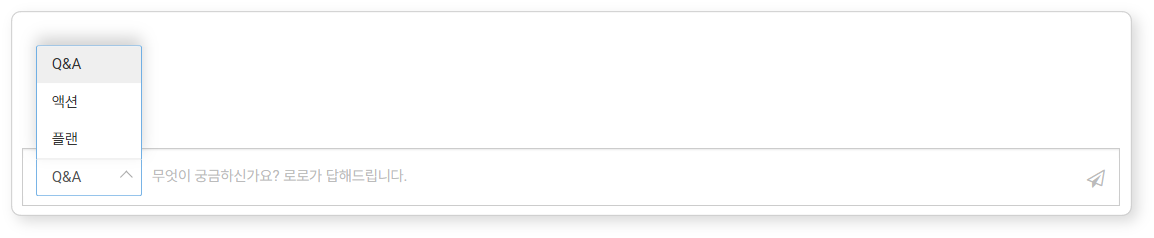
- Q&A: Answers general questions about Logpresso.
- Action: Analyzes the user’s request and performs the corresponding Logpresso query or REST API call, then displays the result.
- Plan: Analyzes the user's request and executes a series of Logpresso queries or REST API calls to handle multi-step or complex tasks.
Chatting with the AI Assistant
Getting Started
To start a chat with the AI assistant:
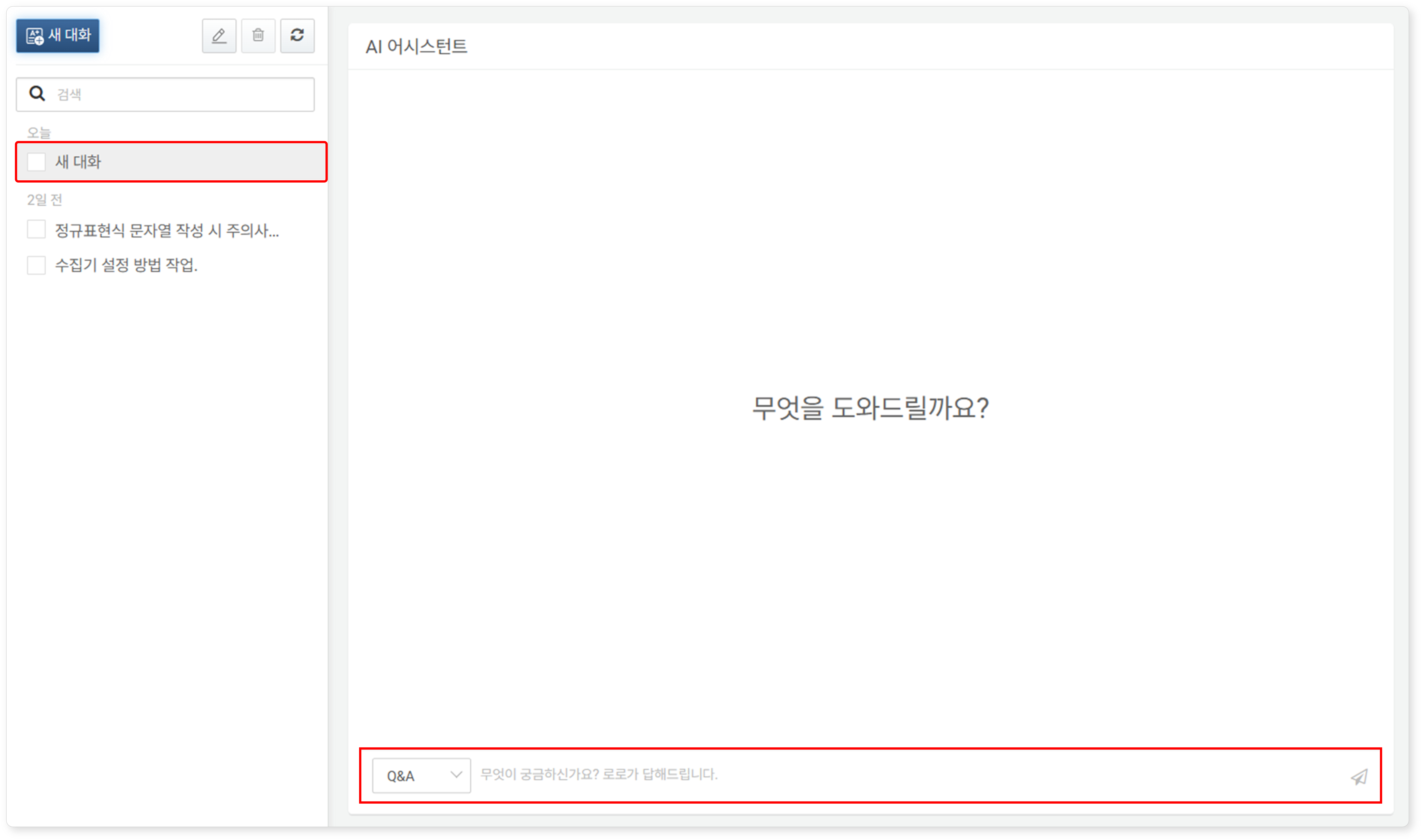
- Go to Analysis > AI Assistant and click the
 at the top of the chat list.
- The new chat screen is the default view for the AI Assistant, so clicking New Chat is optional unless you want to start a new chat.
- To leave an ongoing chat session and begin a new one, click New Chat.
- Once a new chat appears in the chat list, select the chat type (Q&A, Action, Plan) from the dropdown next to the prompt field, enter your question, and click
 icon or press the Enter key. The default chat type is Q&A.
- To insert a line break while entering a question, press Shift + Enter.
- The AI Assistant's response varies depending on the selected chat type:
- Q&A Type: Answers related to the Logpresso platform.
- Action: Execution of Logpresso queries or REST APIs and their results.
- Plan: Step-by-step execution of prompts for both Q&A and Action types.
- You can change the conversation type each time you ask a question.
Tips for Effective Questioning
To communicate effectively with the AI Assistant, follow these best practices:
- Stick to one topic per chat. Start a new chat for unrelated questions.
- Use precise, concise language. Descriptive, factual, and clearly stated expressions work best.
- When using ambiguous or polysemous terms (e.g., "logger"), provide additional context or details to ensure clarity.
- Match your phrasing to the selected chat type: use questions for Q&A, and commands for Action or Plan.
- Describe your question or the task you want Logpresso Sonar to perform in detail. Instead of saying, “What is the address 192.0.2.4?”, ask, “Check if there is any threat intelligence information related to 192.0.2.4.”
- When execution is required, provide the necessary input parameters, including their names and values (e.g., Name "Firewall Logger," Type "Syslog").
Examples by Chat Type
The AI Assistant recognizes the context of a conversation and uses it in subsequent exchanges—similar to how a person recalls previous discussions. However, as the chat grows longer, its accuracy may gradually decline. To maintain reliability, it is recommended to keep each chat session focused on a single topic. For questions on different topics, start a new chat.
Q&A
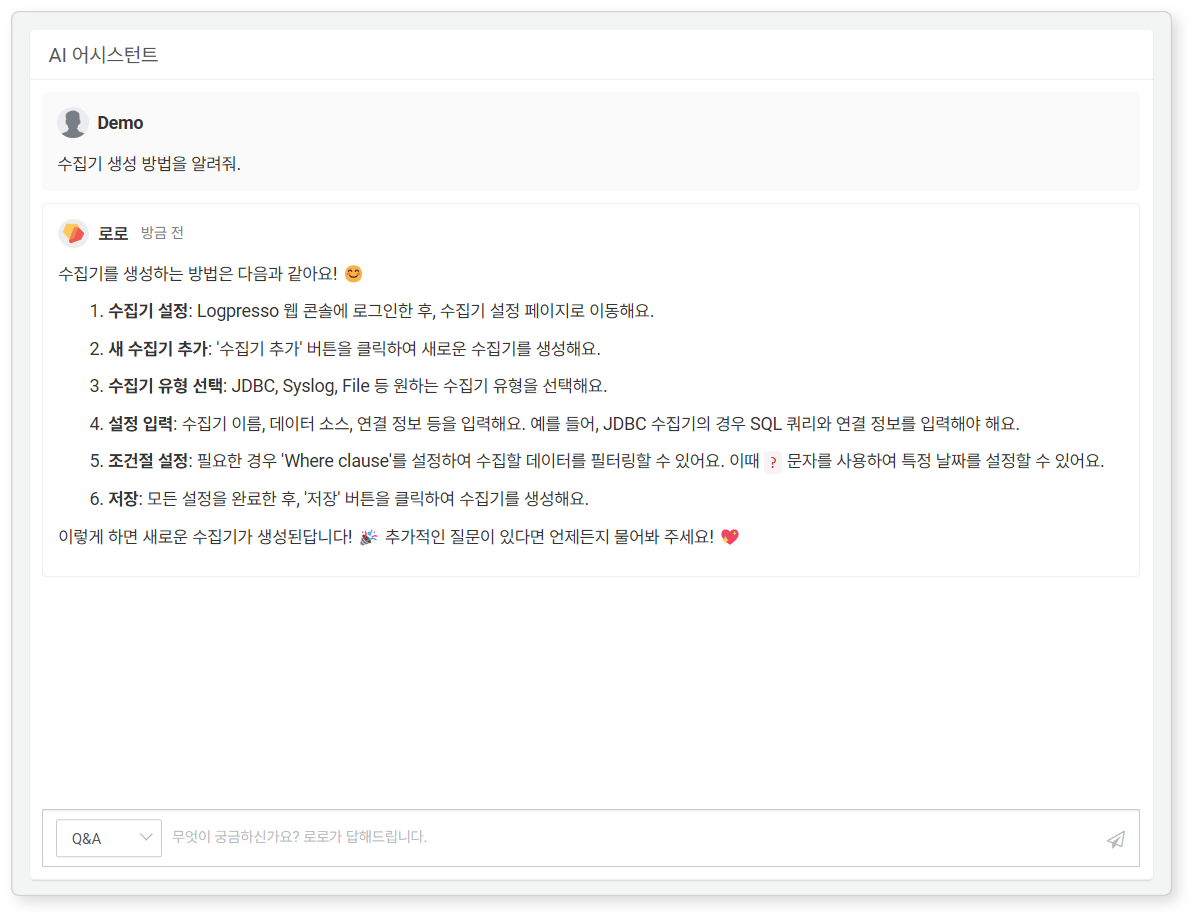
In a Q&A chat, the AI Assistant can refine its answers through dialogue with the user.
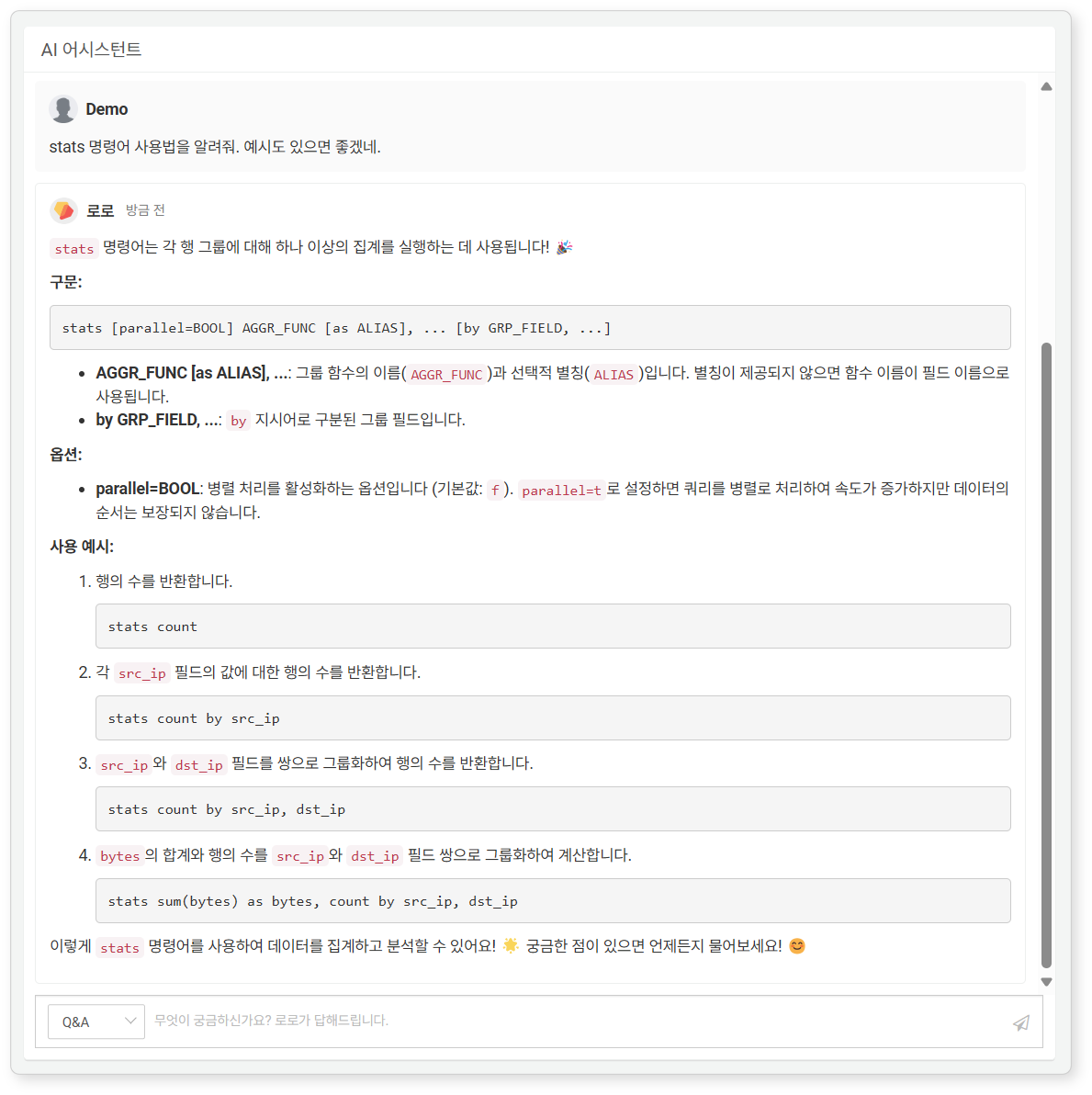
For example, you might ask, "Tell me how to use the stats query," and then request an example by saying, "Also, provide an example of the stats query." If the AI Assistant responds with incorrect information, you can correct it by saying something like, "It seems the usage of YY in the XXX query is incorrect," and the assistant will revise its response accordingly.
Here is an example response to the question: “How do I create a logger?”
Here is another example response to the question: “Tell me how to use the stats command. An example would be great.”
Action
When the chat type is Action, the AI Assistant performs specific tasks based on the user's requests. These tasks can be carried out by executing Logpresso queries or calling Logpresso Sonar's REST APIs. The execution method is determined by the AI prompts.
Query-Based Action
Query-based actions leverage the extensibility of Logpresso queries, enabling a range of executions from simple table lookup to complex join queries. Below is an example of the AI Assistant responding by executing a Logpresso query.
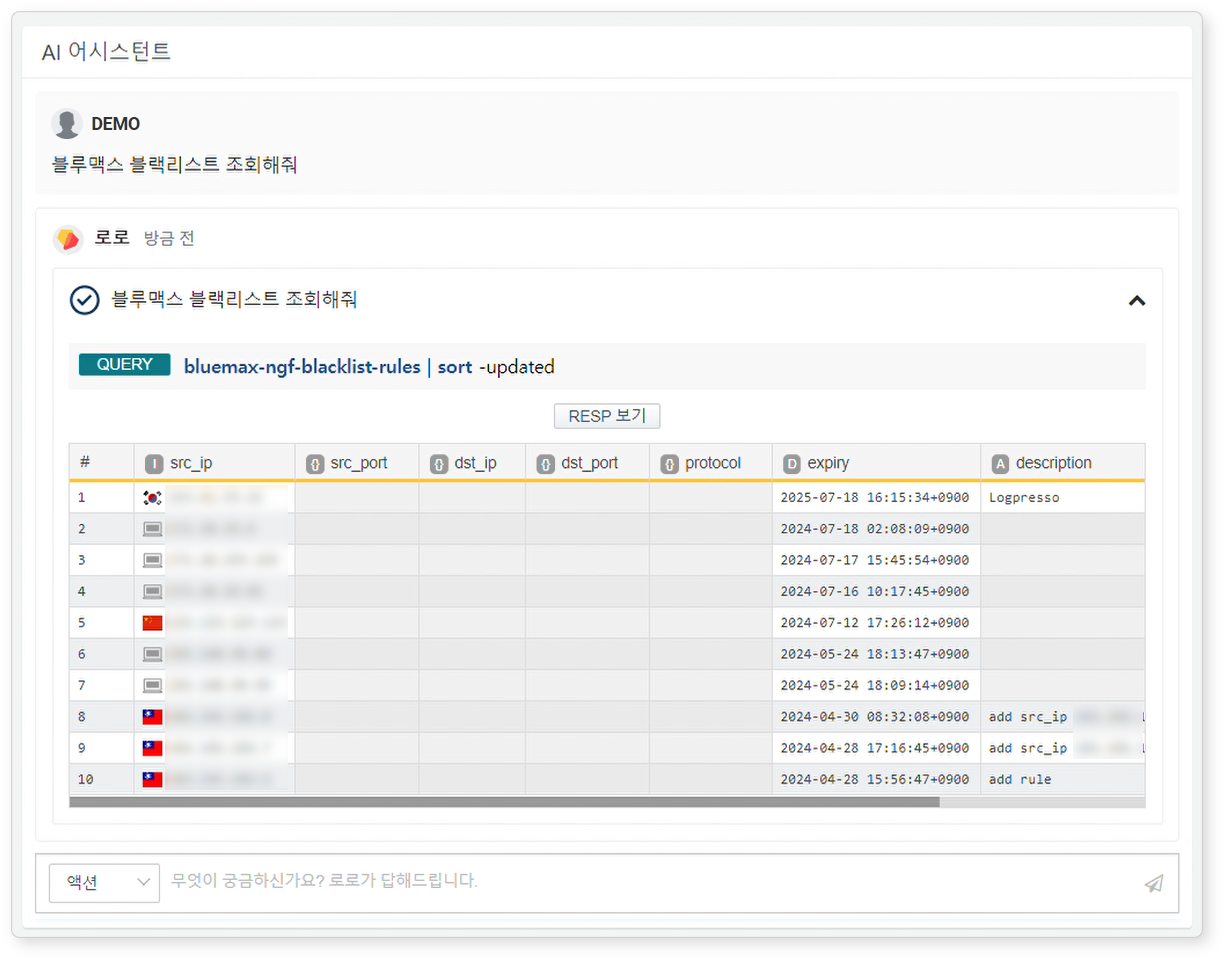
You can request additional analysis based on the results retrieved from query-based actions. This is particularly useful when a summary of the query results or further interpretation is needed.
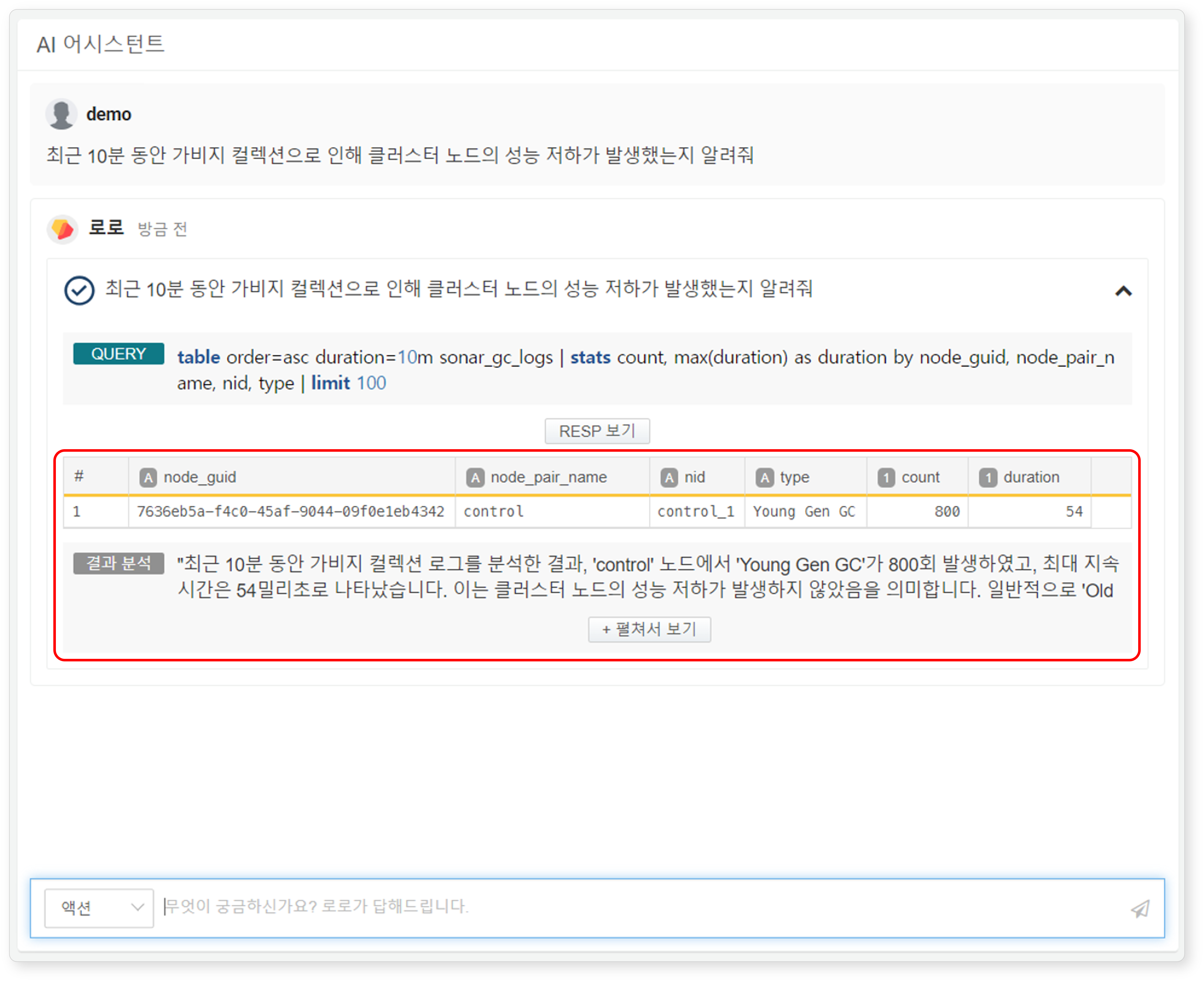
Clicking Show RESP allows you to see the raw query results along with analysis of those results. If the response is lengthy, only the initial portion will be displayed. To view the entire content, click Click to expand.
REST API-Based Action
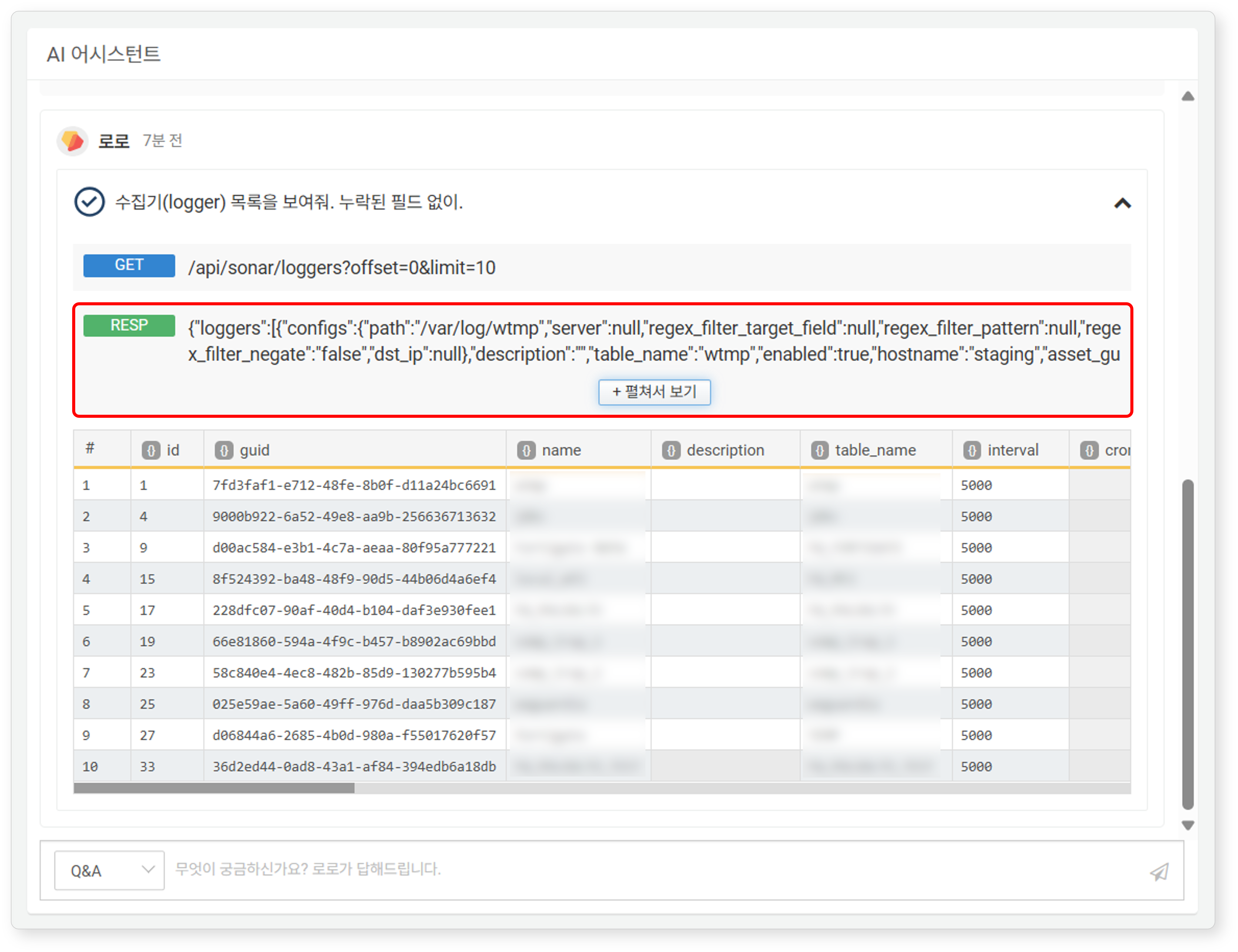
Most functionalities of Logpresso Sonar are provided through REST APIs. The following illustration shows an example of the AI Assistant retrieving data using the REST API.
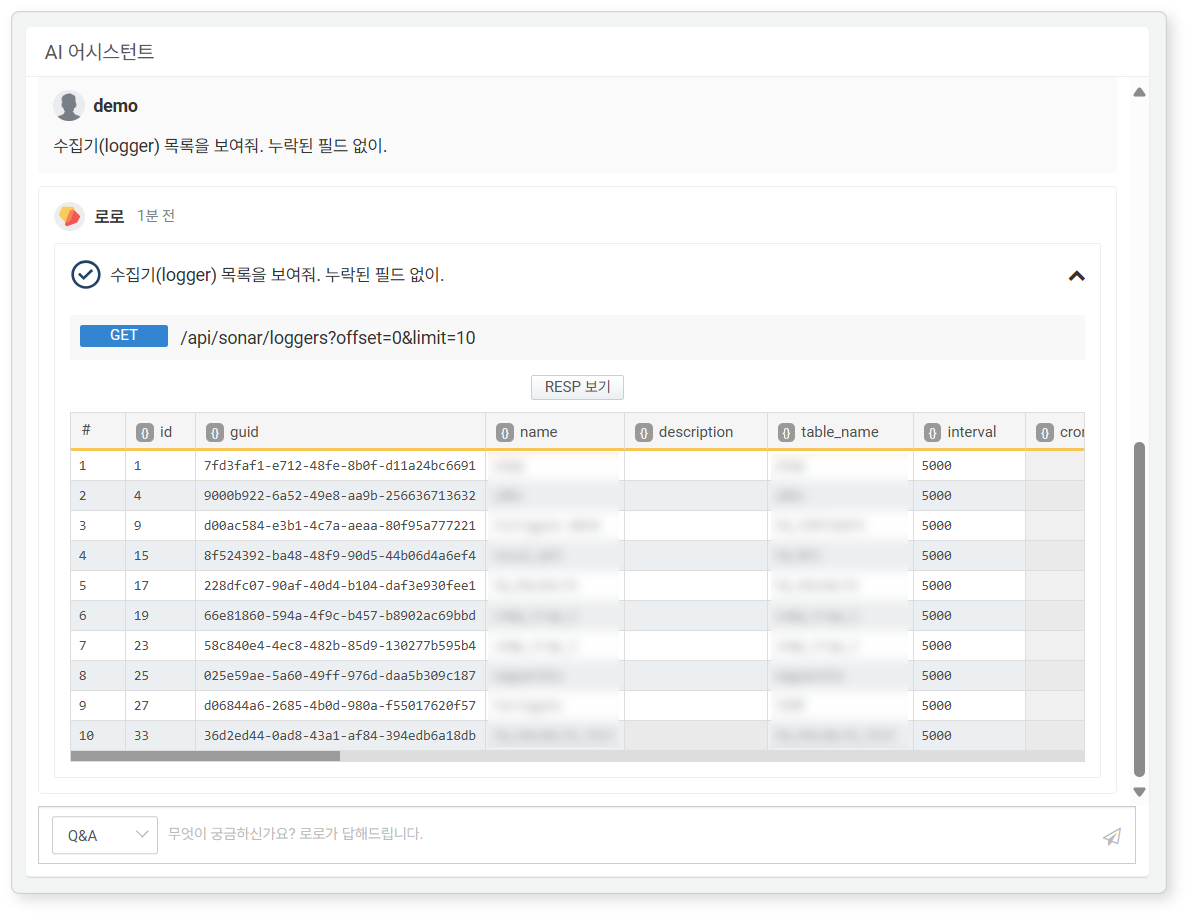
Clicking Show RESP allows you to view the raw response data. If the response is lengthy, only the initial portion will be displayed. To view the entire content, click Click to expand.
When a task requires user input, the AI Assistant presents a list of input parameters and requests approval before making the API call:
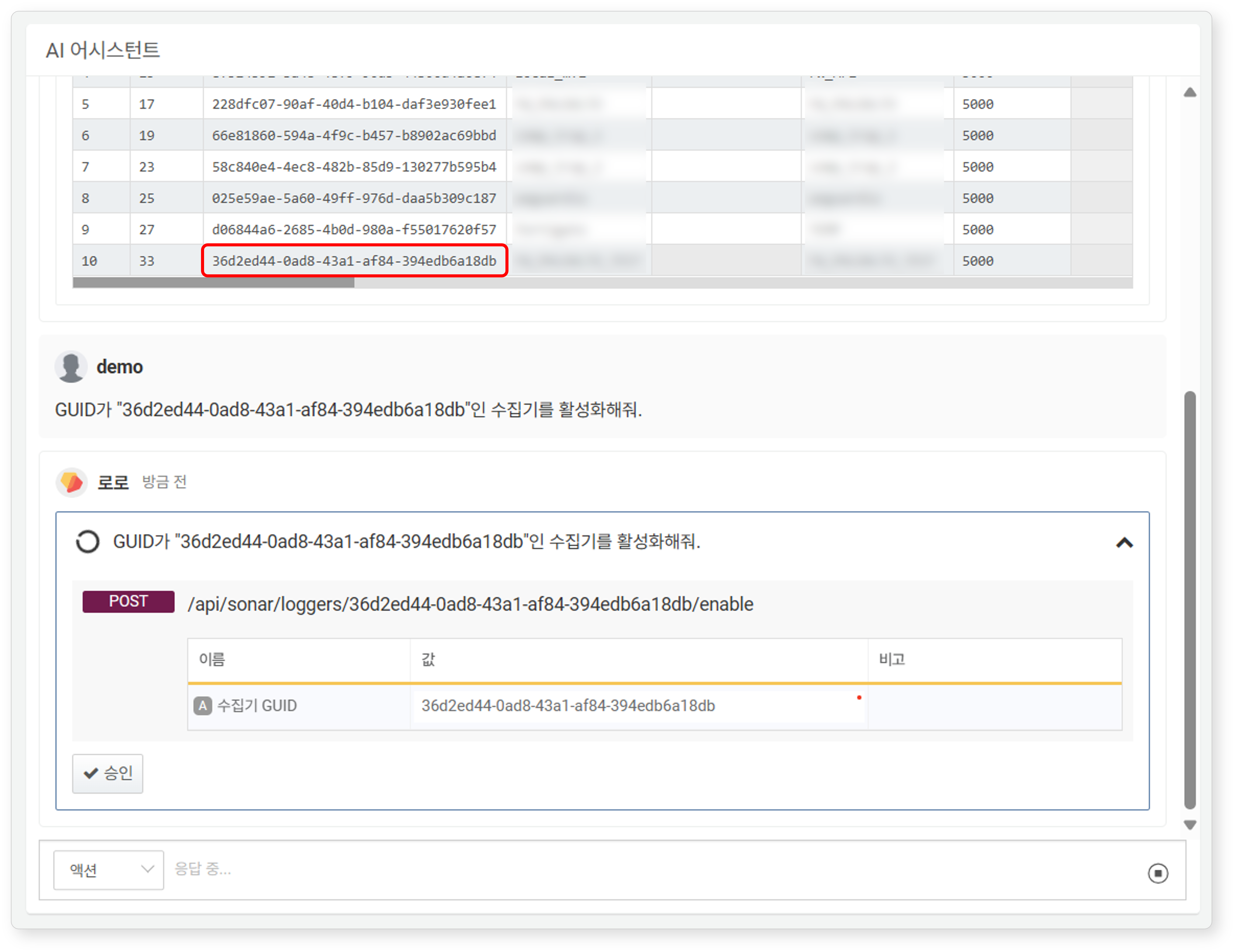
- If the user’s request already includes input parameters, those values are prefilled in the parameter list.
- Users can also enter input parameters directly. Fields marked with a red dot in the upper-right corner are required.
- When the user clicks Approve, the AI Assistant sends a request to Logpresso Sonar to update or delete data via the API.
- The AI Assistant uses standard HTTP methods such as GET, POST, PUT, and DELETE to make API calls.
Once the API response is received, it is displayed as shown below:
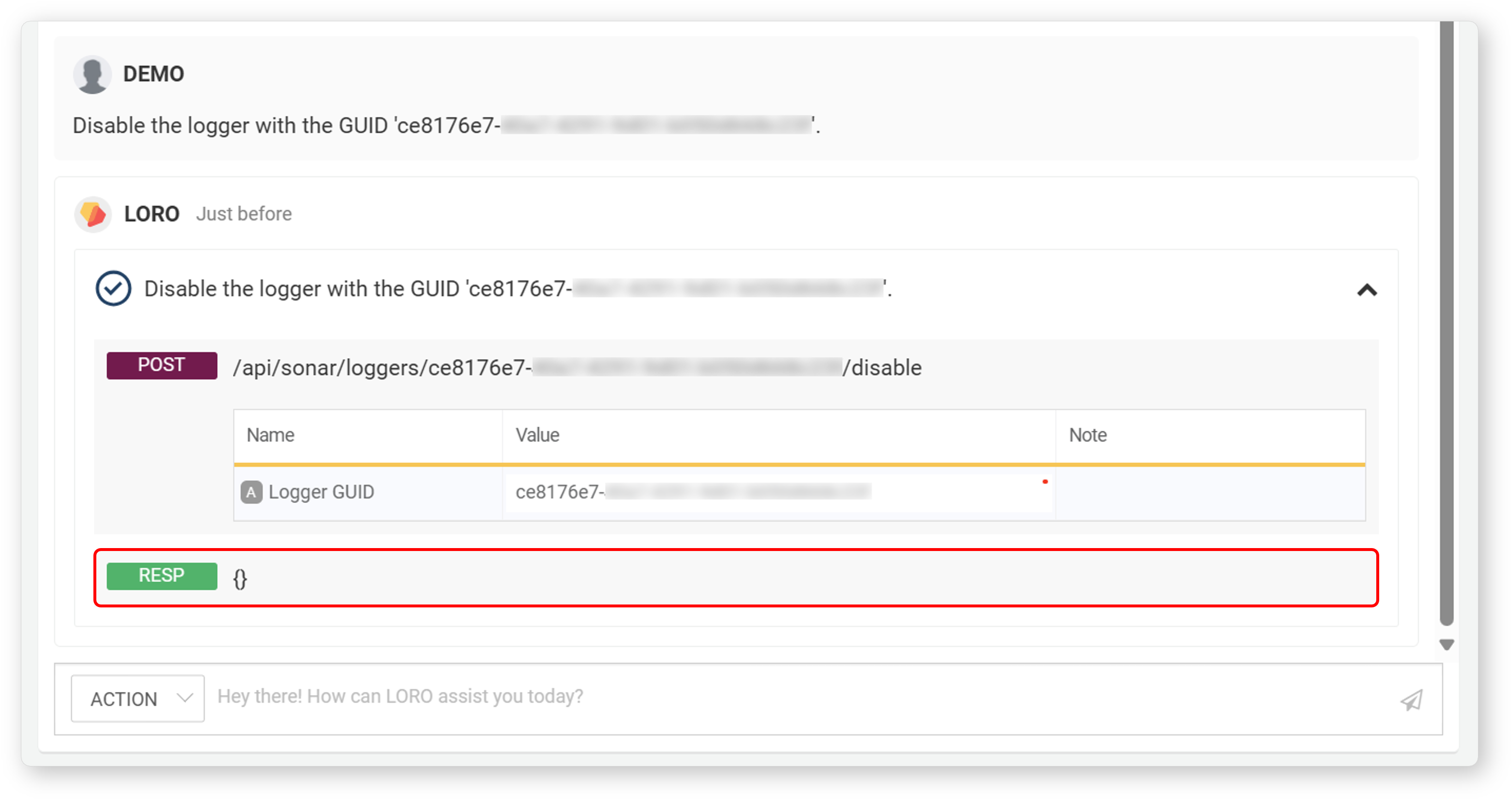
Plan
If your request involves multiple steps, such as executing a series of queries or REST API calls, ask the AI Assistant using a Plan chat. Instead of submitting multiple Action requests, you can complete the entire multi-step task with a single prompt in a Plan conversation.
The following illustration shows two chained actions: first, retrieving the GUID of a blacklist (an IP address group object used to manage blocked IP addresses), and second, adding an IP address to that group.
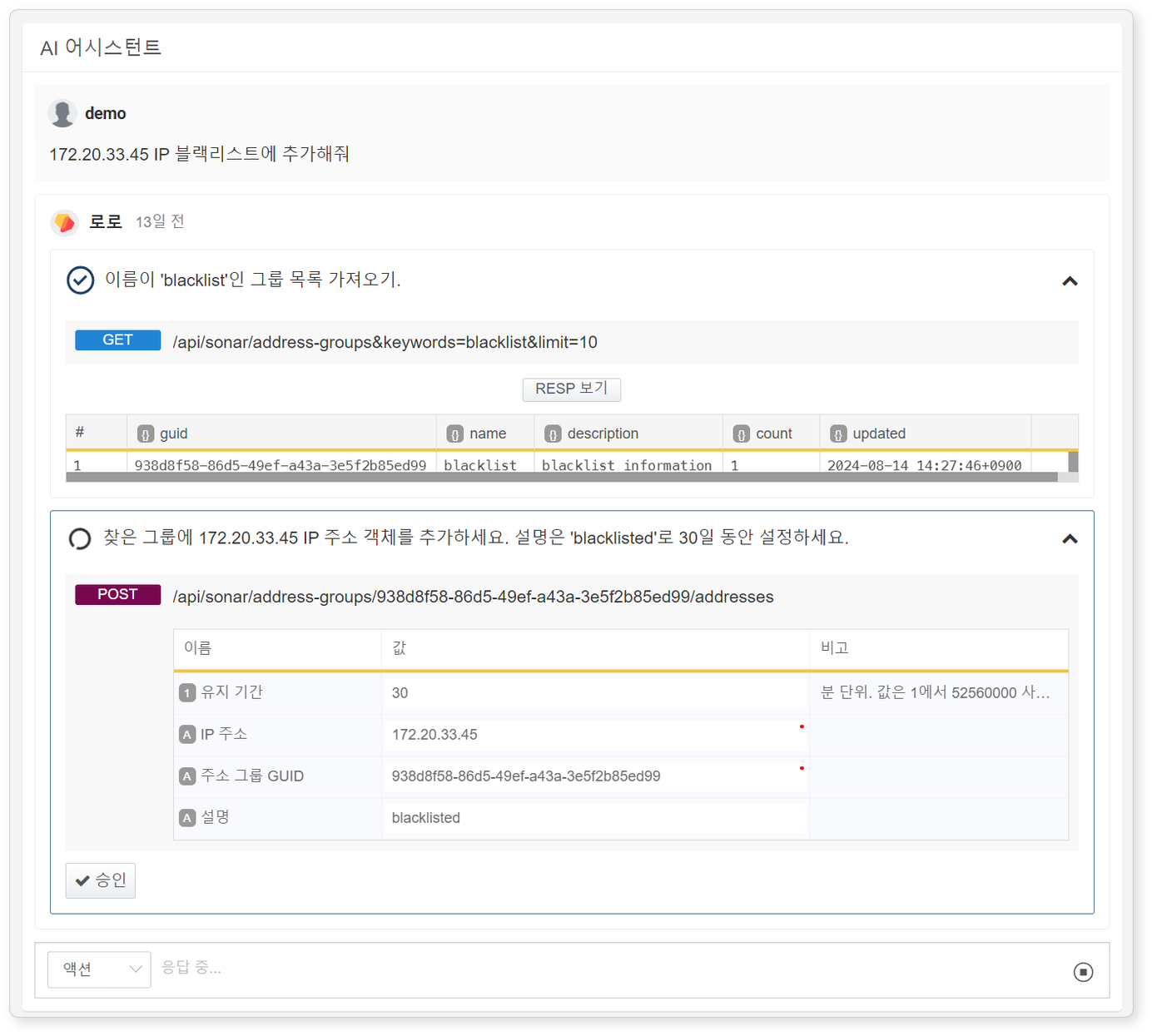
The executed tasks are:
- Retrieve the GUID of the address group named 'blacklist' from the address group list.
- Add an IP address to the 'blacklist' address group.
Example Use Cases for the AI Assistant
Finding Apps that Match Log Formats
When you present a log sample to the AI Assistant, it normalizes the log and suggests applicable Logpresso apps. Install the recommended apps to use the log data effectively in your security monitoring tasks.
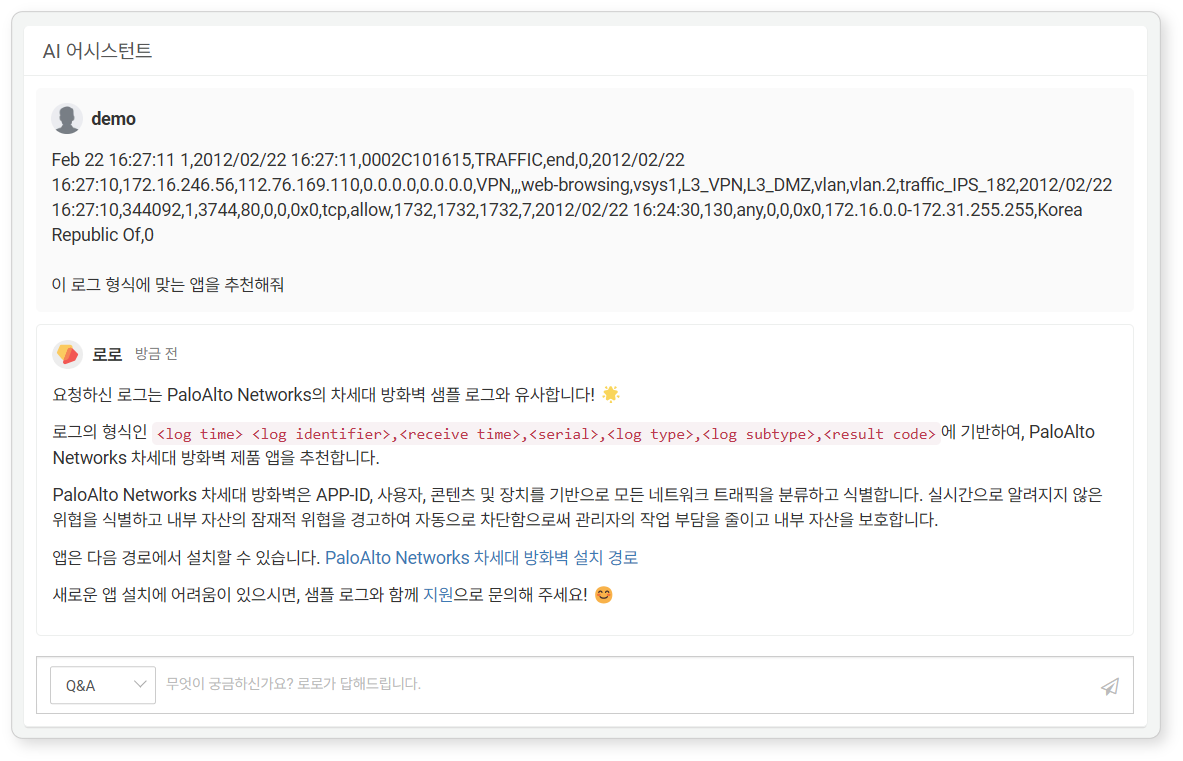
Generating Log Normalization Query
When adding a query-based parser, it may be difficult to write the query from scratch. In such cases, you can use the AI Assistant to generate the query. The illustration below shows an example of requesting a normalization query based on a log sample.
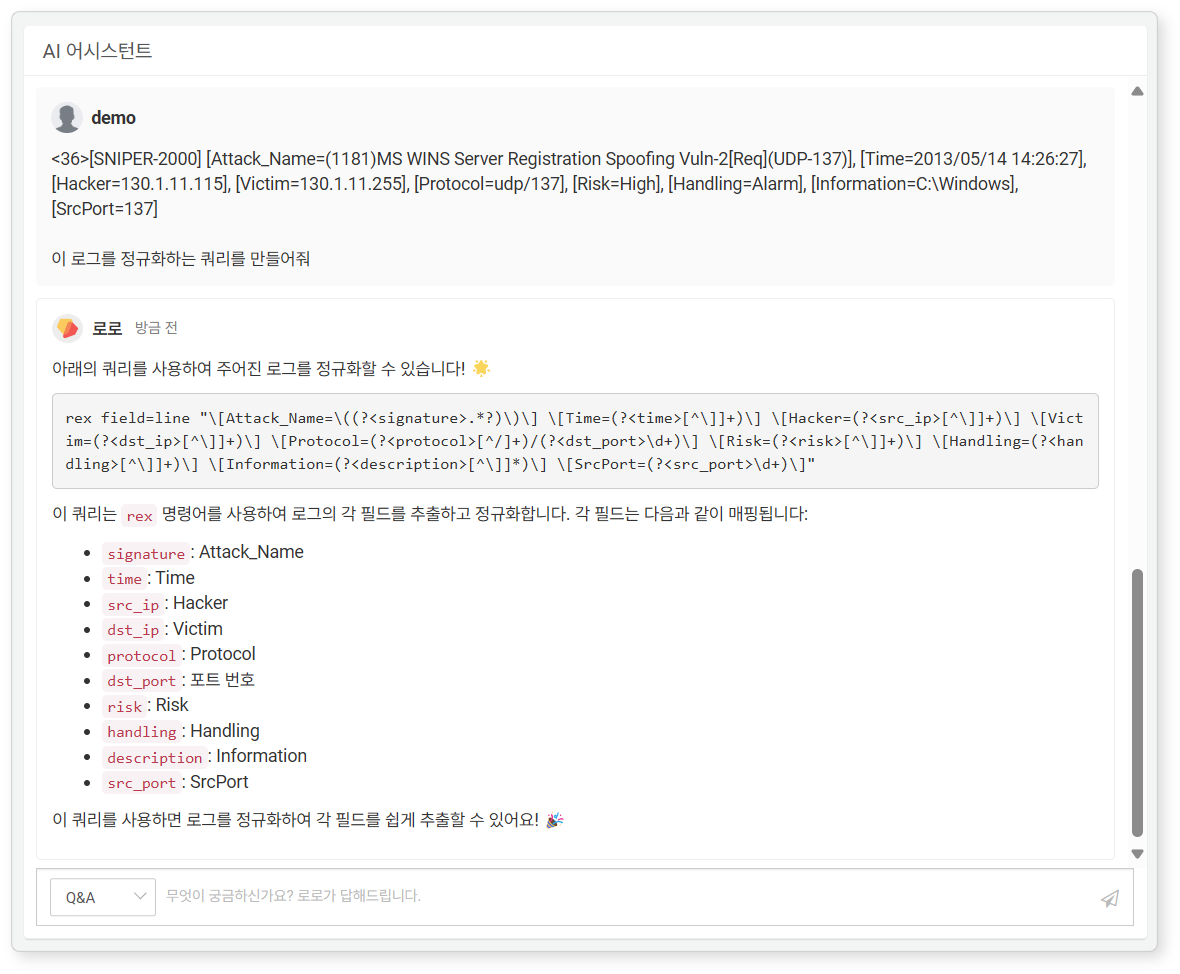
The log sample used in the example is:
Apr 10 04:38:54 1,2012/04/10 04:38:54,012345678911,THREAT,spyware,1,2012/04/10 04:38:49,192.0.2.255,192.0.2.2,0.0.0.0,0.0.0.0,rule1,,crusher,web-browsing,vsys1,untrust,trust,ethernet1/2,ethernet1/1,forwardAll,2012/04/10 04:38:54,25466,1,80,59127,0,0,0x200000,tcp,drop-all-packets,"habl.bin",Trojan-Spy.Win32.Zbot.wti(12620),any,medium,server-to-client,0,0x0,United States,192.0.2.0-192.0.2.255,0,
Stop Responses
To stop the AI Assistant's response during a chat, click the  icon next to the prompt field.
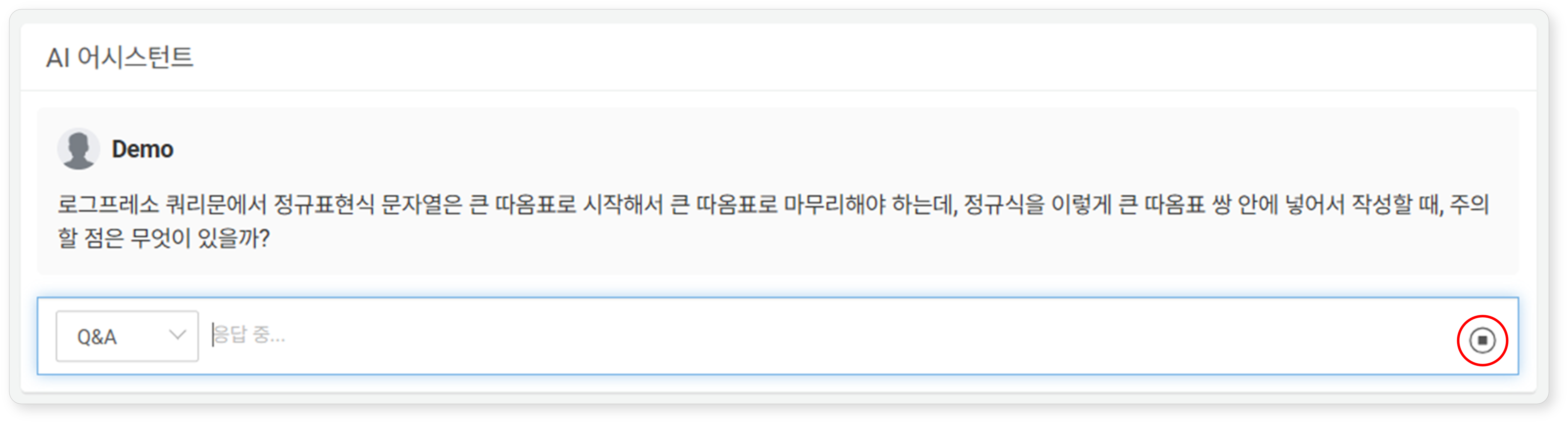
- The and buttons are toggle buttons.
- The Send icon is activated when the user can input questions in the prompt field.
- The Stop button is activated when the AI Assistant is responding.
- While the AI Assistant is responding, users cannot input further dialogue.
Rename Chat
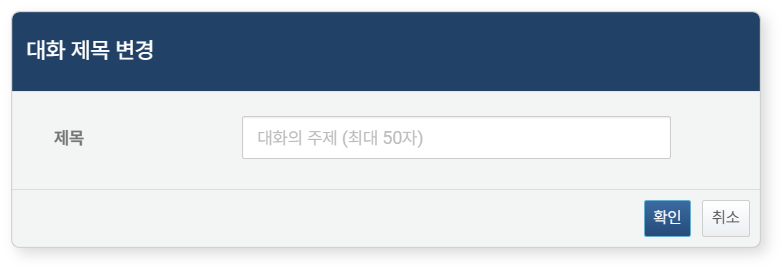
When a chat starts, a title is automatically generated. To rename a chat:
-
Select the chat you wish to rename from the chat list and click
.NoteClick on the title string to select it. The checkbox is used for deleting chats.
-
In the Rename Chat dialog, enter a new title and click OK (max. 50 characters). Click Cancel to discard changes.
Delete Chat
To delete a chat:
-
In the chat list, select the checkbox next to the chat title, then click
. -
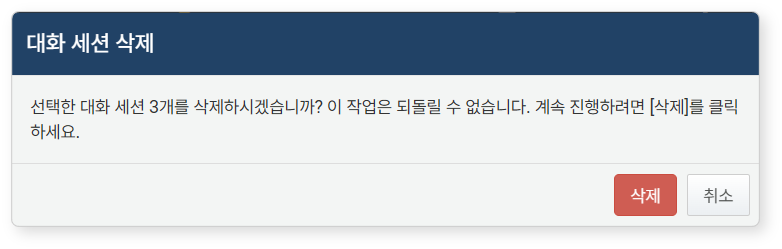
In the Delete Chat dialog, click Delete. Click Cancel if you do not wish to delete it.