Login
Logpresso Sonar (hereinafter referred to as "the server") provides a web service-based user interface for easy access. For convenience, we will refer to this web service-based user interface as the "web console."
Access Web Console
The web console complies with HTML5 standards and supports most web browsers. Open your web browser and enter the server's web console address in the format "https://IP address:port number" to access the server's web console. If the server is configured to use the default HTTPS communication port, 443, you can omit the port number (e.g., https://192.0.2.1, https://sonar.example.com, https://sonar).
Since the web console connection uses a private certificate, your web browser will display a security warning. Please verify that the entered address is correct, then ignore the security warning and proceed to connect.
Allow Notification Messages
When a user accesses the web console, a message appears in the lower right corner of the screen indicating that the web browser has blocked notifications.
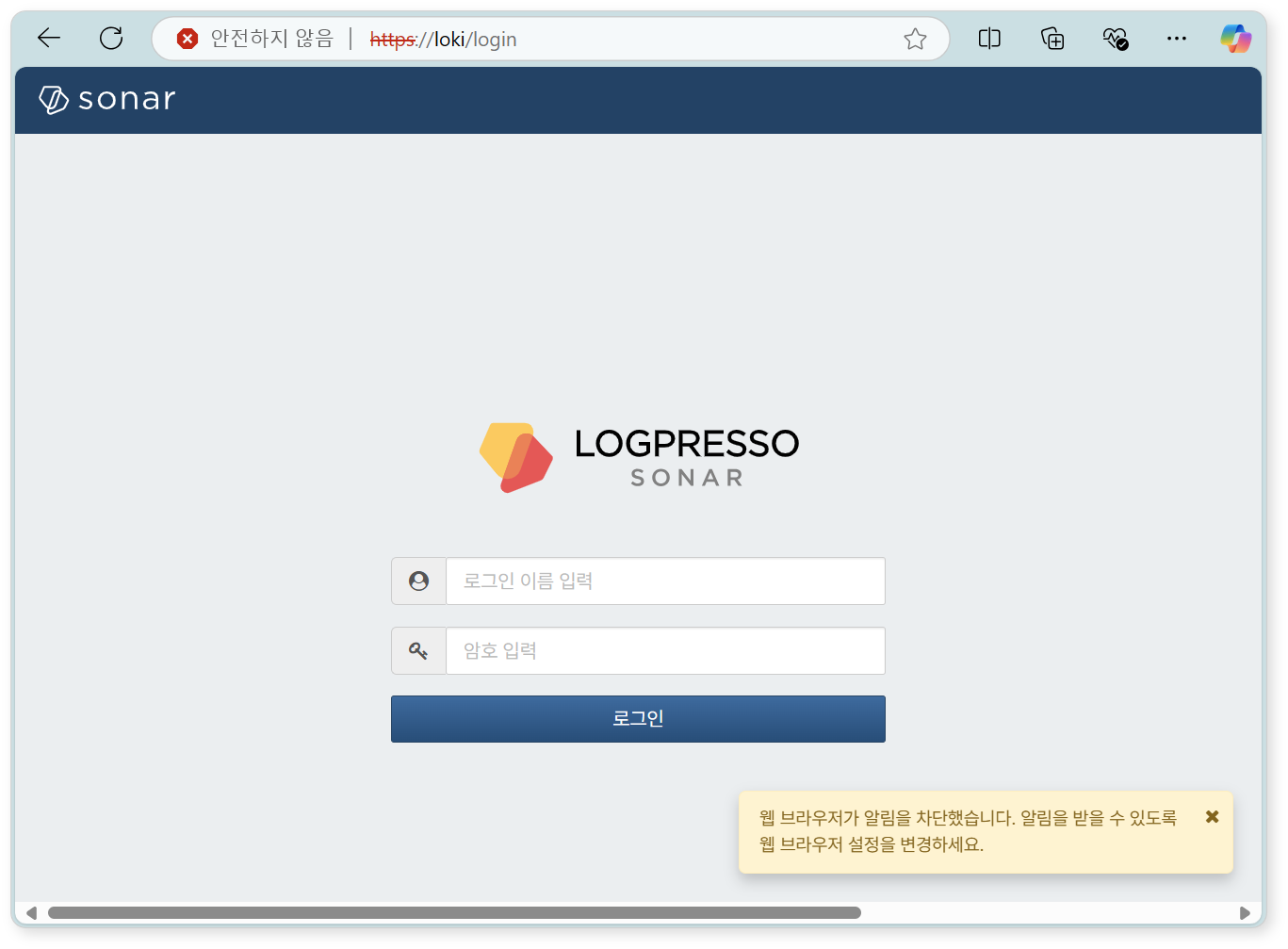
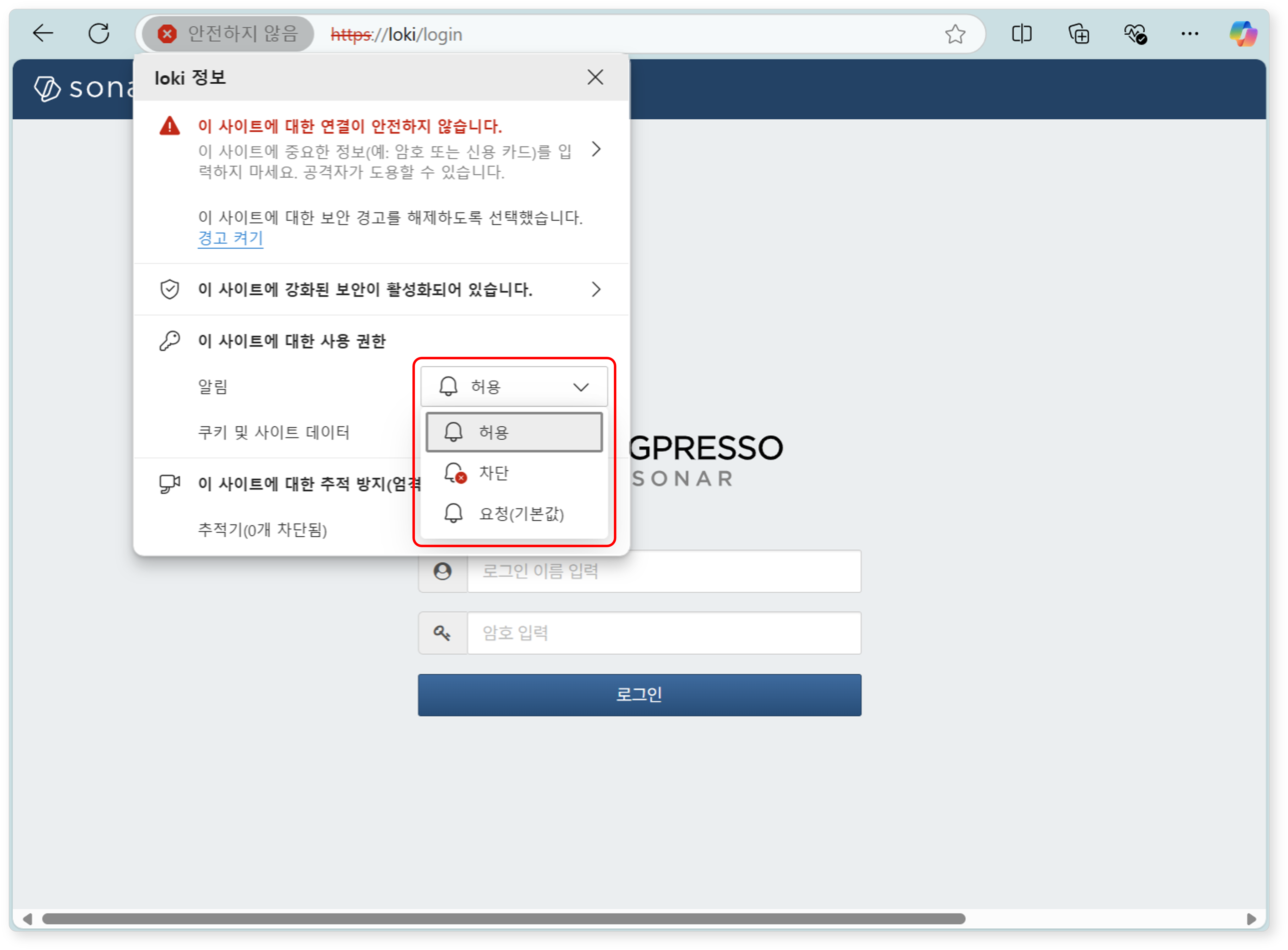
Change the settings to allow the web console to display popup messages.
Login to Web Console
To use the web console, users must first authenticate their identity through password authentication or 2FA.
Password Authentication
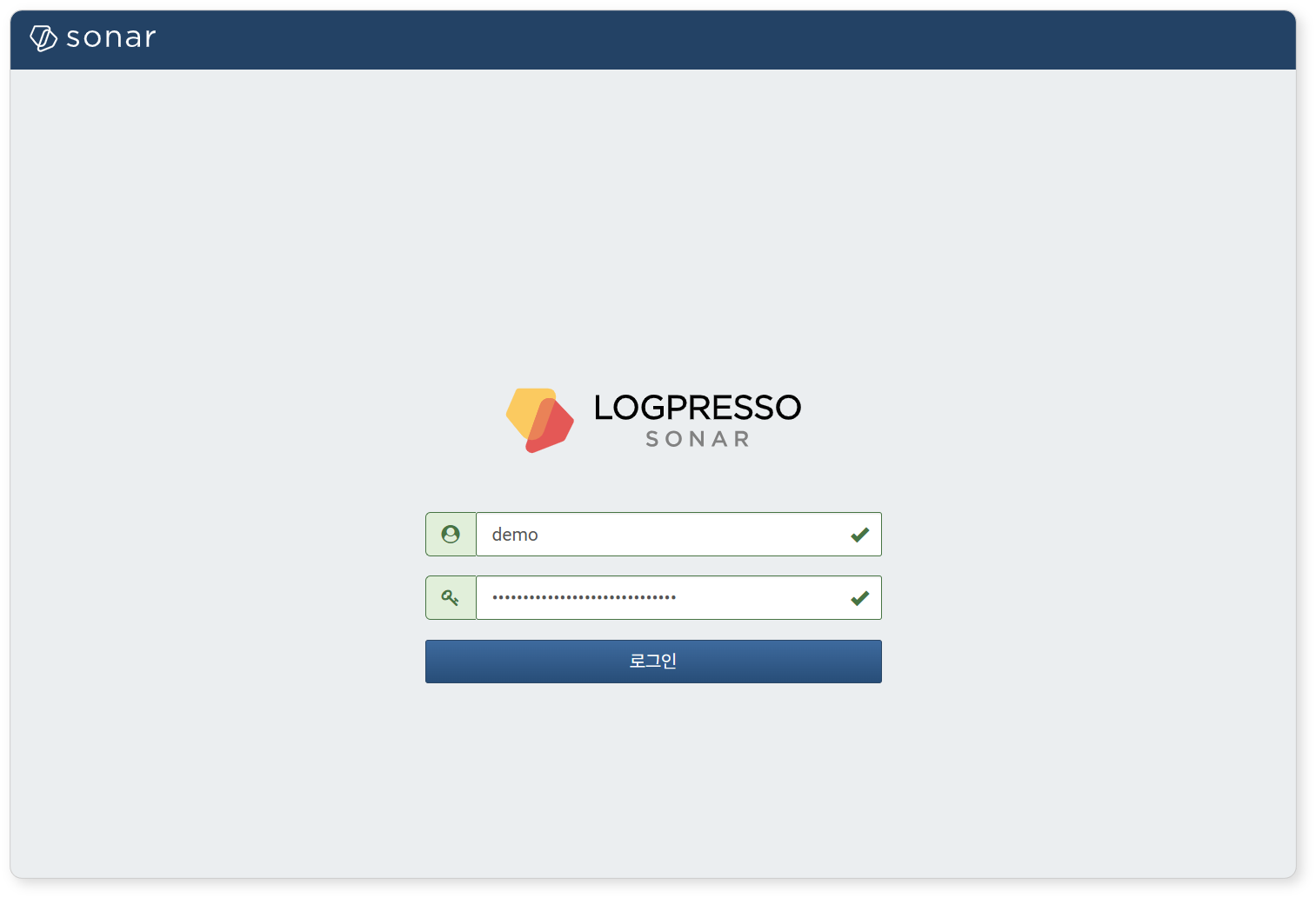
Enter the Username and Password assigned to your account, then click on the login button.
OTP Setup and Authentication
Registering Authentication Method
When a user with a 2FA-enabled account performs password authentication for the first time, they will be directed to a page to set up their authentication method. The currently supported 2FA authentication method is OTP. For instructions on setting up 2FA for your account, please refer to this documents.
-
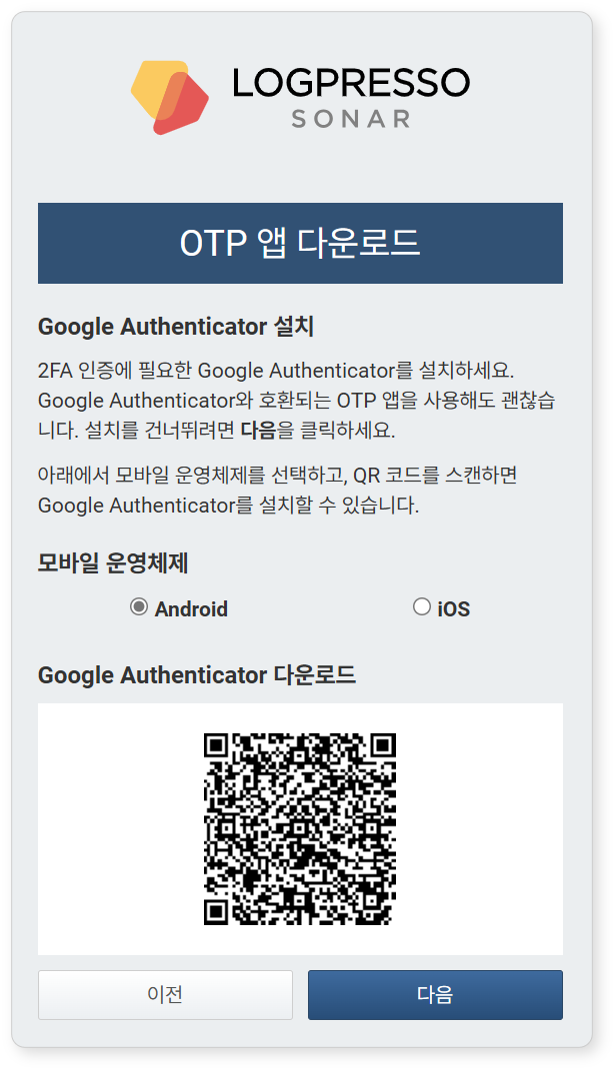
Install an OTP app on your mobile device. Select the appropriate Device OS for your device, and a QR code will be displayed containing the download page information for Google Authenticator. You may use any OTP app that complies with RFC 6238 in addition to Google Authenticator. Once the OTP app is installed, click Next.
-
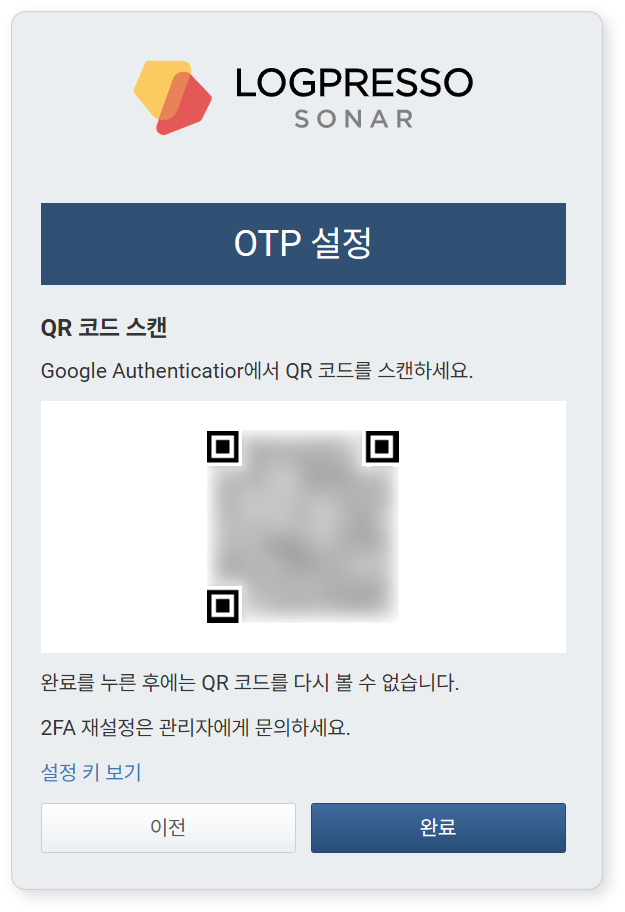
Open the OTP app on your mobile device and scan the displayed QR code to set up OTP in the app. If you cannot use the camera on your mobile device due to security policies, click Can't scan code? Try this and use the displayed setup key to configure OTP. After completing the setup, click Finished.
Entering OTP Code
-
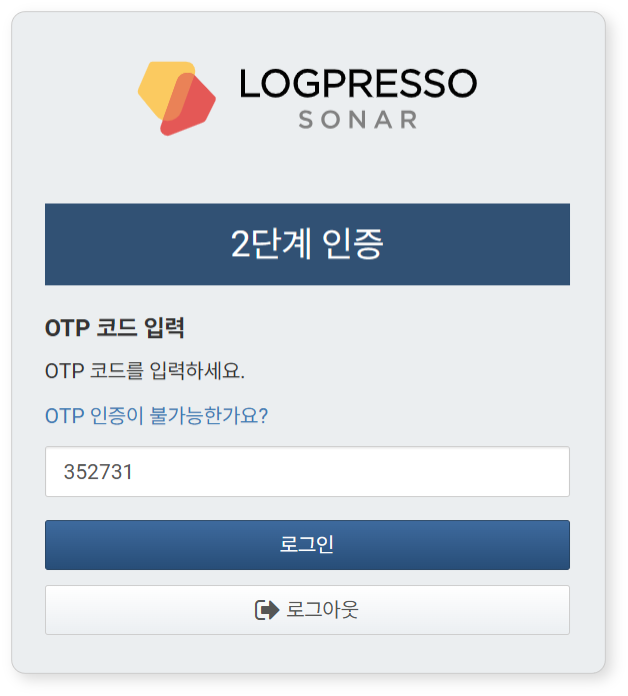
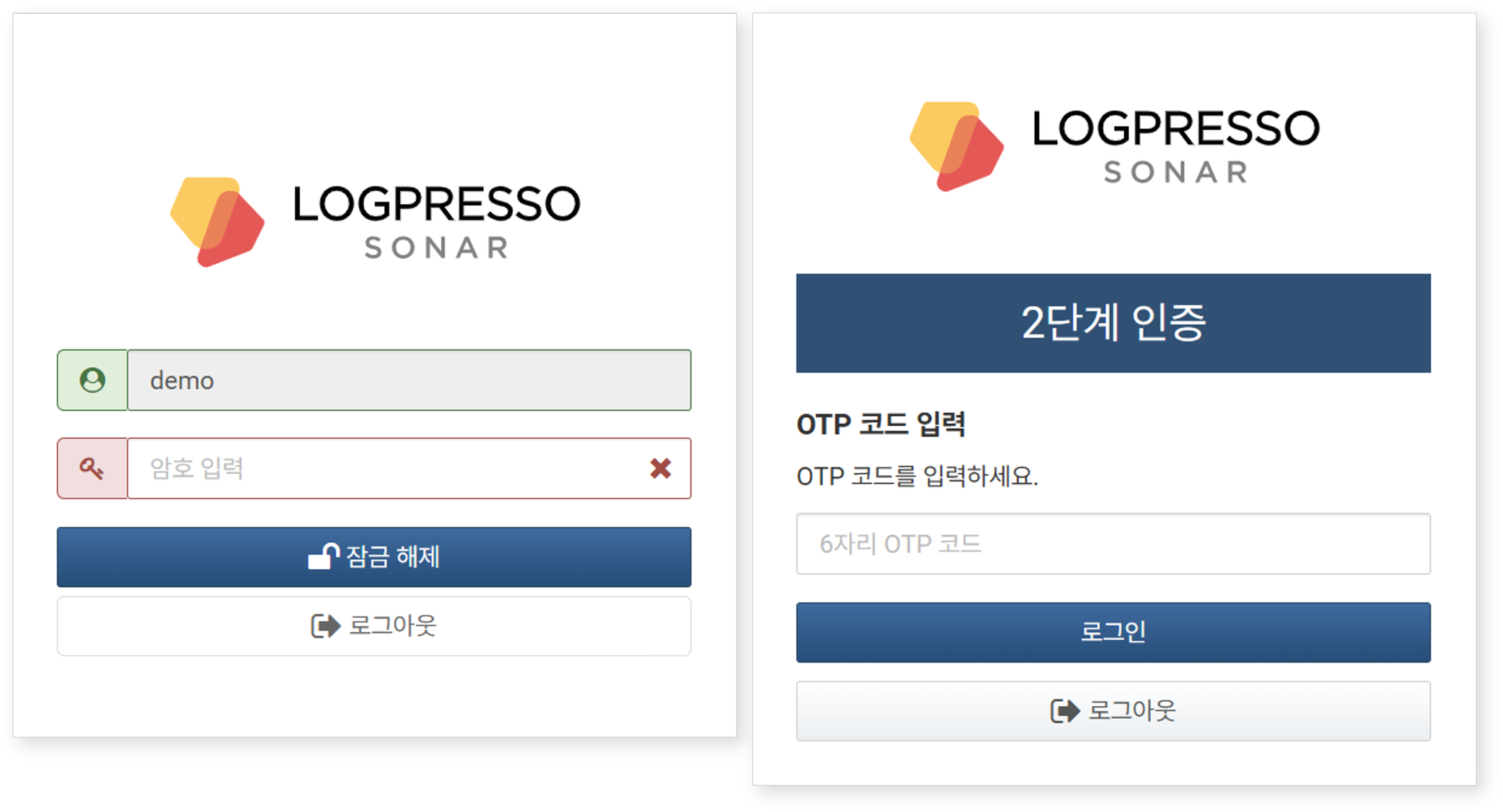
When you switch to the 2-Step Verification screen, enter the 6-digit OTP code displayed in the OTP app and click Login.
-
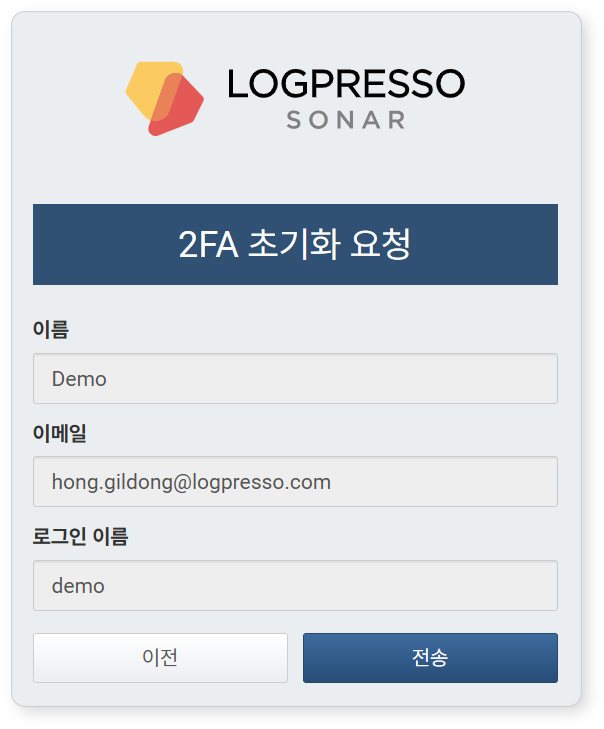
If there are issues with 2FA authentication, click "Didn't receive OTP code?" and then click Send to request 2FA reset from the administrator.
Change Password
To change your password:
-
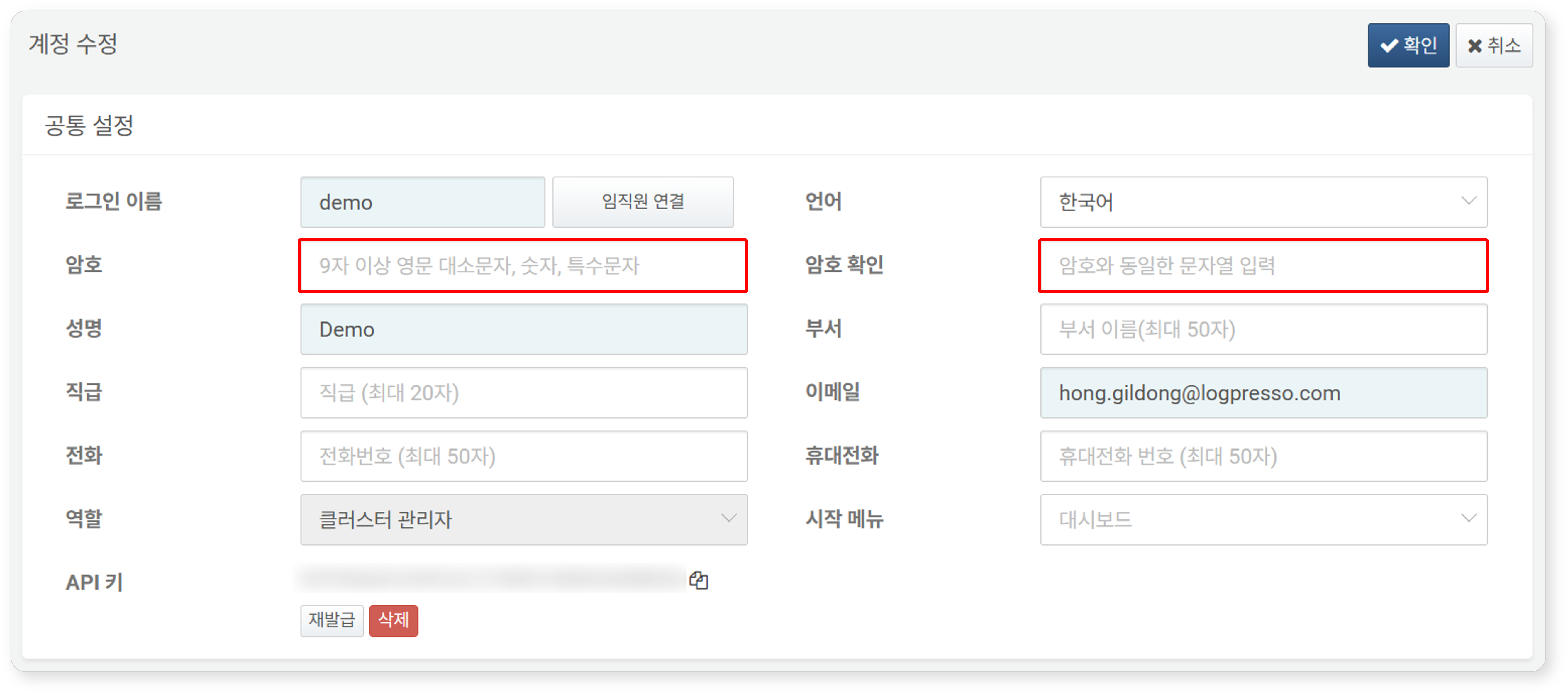
Click on your name in the upper right corner of the web console.

-
In the Edit User screen, enter the new password in both the Password and Confirm Password fields, then click OK.
Lock and Unlock Screen
After logging into the web console, if you do not use it for a certain period or click the lock icon in the upper right corner of the web console screen, the screen will be locked.

When the web console is locked, user authentication is required to regain access. Depending on your account settings, you may need to perform password authentication only, or enter the OTP code and then click login to unlock the screen.
Log Out
To log out of the web console, click on the logout icon in the upper right corner of the web console.

View Version Information
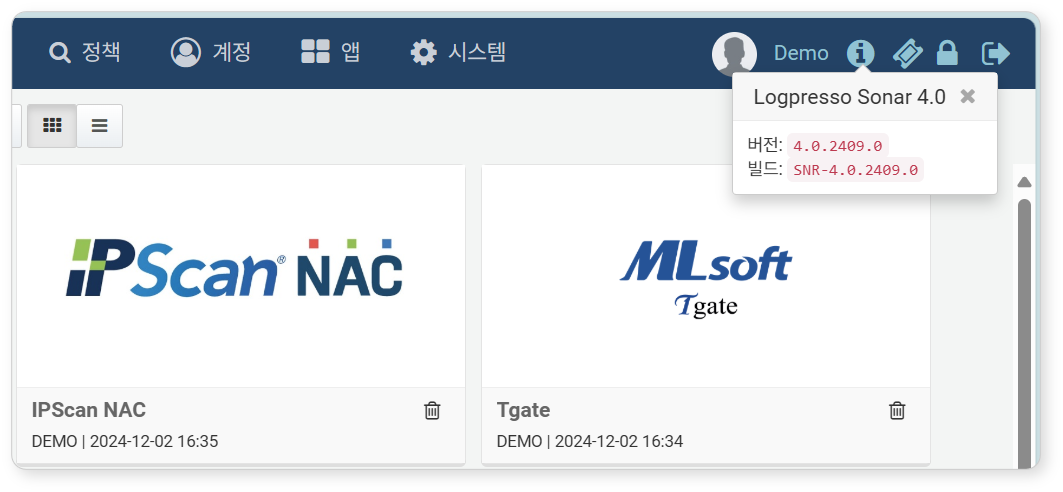
To check the version information, click on the version information icon in the upper right corner of the web console.