
Sentries
Overview
Sentry is a log collection agent within the Logpresso platform, ensuring secure transmission of logs to the Logpresso server through a TLS channel. The process involves mutual certificate-based authentication for heightened security.
In Logpresso version 4.0.2312.0, the Sentry management features have been enhanced, allowing for the straightforward installation of Sentry instances with a single command. Improved Sentry management uses the following network ports:
- TCP 7140: Data communication between Sentry and Logpresso server
- TCP 44300: Deployment of Sentry installation files and certificates
Ensure these ports are open on the local firewall to allow the Logpresso server to receive data from the Sentry. Note that specific port numbers may vary based on the operating system in use.
Sentry Deployment
To deploy a Sentry, ensure you have the JDK and the Sentry installation package.
JAVA
To run a Sentry, a Java Runtime Environment (JRE) is required. The JRE is distributed with the Sentry installation file from the Logpresso server.
Download JRE
First, acquire a trusted JRE package. Download the JRE file from a reliable OpenJDK site like Adoptium or Microsoft. The OpenJDK file must have an extension of .tar.gz (for Linux) or .zip (for Windows).
Before uploading the JRE file to the Logpresso server, ensure that the file name adheres to the following naming convention:
- A file name must start with the prefix:
jdk-orjre-. - Only numeric major version numbers are allowed between the prefix and the first dot (
.).- File names recognizable by Logpresso server (best practices):
- jre-11.0.14.1.tar.gz (detailed version number:
11.0.14) - jdk-11.zip (brief version number:
11)
- jre-11.0.14.1.tar.gz (detailed version number:
- File names not recognizable by Logpresso Server:
- jre-8u151-linux-x64.tar.gz (non-numeric characters present before the first dot(
.))
- jre-8u151-linux-x64.tar.gz (non-numeric characters present before the first dot(
- File names recognizable by Logpresso server (best practices):
- For Linux, the JRE file extension must be tar.gz.
- For Windows, the JRE file extension must be zip.
Upload JRE
To move the JRE file to the deployment directory, use the following command:
# Edit to suit your environment.
# PKGDIR: Directory where the logpresso server files are located.
PKGDIR="/opt/logpresso"

# Create a JRE directory for Linux/Windows
sudo -u logpresso mkdir -p ${PKGDIR}/download/{linux,win}/x64

# Copy installation files
sudo -u logpresso cp PATH_TO_JRE_FILE {PKGDIR}/linux/x64
sudo -u logpresso cp PATH_TO_JRE_FILE {PKGDIR}/win/x64
Sentry Installation Package
Navigate to Settings > Packages and upload the Sentry installation package. See Packages for instructions on uploading packages.
Install Sentry
Installing a Sentry on a target server involves two main steps:
- Create a Sentry
- Run the Sentry installation command on the server.
The installation command includes an identifier for the Sentry, target server information, and information about the authentication token to be used for certificate issuance and host authentication during installation. The command is generated based on the host's operating system: a Bash shell for Linux, or Windows PowerShell (5.1) for Windows. Executing the command on the host automatically installs both the Sentry and JRE, establishing a connection to the server.
Step 1: Create Sentry
To create a Sentry:
-
In Settings > Sentries click Add on the toolbar.

-
In the Add Sentry dialog box, enter the information required to install the Sentry and click Add.
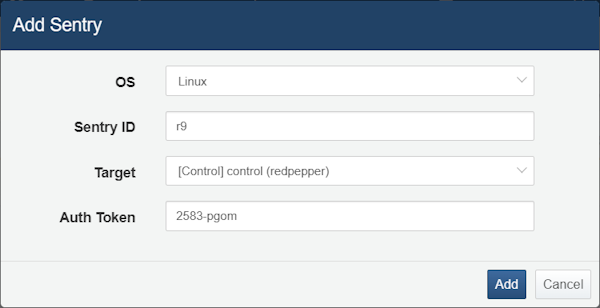
- OS: OS of the host on which you want to install the Sentry (Linux or Windows).
- Sentry ID: Unique ID to identify the Sentry
- Target: Server to which the Sentry will connect. A list of cluster nodes (servers) registered in Settings > Cluster is displayed.
- Auth Token: Randomly assigned authentication token for the Sentry installation (e.g.
9425-tnsa)
-
Follow the instructions in the Add Sentry message to copy the installation command. Then run it from an administrator terminal on the host where you want to install the Sentry.
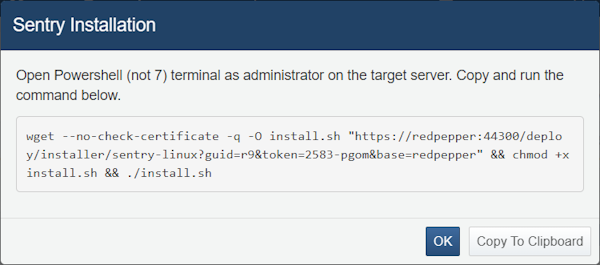
- Click Copy to Clipboard to copy the installation command to the clipboard on your PC.
- Click OK to close the window.
For Linux
Run the installation command for Linux in a bash shell. The command has the following format, with capitalized parts automatically assigned during generation:
# ADDR_1: Address of the server deploying the Sentry package and certificate
# GUID: Sentry ID
# TOKEN: Authentication token
# ADDR_2: Address of the server to communicate with the Sentry (Target)

wget --no-check-certificate -q -O install.sh \
"https://ADDR_1:44300/deploy/installer/sentry-linux?guid=GUID&token=TOKEN&base=ADDR_2" && \
chmod +x install.sh && \
./install.sh
If using curl instead of wget on Linux:
# ADDR_1: Address of the server deploying the Sentry package and certificate
# GUID: Sentry ID
# TOKEN: Authentication token
# ADDR_2: Address of the server to communicate with the Sentry (Target)

curl -k -s -o install.sh \
"https://ADDR_1:44300/deploy/installer/sentry-linux?guid=GUID&token=TOKEN&base=ADDR_2" && \
sed -i 's/wget --no-check-certificate -q -O/curl -k -s -o/g' install.sh && \
chmod +x install.sh && \
./install.sh
For Windows
The installation command for Windows has the following format, with capitalized parts automatically assigned during generation:
# ADDR_1: Address of the server deploying the Sentry package and certificate
# GUID: Sentry ID
# TOKEN: Authentication token
# ADDR_2: Address of the server to communicate with the Sentry (Target)

cd $env:TEMP;
add-type "
	using System.Net;
	using System.Security.Cryptography.X509Certificates;
	public class TrustAllCertsPolicy : ICertificatePolicy {
		public bool CheckValidationResult(ServicePoint a, X509Certificate b, WebRequest c, int d) {
			return true;
		}
	}";

[System.Net.ServicePointManager]::CertificatePolicy = New-Object TrustAllCertsPolicy;
[Net.ServicePointManager]::SecurityProtocol = 3072;
(New-Object System.Net.WebClient).DownloadFile('https://ADDR_1:44300/deploy/installer/sentry-windows?guid=GUID&token=TOKEN&base=ADDR_2', ($env:TEMP + '\install.cmd'));
cmd /c install.cmd
The installation command provided by the Logpresso server is written to also work in PowerShell 2.0 and .NET Framework 4.0 environments (the SecurityProtocol value 3072 is the numeric value for TLS 1.2). However, this command uses an older .NET Framework certificate validation policy API (ServicePointManager.CertificatePolicy), so on PowerShell 7 or later (.NET Core/.NET-based), which does not support this API, run it with the following modification:
# ADDR_1: Address of the server deploying the Sentry package and certificate
# GUID: Sentry ID
# TOKEN: Authentication token
# ADDR_2: Address of the server to communicate with the Sentry (Target)

Set-Location $env:TEMP;
Invoke-WebRequest -SkipCertificateCheck `
-Uri 'https://ADDR_1:44300/deploy/installer/sentry-windows?guid=GUID&token=TOKEN&base=ADDR_2' `
-OutFile install.cmd; cmd /c install.cmd
Step 2: Deploy Sentry
Run the copied command on the target host where you want to install the Sentry. The Sentry will be automatically installed and started upon execution.
The installation directory is /opt/logpresso-sentry for Linux Sentry, and C:\Program Files\Logpresso Sentry for Windows Sentry.
For Linux
-
Ensure that the prerequisites net-tools, unzip, and wget are installed. If not, run the following command to install them.
# unzip, wget are required for installing the Sentry. # net-tools is required for the Sentry to collect system information. # On RHEL sudo dnf install net-tools unzip wget # On Debian sudo apt-get install net-tools unzip wget -
In a bash shell, run the command line generated in Step 1: Create Sentry as root.
-
You can check the Sentry service status by running the following command on the Logpresso server:
systemctl status logpresso-Sentry.service -
Check the connection status of the Sentry. If the Sentry's connection status is not displayed as green, check the local firewall and ensure the proper network communication between the Sentry and the server.
For Windows
- Open a PowerShell as an administrator, then run the command line created in Step 1: Create Sentry.
- Ensure that the Logpresso service is marked as running in the Services tab of the Task Manager. You can run the following command to check the status in Windows PowerShell:
sc.exe query Logpresso - Check the connection status of the Sentry within your Logpresso. If the Sentry's connection status is not displayed as green, check the local firewall and ensure the proper network communication between the Sentry and the server.
Sentry Status
You can check the status of a Sentry in the Sentry list.
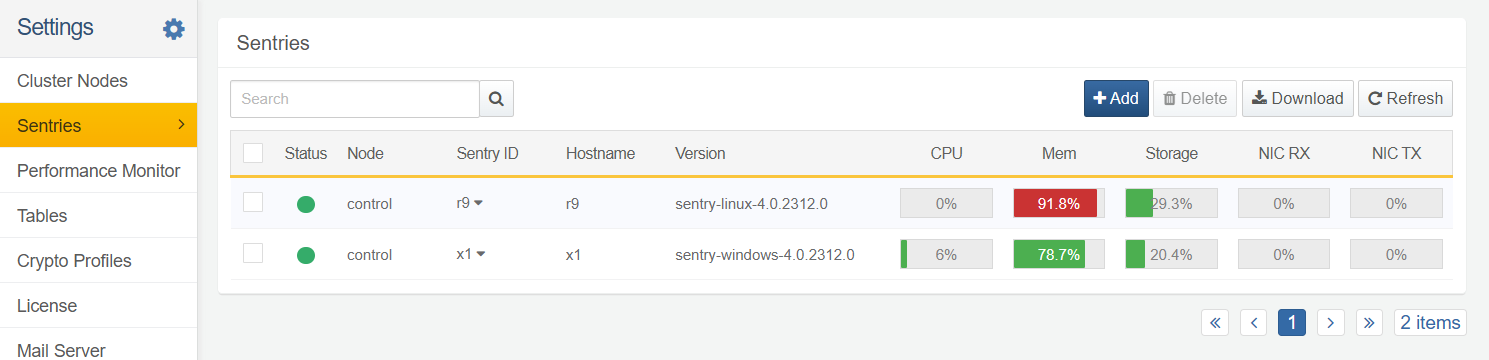
- Status: Green if the Sentry is connected to the server; Grey if the Sentry is not connected.
- Node: Identifier of the cluster node that controls the Sentry. A data node is denoted by data and a control node is denoted by control.
- Sentry ID: Sentry ID
- Hostname: Name of the host on which the Sentry is installed.
- Version: Sentry version
- CPU: CPU usage (%)
- MEM: Memory usage (%)
- Storage: Disk usage(%). The highest value is displayed if you have multiple storage partitions. Calculated based on the available capacity (Avail) reported by the OS's df command.
- NIC RX: NIC RX bandwidth usage(%). The highest value is displayed if there are more than one network interface.
- NIC TX: NIC TX bandwidth usage(%). The highest value is displayed if there are more than one network interface.
- Install Status: Click the ⚙ (gear) icon to view the most recent remote package installation result (installation status, result, installation time, target package, and failure reason) in the Sentry Package Install Status window. For details, refer to Check Package Install Status.
Manage Sentry Remotely
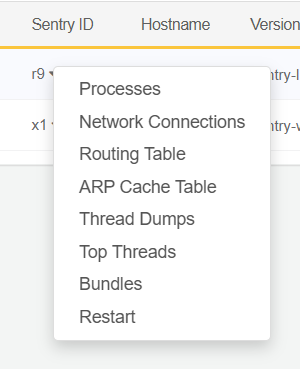
Click the Sentry ID to access remote management functions: You can view the Sentry host's process list, network connectivity information, routing table, ARP cache, thread dump information, bundle list, restart the Sentry, or install a Sentry package remotely. You can check the result of a remote package installation in the Install Status column of the Sentry list.
-
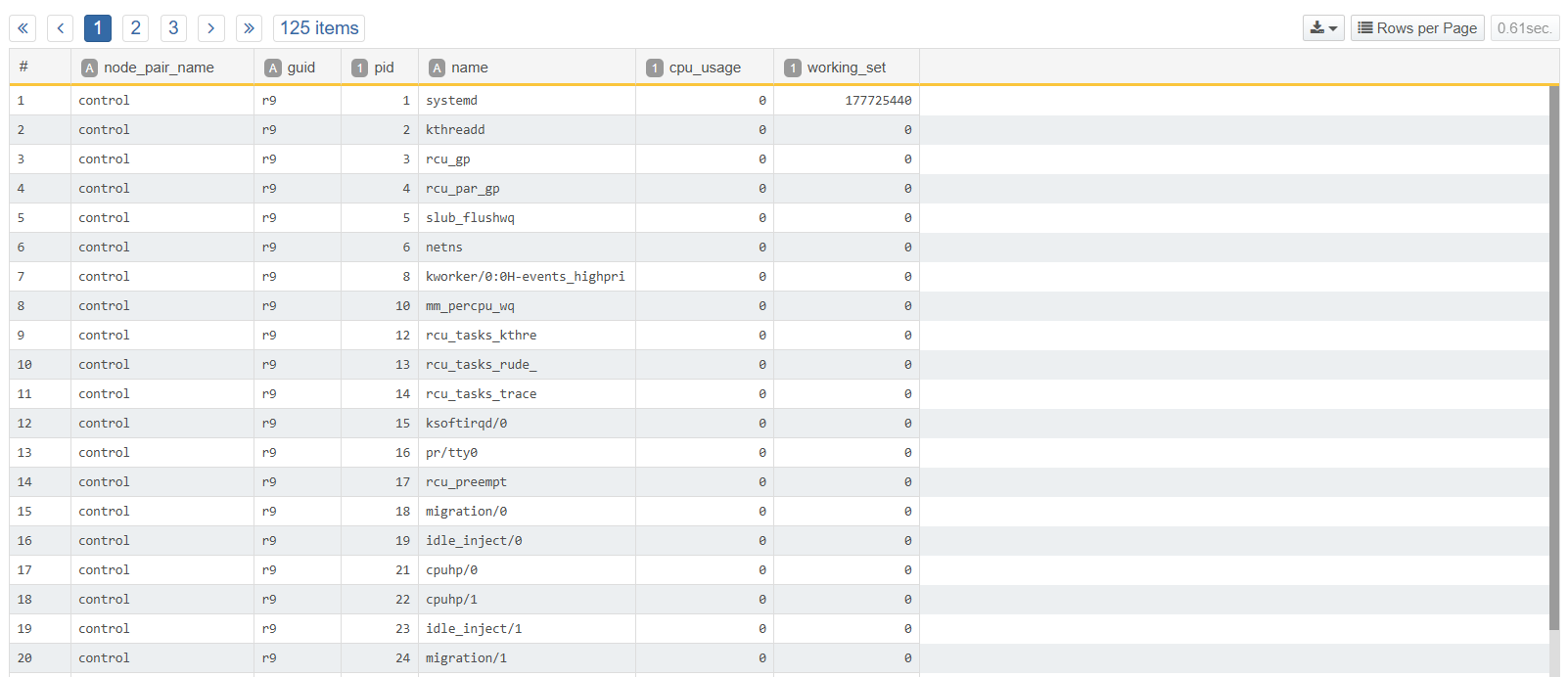
Processes: Shows the list of processes on the Sentry host.
-
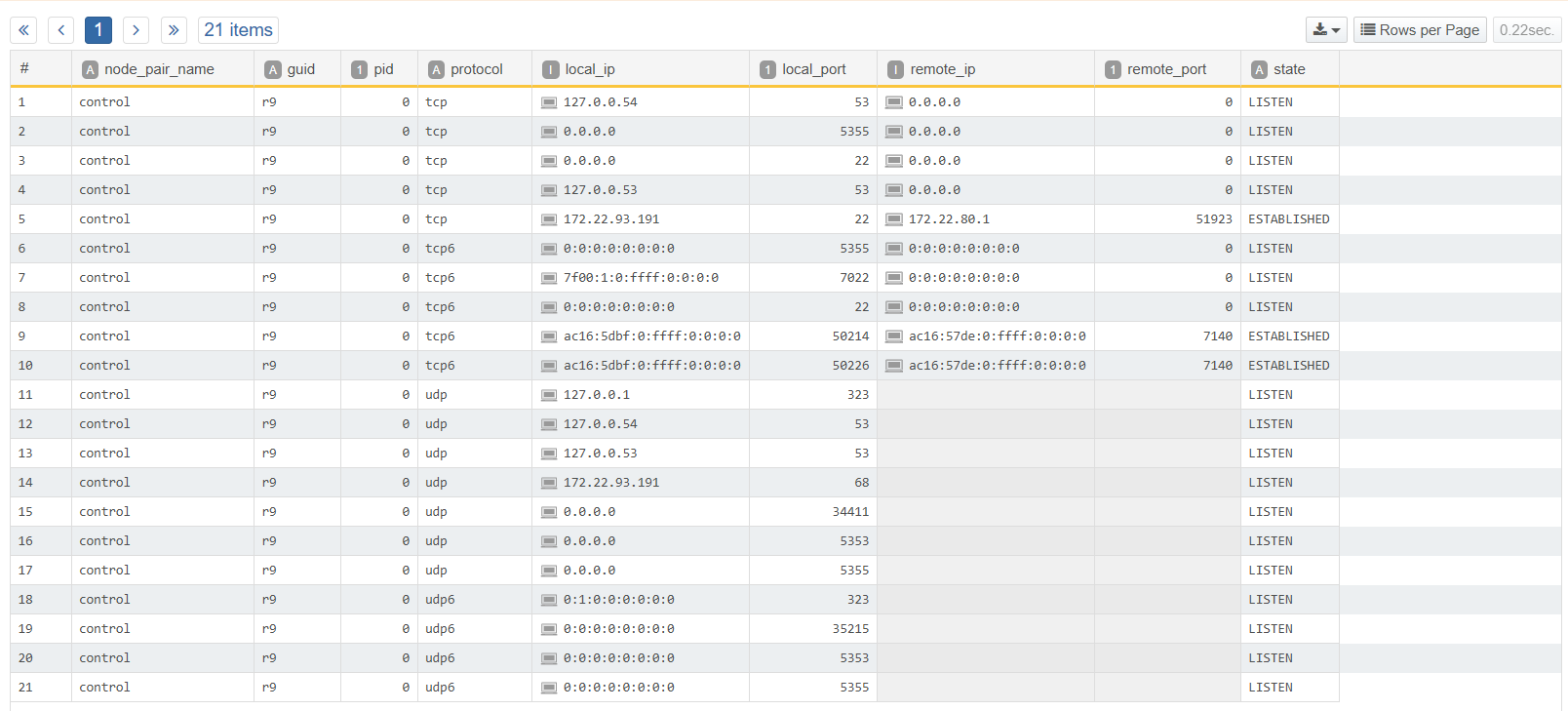
Network Connections: Displays the list of network sessions the Sentry host is connected to.
-
Routing Table: Displays the routing table of the Sentry host.

-
ARP Cache Table: Displays the ARP cache on the Sentry host.

-
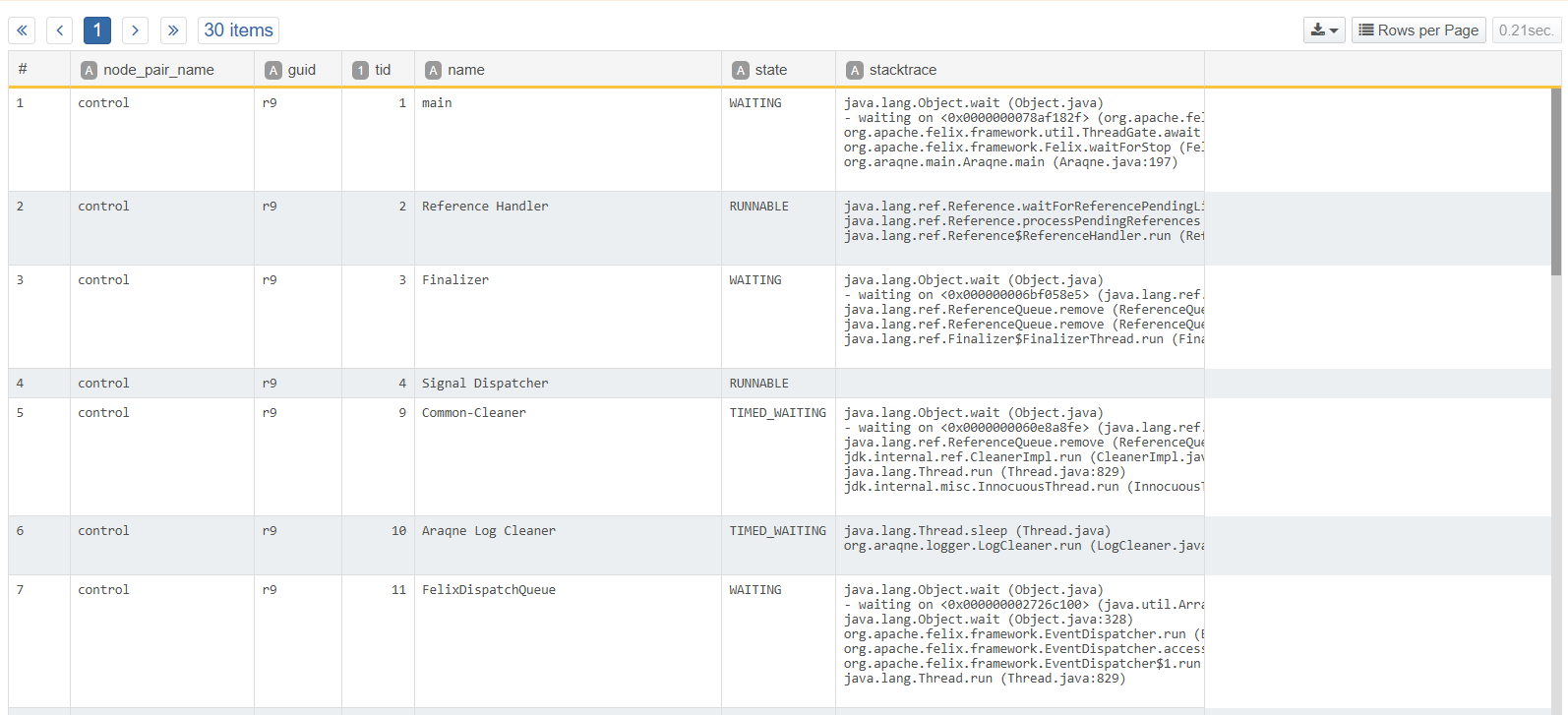
Thread Dumps: Displays the list of threads used by the Sentry while running.
-
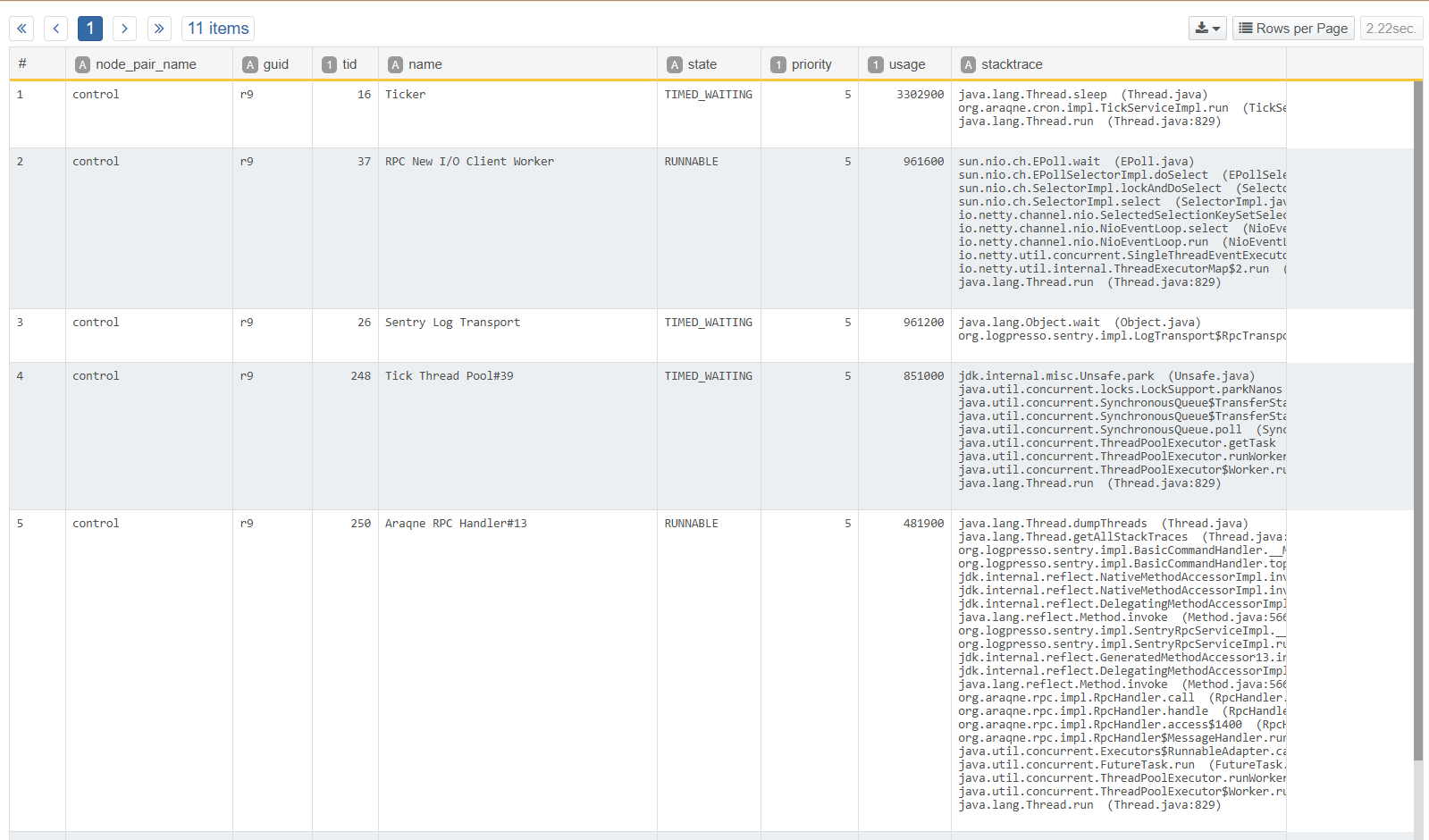
Top Threads: Displays the system load on a thread.
-
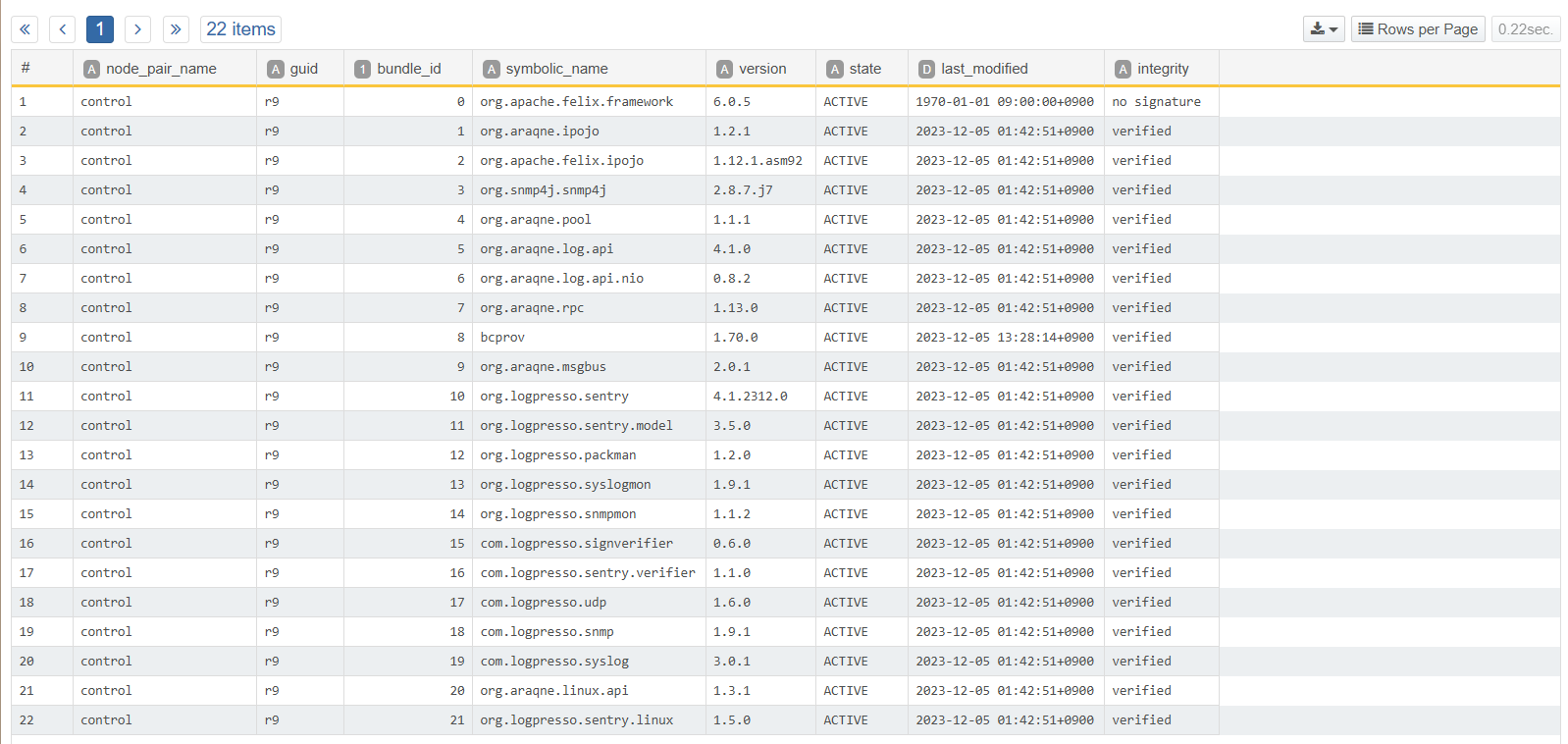
Bundles: Displays a list of bundles installed on the Sentry.
-
Restart: Restarts the Sentry.
Install Sentry Remote Package
Install or upgrade the Sentry package remotely from the web console, without connecting directly to the host where the Sentry is installed.
-
Click the Sentry ID to open the dropdown list, then click Install Sentry Remote Package.
-
In the Install Sentry Remote Package window, search for a package using the search box, or check the Name, Version, and Description columns in the list. Click the row of the package you want to install to select it, then click OK. If the list spans multiple pages, use the page numbers at the bottom of the window to navigate.
NoteYou can select a package whose version is the same as the one already installed, but if you click OK, a notice indicating that the package is already installed appears and the installation does not proceed. That package is shown as In Use in the Status column of the list.
After you make your selection and click OK, the remote install/upgrade command is sent to the Sentry.
Check Package Install Status
Click the ⚙ (gear) icon in the Install Status column of the Sentry list to view the most recent remote package installation result in the Sentry Package Install Status window.
If there is no installation history, the message "Install status will be displayed after remote sentry package installation." appears. If there is installation history, the following fields are displayed:
- Install Status: Shown as one of Waiting for install, Sending package, Installing, Install completed, Install failed, or Install canceled.
- Result: Shown as Succeeded or Failed. Not shown while the installation is in progress.
- Install Time: Time of the last installation attempt (in yyyy-MM-dd HH:mm format). Shown only after an installation has been attempted.
- Target Package: Name and version of the package being installed. Shown from the moment you request the installation, and cleared once the installation succeeds.
- Error: Shown only when the installation fails, as one of Package not found, Sentry is not connected, or Unknown issue.
Uninstall Sentry
To completely uninstall a Sentry; first remove the Sentry from the managed host, and delete the Sentry information registered on the Logpresso server.
Step 1: Run Command to uninstall Sentry
For Linux
To uninstall a Sentry on a Linux host, open a bash shell with root privileges and run the following command:
# Stop and uninstall Sentry
sudo systemctl stop logpresso-Sentry.service
cd /opt/logpresso-Sentry
sudo ./logpresso uninstall Sentry
sudo rmdir "$PKGDIR"
For Windows
To uninstall a Sentry on a Windows host, open Powershell as an administrator and run the following command:
# Stop Logpresso service
sc.exe stop Logpresso

# Check Logpresso status
sc.exe query Logpresso

# Delete Logpresso service
sc.exe delete Logpresso

# Remove a registry key
$reg="HKLM:\\SOFTWARE\\WOW6432Node\\Apache Software Foundation\\Procrun 2.0\\Logpresso\\"
Remove-Item -Path $reg -Recurse

# Remove Sentry files and folders
Set-Location "C:\Program Files\Logpresso Sentry\"
# Run the following lines, then answer the question with a Y.
cmd.exe /c logpresso.cmd uninstall Sentry
Set-Location ..
Remove-Item -Recurse -Path "C:\Program Files\Logpresso Sentry"
Step 2: Remove Sentry from Logpresso Server
To delete a Sentry from Logpresso server:
-
Navigate to System > Sentries and tick the checkbox of the Sentry you want to delete.
-
Click Delete on the toolbar.
-
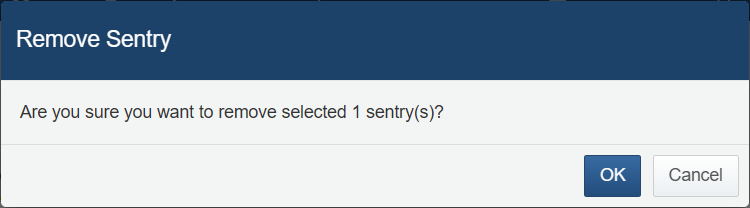
Click OK on the Remove Sentry dialog box to confirm the deletion. If you do not want to delete, click Cancel.
Control Log Transmission Volume
A Sentry limits how many logs it sends to the base at once by log count (5,000 logs by default). Starting with 4.0.2609.0, a byte size limit applies as well, which prevents a sudden increase in memory usage during transmission in environments where individual logs are large.
| Setting | Description | Default | Minimum |
|---|---|---|---|
flush_byte_size | Compressed data size carried in a single transmission | 64MB | 1MB |
pack_byte_size | Raw data size of a single block accumulated in the swap file | 8MB | 64KB |
For logs of ordinary size, the count limit is reached first, so throughput and the transmission interval do not change. Even when a single log or block is larger than the limit, at least one unit is sent, so transmission does not stall. If you do not set these two settings, the default values apply.
To read the values currently in effect, run sentry.configs in the Sentry shell. To change them, run the following commands. Specify values as integers in bytes; a value below the minimum raises an error and leaves the setting unchanged.
# Change the compressed data size per transmission to 128MB
sentry.setFlushByteSize 134217728

# Change the raw data size of a single swap file block to 16MB
sentry.setPackByteSize 16777216