
Response Targets
Overview
Response targets are used to block the IP addresses of detected attackers through integrated devices such as firewalls during stream or batch detection scenarios.
When response targets are set, IP addresses can also be blocked by registering them in the address groups referenced by the response targets through the Add to Blocklist action in the playbook.
A connect profile must be defined in advance to establish a connection with the target device.
Search Response Target
You can view and search the list of response targets in Settings > Response Targets.
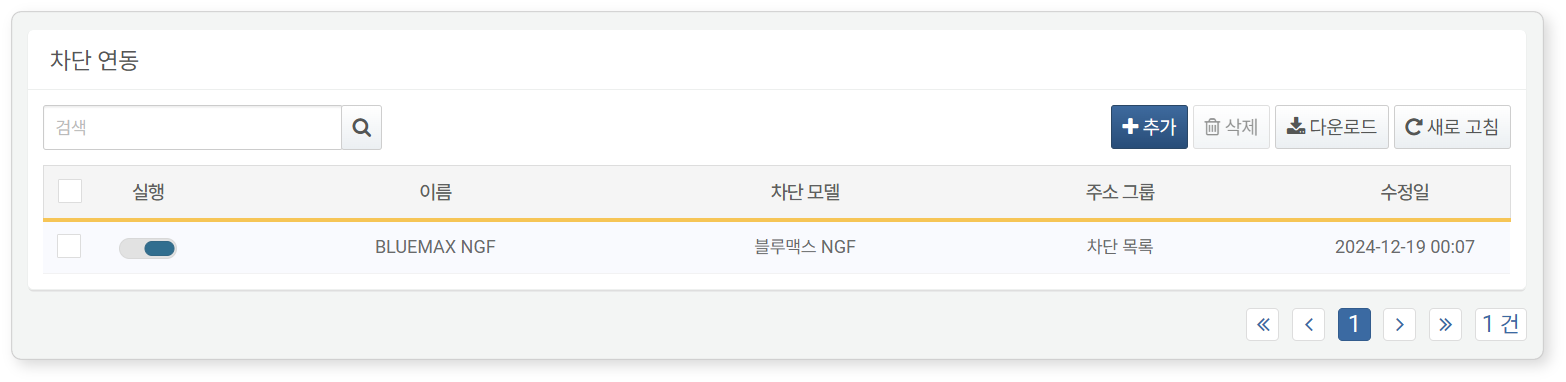
- ON/OFF: Toggle to enable or disable the response target (
 : enabled,
  : disabled).
 - Name: The unique name of the response target.
- Response Model: Defines how to communicate with the integrated device. It is automatically available when you install an app that supports response targets and can be selected during target configuration.
- Address Group: The address group used to block IP addresses on the target device.
- Modified At: The date the response target was last added or updated.
Use the search bar in the toolbar to find response targets by Name. Searches are case-insensitive and return results containing the entered keyword.
Download Response Target List
To save the response target list to your local PC, click Download in the toolbar and choose your preferred file format.
Refresh Response Target List
To update the list with the latest information, click Refresh in the toolbar.
Add Response Target
To add a response target:
-
Go to Settings > Response Targets and click Add in the toolbar.
-
In the Add Response Target screen, enter or select the required information:
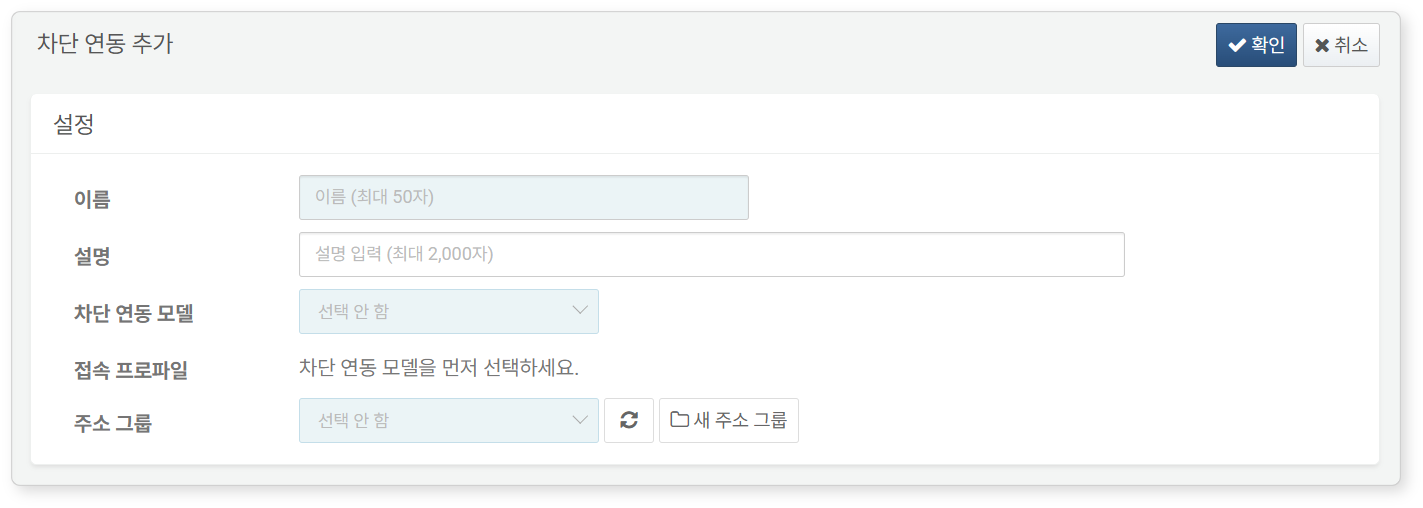
- Name: A unique name to identify the response target (up to 50 characters).
- Description: Description of the target configuration (max 2,000 characters).
- Response Model: Select a model that defines how to communicate with the integrated device. When an app supporting blocklist integration is installed, its response model becomes available in the list.
- Connect Profile: Select from available connect profiles. Only those compatible with the selected response model will be listed.
- Address Group: Choose or create an address group containing the IP addresses to be blocked.
-
After selecting the response model, additional Detailed Settings will appear. Complete these settings and click OK to save.
Edit Response Target
To modify a response target:
-
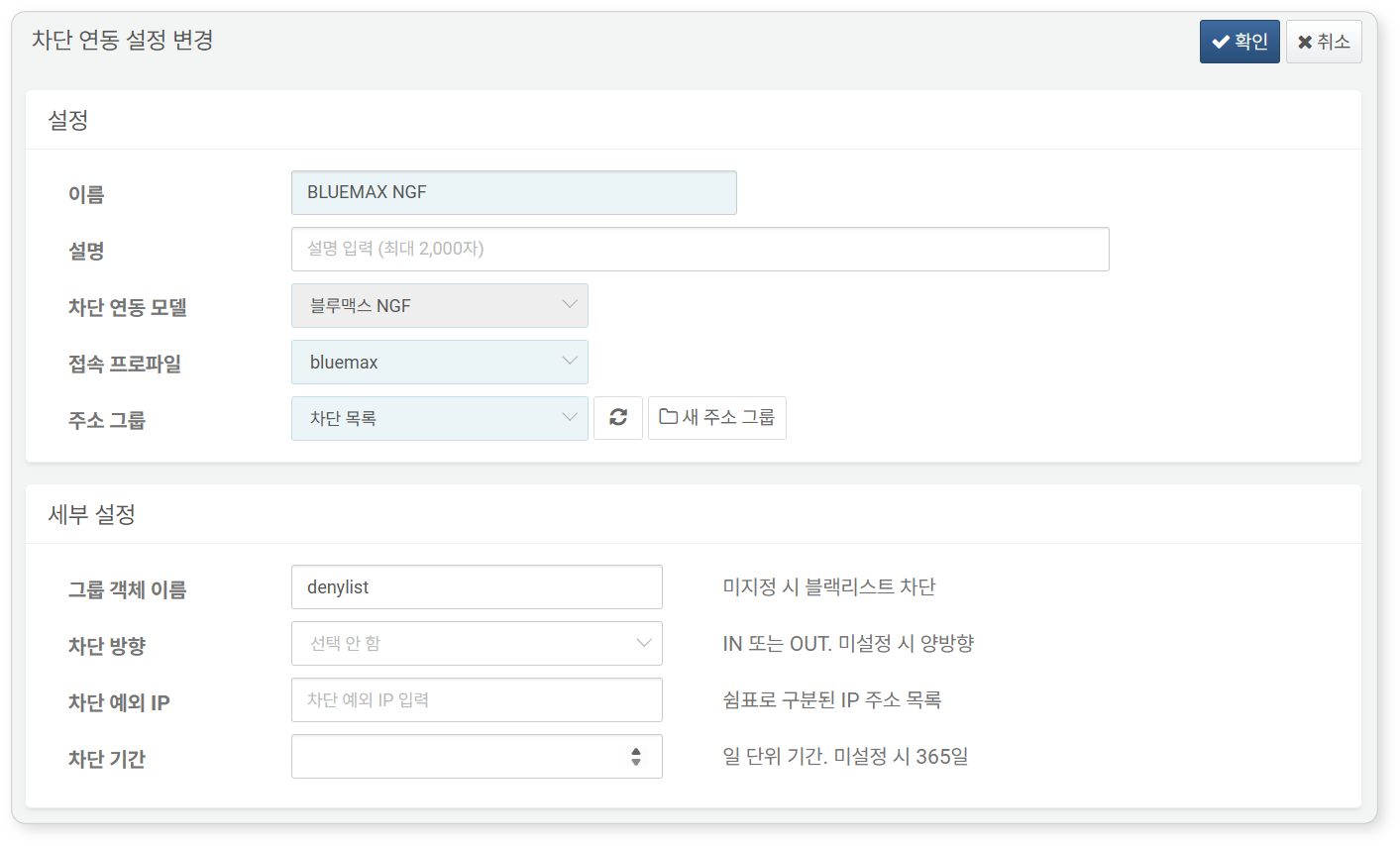
Click the name of the target in the response target list.
-
On the Edit Response Target screen, modify the information and click OK. The example below shows editing a target for PaloAlto Firewall.
Delete Response Target
To delete a response target:
- In the response target list, check the box next to the target you wish to delete.
- Click Delete in the toolbar.
- In the confirmation dialog, review the targets selected for deletion and click Delete to proceed. Click Cancel if you do not wish to delete.