
Machine Learning Traning Dataset
Overview
A machine learning training dataset (ML dataset) is a collection of data used for machine learning model training. Since machine learning models learn patterns from given datasets and use them to predict values or patterns in similar data, the quality of the training dataset significantly impacts the model's outcome.
Considerations
Training datasets should closely match the data generated in the environment where the machine learning model will be applied. Consider the following aspects when creating a dataset:
-
Including Diverse Information: Collect and prepare data that encompasses various characteristics such as time, location, user information, event type, and success/failure. It is recommended to use real-world data.
-
Selecting Target Variables for Supervised Learning: Supervised learning models, such as Random Forest, require a target variable for prediction. When creating a training dataset, ensure that it includes the target variable (prediction objective value).
-
Data Preprocessing: Remove or adjust data errors and extreme values. Normalize or scale features to prevent large discrepancies.
-
String Vectorization: Machine learning models cannot process raw text, so convert textual data into numerical representations using methods like tfidf query commands.
-
Data Quality and Quantity: Ensure data is accurate, complete, and consistent. Sufficient data is necessary for learning diverse patterns, especially for including enough examples of abnormal events.
-
Preventing Overfitting: Apply techniques such as cross-validation and regularization to avoid overfitting to the training data.
-
Changing Patterns: Since security threat patterns evolve over time, periodically retrain the machine learning model.
Search ML Dataset
You can view or search the training dataset list under Policies > ML Datasets.
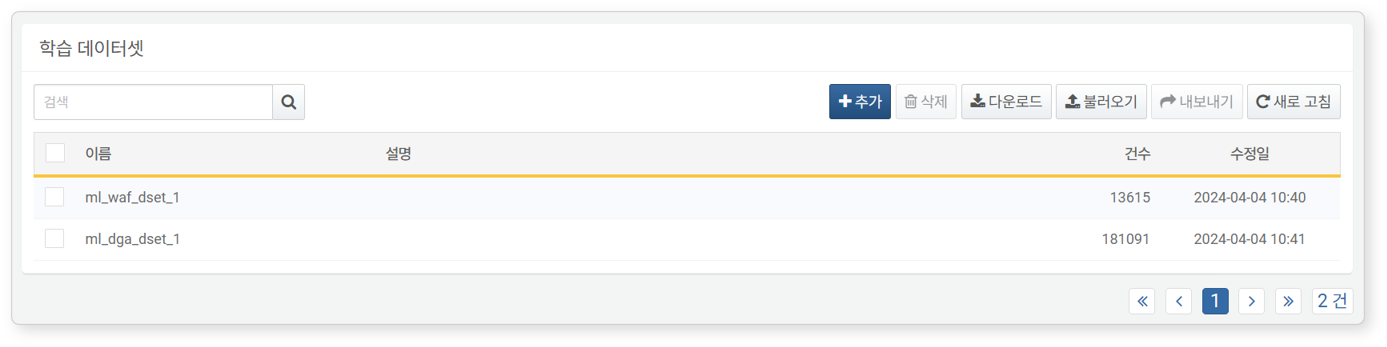
- Name: Training dataset name
- Description: Additional information about the training dataset
- Count: Number of data entries in the training dataset
- Modified At: Creation or last modification date of the training dataset
To find a specific ML dataset, use the search tool in the toolbar. The search tool filters datasets based on keywords in the Name and Description fields. The search is not case-sensitive.
Download ML Dataset List
To download the training dataset list as a file to your local PC, click Download in the toolbar and select the desired file format.
Refresh ML Dataset List
To update the training dataset list with the latest information, click Refresh in the toolbar.
Import and Export ML Dataset
You can export or import training datasets as files, which can be used for backup and restoration.
To export a tranining dataset:
- Select the checkbox of the dataset to export from the list.
- Click Export in the toolbar.
- In the Export Training Dataset dialog box, set the name and click OK.
To import a tranining dataset:
- Click Import in the toolbar.
- In the Import Training Dataset dialog box, click Select File and choose a previously exported dataset file.
- After selecting the file, click OK.
Add ML Dataset
To add a training dataset:
-
Go to Policies > ML Datasets and click Add in the toolbar.
-
In the Add ML Dataset screen, enter the required values and click OK.
- Name: Training dataset name (up to 50 characters)
- Description: Detailed description of the dataset (up to 2,000 characters)
- Query Statement: Query used to generate the training dataset (up to 10,000 characters). When training machine learning model, the dataset's field values are used. You can modify the field names if needed.
View ML Dataset
Click the name of a training dataset in the list to view its data.
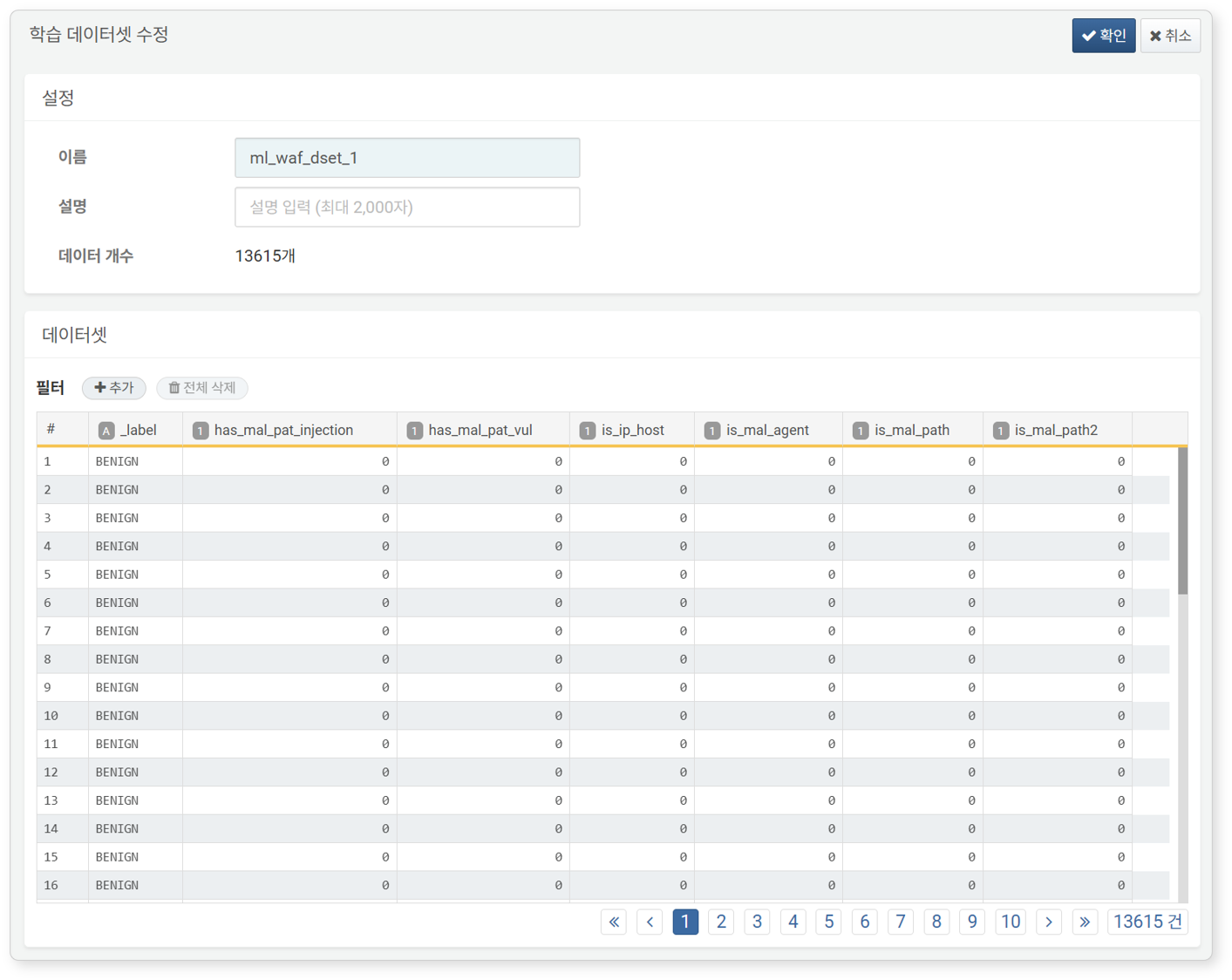
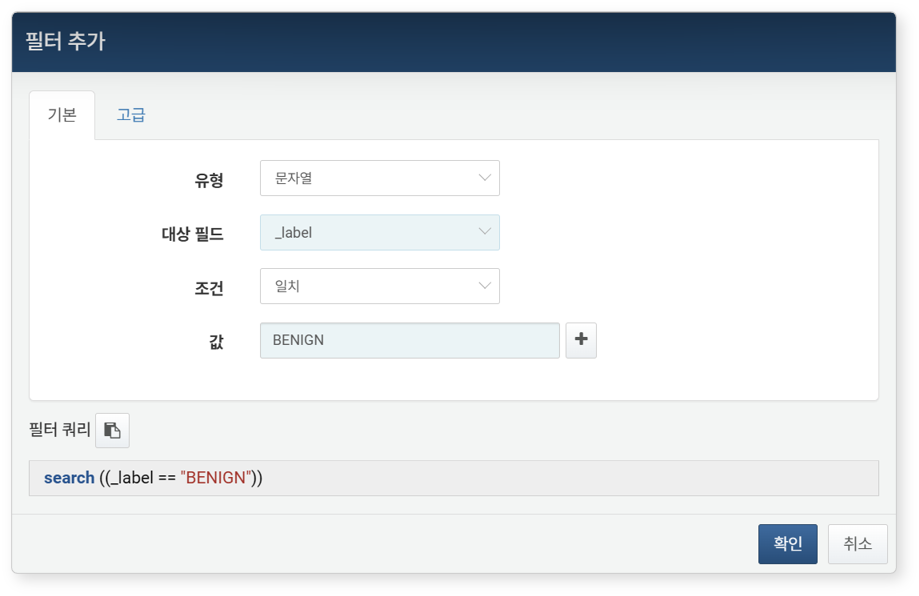
Filters can be applied to refine displayed data. To add a filter, click Add next to Filter.
Edit ML Dataset
To edit a training dataset:
- Click the name of the training dataset in the list.
- In the Edit ML Dataset screen, update the information and click OK. The only editable field is Description.
Delete ML Dataset
To delete a training dataset:
- Select the checkbox of the dataset(s) to delete from the list.
- Click Delete in the toolbar.
- In the Delete ML Dataset dialog box, review the selected datasets and click Delete. To cancel, click Cancel.