
Reports
Overview
The report creation and formatting feature allows you to generate scheduled reports, summarize analysis results, and support decision-making processes.
Users can easily build customized reports using predefined templates. Reports are composed by processing data with queries and arranging the results into structured formats that include tables, charts, and text blocks.
This feature helps automate repetitive reporting tasks and enables teams to share consistent analysis results in a standardized format.
Report Template List
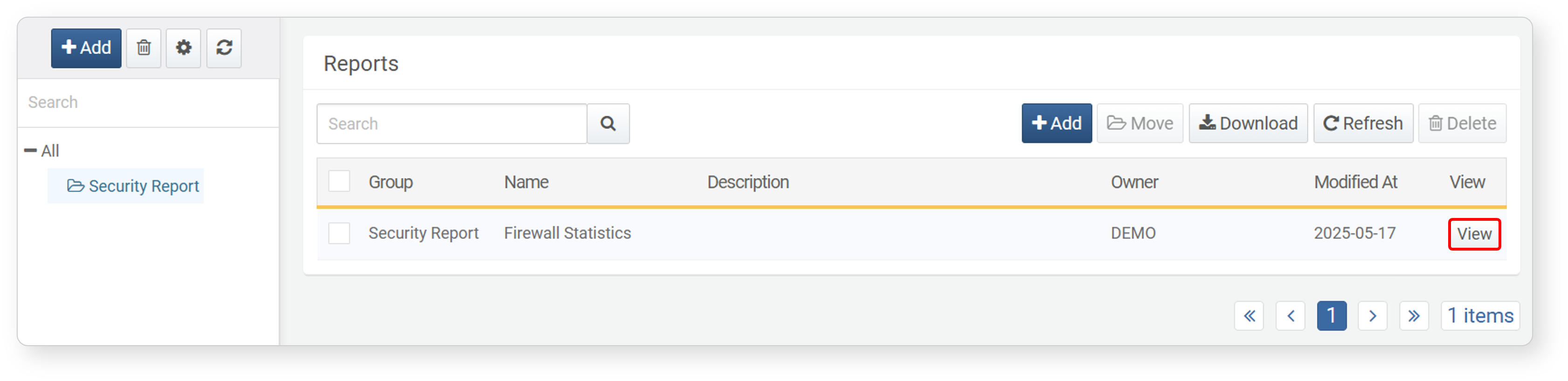
You can view or search report templates under Analysis > Reports.
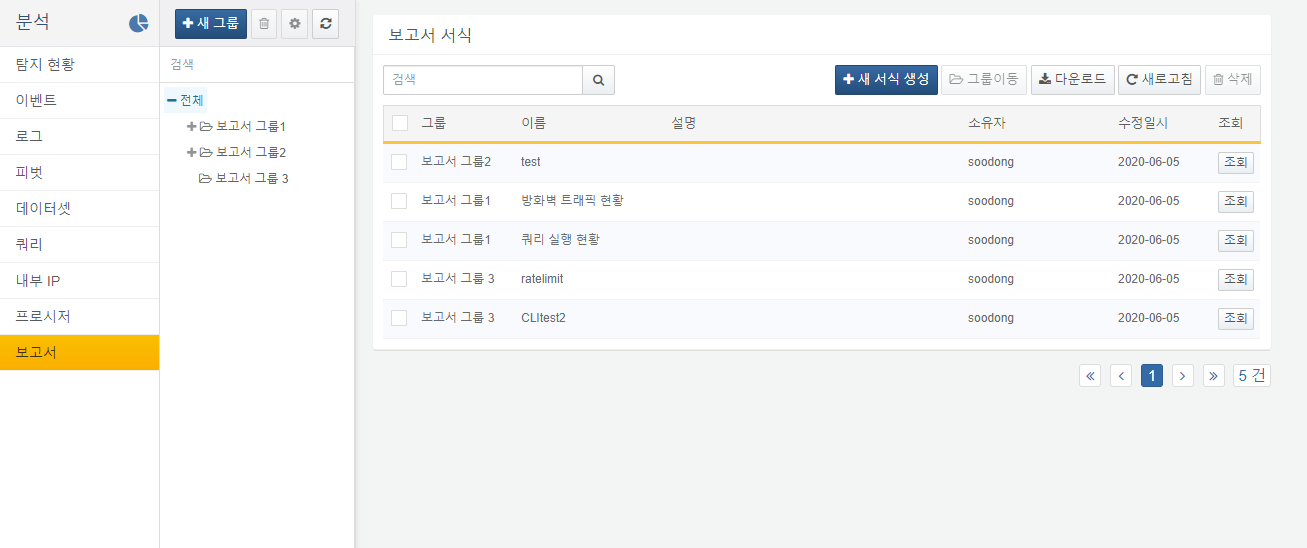
- Group: Classification group of the report (classification groups can be viewed/searched in the left tree group)
- Name: Name of the report
- Description: Description of the report
- Owner: The user account that created the report template
- Modified At: The date the report was last modified (or created)
- View: Generate and view a report for a specified date using the report template
To find a specific report in the report list, use the search tool in the toolbar. The search tool finds reports that contain the entered keywords in the Name or Description fields. The search tool is not case-sensitive.
Create Report Template
To create a report template:
- Click Add in the toolbar of the report list.
- Complete the Basic Settings and Component Settings, then click OK.
Basic Settings
In the Basic Settings section, set the basic information for the report.
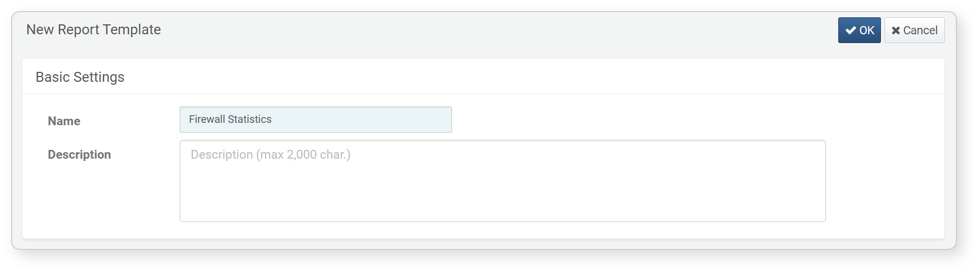
- Name: The name of the report (up to 50 characters)
- Description: A detailed description of the report (up to 2,000 characters)
Component Settings
In this section, you define the content blocks called Components that make up the report. To add multiple content sections, click Add Component at the bottom of the Add Report screen.
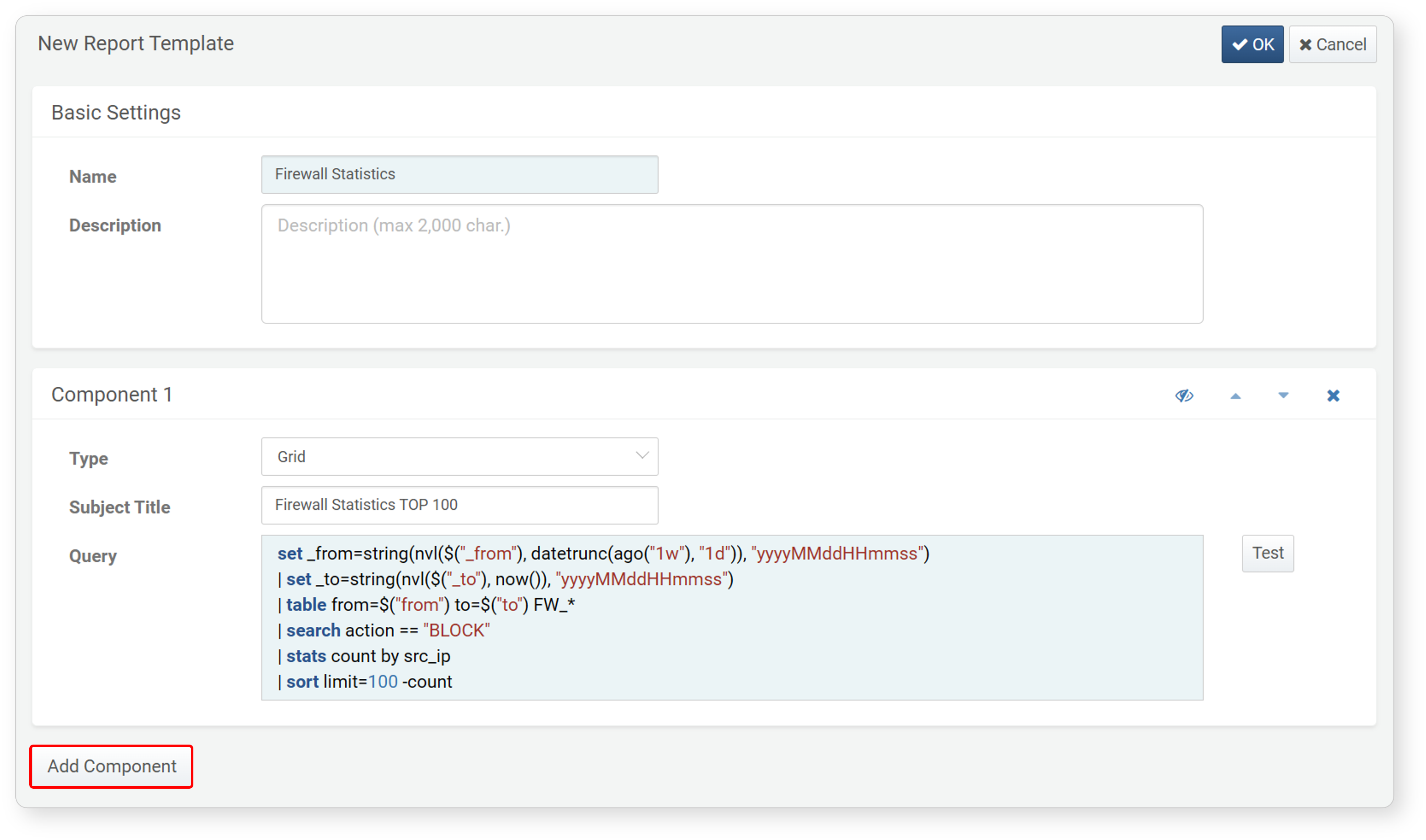
- Type: The type of the Component
- Paragraph: Adds plain text to the report. The value of the
linefield from the query result will be displayed as paragraph text. If multiple rows are returned, each will appear as a separate paragraph. - Grid: Adds a table to the report. The full query result will be rendered as a table. The column order will follow the order in the query result window or be explicitly defined via the
fieldsorordercommand. - Memo: Adds boxed text (memo) to the report. The value of the
linefield will be displayed inside a bordered box. If multiple rows are returned, each row will be rendered as an individual memo.
- Paragraph: Adds plain text to the report. The value of the
- Subject Title: Subtitle of the component. This appears as a section heading in the report. This field is optional.
- Query: The query used to retrieve the data for the component (up to 2,000 characters).
- Use the
$("from")and$("to")to retrieve time-bounded data. During report generation, the report engine passes the selected time range to these parameters. - After entering a query, click Test to preview the results in a new window. The Test button is only enabled once a query has been entered.
- Use the
Toolbar
When building a report template, use the toolbar to manage individual components.
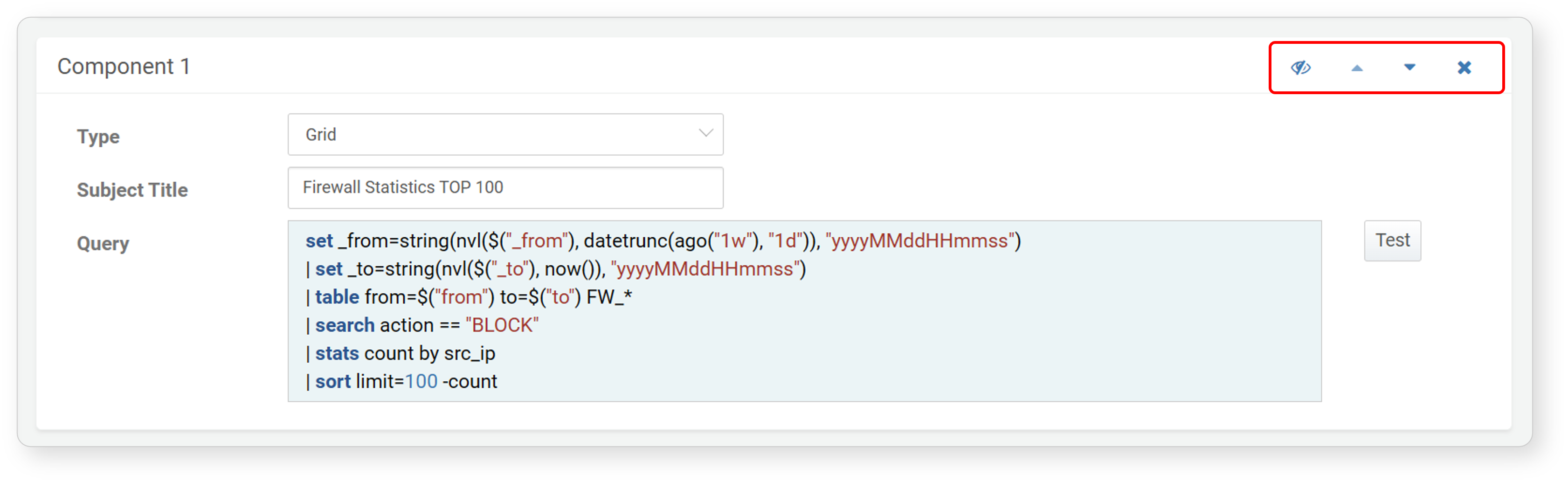
Toolbar actions, from left to right:
- Show/Hide: Toggle the visibility of the component in the final report. Hold the ALT key while clicking to toggle the visibility of all components at once.
- Move Component Order: Change the position of the component. Use the arrows to move it up or down. Hold the ALT key while clicking to move it directly to the top or bottom.
- Delete: Remove the component. Hold the ALT key while clicking to delete all components in the report template.
Edit Report Template
To modify an existing report template:
- Click the Name of the report template you want to edit in the report template list.
- In the Edit Report Template section, update the Basic Settings and Item Settings.
- Click OK to save changes. To discard the changes, click Cancel.
Generate Report
Viewing Reports in the Web Console
You can generate a report for a specific time period using an existing report template.
- Click View for the desired report template in the report template list.
- On the report view screen, set the target date for report generation at the top and click Run. The report will be generated and displayed in the preview pane.
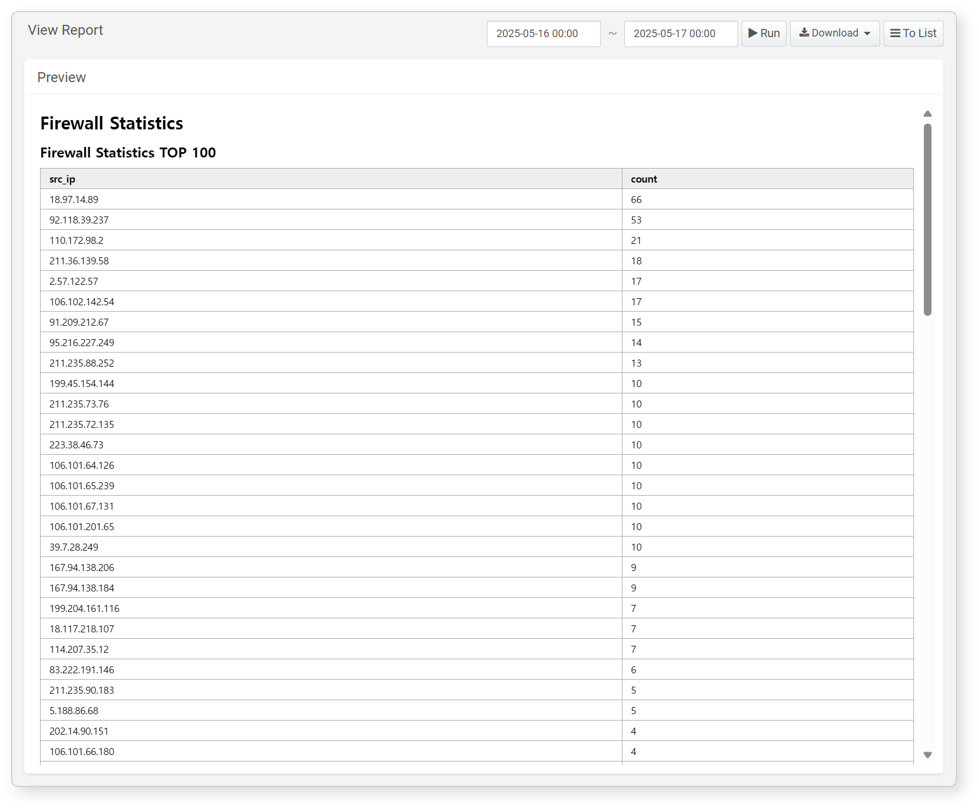
3.Once the report is generated, click Download in the upper right corner of the screen and select your preferred format (Word document, web document, or PDF) to download the report to your local PC.

Generating and Viewing Query-Based Reports
You can also generate reports programmatically using the sonar-send-report command. This allows you to send reports via email which is particularly useful when used with scheduled queries to automate regular report delivery.
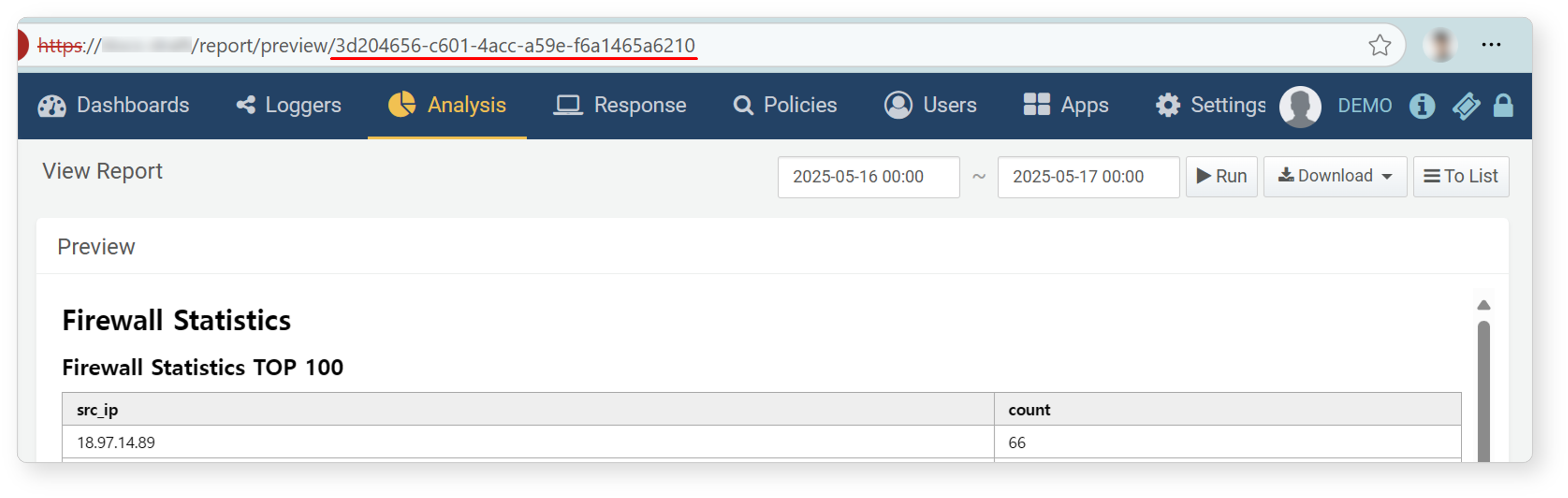
To use the sonar-send-report command, you must know the GUID of the report template. You can find the GUID by clicking the Name of the report in the report template list and checking your browser’s address bar.
Delete Report Template
To delete a report template:
- Select the checkbox for the row of the report template you wish to delete in the report template list.
- Click Delete in the toolbar.
- In the Delete Report Template dialog, confirm the report template information to be deleted and click Delete. Click Cancel to cancel the operation.
Manage Report Groups
Report groups are used to organize and classify registered report templates.
Add Report Template Group
To add a report template group:
-
Click Add above the report group list in Analysis > Reports.
-
In the Add Report Template Group dialog, fill in the group details and click OK. Click Cancel to cancel the operation.
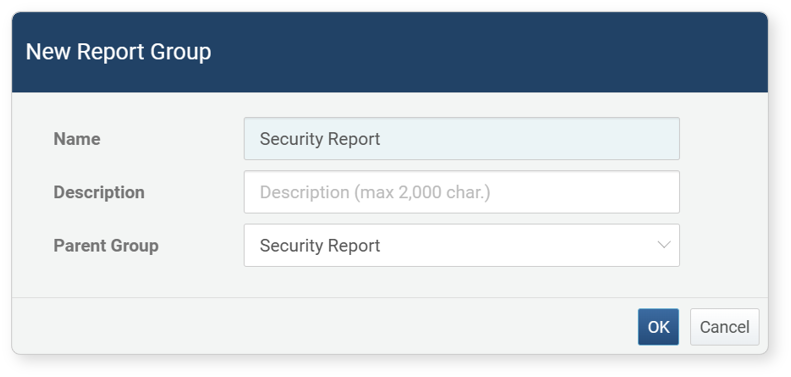
- Name (Required): Name of the report template group (up to 50 characters)
- Description: Description of the report template group (up to 2,000 characters)
- Parent Group: If no parent group is specified, the group will be created at the top level.
Edit Report Template Group
To modify a report template group:
- Select the group you want to modify in in the report template group list under Analysis > Reports.
- Click the
 icon above the report template group list.
 - In the Edit Report Template Group dialog, make the necessary changes and click OK. Click Cancel to discard changes.
Delete Report Template Group
To delete a report template group:
- Select the group you want to delete in the report group list under Analysis > Reports.
- Click the
 icon above the group list.
 - In the Delete Report Template Group dialog, verify the group details and click Delete. To cancel the deletion, click Cancel.
- If you check Remove All Subgroups, all subgroups will be deleted. Report templates in those groups will be moved to the parent group. Templates with no parent will be marked as Unclassified in the report template list.
- If you delete the group without checking Remove All Subgroups, the selected group’s subgroups and report templates will be moved to the parent group.
Change Report Template Group
To move a report template to another group:
- In the report template list, select the checkbox of the report template you wish to move.
- Click Move in the toolbar.
- In the Move Report Template dialog, select the destination group and click Move. Click Cancel to cancel the operation.