Tables
Overview
A table is a storage space for the data and indexes collected by Logpresso Sonar. All data collected from data sources through loggers undergoes a normalization process according to the logger models, and both the original data and the data generated based on normalization rules, along with indexes, are stored in tables.
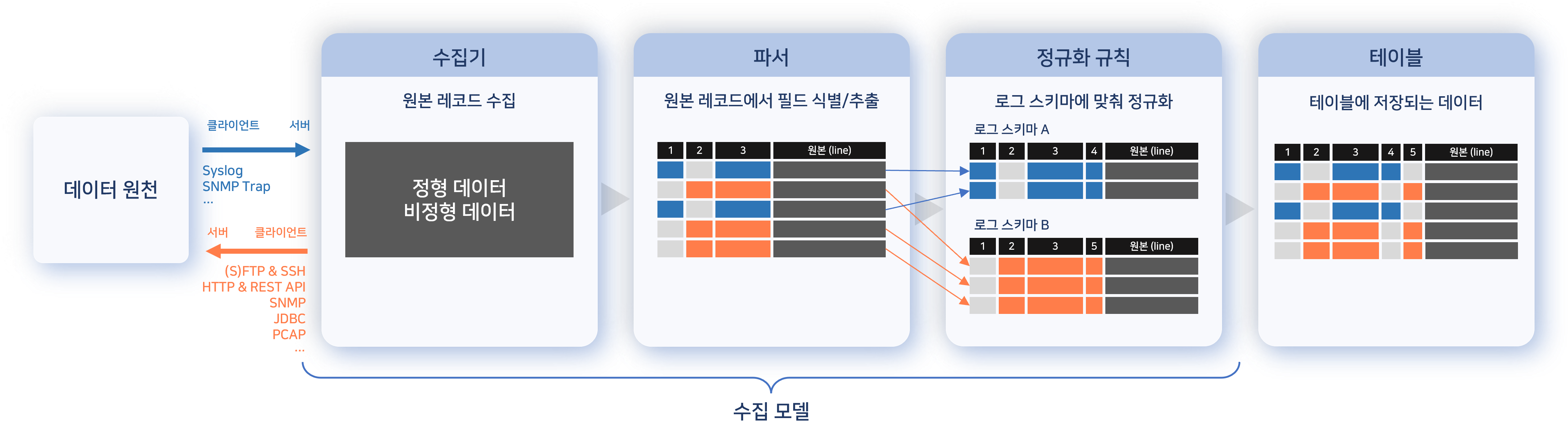
If an encryption profile is specified for a table, the data will be stored in an encrypted format. The stored data is retained for the specified retention period, and data that exceeds the retention period will be deleted. Administrators can grant access permissions to users or user groups, and regular user accounts can access tables within the scope of their granted permissions.
View Table List
You can view the table list under Settings > Tables. The left side displays the table tree, while the right side shows the information of the selected table.
The table list displayed when clicking on an organization name includes the following:
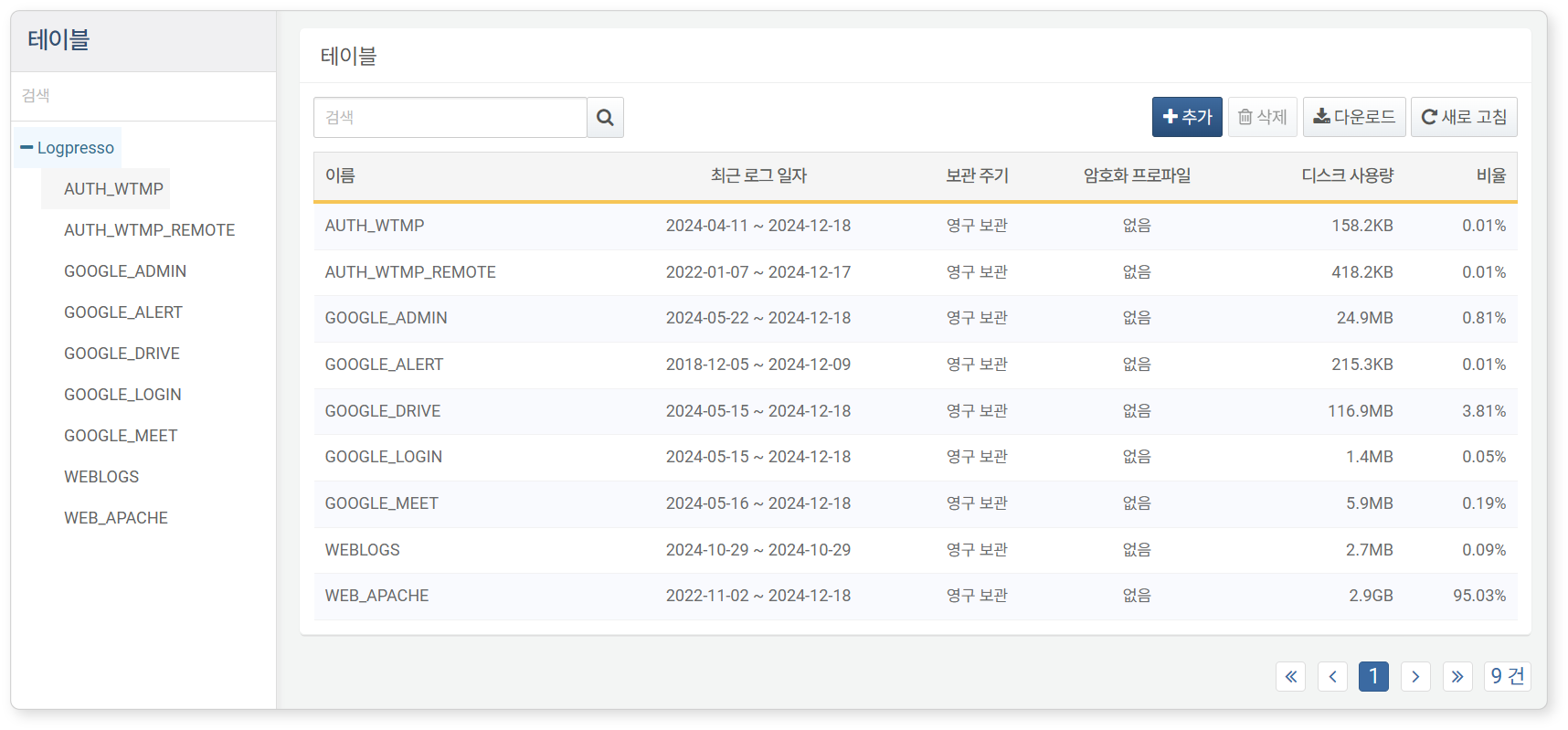
- Name: The unique name assigned to the table.
- Max Time: The retention period of the data stored in the table.
- Retention: The retention period for the data recorded in the table. Data that exceeds the retention period based on the time the data was recorded will be deleted.
- Encryption: Whether an encryption profile is applied.
- Disk Usage: The size of the stored data (displayed with automatic unit conversion from bytes to exabytes).
- Ratio: The ratio of the stored size compared to the total capacity of all tables.
Both the table tree and the table list support search functionality. Both search features perform searches based on the table name and are not case-sensitive.
Download Table List
To save the table list to your local PC, click Download in the toolbar and select the desired file format for download.
Refresh Table List
To view the table list with the latest information, click Refresh in the toolbar.
Create Table
There are two methods to create a table:
- Create a table from the table list.
- Create a table when adding a logger.
When creating a table from the table list, data encryption can be applied; however, when creating a table while adding a logger, data encryption is not supported.
To create a new table from the table list, click Add in the toolbar, then specify the table's Name, Crypto Profile, and Retention period in the Add Table dialog, and click OK.
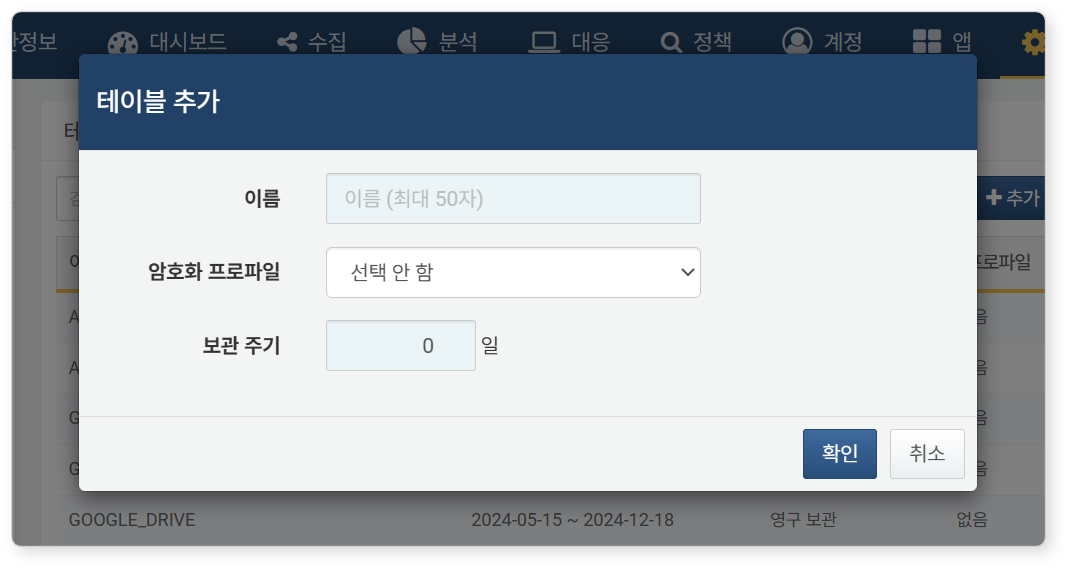
- Name: The unique name of the table (up to 50 characters). Only English letters, numbers, and underscores (
_) are allowed. The name cannot be changed after the table is created. - Encryption: Select an encryption profile from the list if you want to encrypt the data stored in the table. This setting cannot be changed after the table is created.
- Retention: The duration for which logs will be retained in the table (default:
0, which means logs are retained permanently).
View Table Data
To view table information, click on the table name in the table tree on the left side of the table list.

The table properties screen consists of three tabs.
- Basic Configuration
- Displays table properties, table access permissions, and total usage per node.
- In Table Properties, you can change the Retention Period. The unit is in days.
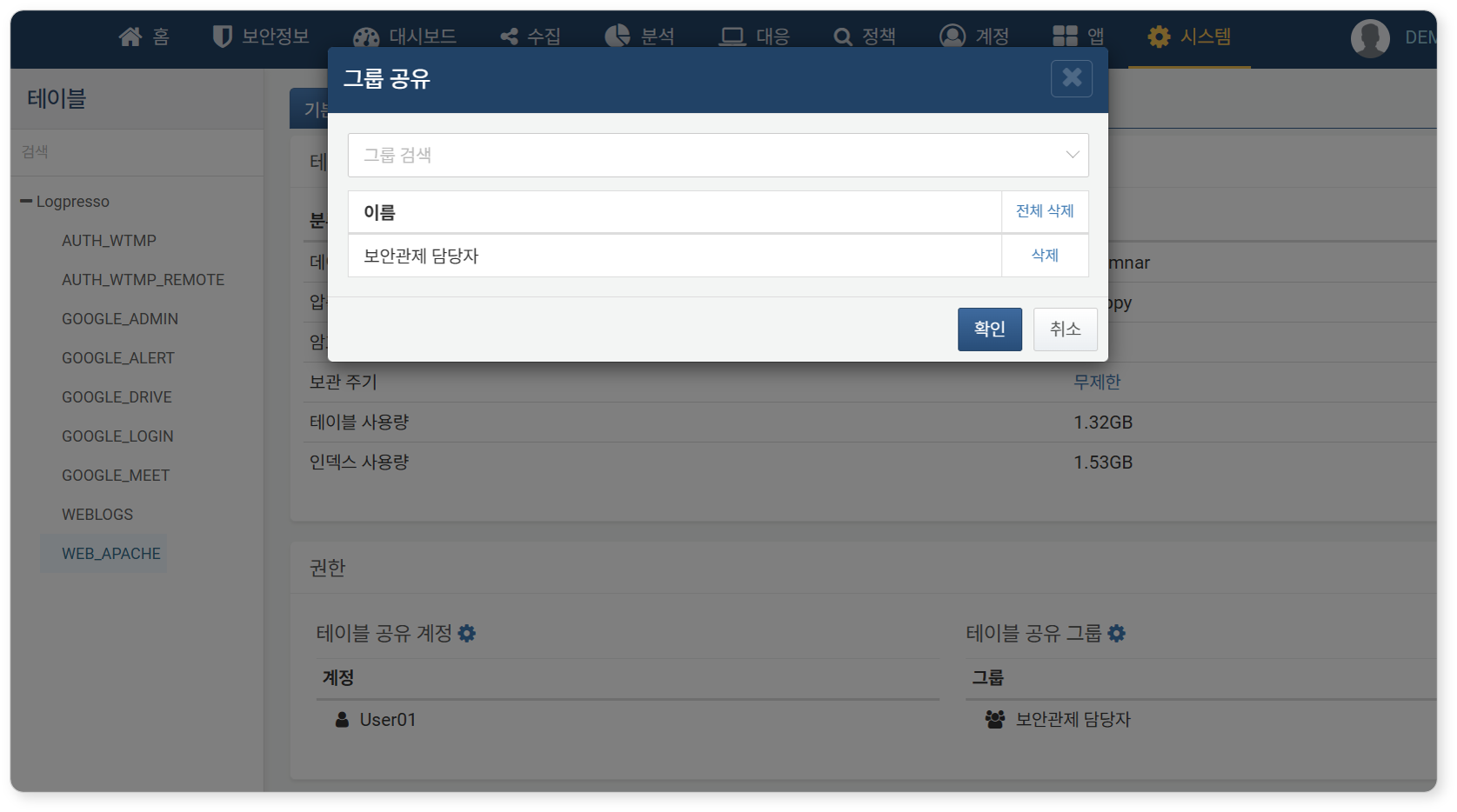
- In the Share section, you can grant table read permissions to accounts or account groups through Users Sharing Table and Groups Sharing Table.
- Total usage by node shows the capacity of tables and indexes on a node basis within the Logpresso Sonar cluster.
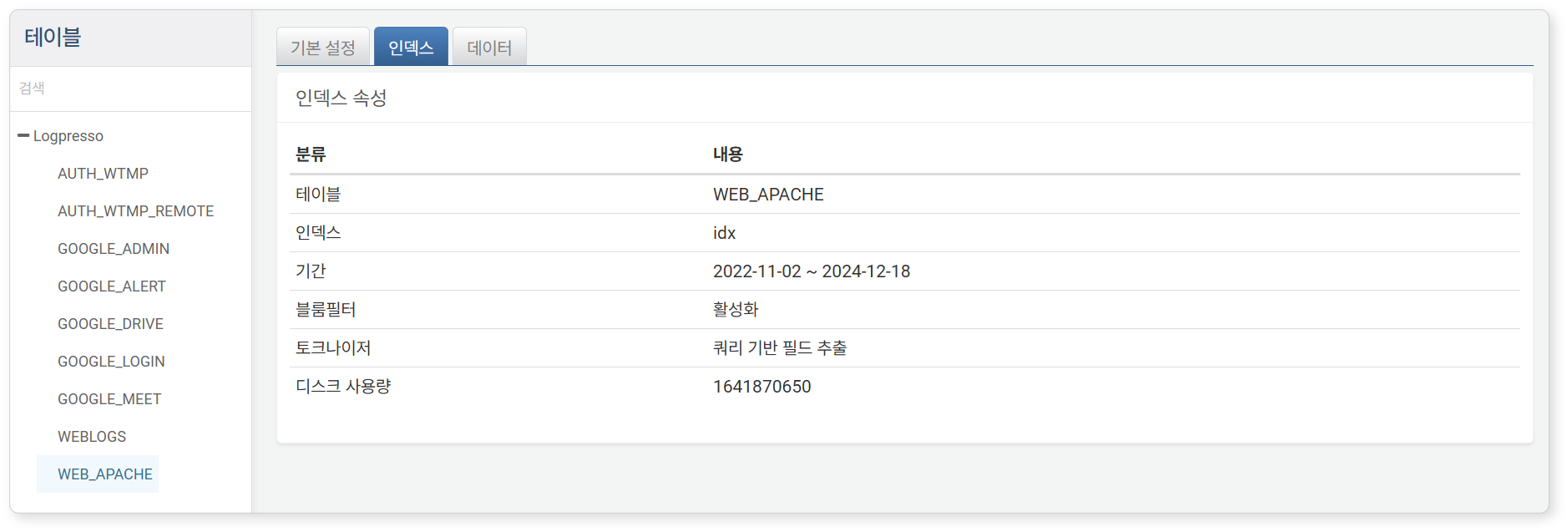
- Index
- Displays information related to table indexes.
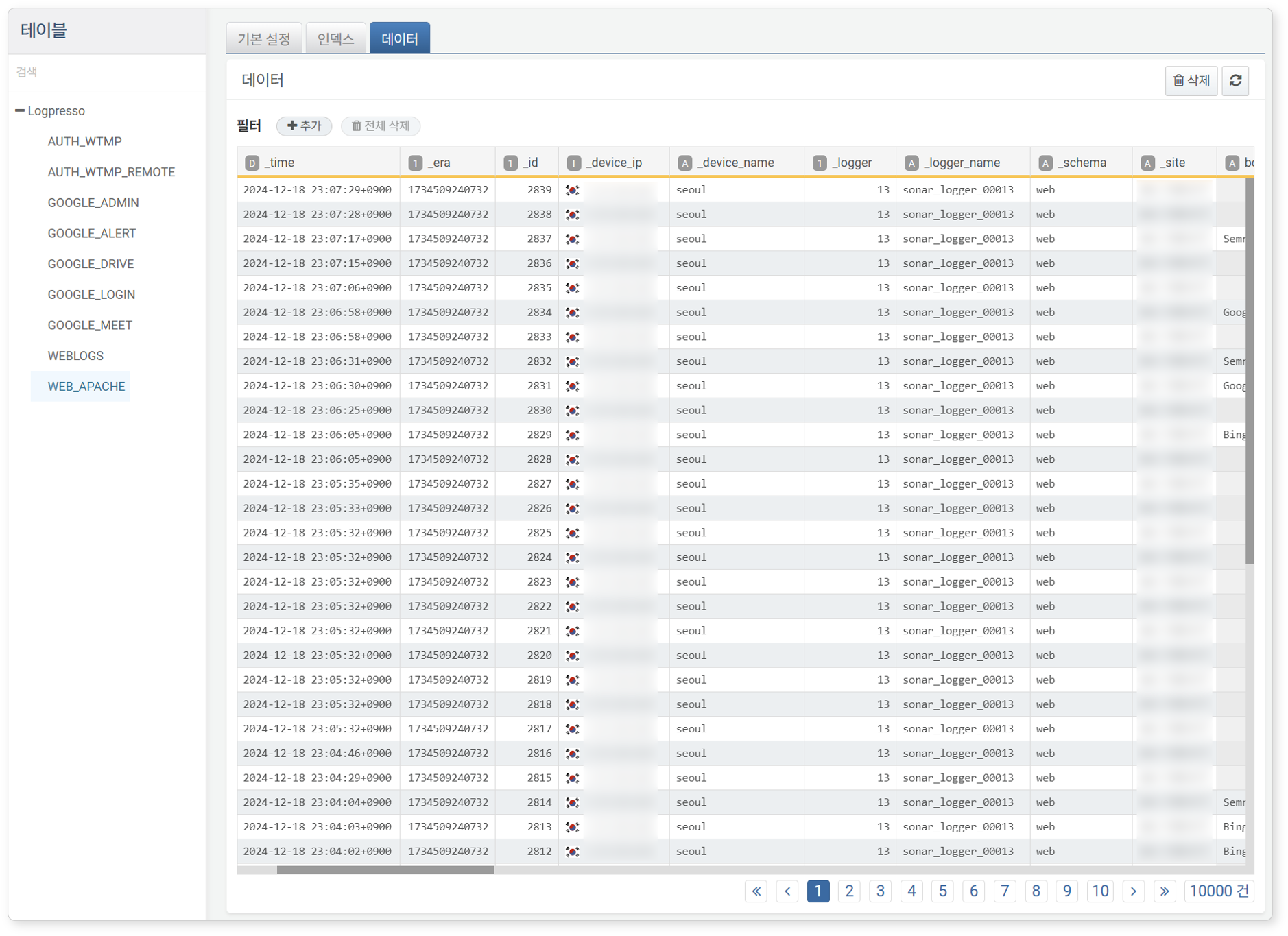
- Data
- Displays the most recent 10,000 entries of data.
Modify Retention Period
In the Basic Configuration tab of the table view, you can click the Retention value to modify the data retention period in the Retention Settings dialog..
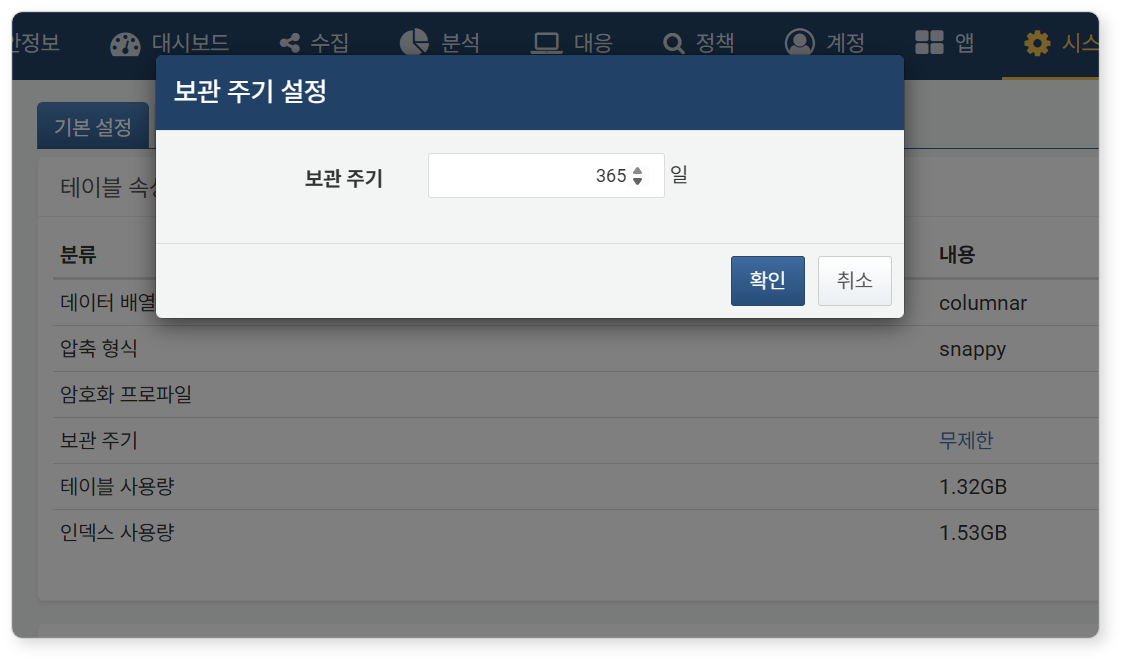
Table Access Control
In the Basic Configuration tab of the table view, you can specify the users or user groups to grant table read permissions by clicking the gear button next to Users Sharing Table or Groups Sharing Table.
Delete Table Data
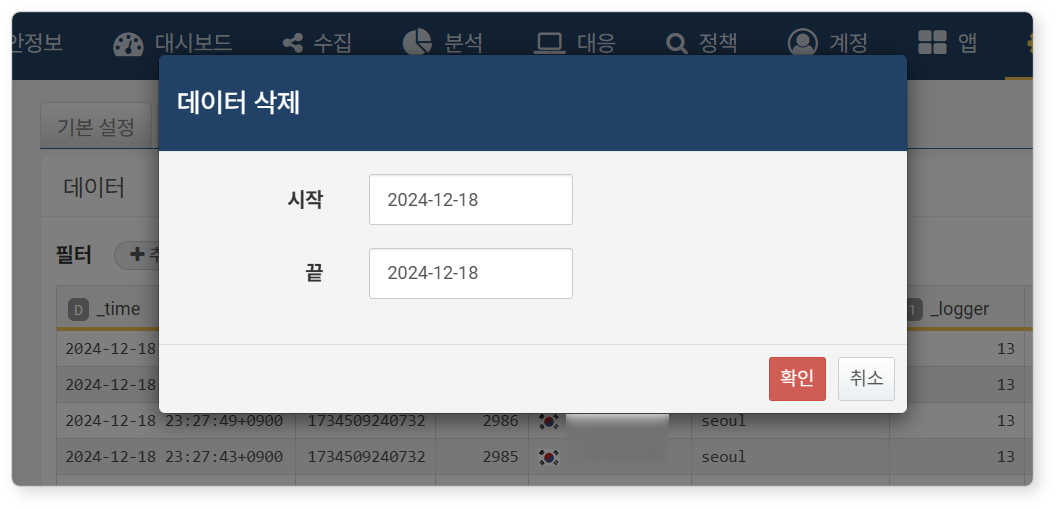
In the Data tab of the table view, you can click the trash can button to specify a period and delete data from that period.
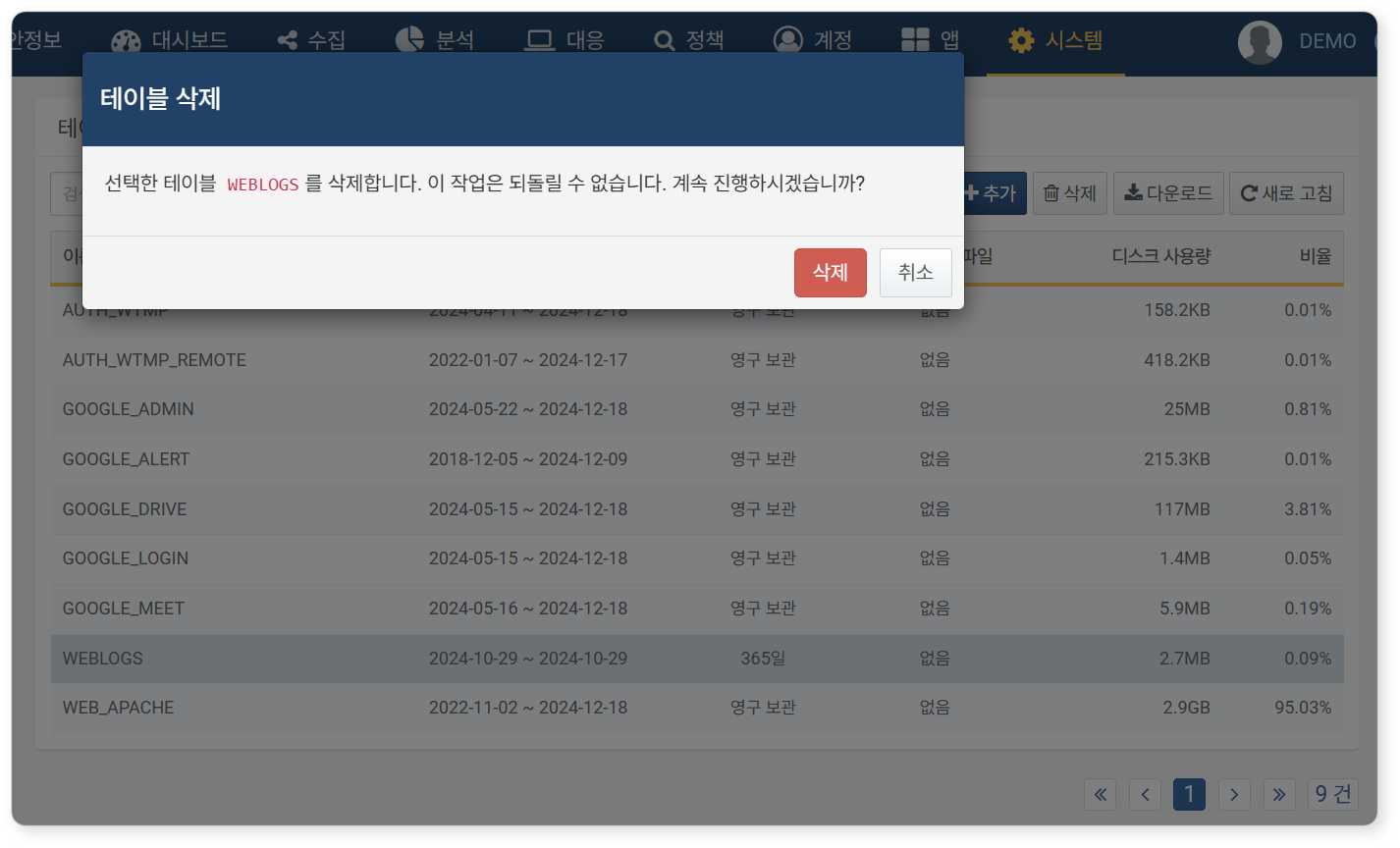
Delete Table
To delete a table, select the table you wish to delete from the table list, then click Delete in the toolbar. Clicking Delete in the Delete Tables dialog will remove the table along with all logs and indexes contained within it.