
Explanation Request List
The list of explanation request records is displayed. Explanation requests may originate from tickets, or users can create new requests using the Add button.
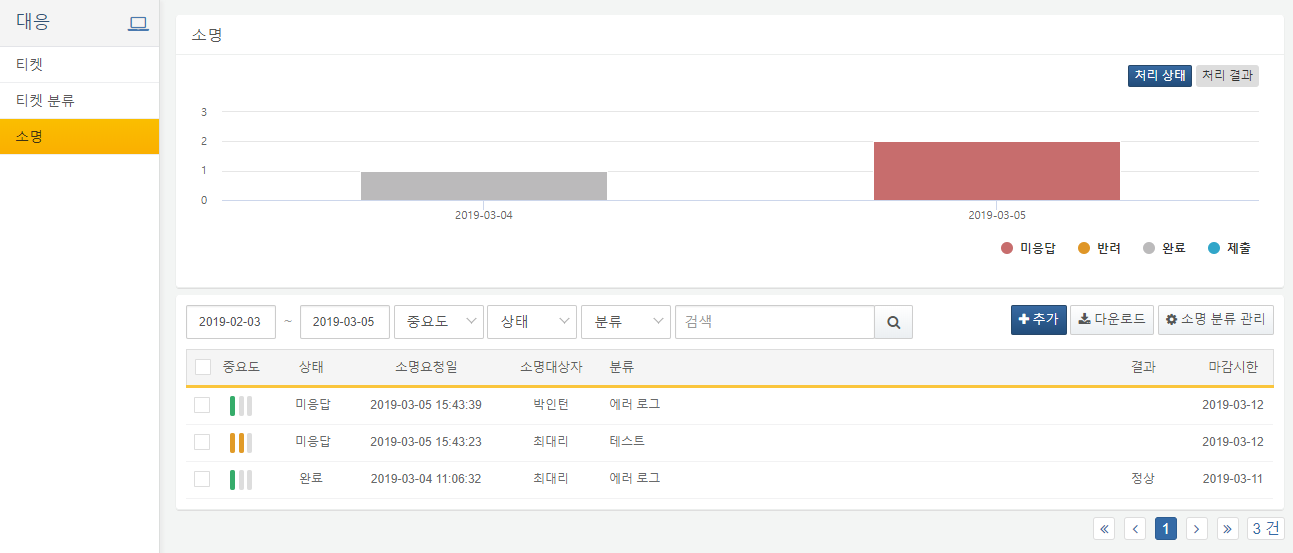
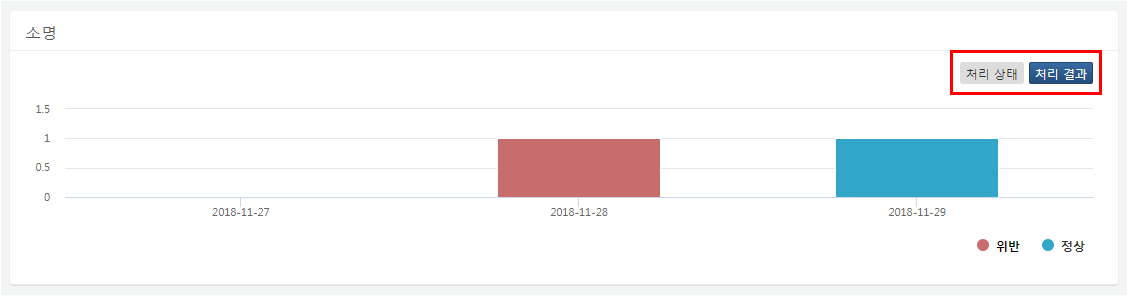
In the upper right corner, users can choose to view either the processing status or result.
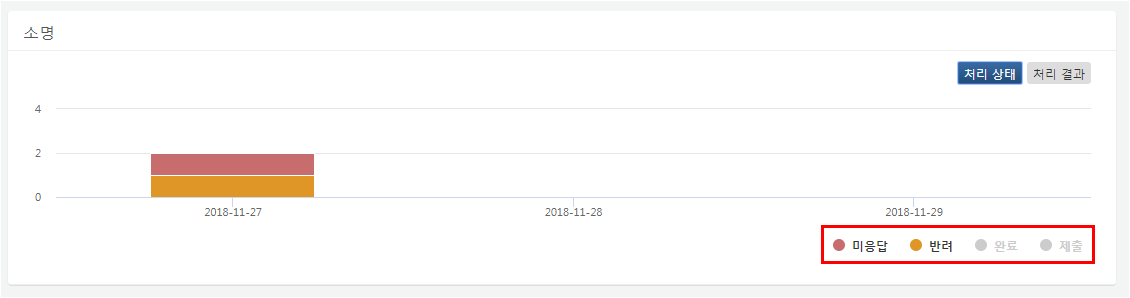
In the lower right corner of the chart, users can filter which statuses/results are displayed.
Users can click the Download button to export the explanation request list as a file.
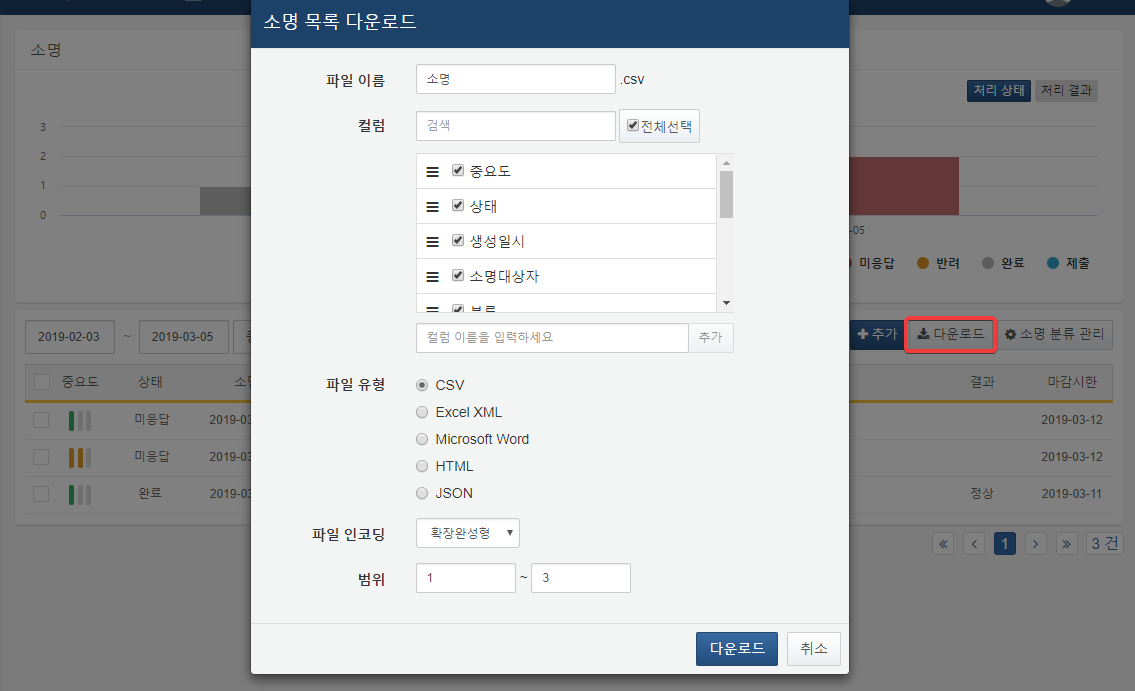
- File Name
- Enter the name for the file to be saved.
- Columns
- Select the columns to include in the file.
- Column List
- Use the search tool to find specific column names.
- File Format
- Choose the desired file format.
- Encoding
- Select the character encoding for the file.
- Range
- Select the range of explanation requests to include. The first item on the first page is considered number one. Using the checkboxes on the left side of the list, users can bulk delete or change the status of selected explanation requests.
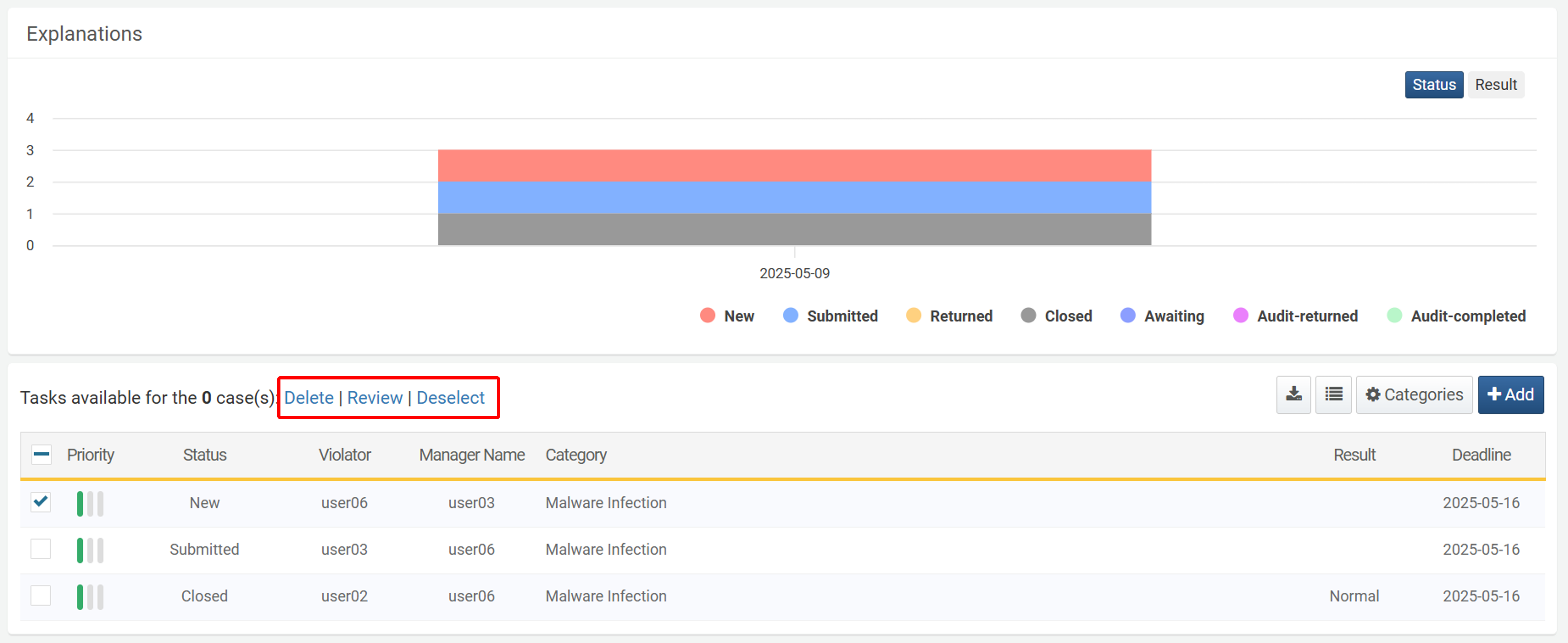
- Delete
- Deletes the selected explanation requests.
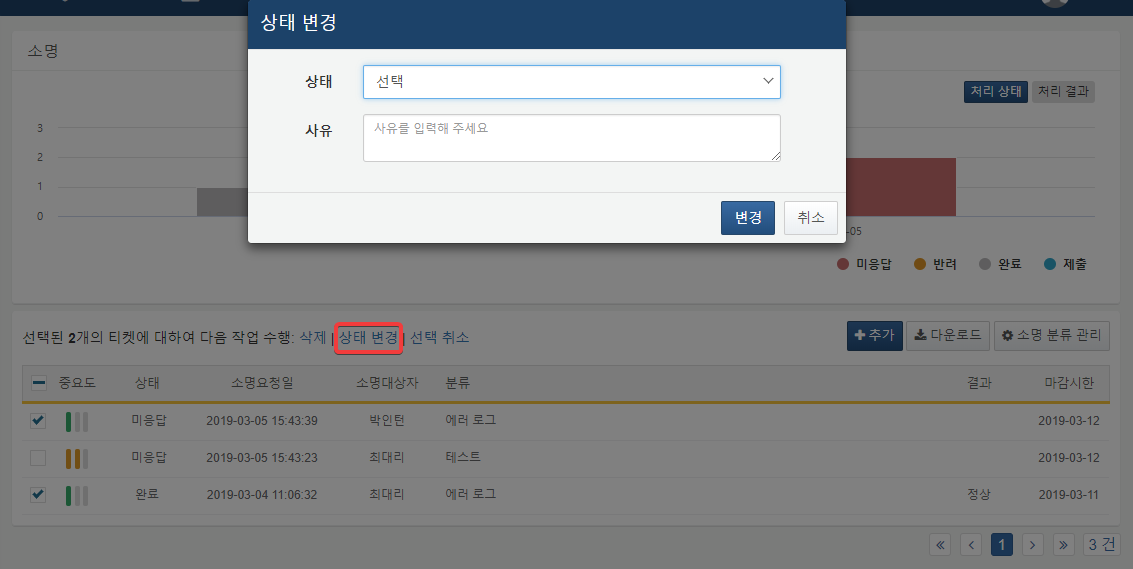
- Review
- Click Review to open a popup window for changing the status of selected items. Statuses can be changed to Approved (Normal), Approved (Violation), or Rejected. A reason is required when changing status. A reason for the status change is required.
- If the status is changed to Rejected, the associated ticket status will change to Unanswered.
- If changed to Approved (Normal) or Approved (Violation), the associated ticket status will update to Review Approved, and the result will be recorded as Normal or Violation, respectively.
- Deselect
- Clears the current selection of explanation requests.