AI Prompt
Overview
The AI Prompt feature manages the prompt documents that define how the AI Assistant responds to user inquiries within the Logpresso platform. Logpresso Sonar provides basic AI prompts, allowing users to utilize the AI Assistant without needing to add prompts themselves.
Types of Prompts
Prompts are divided into system prompts, app prompts, and user prompts.
-
System Prompt: Defines the content that the AI Assistant will respond with or the procedures it will execute when a user asks questions about the features of Logpresso Sonar or requests specific tasks. This prompt controls the detailed operations of the AI Assistant, and users cannot view or modify system prompts from the AI Prompt screen.
-
App Prompt: Enables the execution of extension commands for apps or allows tasks to be performed through the API of integrated systems. App prompts can be viewed on the AI Prompt screen, but users cannot modify them.
-
User Prompt: Is created directly by the user. Through user prompts, users can define the tasks that the Logpresso platform will perform according to their work characteristics or environment.
Prompt Format and Language
Prompts have document formats corresponding to three types of conversation: Q&A, Action, and Plan. All documents must be written in YAML format.
- Q&A and Plan prompts consist of question, cot (Chain of Thought), and answer.
- Action prompts consist of question, cot, and spec.
- Templates for each conversation type are provided for user reference on the prompt creation screen.
Prompts can be written in any user language. However, for better accuracy, more efficient token usage, and more reliable prompt embedding comparisons, it is recommended to use a single consistent language. Note that both system prompts and app prompts are written in English.
Preparation
To use AI prompts, you need to:
-
Obtain an AI Assistant license.
-
Ensure that Logpresso Sonar nodes can access https://ai.logpresso.com.
-
Create a Logpresso AI Assistant Connect Profile after obtaining an API key from Logpresso. Navigate to Settings > Connect Profiles to create the Logpresso AI Assistant Connect Profile.
-
Refresh your web browser or log out and log back in to access the AI Prompt screen.
NoteThe AI Prompt screen can only be accessed after creating a connect profile.
Search AI Prompt
You can view or search the AI prompt list under Settings > AI Prompt. This screen only displays user prompts, so the initial state shows an empty list. The following image illustrates an example with four registered user prompts.
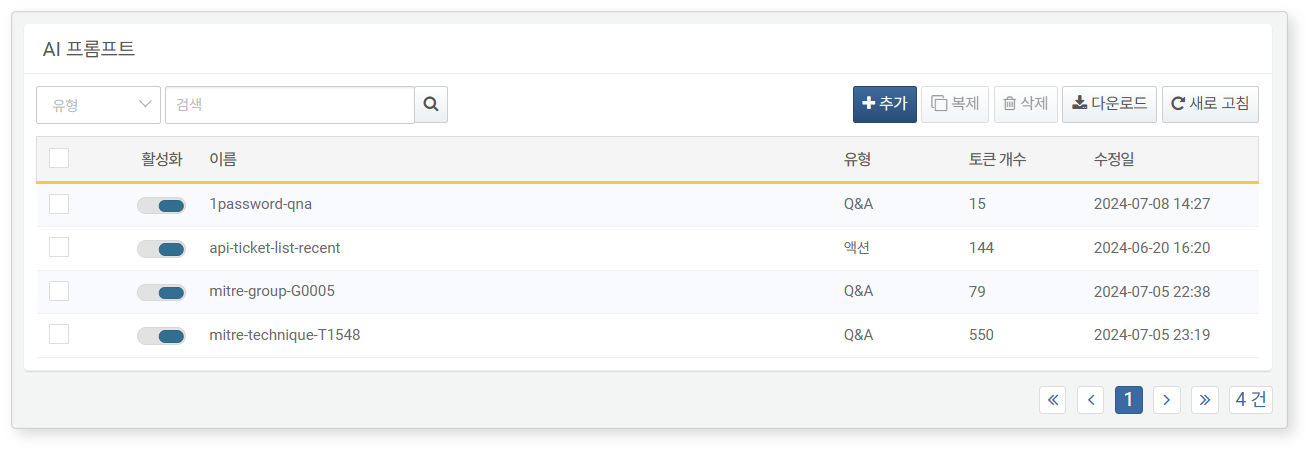
The items used in the above menu are as follows:
- Enabled: Toggle button for activating registered prompts.
- Name: The name used for identifying the prompt. It does not affect the operation of the AI Assistant.
- Type: The type of prompt (one of Q&A, Plan, Action). The AI Assistant behaves differently based on each type.
- Token Count: The number of tokens converted through OpenAI's embedding model. The maximum number of usable tokens may vary by the LLM model used.
- Modified At: The date the prompt was created or last modified.
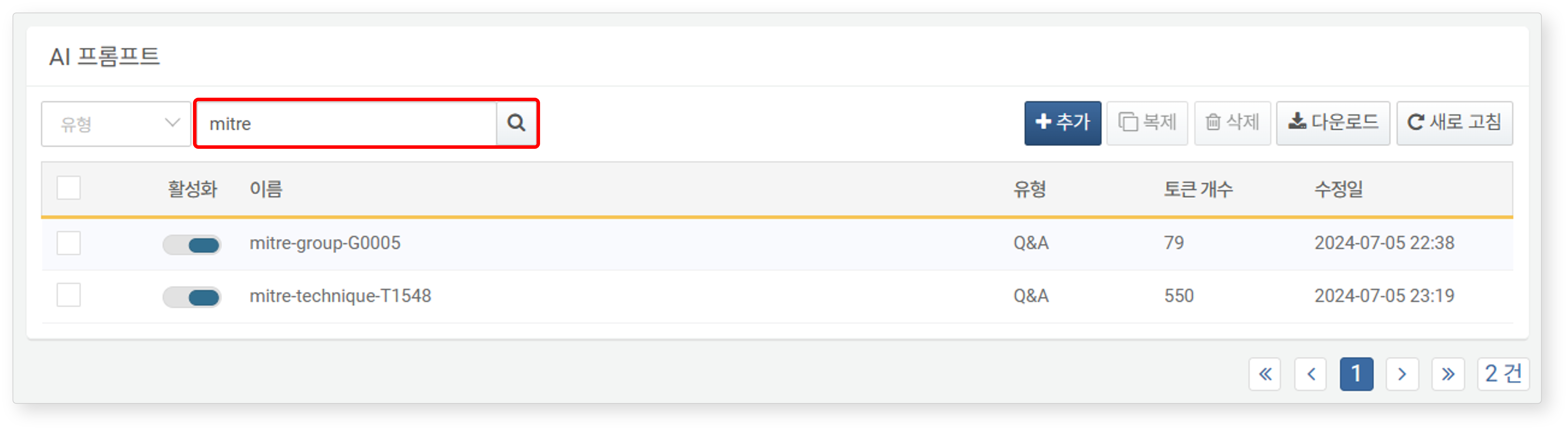
To find a specific prompt in the AI prompt list, use the search tool in the toolbar. The search tool will display AI prompts that contain the words entered in either Name or Description. The search tool is not case-sensitive.
Download Prompt List
To download the AI prompt list:
-
Click Download in the AI Prompt list toolbar.
-
In the Download Prompt List dialog, configure the download settings and click OK.

- File Name: The name of the file to be downloaded (default: AI Prompt).
- Columns: Fields to include in the download (default: Select All).
- File Format: Choose from CSV, Excel XML, Microsoft Word, HTML, JSON (default: CSV).
- Encoding: File encoding (MS949, UTF-8, UTF-16 BE; default: MS949).
- Range: Range of AI prompts to include. By default, all AI prompts are included, starting from the topmost prompt on the first page of the AI prompt list.
-
Once the server sends the file to your browser, save the file and verify the contents.
Add AI Prompt
To add a prompt:
-
Click Add in the toolbar under Settings > AI Prompt.
-
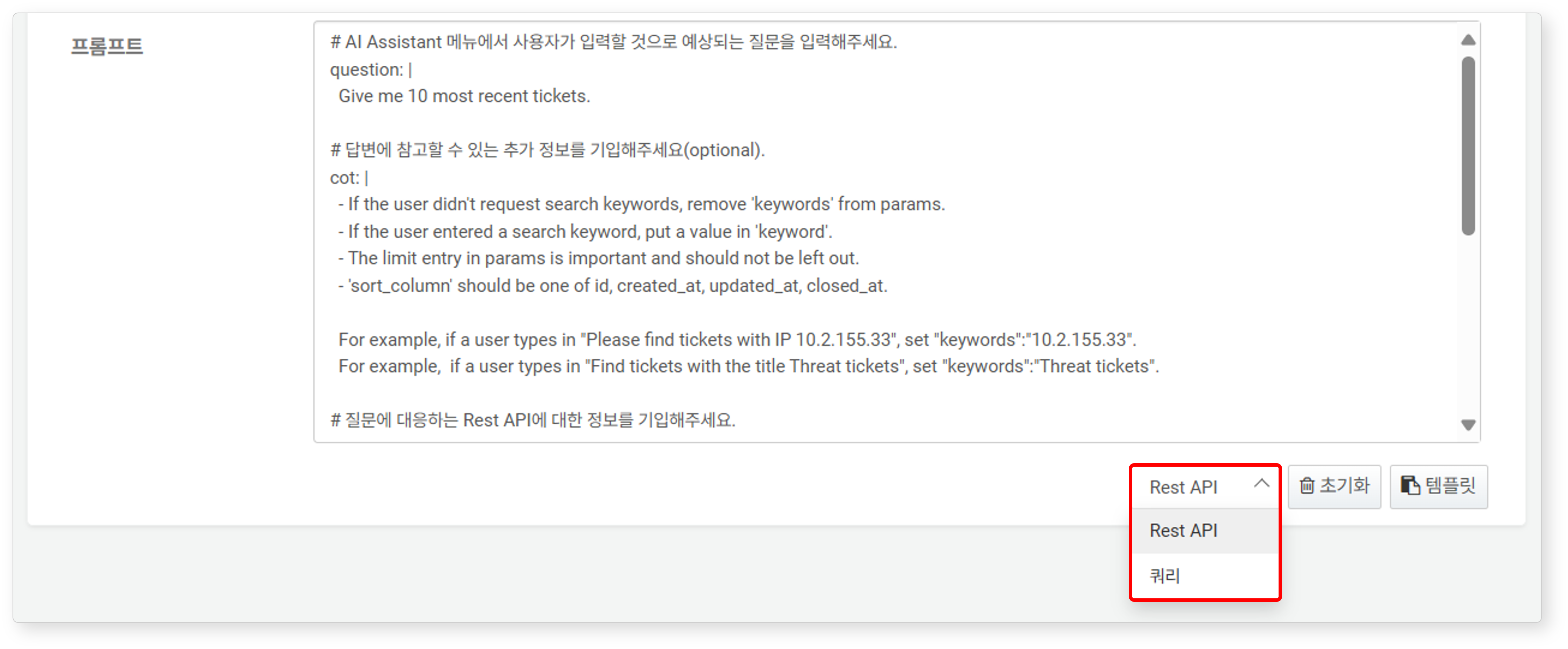
In the Add Prompt screen, enter Type, Name, Description, and AI Prompts, then click OK. After selecting the Type, clicking the Template below the AI Prompts input field will fill the prompt input field with a template based on the conversation type.
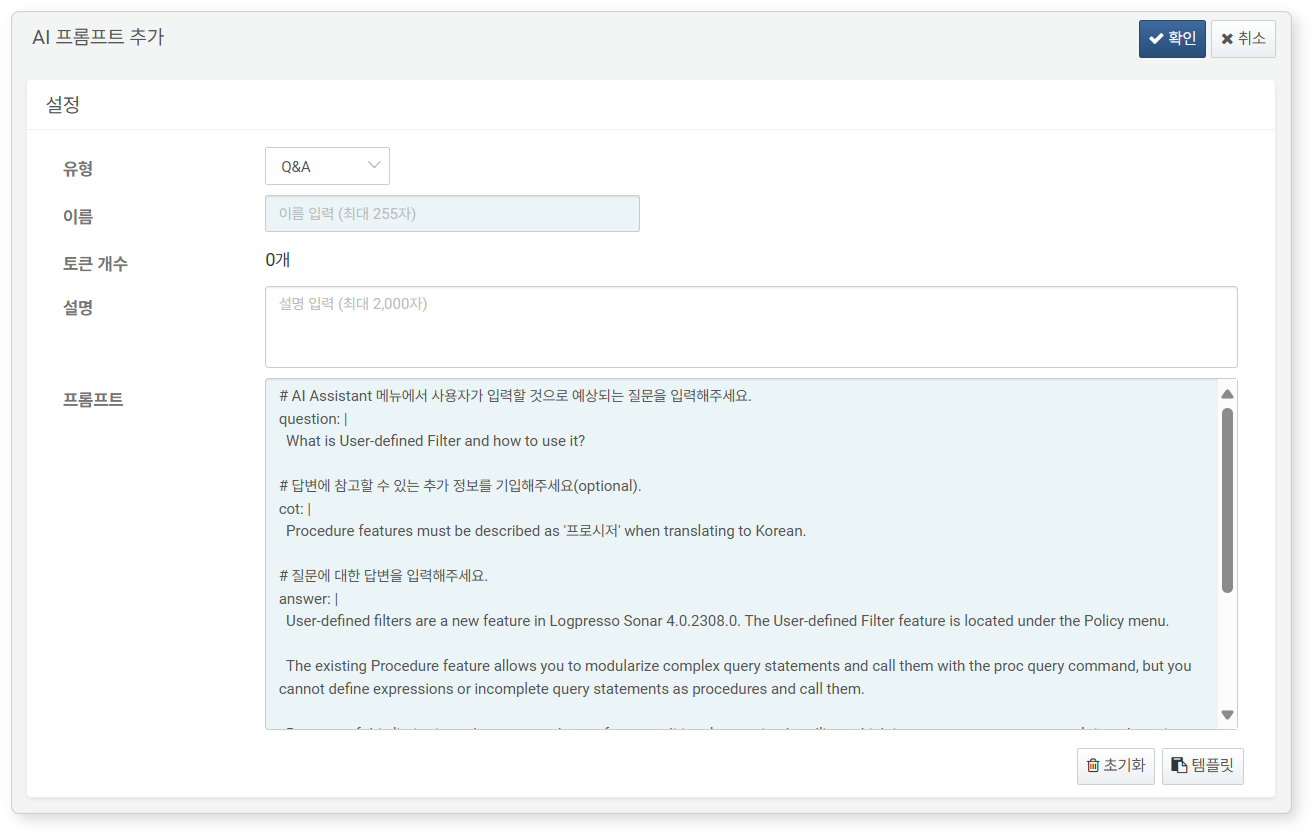
- Type: Select the conversation type for the AI Assistant from Q&A, Action, Plan (default: Q&A). The AI Assistant behaves differently based on each type.
- Name: The name used for identifying the prompt. Spaces are not allowed; use dashes (
-) instead (e.g., qna-description-of-ai-assistant). - Description: Can be entered without restriction, up to 2,000 characters.
- AI Prompts: Write question and answer in YAML format.
- cot can be omitted, but it is recommended for generating more accurate and logical responses from the AI Assistant.
- spec defines the query or REST API call method required for executing the action prompt.
When the Type is Action, select the action to be executed as either Query or REST API before clicking Template. Queries and REST APIs use different templates.
Activate AI Prompt
When an AI prompt is added to Logpresso Sonar, it is immediately enabled and applied to the AI instance.
To enable or disable an AI prompt, click the toggle button in the Activation column of the prompt ( : enabled,
  : disabled).
Edit AI Prompt
To modify a prompt:
-
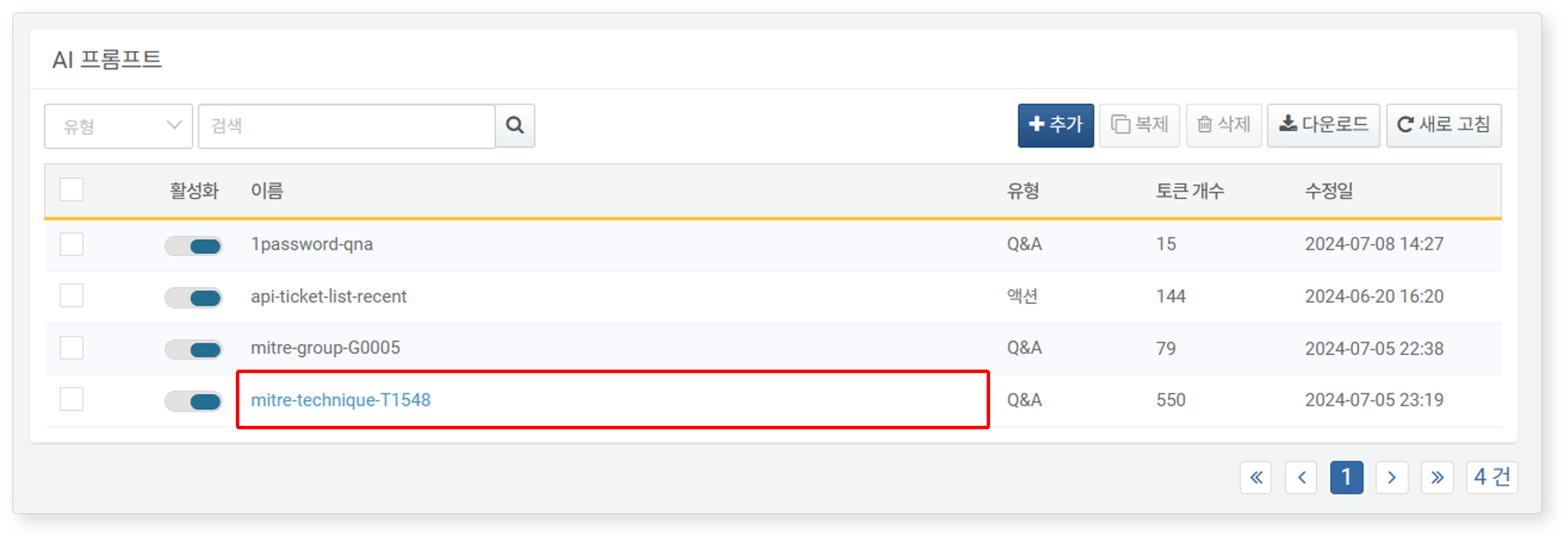
Click the name of the prompt you wish to modify in the AI prompt list.
-
In the Edit Prompt screen, make your changes and click OK.
- For descriptions of the properties to modify, refer to Adding AI Prompt.
Duplicate AI Prompt
To duplicate a prompt and then modify it to create a new prompt:
-
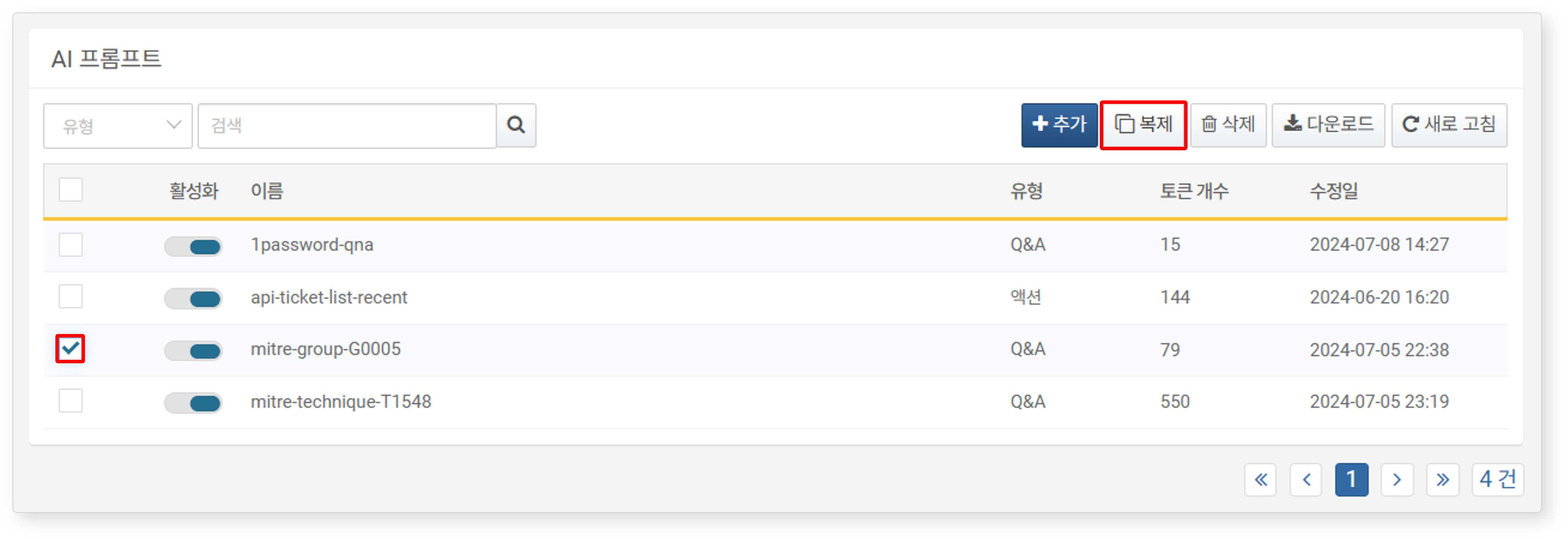
Select the prompt to duplicate from the AI prompt list, then click Duplicate in the toolbar.
-
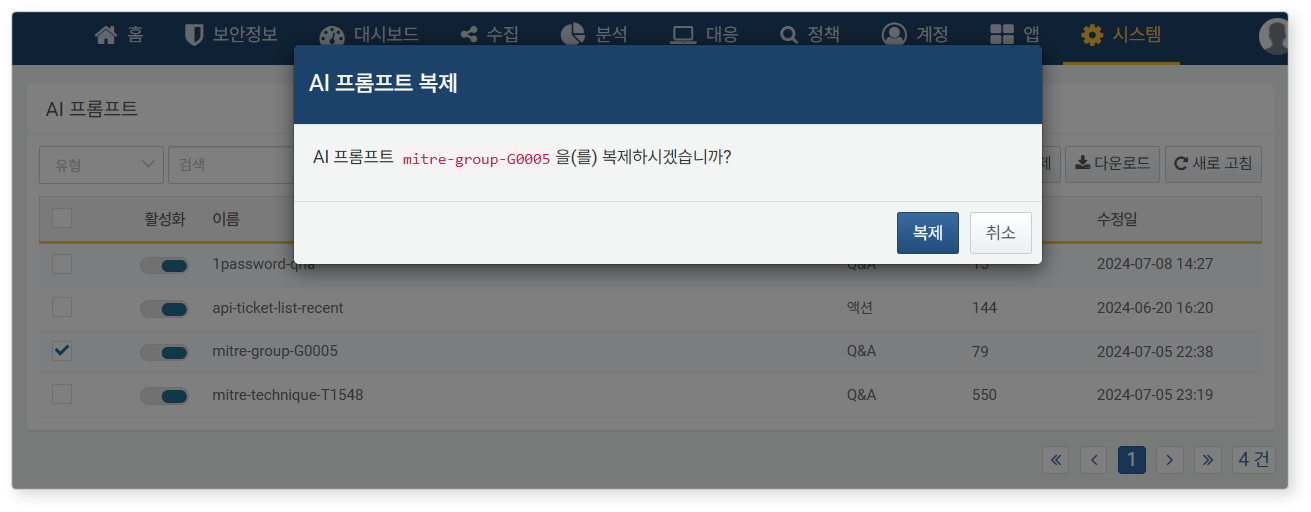
In the Duplicate AI Prompt dialog, confirm the name of the prompt to be duplicated and click Duplicate.
-
Refer to Edit AI Prompt to create a new prompt from the duplicated prompt.
Delete Prompt
To delete a prompt:
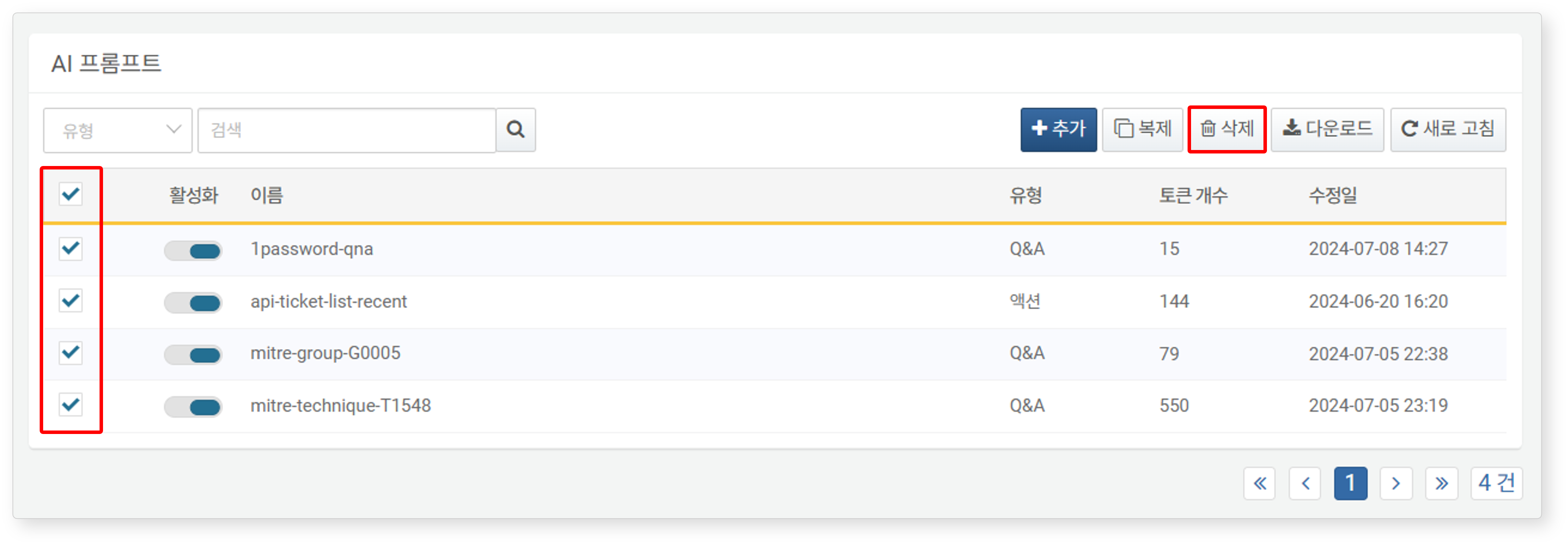
-
Click the checkbox in the row containing the information of the prompt you wish to delete in the AI prompt list.
-
Click Delete in the toolbar.
-
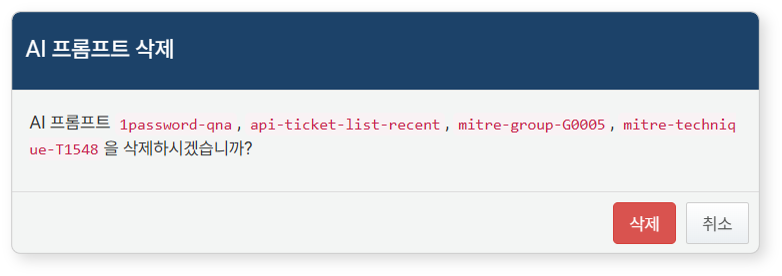
In the Delete Prompt dialog, review the list of prompts to be deleted and click Delete. Click Cancel if you do not wish to delete.