
Manage Tickets
After completing response actions on the monitored system, the assignee must record their work in the ticket and update the status whenever the progress changes.
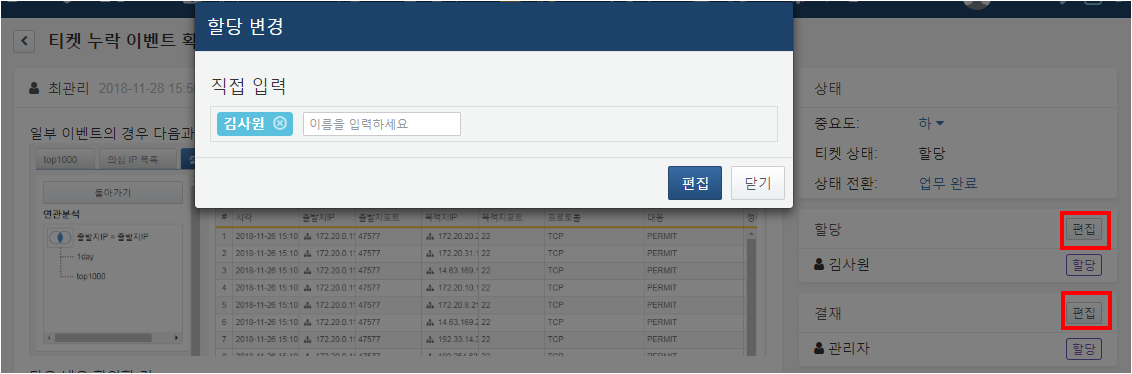
If the assignee and approver have not yet been assigned, the Logpresso Sonar administrator will assign them. To assign or approve, click the Edit button in the assignment menu, enter the names of the assignee/approver, and then click the OK button to confirm the assignment.
You can add comments using the Add Comment button at the bottom left (highlighted in red). Like the ticket body, comments can include attachments and use Markdown syntax. These comments can be viewed alongside the ticket content.
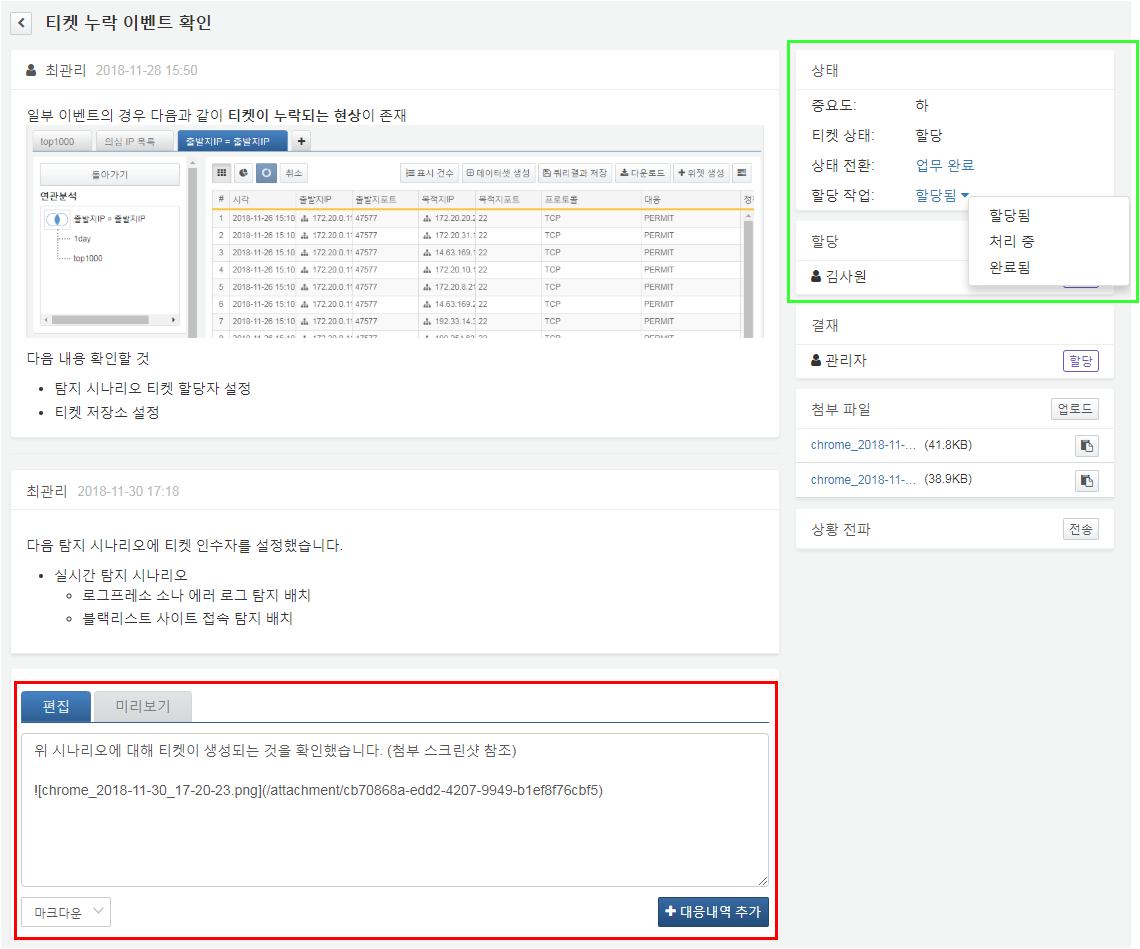
Change the ticket status using the status menu at the top right (highlighted in green). Available options depend on your role and the current ticket status. For example, an assignee viewing an assigned ticket can change the status to "In Progress" or "Closed."
All tickets can be changed to Closed status regardless of their current state. For tickets that do not require the response and approval process, you can directly change the status to "Closed" by clicking Close in the status menu. Conversely, tickets in "Closed" status can be reverted to "New" or "Assigned" by clicking Reopen. For more information on status transitions, refer to the ticket process.