
App management
Overview
An app is a deployment unit that bundles the components required for security operations — dashboards, logger models, parsers, detection scenarios, datasets, and more — into a single package. Installing an app gives you collection, detection, analysis, and dashboards for a specific data source (web server, cloud service, authentication service, and so on) at once, without configuring each component individually.
For example, installing the Apache HTTP Server app installs logger models that collect Apache HTTP Server logs from files or over SFTP, a parser, a log schema, stream rules that detect web vulnerability attacks and scans, and a dashboard that shows website traffic. Objects installed with an app are marked with the app icon in the stream rule, batch rule, signature, logger model, widget, and AI prompt lists.
Some apps also provide their own menus and screens. When you run such an app, the web console switches to app mode, and the left menu and work area change to the app's layout.
You can download app files (with the .app extension) from the Logpresso Store (registration required).
The App menu appears for the Cluster Administrator, Administrator, and User roles, and all three roles can view the list of installed apps. Only the Cluster Administrator and Administrator roles can install, enable, disable, run, reinstall, and uninstall apps. Accounts with the User role do not see Install or the  icon on app cards, and cannot click app cards in the quick launch panel. See Account permissions for the permissions of each role.
Quick launch
Click App at the top of the left menu to open the quick launch panel, and click it again to close the panel. From this panel, you can see the enabled apps and run one right away.
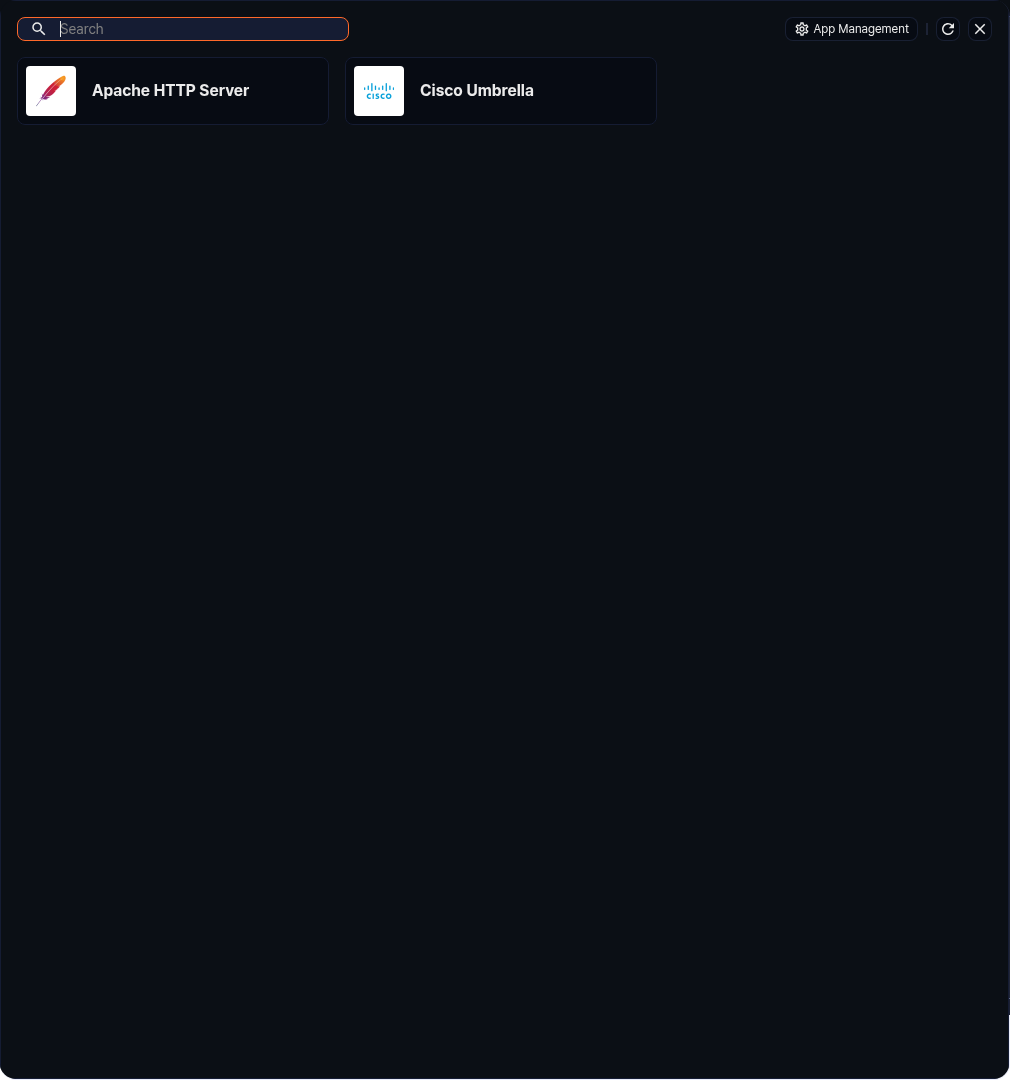
- Enabled apps are listed in name order. Disabled apps and the app that is currently running are not listed.
- Click an app card to run the app immediately, without a confirmation dialog. The web console switches to app mode.
- To find an app, type a keyword in the search box and press Enter. The search follows the same rules as Search apps.
- Click App Management to go to the app management screen. If an app is running, it stops before the screen opens.
- Click
 to reload the app list.
 - Click the close icon in the upper right corner to close the panel.
App management screen
On the app management screen, you install, enable, disable, run, reinstall, and uninstall apps. To open the app management screen, click App Management in the quick launch panel, or enter the /apps path in the address bar.
Installed apps are shown as cards in two groups: Enabled Apps and Disabled Apps. Within each group, apps are sorted by name, and a group with no apps is not shown.
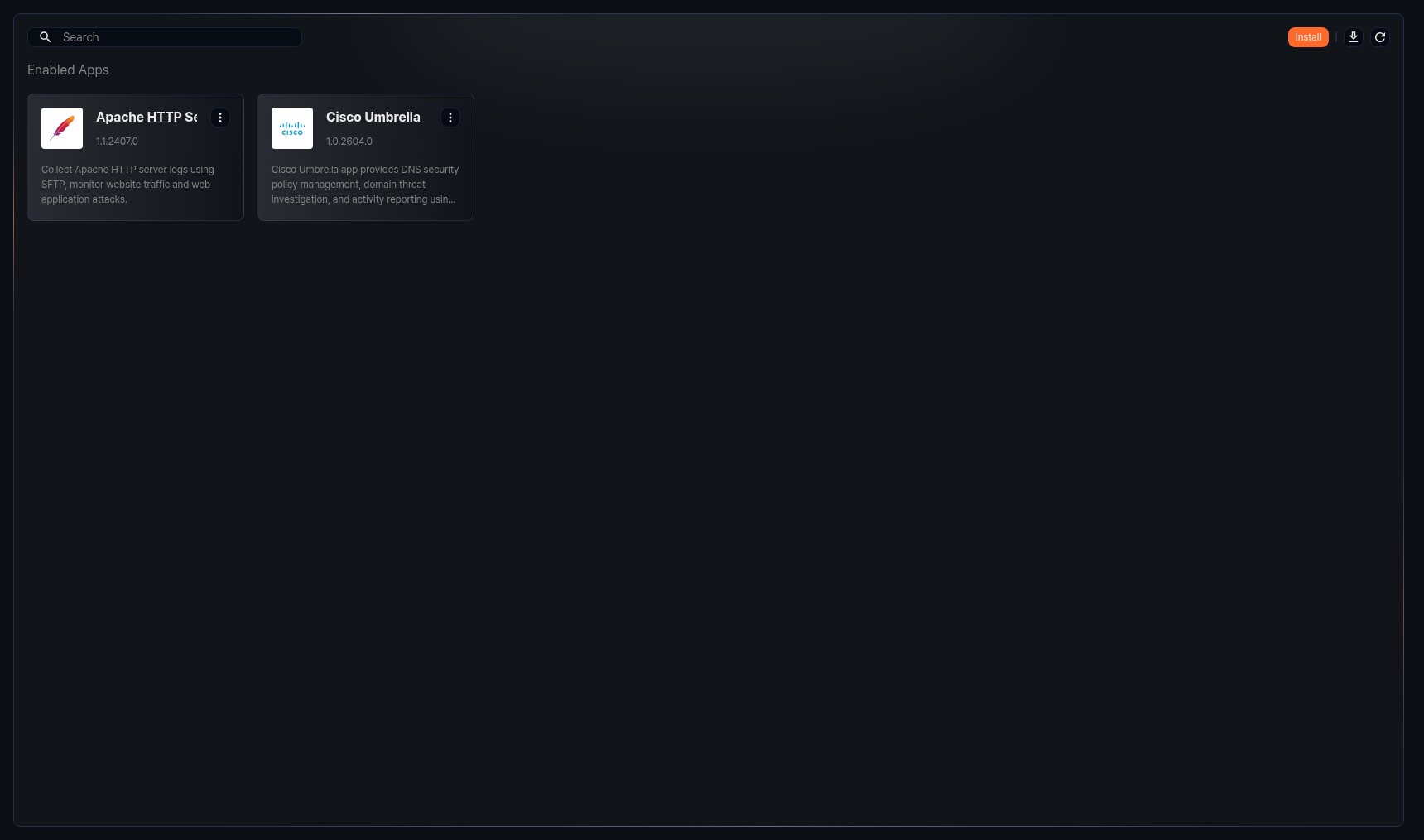
Each app card shows the following information:
- App icon: An icon that identifies the app
- App name: Long names are truncated with an ellipsis; hover over the name to see the full name.
- Version: The installed version of the app
- Description: A description of the app. Up to three lines are shown; hover over it to see the full description.
- : A menu to enable, disable, run, reinstall, or uninstall the app (shown only to the Cluster Administrator and Administrator roles)
If no apps are installed, the message No registered apps found. appears with Go to Logpresso Store, which opens the Logpresso Store in a new tab. The same message appears when a search finds no apps.
Search apps
To find a specific app, type a keyword in the search box in the toolbar and press Enter. If you enter several words separated by spaces, the apps whose name contains all of the words, or whose description contains all of the words, are shown — words split across the two fields do not match. Each word matches partial strings.
Type English keywords in lowercase. Keywords that contain uppercase English letters do not find any app. For example, soc finds the Agentic SOC app, but SOC does not.
Download the list
To download the app list to a file, click  in the toolbar. The Download App List dialog box opens.
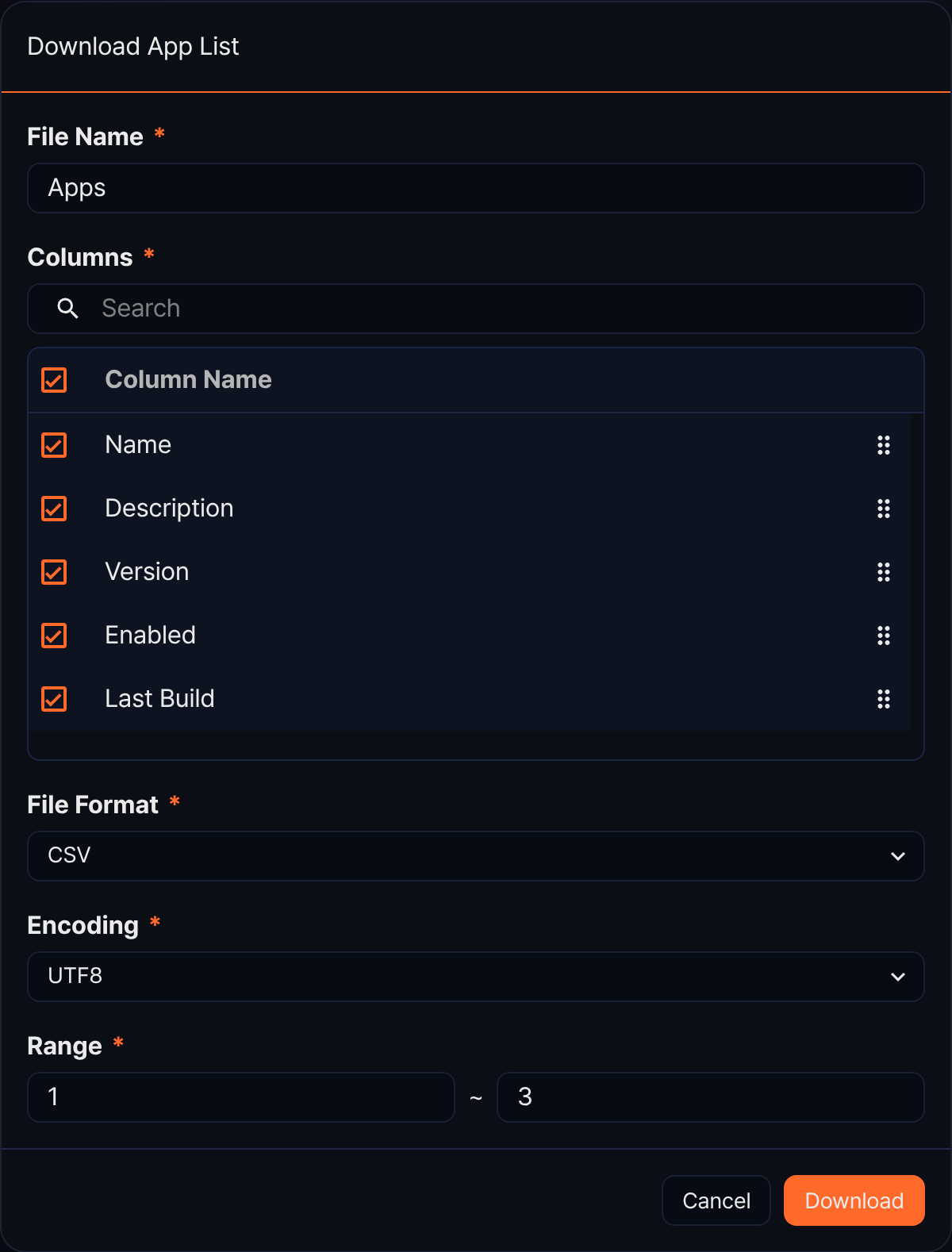
- File Name (required): Name of the file to download (default: Apps, up to 200 characters)
- Columns (required): Columns to include in the file. All five columns — Name, Description, Version, Enabled, and Last Build — are selected by default; clear a checkbox to exclude a column, or drag the handle on the right to reorder them. The Enabled column in the file contains enable or disable.
- File Format (required): Format of the downloaded file. Choose from CSV (default), XML, Microsoft Word, HTML, JSON, and PDF.
- Encoding (required): File encoding. Shown only when the file format is CSV or JSON; the available values depend on the web console language. The English console offers UTF8 (default), UTF16, and Latin 1.
- Range (required): Start and end numbers (defaults to 1 through the number of apps shown in the list). The file always contains all installed apps, regardless of this range.
Click Download when you are done. Even if you filtered the list with a search, the file contains all installed apps. The download icon is disabled when the list shows no apps, including when a search finds none.
Refresh the list
To reload the app list, click in the toolbar.
Install an app
To install an app:
-
Click Install in the toolbar on the app management screen.
-
In the App Installation Wizard dialog box, click Browse and choose the app file, or drag the app file onto the input box. You can choose only files with the
.appextension.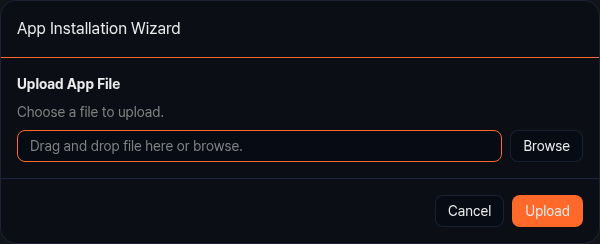
-
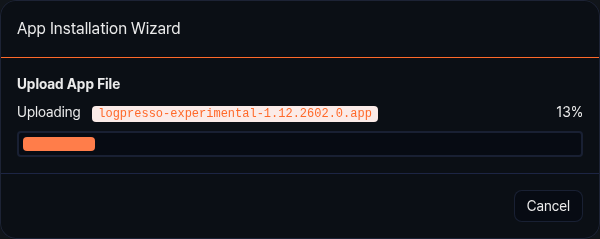
Click Upload. The app file is uploaded to the server, and the upload progress is shown. To stop the upload, click Cancel.
-
When the upload finishes, the app file is checked and the app is installed on every node in the cluster. The control node that received the app file is marked complete as soon as the upload finishes. The app is then installed on the data nodes and forwarder nodes (in each node pair, the standby node before the active node), and last on the standby node of the control node pair. The top of the dialog shows the overall progress and the number of nodes that finished (completed/total), and the bottom shows up to four nodes that are being installed or have finished.
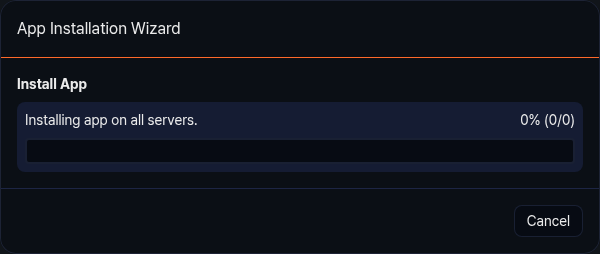
To stop the installation, click Cancel. Canceling rolls back what has been installed so far, and if you were reinstalling or upgrading the app, the previously installed app is restored. Once the overall progress reaches 100%, you can no longer click Cancel.
-
When the app is installed on all nodes, the dialog closes and the Successfully installed the app. notification appears. The installed app is enabled right away and appears in the Enabled Apps group.
If an app cannot be installed
Depending on the result of checking the uploaded app file, the dialog can show the following:
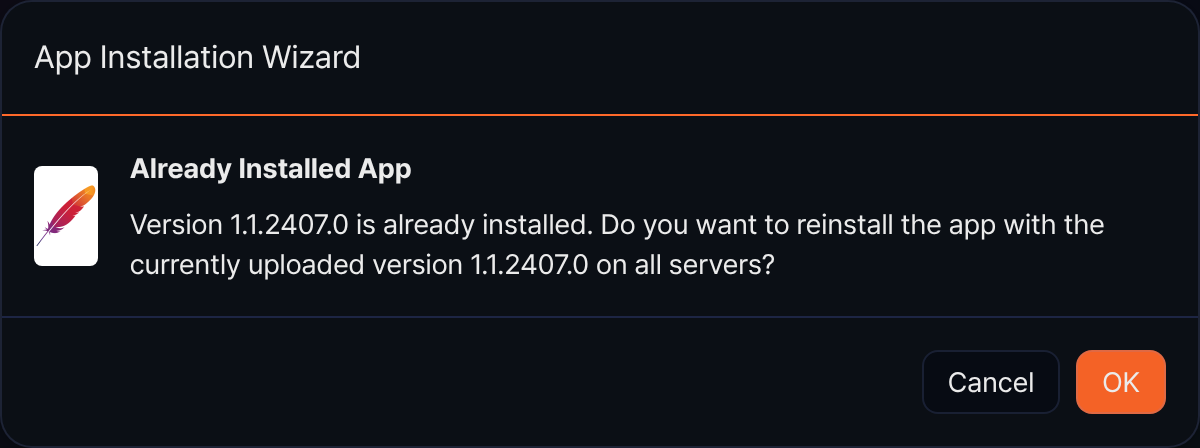
- Already Installed App (same version): A message says that the same version as the uploaded file is already installed. Click OK to install the app again on all nodes, or click Cancel to cancel the installation. For details, see Reinstall an app.
- Already Installed App (different version): If a different version is installed, a message asks whether to reinstall the app with the uploaded version on all servers. Click OK to switch to the uploaded version, or click Cancel to cancel the installation. For details, see Upgrade an app.
- Already Installed App (installed another way): If the app was installed in some other way, such as through the Logpresso shell, a message says so and asks whether to continue. Click OK to continue the installation.
- App Installation Failure (built-in app): A message says that the app is a built-in app that comes with Logpresso Sonar, and the installation stops.
- App Validation Error: Shown when the app file is not valid or does not contain a valid app manifest.
- App Installation Failure (dependencies): If other apps or components that the app requires are not installed, the message The app could not be installed due to dependency issues. appears.
- App Installation Failure (corrupted file): If the objects in the app file, such as dashboards and detection scenarios, cannot be imported, a message says that the app file is corrupted. Download the latest version from the Logpresso Store and install it again.
- If the app's menu structure is not valid, the dialog closes and the Failed to install the app. Invalid menu structure. notification appears.
- App Installation Failure (error during installation): If a problem occurs while the app is being installed on a node, the installation stops and the cause is shown. If a node cannot be reached, runs out of disk space, has a dependency problem, or cannot install the app for another reason, the node type and name are shown with the message. A message also appears when the installation does not finish within the time limit or a server does not respond.
- If a dependency problem or a corrupted file is found after you click OK to reinstall or upgrade an app, or to continue installing an app that was installed another way, the dialog closes and only the Failed to install the app. notification appears.
Enable or disable an app
Disabling an app stops the app on all nodes, so the features the app provides, such as parsers, logger types, and query commands, can no longer be used. The dashboards, detection scenarios, and other objects installed with the app are not deleted, but objects that use the app's features do not work properly until you enable the app again. A disabled app cannot be run and does not appear in the quick launch panel.
To enable or disable an app:
-
Click
in the upper right corner of the app card.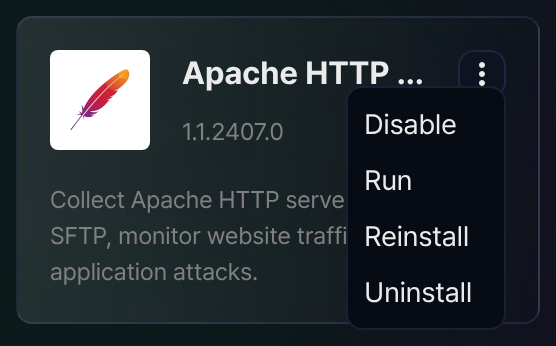
-
From the menu, click Disable (for an enabled app) or Enable (for a disabled app).
The Successfully enabled the app. or Successfully disabled the app. notification appears, and the app card moves to the corresponding group.
Depending on the state of the app, the app card menu shows the following items:
- Enable or Disable: Enables or disables the app.
- Run: Runs the app. Shown only for an enabled app that is not running.
- Stop Running App: Stops the running app. Shown only for the app that is running.
- Reinstall: See Reinstall an app.
- Uninstall: See Uninstall an app.
Run an app
Running an app switches the web console to app mode. If the app provides menus, the left menu changes to the app's menus. This is useful when you want to focus on the screens and features the app provides. Only the Cluster Administrator and Administrator roles can run apps, and only enabled apps can be run.
To run an app:
- Click in the upper right corner of an enabled app card.
- From the menu, click Run.
- In the Launch App dialog box, click OK.
You can also run an app by clicking its card in the quick launch panel. In that case, the Launch App dialog box does not appear.
When the app runs, the screen reloads. For the screen that opens after the app runs and the app mode layout, see App mode. To stop running the app, see Exit app mode.
Reinstall an app
Reinstalling installs the same version of an app again on every node in the cluster. When you change the cluster configuration, for example by adding a node, some nodes may not have the app. Reinstalling the app installs it on those nodes as well.
To reinstall an app:
-
Click
in the upper right corner of the app card, and then click Reinstall. The App Installation Wizard dialog box opens. -
Choose an app file of the same version as the installed one, and click Upload.
-
When the Already Installed App message appears, click OK. The app is installed again on all nodes, and the progress is the same as in Install an app.
If you reinstall or upgrade a disabled app, the app is enabled when the installation finishes. The app is also enabled if you cancel the installation or it fails and the previously installed app is restored. To keep it disabled, disable it again after the installation.
Upgrade an app
To change an app to a new version, install the app file of the new version. Use the same steps to go back to an earlier version.
- Click Install in the toolbar, or click Reinstall in the app card menu. Either way, the App Installation Wizard dialog box opens.
- Choose the app file of the new version, and click Upload.
- When the Already Installed App message asks whether to reinstall the app with the uploaded version on all servers, click OK. The uploaded version is installed on all nodes, and the progress is the same as in Install an app.
When you upgrade, objects that exist only in the previous version are deleted, and objects in the new app file are overwritten with its contents. If you modified objects that the app installed, write down your changes beforehand, as you would before reinstalling. A disabled app is enabled when the upgrade finishes.
Uninstall an app
To uninstall an app you no longer use:
-
Click
in the upper right corner of the app card, and then click Uninstall. -
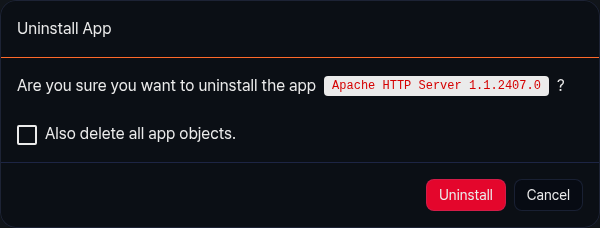
In the Uninstall App dialog box, check the name and version of the app to uninstall.
-
Decide what to do with the objects installed with the app.
-
If you do not select Also delete all app objects., only the app is uninstalled. The objects installed with the app remain, no longer linked to the app, and you can edit or delete them (signatures installed by the app still cannot be edited after the app is uninstalled; you can only delete them). However, because the app program is removed as well, objects that use the parsers, logger types, or query commands the app provided no longer work properly.
-
If you select it, the dialog shows a table of deletion targets by top menu, and the following objects are deleted together with the app. In addition to the objects installed with the app, loggers that you added from the app's logger models are also deleted.
Top menu Objects that are deleted Dashboards Dashboards, widgets, user-defined variables Loggers Parsers, log schemas, logger models, loggers added from the app's logger models Analysis Datasets Policies Stream rules, batch rules, behavior profiles, subnet groups, port groups, pattern groups, signatures Settings AI prompts
-
-
Click Uninstall. The app is uninstalled from all nodes, and the Successfully uninstalled the app. notification appears. To keep the app, click Cancel.