Playbook

Overview

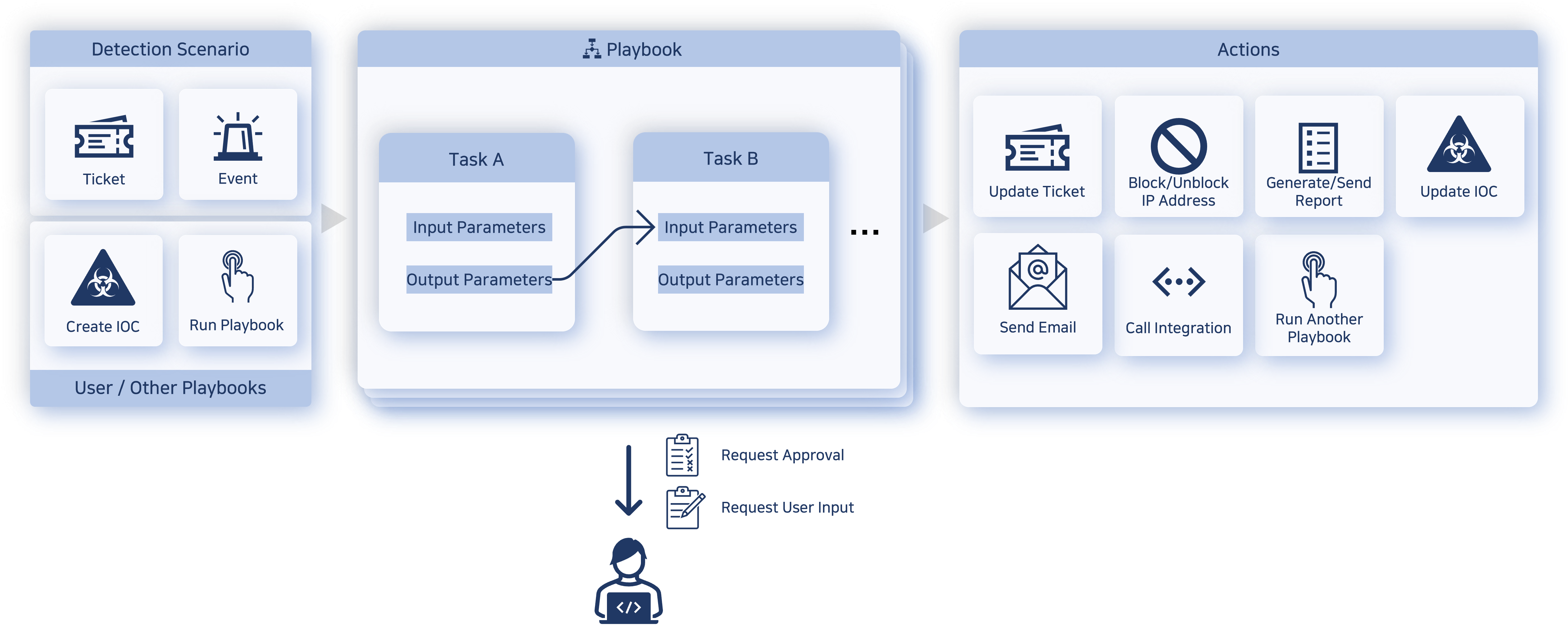
A playbook is a feature that performs automated responses in various situations based on detection scenarios. It triggers when an event is detected, a ticket is created, a new indicator is registered, or a user manually runs it. A playbook automatically executes a series of tasks following a predefined procedure.

For example, you can automatically block an attacker's IP address by integrating with security systems such as firewalls. When abnormal traffic is detected and data exfiltration is suspected, the system can investigate the data further and send an alert such as an email to the response team.

A playbook runs automatically based on configured conditions. Tasks in a playbook execute sequentially or branch into multiple flows. Each task uses input data to perform its work and returns a result, which is passed as input to the next task. The playbook ends when the last task completes.

During playbook execution, tasks that require user judgment send an approval request or prompt users to enter required data. Tasks waiting for user approval are listed under Response > Approval Requests.

Note
If the Playbook menu is not visible in the web console, your license may be absent or expired. Contact Logpresso for a Playbook license.
Key benefits

Playbooks offer the following advantages.

Response automation
Playbooks automate repetitive security response tasks, reducing the burden on security operations teams. For example, when a specific type of security alert occurs, the system can automatically isolate related systems or analyze malicious files.
Workflow orchestration
Playbooks coordinate workflows across multiple security tools and systems. For example, when an alert is triggered, the system can register it in the ticketing system, conduct additional investigation using a log analysis tool, and report the results to another system.
Standardization of policies and procedures
Playbooks standardize security incident response procedures. This allows all security operations staff to handle incidents in a consistent manner and reduces response time.
Real-time response and analysis
Playbooks enable real-time event analysis and response, minimizing the impact of security incidents and resolving issues quickly.
Reporting and auditing
Playbook execution history is recorded, allowing you to generate reports on the incident response process. Security operations teams can use these reports to evaluate the effectiveness of their response and improve procedures as needed.
-->

Manage playbooks

Search playbooks

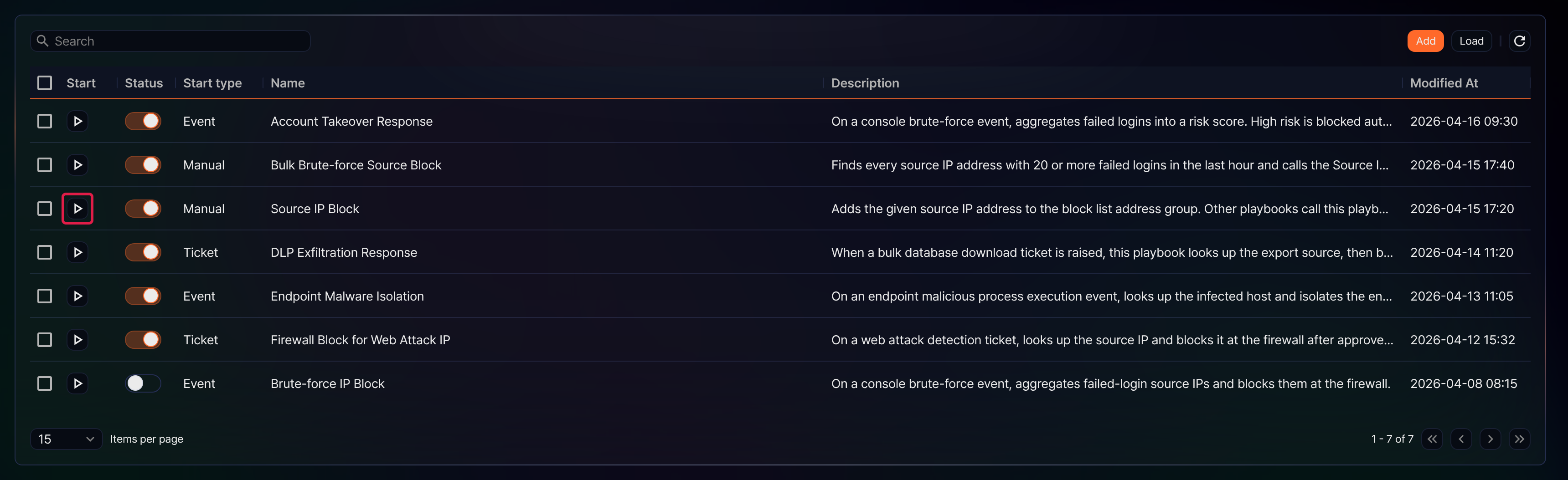
Go to Policies > Playbooks to view and search the playbook list.
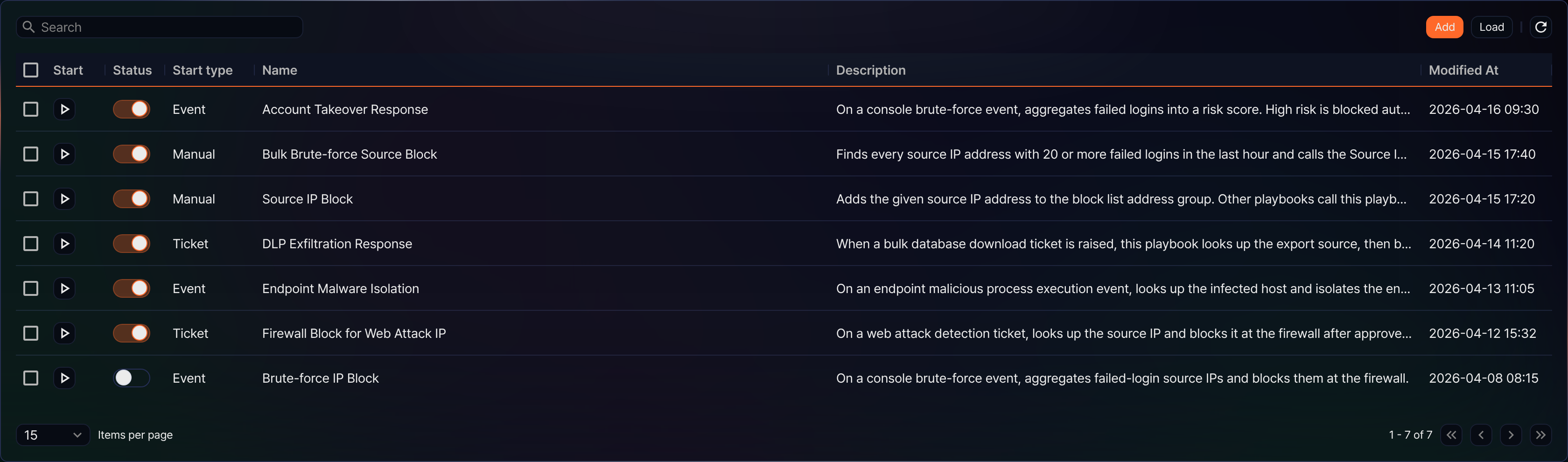
  • Start: Run the playbook
  • Status: Toggle button to activate or deactivate a playbook (: active, : inactive)
  • Trigger type: The playbook trigger type (Manual, Ticket creation, Event creation, Indicator creation)
  • Name: The unique name of the playbook
  • Description: A description of the playbook
  • Modified: The date the playbook was created or last modified

To find a specific playbook in the list, use the search tool in the toolbar. The search tool finds playbooks whose Name or Description contains the entered keyword. The search is case-insensitive.

Refresh list

To refresh the playbook list with the latest data, click Refresh in the toolbar.

Import/Export

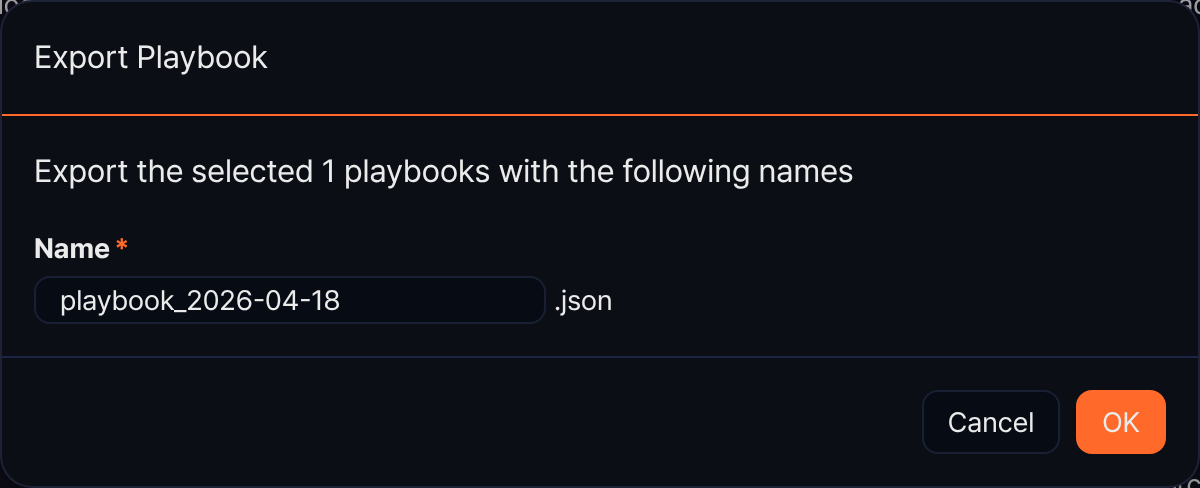
You can export playbooks to a file or import them from a file. Use this feature to back up or restore playbooks.

To export playbooks:

  1. In the playbook list, select the checkboxes of the playbooks you want to export. You can select one or more playbooks.

  2. Click Export in the toolbar.

  3. In the Export Playbooks dialog, set a name and click OK.

To import playbooks:

  1. Click Import in the toolbar.

  2. In the Import Playbooks dialog, select a playbook file and click OK.
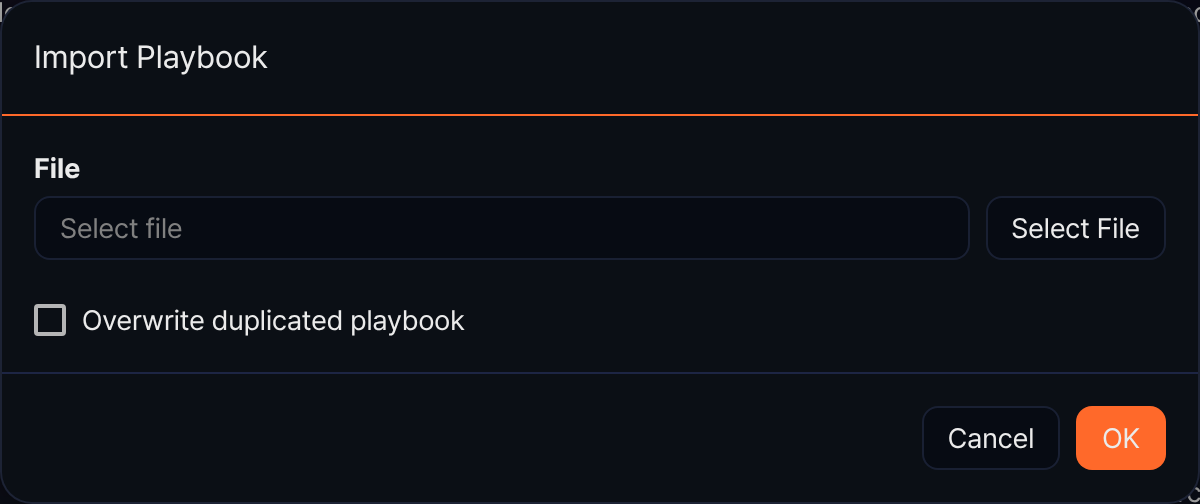
    • Select Overwrite duplicate playbooks to overwrite any playbooks that already exist (default: not selected). Duplicates are determined by GUID. If this option is not selected, playbooks with matching GUIDs are skipped.
Add/edit playbooks

To add or edit a playbook:

  1. In the playbook list, click Create in the toolbar to add a new playbook, or click the Name of an existing playbook to edit it.
  2. Use the Playbook editor to build the playbook.
  3. After finishing, click Save or Save and exit in the Playbook editor.
Run playbooks

You can run a playbook manually. To start a playbook immediately:

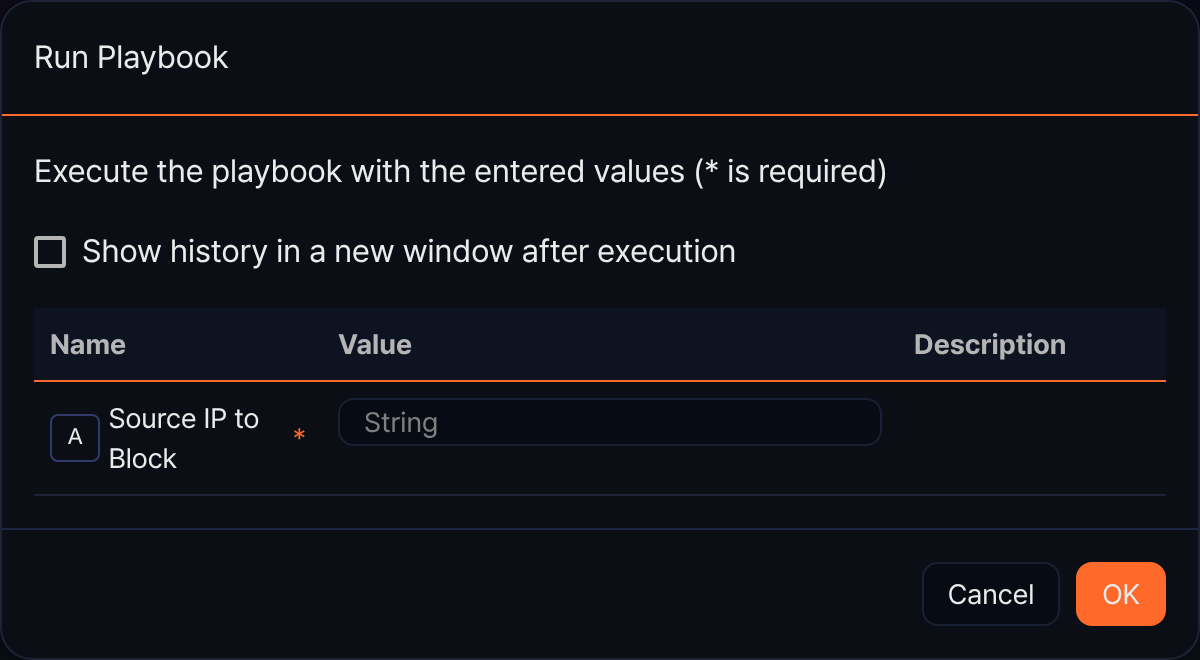
  1. In the playbook list, click Start for the playbook you want to run.
  2. In the Run Playbook panel, enter the input parameters and click OK. If a playbook requires no input parameters, it starts immediately.

    • Show execution history in a new window after start: Opens the playbook execution history in a new browser window (default: not selected).
    • The list of input parameters varies depending on the trigger type of the playbook.
  3. You can check playbook execution history under Response > Playbook History.

Duplicate playbooks

Instead of building a playbook from scratch, you can duplicate an existing one and modify it. To duplicate a playbook:

  1. Select the checkbox of the playbook row you want to duplicate.
  2. Click Duplicate in the toolbar.

The duplicated playbook is saved with the suffix "Copy of". Rename it and update its content as needed.

Delete playbooks

To delete a playbook:

  1. In the playbook list, select the checkbox of the playbook row you want to delete.
  2. Click Delete in the toolbar.
  3. In the Delete Playbooks dialog, confirm the list of playbooks to delete, then click Delete. Click Cancel to abort.
Playbook version management

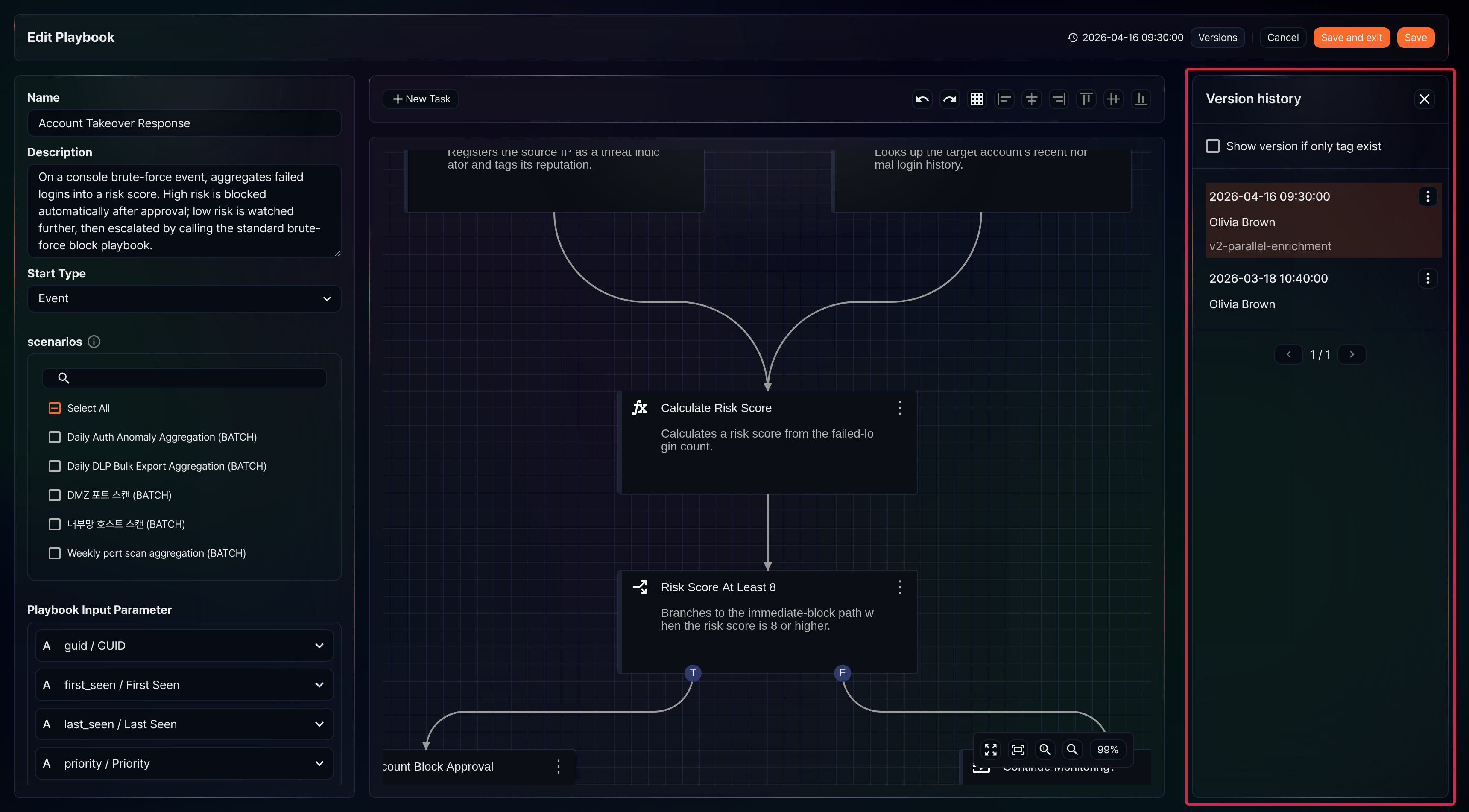
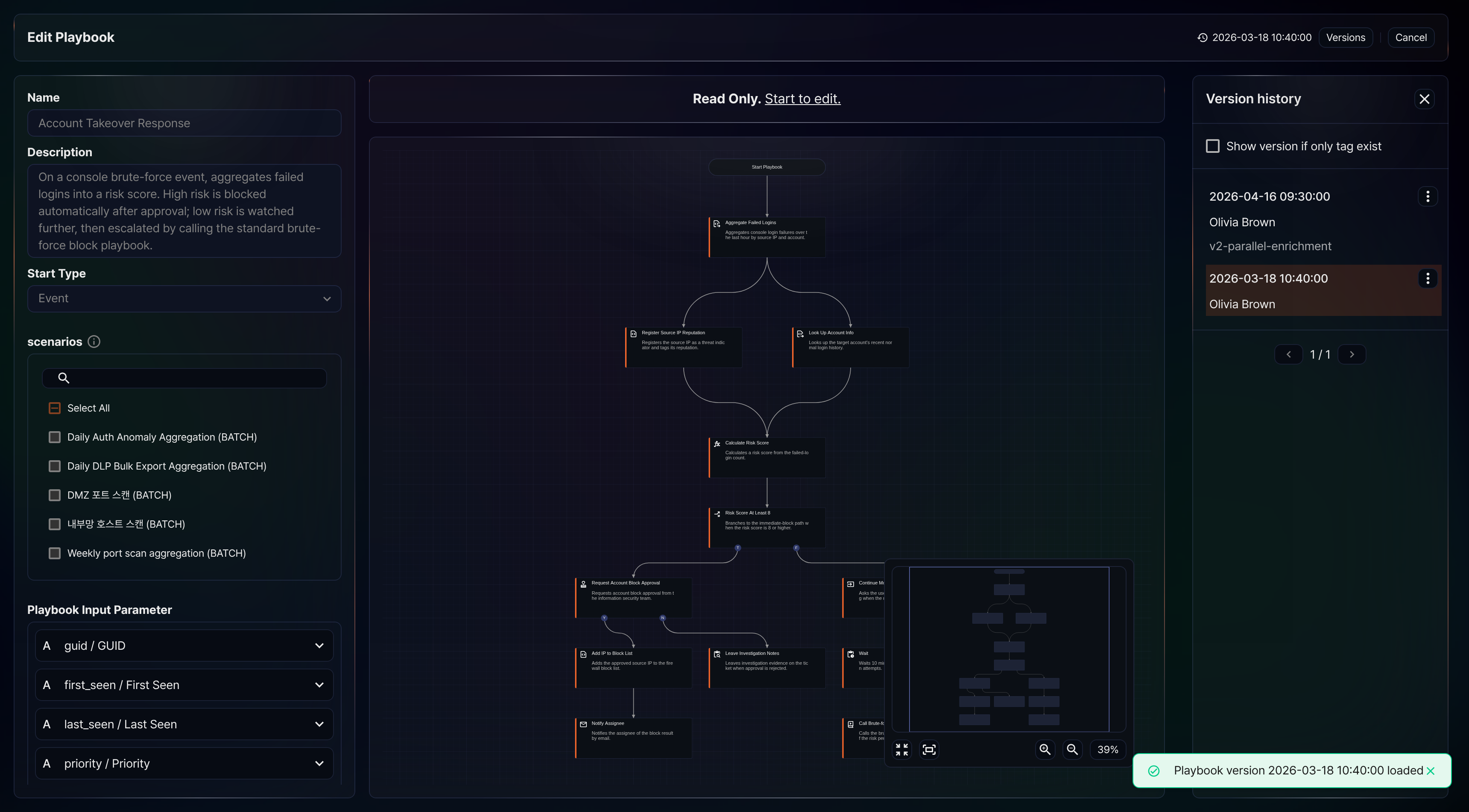
When you edit and save a playbook in the Playbook editor, the system saves a snapshot of the configuration at the time of saving. This lets you manage versions by storing each changed state of the playbook separately.

View history

To open or close the version history panel, click History. Clicking while the panel is closed opens it; clicking while it is open closes it.

Rollback

Clicking a past version in the history panel loads that version's playbook configuration in read-only mode on the flowchart.

Click Start editing to edit that version. When you save the edited version, a new version is created with the current timestamp, and the most recently saved version is used when the playbook runs.

Version tagging

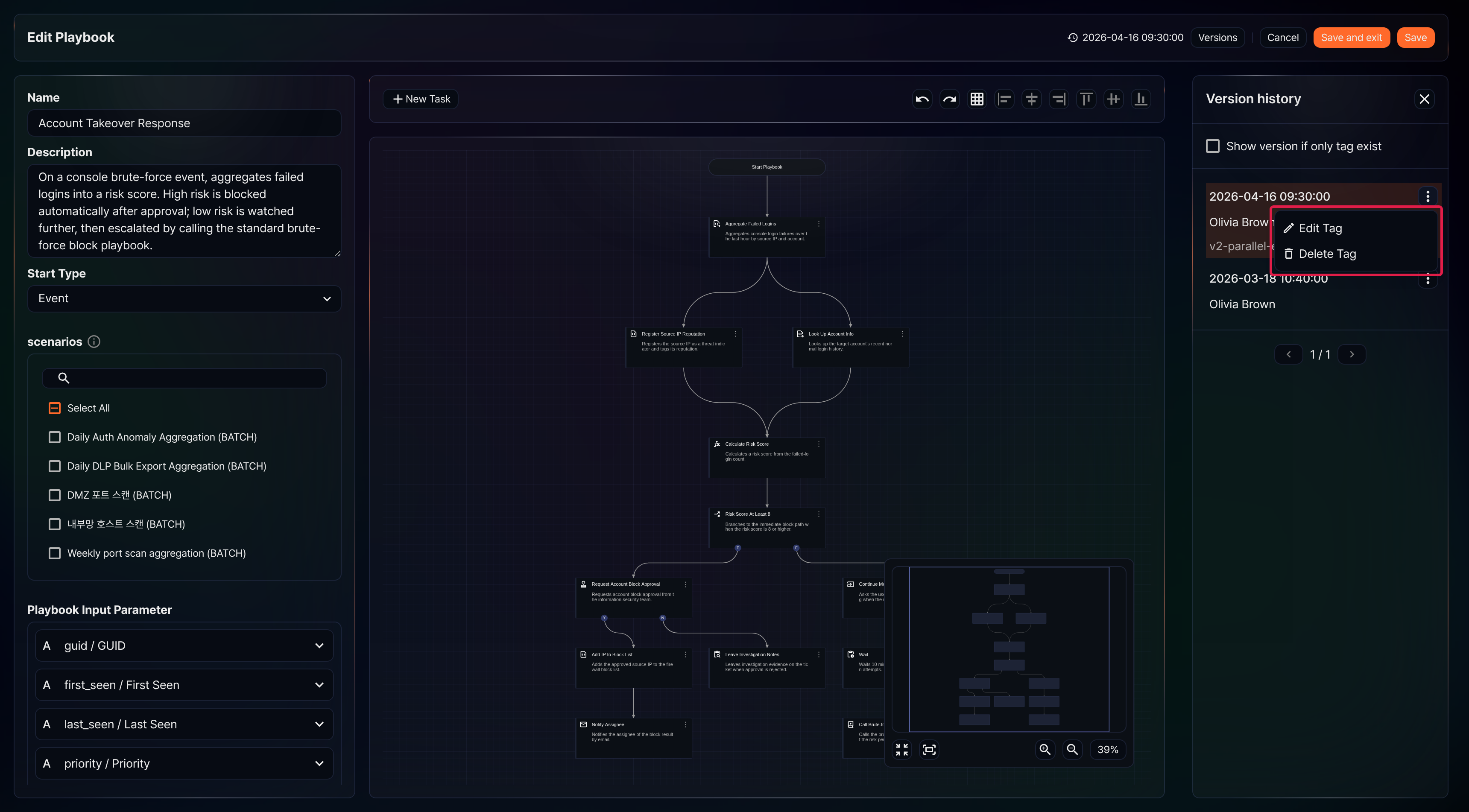
You can assign tags to specific versions in the history and view them separately. Enable Show only tagged versions in the history panel to filter for tagged versions only.

To add a tag to a specific version:

  1. Select the version you want to tag, then click "".
  2. Select Add tag from the options menu.
  3. In Tag settings, enter the tag and click OK.

To edit a tag on a specific version:

  1. Select the version whose tag you want to edit, then click "".
  2. Select Edit tag from the options menu.
  3. In Tag settings, enter the updated tag and click OK.

To remove a tag from a specific version:

  1. Select the version whose tag you want to remove, then click "".
  2. Select Delete tag from the options menu.

Playbook editor

All playbook creation and editing is done through the Playbook editor.

Screen layout

When you first add a playbook, the initial screen looks like this:

(1) Properties panel
The properties panel displays playbook properties, or the common properties and type-specific properties of a task. After changing properties, click Save at the bottom of the panel to apply your edits.
(2) Toolbar
Provides tools to add new tasks, undo/redo, show/hide the grid, and align tasks.
  1. New task: Adds a new task object
  2. Undo/Redo: Reverses or reapplies recent actions (undo/redo)
  3. Show/hide grid: Toggles the background grid on and off
  4. Align: Aligns two or more selected task objects (from left to right: align left, center horizontally, align right, align top, center vertically, align bottom)
(3) Task flowchart
The task flowchart is where you place and connect task objects to define the playbook flow. You can specify the task execution order through user interactions.
(4) Map
The map provides an overview of the entire playbook, showing the position and connections of all task objects. Click a location on the map to navigate the flowchart to that position.
  1. Hide/show map: Hides or shows the map.
  2. Fit to screen: Resizes the flowchart to show all tasks in one view.
  3. Zoom in/out: Zooms the flowchart view in or out.
  4. Zoom level: Shows the current display scale of the flowchart. Click this button to reset the zoom to 100%. The current zoom level is displayed as you zoom in or out.
User interactions

Most work is done in the task flowchart. In the flowchart, you can perform the following actions:

  • Click: Move the cursor to an object on the screen and press the left mouse button.
  • Right-click (Secondary click): Move the cursor to an object on the screen and press the right mouse button.
  • Drag & drop: Drag means clicking and holding an object while moving the cursor to another position; drop means releasing the button while dragging. Drag and drop are used together.
  • Wheel scroll: Scroll the mouse wheel up or down.

Click, right-click, and drag & drop perform different actions depending on the target object.

Note
These descriptions assume a right-handed mouse configuration. Behavior may differ depending on your mouse settings.
Click/Right-click
The following interactions are available with click and right-click:
Show connection points

Clicking a task displays its connection points. Drag and drop a connection point to create a new task or draw a flow to another task.

Some tasks—such as Branch and Approval request—have different connection point shapes or counts. The left figure shows the connection points on a standard task; the right figure shows those on a Branch task.

Edit task properties

Right-clicking a task opens the properties panel with that task's properties, allowing you to edit it.

Select a connection line

Clicking a connection line selects it. Selected connection lines are highlighted in navy blue. Press Delete or Space to delete the selected line.

Select multiple tasks (Shift + click)

Hold Shift and click multiple tasks to select them at once. Press Delete or Space to delete all selected tasks at once.

Drag & drop
The following interactions are available with drag and drop:
Move task objects

Drag and drop a task object to move it to a new position. When you move multiple selected tasks, the connection lines between them are preserved.

Create a new task

Drag a connection point and drop it on an empty area to create a new task object at that location and display its properties in the properties panel.

Connect task flows

Drag a connection point and drop it onto another task's connection point to create a connection line between the two tasks.

Navigate the flowchart/map

Drag and drop the background of the flowchart or the map to navigate to the dropped position. The cursor changes to an open hand while dragging.

The map shows a blue-bordered box indicating the currently visible area of the flowchart.

Select multiple task objects

Hold Shift and drag to display a blue selection box. When you release, all tasks within the box are selected.

Wheel scroll
The following interaction is available with wheel scroll:
Zoom in/out
Scroll the mouse wheel up to zoom in, or down to zoom out. Scroll direction may vary depending on your mouse settings.
Keyboard shortcuts

Keyboard shortcuts let you execute commands quickly by pressing specific key combinations. The following shortcuts are available in the Playbook editor:

Windows/LinuxmacOSAction
ESCESCDeselect, cancel playbook/task property editing
Ctrl+ZCmd+ZUndo
Ctrl+Y or Ctrl+Shift+ZCmd+Shift+ZRedo
Ctrl+ACmd+ASelect all tasks/connection lines in the flowchart
+ or =+ or =Zoom in on the flowchart
--Zoom out on the flowchart
GGShow/hide flowchart grid
FFFit flowchart to screen
MMShow/hide map
Delete or BackspaceDelete or BackspaceDelete selected tasks/connection lines
Task connection rules

A playbook operates by linking tasks in a defined flow. The flow can branch into multiple paths or merge back together.

(1) All tasks must be connected.

Every task except the first must be connected to at least one preceding task. The example below shows a basic flow with one preceding task and one following task. When the preceding task completes, the following task runs.

You can check playbook execution results under Response > Playbook History. The following example shows a state where the preceding task has completed and the following task is waiting for user input.

A task with no connections displays a warning indicator. A playbook with unconnected tasks is treated as a logical error and cannot be saved.

(2) 1:N parallel connections are allowed.

A 1:N connection means one preceding task is connected to multiple following tasks. When the preceding task completes, all following tasks run in parallel.

The following example shows tasks 1, 2, and 3 running in parallel as soon as the preceding task completes.

(3) N:1 connections are also allowed.

An N:1 connection means multiple preceding tasks are connected to one following task. The following task runs only after all preceding tasks complete.

The following example shows that the following task has not yet run because preceding task 2 is still incomplete, even though tasks 1 and 3 are done.

When preceding task 2 completes, all preceding tasks are done and the following task runs.

(4) Infinite loops are not allowed.

Infinite loops are not permitted because they would prevent the playbook from terminating. If you try to connect a task back to itself as a following task, the task handle turns red and the connection is rejected.

(5) Logically branched flows cannot be merged.

Branch and Approval request tasks split the flow into a T (true) path and an F (false) path based on the evaluation result or approval outcome. Merging these logically exclusive paths back into a single task creates a logical contradiction, so the playbook cannot be saved.

If you connect logically conflicting flows to the same task, a warning indicator appears as shown below.

The following example shows an attempt to merge two logically exclusive flows into one task. A warning indicator appears on the task where the two flows converge.

Playbook properties

Every playbook has common properties. All properties except GUID can be viewed and changed in the properties panel.

GUID

The GUID is a unique playbook property that is not visible in the properties panel. It is automatically assigned when the playbook is created and can be found in the browser's address bar.

GUIDs are unique values. Playbooks with the same GUID are considered identical, even if they have different names. Playbooks provided through Apps have pre-defined GUIDs assigned.

Name

A playbook name is a unique property and cannot exceed 50 characters.

Description

A playbook description cannot exceed 2,000 characters.

Trigger type

The trigger type specifies when the playbook runs. Regardless of the trigger type, users can always run a playbook manually.

Trigger typeRelated propertiesDescription
ManualInput/output parametersThe user runs the playbook directly, or it is called by another playbook
Ticket creationScenario listRuns the playbook when a ticket is created by one or more specified scenarios
Event creationScenario listRuns the playbook when an event occurs in one or more specified scenarios
Indicator creationTrigger conditionsRuns the playbook when a specific indicator is added
Scenario list

The scenario list is a property defined when the Trigger type is Ticket creation or Event creation. Select the scenarios that should trigger the playbook.

Input/output parameters

Playbook input parameters and Playbook output parameters play important roles in the task flow.

  • Playbook input parameters: Used as input to the task flow.
  • Playbook output parameters: Used to return values after all tasks complete.
Input parameters

When the trigger type is Ticket creation, Event creation, or Indicator creation, the input parameters are as follows:

Input parameterNameTicket creationEvent creationIndicator creation
guidGUIDOO
titleTitleO
first_seenFirst seenOO
last_seenLast seenOO
priorityPriorityOO
src_ipSource IPOO
src_portSource portOO
dst_ipDestination IPOO
dst_portDestination portOO
protocolProtocolOO
userEmployeeOO
host_ipHostOO
mail_fromMail senderOO
mail_toMail recipientOO
mail_ccMail CCOO
urlURLOOO
md5MD5OOO
IP addressIP address O
DomainDomain O
Email addressEmail address O

When the trigger type is Manual, you must define input parameters yourself. To add an input parameter, click Add in the playbook input parameters section of the properties panel.

  • Required: Select to mark the parameter as required.
  • Type: Data type (options: string, date, integer, float, IP address, boolean)
  • Parameter: The field name to use as the parameter.
  • Name: Display name of the parameter.
  • Description: A description of the parameter.

To edit an input parameter, click its Name.

To reorder input parameters, hover over a parameter row until the arrow buttons appear, then click the desired direction.

To delete an input parameter, select the checkbox in the parameter row and click Delete.

Output parameters

Output parameters are chosen from the existing input parameters. To add an output parameter, click Add in the playbook output parameters section of the properties panel.

Output parameters cannot be edited—they can only be deleted. To delete an output parameter, select the checkbox in the parameter row and click Delete.

Trigger conditions

Trigger conditions are a property defined when the Trigger type is Indicator creation. Select one of the indicator types from the list (URL, MD5, IP address, Domain, Email address). The playbook runs automatically when an indicator of the matching type is registered.

Common task properties

Every task has the following properties. All task properties can be viewed and changed in the properties panel.

PropertyDescription
NameA unique name that identifies the task within the playbook
DescriptionA description of the task
Task typeThe type that categorizes the task by the function it performs
CommandThe command the task executes. Most tasks execute a single command. Varies by task type.
Command set(When task type is Execute) The list of available commands
Playbook(When task type is Call playbook) The sub-playbook to execute
Advanced settingsTimeout, retry interval, retry count, and action on task failure
Input parametersLocal parameters that receive values from a preceding task or the playbook's input parameters. Varies by task type.
Output parametersOutput variables to assign values that are passed to the following task. Varies by task type.
  • Command set is divided into the default command set and command sets provided by apps.
  • Required input parameters are marked with an asterisk (*).
Name and description

Every task has a unique Name and Description within the playbook. Tasks are displayed as boxes in the flowchart, and their name and description are used to identify them.

Click Auto-fill below the command in the properties panel to populate the Name and Description with default values appropriate for the task type. Edit them as needed.

Advanced settings

Advanced settings provide options to control task behavior.

  • Max timeout (seconds): Maximum wait time for task completion (default: 600 seconds)
  • Retry interval (seconds): Interval between retries for a timed-out task (default: 0 seconds)
  • Retry count: Number of retries (default: 0). If the task completes within the retry count, it is considered successful.
  • On task failure: Action to take when a task fails (options: Terminate playbook, Execute next task; default: Terminate playbook)

Properties by task type

A task is the smallest building block of a playbook. Each task type performs a different function. The following table summarizes the task types:

Task typeDescription
ExecuteExecutes a command defined in a command set
BranchBranches the task flow based on the evaluation of a comparison expression (true/false)
ExpressionAssigns the result of an expression to a variable
User inputReceives user input and assigns it to an output parameter
Approval requestBranches the task flow based on the user's approval result
WaitWaits for a specified duration before proceeding to the next task
Send emailSends an email according to the format specified in the input parameters
Call playbookCalls and runs another playbook
QueryExecutes a query and retrieves the results
EvidenceExecutes a query and adds the results as evidence to a ticket
Execute

This task lets you automate various actions using command sets. Installing a Logpresso app adds the command sets provided by that app to the playbook.

Command set

A command set is a collection of commands the task can execute. In addition to the built-in command set, installing a Logpresso app that supports playbooks extends the available command sets.

Command

Select the command to execute from the command list. After selecting a Command, you can specify the required input parameters and view the output parameters.

The commands provided by the Maestro command set are as follows:

CommandDescription
Create articleCreates an article-type ticket and returns its GUID as an output parameter
Validate directoryChecks whether a local directory exists on the Logpresso Sonar system
Remove blocklistRemoves a specific IP address from a specified address list
Add blocklistAdds a specific IP address to a specified address list
Create ticket for eventCreates a ticket based on an input event and returns the ticket GUID
Get investigation recordRetrieves a ticket's evidence and returns the evidence GUID
Add investigation recordAdds a query result as evidence and returns the evidence GUID
Validate file attachmentsValidates the local file path and size on the Logpresso Sonar system
Add file attachmentsAttaches a file to a ticket and returns the file GUID, size, and name
Update IP indicatorCreates or updates an indicator (IP address)
Update MD5 indicatorCreates or updates an indicator (MD5)
Update URL indicatorCreates or updates an indicator (URL)
Update domain indicatorCreates or updates an indicator (domain)
Update email indicatorCreates or updates an indicator (email)
Set ticket incidentChanges the incident status of a ticket
Set ticket statusChanges the status of a ticket
Create ticketCreates a new ticket and returns its GUID as an output parameter
Set ticket FPChanges the true/false positive status of a ticket
Set ticket priorityChanges the priority of a ticket
Add ticket commentAdds a comment to a ticket
Set ticket tagSets tags on a ticket
Add ticket tagAdds tags to a ticket
Set ticket assigneeSets the assignee and approver of a ticket
Add patternAdds a pattern to a pattern group

The commands provided by the Sonar command set are as follows:

CommandDescription
Email reportGenerates a report for a specified date range using a registered report template and sends it by email
Generate reportGenerates a report for a specified date range using a registered report template and saves it
Create article

When the Command is Create article, this task creates an article-type ticket and returns the ticket's GUID as an output parameter.

-->
Input parameters
The input parameters are as follows:
Input parameterDescription
Ticket repository GUID*The GUID of the ticket repository where the ticket will be created
Article title*The title of the ticket to create
FormatInput format for the article content (PLAIN or MARKDOWN; defaults to MARKDOWN)
Article content*The article content
PriorityOne of LOW, MEDIUM, or HIGH. Defaults to LOW if not specified.
  • All input parameters can be set by selecting from the Parameter list or by selecting String and entering a value.
  • The parameter list only includes values defined in preceding task output parameters or playbook input parameters.
Output parameters
The output parameters are as follows:
ParameterNameDescription
ticket_guidTicket GUIDThe GUID of the created ticket
Validate directory

When the Command is Validate directory, this task checks whether a directory exists on the local file system of the server running the playbook. The task fails if the directory does not exist.

-->
Input parameters
The input parameters are as follows:
Input parameterDescription
Path*Directory path starting with "file://"
Remove blocklist

When the Command is Remove blocklist, this task removes a specific IP address from a specified address list.

-->
Input parameters
The input parameters are as follows:
Input parameterDescription
Group*The GUID of the address group
IP*The IP address to remove from the group
Add blocklist

When the Command is Add blocklist, this task adds an IP address to be managed as a blocklist entry in the specified address group.

-->
Input parameters
The input parameters are as follows:
Input parameterDescription
Address group GUID*The GUID of the address group
IP address*The IP address to add to the group
DescriptionA detailed description of the IP address
Duration (minutes)The duration to maintain the IP address
Create ticket for event

When the Command is Create ticket for event, this task creates a new ticket based on a specified event and returns the ticket GUID as an output parameter.

-->
Input parameters
The input parameters are as follows:
Input parameterDescription
Ticket repository GUID*The GUID of the ticket repository
Event GUID*The GUID of the event the ticket references
Ticket titleThe title of the ticket
PriorityOne of LOW, MEDIUM, or HIGH. Defaults to LOW if not specified.
Output parameters
The output parameters are as follows:
ParameterNameDescription
ticket_guidTicket GUIDThe GUID of the created ticket
Get investigation record

When the Command is Get investigation record, this task retrieves the evidence of a ticket.

-->
Input parameters
The input parameters are as follows:
Input parameterDescription
Evidence GUID*The GUID of the evidence to retrieve
Add investigation record

When the Command is Add investigation record, this task adds a query result as evidence to a ticket and returns the evidence GUID as an output parameter.

-->
Input parameters

The input parameters are as follows:

Input parameterDescription
Ticket GUID*The GUID of the ticket to add the evidence to
Title*The title of the evidence to add
Query*The query used to generate the evidence
DescriptionA description of the evidence

When entering a query as a string, escape special characters so they are interpreted as literal characters (e.g., \"). The following is an example of a query entered as a string:

json \"{}\"  
\n| eval src_ip = \"%s\"
\n| join type=left src_ip      
    [ table *:sonar_ioc_logpresso_cti_ip     
    \n| eval src_ip = ip     
    \n| fields src_ip, first_seen, last_seen, description, action, metadata ]
Output parameters

The output parameters are as follows:

ParameterNameDescription
guidEvidence GUIDThe GUID of the created evidence
Validate file attachments

When the Command is Validate file attachments, this task validates the size of a file on the local file system of the server running the playbook.

-->
Input parameters

The input parameters are as follows:

Input parameterDescription
File path*File path starting with "file://"
File size*File size in bytes

This task checks whether the file at the specified path matches the specified size.

Add file attachments

When the Command is Add file attachments, this task attaches a file to an existing ticket and returns the file's GUID, size, and name as output parameters.

-->
Input parameters
The input parameters are as follows:
Input parameterDescription
Ticket GUID*The GUID of the ticket to attach the file to
File path*File path starting with file://, https://, or http://
Output parameters
The output parameters are as follows:
ParameterNameDescription
file_guidFile GUIDThe GUID of the attached file
file_sizeFile sizeSize in bytes
file_nameFile nameThe name of the file
Update IP/MD5/URL/domain/email indicator

When the Command is Update IP/MD5/URL/domain/email indicator, this task creates or updates an indicator (IP address, MD5, URL, domain, or email address).

-->
Input parameters
The input parameters are as follows:
Input parameterDescription
IoC identifier*The type-specific identifier of the indicator (IP address, MD5, URL, domain, or email address)
Reputation*One of UNKNOWN, BENIGN, SUSPICIOUS, or MALICIOUS. Defaults to UNKNOWN if not specified.
Risk levelOne of HIGH, MEDIUM, LOW, or BENIGN
Set ticket incident

When the Command is Set ticket incident, this task changes the incident status of a specified ticket.

-->
Input parameters
The input parameters are as follows:
Input parameterDescription
Ticket GUID*The GUID of the ticket
Incident*The incident status: true (incident) or false (normal)
Set ticket status
Create ticket

Creates a new ticket and returns the ticket GUID as an output parameter.

-->
Input parameters
The input parameters are as follows:
Input parameterDescription
Ticket repository GUID*The GUID of the ticket repository
Ticket title*The title of the ticket
Source IPThe source IP address of the ticket
Source portThe source port of the ticket
Destination IPThe destination IP address of the ticket
Destination portThe destination port of the ticket
ProtocolThe protocol of the ticket
AccountThe account associated with the ticket
HostThe host associated with the ticket
Mail senderThe mail sender of the ticket
Mail recipientThe mail recipient of the ticket
Mail CCThe mail CC of the ticket
URLThe URL of the ticket
MD5The MD5 of the ticket
Device IPThe asset IP of the ticket
Device nameThe device name (hostname) of the asset IP
SiteThe site of the ticket
PriorityOne of LOW, MEDIUM, or HIGH. Defaults to LOW if not specified.
Set ticket FP

When the Command is Set ticket FP, this task changes the true/false positive status of an existing ticket.

-->
Input parameters
The input parameters are as follows:
Input parameterDescription
Ticket GUID*The GUID of the ticket
FP status*The FP status: true (true positive) or false (false positive)
Set ticket priority

When the Command is Set ticket priority, this task changes the priority of an existing ticket.

-->
Input parameters
The input parameters are as follows:
Input parameterDescription
Ticket GUID*The GUID of the ticket
Priority*One of LOW, MEDIUM, or HIGH. Defaults to LOW if not specified.
Add ticket comment

When the Command is Add ticket comment, this task adds a comment to a ticket.

-->
Input parameters
The input parameters are as follows:
Input parameterDescription
Ticket GUID*The GUID of the ticket
FormatOne of PLAIN, JSON, or MARKDOWN. Defaults to MARKDOWN if not specified.
Comment content*The comment text
Set ticket tag

When the Command is Set ticket tag, this task sets tags on a ticket.

Input parameters

The input parameters are as follows:

Input parameterDescription
Ticket GUID*The GUID of the ticket
Tag GUID*A comma-separated list of tag GUIDs

When entering multiple tag GUIDs, separate them with commas without spaces after the comma (e.g., 339ee35f-91c0-4eb9-a04e-9d614d295546,cc70f5cf-d9ad-4d6e-8e6d-17297904cea9).

Note
Running the Set ticket tag command removes all existing tags from the ticket and applies the new tags.
Add ticket tag

When the Command is Add ticket tag, this task adds tags to a ticket.

Input parameters

The input parameters are as follows:

Input parameterDescription
Ticket GUID*The GUID of the ticket
Tag GUID*A comma-separated list of tag GUIDs

When entering multiple tag GUIDs, separate them with commas without spaces after the comma (e.g., 339ee35f-91c0-4eb9-a04e-9d614d295546,cc70f5cf-d9ad-4d6e-8e6d-17297904cea9).

Note
Running the Add ticket tag command keeps any existing tags and adds the new tags, excluding duplicates.
Set ticket assignee

When the Command is Set ticket assignee, this task sets the assignee and approver of a ticket.

Input parameters
The input parameters are as follows:
Input parameterDescription
Ticket GUID*The GUID of the ticket
User GUID*The account GUID. Accepts array input.
Ticket assignment*APPROVER or ASSIGNEE
Add pattern

When the Command is Add pattern, this task adds a pattern to a pattern group.

-->
Input parameters
The input parameters are as follows:
Input parameterDescription
group*The GUID of the pattern group
expr*The pattern string
ruleThe name of the pattern rule
Email report

When the Command is Email report, this task generates a report for a specified date range using a report template and sends it by email.

Input parameters
The input parameters are as follows:
Input parameterDescription
Template GUID*The GUID of the report template
File format*Report file format: one of docx, html, or pdf
Start time*Start of the reporting period in yyMMddHHmmss format
End time*End of the reporting period in yyMMddHHmmss format
Mail recipient*The email address to send the report to
Note
To receive emails at the specified address, configure the SMTP server for sending mail under Settings > Mail Server.
Generate report

When the Command is Generate report, this task generates a report for a specified date range using a report template and saves it.

Input parameters
The input parameters are as follows:
Input parameterDescription
Template GUID*The GUID of the report template
File format*Report file format: one of docx, html, or pdf
Start time*Start of the reporting period in yyMMddHHmmss format
End time*End of the reporting period in yyMMddHHmmss format
Mail recipient*The email address to send the report to
File path*The path to save the generated file (e.g., /opt/logpresso/report.pdf)
Branch

This task executes different tasks depending on the evaluation result (true/false) of a comparison operation or comparison expression. The evaluation result is returned as the output parameter result.

Branch tasks are categorized as Comparison branch, Null check branch, or Expression branch based on the selected Command.

Comparison branch

Compares input parameters or strings on the left and right sides, then branches the task flow based on the result.

Command
Select the comparison operator to apply to the input parameters (left and right sides).
Comparison operatorDescription
>=Returns true when the left value is greater than or equal to the right
>Returns true when the left value is greater than the right
<=Returns true when the left value is less than or equal to the right
<Returns true when the left value is less than the right
==Returns true when the left value equals the right
!=Returns true when the left value does not equal the right
Input parameters
Define the left and right sides.
Input parameterDescription
Left*Left operand of the comparison. Select Parameter or String.
Right*Right operand of the comparison. Select Parameter or String.
  • Selecting Parameter shows the list of parameters received from preceding tasks. Choose a parameter to assign to the left or right side.
  • Selecting String requires you to enter a string directly. Enclose the string in double quotes (").
Null check branch

Evaluates an input parameter value using the isnull() or isnotnull() function and branches the task flow based on the result.

Command
Select the function to use for the branch.
CommandDescription
isnull()Returns true when the value is null
isnotnull()Returns true when the value is not null
Input parameters
Select a parameter to pass a value to the function.
Value*
The parameter that passes its value to the function.
Expression branch

Branches the task flow based on the evaluation result (true/false) of an expression.

Command
Select Expression branch.
Input parameters
In an expression branch, input parameters are used in the Expression. To use a parameter inherited from a preceding task in the expression, add it to the Variable list.
Expression*

Enter the comparison expression to evaluate. To use parameters from the Variable list in the expression, use the $("variable") format.

The expression can include not only comparison operations but also additional logical operations or function calls.

You can also specify a Parameter in the expression. In that case, the parameter's value must be boolean (true/false).

Variable list

Click Add and select variables from the parameter list to use in the expression. The parameter list shows parameters passed by preceding tasks or playbook input parameters.

To delete a variable from the variable list, select the checkbox in the variable row and click Delete.

Branch task example

A branch task routes the flow through the T connection point when the result is true, and through the F connection point when the result is false.

The following example shows the flow branching when a comparison operation or expression evaluates to true.

The following example shows the flow branching when a comparison operation or expression evaluates to false.

Expression

This task assigns the result of an expression to an output parameter specified by the user.

Command
The only Command available is Expression.
Input parameters
The Expression task takes the expression and the name of the output variable to store the result as input parameters. To use a parameter inherited from a preceding task in the expression, add it to the Variable list.
Expression*

Enter the expression. Various query functions can be used in the expression. To use parameters from the Variable list, use the $("variable") format.

Output variable name*

Enter the name of the output parameter to which the expression result will be assigned.

Variable list

Click Add and select variables from the parameter list to use in the expression. The parameter list shows parameters passed by preceding tasks or playbook input parameters.

To delete a variable from the variable list, select the checkbox in the variable row and click Delete.

Expression task example

An expression task assigns the expression result to a variable, which can then be used as an input variable for the next task. For example, to use variable a in the expression, enter $("a") in the expression and add a to the variable list.

When you run the playbook and enter 5 for variable a, the expression $("a")+3 becomes 5+3, and 8 is assigned to the output variable result.

User input

This task receives and processes input from a user. The task waits until the user enters the required data, then returns the result as the output parameter input.

Tasks waiting for user input are listed under Response > Approval Requests. Clicking an item with the Type of User input in the approval requests list shows the request details as follows.

The result of processing user input can be found under Response > Approval Logs. Clicking an item with the Type of User input in the approval logs list shows the request details as follows.

User input tasks are categorized as Boolean, String, Text block, or Enumeration based on the selected Command. The data type stored in the output parameter input is determined by the command.

Boolean

When the Command is User input (Boolean), this task generates a request for the user to respond with Yes or No. When the user responds Yes, it returns true; when the user responds No, it returns false in the output parameter input.

This task is often used together with Expression branch to branch the task flow based on the user's response.

Command
Select User input (Boolean).
Input parameters
Write the Title and Content for the input request to present to the user, and optionally select variables from the Variable list.
Title*
Enter the title of the user input request.
Content*
Enter the user input request text.
Variable list
Click Add and select variables to use in the Title or Content. Both Title and Content are strings. To substitute a variable value into the string, use the ${variable} format.
Note
$("variable") is a function used to reference variable values in Logpresso queries and cannot be used inside strings.
String

When the Command is User input (String), this task generates a request for the user to enter a string. The entered string is returned in the output parameter input as a string.

Command
Select User input (String).
Input parameters
Write the Title and Content for the approval request to present to the user, and optionally select variables from the Variable list. To validate the format of the value entered in Content, use a Regular expression to define the valid format.
Title*
Enter the title of the user input request.
Content*
Enter the user input request text.
Variable list
Click Add and select variables to use in the Title or Content. Both Title and Content are strings. To substitute a variable value into the string, use the ${variable} format.
Note
$("variable") is a function used to reference variable values in Logpresso queries and cannot be used inside strings.
Regular expression
Use a regular expression to restrict the format of the string entered in the Content field.
Text block

When the Command is User input (Text block), this task generates a request for the user to enter multi-line text. This is suitable for processing long text data. The entered string is returned in the output parameter input with newline characters.

Command
Select User input (Text block).
Input parameters
Write the Title and Content for the input request to present to the user, and optionally select variables from the Variable list.
Title*
Enter the title of the user input request.
Content*
Enter the user input request text.
Variable list
Click Add and select variables to use in the Title or Content. Both Title and Content are strings. To substitute a variable value into the string, use the ${variable} format.
Note
$("variable") is a function used to reference variable values in Logpresso queries and cannot be used inside strings.
Enumeration

When the Command is User input (Enumeration), this task generates a request for the user to select one option from multiple choices. The selected string is returned in the output parameter input as a string.

Command
Select User input (Enumeration).
Input parameters
Write the Title and Content for the input request to present to the user, and optionally select variables from the Variable list.
Title*
Enter the title of the user input request.
Content*
Enter the user input request text.
Variable list
Click Add and select variables to use in the Title or Content. Both Title and Content are strings. To substitute a variable value into the string, use the ${variable} format.
Note
$("variable") is a function used to reference variable values in Logpresso queries and cannot be used inside strings.
Choices*
Enter the choices to present to the user. After typing a choice string, press Enter or click '+'.

User input usage examples

  1. 플레이북 목록에서 해당 플레이북 행의 시작을 클릭하여 플레이북을 실행하세요.

  2. 사용자는 해당 작업이 있는 플레이북 자동 대응 내역 상세 화면에서 입력하거나 대응 메뉴의 승인 요청 메뉴에서 입력할 수 있습니다.

    • 대응 > 승인 요청에서 실행한 플레이북의 사용자 입력 제목을 클릭하여 또는 아니오를 선택한 후 적용을 클릭하세요.

    • 또는 대응 > 자동 대응에서 실행한 플레이북 이름을 클릭하여 자동 대응 내역을 확인하세요. 해당 플레이북의 자동 대응 내역 화면에서 사용자 입력 작업을 클릭하면 입출력 탭에 논리형 사용자 입력을 적용할 수 있는 옵션이 나타납니다.

  3. 입력이 완료된 작업은 대응 > 승인 내역에서 확인하세요.

사용자 입력 작업 활용 -->

User input (Boolean)
You can branch tasks based on specific conditions. For example, ask "Do you want to handle this ticket immediately?" and connect a task that processes the ticket immediately when the user selects "Yes", or a task that places it on hold when the user selects "No".
User input (String)
You can perform specific tasks based on the string the user enters. For example, ask "Enter the GUID of the ticket to process" and use the entered GUID to look up or update the details of that ticket.
User input (Text block)
You can allow users to enter multiple lines of text. For example, ask "Enter the details of the issue" and connect a task that adds the entered content to a ticket's comment or description.
User input (Enumeration)
You can have users select from predefined options. For example, ask "Select the processing priority" and set the ticket's priority based on the selected option, or connect a task that performs the appropriate action for that priority.
Approval request

This task presents information to the user and requests approval. Different tasks run depending on the user's response (approve/reject). When the response is Approve, the flow continues along the Y connection point; when Reject, it continues along the N connection point.

Tasks waiting for user approval are listed under Response > Approval Requests. Clicking an item with the Type of Approval request in the approval requests list shows the request details as follows.

The user's approval is processed by clicking the Approve or Reject button, and the text the user enters is returned as the output parameter comment.

The approval result is available under Response > Approval Logs. Clicking an item with the Type of Approval request in the approval logs list shows the request details as follows.

The properties of an approval request task are as follows:

Command
The only Command available is Approval request.
Input parameters
Write the Title and Content for the approval request to present to the user, and optionally select variables from the Variable list.
Title*
Enter the title of the approval request.
Content*
Enter the approval request text.
Variable list
Click Add and select variables to use in the Title or Content. Both Title and Content are strings. To substitute a variable value into the string, use the ${variable} format.
Note
$("variable") is a function used to reference variable values in Logpresso queries and cannot be used inside strings.
  1. 플레이북 목록에서 해당 플레이북 행의 시작을 클릭하여 플레이북을 실행하세요.

  2. 사용자는 해당 작업이 있는 플레이북 자동 대응 내역 상세 화면에서 입력하거나 대응 메뉴의 승인 요청 메뉴에서 입력할 수 있습니다.

    • 대응 > 승인 요청에서 실행한 플레이북의 승인 요청 제목을 클릭하여 승인 또는 반려를 선택한 후 적용을 클릭하세요.

    • 또는 대응 > 자동 대응에서 실행한 플레이북 이름을 클릭하여 자동 대응 내역을 확인하세요. 해당 플레이북의 자동 대응 내역 화면에서 사용자 입력 작업을 클릭하면 입출력 탭에 논리형 사용자 입력을 적용할 수 있는 옵션이 나타납니다.

  3. 승인 요청 작업은 승인 결과에 따라 승인이면 Y, 반려면 N과 연결된 작업을 실행합니다.

  4. 입력이 완료된 작업은 대응 > 승인 내역에서 확인하세요.

    -->
Wait

This task waits for a specified duration. Use it when multiple flows are running in parallel, when one flow depends on another, or when you need to wait for another flow to complete.

Command
The only Command available is Wait.
Input parameters
The input parameters are as follows:
Duration*
Enter the wait time in seconds.
Send email

This task sends an email according to the specified format.

Command
The only Command available is Send mail.
Input parameters
The input parameters are as follows:
Recipient*
The email recipient address. Select from Parameters or enter the recipient's address as a String.
Email subject*
Enter the email subject.
Format*
Select the format for the body (options: plain, markdown, html).
Body*
Enter the email body.
Variable list
Click Add and select variables to use in the Email subject or Body. Both Email subject and Body are strings. To substitute a variable value into the string, use the ${variable} format.
Note
$("variable") is a function used to reference variable values in Logpresso queries and cannot be used inside strings.
Note
To use the Send email task, configure the mail server information first under Settings > Mail Server.
Call playbook

This task calls and runs another playbook, referred to as a sub-playbook. If a loop variable is specified among the input parameters, the sub-playbook is called repeatedly for each record in the loop variable.

Playbook*
A unique property of the Call playbook task, corresponding to the command in other tasks. Select the playbook (sub-playbook) to run from the playbook list.
Input parameters
The input parameters are as follows:
Loop variable
Select the input parameter from the list to use for repeated sub-playbook calls. Typically, the target parameter is one that matches a specific field of the data, such as a playbook input parameter. The sub-playbook is called once for each value in the loop variable. If the variable is entered as a String type, it contains only one value, so the playbook is called once for that value.
Loop execution mode
Select Parallel execution or Sequential execution (default: Parallel execution). This property is only available when a Loop variable is specified.
  • Parallel execution: Runs the sub-playbook in parallel for each value in the loop variable.
  • Sequential execution: Runs the sub-playbook sequentially for each value in the loop variable.
Allow failure
Select to allow sub-playbook execution failures (default: not selected).
  • Selected: Continue the sub-playbook loop even if one sub-playbook fails.
  • Not selected: Stop the sub-playbook loop if one sub-playbook fails.
Sub-playbook input parameters
All parameters to pass as input to the sub-playbook are listed here. Specify the input parameters required to call the sub-playbook.

Call playbook usage

Call playbook can be used in the following ways:

  1. Handling multiple alerts: When multiple security alerts occur, repeat the same response procedure for each alert. Example: blocking a suspicious IP address.
  2. Periodic checks: When performing regular checks on multiple systems, repeat the same check procedure for each device. Example: analyzing server logs.
  3. Incident response: When a security incident occurs, respond to multiple systems or users simultaneously. Example: resetting passwords for compromised accounts.
  4. Data collection and analysis: When collecting and analyzing information from multiple data sources, repeat the same procedure for each source. Example: searching log files for a specific pattern.

Call playbook example

The Call playbook task can call a sub-playbook within the current playbook and repeat the call (loop execution) based on its configuration. The following is an example of extracting multiple IP addresses and repeatedly calling a sub-playbook that adds those IPs to an address group.

  1. Add a query task as a preceding task to extract multiple IP addresses.

  2. Add a Call playbook task that uses the source IP address from the preceding task's output as an input parameter. Make sure the Loop variable in the Call playbook task matches the input parameter of the called playbook.

  3. The playbook is called repeatedly based on the number of IP addresses in the loop variable's input parameter. You can confirm that multiple IP addresses have been added to the address group. The input/output parameters and execution history for each parameter can be viewed.

  4. Click the sub-playbook name in the execution history to view its playbook history.

Query

This task executes a query and returns the results as output parameters. Use query tasks to detect anomalies in specific events or logs, analyze incident timelines by querying relevant logs when a security incident occurs, or regularly monitor specific systems.

Query tasks are categorized as Get query result, Get scalar query result (integer), Get scalar query result (string), or Get scalar query result (date) based on the selected Command.

Get query result

Executes a query and assigns the results to output parameters.

Command
Select Get query result.
Input parameters
When the Command is Get query result, the input parameters are as follows:
Query*

Enter the query to execute. To use parameters from the Variable list in the expression, use the $("variable") format.

Click Auto-add output variables to automatically add the output fields of the query to the Output parameters.

Variable list

Click Add and select variables from the parameter list to use in the expression. The parameter list shows parameters passed by preceding tasks or playbook input parameters.

To delete a variable from the variable list, select the checkbox in the variable row and click Delete.

Get scalar query result (integer)

Executes a query that returns an integer value. The result is returned in the output parameter result.

Command
Select Get scalar query result (integer).
Input parameters
When the Command is Get scalar query result (integer), the input parameters are as follows:
Query*

Enter the query that returns an integer value. To use parameters from the Variable list in the expression, use the $("variable") format.

Variable list

Click Add and select variables from the parameter list to use in the expression. The parameter list shows parameters passed by preceding tasks or playbook input parameters.

To delete a variable from the variable list, select the checkbox in the variable row and click Delete.

Get scalar query result (string)

Executes a query that returns a string value. The result is returned in the output parameter result.

Command
Select Get scalar query result (string).
Input parameters
When the Command is Get scalar query result (string), the input parameters are as follows:
Query*

Enter the query that returns a string value. To use parameters from the Variable list in the expression, use the $("variable") format.

Variable list

Click Add and select variables from the parameter list to use in the expression. The parameter list shows parameters passed by preceding tasks or playbook input parameters.

To delete a variable from the variable list, select the checkbox in the variable row and click Delete.

Get scalar query result (date)

Retrieves a date query result.

Command
Select Get scalar query result (date).
Input parameters
When the Command is Get scalar query result (date), the input parameters are as follows:
Query*

Enter the query that returns date information. To use parameters from the Variable list in the expression, use the $("variable") format.

Variable list

Click Add and select variables from the parameter list to use in the expression. The parameter list shows parameters passed by preceding tasks or playbook input parameters.

To delete a variable from the variable list, select the checkbox in the variable row and click Delete.

Query task example

A query task retrieves data using the entered query and returns the results as output parameters. The following describes the Get query result command as an example.

  1. In the playbook, add a task and configure the Get query result command.

  2. Enter the query in the Query field, then click Auto-add output variables. An Auto-assign output variables popup appears showing the output variables and their values.

  3. Click OK in the Auto-assign output variables popup. The Output parameters of the task are automatically configured.

  4. Run the playbook to confirm that the query result values are returned as output parameters.

Evidence

This task executes a query and adds the results as evidence to a ticket. Use it to record and analyze the progress of an incident when a security incident or anomaly is discovered by attaching relevant logs or data. For example, you can add logs of suspicious activity originating from a specific IP address.

Command
The only available command is Add evidence.
Input parameters
The input parameters for the Evidence task are as follows:
Ticket GUID*

Select or enter a parameter that holds the GUID of the ticket to add the evidence to.

Title*

Select String and specify the title of the evidence, or select a parameter from the Parameter list to use as the title.

Query*

Enter the query that returns the evidence to add. To use parameters from the Variable list in the expression, use the $("variable") format.

Description

Select String and enter a description of the evidence, or select a parameter containing the description string from the Parameter list.

Variable list

Click Add and select variables from the parameter list to use in the expression. The parameter list shows parameters passed by preceding tasks or playbook input parameters. To use a variable value in the Query, use the $("variable") format.

To delete a variable from the variable list, select the checkbox in the variable row and click Delete.