Behavior profiles
Overview
A behavior profile collects the past activity of users, assets, accounts, or communication endpoints with a query, stores it as baseline data, and lets you check whether incoming events appear in that baseline. Define profiles under Policies > Behavior Profiles, and use them in stream rules and batch rules to identify anomalies such as a login never seen before, an access target with no history, or a transfer to an account with no prior transactions.
For example, a behavior profile built from a year of VPN access logs supports scenarios that detect logins from dormant accounts or access from IP address ranges that have never appeared. A behavior profile runs its query again on the interval you set to rebuild its data, and detection rules keep referencing the previously built data until the new build finishes.
The Policies > Behavior Profiles menu appears for the Cluster Administrator, Administrator, and User roles, and all three can view the list. Adding, editing, deleting, and building behavior profiles, however, is limited to the Cluster Administrator and Administrator roles by default. For a User role account to manage behavior profiles, an administrator must grant the management permission separately. See Account permissions for the permissions of each role.
In addition to its role permissions, a User role account is also limited by how each behavior profile is shared.
- The list shows only the behavior profiles the account added and those shared with it. You choose who a behavior profile is shared with in the Account and Account Group fields when you add or edit it, and sharing with an account group shares the behavior profile with every account in that group.
- Even with the management permission, the account can save and build only its own behavior profiles and those shared with write access. Sharing a behavior profile from the console always grants write access, and a behavior profile shared as read-only can only be viewed.
View and search behavior profiles
Go to Policies > Behavior Profiles to view or search the behavior profile list. Rows are sorted by name in ascending order, and you cannot change the sort order by clicking a column header. The list shows 15 rows per page by default, and you can change the page size in the selector below the list.

- Status: Availability indicator of the behavior profile. Every row in the list shows the same indicator.
- Name: Behavior profile name
- Count: Number of records stored by the last build. A behavior profile that has never been built shows 0.
- Build Interval: How often the behavior profile query runs again to rebuild the data. The stored value is a cron expression, but the list renders it as human-readable text such as Every month/Every day/2 o'clock/0 min. The column is narrower than that text, so the list cuts off the tail; open the behavior profile and read the whole value in the Display Interval field.
- Build Status: Build state of the behavior profile
- Waiting: Added but never built
- In progress: A build is running
- Done: A build has finished
- Build: Button that starts a build or stops the one in progress. It appears only for accounts that hold the behavior profile management permission and also have write access to that behavior profile.
- Owner: Account that added the behavior profile
- Build at: Time the last build finished. The cell is empty for a behavior profile that has never been built.
- Modified At: Time the behavior profile was last modified
To find a specific behavior profile, type a keyword in the toolbar search box and press Enter. The search matches the Name only; it does not match the description, the query statement, or the owner. If you enter several words separated by spaces, a name must contain all of them to appear in the results.
Selecting a row checkbox replaces the search box with the selection action bar, which holds the Delete and Deselect buttons. Both buttons are disabled while a side panel is open.

Build a behavior profile
A behavior profile rebuilds itself when its Build Interval comes around. To rebuild it now instead of waiting, click Run in the Build column. On a row whose build is already running, the same cell shows Cancel, which stops the build in progress.

The button in the Build column appears only for accounts that hold the behavior profile management permission and also have write access to that behavior profile. The Build cell is empty for a behavior profile shared with read-only access.
A build can take a long time depending on how much data it processes. For a behavior profile that holds a year of VPN login history, for example, set the build interval to off-peak hours such as late at night to minimize system load.
Download the list
To download the behavior profile list as a file, click  in the toolbar.
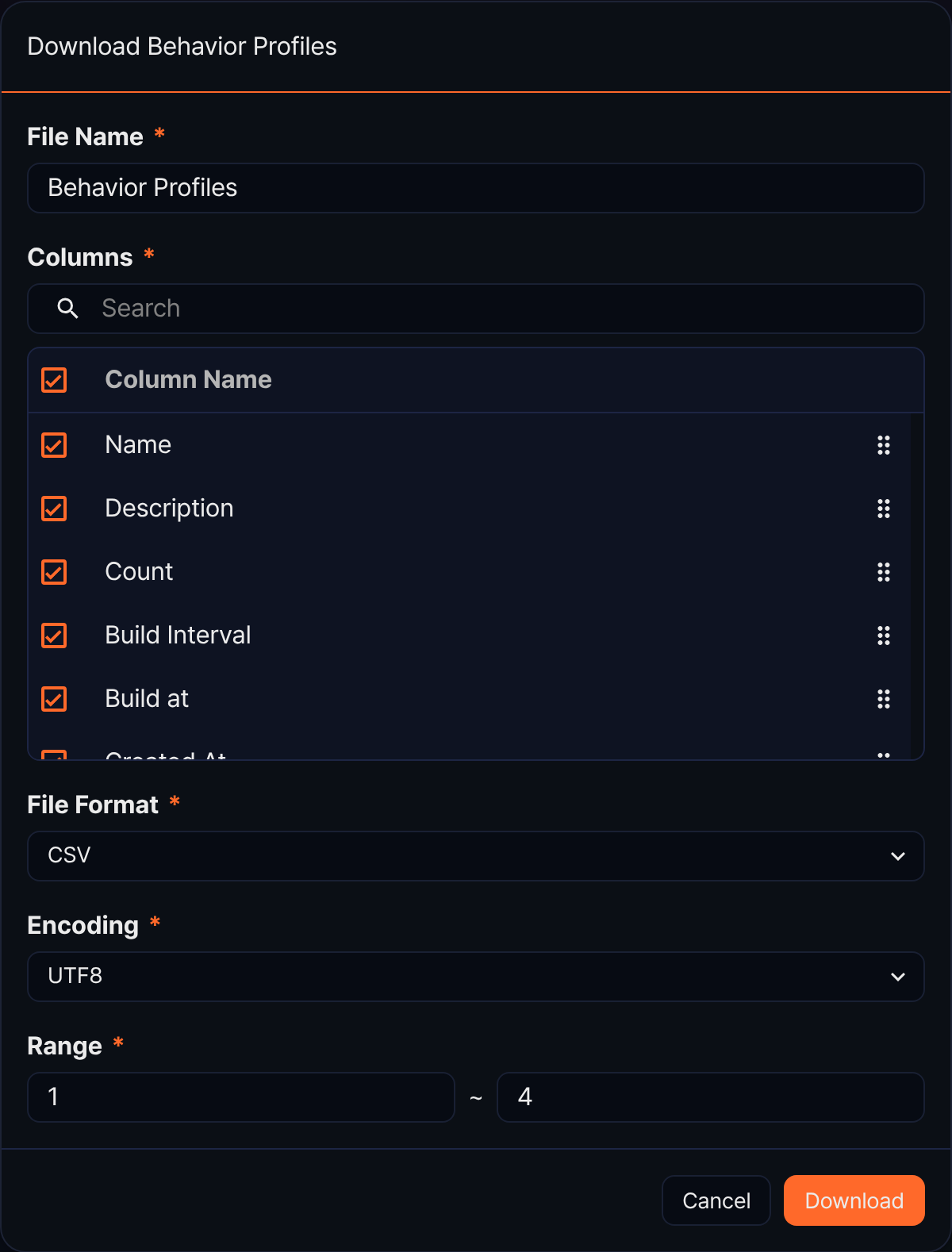
- File Name: Name of the downloaded file. The default is Behavior Profiles.
- Columns: Columns to include in the file. Seven are available — Name, Description, Count, Build Interval, Build at, Created At, and Modified At — and all are selected by default. Status, Build, and Owner from the list are not included, while Description and Created At, which the list does not show, are. Drag an item to change the column order.
- File Format: CSV, XML, Microsoft Word, HTML, JSON, or PDF
- Encoding: Character encoding. It appears only when the file format is CSV or JSON.
- Range: Range of items to download
Refresh the list
To reload the behavior profile list with the latest information, click  in the toolbar.
Add a behavior profile
To add a behavior profile:
-
Go to Policies > Behavior Profiles and click Add in the toolbar.
-
Fill in the following fields in the New Behavior Profile panel. Name, key field, and query statement are required.
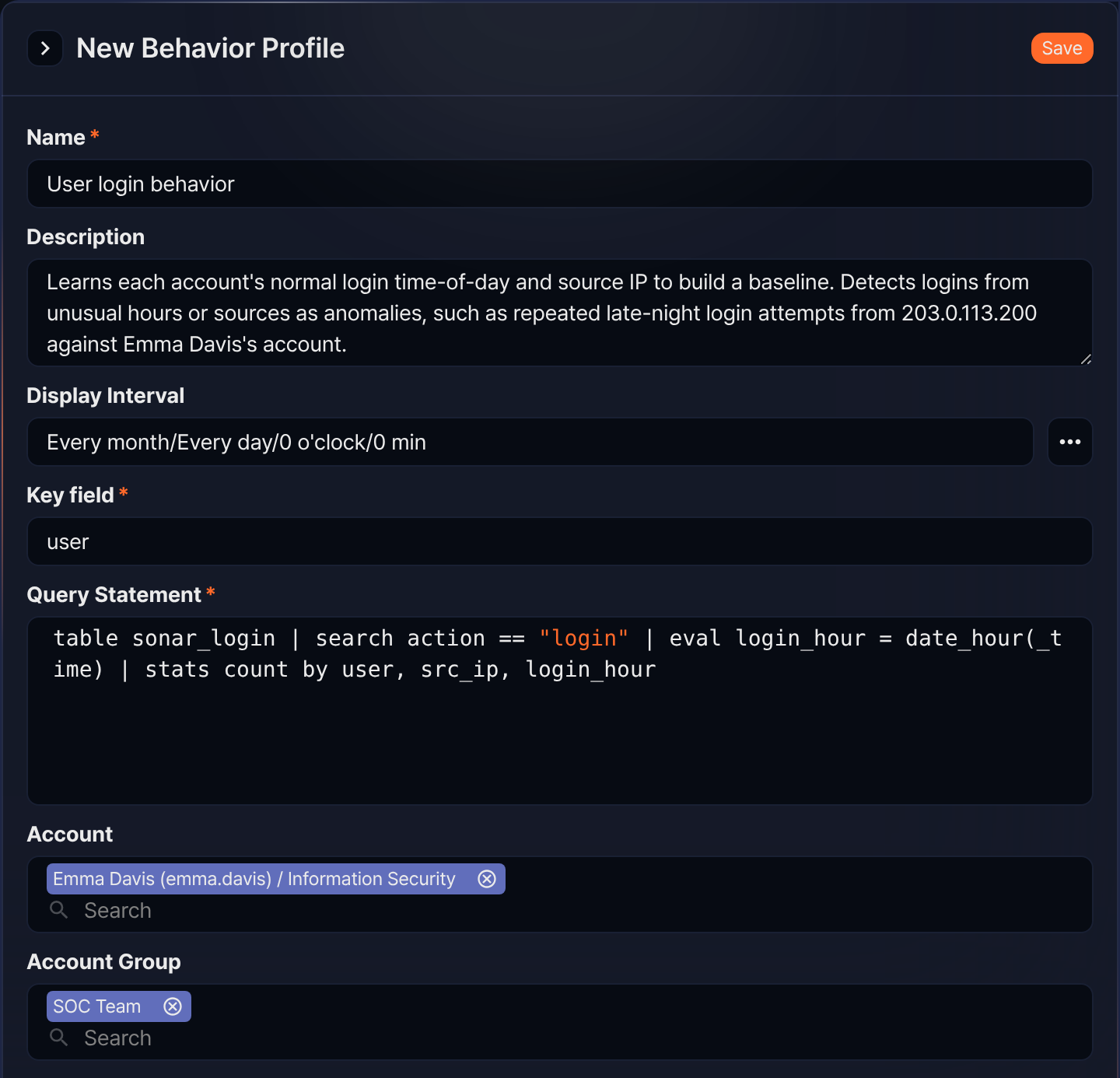
- Name: Name of the behavior profile (up to 50 characters). Saving a name that already exists returns a duplicate-name error.
- Description: Description of the behavior profile (up to 2,000 characters)
- Display Interval: How often the behavior profile query runs again. You do not type into the box; click
 on its right and choose the value in the Task Cronizer dialog box. The box shows your choice as human-readable text such as Every month/Every day/0 o'clock/0 min, and the default is every day at 0:00.
 - Key field: Field names used as the key when the behavior profile is matched (up to 1,000 characters). Separate multiple names with commas (
,). You can append a type to each entry asfieldname:type; a name with no type is treated as a string. To detect anomalies in per-account login history, for example, set the account name fielduseras the key field. - Query Statement: Query that generates the behavior profile data (up to 2,000 characters). Limit the period with the
durationoption or a combination offromandtoso the behavior profile holds recent data. The query result must contain the key field, and key field values must be unique within the behavior profile. - Account: Accounts that share this behavior profile. Search by name or login ID and pick an account to add it as a chip in the
Name (login ID) / Departmentformat. - Account Group: Account groups that share this behavior profile
-
Click Save in the upper right.
Display Interval in the add and edit panels is the value shown in the Build Interval column of the list. The same value carries two different names, so watch for the mismatch.
Edit a behavior profile
To edit a behavior profile:
-
Click the row of the behavior profile you want to edit in the behavior profile list. Clicking any cell except the checkbox opens the edit panel.

-
Change the values in the Edit Behavior Profile panel and click Save in the upper right. For a description of each field, see Add a behavior profile.
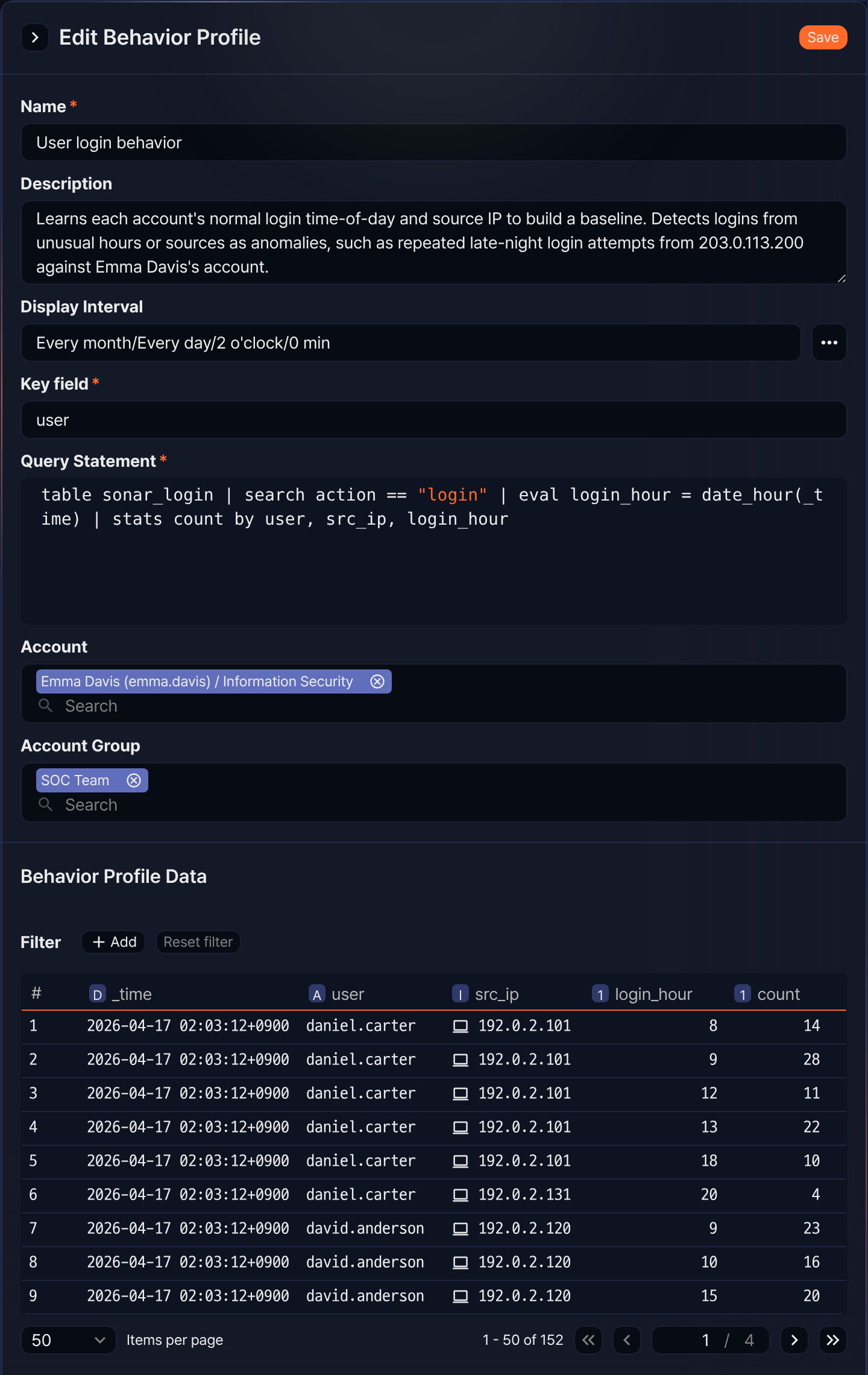
The key field and the query statement are read-only in the edit panel, so you cannot change them. The Save button appears for accounts that hold the behavior profile management permission. Unlike the Build column in the list, however, it does not check whether the account has write access to that behavior profile, so it also appears on a behavior profile shared with read-only access. If you save such a behavior profile, the server rejects the request for lack of permission.
View behavior profile data
The Behavior Profile Data section at the bottom of the edit panel shows the data stored by the last build. The columns are the result fields of the behavior profile query; the behavior profile in the image under Edit a behavior profile shows src_ip, login_hour, and count alongside the key field user. The _time column is not a per-row timestamp — every row carries the time the build finished.
The grid shows 50 rows per page by default, and the pager reports the total number of records stored in the behavior profile. That total matches the Count column in the list.
A behavior profile that has never been built has no data table to query yet, so this section shows an error instead. Build the behavior profile first to see its data.
Add a filter condition
When the data set is large, apply a filter to see only the rows you want. To add a condition, click Add next to Filter. To clear every condition you applied, click Reset filter.
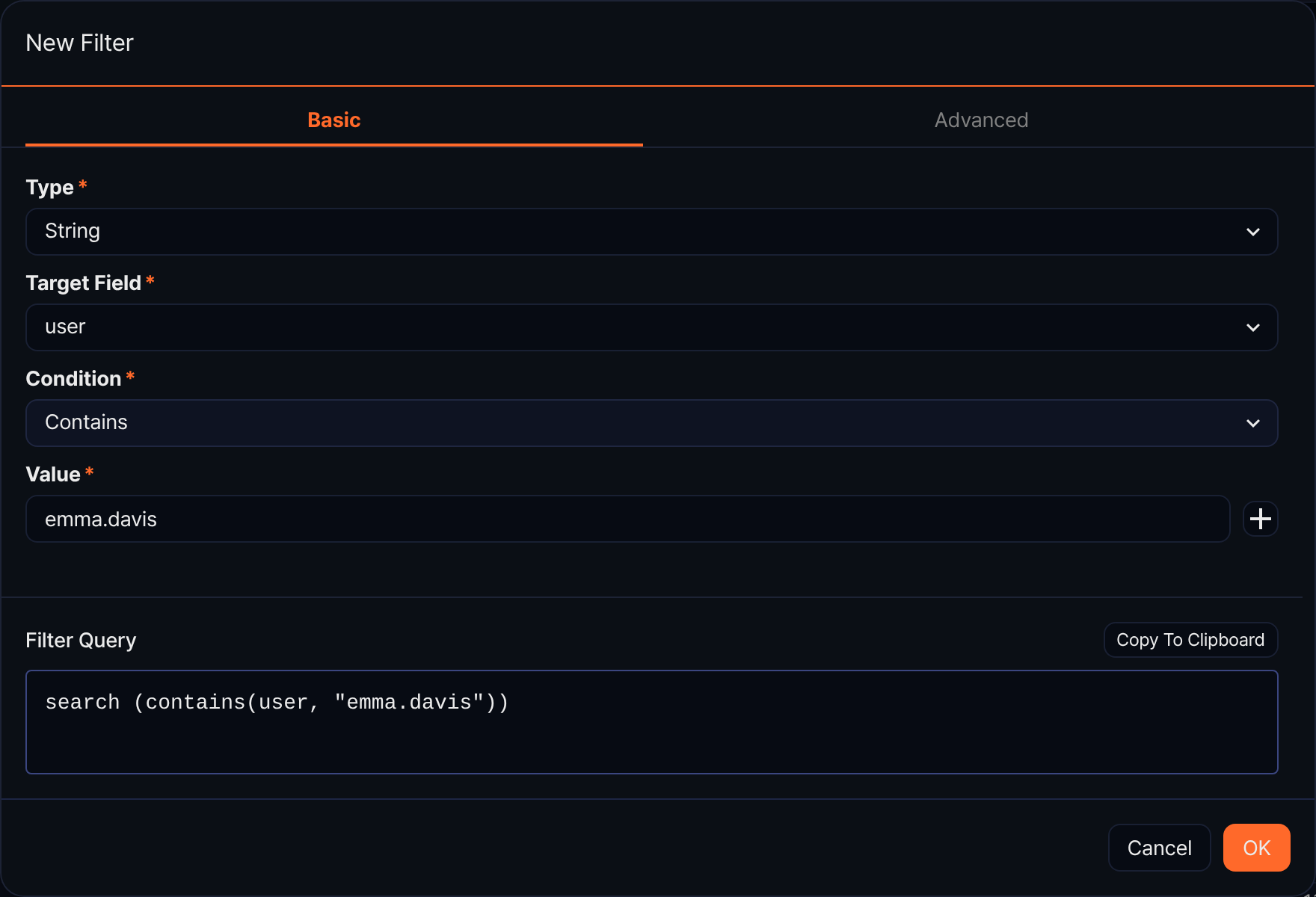
On the Basic tab, build a condition by choosing a type, a target field, a condition, and a value. As you enter the value, Filter Query below shows the query that will actually run, and Copy To Clipboard copies it. To write the query yourself, use the Advanced tab. Click OK to apply the filter.
Using behavior profiles
You can use a behavior profile as shared reference data in detection scenarios and in queries.
Scenario builder
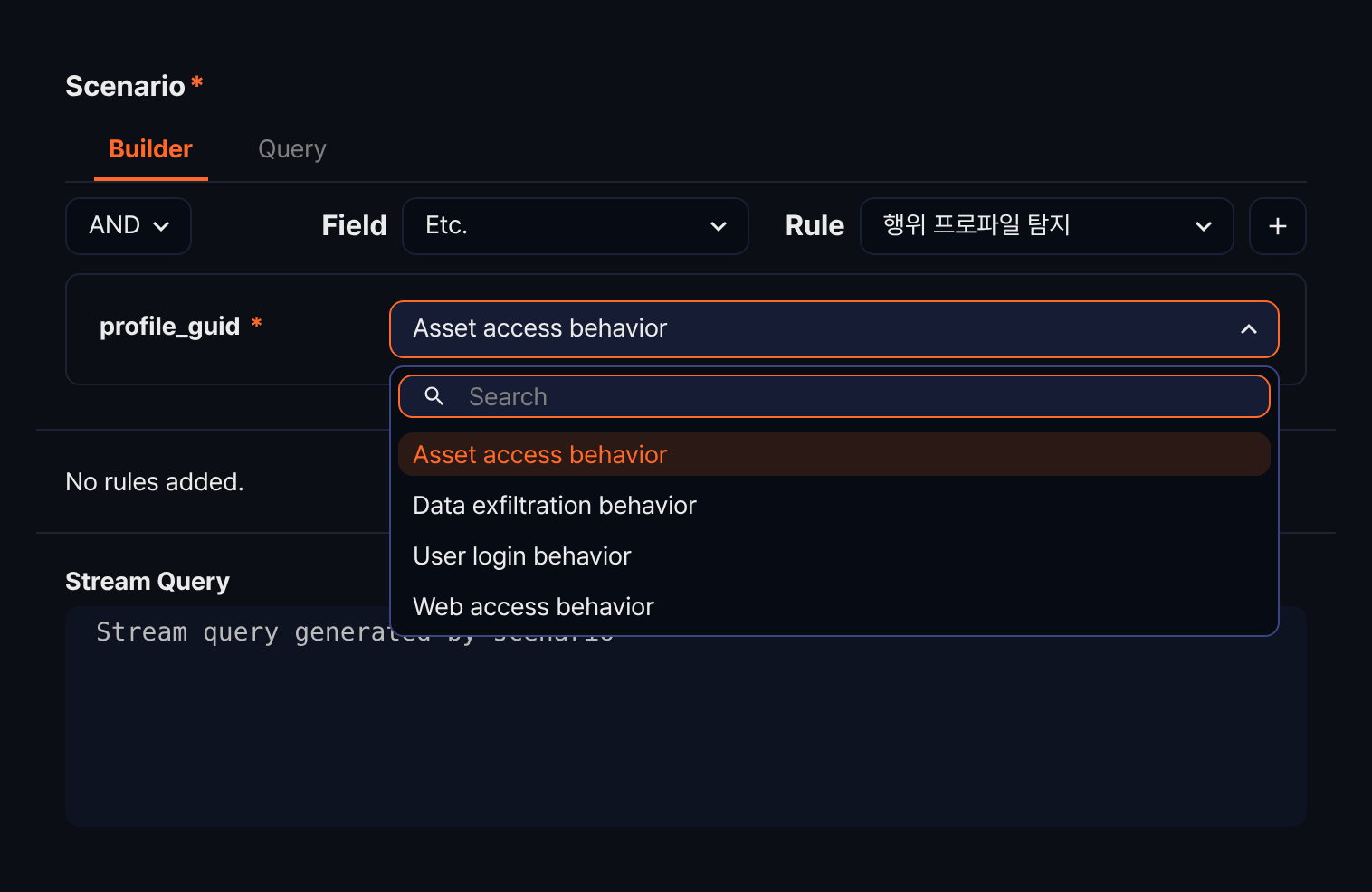
When you add or edit a scenario under Policies > Stream Rules, a rule in the Builder tab can match against a behavior profile. Choose Etc. in Field to make the 행위 프로파일 탐지 rule appear in Rule, and choosing that rule adds a behavior profile selector below, labeled profile_guid. The next image shows that selector expanded, with the first item in the list as its default.
| Field | Rule | Parameter | Description |
|---|---|---|---|
| Etc. | 행위 프로파일 탐지 | profile_guid | Filters values that match the key field of the selected behavior profile |
The rule name comes from a database seed that holds Korean text only, so it stays in Korean on an English console. The parameter display name is defined for Korean only as well, so the console falls back to the raw key and labels the selector profile_guid. For the full list of rules and their other parameters, see Rules and parameters by field type. The scenario builder exists for stream rules only, not for batch rules. Match behavior profiles in batch rules with a query instead.
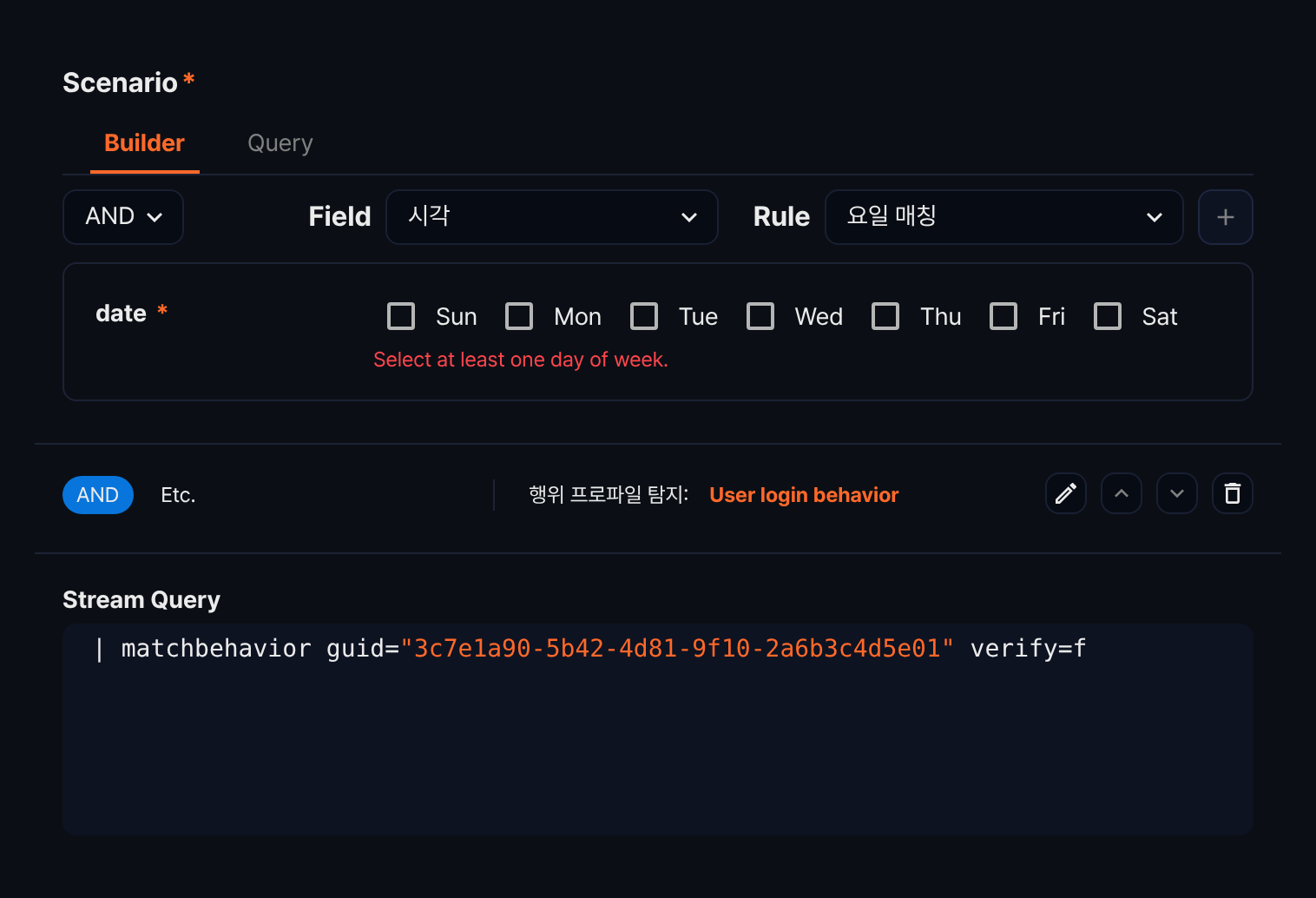
Choose the behavior profile you want to match and click  to register the rule. The matching query then appears in Stream Query below, carrying the behavior profile GUID rather than the name shown on screen. The next image shows the result of registering User login behavior. Once the rule is registered, the builder row resets to its defaults, which is why the top of that image shows a default rule instead of the field and rule you just chose.
Query
In a query, match against a behavior profile with the matchbehavior command or the matchbehavior() function. Any other feature that accepts a query can reference a behavior profile the same way.
The command identifies the behavior profile with the guid option. That option is required, and you cannot point to a behavior profile by name. The function likewise takes only a GUID as its first parameter.
The GUID is the value that follows /behavior-profile/ in the browser address bar while the behavior profile is open. The stream query generated by the scenario builder carries the same value. Because the builder uses the GUID rather than the name, renaming a behavior profile does not affect scenarios that already reference it.
To find values that are absent from the baseline — records with no history in the behavior profile — set invert=t.
table duration=1d *:VPN | matchbehavior guid="3c7e1a90-5b42-4d81-9f10-2a6b3c4d5e01" invert=t
Delete a behavior profile
To delete a behavior profile:
-
Select the checkbox of the behavior profile you want to delete in the behavior profile list.
-
Click Delete, which replaces the search box.

-
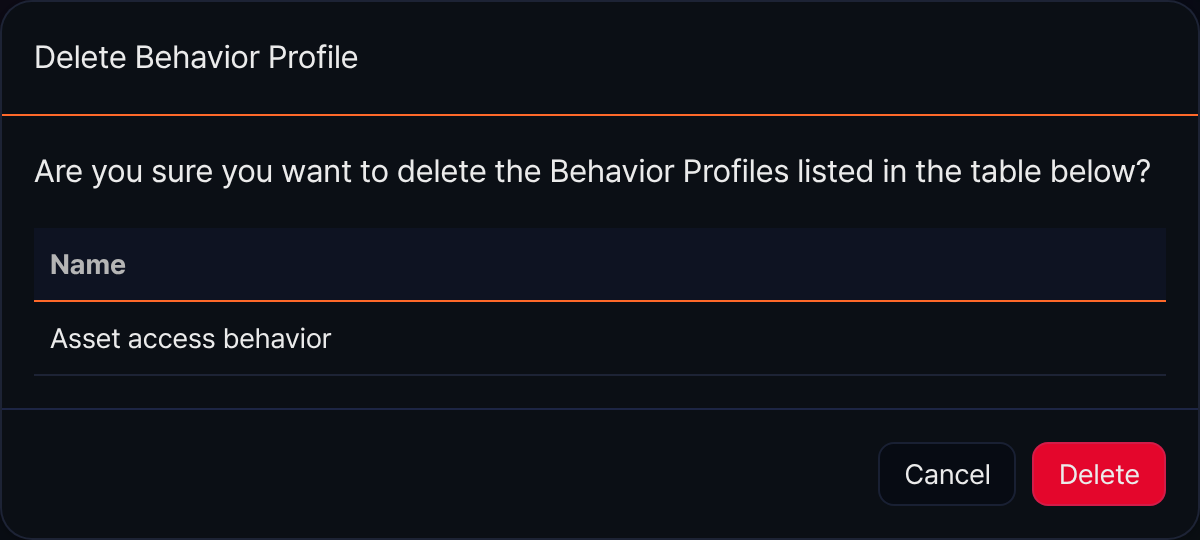
Review the names listed in the Delete Behavior Profile dialog box and click Delete. To keep the behavior profile, click Cancel.