
Ticket repositories
Overview
A ticket repository is the unit that groups tickets, and every ticket belongs to one. You pick a repository when you create a ticket yourself, and a ticket created by a detection scenario goes to the repository set on that scenario. For how to assign a repository to a ticket, see the Tickets documentation.
The main reason to separate repositories is to control which tickets each account can see. When you grant ticket repositories to an account on the Accounts page, an account with the User or Dashboard Publisher role can view and work on only the tickets in the granted repositories. Cluster Administrators and Administrators reach every repository in the company. Splitting repositories by area of responsibility lets each team see only the tickets it handles.
Each repository has a type, either Event or Board. Use Event for a repository that detection scenarios fill automatically, and Board for a repository that collects tickets people create by hand, such as tasks or notices. The type appears in the Type column of the list and serves as a filter. Tickets do not behave differently by type.
When you install Logpresso Sonar, one repository named Threat (위협분석 on a Korean installation) is created with the Event type.
Accounts with the Cluster Administrator or Administrator role can view, add, edit, and delete ticket repositories. An account with the User role can see the list with the Ticket View permission, but the add, edit, and delete tools appear only with the Company Admin permission. Without the right permission, the Add and Delete buttons in the toolbar and the Save button in the panel do not appear.
Viewing the ticket repository list
Go to Response > Ticket Repositories to view or search the ticket repository list.
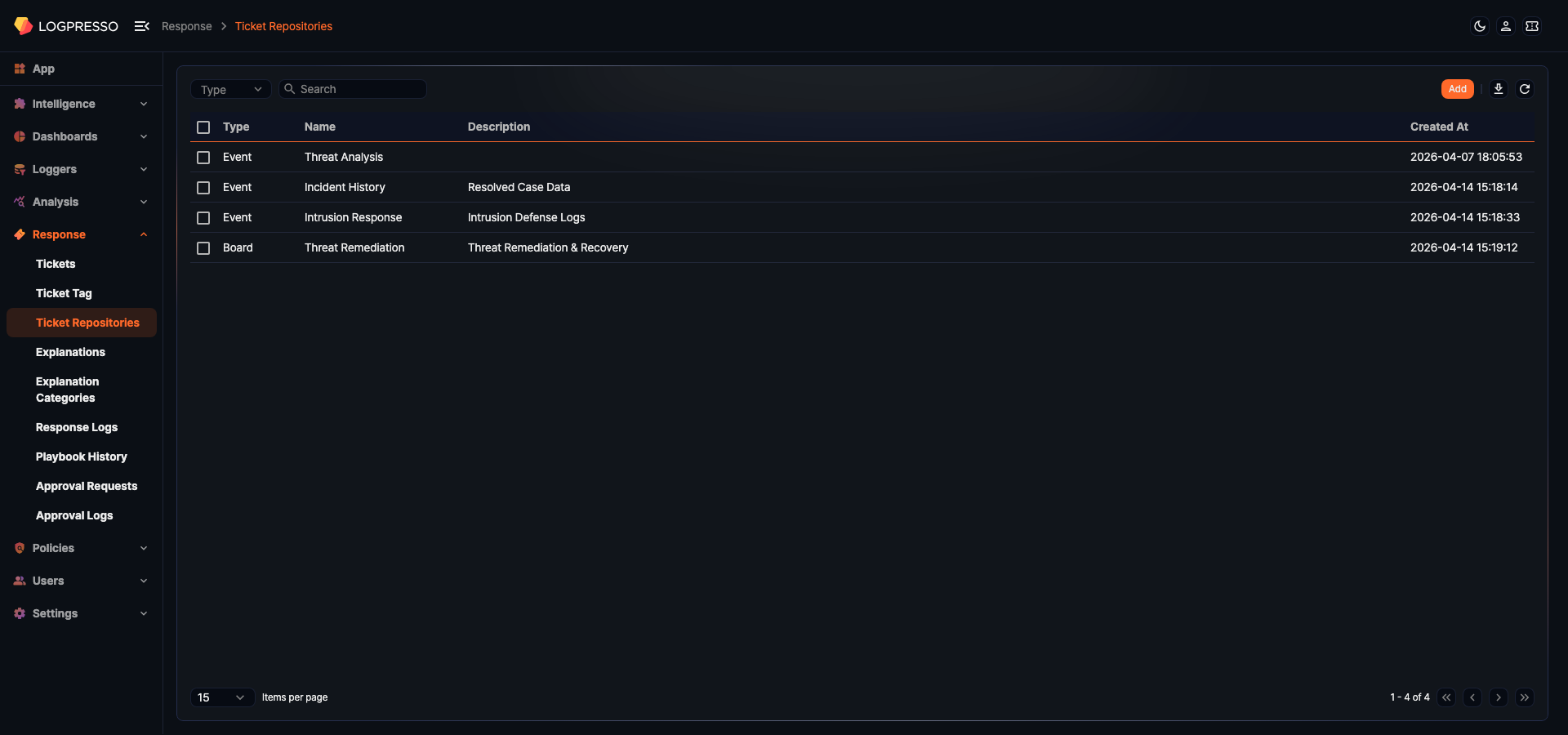
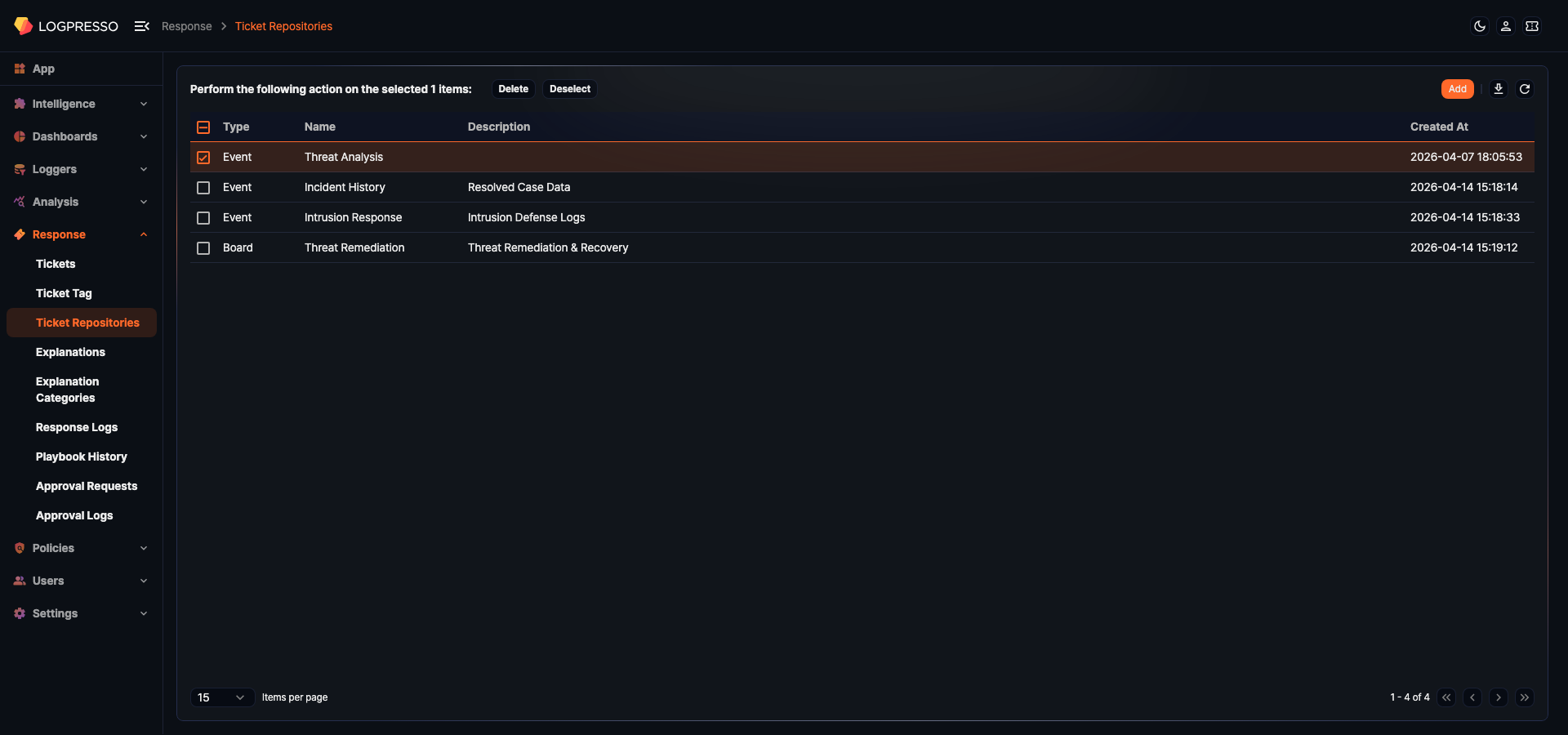
- Type: The type of the repository (Event, Board)
- Name: The name of the repository
- Description: A description of the repository
- Created At: The time the repository was added
Each page shows 15 repositories. You can change the number of items per page or move to another page at the bottom of the list.
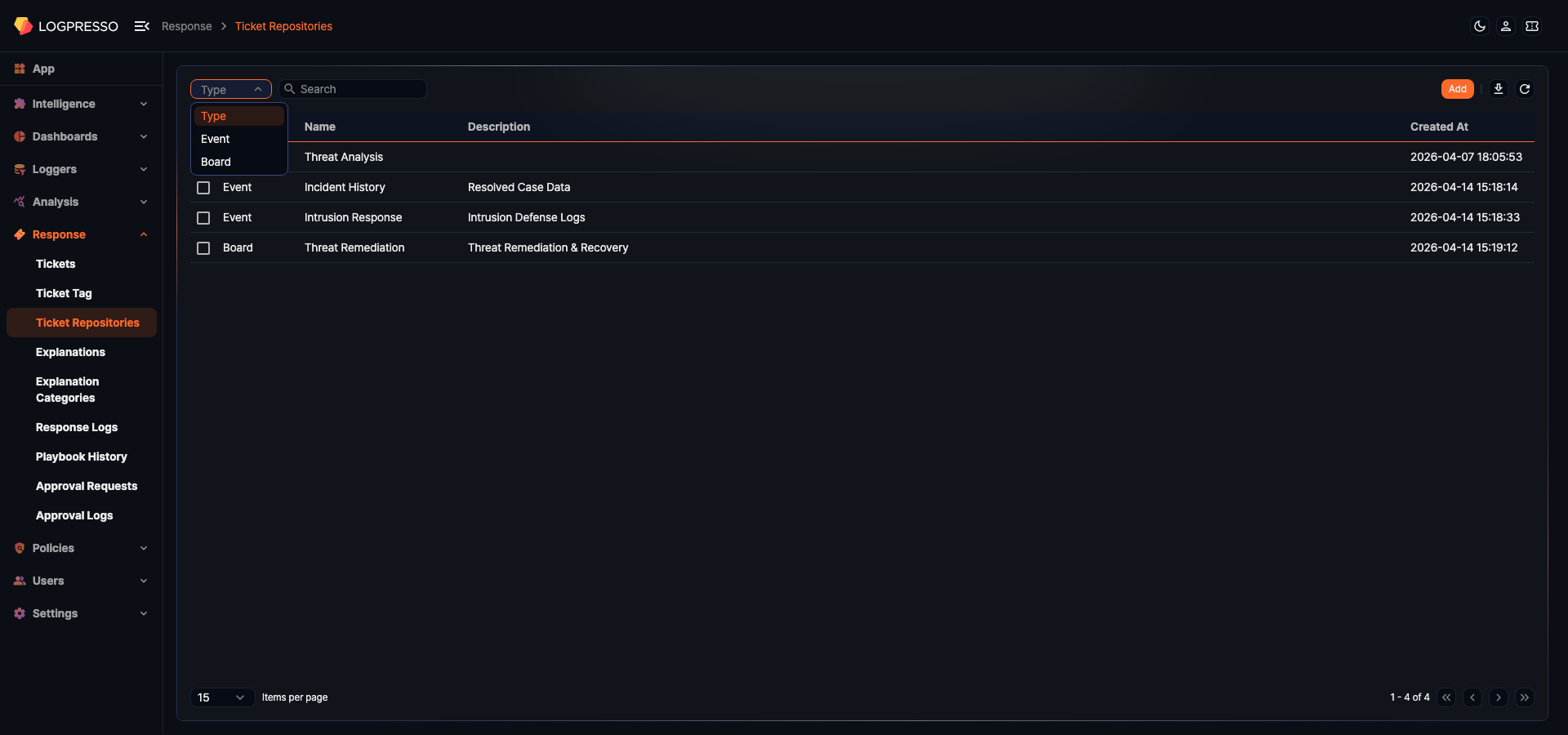
To narrow the list, use the type dropdown and the search tool in the toolbar.
- Type dropdown: Select Event or Board to show only repositories of that type. Select Type to clear the filter.
- Keyword search: Type a keyword and press Enter to show repositories whose Name or Description contains the keyword. If you type several words separated by spaces, a repository is shown only when either Name or Description contains all of the words. The search is case-insensitive.
The selected type, the keyword, and the page number stay in the address bar, so you can reopen the same view from its address.
Downloading the list
To download the ticket repository list as a file to your PC, click the download icon ( ) in the toolbar. In the Download Ticket Repository List dialog, set the File Name (default: Ticket Repositories, up to 200 characters), the Columns to download (Type, Name, Description, Created At), the File Format, the Encoding (for CSV and JSON), and the Range (default: from the first row of the current page to the last row of the whole list), then click Download. If you have narrowed the list with the type filter or a search, only the matching repositories are downloaded.
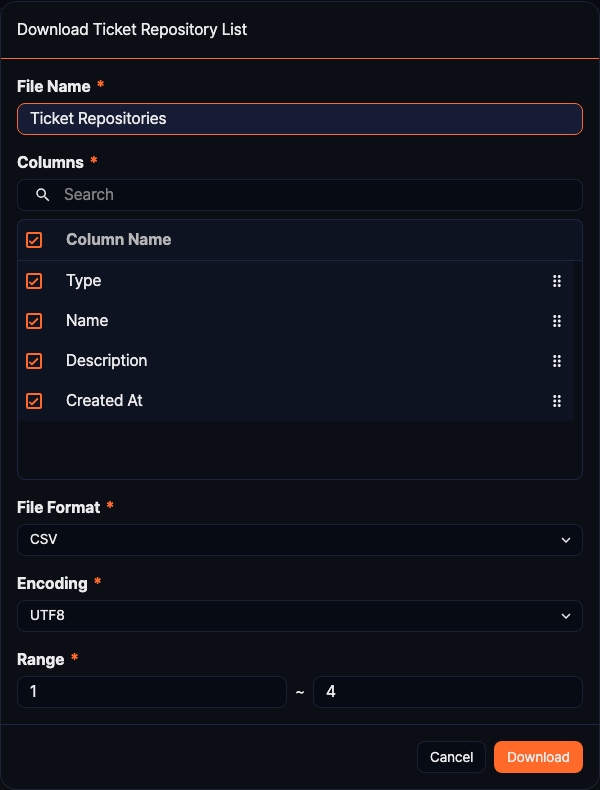
The download icon is disabled when the list is empty.
Refreshing the list
To reload the ticket repository list with the latest data, click the refresh icon ( ) in the toolbar.
Adding a ticket repository
To add a ticket repository:
-
In the Response > Ticket Repositories toolbar, click Add.
-
Enter the values in the New Ticket Repository panel.
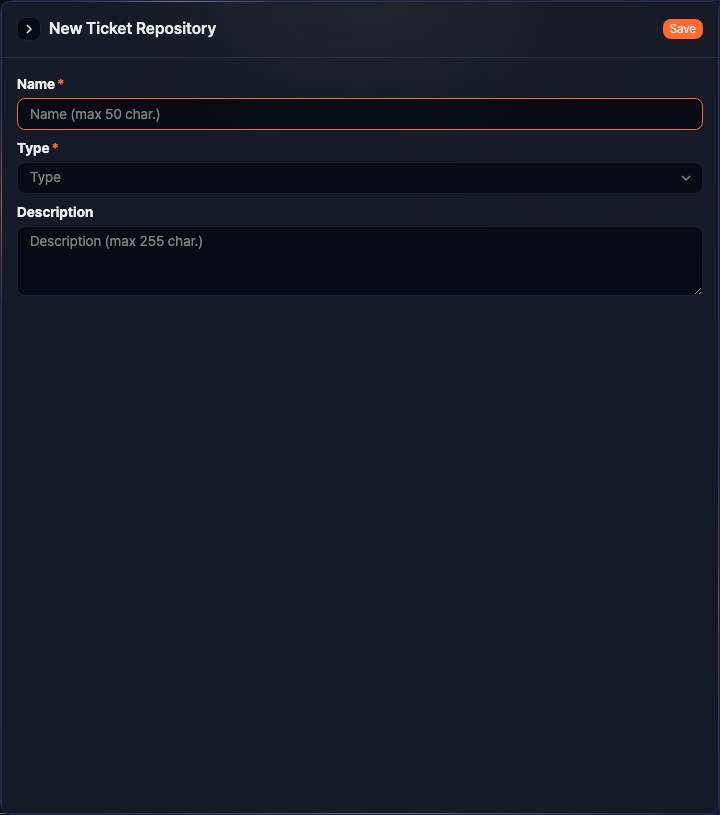
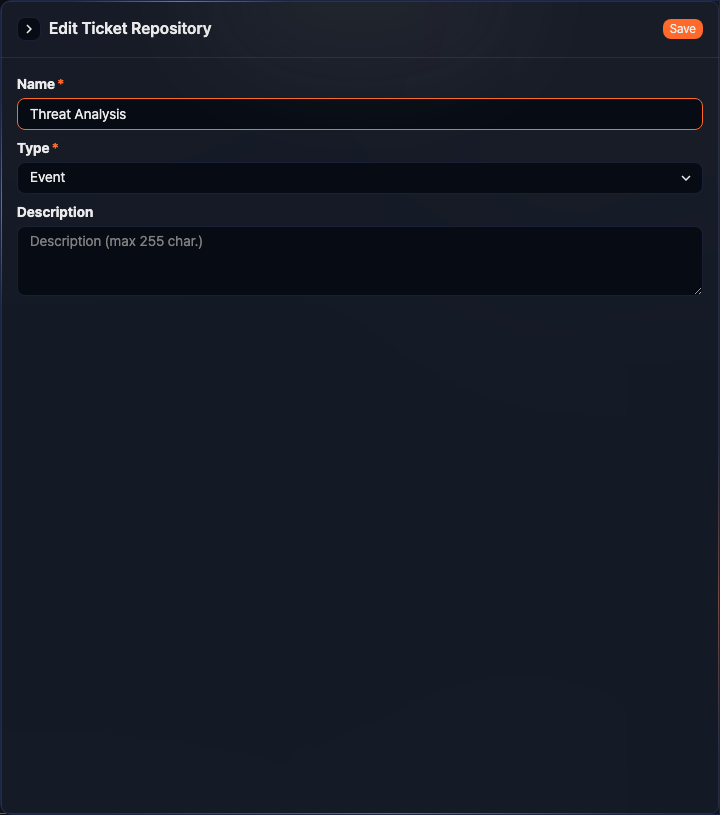
- Name: The name of the repository (required, up to 50 characters). A name that already exists cannot be used.
- Type: Event or Board (required)
- Description: A description of the repository (up to 255 characters)
-
Click Save.
Editing a ticket repository
To edit a ticket repository:
-
In the ticket repository list, click the row of the repository you want to edit.
-
Change the name, type, or description in the Edit Ticket Repository panel, then click Save. The fields are the same as in Adding a ticket repository.
Deleting a ticket repository
To delete a ticket repository:
-
In the ticket repository list, select the checkbox to the left of the repository you want to delete. You can select several repositories at once.
-
As soon as you select a repository, the search area of the toolbar is replaced by a message showing the number of selected items, along with the Delete and Deselect buttons. Click Delete.
-
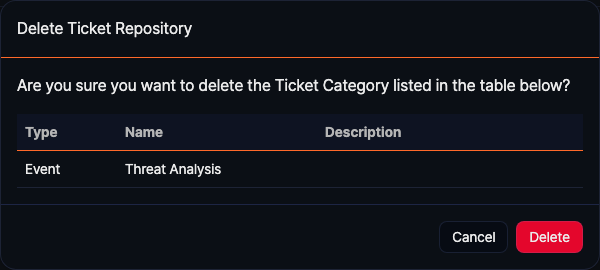
Review the type, name, and description of the repositories in the Delete Ticket Repository dialog, then click Delete.
You cannot delete a repository in any of these cases:
- A real-time or batch detection scenario uses the repository.
- A ticket in the repository has a memo.
- A ticket in the repository has an assignee or an approver.
When none of these apply, the repository is deleted, and the tickets that belonged to it are deleted with it. If any one of the repositories you selected cannot be deleted, none of them are deleted.