License
Overview
To utilize Logpresso Sonar, a license must be installed through the web console. The daily volume of original logs that Logpresso Sonar can collect is defined by the given license, and the features available may also vary according to the license. Only cluster administrators can use this menu.
When the license validity period expires, certain features will be disabled, but log collection will continue.
License types
The licenses for Logpresso Sonar are categorized into four types (the identifiers used in the license screen are in parentheses):
- Logpresso Sonar Light: Standalone Log Management Server (LMS) License (LIGHT)
- Logpresso Sonar Light HA: Redundant Log Management Server (LMS) License (LIGHT HA)
- Logpresso Sonar: SIEM Operation License (SONAR)
- Logpresso Sonar Maestro: Security Operations Automation (SOAR) License (MAE)
For the features available in each license, see License Functional Scope.
Apply for or renew a license
To install or renew a license, the hardware key information of the control node is required. If the control node is configured in a redundant setup, the hardware keys of both nodes are necessary. Request the issuance of a license from the Logpresso technical support team along with the hardware key information. The hardware key can be found on the License page.
Actions on license exceedance
A license includes information such as the hardware key, validity period, technical support period, daily original log collection capacity, and available features. If the daily original log collection capacity granted by the license is exceeded, the following actions will occur:
- If no license is installed, the maximum daily collection of original logs is 500MB.
- If the daily collection exceeds the allowable volume, a license exceedance alert will be triggered once per day.
- If five license exceedance alerts accumulate within the last 30 days, the license will be deactivated, and queries to retrieve stored data will cease.
Actions on license expiration or error
If the license's validity period or technical support period has passed, a usage limit such as the collection volume has been exceeded, or license validation fails, a warning message like the following appears at the very top of the screen, above the top bar. The reason appears in parentheses. Clicking Replacing License will redirect you to the license management page. To renew the license, see Install license.
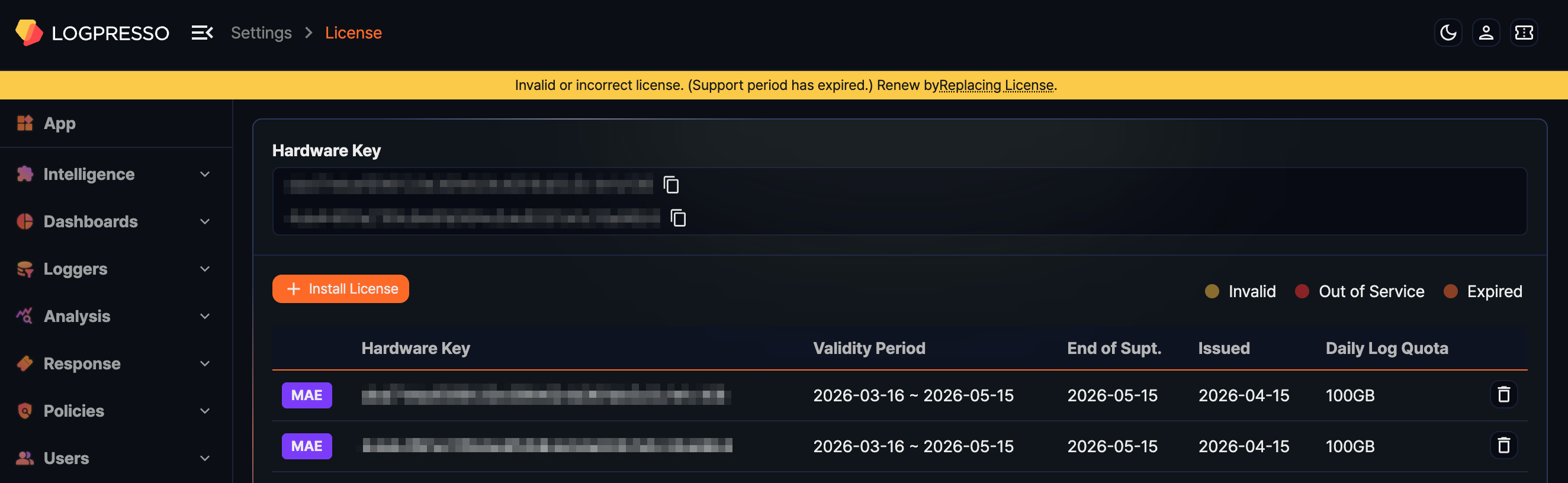
If a license has a problem, its row in the license table is shown in one of the following colors. The legend at the top right of the table shows what each color means.
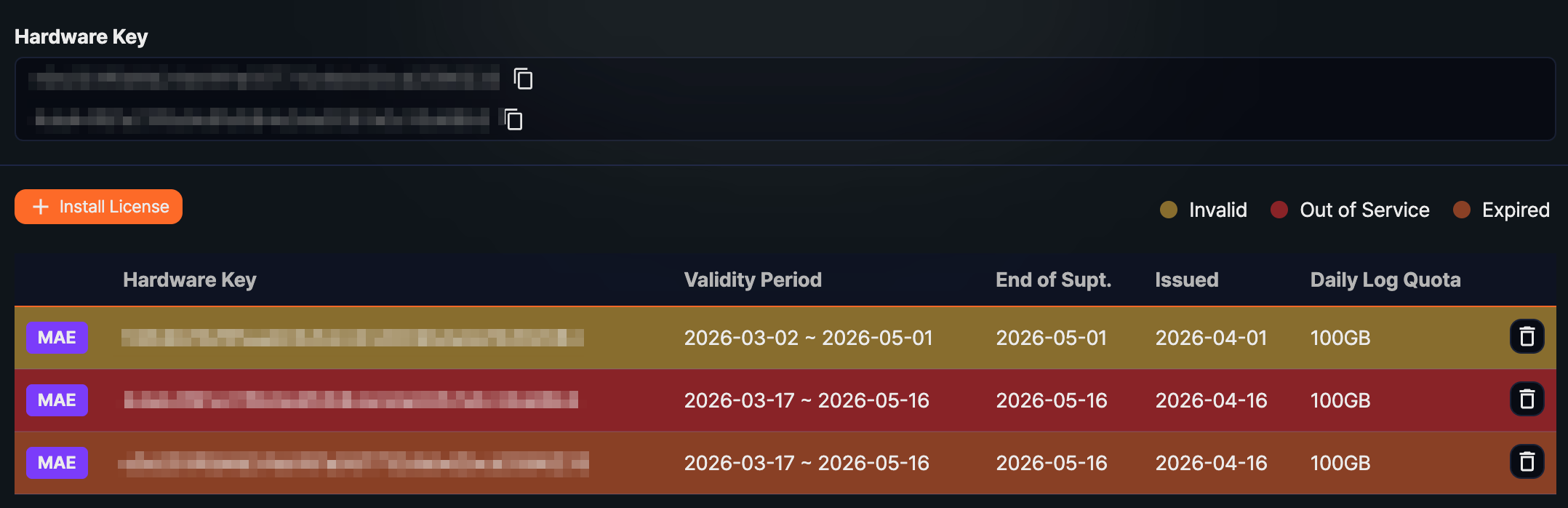
- Yellow (Invalid): A license that does not match this system's hardware key
- Red (Out of Service): A license whose technical support period has passed
- Orange (Expired): A license whose validity period has passed
License status
The license status can be viewed under Settings > License.
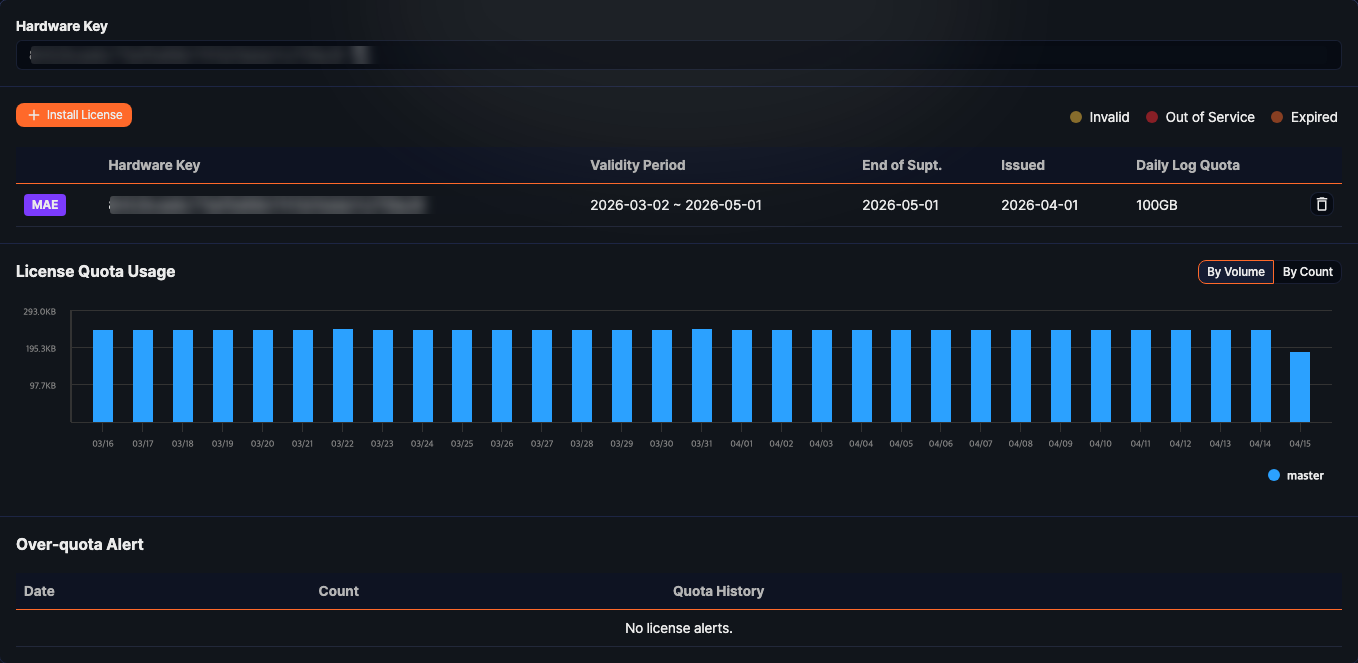
The information available in License includes:
-
Hardware Key (top card): The hardware key of this system. When you request a license, share this value with the technical support team; click the copy icon next to the key to copy it to the clipboard.

Each row of the license table shows the following information.
- First column (no header): A badge identifying the license type (LIGHT, LIGHT HA, SONAR, MAE).
- Hardware Key: The hardware key the license was issued for. If it does not match this system's hardware key, the row is shown as an invalid license.
- Validity Period: The validity period of the license.
- End of Supt.: The expiration date of technical support.
- Issued: The date the license was issued.
- Daily Log Quota: The maximum daily collection capacity of original logs. If there is no limit, Unlimited is displayed. You can configure the logger's filter settings to avoid collecting unnecessary original logs.
License Quota Usage shows the license usage over the last 30 days. If a cluster is configured with multiple nodes, each node will be displayed with distinct colors. You can use the By Volume and By Count buttons at the top right of the chart to switch between collection volume and log count.
Over-quota Alert shows the alerts that occurred in the last month, with Date, Count, and Quota History columns.
Install license
To install a license:
-
Click Install License under Settings > License.
-
In the Enter License window, paste the full license text you received and click OK.
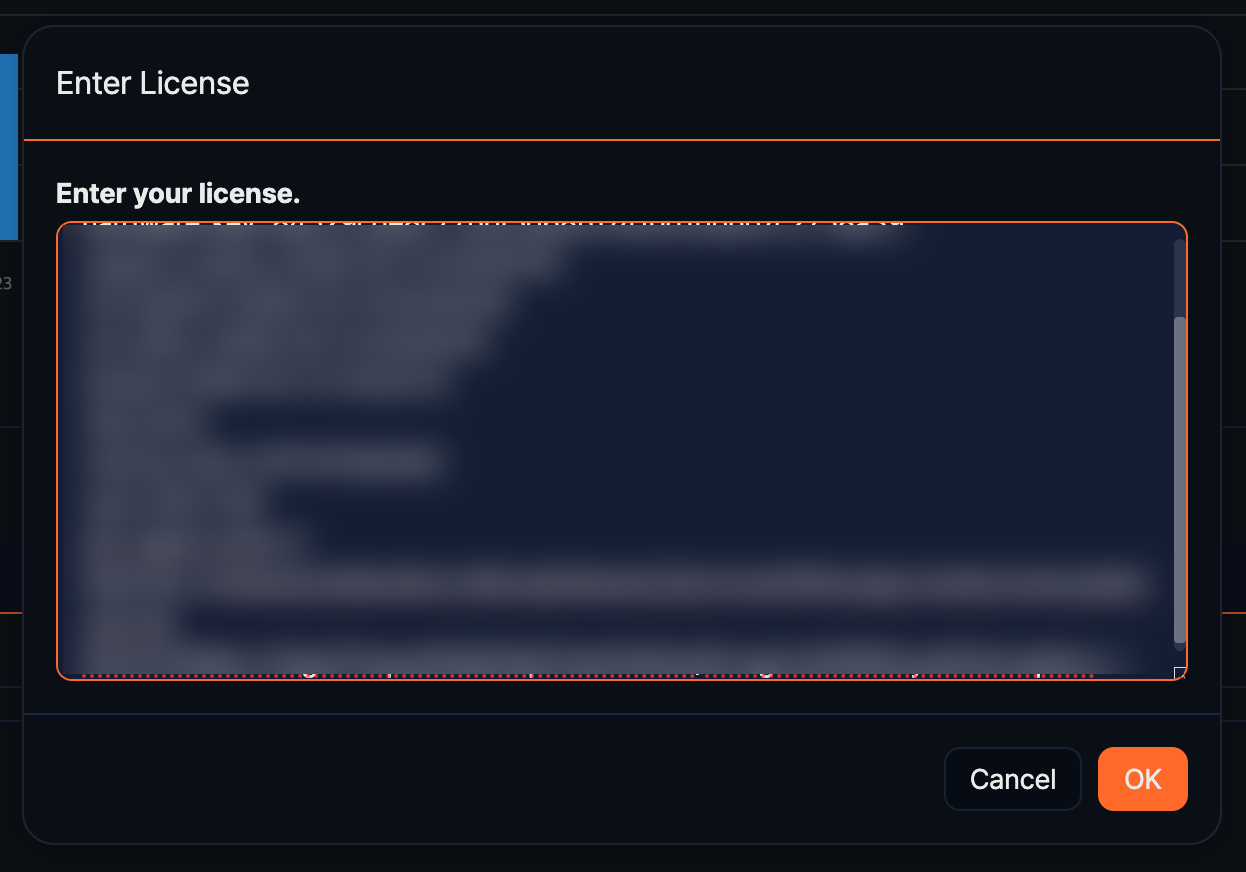
After the license is installed, the page reloads. A license that does not match this system's hardware key is not installed, and an error notification appears instead.
Delete a license
To delete a license from server:
-
On the license screen, click
 next to the entry you want to delete.
 -
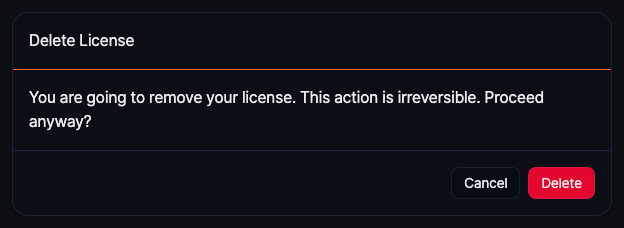
In the Delete License dialog, click Delete. Click Cancel if you do not wish to delete.