
User input
This task receives and processes input from a user. The task waits until the user enters the required data, then returns the result as the output parameter input.
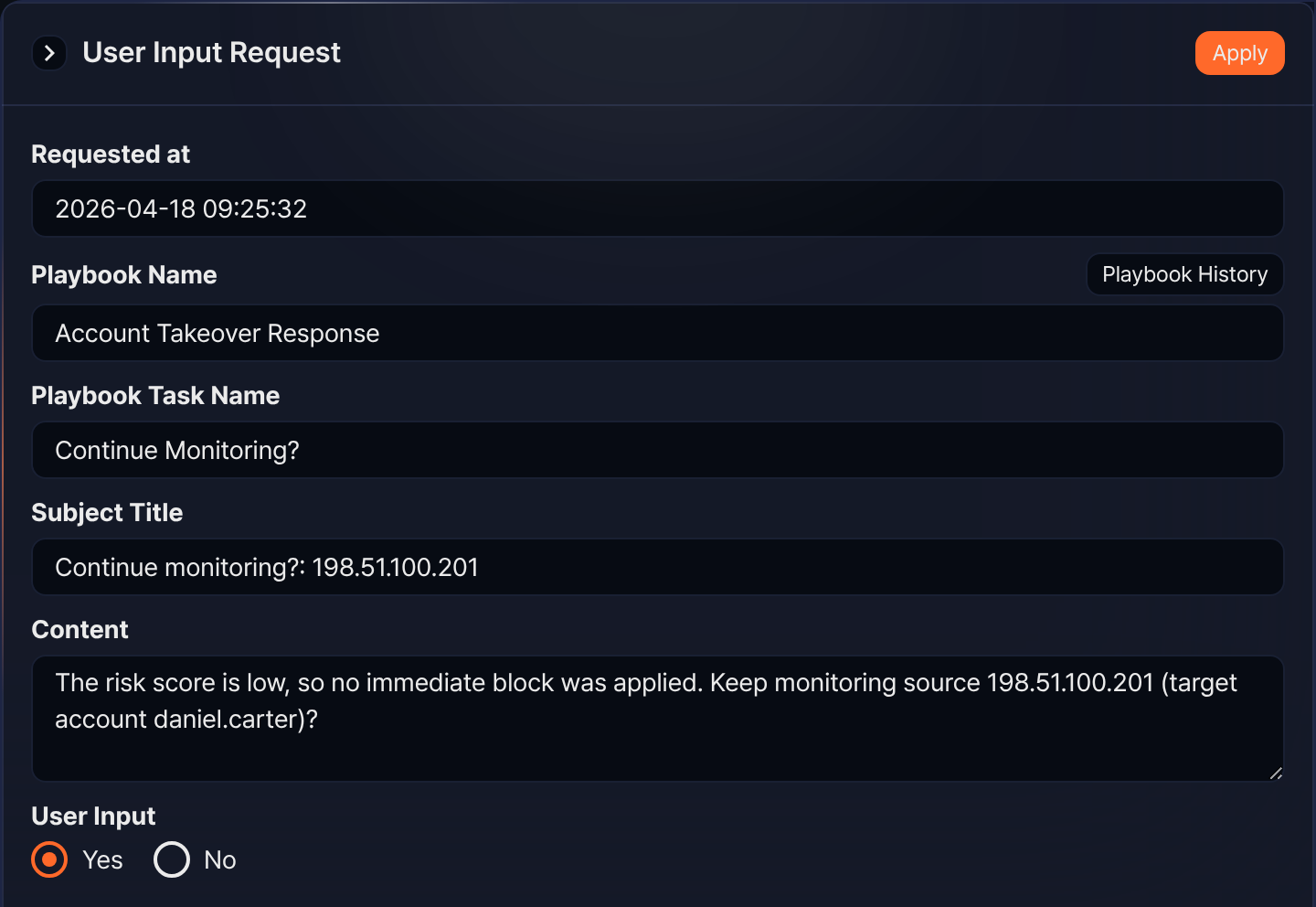
Requests created by a user input task show a Type of Boolean, Text, Multiline, or Enum, depending on the command. Tasks waiting for the user's input are listed under Response > Approval Requests. The following shows an item whose Type is Boolean in the approval requests list.
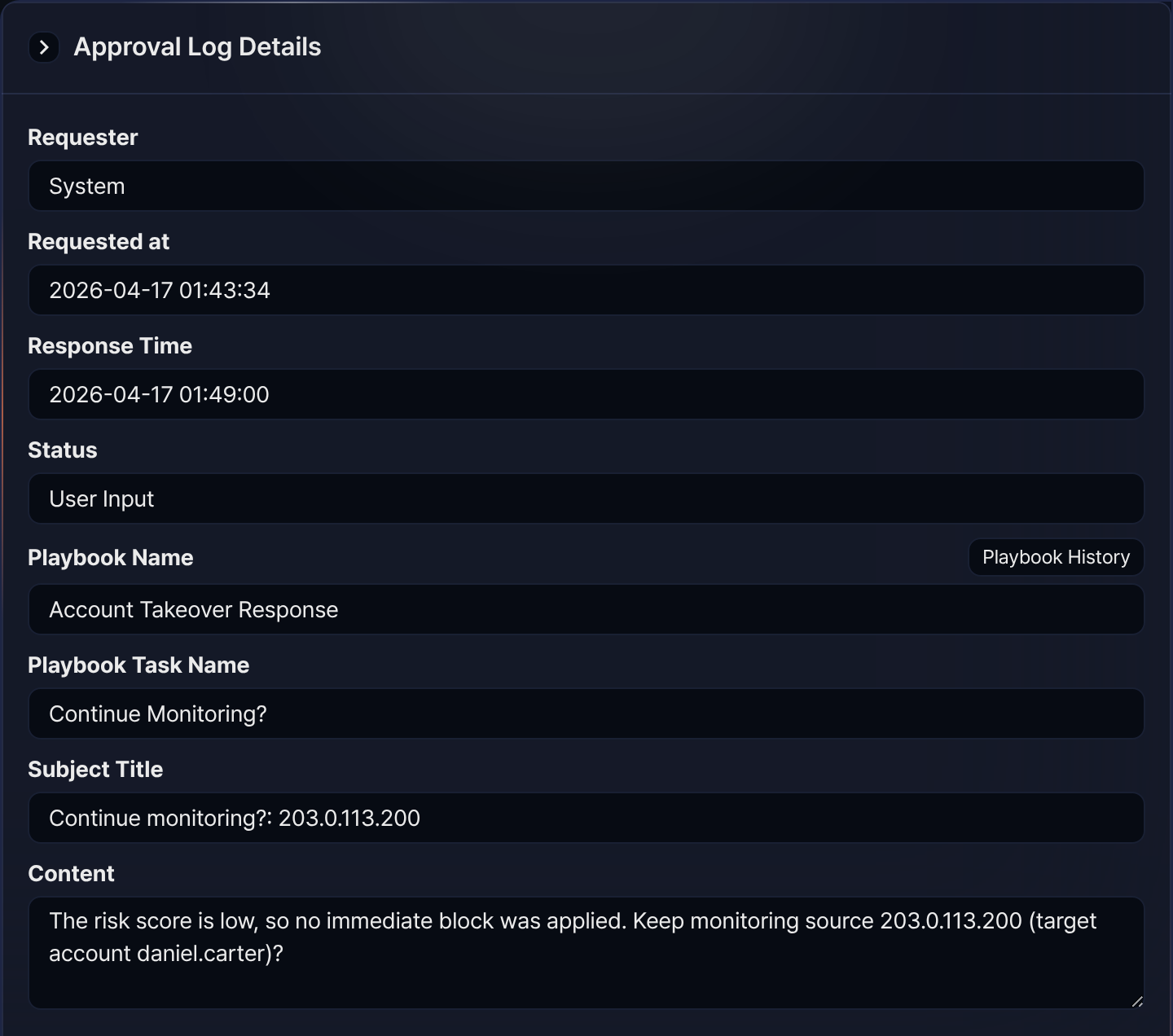
The result of processing user input can be found under Response > Approval Logs. In the approval logs list, the Type column always shows Playbook and the Status column shows the outcome. Clicking an item whose Status is User Input shows whether it was processed, as follows (check the entered value in the task's output under Response > Playbook History).
User input tasks are categorized as Boolean, String, Text block, or Enumeration based on the selected Command. The data type stored in the output parameter input is determined by the command.
Boolean
When the Command is User input (boolean), this task generates a request for the user to respond with Yes or No. When the user responds Yes, it returns true; when the user responds No, it returns false in the output parameter input.
This task is often used together with Expression branch to branch the task flow based on the user's response.
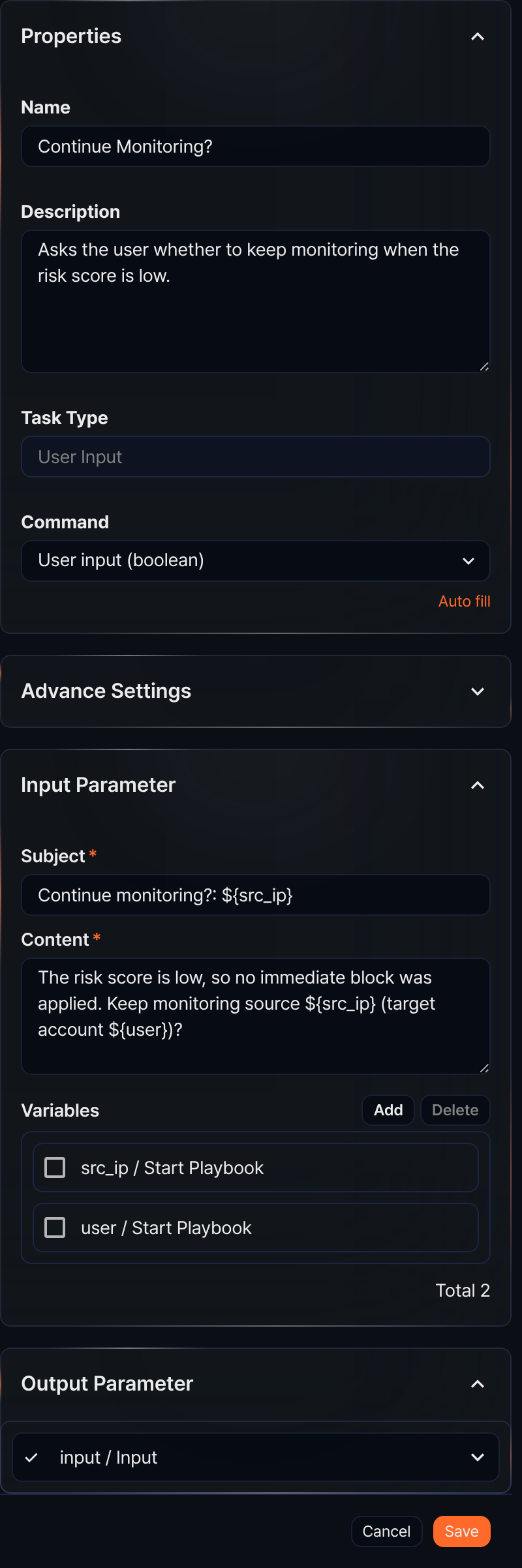
The properties panel for the Boolean command looks like the figure in the User input section above (the Continue Monitoring? task).
- Command
- Select User input (boolean).
- Input parameters
- Write the Subject and Content for the input request to present to the user, and optionally select variables from the Variables.
- Subject*
- Enter the subject of the user input request.
- Content*
- Enter the user input request text.
- Variables
- Click Add and select variables to use in the Subject or Content. Both Subject and Content are strings. To substitute a variable value into the string, use the
${variable}format.
Note$("variable") is a function used to reference variable values in Logpresso queries and cannot be used inside strings.
String
When the Command is User input (text), this task generates a request for the user to enter a string. The entered string is returned in the output parameter input as a string.
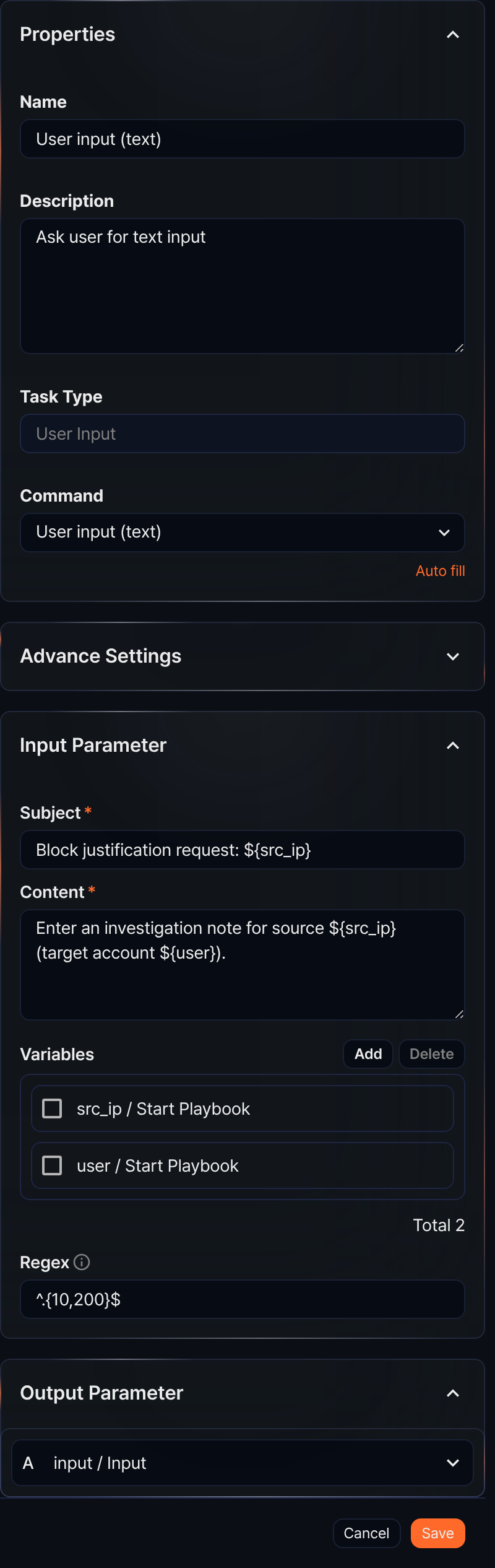
- Command
- Select User input (text).
- Input parameters
- Write the Subject and Content for the input request to present to the user, and optionally select variables from the Variables. To restrict the format of the value the user enters in response, define the valid format with a Regex.
- Subject*
- Enter the subject of the user input request.
- Content*
- Enter the user input request text.
- Variables
- Click Add and select variables to use in the Subject or Content. Both Subject and Content are strings. To substitute a variable value into the string, use the
${variable}format.
Note$("variable") is a function used to reference variable values in Logpresso queries and cannot be used inside strings.
- Regex
- Use a regular expression to restrict the format of the value the user enters when responding to this request. It does not validate the Content text itself.
Text block
When the Command is User input (multiline), this task generates a request for the user to enter multi-line text. This is suitable for processing long text data. The entered string is returned in the output parameter input with newline characters.
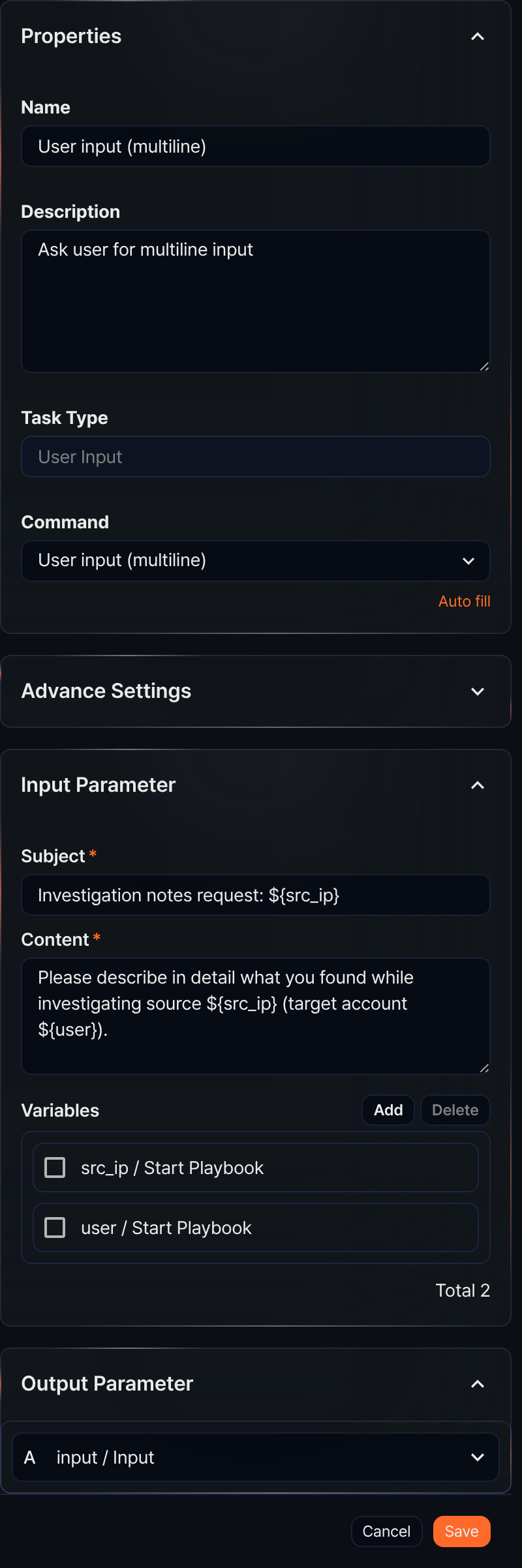
- Command
- Select User input (multiline).
- Input parameters
- Write the Subject and Content for the input request to present to the user, and optionally select variables from the Variables.
- Subject*
- Enter the subject of the user input request.
- Content*
- Enter the user input request text.
- Variables
- Click Add and select variables to use in the Subject or Content. Both Subject and Content are strings. To substitute a variable value into the string, use the
${variable}format.
Note$("variable") is a function used to reference variable values in Logpresso queries and cannot be used inside strings.
Enumeration
When the Command is User input (enum), this task generates a request for the user to select one option from multiple choices. The selected string is returned in the output parameter input as a string.
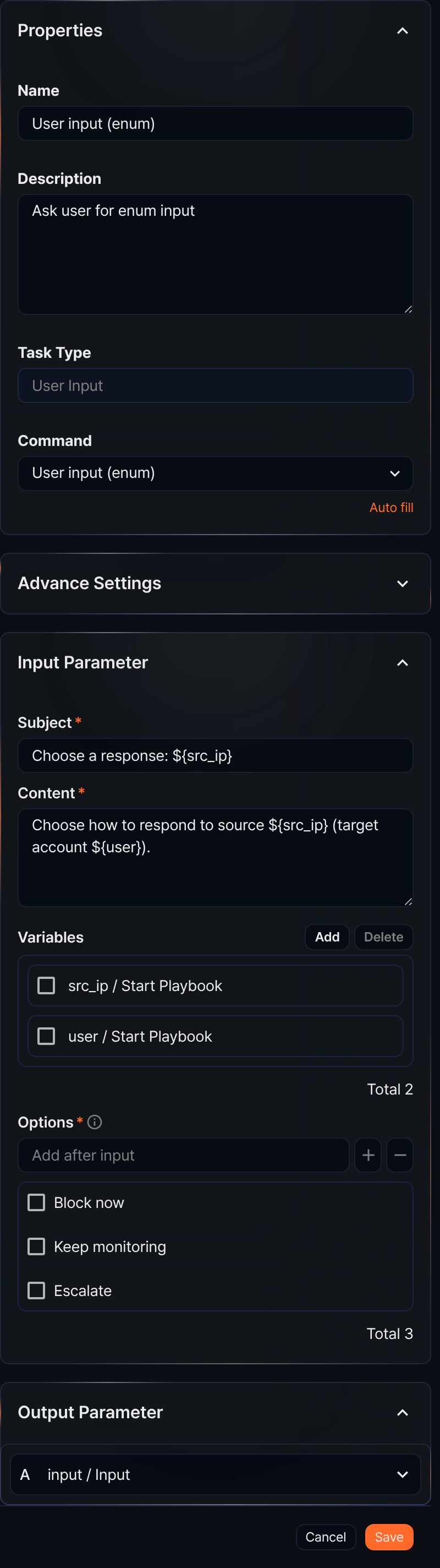
- Command
- Select User input (enum).
- Input parameters
- Write the Subject and Content for the input request to present to the user, and optionally select variables from the Variables.
- Subject*
- Enter the subject of the user input request.
- Content*
- Enter the user input request text.
- Variables
- Click Add and select variables to use in the Subject or Content. Both Subject and Content are strings. To substitute a variable value into the string, use the
${variable}format.
Note$("variable") is a function used to reference variable values in Logpresso queries and cannot be used inside strings.
- Options*
- Enter the options to present to the user. After typing an option string, press Enter or click +.
User input usage examples
User input tasks ask a user for a value and assign the response to the output parameter input. The following steps configure and run a Boolean user input task (Continue Monitoring? in the Account Takeover Response playbook).
-
In the playbook editor, add a user input task, set Command to User input (boolean), and enter the question to show the user in Subject and Content. The settings panel looks like the figure in the User input section above (the Continue Monitoring? task).
-
Run the playbook. Click Start in the playbook list, or let the event that matches the start type run it.
-
When the run reaches the user input task, the playbook waits for the user's response. Respond in either of the following places.
-
In Response > Approval Requests, click the item whose Type is Boolean, select Yes or No, and click Apply. The screen is the same as the user input request example above.
-
Or open the running playbook from Response > Playbook History and click the user input task in the flowchart (only available to Cluster Administrators and Administrators). The Input/output tab shows the question with the Yes/No choices. Select one and click Apply to send the response.
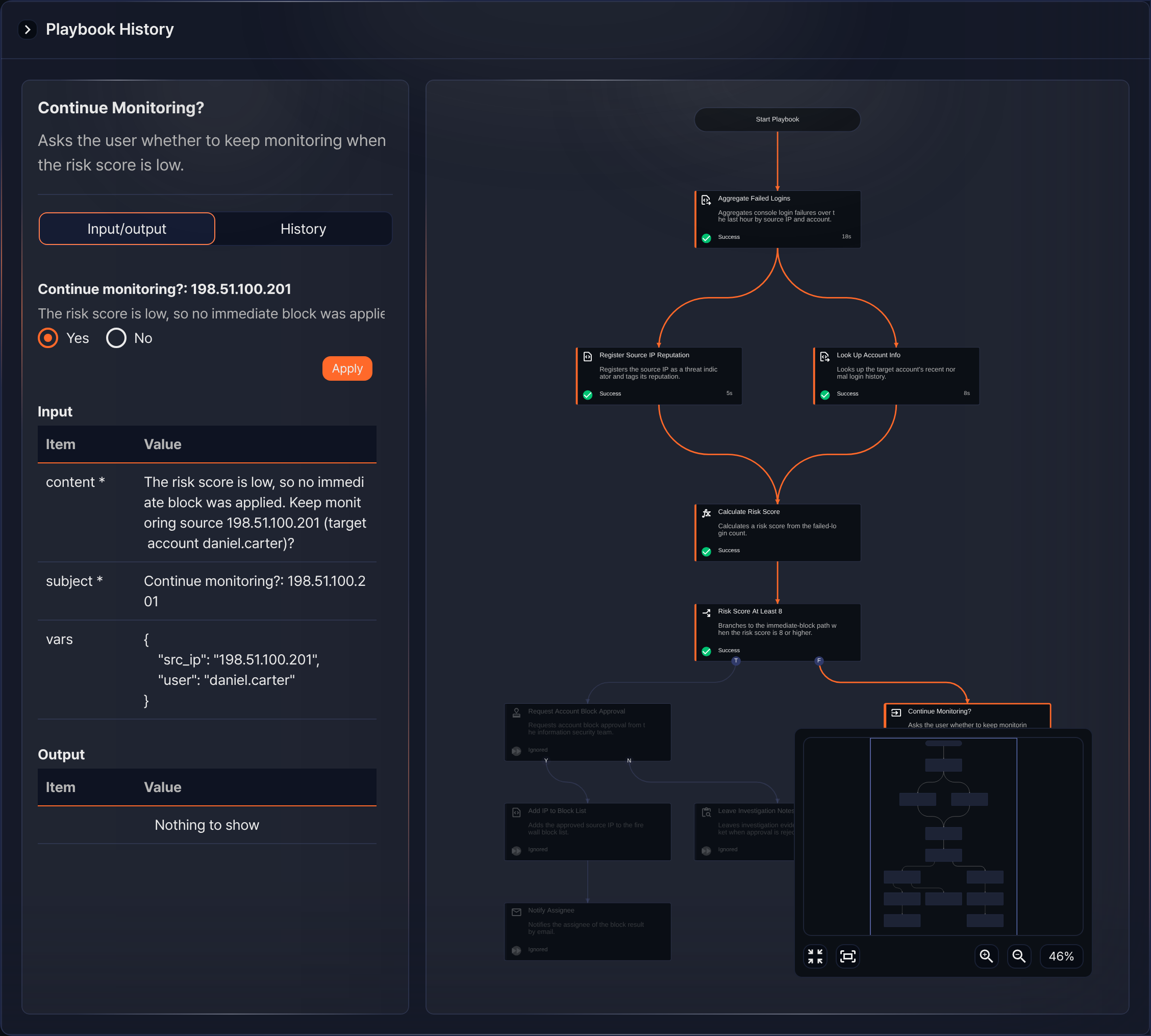
-
-
Check completed responses in Response > Approval Logs. The screen is the same as the completed user input example above.
- User input (boolean)
- You can branch tasks based on specific conditions. For example, you can ask whether to handle a ticket immediately, then connect a task that processes the ticket right away when the user selects Yes, or a task that leaves it pending when the user selects No.
- User input (text)
- You can perform specific tasks based on the string the user enters. For example, you can ask for the GUID of the ticket to process, then use the entered GUID to look up or update that ticket's details.
- User input (multiline)
- You can let users enter multiple lines of text. For example, you can ask for the details of an issue, then connect a task that adds the entered content to a ticket's comment or description.
- User input (enum)
- You can have users select from predefined options. For example, you can ask which processing priority to use, then set the ticket's priority based on the selected option, or connect a task that performs the appropriate action for that priority.