
Line
Overview
The line widget displays changes in a dependent variable (Y-axis) over an independent variable (X-axis) as straight line segments. It is suitable for tracking continuous data changes such as event count trends over time or system performance metric trends. You can display multiple dependent variables simultaneously to compare trends across series.
For general information about query widgets, see Query widget.
Chart settings
Select Line as the chart type in the pivot table editor and click the chart settings button to open the chart settings modal.
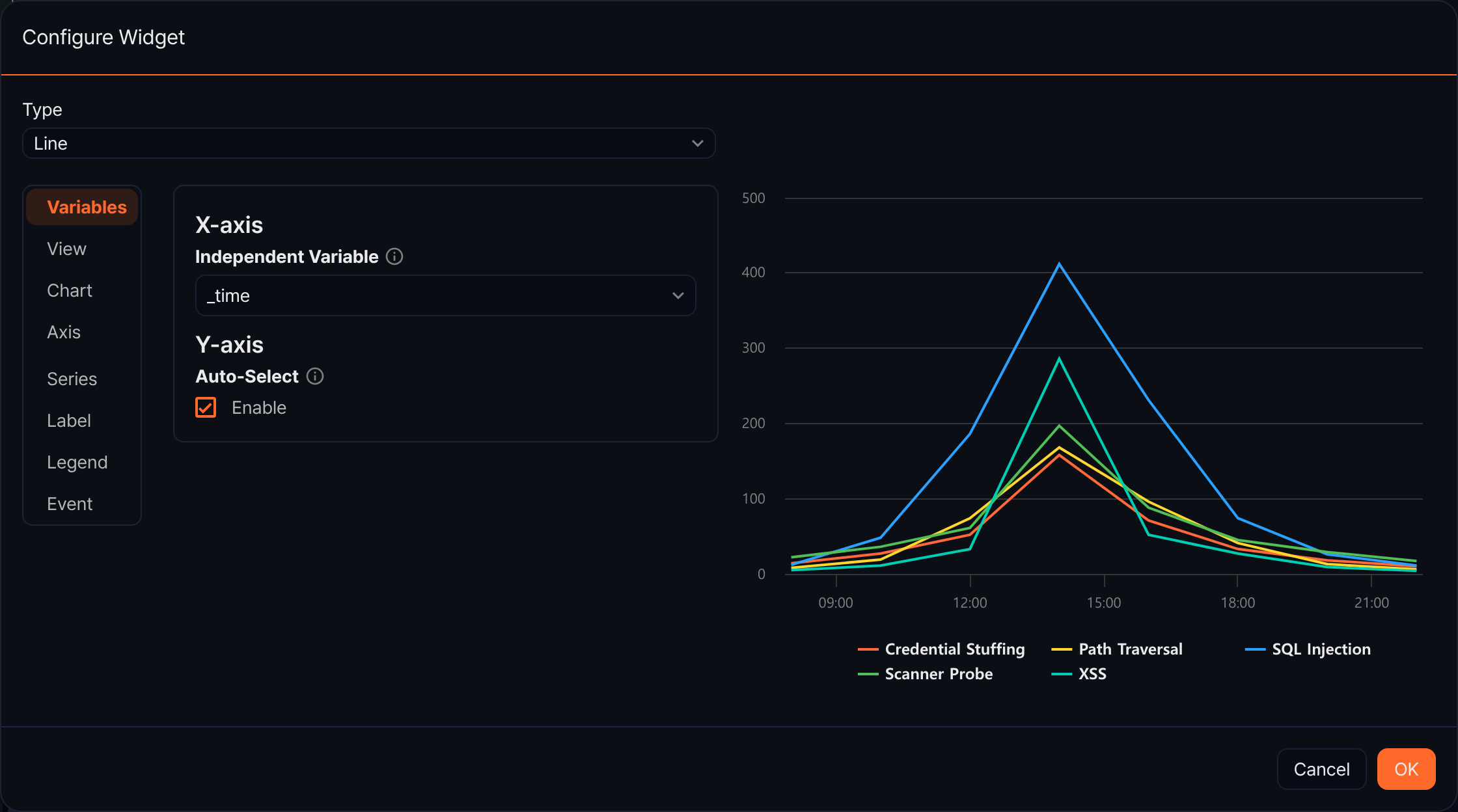
Variables
- X-axis
- Independent Variable: Select the field to display on the X-axis. You can choose from all fields in the query results.
- Y-axis
- Auto-Select: When checked, all numeric fields in the query results are automatically selected as dependent variables.
- Dependent Variable(s): When Auto-Select is unchecked, specify numeric fields as dependent variables manually. Use the + button to add or the delete button to remove dependent variables.
View
- Zoom-In: Select the direction for drag-to-zoom on the chart (default: None, options: x, y, xy).
- Concatenate Empty Values: Connect data points across gaps where no data exists, instead of skipping those intervals.
Chart
- Headline
- Title: Enter a title to display at the top of the chart.
- Subtitle: Enter a subtitle to display below the title.
- Chart Area
- Background Color: Set the background color of the chart.
- Border Thickness: Select the thickness of the chart border.
- Border Color: Set the border color when border thickness is configured.
Axis
- X-axis
- Title: Enter a label to display on the X-axis.
- Format: Select the display format for X-axis values.
- Y-axis
- Title: Enter a label to display on the Y-axis.
- Format: Select the display format for Y-axis values.
- Min: Specify the minimum value of the Y-axis manually.
- Max: Specify the maximum value of the Y-axis manually.
Series
Select a series from the series dropdown, then modify its settings.
- Chart Type: Override the chart type for the selected series (default: Auto-Select). You can mix line with other chart types.
- Series Color: Set the line color for the selected series.
- Border Style: Select the line dash style.
- Show Point Marker: Set whether to display markers at each data point. When enabled, you can select the Marker Shape.
Label
- Label All Series: Display values above each data point.
Legend
- Legend
- Show: Set whether to display the legend.
- Legend Arrangement: Select the arrangement direction of legend items (options: Horizontal, Vertical).
- Position
- Horizontal Align: Select the horizontal position of the legend (options: Left, Center, Right).
- Vertical Align: Select the vertical position of the legend (options: Top, Middle, Bottom).
Event
Configure actions to execute on chart click or drag. Drag events are available when the X-axis is a date/time type.