Glossary
Overview
When you add fields to a log schema or create a new table, keep the terms consistent with those used in other log schemas and tables. For example, the code src_ip and the term 출발지IP (Source IP) are shared by many log schemas. Multiple log schemas must share the same expressions to keep a consistent normalization format.
The glossary lets you define these common terms in advance so that log schemas and tables can refer to them. Terms in the Field category are references for defining log schema fields, and terms in the Table category are references for naming tables. Logpresso Sonar ships with 66 field terms that are common in security logs, such as _time, src_ip, and dst_port. The product registers these built-in terms in Korean only, regardless of the language chosen at installation or the console language, so the English console also shows the same 66 Korean terms; the screenshots in this document reflect that.
The Analysis > Glossary menu is available only to accounts with the Cluster Administrator or Administrator role, and both roles can view, add, edit, and delete terms. Accounts with the User role do not see this menu.
Using the glossary
In Loggers > Log Schemas, when you type two or more characters in the Field Name box (editable only while the language dropdown is Default) or the Display Name box of a field, the Glossary section of the suggestion list shows up to five terms whose term, code, or description contains the typed string. Suggestions come from Field category terms in the language selected in the language dropdown above the field table (the account language when Default is selected). Because the built-in 66 terms are registered in Korean only, this section shows no suggestions when the selected language (or the account language under Default) is not Korean. Click a suggested term, or select it with the arrow keys and press Enter. When the language dropdown is Default, the Type, Field Name (code), and Display Name (term) of that field are filled in at once; when a specific language is selected, only the Display Name in that language is filled in. To close the suggestion list, press Esc or click outside the input box.
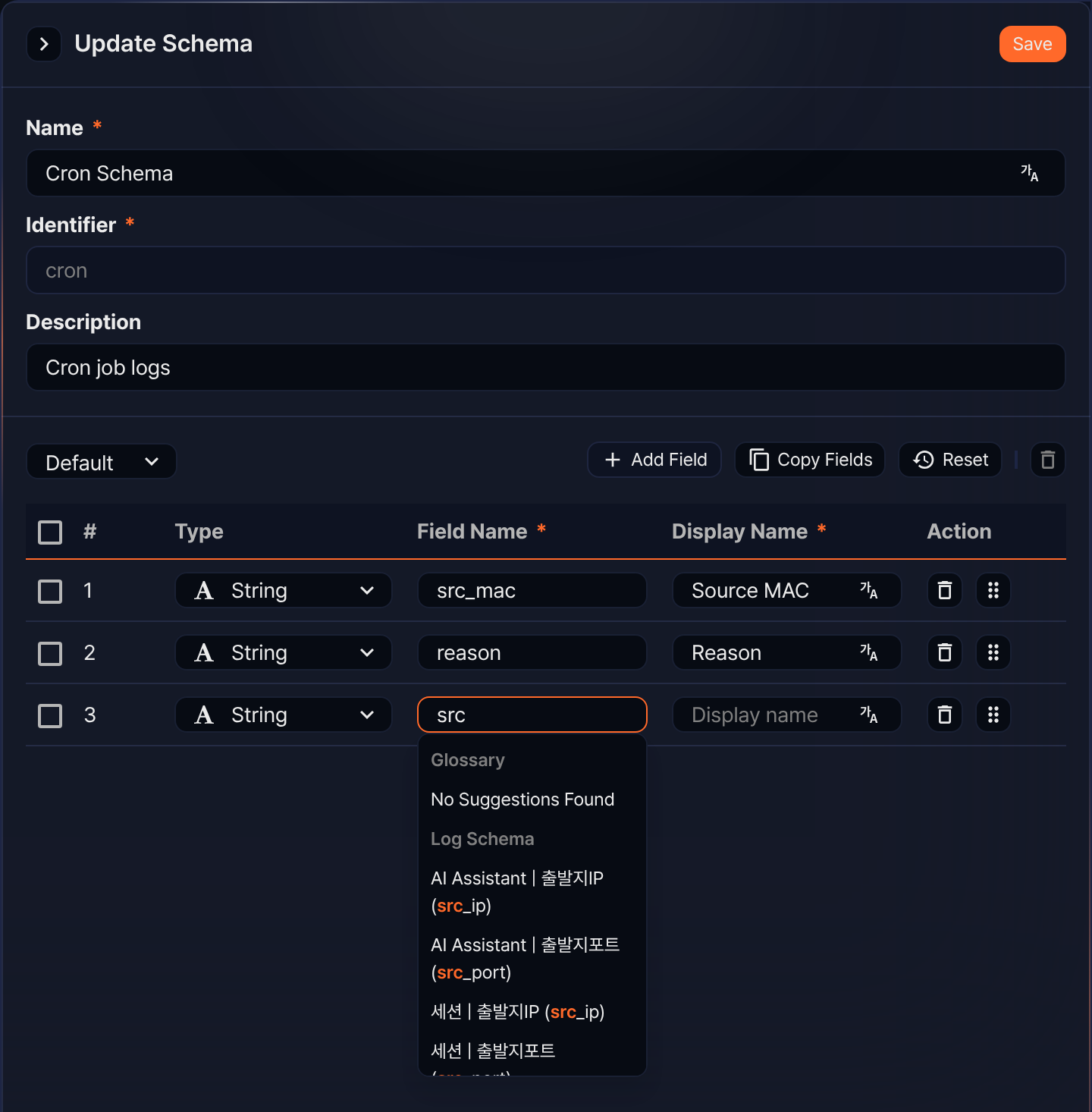
The Log Schema section of the suggestion list shows fields that other log schemas already use. See Log schemas for details.
Viewing the term list
You can view or search the term list in Analysis > Glossary.
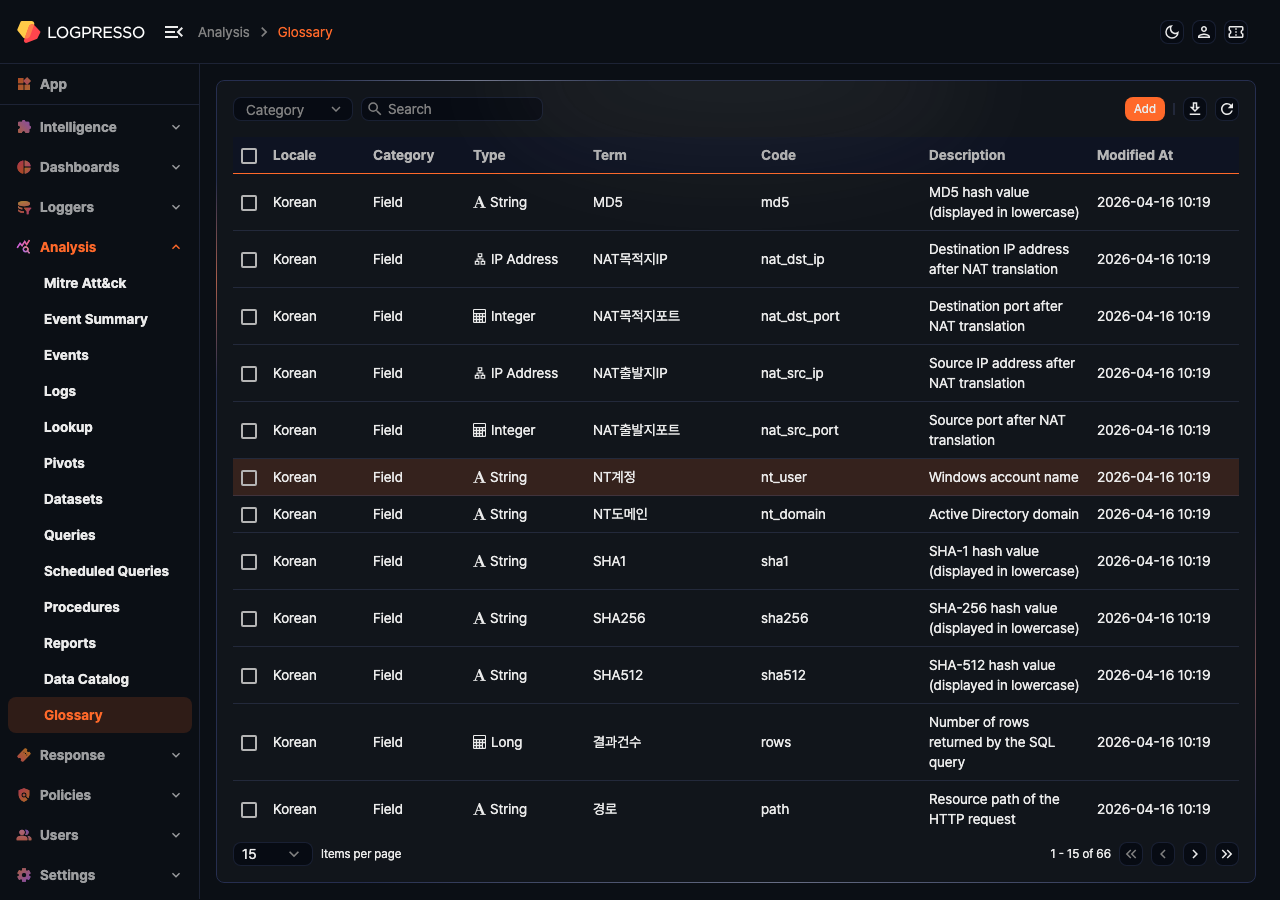
- Locale: The language environment in which the term is used (Korean, English, Chinese (Simplified))
- Category: The target the term is suggested for (Field, Table)
- Type: The data type of the term. Displayed only for terms in the Field category (String, Bool, Short, Integer, Long, Double, Date, Country, Port, IP Address, MD5, SHA1, SHA256, URL, Domain, BLOB).
- Term: The string that represents the term. Corresponds to the Display Name of a log schema field.
- Code: The code that identifies the term. Corresponds to the Field Name of a log schema field.
- Description: A description of the term
- Modified At: The time the term was last modified. If the term has never been modified, the time it was added.
The list shows terms in the account language first, and sorts terms in the same language by the Term string. Each page shows 15 terms. You can change the number of items per page or move to another page at the bottom of the list.
To find a specific term, use the category dropdown and the search tool in the toolbar.
- Category dropdown: Select Field or Table to show only terms in that category. Select Category to clear the filter.
- Keyword search: Type a keyword and press Enter to show terms whose Term, Code, or Description contains the keyword. If you type several words separated by spaces, a term is shown only when one of Term, Code, or Description contains all of the words. The search is case-insensitive.
Downloading the list
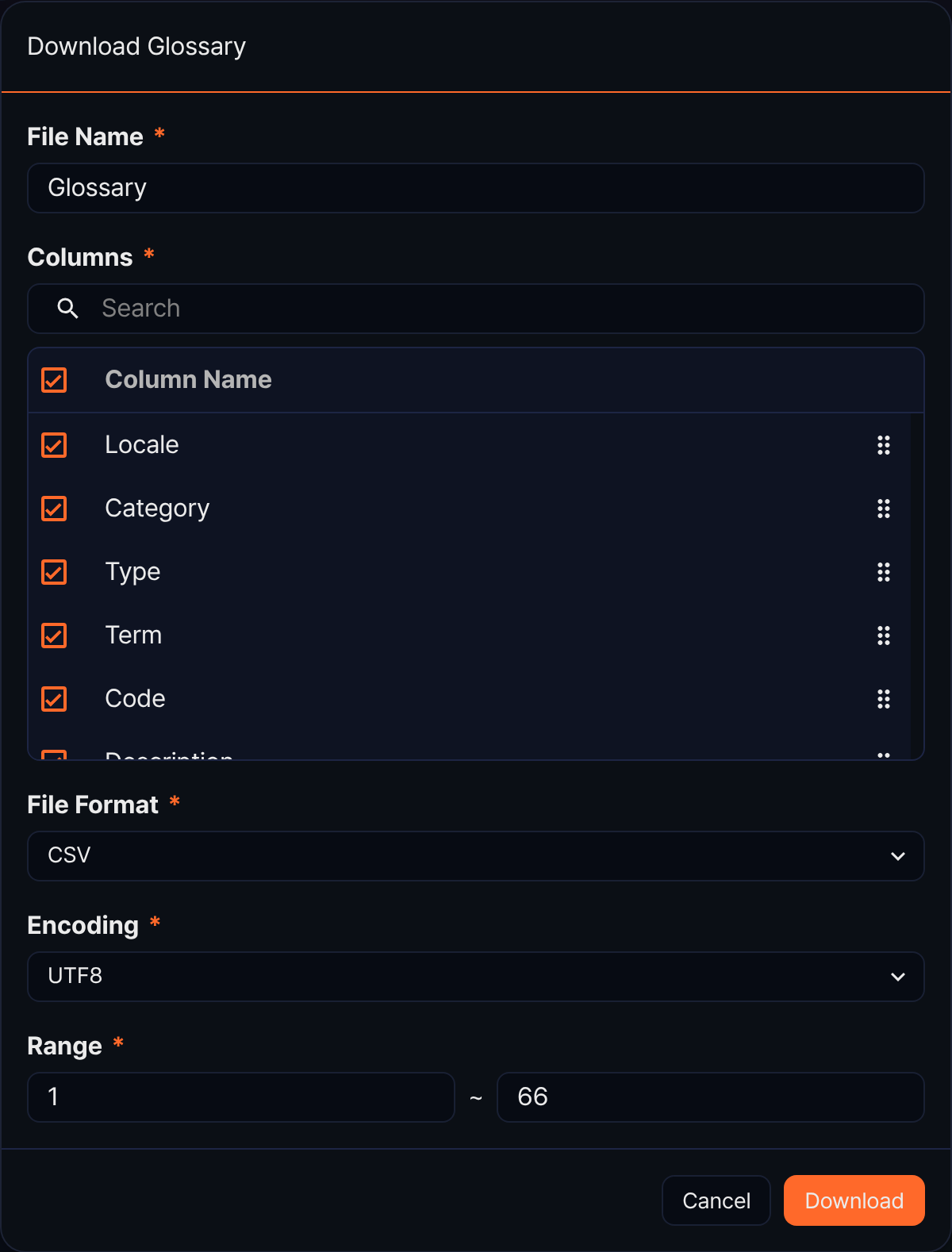
To download the term list as a file to your PC, click the download icon ( ) in the toolbar. In the Download Glossary dialog, set the File Name (default: Glossary, up to 200 characters), the Columns to download (Locale, Category, Type, Term, Code, Description, Created At, Modified At), the File Format, the Encoding (for CSV and JSON), and the Range (default: from the first row of the current page to the last row of the whole list), then click Download. If you have narrowed the list with a keyword search, only the terms matching the keyword are downloaded.
Refreshing the list
To reload the term list with the latest data, click the refresh icon ( ) in the toolbar.
Adding a term
To add a term:
-
Click Add at the top of the term list.
-
Enter or select the values in the Add Term panel.
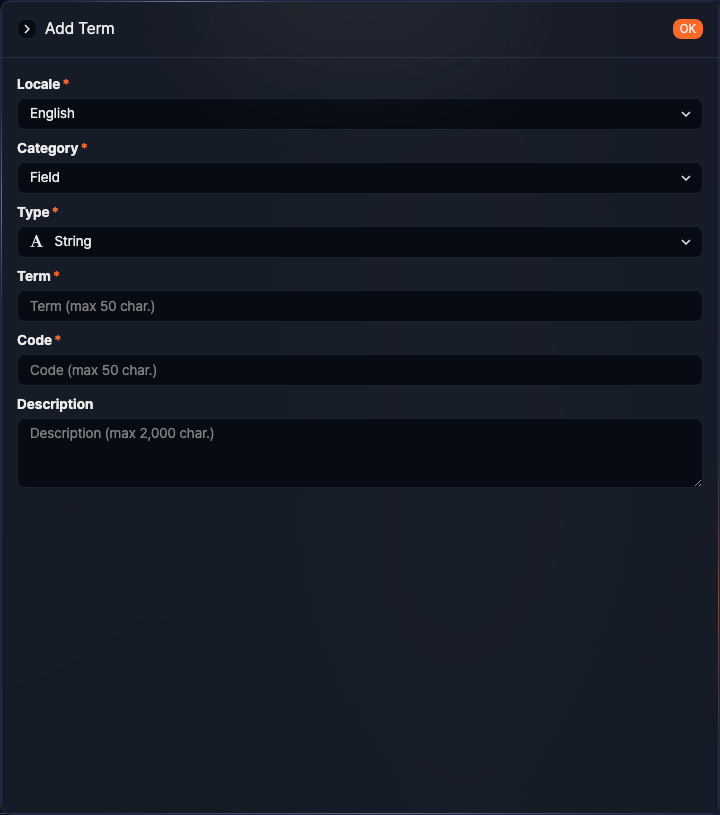
- Locale: The language environment in which the term is used (range: Korean, English, Chinese (Simplified), default: the account language)
- Category: The target the term is suggested for (range: Field, Table, default: Field)
- Type: The data type of the term. Displayed only when Category is Field (range: String, Bool, Short, Integer, Long, Double, Date, Country, Port, IP Address, MD5, SHA1, SHA256, URL, Domain, BLOB, default: String)
- Term: The term string (up to 50 characters). Spaces and special characters are not allowed.
- Code: The code that identifies the term (up to 50 characters). Only letters, digits, and underscores (
_) are allowed, and the code cannot start with a digit. When you select this term in a log schema, the code is entered as the Field Name. - Description: A description of the term (up to 2,000 characters)
-
Click OK. To discard the term, click the close icon (
 ) at the top of the panel.
Within the same locale and category, the Term and the Code must each be unique. If you enter an existing term or code, the message "Duplicated Term" or "Duplicated Code" appears and the term is not saved.
Editing a term
To edit a term:
-
Click the row of the term in the term list.
-
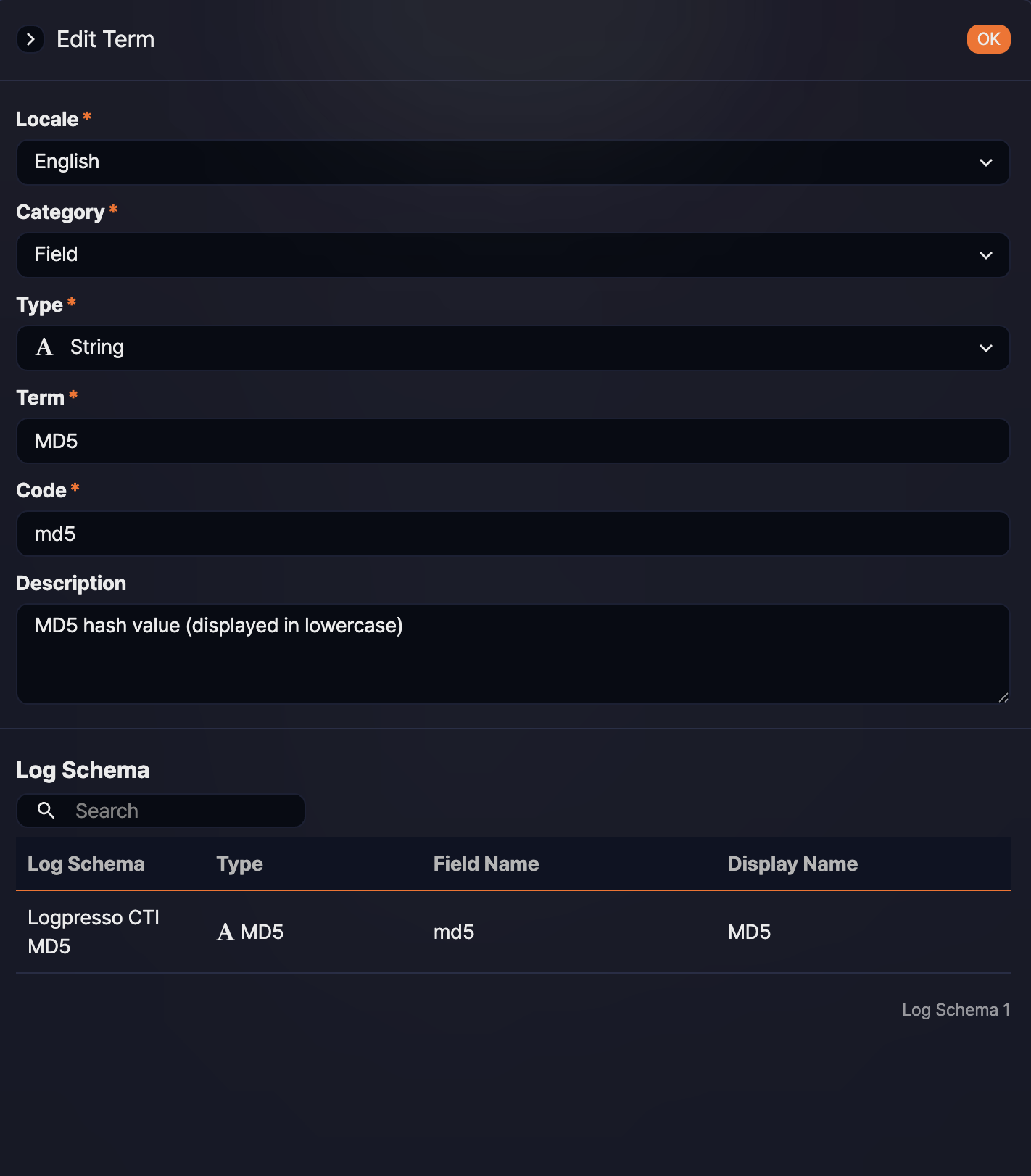
Modify the information in the Edit Term panel and click OK. The meaning and input rules of each item are the same as in Adding a term.
Viewing log schemas that use a term
To check which log schemas use the code of a Field category term, open the Edit Term panel as described in Editing a term and see the Log Schema list at the bottom.
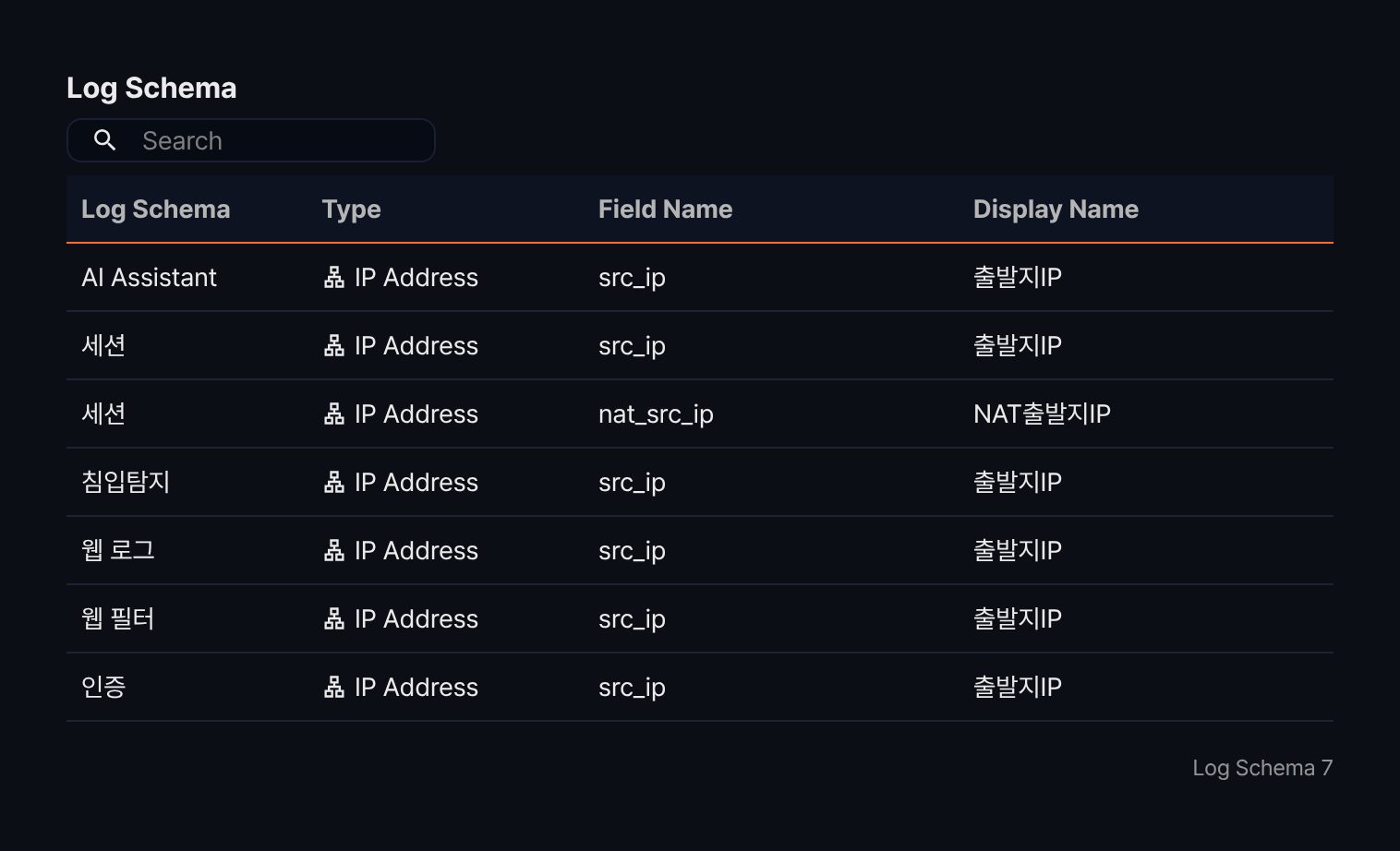
The Log Schema list shows the fields of every log schema whose field name contains the Code of the term. Fields whose name contains the code string are shown together with fields that exactly match the code. For example, a term with the code src_ip lists the nat_src_ip field as well as the src_ip field.
- Log Schema: The name of the log schema that has the field, displayed in the language of the term
- Type: The data type of the field as defined in the log schema
- Field Name: The field name used in the log schema
- Display Name: The display name of the field used in the log schema
To find a specific log schema field, type a keyword in the search box above the list and press Enter. The list shows items whose Field Name or Display Name (including display names in other languages) contains the keyword. If you type several words separated by spaces, an item is shown only when one of those values contains all of the words. The search is case-insensitive.
The list loads 20 items at a time. If more items are available, click Show More to load them. The total number of items found is displayed at the lower right of the list in the form Log Schema 7.
Deleting a term
To delete a term:
-
Select the checkbox of the term in the term list. You can select several terms at once.
-
Click Delete, which appears on the left of the toolbar once a term is selected.
-
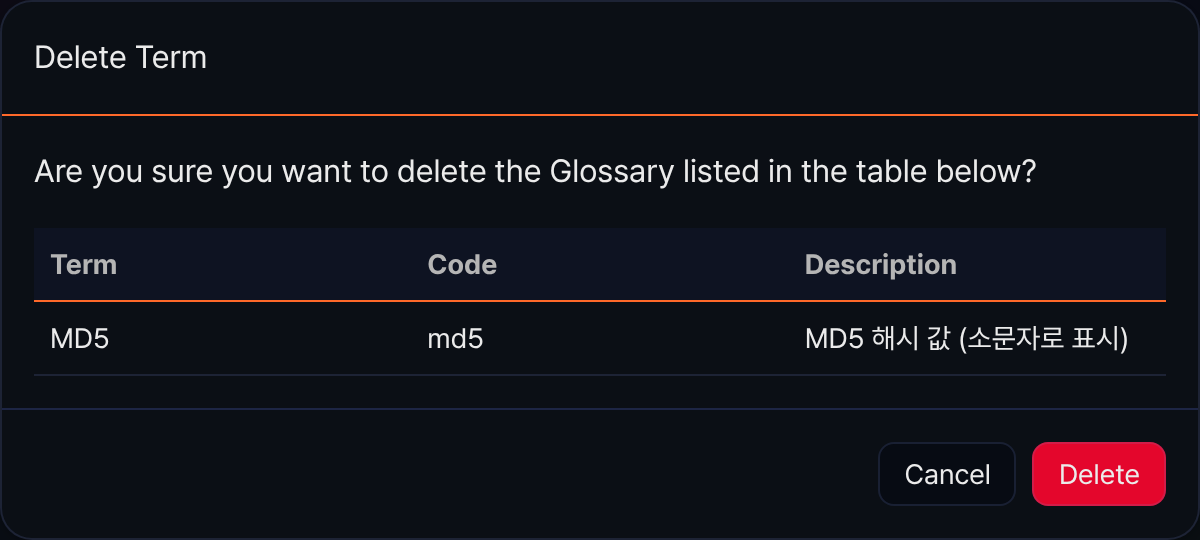
In the Delete Term dialog, check the Term, Code, and Description of the terms to delete, then click Delete. To cancel, click Cancel.