Call playbook
This task calls and runs another playbook, referred to as a sub-playbook. If a loop variable is specified among the input parameters, the sub-playbook is called repeatedly for each value in the loop variable. This task type appears as Playbook in the Task Type field.
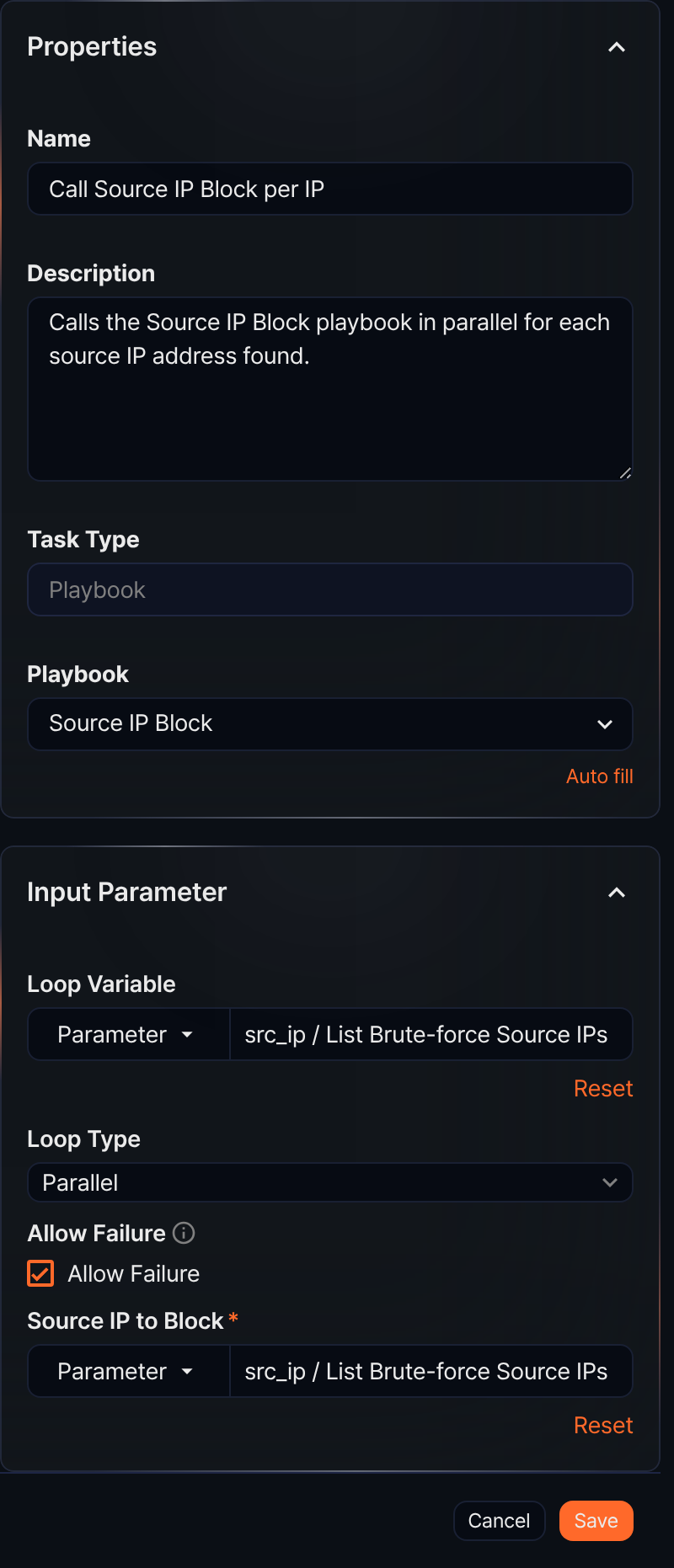
- Playbook
- A unique property of the Call playbook task, corresponding to the command in other tasks. You must select the playbook (sub-playbook) to run from the playbook list.
- Input parameters
- The input parameters are as follows:
- Loop Variable
- Select the input parameter from the list to use for repeated sub-playbook calls. Typically, you specify a list parameter that holds multiple values, such as the output of a query result task. The sub-playbook is called once for each value in the loop variable. If the variable is entered as a String type, it contains only one value, so the playbook is called once for that value.
- Loop Type
- Select Parallel or Sequential (default: Parallel). This property is only available when a Loop Variable is specified.
- Parallel: Runs the sub-playbook in parallel for each value in the loop variable.
- Sequential: Runs the sub-playbook sequentially for each value in the loop variable.
- Allow Failure
- Select to treat the Call playbook task as successful even if a sub-playbook run fails or is canceled (default: not selected). Call playbook tasks have no Advance Settings, so this option is how you handle sub-playbook failures.
- Selected: The Call playbook task ends successfully even if a sub-playbook fails. With Sequential, the remaining calls continue.
- Not selected: If any sub-playbook fails, the Call playbook task ends as failed and the tasks after it do not run. With Sequential, the remaining calls are skipped; with Parallel, the task is marked as failed after all calls that already started finish.
- Sub-playbook input parameters
- All parameters to pass as input to the sub-playbook are listed here. Specify the input parameters required to call the sub-playbook. When a loop variable is set, an input set to a list passes the element at the same position to each call, and an input set to a single value passes that value to every call.
Call playbook usage
Call playbook can be used in the following ways:
- Handling multiple alerts: When multiple security alerts occur, repeat the same response procedure for each alert. Example: blocking a suspicious IP address.
- Periodic checks: When performing regular checks on multiple systems, repeat the same check procedure for each device. Example: analyzing server logs.
- Incident response: When a security incident occurs, respond to multiple systems or users simultaneously. Example: resetting passwords for compromised accounts.
- Data collection and analysis: When collecting and analyzing information from multiple data sources, repeat the same procedure for each source. Example: searching log files for a specific pattern.
Call playbook example
A Call playbook task with a loop variable calls the sub-playbook once for each value of the loop variable. In the following example, the Bulk Brute-force Source Block playbook finds the source IP addresses with many failed logins in the last hour, then calls the Source IP Block playbook for each address to add it to the blocklist address group.
-
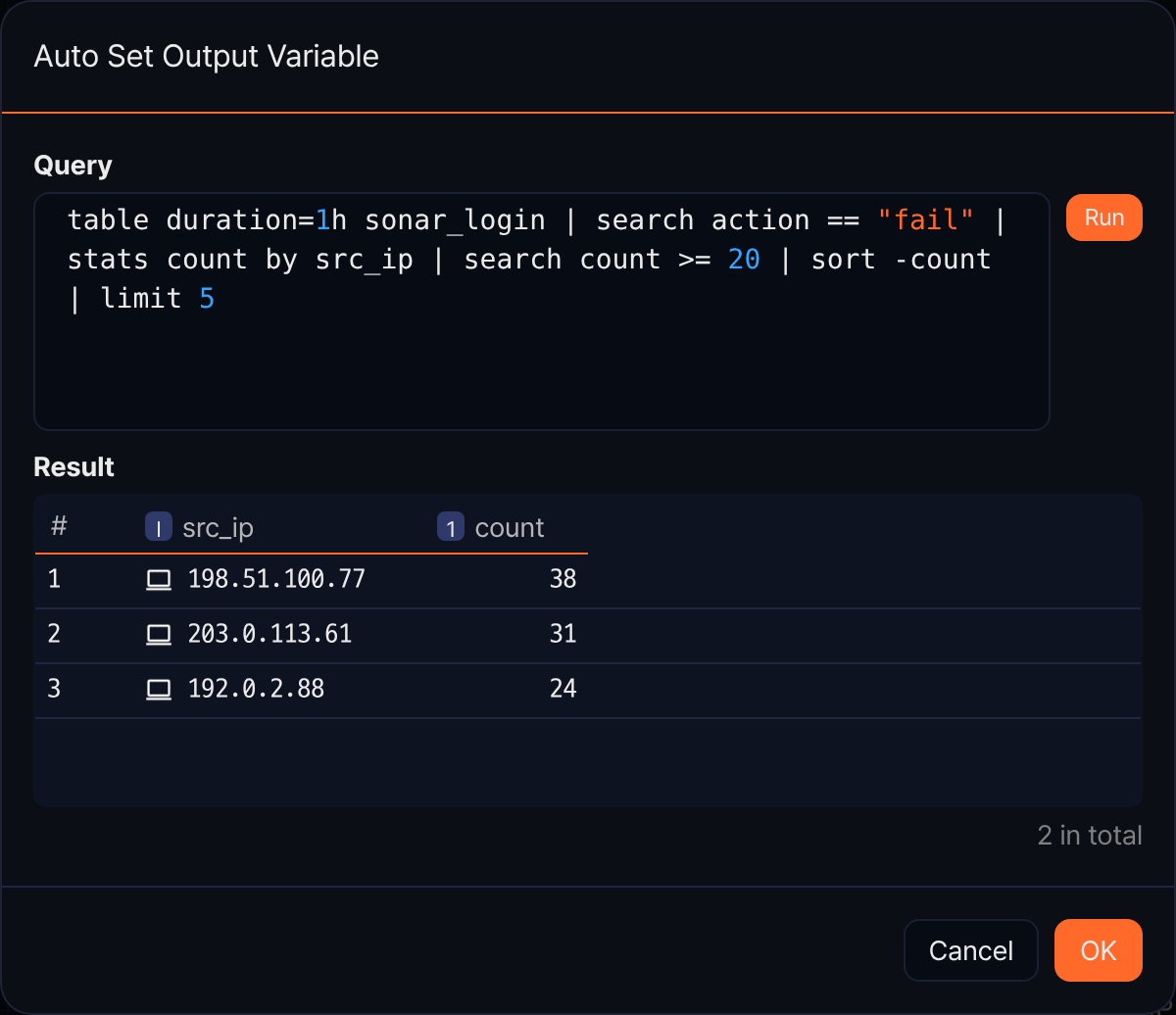
Add a query result task as a preceding task to extract multiple IP addresses. The following example shows the query result previewed by clicking Auto add output parameter in the List Brute-force Source IPs task. The query finds three source IP addresses.
-
Add a Playbook task and set both Loop Variable and the sub-playbook input parameter (Source IP to Block) to the output parameter
src_ipof the preceding task. The sub-playbook is called once for each value of the loop variable, and because the sub-playbook input is set to the same list, each call receives the IP address at the same position. The settings panel looks like the figure in the Call playbook section above (Loop Type set to Parallel, Allow Failure selected). -
When the playbook runs, the sub-playbook is called once per IP address and each IP address is added to the address group. Open the run under Response > Playbook History and click the Call playbook task. On the Input/output tab, select a call (loop value) under Session to see that call's input and output parameters. The sub-playbook in this example has no output parameters, so the output is empty.
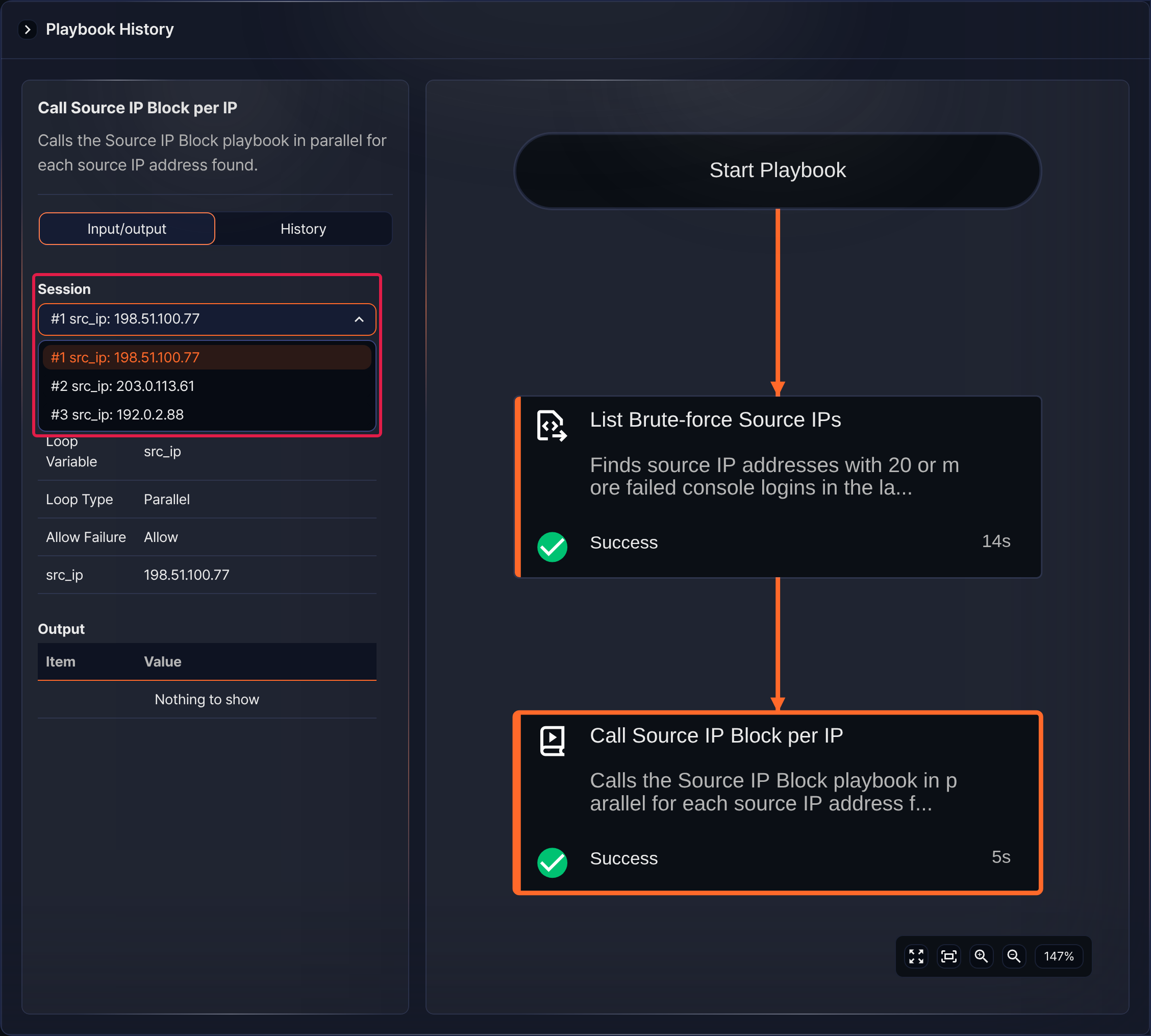
On the History tab, the Playbook Call table shows, for each call, the result, Child Playbook (the sub-playbook name and the child run GUID), and the start and end times.
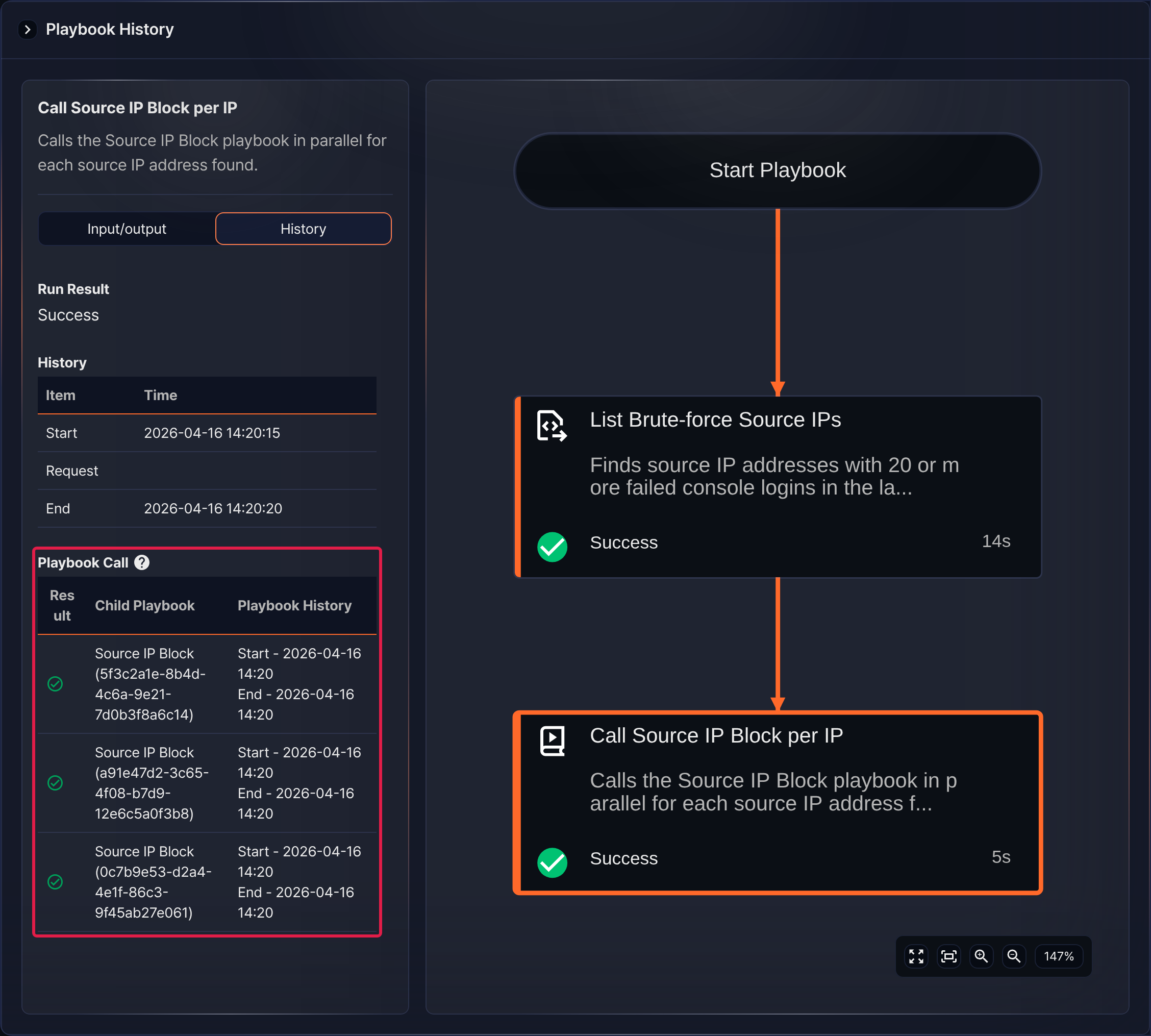
-
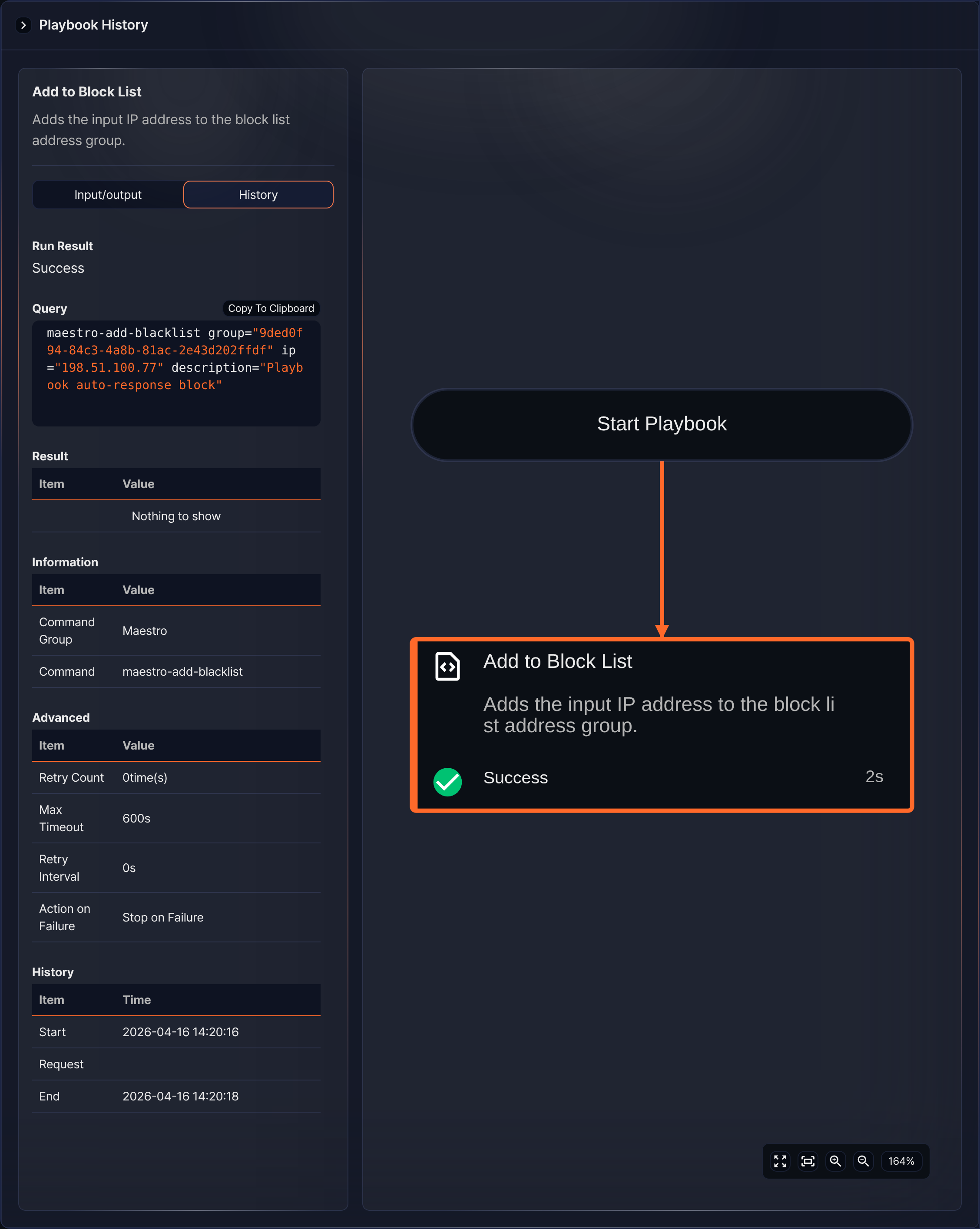
In the Playbook Call table, click a sub-playbook name to open that call's playbook history in a new window. The following example shows the Add to Block List task in the first call adding the source IP address
198.51.100.77to the address group.