
Tables
Overview
Logpresso Sonar normalizes all data collected from data sources through loggers according to logger models. In this process, the original data, normalized data, and indexes are all stored in tables.
Under Settings > Tables, view the complete list of tables, check each table's properties, indexes, and recent data, and add, delete, or move tables between groups. This menu is visible only to cluster administrators and administrators, and both roles can view, add, edit, and delete tables and table groups. For role-based permissions, see Account Permission Matrix.
Before you create and use tables, keep the following in mind.
- Table path: In Logpresso queries, you must specify table paths in the
NODE:TABLEformat. - Table partition: Data is stored in tables partitioned by date.
- Data retention period: Each table has its own data retention period setting.
Table path
In a Logpresso cluster configuration, node pairs are identified by name and nodes by node ID. When you create a table in the web console, a table with the same name is created on all nodes. When specifying a table as an argument in a Logpresso query, use the following format for the table path.
- You can omit
NODEwhen querying a local table on the node. - In a cluster configuration, specify the table path as follows based on the Storage setting on the Add a logger screen.
- If Storage is Load Balancing, collected data is distributed across tables on all nodes, so enter a wildcard (
*) for NODE. - If Storage is Node Pair, collected data is stored in the table of a specific node pair, so enter the node ID of a node in that node pair (for example,
d1a) for NODE.
- If Storage is Load Balancing, collected data is distributed across tables on all nodes, so enter a wildcard (
Table partition
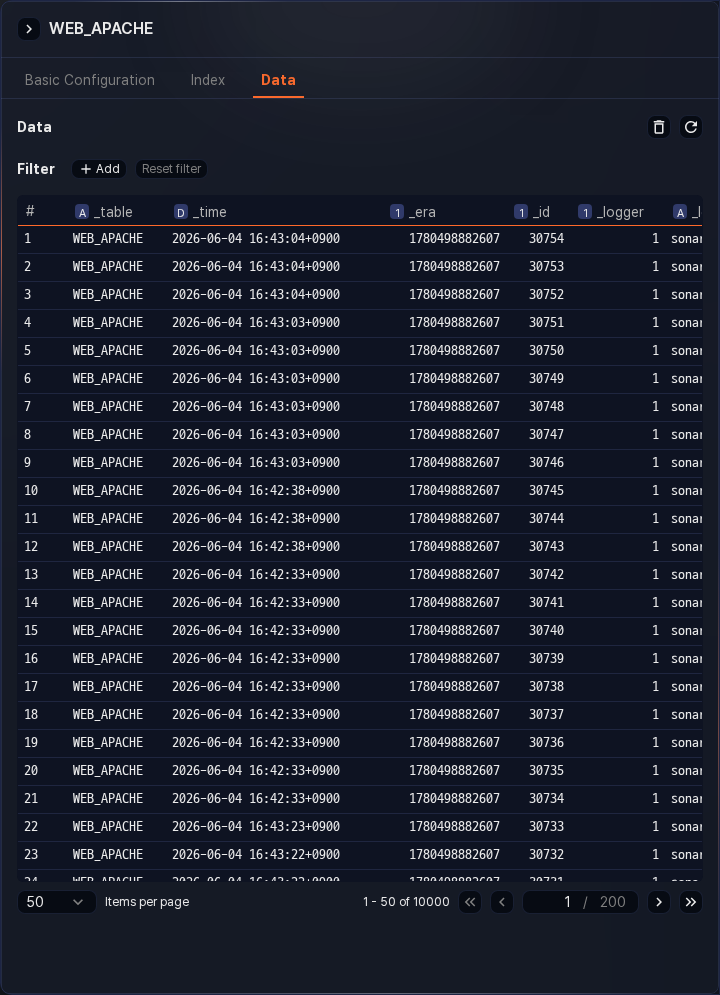
Records written to a table are assigned sequential numbers in the order they are stored and are partitioned by date. You can check partition information in the _id and _era fields of the table command's output fields.
- _id: The sequential number of a record within a partition (a record is the smallest unit of data)
- _era: The partition identifier
Date-based partitioning significantly improves data access speed and management efficiency when storing and analyzing log data. For example, if you want to analyze logs from the past 7 days, you can increase search speed by querying only the partitions for that period.
Data within a table is distributed across multiple storage tiers at the partition level. Run the system-table-partitions command to check the distribution of data in a table across storage tiers.
Data retention period
When you set a retention period for a table, data that exceeds the retention period is automatically deleted.
When creating or editing a table, you can set the data retention period using the Retention field. The table's retention period is similar to data lifecycle but differs in the following ways.
| Category | Table retention period | Data lifecycle |
|---|---|---|
| Scope | Data in individual tables (local setting) | All data written to storage (global setting) |
| Managed unit | Table partition data | Table partition data |
| When exceeded | Data deleted | Rolled over to a lower storage tier |
| Storage management | Delete old data or stop collection | (1st) Rollover, (2nd) delete or retain permanently |
The data lifecycle and the table retention period operate independently of each other. If either condition is met first, that data may be deleted. For this reason, it is recommended to manage data consistently using one of the following approaches.
- Use data lifecycle only
- When you add a table, leave Retention at the default value
0. - Since data lifecycle is applied as a global setting across all nodes, it is easier to maintain a consistent policy than using table retention periods.
- When you add a table, leave Retention at the default value
- Use data lifecycle as the primary mechanism and table retention period as a secondary mechanism
- Set the retention duration in the data lifecycle as a global setting.
- Only configure a retention period on individual tables when a specific table needs a shorter retention period.
View table list
You can view the complete list of tables under Settings > Tables. In the left sidebar, click the All node at the top of the table group tree to view every table regardless of group. Click a group to narrow the list to the tables in that group and its subgroups. Click a table name to view its detailed information.
Drag the border between the table group tree and the table list to adjust the sidebar width, or drag it far enough to the left to minimize the tree. This is useful when group or table names are truncated, or when you want to expand the table list. When first opened, the tree shows only the top-level node expanded; click a node to expand its children when needed.
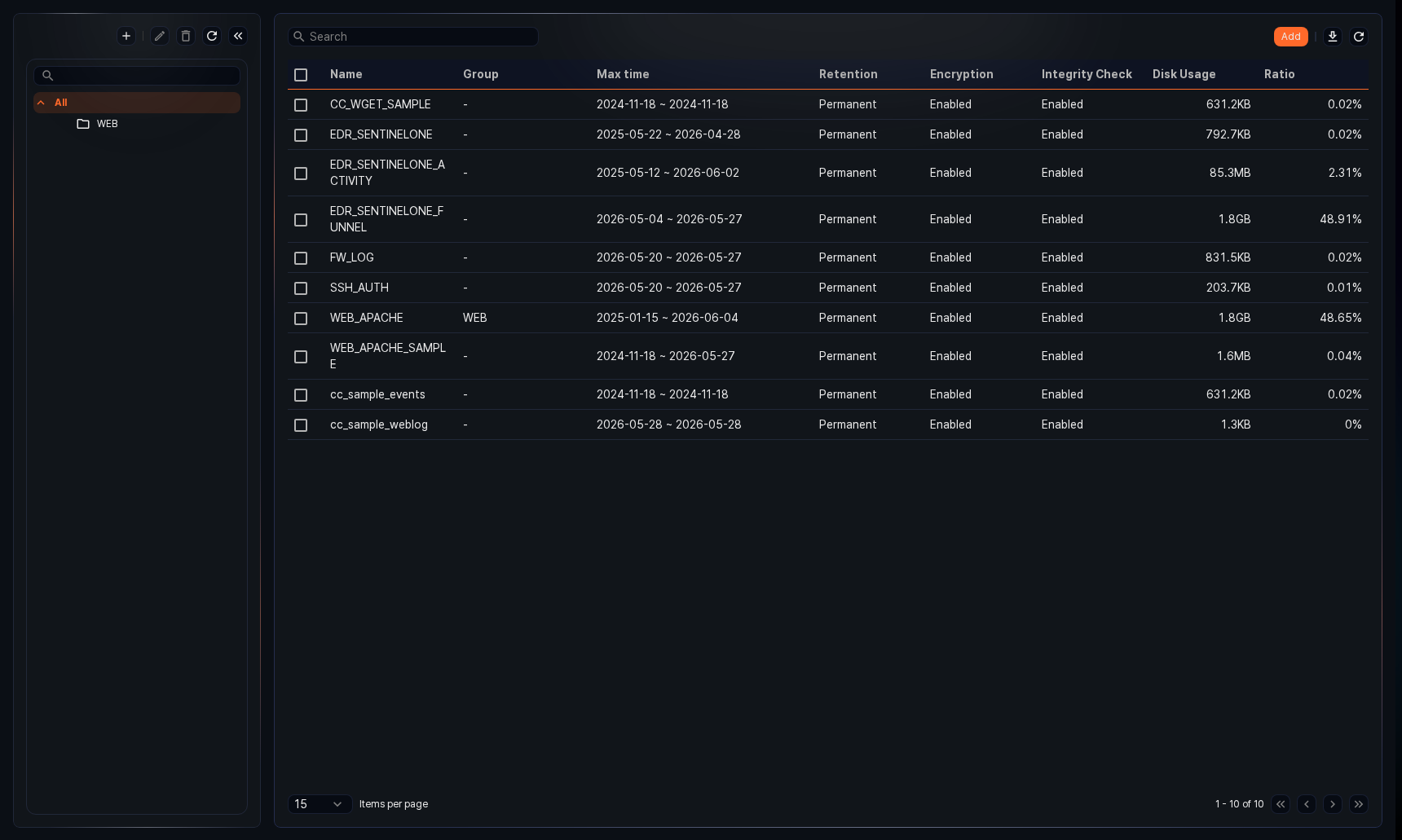
- Name: The unique name of the table
- Group: The name of the table group the table belongs to
- Max time: The date range (earliest to latest) of data recorded in the table
- Retention: The duration for retaining data in the table. Data that exceeds the retention period based on when it was recorded is automatically deleted.
- Encryption: Whether encryption is applied (Enabled / Disabled)
- Integrity Check: Whether integrity verification is applied (Enabled / Disabled). See the Encryption field description under Add a table for how encryption and integrity verification relate to each other.
- Disk Usage: The total size of stored data. The value is automatically displayed in
B/KB/MB/GB/TB/PB/EBunits depending on its size. - Ratio: The percentage of total table capacity occupied by this table
The table list shows only data tables where collected data is stored. Running the system-tables command lets cluster administrators and administrators view all data tables and system tables, while users can view only the data tables they have been granted access to.
You can search the table group tree by group name, and the table list by table name. Group search is case-insensitive, but table search is case-sensitive. If you enter multiple search terms separated by spaces, the list shows only the tables whose names contain all of them.
Download table list
To save the table list as a file, click  in the list toolbar. The Download Table List dialog opens.
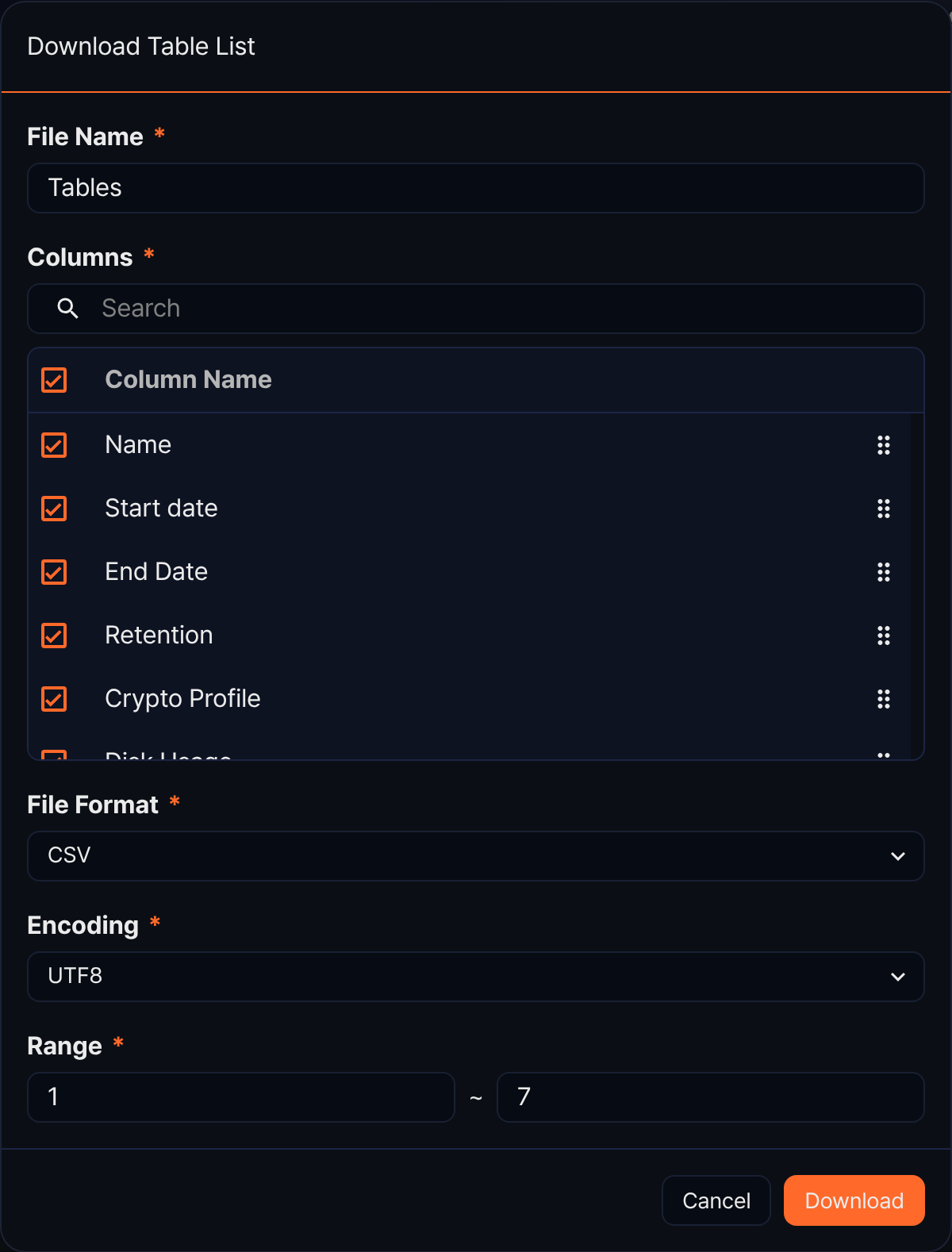
- File Name (required): The name of the file to download (default: Tables, up to 200 characters)
- Columns (required): The columns to include in the file. Name, Start date, End Date, Retention, Crypto Profile, Disk Usage, and Ratio are all selected by default. Use the checkboxes to remove columns, or drag the handle on the right to reorder them. This column list differs from the list screen's eight columns — there is no Group, Max time, Encryption, or Integrity Check, and Start date, End Date, and Crypto Profile are included instead.
- File Format (required): The format of the file to download. Choose from CSV (default), XML, Microsoft Word, HTML, JSON, or PDF.
- Encoding (required): The file encoding. This appears only when File Format is CSV or JSON, and the available values depend on the web console language. In the English web console, you can choose UTF8, UTF16, or Latin 1, with UTF8 as the default for both CSV and JSON.
- Range (required): The starting and ending row numbers to download (defaults to the first row of the current page through the total count)
When you finish, click Download. If you have filtered the list with a search term, the filtered list is downloaded. If the list is empty, the download icon is disabled.
Refresh table list
To refresh the table list with the latest information, click  in the toolbar.
Change table group
When you select one or more tables in the list, the toolbar changes to a delete/move action bar. To move the selected tables to a different group at once, click Move. The Change Table Group dialog opens.
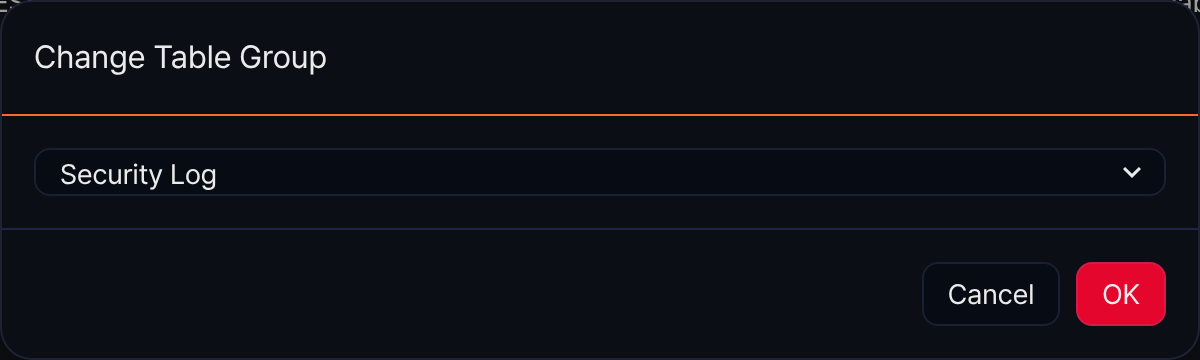
Select the target group and click OK. If you leave it as Select none and click OK, the selected tables become ungrouped.
Table groups
Use table groups to organize and manage tables by group.
Add table group
To add a table group:
-
In Settings > Tables, click
 above the table group list.
 -
In the Add Table Group dialog, enter the table group properties.
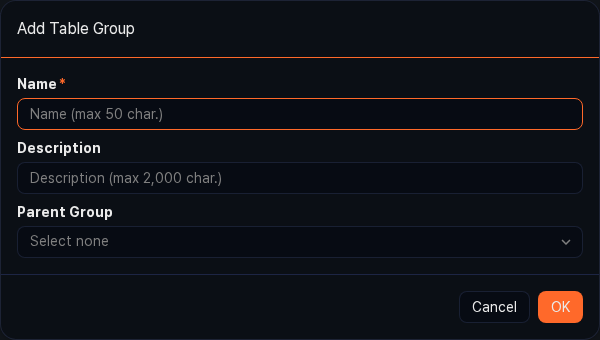
- Name: The name used to identify the table group
- Description: A description of the table group
- Parent Group: The parent group for the table group to be added (default: the group selected in the tree, or Select none if no group is selected)
-
When you finish the configuration, click OK.
Modify table group
To modify a table group:
-
In the table group list, select the table group you want to modify, then click
 .
. -
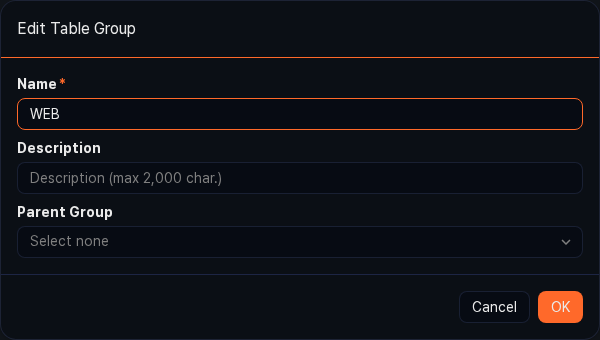
In the Edit Table Group dialog, edit the table group properties and click OK.
Delete table group
To delete a table group:
-
In the table group list, select the table group you want to delete, then click
 .
. -
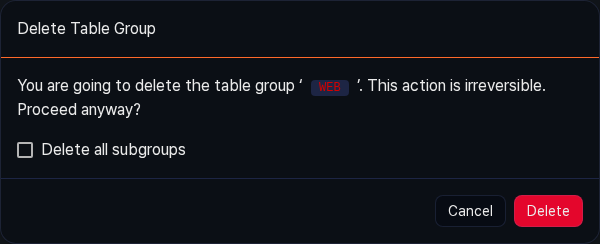
To delete all groups under the table group, select Delete all subgroups in the Delete Table Group dialog.
Add a table
There are two ways to add a new table.
- Create a table from the table list
- Add a logger to create a table
To create a new table from the table list, click the Add button in the toolbar. When the New Table panel opens on the right, set the table's Name, Encryption, and Retention, then click Save to add the table.
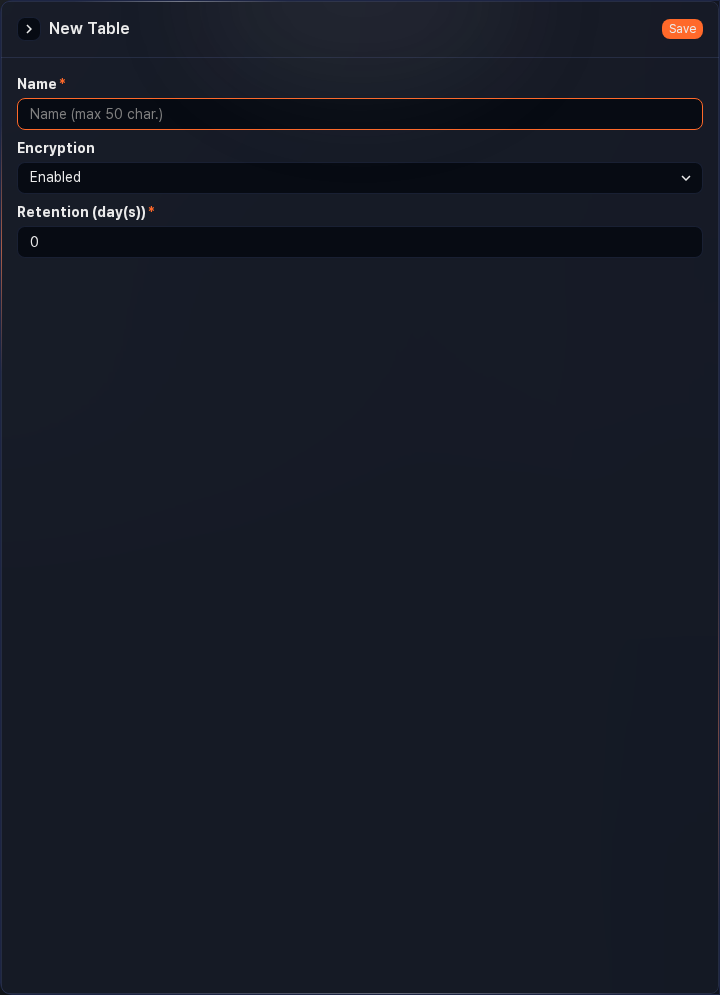
- Name: The unique name of the table (up to 50 characters). It must start with a letter, and only letters, numbers, hyphens (
-), and underscores (_) are allowed after that. The name cannot be changed after creation. - Encryption: Select whether to encrypt data and apply integrity verification — Enabled or Disabled (default: Enabled). Choosing Disabled skips encryption, but integrity verification still applies. This dropdown only appears when crypto profiles for both encryption and integrity verification are registered; otherwise the field shows No Crypto profiles. This setting cannot be changed after creation.
- Retention: The duration for retaining data in the table (default:
0, specify a value from 0 to 36,500 days). The table's retention period and the data lifecycle defined for the cluster operate independently. If either condition is met, the data is deleted. To manage data based on the cluster's data lifecycle, set the table's retention period to0(retain permanently).
View table information
Click a table in the table list to view the detailed information for that table.
The table properties screen consists of three tabs.
- Basic Configuration
- Displays table properties, users and groups sharing the table, and disk usage by node and storage tier.
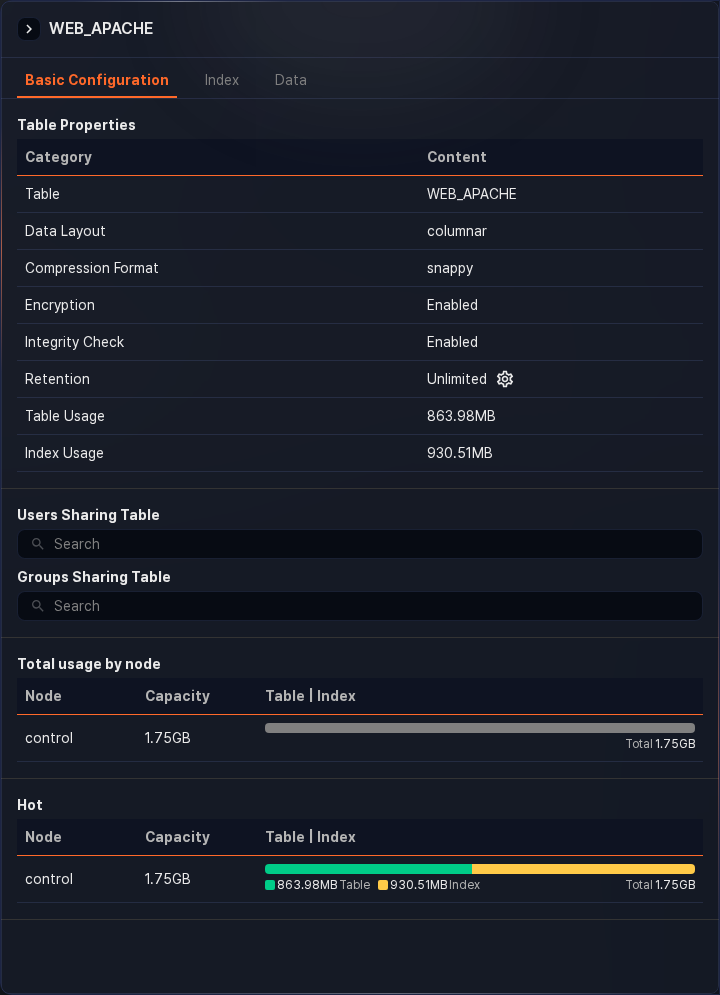
- The Table Properties table has eight rows: table name, data layout (row or columnar), compression format (for example, snappy), encryption, integrity verification, retention, table usage, and index usage. Click the Retention value to change the retention period.
- In the Users Sharing Table and Groups Sharing Table fields, you can grant table read access by account or account group. This points to the same data as the Tables field under View and edit permissions in the account edit panel, so a change on either side is reflected on the other.
- The Total usage by node table shows the disk space (table and index combined) that each node pair in the Logpresso Sonar cluster uses for this table.
- Below it, one more table of the same shape appears for each storage tier (Hot/Warm/Cold) that has data, showing how much data each node pair holds in that tier. Tiers with no data don't show a table.
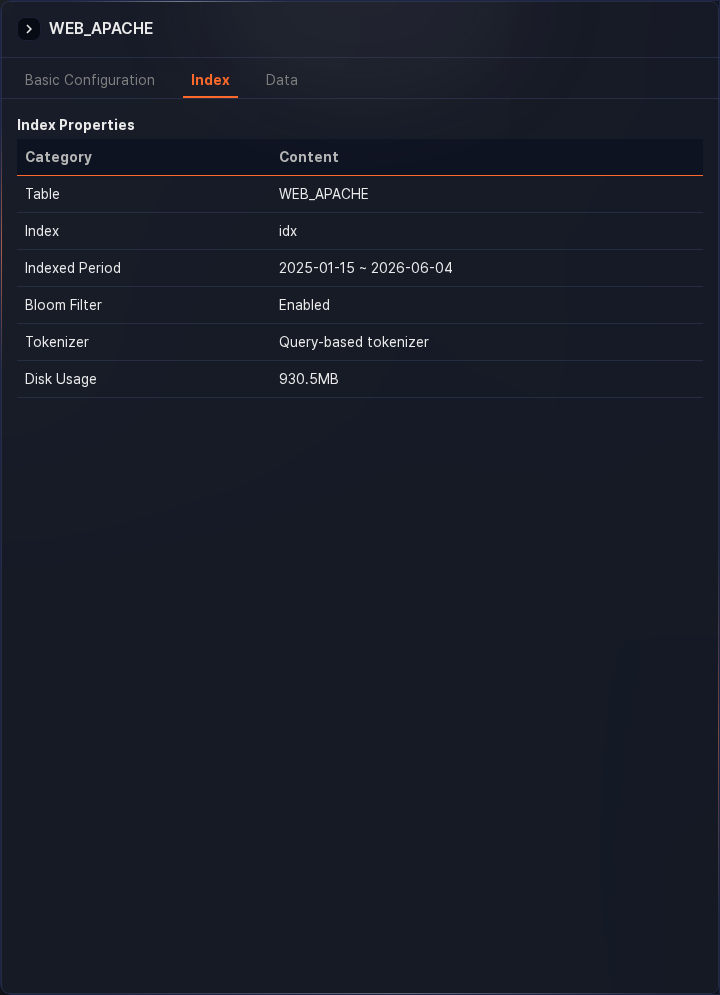
- Index
- Displays index information configured for the table.
- Data
- Lets you preview up to 10,000 of the most recently recorded records in the table.
Change retention period
In the Basic Configuration tab of the View table information screen, click the value for Retention. When the Retention Settings dialog opens, you can change the data retention period to your desired value.
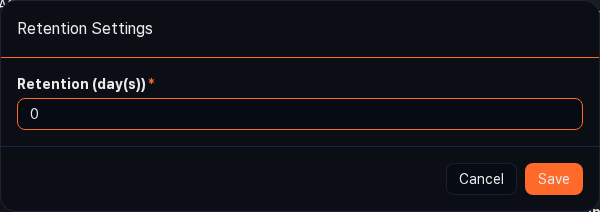
- The field starts with the table's current retention period. Enter a value from 0 to 36,500 days and click Save. Entering
0retains data with no time limit (the table properties table shows Unlimited; the list shows Permanent).
Table access control
In the Basic Configuration tab of the View table information screen, use the Users Sharing Table and Groups Sharing Table fields to specify the accounts or account groups to grant table read access. Type a search term in a field, then select an item from the suggestions to add it; added items appear as chips. Clicking the delete icon on a chip removes that shared target immediately and shows a toast confirming the change.
Delete data from a table
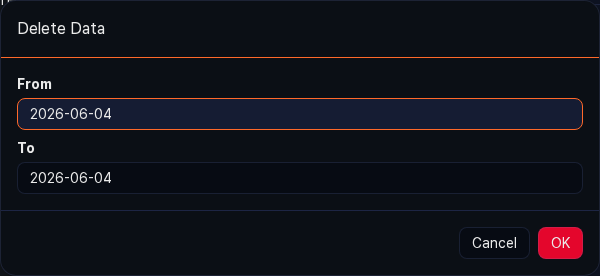
In the Data tab of the View table information screen, click to display the Delete Data dialog. The deletion criterion is the time the data was recorded. From and To are specified by day and default to today. Specify the desired period and click OK to delete the data recorded at that time immediately.
Delete a table
To delete a table, select the table you want to delete from the table list, then click Delete at the top left of the list. In the Delete Tables dialog, click Delete to remove the table along with all logs and indexes stored in it.
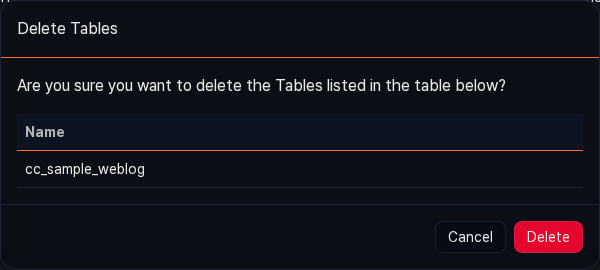
You can't delete a table that a logger uses as its storage target — the Table deletion failed dialog shows the name of that logger. Change the logger's table setting before deleting the table.