
Approval requests
Overview
When a playbook reaches an Approval task or a User input task while running, it pauses there and waits for an analyst. The request it raises appears in the Response > Approval Requests menu. Security analysts review the pending requests on this screen and approve or reject them, or submit the requested value, so the playbook resumes.
A request disappears from the list as soon as you handle it, and the outcome is recorded in Approval Logs. If the playbook execution that raised a request is stopped, the pending request is deleted with it and no record is kept.
You can also handle the same request from the task information on the Playbook History detail screen, but handling it there requires the playbook edit permission, so only Cluster Administrator and Administrator accounts can do it. The Approval Requests menu collects the pending requests of every playbook execution into a single list, and accounts with the Cluster Administrator, Administrator, or User role can all view and handle requests on this screen. For permissions by role, see Account permissions.
Approval Requests list
Go to Response > Approval Requests.
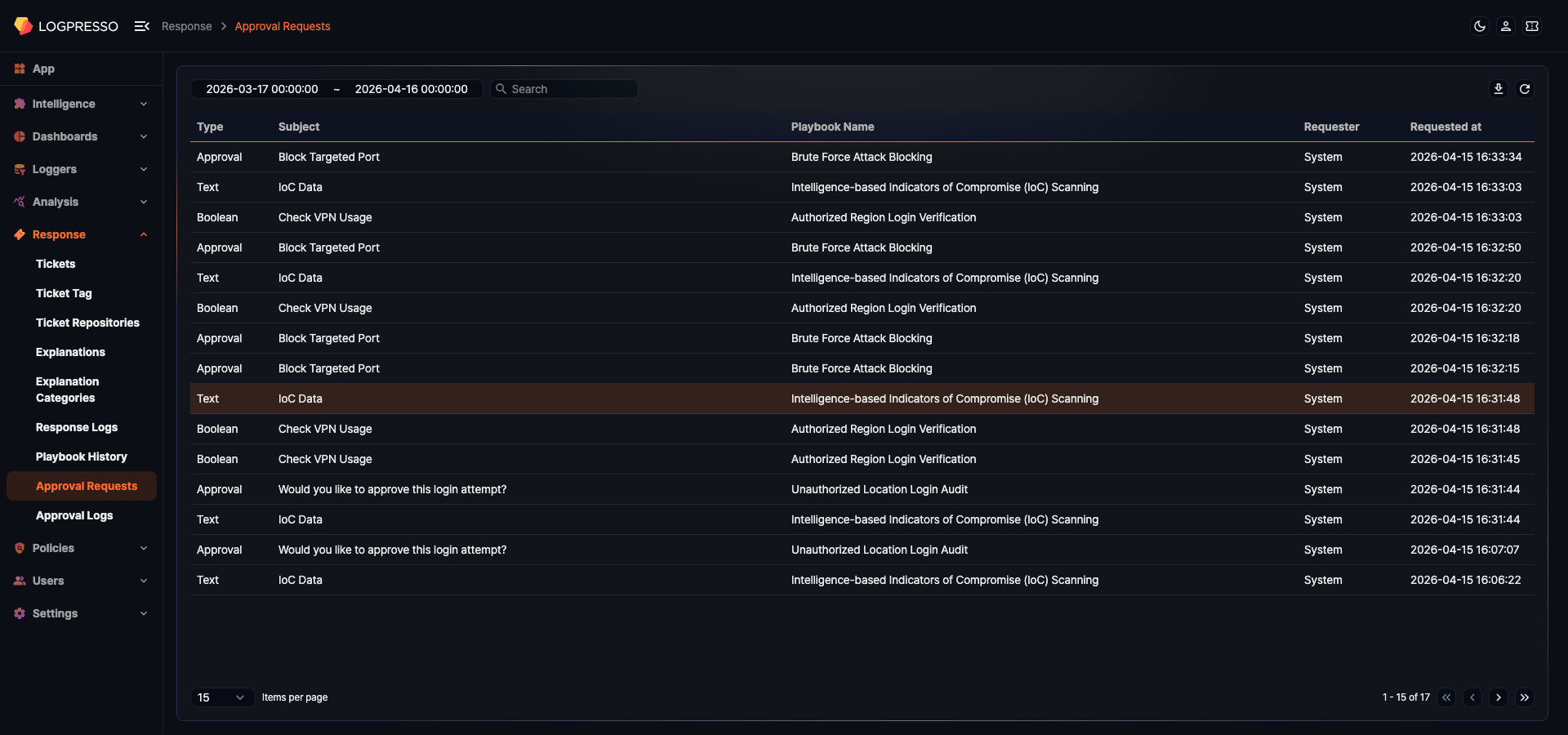
The list displays the following information:
- Type: The kind of task that raised the request. An approval task shows Approval, and a user input task shows Text, Boolean, Enum, or Multiline depending on the kind of value it asks for.
- Subject: The subject of the request — the subject configured on the playbook task, with its variables replaced by actual values.
- Playbook Name: The name of the playbook that raised the request
- Requester: The party that raised the request. A request is always raised by a playbook execution, so this shows System.
- Requested at: The date and time the request was registered (
yyyy-MM-dd HH:mm:ssformat)
The list is sorted by request time in reverse chronological order and shows 15 records per page. Use the selector at the bottom left to show 10, 15, 20, 50, 100, 150, or 200 records per page.
Search approval requests
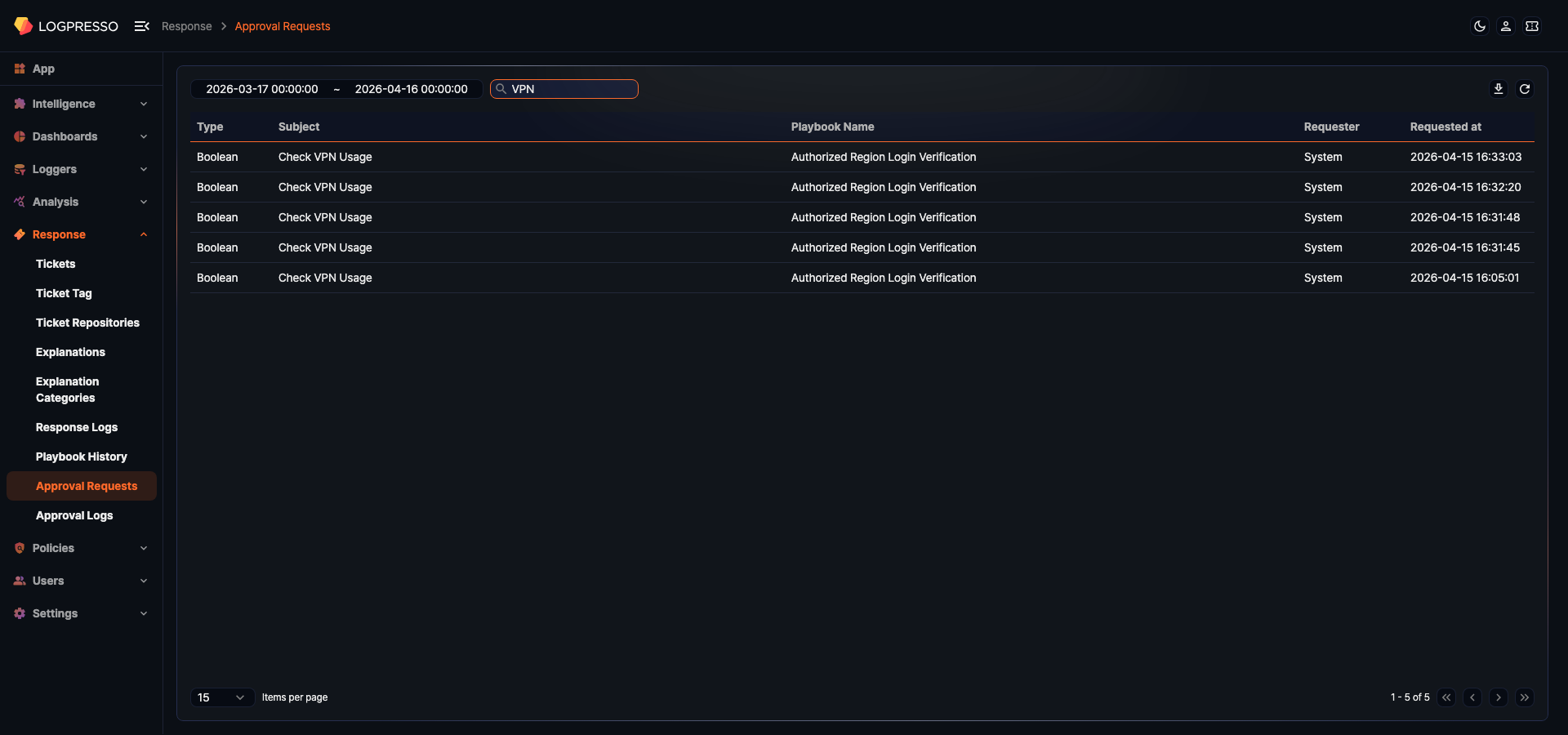
Set the period and keyword to narrow the Approval Requests list. The period applies to the request time and can be specified to the second. It defaults to the last 30 days including today, and the end time is 00:00 of the next day.
The keyword applies to the subject only and is case-insensitive. The keyword is split on whitespace, and only subjects that contain every word match. For example, block approval keeps the requests whose subject contains both words and drops the ones that contain only block. The playbook name is not searched.
Download list
Click  to save the Approval Requests list as a file.
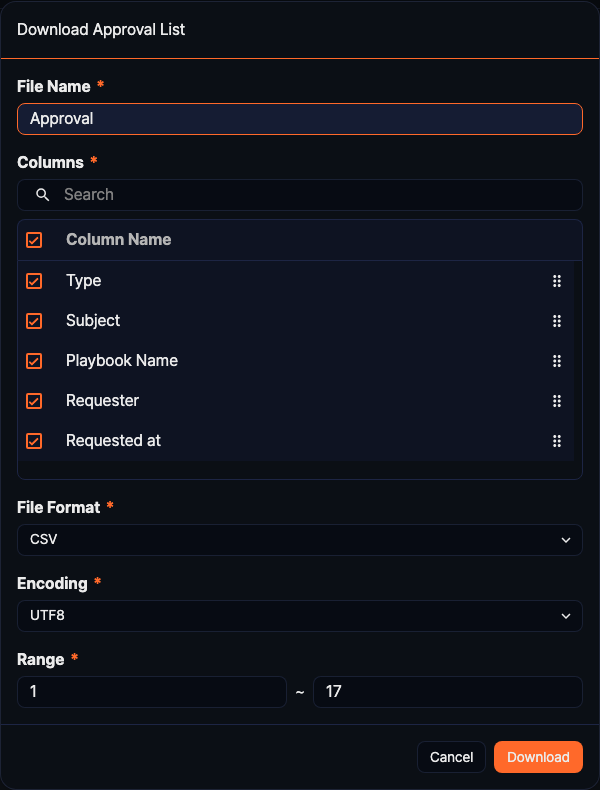
- File Name
- Enter the file name to save. The default is Approval.
- Columns
- Select the columns to include in the file: Type, Subject, Playbook Name, Requester, and Requested at. Enter a name in the search box to find a column, and drag the handle on the right to change the order.
- File Format
- Select the file format. You can choose CSV, XML, Microsoft Word, HTML, JSON, or PDF.
- Encoding
- Select the file encoding. This field appears only for the CSV and JSON formats, and the available options depend on the console language. In the English console you can choose UTF8, UTF16, or Latin 1, and the default is UTF8.
- Range
- Select the range of Approval Requests to save. The topmost item on page 1 is number 1, and the range defaults to the first item on the current page through the total number of records found.
The saved file differs from the screen in two ways: its column names and values are written in Korean regardless of the console language, and the period you set on the screen is not applied to the file — only the keyword is.
Refresh list
Click  to refresh the list. Requests keep arriving while playbooks run, so refresh the list when you leave the screen open.
Handle Approval Requests
Click a record in the list to open a side panel on the right. An approval request opens the Create Approval Request panel, and a user input request opens the User Input Request panel.
Create Approval Request
Click a record raised by an Approval task to open the Create Approval Request panel.
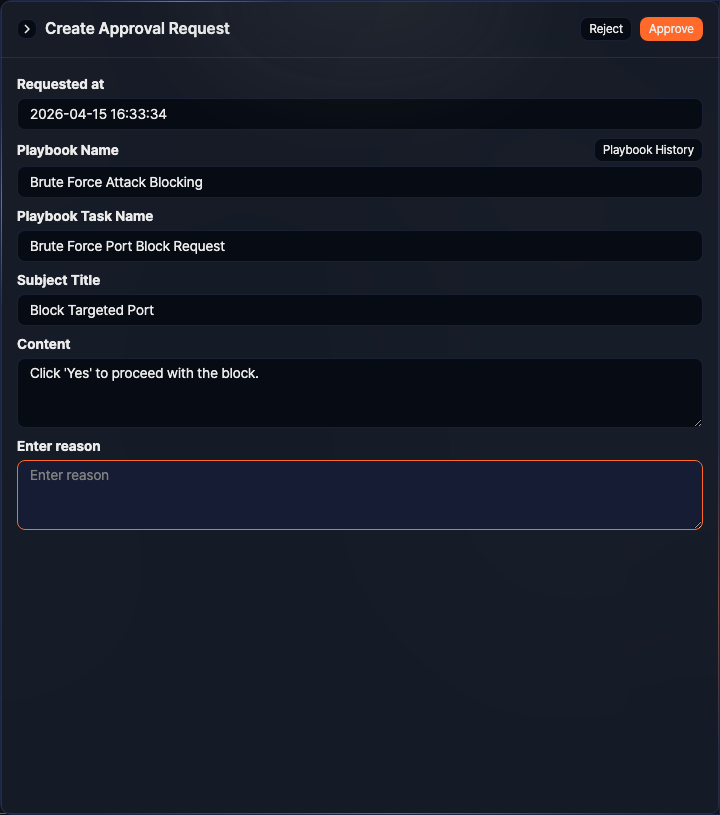
- Requested at: The date and time the request was registered
- Playbook Name: The name of the playbook that raised the request. Click Playbook History to open the execution that raised this request in Playbook History, with the input and output tab of the task that raised it already open.
- Playbook Task Name: The name of the playbook task that raised the request
- Subject Title: The subject of the request
- Content: The body of the request, explaining what you are asked to approve
- Enter reason: Enter why you approve or reject. The reason is optional, and what you enter is passed on as an output of the playbook task, where you can read it in the task information on the Playbook History detail screen.
Everything from Requested at through Content is filled in by the playbook and cannot be edited. Click Reject or Approve at the top right of the panel to handle the request; the panel closes and the paused playbook resumes. The playbook then branches on your decision. Approving continues to the task on the approval branch, while rejecting skips it — the execution continues on the rejection branch if the playbook has one, and ends there if it does not.
User Input Request
Click a record raised by a User input task to open the User Input Request panel.
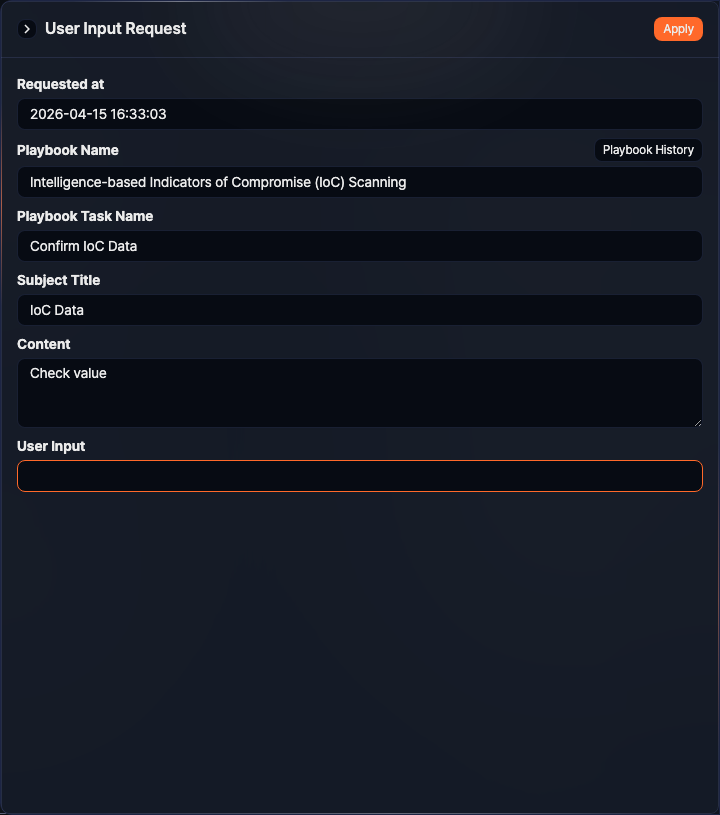
- Requested at: The date and time the request was registered
- Playbook Name: The name of the playbook that raised the request. The Playbook History button behaves as it does on the Create Approval Request panel.
- Playbook Task Name: The name of the playbook task that raised the request
- Subject Title: The subject of the request
- Content: The body of the request, explaining which value to submit
- User Input: Enter the value to pass to the playbook. The input control depends on the kind of value configured on the task.
- Enum: Choose one of the options configured on the playbook task. The first option is preselected, and a value is required.
- Boolean: Choose Yes or No. The default is Yes.
- Multiline: Enter multiple lines of text.
- Text: Enter a single line of text. If the playbook task defines a regular expression, only a value that matches it is accepted.
Click Apply to pass the value on as an output of the playbook task and resume the paused playbook. If a text value does not match the regular expression, a message appears under the input and the request is not handled. An enum request requires a value, so you cannot handle it on this screen when the playbook task defines no options.