
Indicators
Overview
An indicator (IOC, Indicator of Compromise) registers an IP address, domain, URL, MD5 hash, or email address confirmed through investigation or external threat intelligence. Under Policies > Indicators, view registered indicators in a list, and review the risk level, reputation, and status together to add or clean up indicators as needed.
Each indicator has a type (IP, Domain, URL, MD5, or Email), a value, a risk level, a reputation, a status, and the first and last seen date and time. Adding the same (type, value) again does not create a new indicator — it updates the existing one. Registered indicators can be used with playbook trigger conditions to feed into follow-up response workflows.
Indicators are a different set of data from threat intelligence feeds. Downloading a threat intelligence feed does not add to the indicators on this screen, and registering an indicator does not add to a threat intelligence feed.
The Policies > Indicators menu appears only when the Maestro license is active. In that case, it appears for the Cluster Administrator, Administrator, and User roles, and all three can view, add, change the risk level of, and delete indicators. See Account permissions for the permissions of each role.
View/search indicators
You can view or search the indicator list under Policies > Indicators. The list is sorted so that the most recently updated indicators come first. The update time that drives this order is not shown in the list; when you add an indicator or change its risk level, it moves to the top. You cannot sort the list by clicking a column header. One page shows 15 indicators by default, and you can change the page size with the selector below the list.
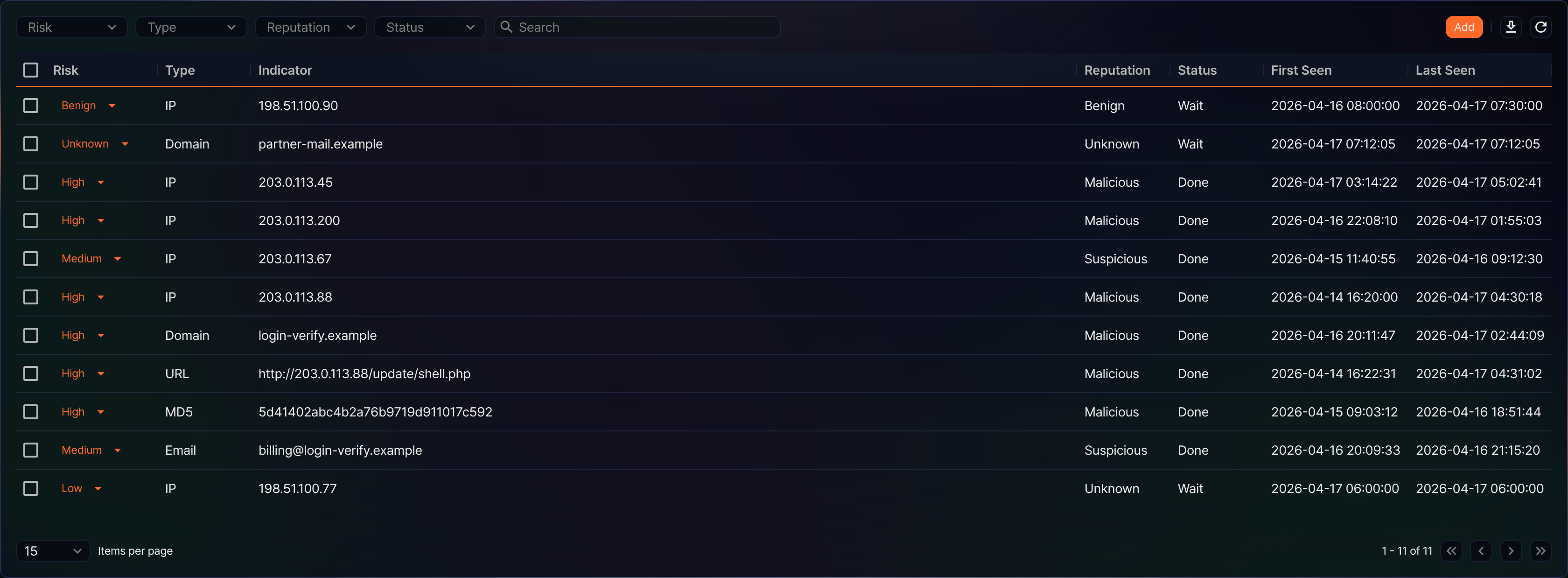
- Risk: Risk level of the indicator (options: Benign, Low, Medium, High). You can change the value using the dropdown on each row. An indicator with no risk level yet (for example, one you just registered) shows Unknown.
- Type: Indicator type (options: IP, Domain, URL, MD5, Email).
- Indicator: The registered indicator value.
- Reputation: Reputation classification result (options: Benign, Suspicious, Malicious, Unknown, Wait). This is not a value you enter on screen — an app or the maestro-ioc-update command sets it.
- Status: A column that shows processing status (options: Wait, Done, Error, Retry). A newly registered indicator always starts as Wait, and you cannot change this value from the web console.
- First Seen: Date and time this indicator was first identified.
- Last Seen: Date and time this indicator was most recently identified.
You cannot edit the type or value of a registered indicator from the list. If you registered the wrong value, delete it and add it again.
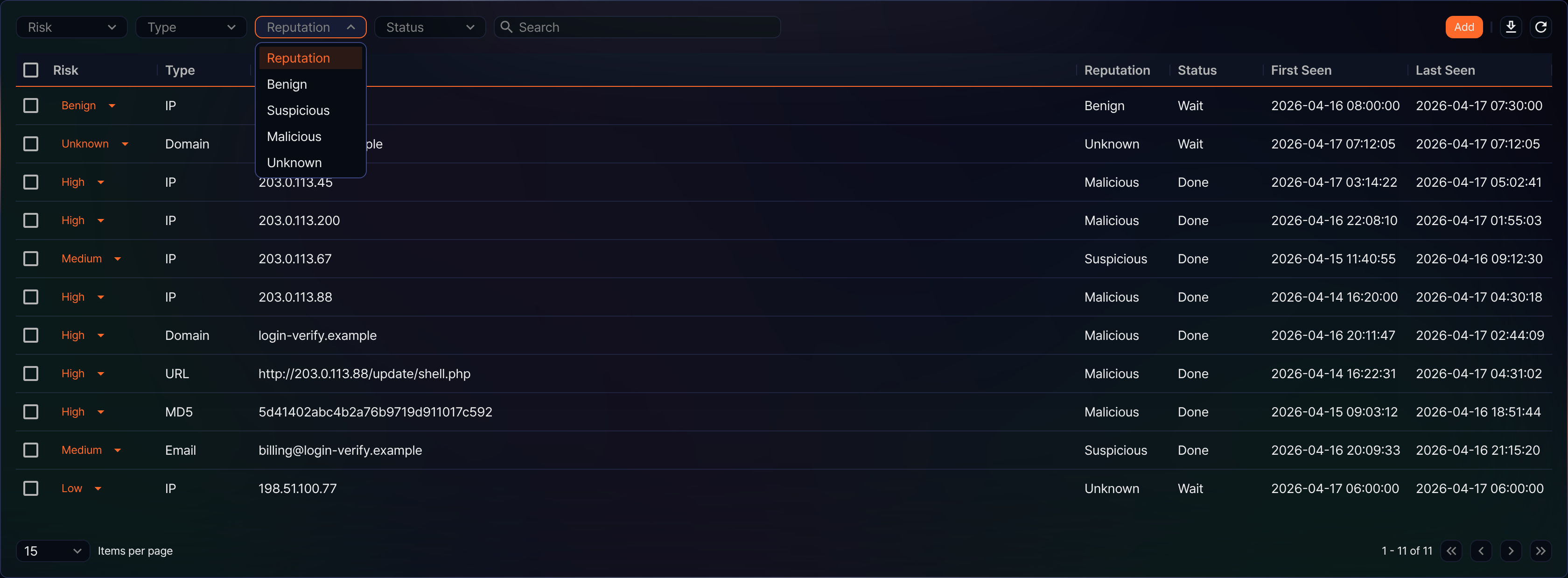
At the top of the list, you can use the search box together with four filters (Risk, Type, Reputation, Status). The reputation filter list has only 4 options — Benign, Suspicious, Malicious, Unknown — and no Wait, even though Wait can appear in the Reputation column.
Each filter takes one value; choose the filter's own name at the top of its list (for example, Reputation) to clear it. When you combine filters and a search keyword, only indicators that match all of them remain. The risk filter has no Unknown option, so you cannot list only indicators without a risk level.
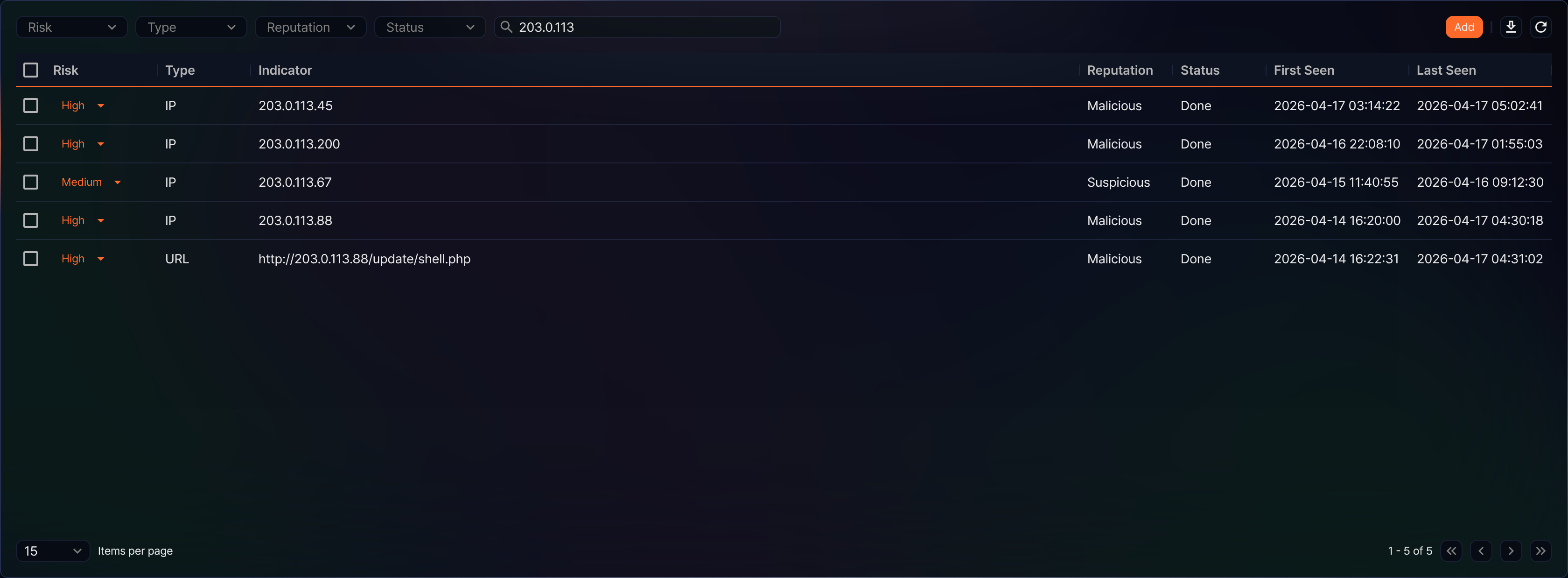
To find an indicator, type a keyword in the search box and press Enter. The search matches only the Indicator column — you cannot find an indicator by the displayed values of Risk, Type, Reputation, or Status. If you enter several words separated by spaces, each word must appear in the value, and the match ignores case and matches partial strings.
The following example searches for 203.0.113. The 4 IP addresses and 1 URL whose values contain this string remain in the result.
Download list
To download the indicator list as a file, click  in the toolbar. The Download Indicator List dialog opens.
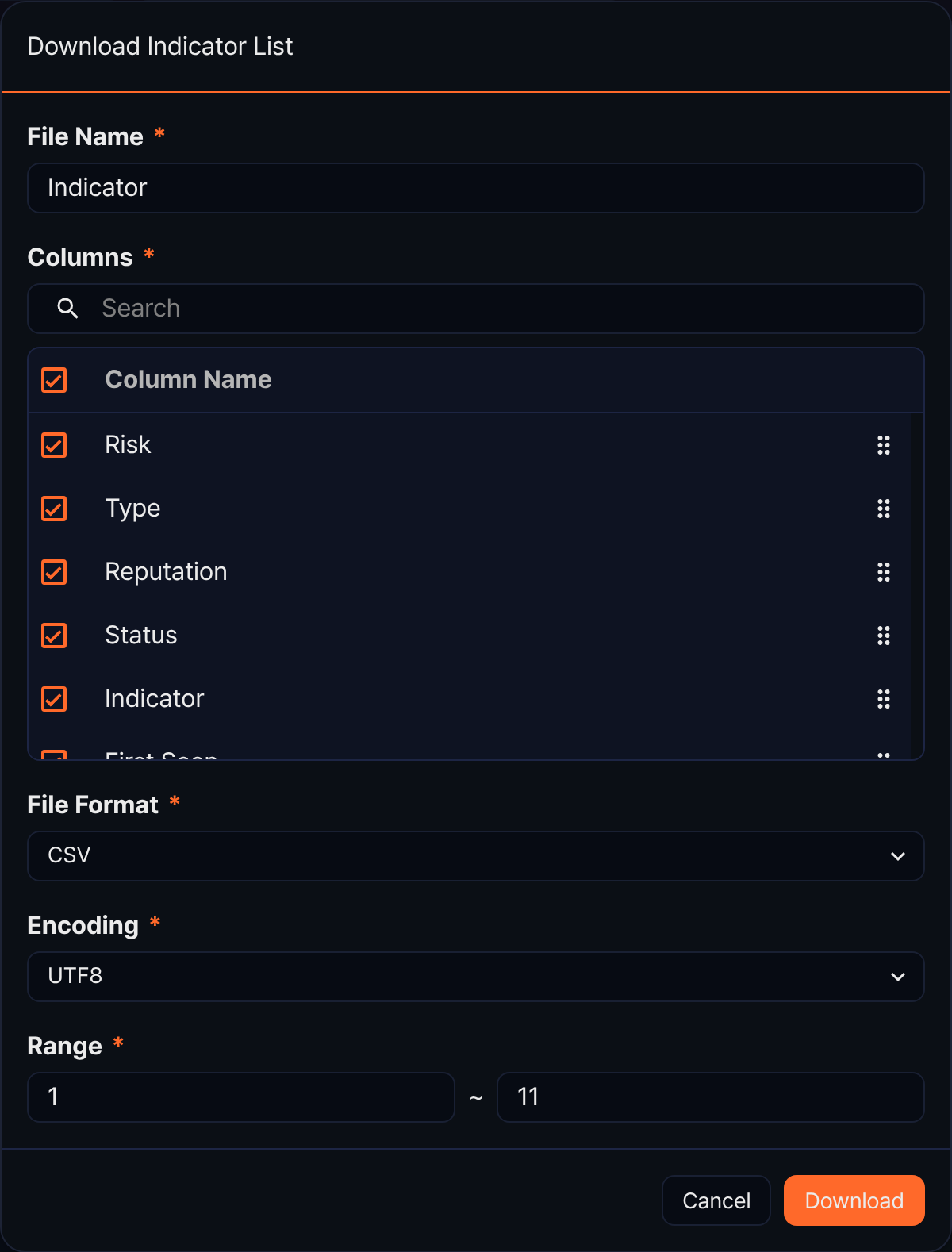
- File Name (required): Name of the downloaded file (default: Indicator, up to 200 characters)
- Columns (required): Columns to include. The same 7 columns as the list (Risk, Type, Reputation, Status, Indicator, First Seen, Last Seen) are all selected; clear a checkbox to leave a column out, or drag the handle on the right to reorder the columns.
- File Format (required): Format of the downloaded file: CSV (default), XML, Microsoft Word, HTML, JSON, or PDF.
- Encoding (required): Encoding of the file. It appears only when the file format is CSV or JSON. The English console offers UTF8 (default), UTF16, and Latin 1.
- Range (required): First and last row numbers to download (default: from the first row of the current page to the total count)
Click Download when you are done. Search keywords and filters are not applied to the download. Even if you have narrowed the list, the file contains the rows in Range from the unfiltered list. While the list is narrowed, the default end of Range is the narrowed count, so the file contains only that many rows from the top of the unfiltered list. When the list is empty, the download icon is disabled.
Refresh list
To reload the indicator list with the latest data, click  in the toolbar.
Add an indicator
To register a value confirmed through investigation or external threat intelligence as a new indicator, follow these steps.
-
Under Policies > Indicators, click Add in the toolbar.
-
In the New Indicator side panel, enter the following details.

- Type (required, default: Domain): Indicator type (options: IP, Domain, URL, MD5, Email)
- Value (required): The indicator value that matches the type. The format of the value is not validated against the type. A value can be up to 255 characters, and values that differ only in case are treated as the same value.
-
Review the information and click Save in the upper-right corner of the panel. The panel closes and the list is reloaded.
Change indicator risk
To adjust the detection priority or response intensity, change the risk level of an indicator. You can change the risk level of a single indicator or of several at once.
Change risk individually
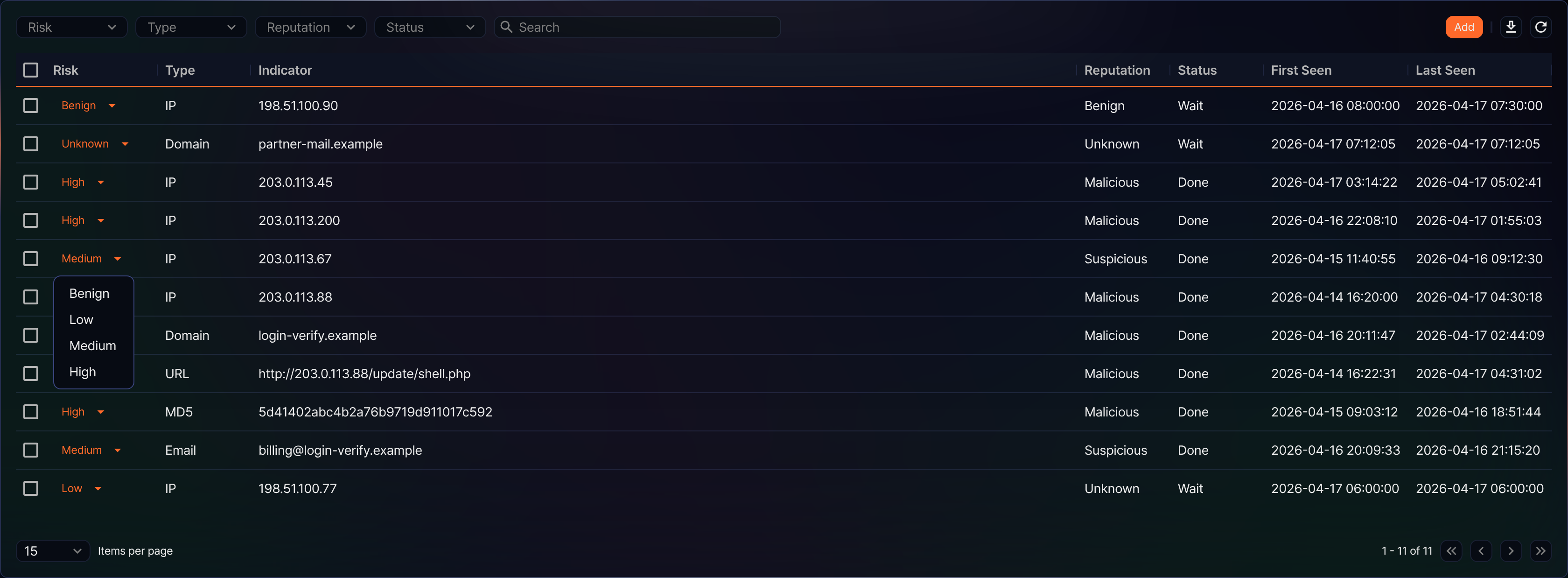
To change the risk level of a single indicator, click the current value in the Risk column of the list and select the desired value.
Change risk in bulk
To adjust the risk level of multiple indicators at once, follow these steps.
-
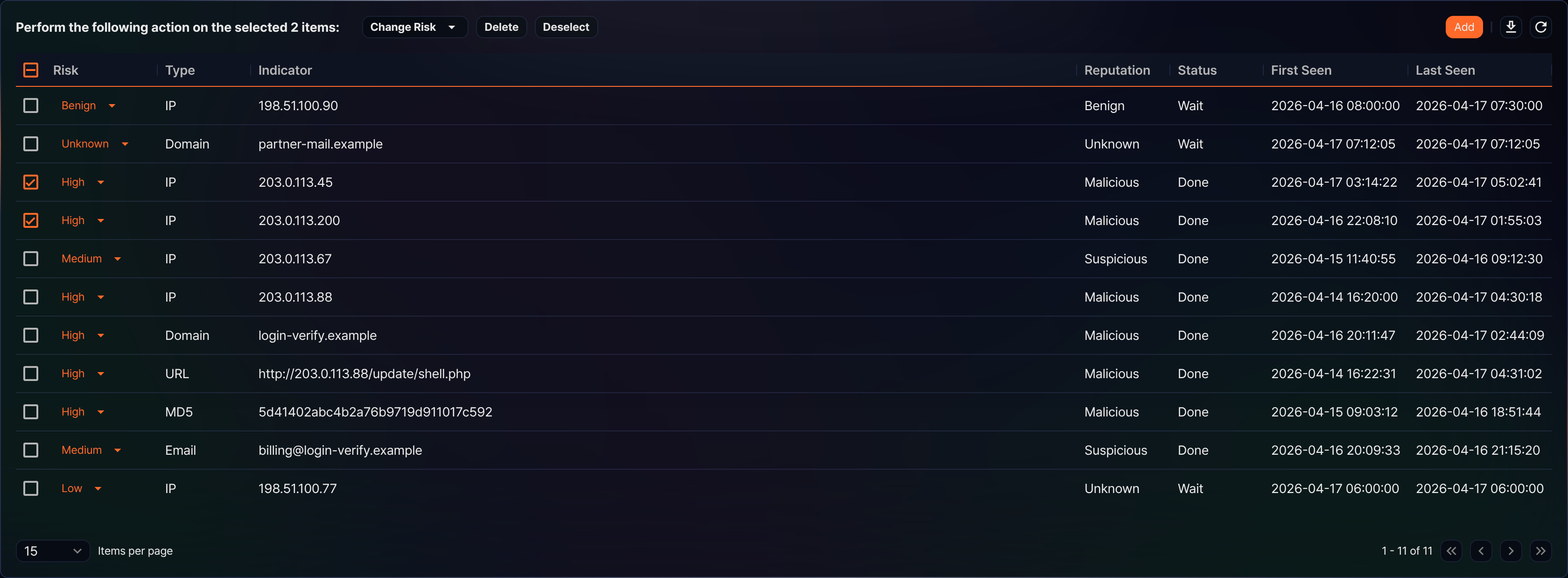
Select the checkboxes of the indicators you want to change in the list. When at least one is selected, the left side of the toolbar changes to ask what to do with the selected items, and the filters and search box disappear.
-
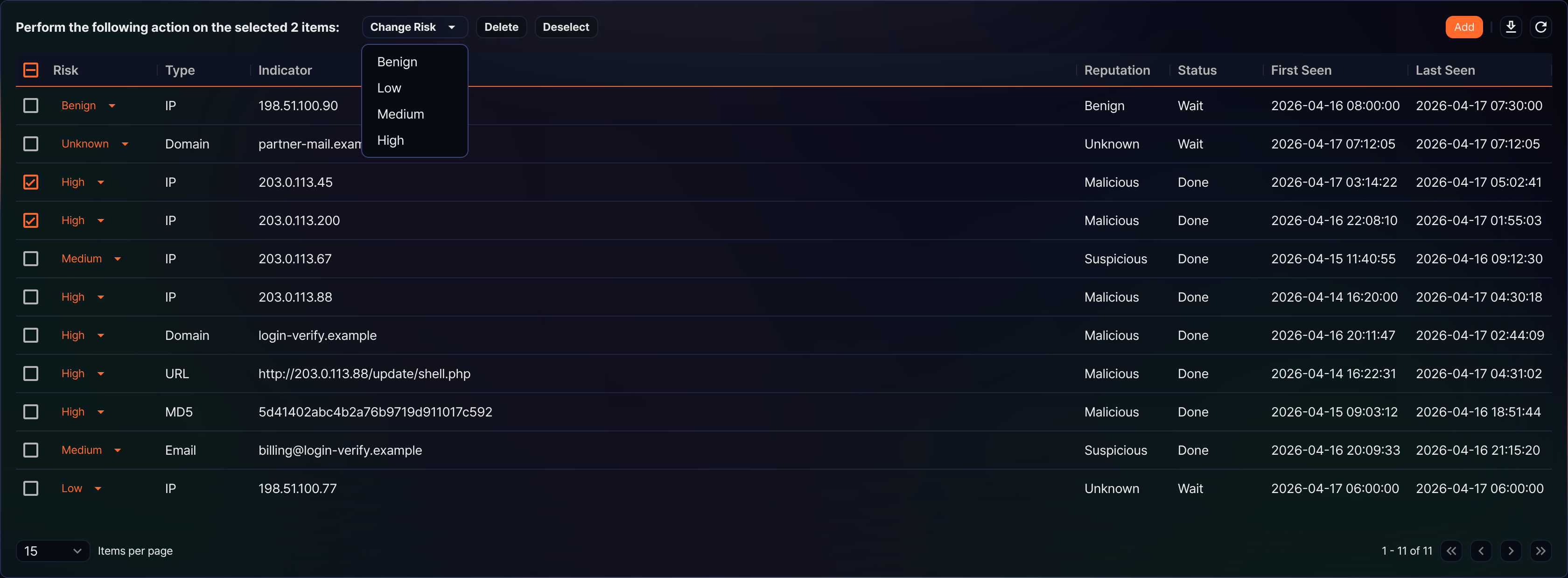
Click Change Risk, then select the risk level you want (options: Benign, Low, Medium, High).
Delete an indicator
To clean up indicators that are no longer being managed, follow these steps.
-
Select the checkboxes of the indicators to delete in the list. When at least one is selected, the left side of the toolbar changes to ask what to do with the selected items.
-
Click Delete in the toolbar.
-
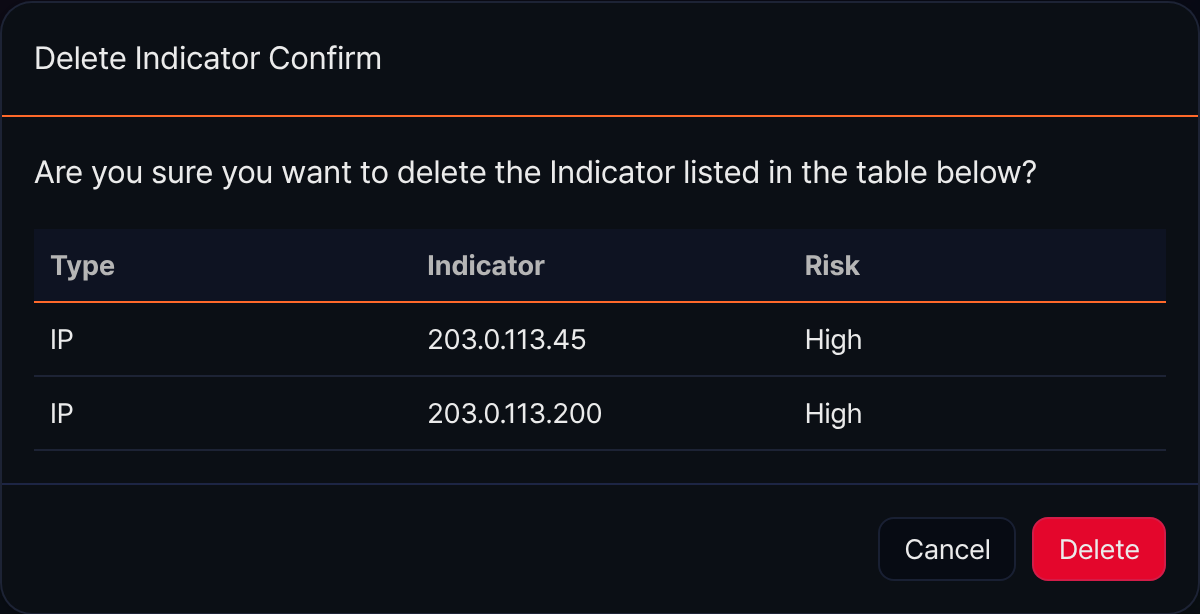
In the Delete Indicator Confirm dialog, review the targets to delete and click Delete.
Use indicators
Registered indicators can be used in the following ways.
Playbooks
Playbooks have an Indicator trigger type: when a new indicator of a chosen type (URL, MD5, IP, Domain, or Email) is registered, its value is passed in as an input parameter and the playbook runs automatically. Adding an already-registered (type, value) again is not a new registration, so it does not trigger the playbook. Playbook tasks include type-specific tasks such as Update IP indicator and Update Email indicator, which can create a new indicator or update its risk and reputation. See Playbooks for details.
The same risk and reputation update can also be run directly from a query with the maestro-ioc-update command.
Check risk from a ticket
The Source IP, Destination IP, and Host fields on a ticket detail show the risk level of the matching IP indicator registered here next to the IP address. Choosing Set Indicator from the menu that opens when you click an IP address lets you set its risk level, and the value you set is reflected in the indicator on this screen. If the IP address is not yet registered, it is registered as a new IP indicator.