
Pie
Overview
The pie widget divides values (dependent variable) by item (independent variable) into a circle to visualize the proportion of each item relative to the total. Use it to intuitively understand composition ratios, such as the ratio of detection event types or access distribution by country. It can also be displayed in a donut format.
For general information about query widgets, see Query widget.
Chart settings
Select Pie as the chart type in the pivot table editor and click the chart settings button.
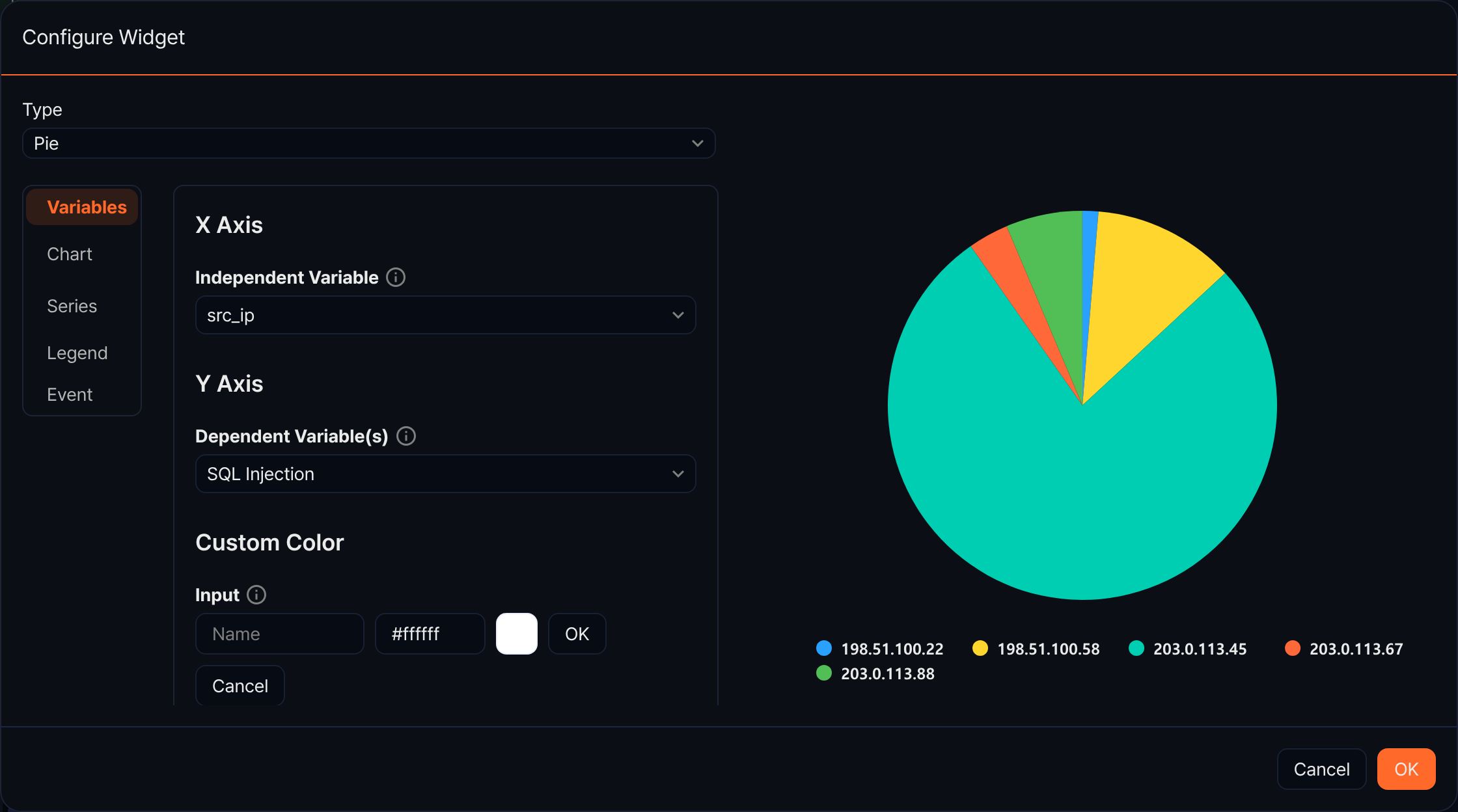
Variables
- Independent Variable (X-axis)
- Independent Variable: Select the field to use as labels for each pie slice.
- Dependent Variable (Y-axis)
- Dependent Variable(s): Select the numeric field that determines the size of each pie slice.
- Custom Color: Assign fixed colors to specific items (slices).
- Input: Enter the item name and color, then click OK.
- Registered colors: View and delete registered item colors.
Chart
- Headline: Enter a chart title and subtitle.
- Chart Area: Set the background color, border thickness, and border color.
Series
The pie chart uses a single series.
- Label
- Show: Display labels on each pie slice.
- Distance: Set the distance between the label and the slice.
- Donut Hole Size (%): Set the size of the empty space in the center of the pie (unit: %, range: 0-99). Setting a value greater than 0 displays the chart in a donut format.
Legend
- Show: Set whether to display the legend.
- Legend Arrangement: Options: Horizontal, Vertical.
- Horizontal Align / Vertical Align: Set the legend position.
Event
Configure click events.