
Storage
Overview
Storage is a part of the data lifecycle. For an overview of the data lifecycle, refer to Data lifecycle.
In Settings > Cluster > Storage, you can connect to storage services such as AWS S3, S3 Compatible Storage, and KakaoCloud Object Storage for the Cold tier, set the rollover schedule and bandwidth throttling, and configure maximum capacity for each storage tier.
Only cluster administrators can use this menu.
Object Storage Profile
The object storage profile is a dedicated configuration used to connect to object storage services provided by AWS, S3 Compatible Storage, or KakaoCloud. You can set up the object storage profile either during Logpresso Sonar installation or later via the web console.
Web installer
During the Logpresso Sonar installation, you can configure AWS S3, S3 Compatible Storage, or KakaoCloud Object Storage in the object storage setup step.
- To skip the object storage setup, click Skip.
- To verify if the object storage settings are correct, click Test.
Web console
To set up an object storage profile in the web console:
-
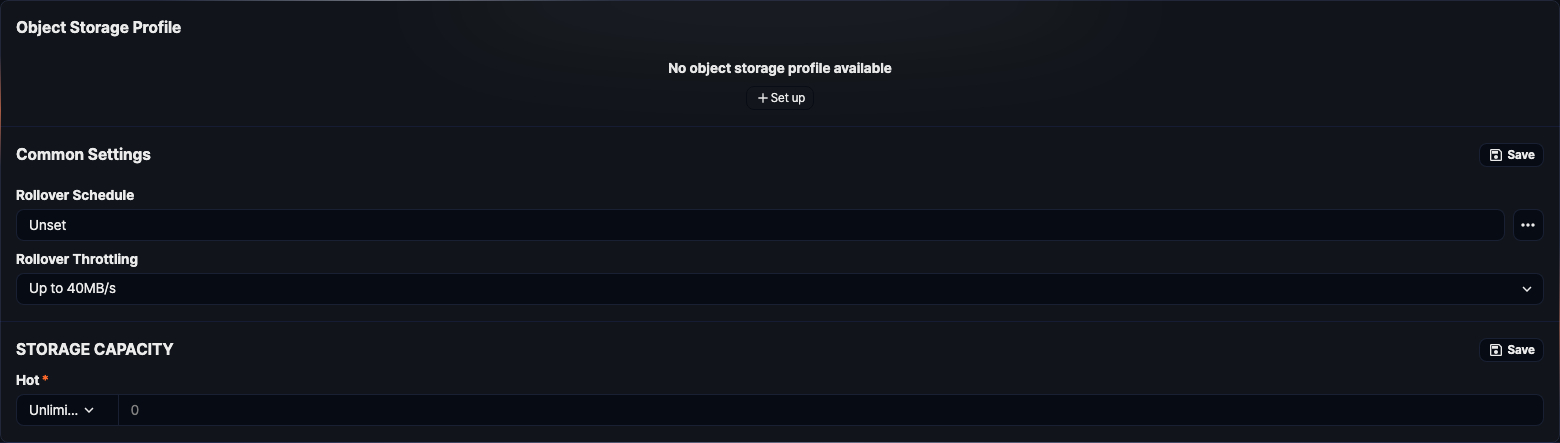
In Settings > Cluster > Storage, click Set up.
-
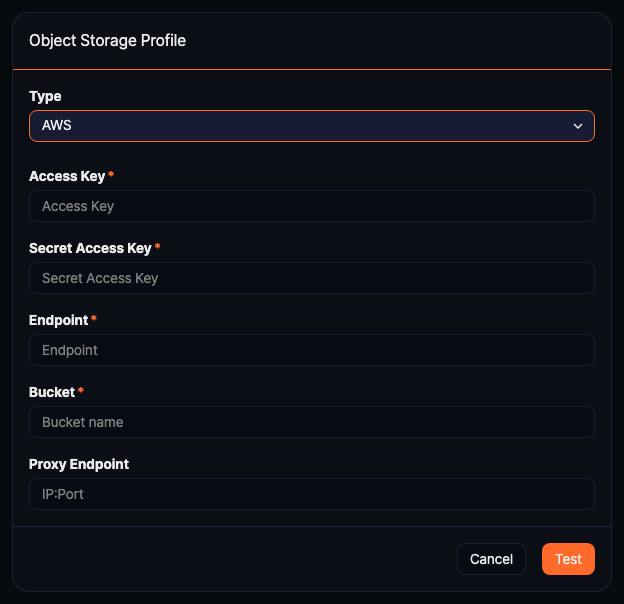
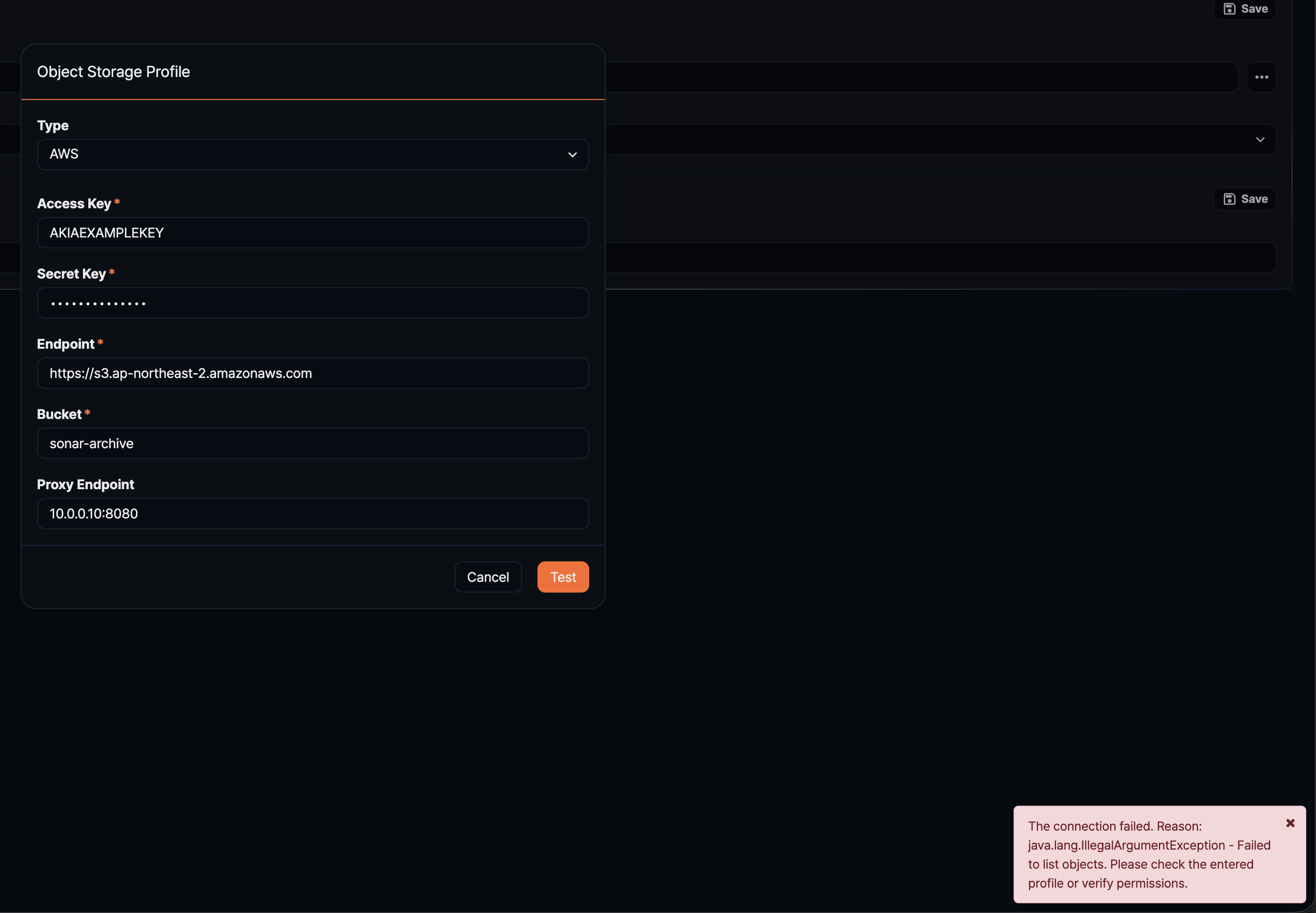
Enter the required information for the object storage connection in the Object Storage Profile window and click Test.
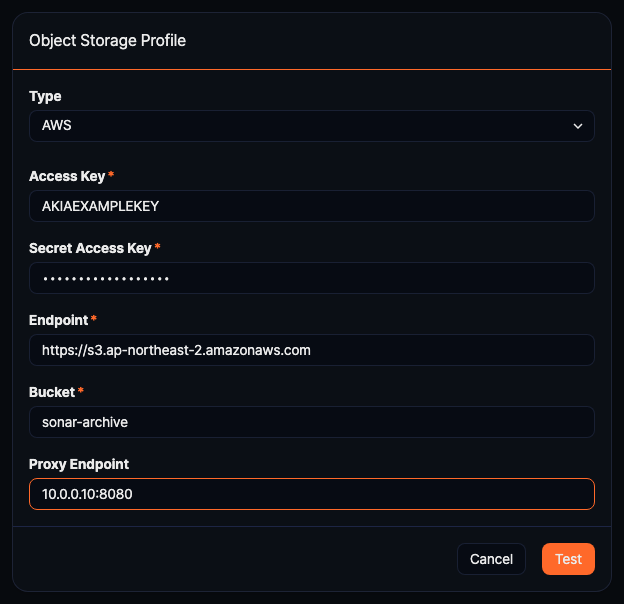
- Type: Storage service provider (choose from AWS, S3 Compatible Storage, or kakaocloud; default: AWS)
- AWS: AWS S3
- S3 Compatible Storage: An S3-compatible object storage service where you specify the endpoint directly
- kakaocloud: KakaoCloud Object Storage
- Access Key: Access key for connecting to the storage service
- Secret Key: Secret access key for connecting to the storage service
- Endpoint: Access address for the storage service
- Bucket: Name of the storage bucket
- Proxy Endpoint: Proxy address to use when connecting through a proxy (
IP:port, optional)
NoteAWS and S3 Compatible Storage use the same five fields (access key, secret key, endpoint, bucket, proxy endpoint). KakaoCloud uses the same five fields under different labels (Authentication Key, Secret Access Key, and so on).
- Type: Storage service provider (choose from AWS, S3 Compatible Storage, or kakaocloud; default: AWS)
-
If the test result indicates a successful connection to the storage, click OK.
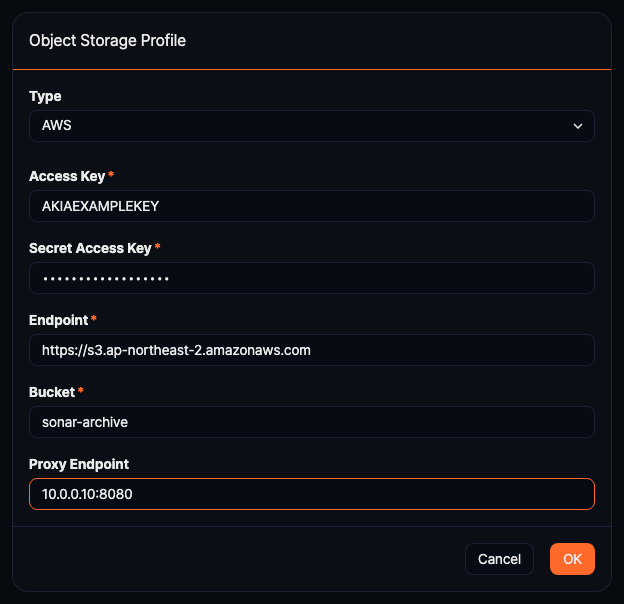
If the connection to the storage is unsuccessful, check the cause and take corrective action before clicking Test again.
- Verify the network connection between the Logpresso Sonar node and the storage service.
- Ensure that the object storage being used is configured correctly.
- Confirm that the object storage connection information, such as the access key and secret access key, is entered correctly.
If you change any input value after a test succeeds or fails, you must click Test again before OK becomes available.
After saving, the Object Storage Profile section shows the type, access key, endpoint, and bucket as read-only fields.
Common Settings (Rollover Settings)
In Common Settings, you can configure the rollover execution schedule and the bandwidth limit to be applied during the rollover. After making changes, click Save. If you do not click Save, the changes will be lost.

- Rollover Schedule: The schedule for executing the rollover. Click
 to the right of the Rollover Schedule field, then specify the execution time according to CRON syntax in the Task Cronizer (default: Unset). You must specify a schedule before Common Settings can be saved — if the schedule is left Unset, clicking Save has no effect.
 - Rollover Throttling: The file transfer speed to be applied during the rollover (choose from No throttling, Up to 320MB/s, Up to 100MB/s, Up to 40MB/s, Up to 16MB/s; default: Up to 40MB/s).
Maximum storage capacity
The maximum storage capacity is specified for each storage tier. For the Hot and Warm tiers, the maximum capacity applies individually to the disk of each node in each node pair. For the Cold tier, the maximum capacity applies to the shared storage as a whole. The total capacity shown on screen is the specified unit and value multiplied by the number of node pairs reported for that tier.
After making changes, click Save. If you do not click Save, the changes will be lost.

- Specify the capacity for Hot, Warm, and Cold tiers and click Save.
- The maximum capacity can be specified in MB, GB, or TB, or you can select Unlimited.
- When the maximum capacity is set to Unlimited, the system does not automatically delete or roll over data even if the storage tier becomes full.
- Below the Warm and Cold tier names, the Direct Copy setting from the lifecycle configuration window is shown, for example as WORM Storage - Disabled (Warm) or WORM and Cloud Storage - Enabled (Cold).
If the new value is lower than the value currently saved, a confirmation dialog appears before saving (except when you change the value to Unlimited).
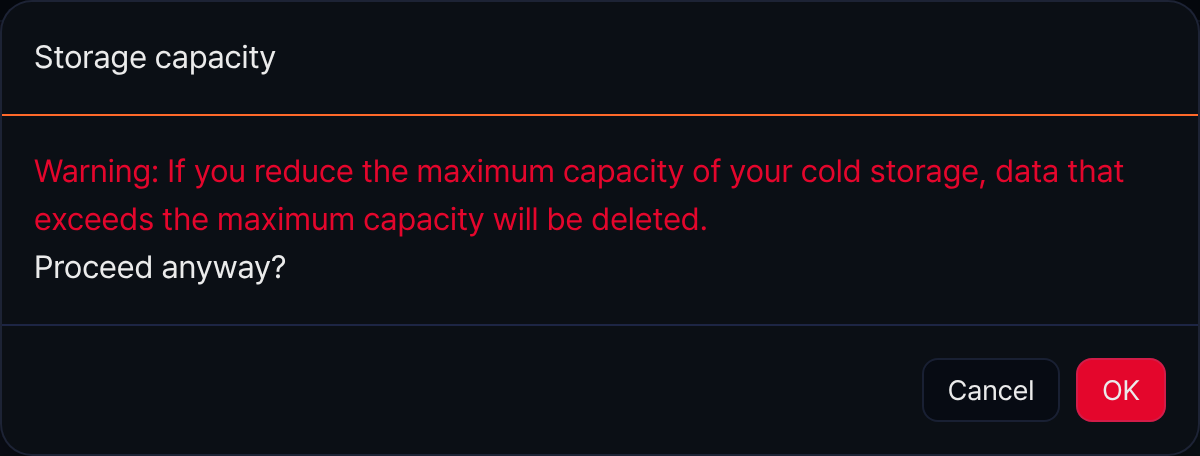
- Reducing the Cold tier shows a warning that data exceeding the new maximum capacity may be deleted.
- Reducing the Hot or Warm tier shows a warning that an immediate rollover may occur.
- Click OK to save the reduced value, or click Cancel to discard the change — the values currently saved on the server are displayed again instead.
This setting only displays tiers that have a defined lifecycle. If no lifecycle is defined, the maximum storage capacity settings will not be visible.