
Approval request
This task presents information to the user and requests approval. Different tasks run depending on the user's response (approve/reject). When the response is Approve, the flow continues along the Y connection point; when Reject, it continues along the N connection point. This task type appears as Approval in the Task Type field.
Tasks waiting for user approval are listed under Response > Approval Requests. Clicking an item with the Type of Approval in the approval requests list shows the request details as follows.
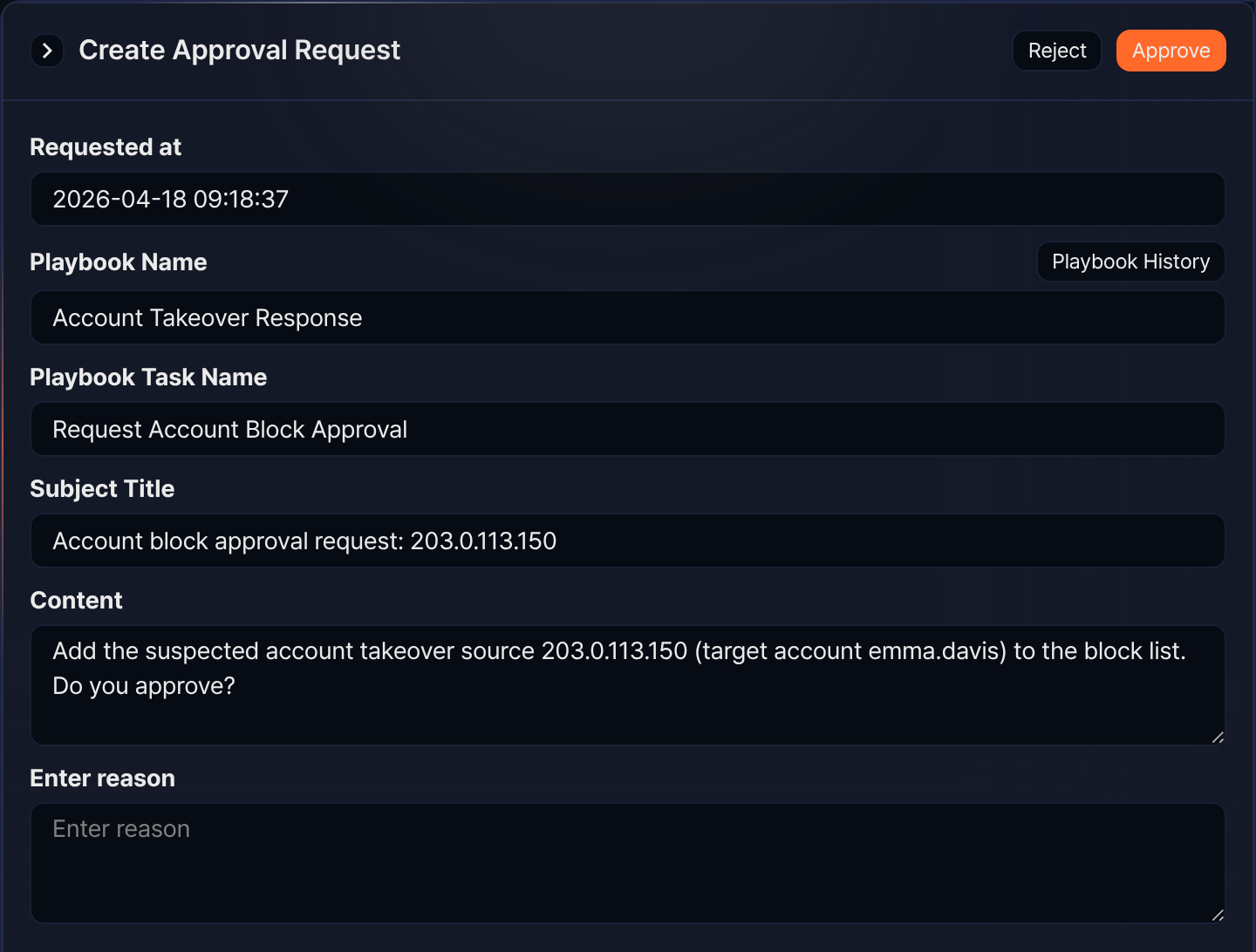
The user's approval is processed by clicking the Approve or Reject button, and the text the user enters is returned as the output parameter comment.
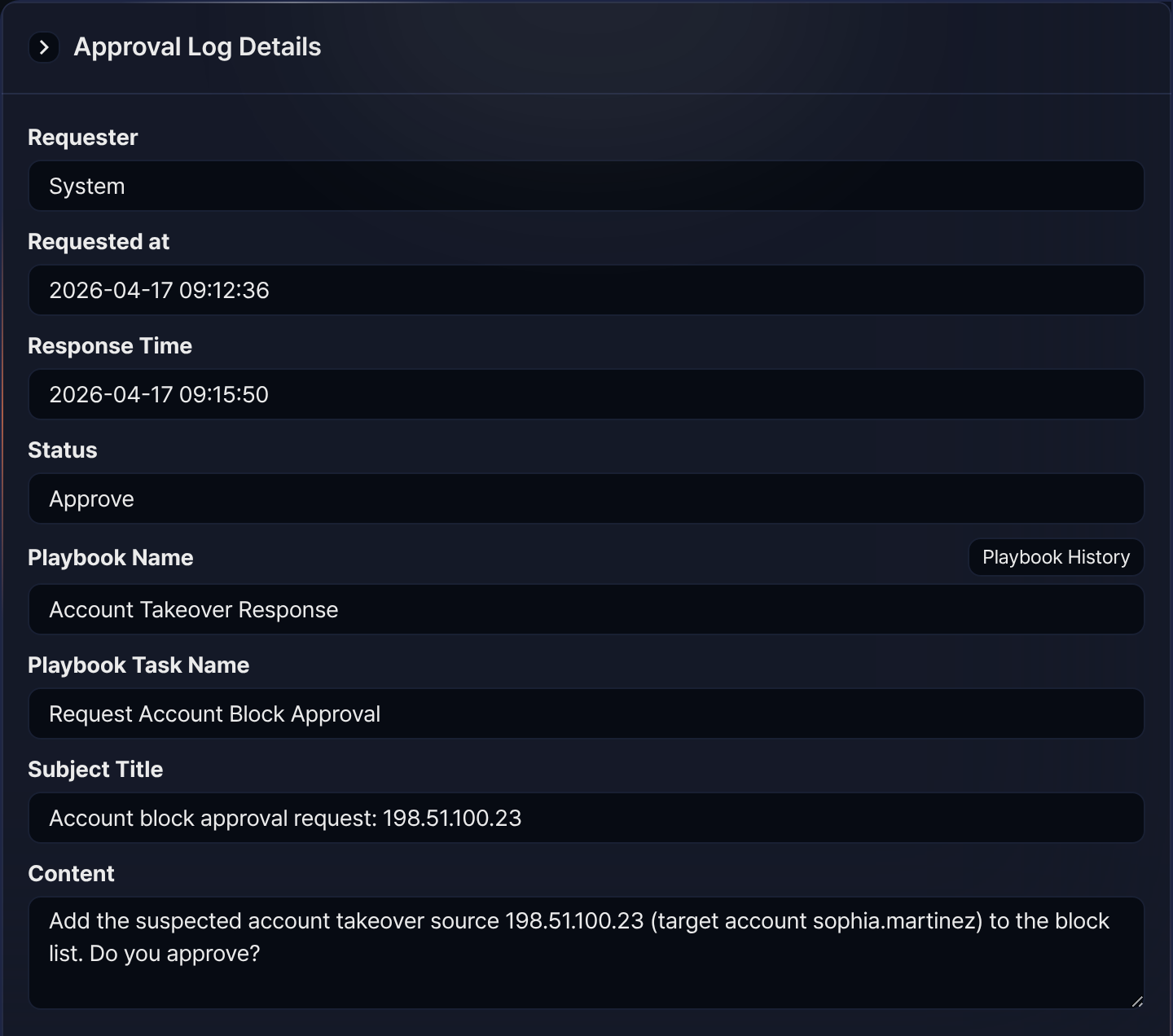
The approval result is available under Response > Approval Logs. Clicking an item whose Status is Approve or Reject in the approval logs list shows the request details as follows.
The properties of an approval request task are as follows:
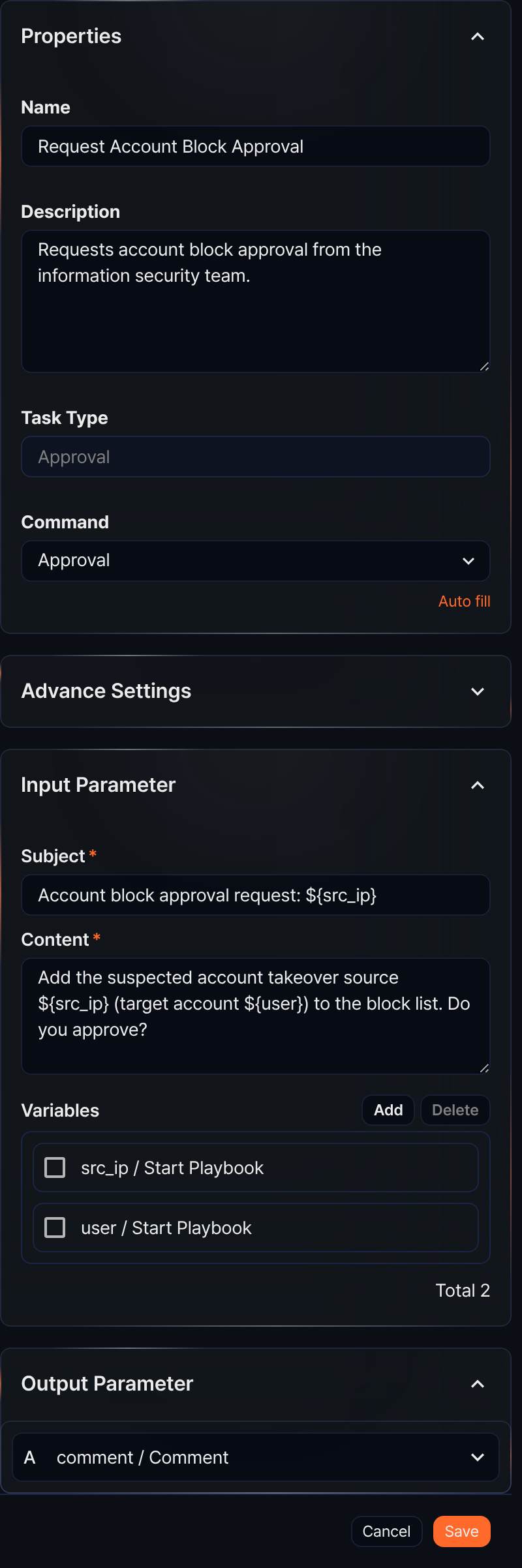
- Command
- The only Command available is Approval.
- Input parameters
- Write the Subject and Content for the approval request to present to the user, and optionally select variables from the Variables.
- Subject*
- Enter the subject of the approval request.
- Content*
- Enter the approval request text.
- Variables
- Click Add and select variables to use in the Subject or Content. Both Subject and Content are strings. To substitute a variable value into the string, use the
${variable}format.
Note$("variable") is a function used to reference variable values in Logpresso queries and cannot be used inside strings.
Approval request task example
Approval request tasks ask an approver for approval and branch the flow to the Y (approve) or N (reject) connection point based on the response. The response result (approve or reject) is recorded in the output input of the execution result. The following steps configure and run an approval request task (Request Account Block Approval in the Account Takeover Response playbook).
-
In the playbook editor, add an approval request task, enter the request to show the approver in Subject and Content, and connect the tasks to run on approval and on rejection to the Y and N connection points. The settings panel looks like the properties panel figure above.
-
Run the playbook.
-
When the run reaches the approval request task, the playbook waits for the approver's response. Respond in either of the following places.
-
In Response > Approval Requests, click the item whose Type is Approval, enter a reason, and click Approve or Reject. The screen is the same as the approval request example above.
-
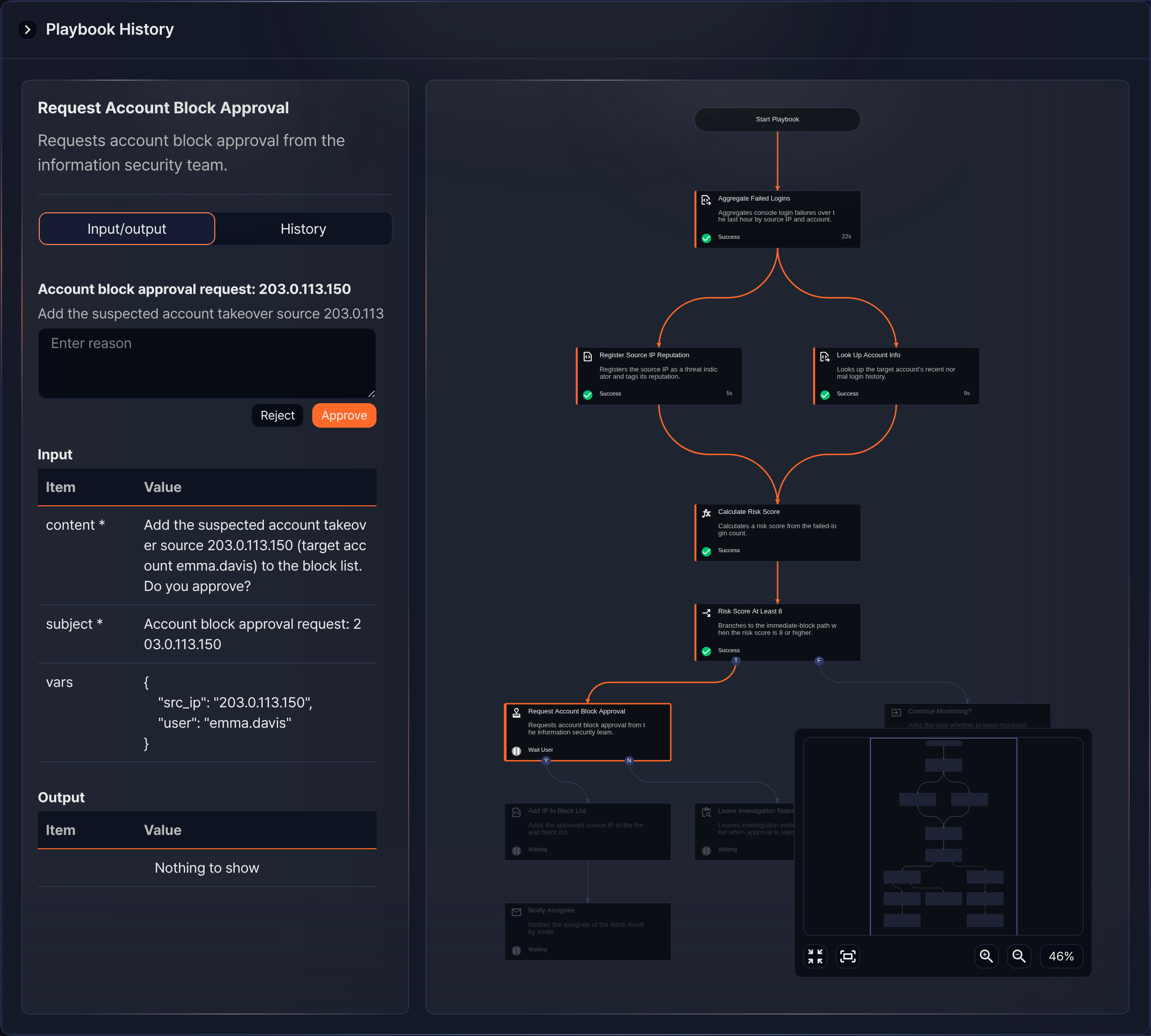
Or open the running playbook from Response > Playbook History and click the approval request task in the flowchart. You can click Approve or Reject directly on the Input/output tab (only available to Cluster Administrators and Administrators).
-
-
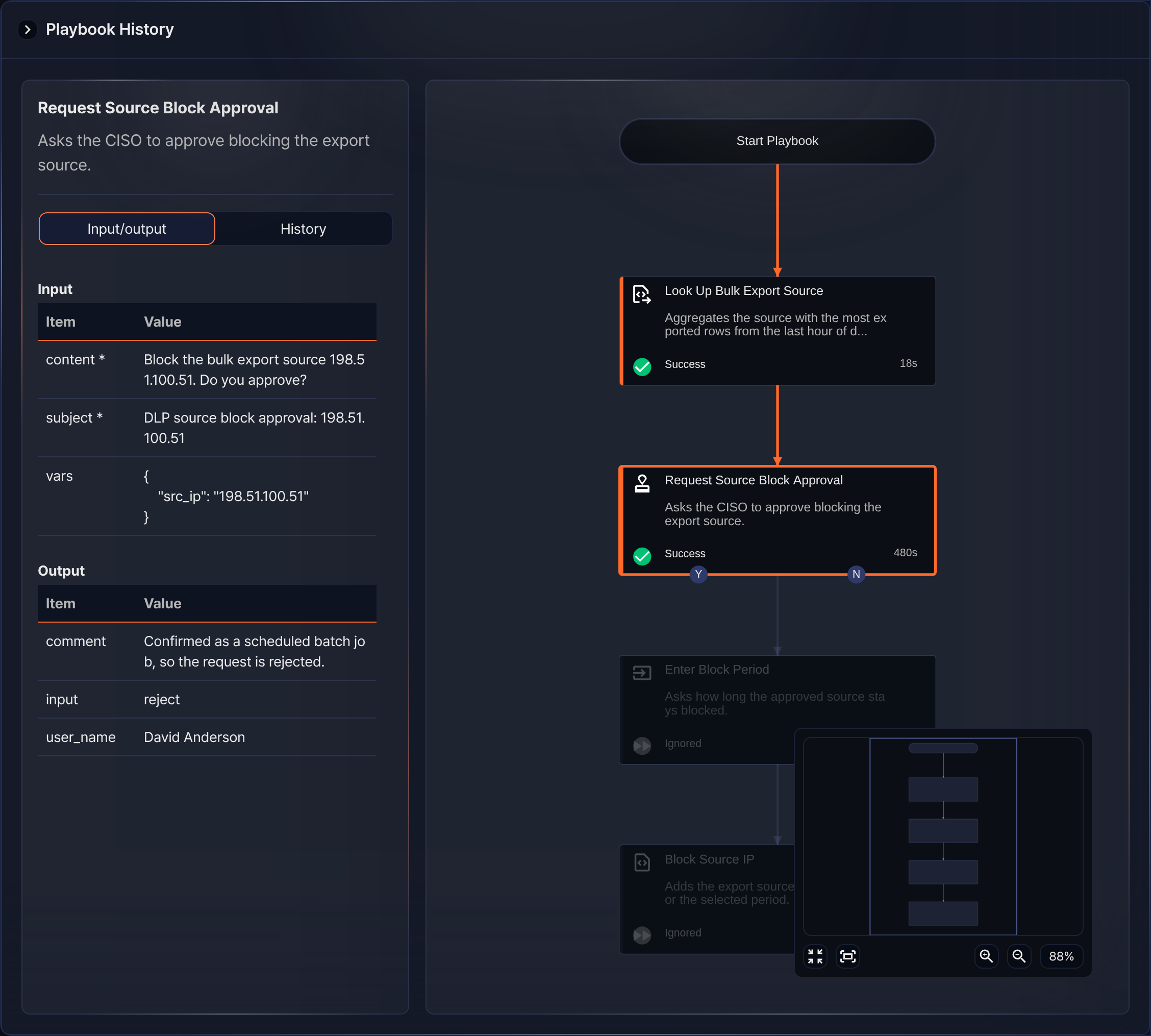
The response decides which task runs next. If approved, the task connected to Y runs. If rejected, the task connected to Y does not run (shown as Ignored), and if a task is connected to N, that task runs instead. Click the completed approval request task to see the response value
input, the responding useruser_name, and the reasoncommentunder Output on the Input/output tab. The rejection example below is a run of the DLP Exfiltration Response playbook. No task is connected to its N connection point, so the tasks on the Y path are shown as Ignored.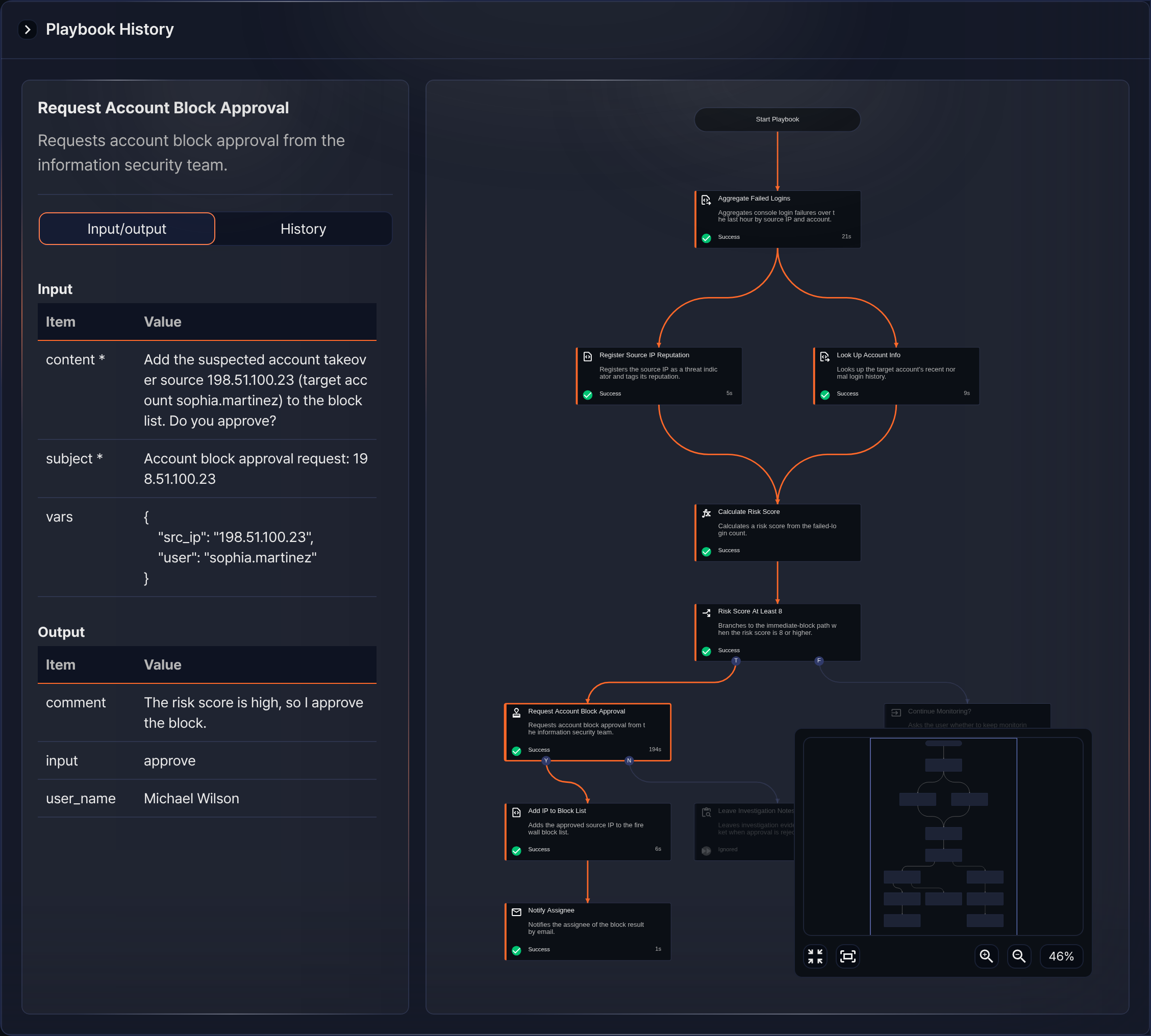
-
You can also check completed responses in Response > Approval Logs. The screen is the same as the approval result example above.