
Datasets
Overview
Use Analysis > Datasets to save analysis conditions that you want to run again later. You can register a plain query as a dataset, or build a correlation-analysis dataset by combining multiple existing datasets. This makes the page a practical handoff point between Pivot, Query, and dashboard workflows.
In practice, a dataset is closer to a saved analysis definition than a permanently frozen result set. If the query uses relative time ranges such as the last hour or the last week, running the same dataset again will reflect the current time window and underlying source data.
Correlation-analysis datasets reuse the same dataset-builder flow that also appears in Pivot. You can assemble datasets here, save the structure, and continue refining the correlation logic from the pivot editor when needed.
Dataset creation queries
Datasets are defined with Logpresso query statements that retrieve and transform data. In practice, dataset queries usually follow this pattern:
- Define the time range. Most datasets use relative time windows, so
durationoptions or time variables are commonly included. - Retrieve data with table or fulltext.
- Apply schema when you need normalized field names and structure.
Below are examples from real app datasets.
Example 1) Query with time variables
The Google Workspace Login dataset from the Google Workspace app (version 1.7.2504.0). When the _from and _to query variables are passed in, the query uses that period; otherwise the nvl default of the last week applies. This lets a dashboard input control drive the period of the dataset.
set _from=string(nvl($("_from"), datetrunc(ago("1w"), "1d")), "yyyyMMddHHmmss")
| set _to=string(nvl($("_to"), now()), "yyyyMMddHHmmss")
| table from=$("_from") to=$("_to") *:GOOGLE_LOGIN* | schema google-workspace-login
Example 2) Query using duration
The FortiGate SSL VPN dataset from the FortiGate app (version 1.3.2502.0):
fulltext tt=t duration=1d subtype == "vpn" and log_desc == "SSL VPN*" from *:FW_FORTIGATE*
| schema fortigate-sslvpn
Dataset query command
You can reuse a saved dataset from a query with the dataset command. The command runs the dataset query with the permissions of the dataset owner.
You can find the dataset GUID in the browser address bar. For example, if the URL looks like .../dataset/3e52c74f-dd74-4894-99d2-c305d5c6d837, that value is the dataset GUID.
The Google Workspace Login Task Statistics widget from the Google Workspace app also references a dataset in this way.
dataset guid="3e52c74f-dd74-4894-99d2-c305d5c6d837"
| pivot count() rows Task | limit 10000
User permissions
Users with dataset-view permission can open the page, but creating, editing, and deleting datasets depends on dataset-edit permission as well as ownership or sharing rules.
App datasets
When you install an app, the app can include datasets used by its dashboards and analysis examples.
- App datasets may be refreshed when the app is reinstalled or updated.
- The administrator who installed the app becomes the owner of those datasets.
- Standard users must be included in sharing settings to reuse app datasets in pivot, query, or widget workflows.
App datasets often use a table pattern like this:
*:TABLE_NAME*
*:means all data nodes.- The trailing
*acts as a wildcard suffix. - In production environments, it is better to keep table names consistent by combining source category and device identity.
View and search the dataset list
You can browse or search datasets in Analysis > Datasets.
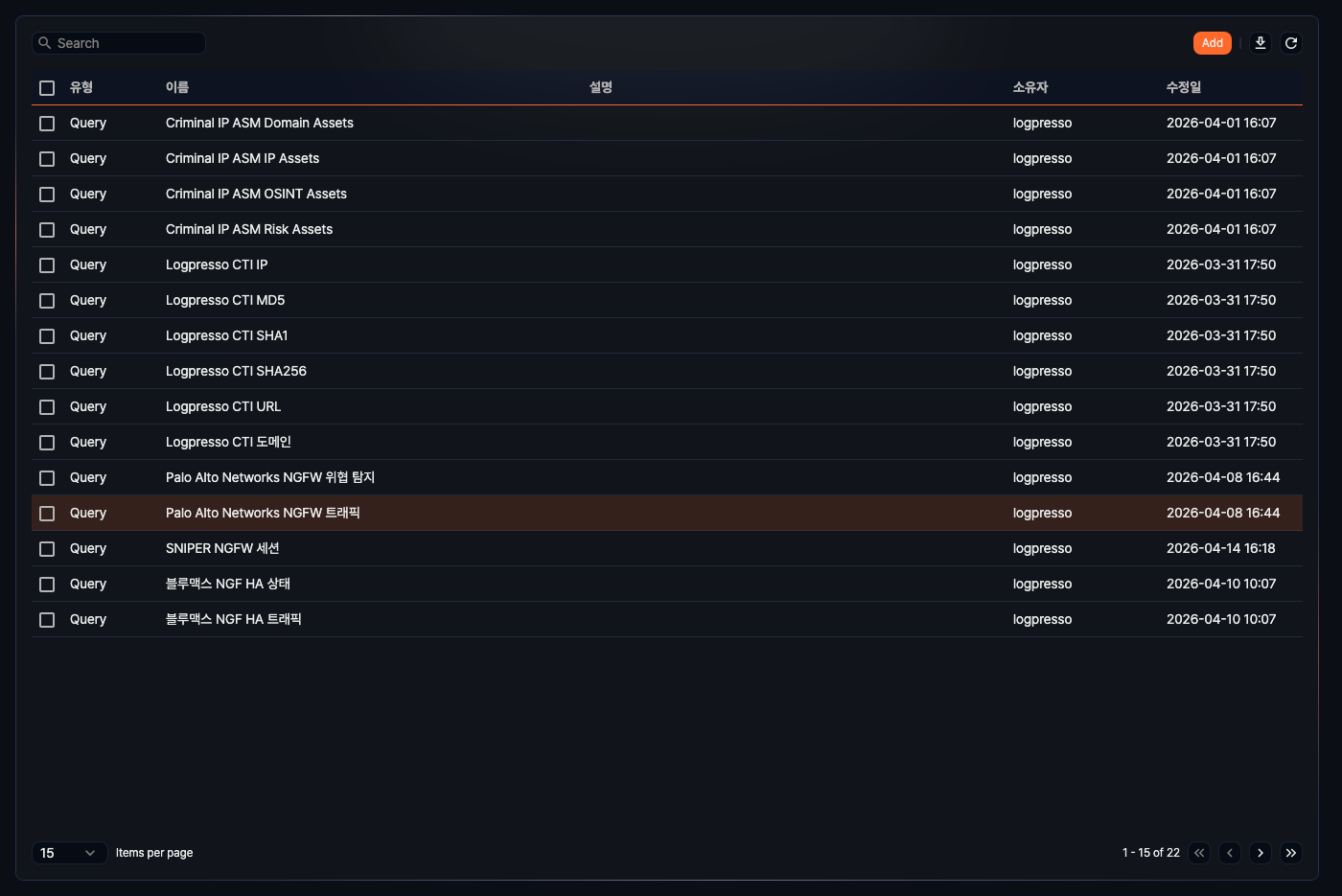
- Type: Shows whether the dataset is a Query dataset or a Correlation Analysis dataset.
- Name: The dataset name. Clicking a row opens the edit side panel.
- Description: A short explanation of the dataset.
- Owner: The account that created the dataset.
- Modified At: The most recent update time.
To find a dataset quickly, type part of its name in the Search box on the left of the toolbar. Only datasets whose names contain the text remain in the list. If you type several words, only datasets containing all of them are shown.
Download the list
To export the dataset list, click  in the toolbar. The Download Datasets dialog opens.
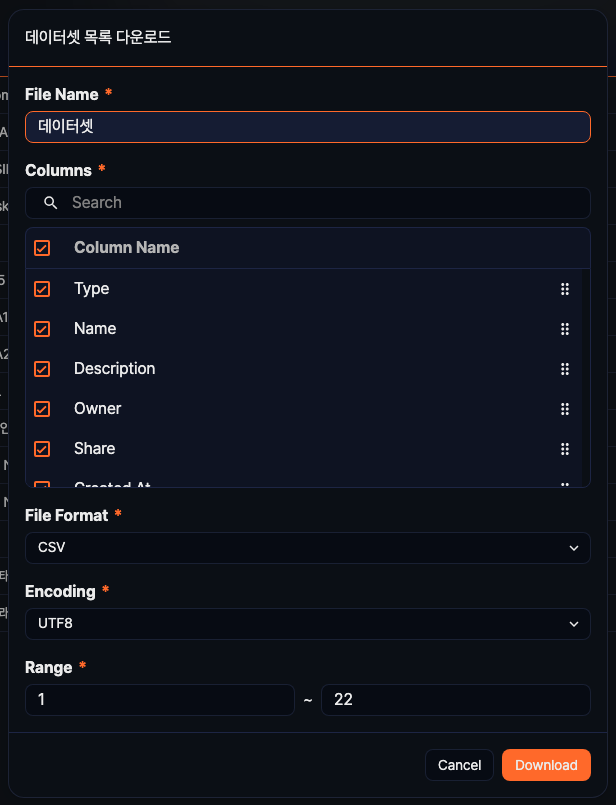
- File Name: Name of the export file (required, up to 200 characters, default: Dataset).
- Columns: Columns to include in the file. The list also offers the Share and Created At columns that the list screen does not show, and all columns are selected by default. Drag the handle on the right to reorder them.
- File Format: Choose CSV, XML, Microsoft Word, HTML, JSON, or PDF (default: CSV).
- Encoding: Character encoding for the file. Shown only when File Format is CSV or JSON. The default depends on the console language (English: UTF8, Korean: MS949).
- Range: First and last row numbers of the datasets to include. The default runs from the first item number on the current page to the total count.
When the settings are complete, click Download.
Refresh the list
To reload the latest dataset information, click  in the toolbar.
Add a dataset
To add a dataset:
-
In Analysis > Datasets, click Add in the toolbar.
-
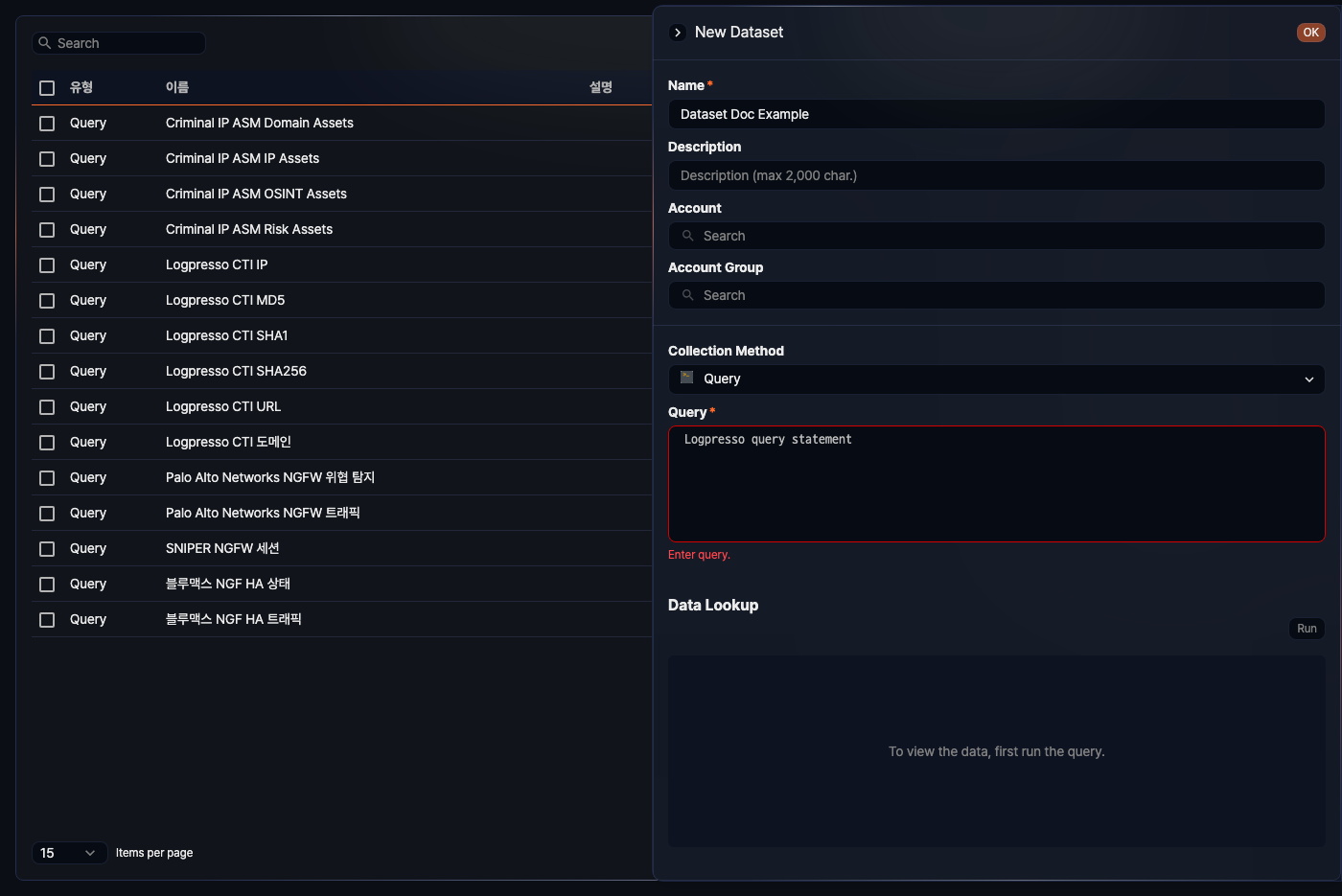
Fill in the fields in the New Dataset side panel.
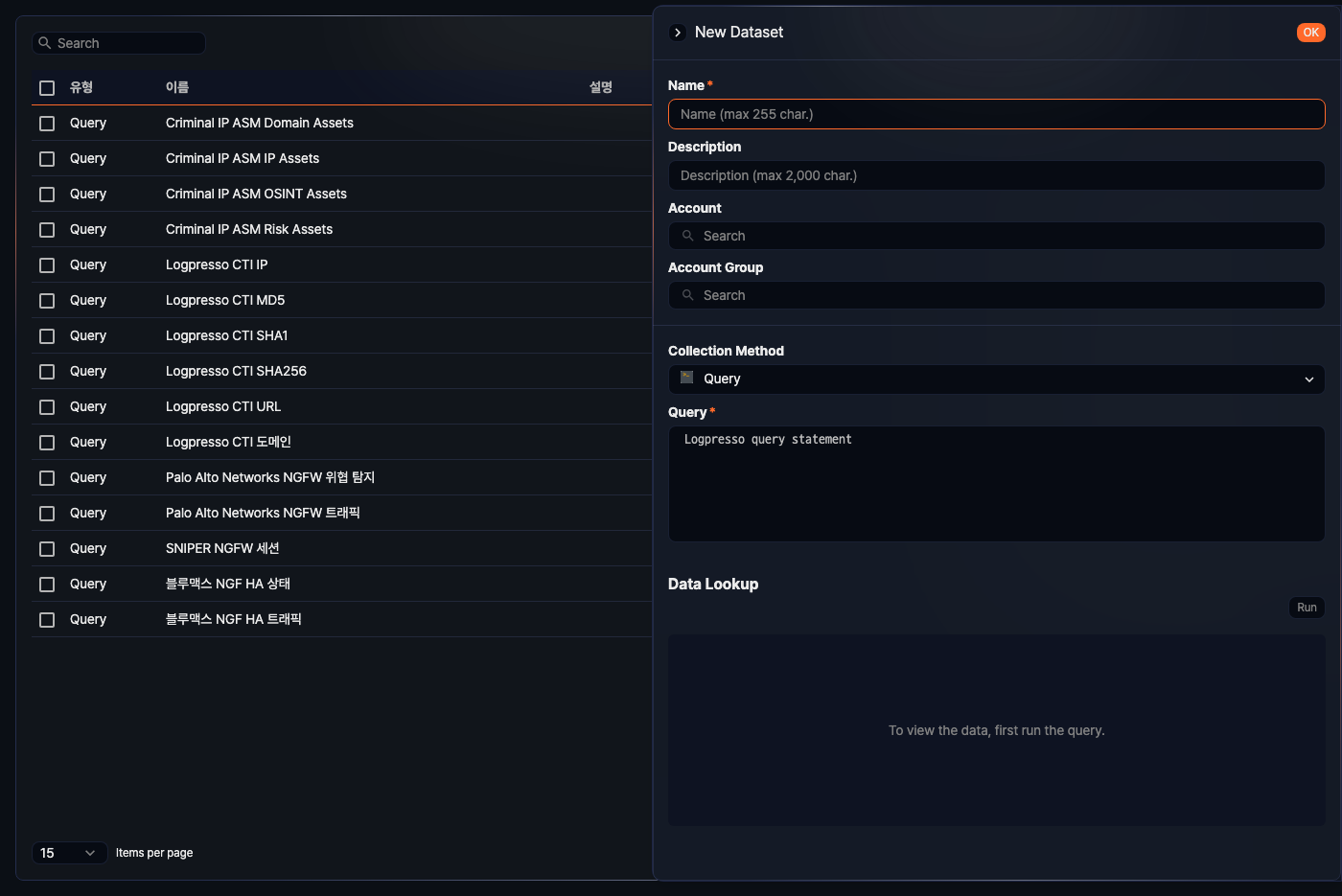
- Name: Dataset name (required, up to 255 characters).
- Description: Dataset description (up to 2,000 characters).
- Account: Search for and add accounts to share the dataset with.
- Account Group: Search for and add account groups to share the dataset with.
- Collection Method: How the dataset is built (default: Query, range: Query, Correlation Analysis).
- Query: Enter the query that defines the dataset in the Query field below.
- Correlation Analysis: Combine existing datasets in the correlation builder. See "Add a correlation analysis dataset" below.
- Query: The query string for the dataset (required). Shown when Collection Method is Query. Pivots and widgets that use the dataset cannot set a time range of their own, so bound the period inside the query with the
durationoption or time variables. - Data Lookup: Runs the query you entered so you can inspect the result before saving. Until you run the query, the area shows "To view the data, first run the query."
-
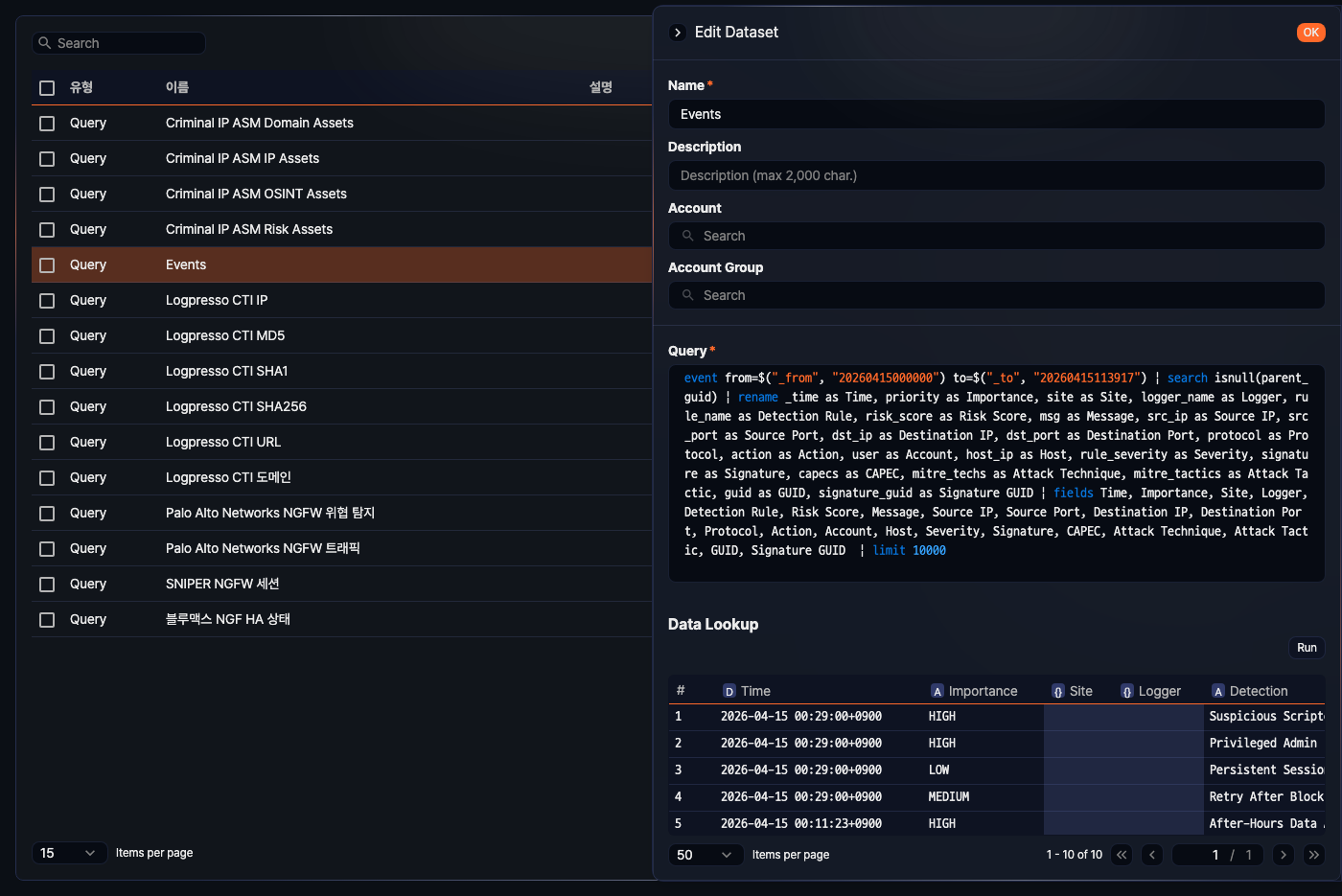
In Data Lookup, click Run to make sure the result is valid. While the query runs, a Cancel Query button appears next to Run. The result shows 50 rows per page.
-
When the definition looks correct, click OK at the top of the side panel.
If you click OK with Name or Query empty, the dataset is not saved and an error message appears under the field.
Add a correlation analysis dataset
To combine existing datasets into a correlation-analysis dataset, change Collection Method to Correlation Analysis. The Correlation Analysis builder replaces the Query field.
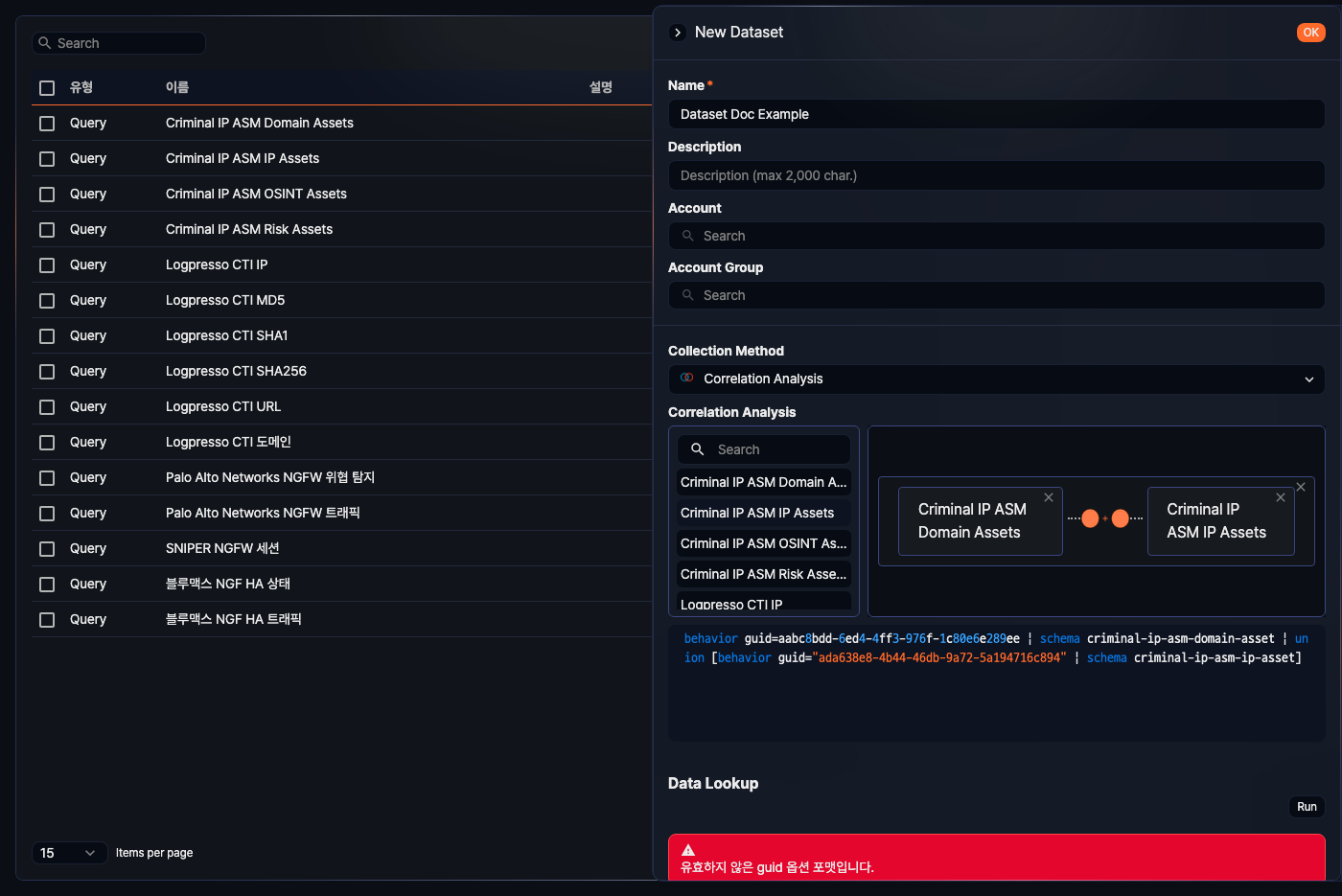
- The left panel contains a search box and the list of available datasets.
- The builder area on the right shows the dataset cards you placed and how they are connected. Before you place a card, it shows "Create dataset by using drag & drop."
- The query pane below the builder shows the execution query generated from the current structure, read-only.
To build a correlation-analysis dataset:
-
Search or find the datasets to use in the left panel.
-
Drag each dataset into the builder area on the right.
-
For the second dataset and after, drop the card on the left or right side of the existing card to define the correlation order. Click the close icon at the top right of a card to remove it from the structure.
-
Click the connector icon between the cards to choose the correlation type (default: Union).
The Data Correlation dialog opens.
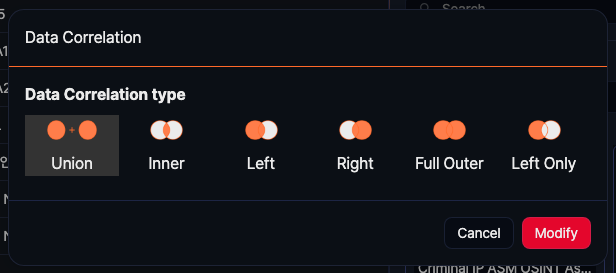
- Union: Appends the two dataset results.
- Inner, Left, Right, Full Outer, Left Only: Each join mode changes which part of the joined result is retained.
- When you choose a mode other than Union, a join-key area appears below. Select columns that both datasets share, or enter them manually. If no joinable column information exists, the dialog shows "Accessable column information not exists."
The Modify button appears after you choose the type and set any required join keys. Click Modify to apply.
-
Review the execution query generated below the builder, then click Run in Data Lookup to preview the result.
-
Click OK when the configuration is ready to save.
Edit a dataset
To edit a dataset:
-
Click the row you want to edit in the dataset list.
-
Update the fields in the Edit Dataset side panel.
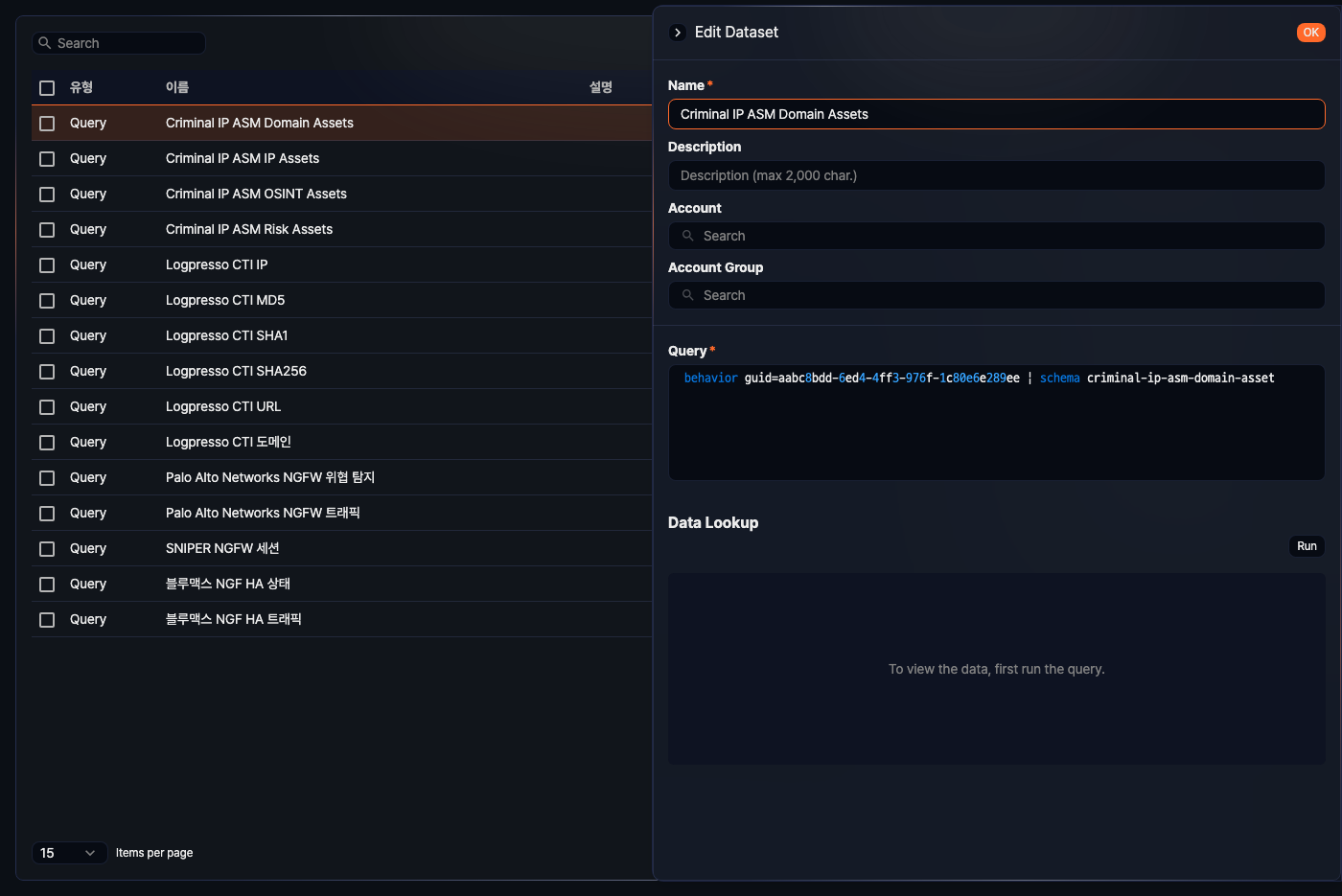
- For query datasets, you can update Name, Description, Account, Account Group, and Query. Collection Method is not shown in edit mode and cannot be changed.
- Data Lookup is still available in edit mode, so you can click Run to check the result again before saving.
-
Click OK to save the change.
Edit a correlation analysis dataset
When you open a correlation-analysis dataset in edit mode, the Run Plan area replaces the query field.
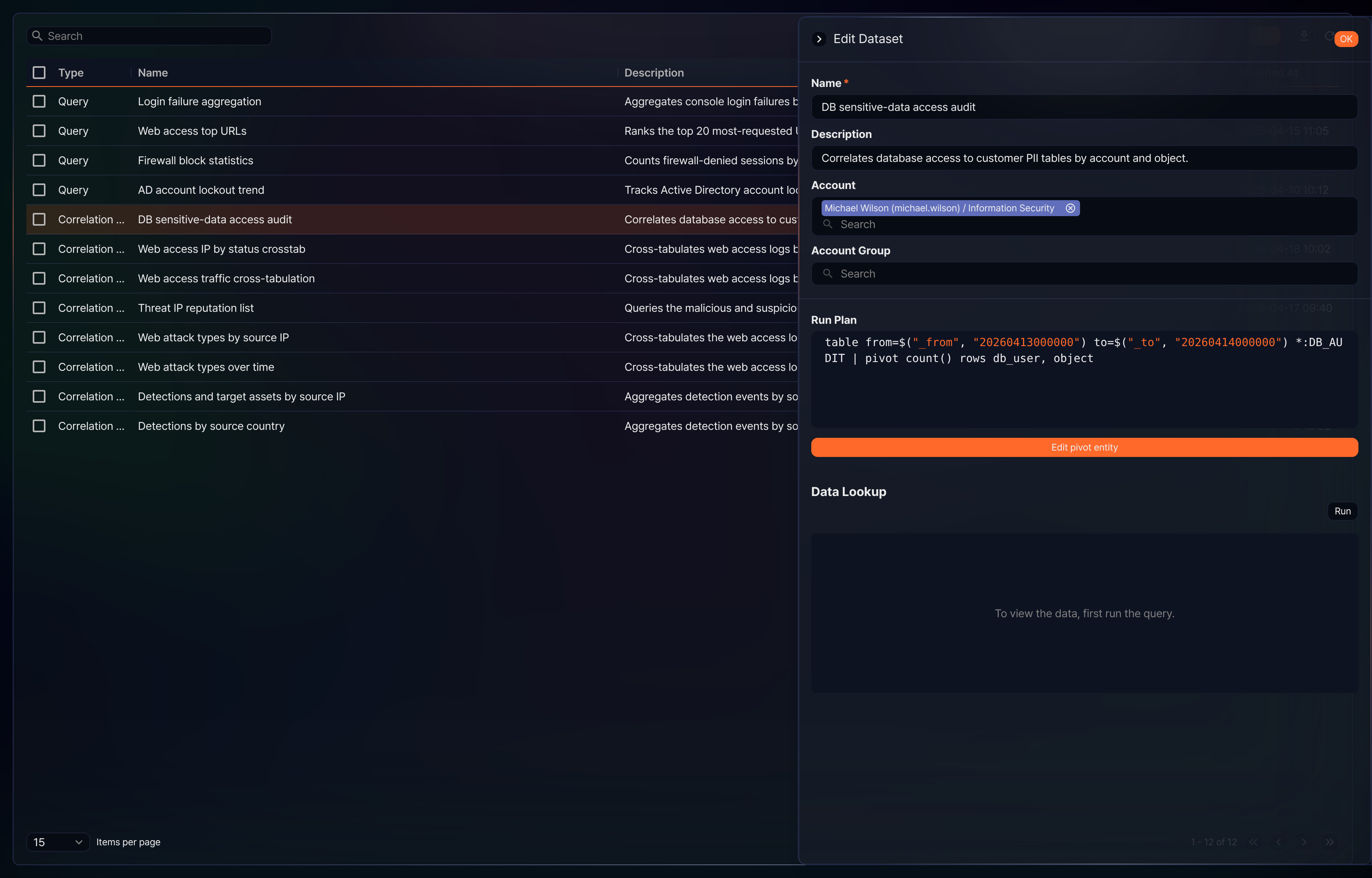
- Correlation Analysis: If the saved structure joins two datasets, the builder is also shown read-only.
- Run Plan: Shows the query generated from the saved correlation structure, read-only.
- Edit pivot entity: Opens the pivot screen so you can modify the correlation logic. Shown only when you have permission to edit the dataset.
Delete datasets
To delete datasets:
-
Select one or more rows with the checkboxes in the list.
-
Click Delete in the toolbar that appears.
-
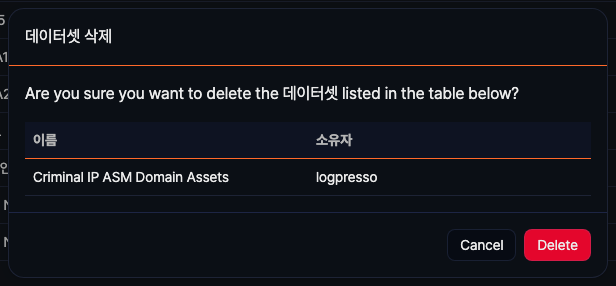
In the Delete Dataset dialog, check the name and owner of each dataset and click Delete.
Generate a dashboard from selected datasets
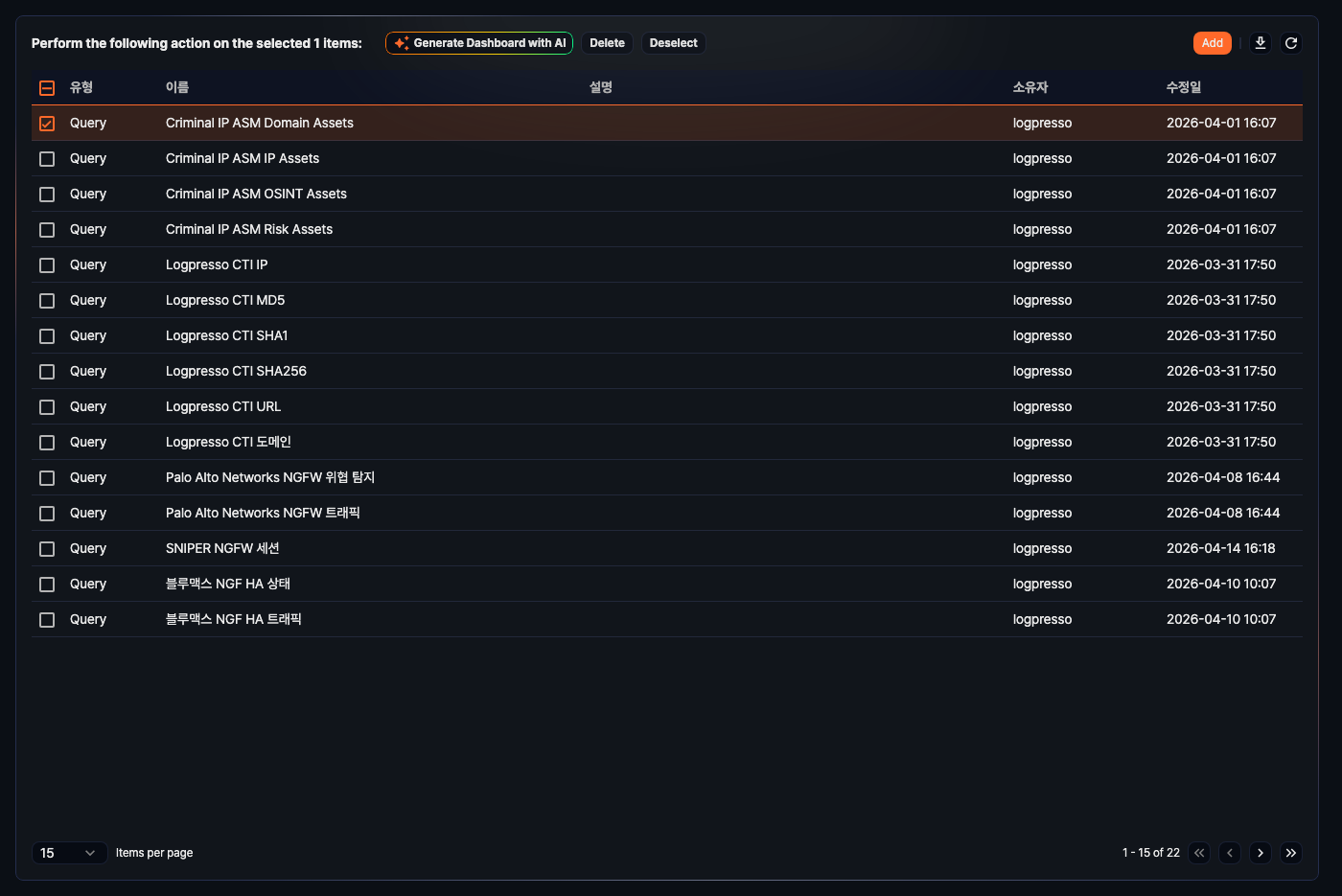
If your account has both dashboard edit and dashboard widget edit permissions, the Generate Dashboard with AI button also appears in the toolbar when you select datasets.
This feature uses the small language model (sLLM) of Logpresso AI Assistant. It requires the following:
- Connect profile: At least one connect profile of type Logpresso AI Assistant must exist. If there are several, the first profile visible to your account is used. Without a profile, the generation task ends with a failure dialog.
- Concurrency limit: A server runs at most 4 AI generation tasks at the same time. Beyond that limit, the task fails with the message "Too many running tasks. Please retry later."
To generate a dashboard from datasets:
-
Select one or more datasets in the list.
-
Click Generate Dashboard with AI.
-
Fill in the Generate Dashboard with AI dialog and click Generate.
- Dataset: The datasets you selected. You cannot change them here.
- Name: Name of the dashboard to generate (required, up to 50 characters).
- Prompt: Instructions to reflect in the dashboard layout (up to 2,000 characters).
The task analyzes the selected datasets, picks the ones to become tabs, creates the dashboard, and adds one tab with widgets per dataset. If you leave Name empty, the task names the dashboard. Generation may take a few seconds to minutes depending on the data size. On success, the result dialog offers Open in New Window to open the generated dashboard; on failure, the failure dialog shows the reason.
How datasets are reused
Saved datasets can be reused in these common flows:
- Load them as a source in Pivot for further aggregation and visualization.
- Reference them from a query with
dataset guid="...". - Use them as a data source for dashboard widgets.
- Combine them with other datasets when building correlation-analysis datasets.