
Users
Overview
You can register and manage users in the Users page. All users can access the web console and the REST API within the scope of the data granted by their assigned roles and access rights.
User roles
The user roles are as follows:
- Cluster Administrator
-
The top-level role that can use every feature of Logpresso Sonar. The first account you create in the Register the cluster administrator step of the web installer has this role. Only the Cluster Administrator can do the following:
- Use the Cluster, Performance Monitor, License, Mail Server, Push Templates, Query Monitor, Audit Logs, System Log, Certificate, and Package menus under Settings
- Add, edit, and delete parsers, log schemas, and logger models
- Manage accounts with the Cluster Administrator or Administrator role
-
In a default installation, the Policies > Rule Categories menu is also shown only to the Cluster Administrator.
- Administrator
-
A role that can use every feature except the operations reserved for the Cluster Administrator. Administrators can access all ticket repositories and tables, and can view parsers, log schemas, and logger models. Under Settings, they can use the Sentries, Tables, SSO, Connect Profiles, Response Targets, and AI Prompt menus. They can add, edit, and delete accounts with the User or Dashboard Publisher role, and can also edit their own account information.
- User
-
A role for the features needed in security operations. Users can access only the ticket repositories and tables granted to their account (see the account's Permissions settings). They cannot use the Loggers and Settings menus. For details, refer to the Account permission reference.
- Dashboard Publisher
-
A role for publishing dashboards externally. It can view only the data needed to display published dashboards. For the publishing steps, see Publish Dashboard under Management menu in the dashboard documentation.
MFA
You can apply MFA when logging into an account to enhance security. Both Email and OTP methods are supported. For OTP, any OTP app that complies with Google Authenticator or RFC 6238 can be used.
API key
An API key is required to use the Logpresso REST API. API keys are generated on a per-account basis and have permissions based on the roles assigned to the account. When you create an account with the Dashboard Publisher role, the server automatically issues an API key at the same time.
Search users
Cluster Administrators and Administrators can view the user list on the Users > Users page. Accounts with the User role cannot view the user list.
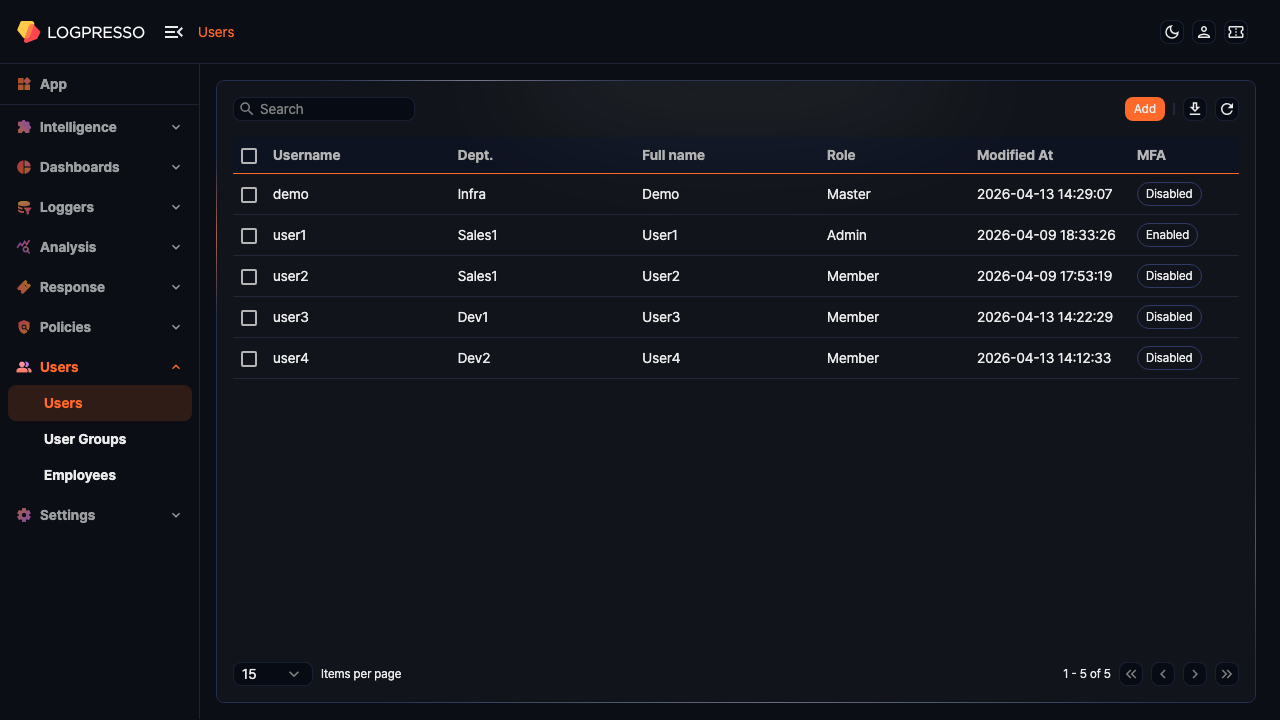
The columns in the user list are as follows:
- Username: The ID used to log into Logpresso Sonar
- Dept.: The department to which the user belongs
- Full name: The actual name of the user
- Role: The role assigned to the account: Master (Cluster Administrator), Admin (Administrator), Member (User), or Dashboard Viewer (Dashboard Publisher)
- Modified At: The date and time the account was last modified (
yyyy-MM-dd HH:mm:ssformat) - MFA: Whether MFA is enabled. Displayed as an Enabled or Disabled badge.
The list is sorted by Username in ascending order.
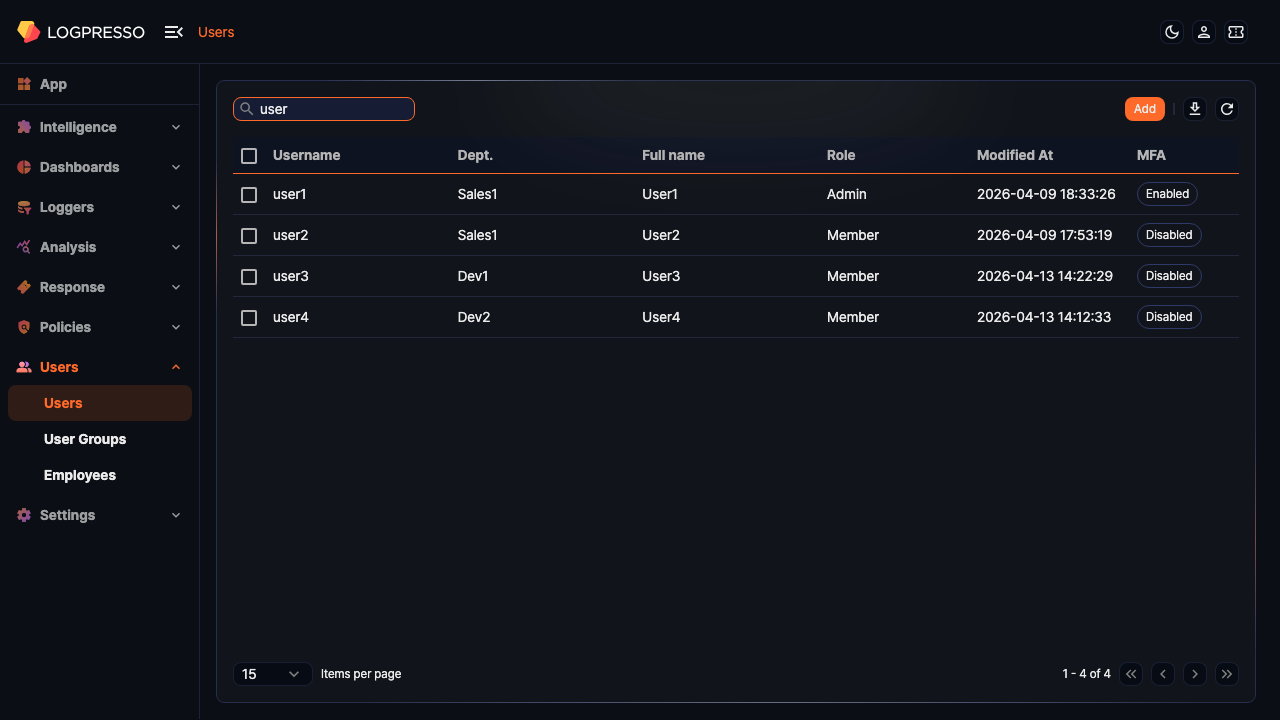
To find a specific account in the list, use the search tool in the toolbar. The search tool displays accounts that contain the entered words in Username, Dept., Full name, Title, Telephone, or Mobile. If you enter multiple words separated by spaces, the search tool finds only accounts that contain all of the words. The search tool is case-sensitive.
Click the  icon in the toolbar to download the list as a file, or the
  icon to refresh the list.
Add user
To add a user:
-
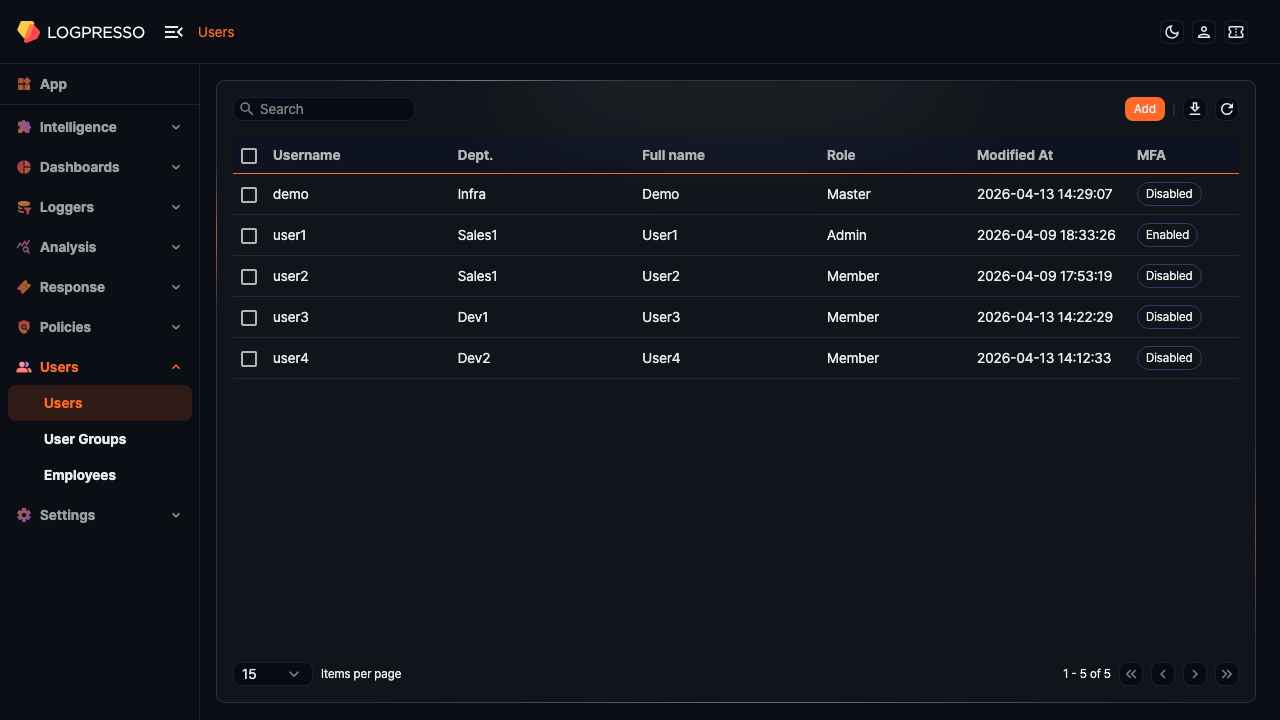
Click Add in the toolbar on the Users > Users page.
-
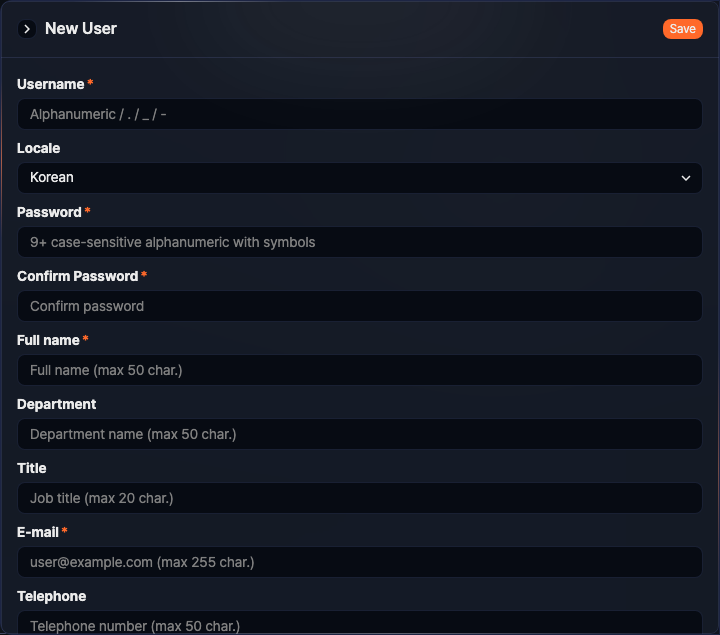
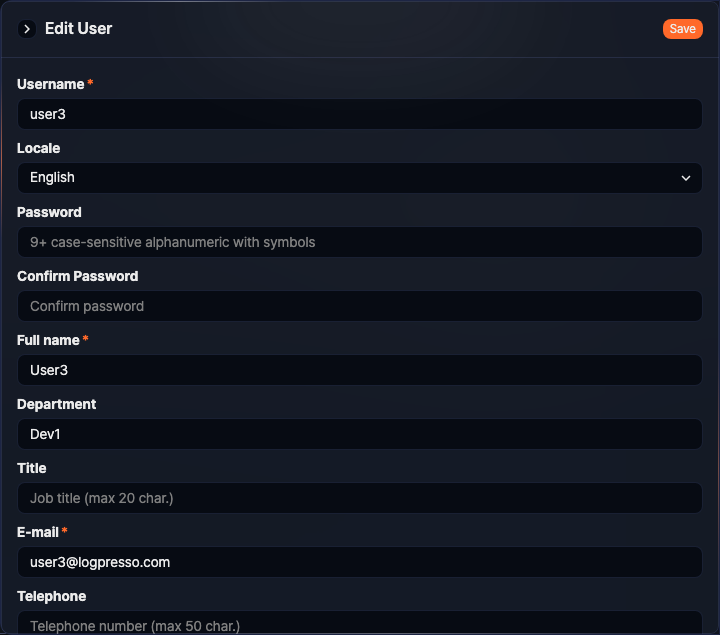
In the New User panel, enter or select properties for Basic settings, Security settings, Groups, and Permissions. Fields marked with * are required.
-
Review the entered or selected properties and click Save in the upper right corner.
To close the panel without saving, click  in the upper left of the panel, or press Esc. If you have unsaved changes, the Confirm Changes dialog opens. Click Confirm to discard the changes and close the panel.
The following sections describe the settings available when adding a user.
Basic settings
General settings for the user account.
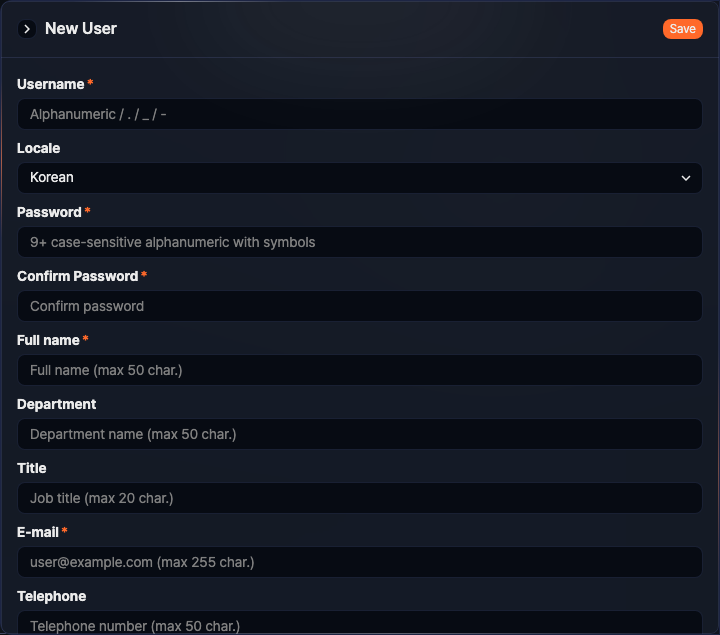
- Username
- The ID used to log into Logpresso Sonar. You can only use English letters (uppercase and lowercase), numbers, periods (
.), underscores (_), and hyphens (-, not allowed as the first character). (Required, maximum 255 characters)CautionYou cannot use admin, administrator, manager, root, logpresso, sonar, siem, maestro, or xdr as a username. These names are case-insensitive.
- Locale
- The language to apply in the web console after logging into Logpresso Sonar. Choose from Korean, English, or Japanese.
- Password, Confirm Password
- The password used for authentication when logging in. Enter the same value in both the Password and Confirm Password fields. The password must satisfy the Password policy configured on the system. By default, it must be at least 9 characters long, include letters, numbers, and special characters, and must not repeat the same character three times in a row. (Required when creating a new account) This field does not appear when the authentication server is set to External server only.
- Full name
- The actual name of the user. (Required, maximum 50 characters)
- Department
- The department to which the user belongs. (Maximum 50 characters)
- Title
- The user's job title. (Maximum 20 characters)
- The email address to receive emails sent by Logpresso Sonar. (Required, maximum 255 characters)
- Telephone
- The user's phone number. (Maximum 50 characters)
- Mobile
- The user's mobile phone number. If Logpresso Sonar is configured to send SMS to users, the registered mobile phone number will be used. (Maximum 50 characters)
- Role
- The role for the account. A Cluster Administrator can choose from Master (Cluster Administrator), Admin (Administrator), Member (User), or Dashboard Viewer (Dashboard Publisher). An Administrator can choose only Member or Dashboard Viewer. (Default: Member) You cannot change your own role.
- Start Page
- The screen to use as the start page in the web console session for the logged-in account. If left unset, the account is taken to the default start screen.
Security settings
Security settings for the account. Security settings are shown only when you can edit the account. A Cluster Administrator can edit the security settings of any account. An Administrator can edit them only for accounts with the User or Dashboard Publisher role. When an Administrator opens their own account, security settings are not shown.
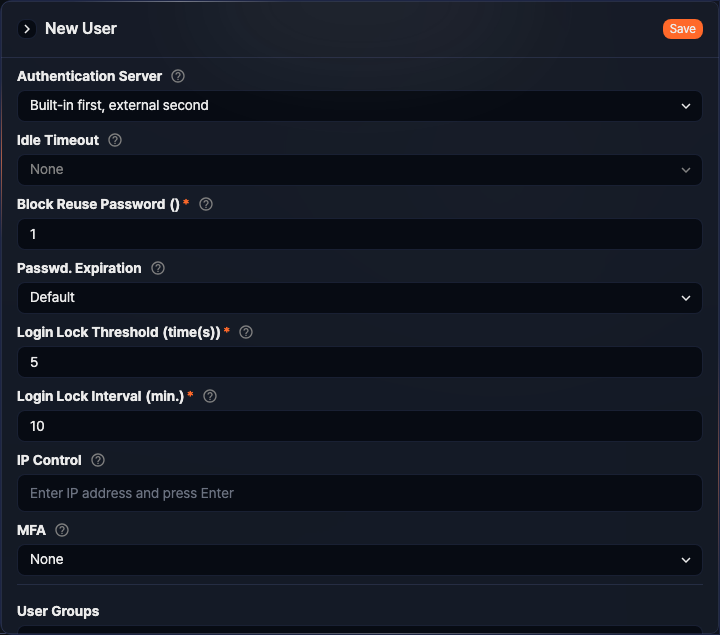
- Authentication Server
-
The server to use for account authentication. (Default: Built-in first, external second)
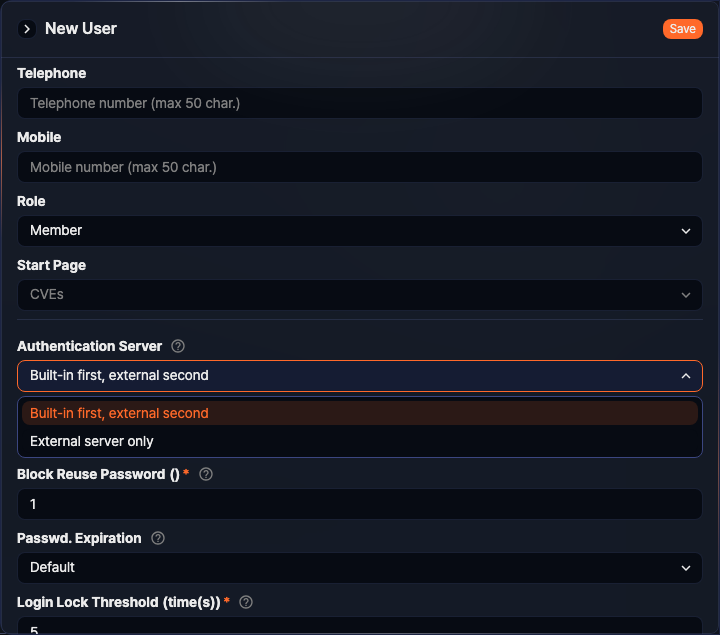
- Built-in first, external second: Attempts to authenticate the account matching the username from all authentication servers configured on the server. It first tries local account authentication, then external authentication servers. The usernames for local accounts and external authentication servers must be identical.
- External server only: Authenticates the account using the authentication information provided by an external authentication server.
- Idle Timeout
-
The policy applied to a user session when there is no activity for a specified period. Choose from None, Locking, or Logout. (Default: None) When Locking or Logout is selected, the default idle time is 60 seconds. You can configure the idle timeout between 60 and 604,800 seconds (7 days).
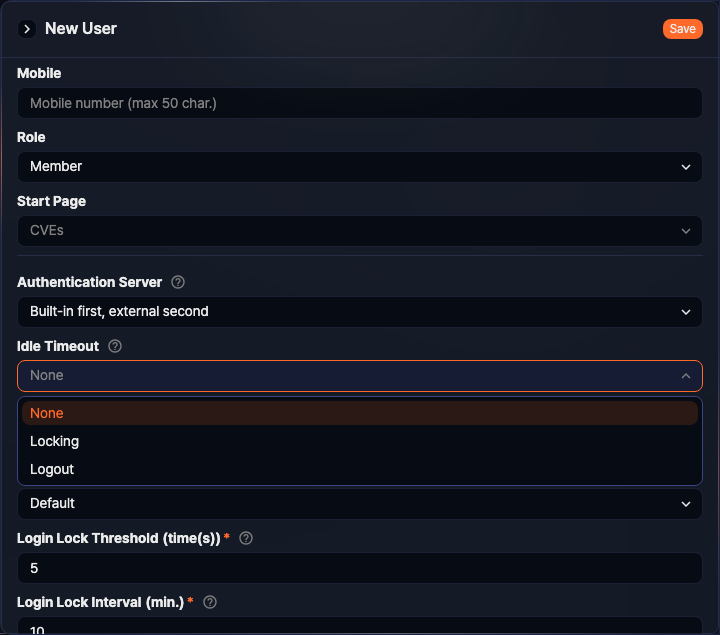
- Block Reuse Password
-
A policy that prevents users from reusing previous passwords when changing their login password. The server remembers the hash values of previously used passwords for the specified count and blocks reuse. (Default: 1, valid range: 0-23)
- Passwd. Expiration
-
The period during which the password can be used after being set. Choose from Default (365 days), Custom, or Indefinite. This option is not displayed when the authentication server is set to External server only.
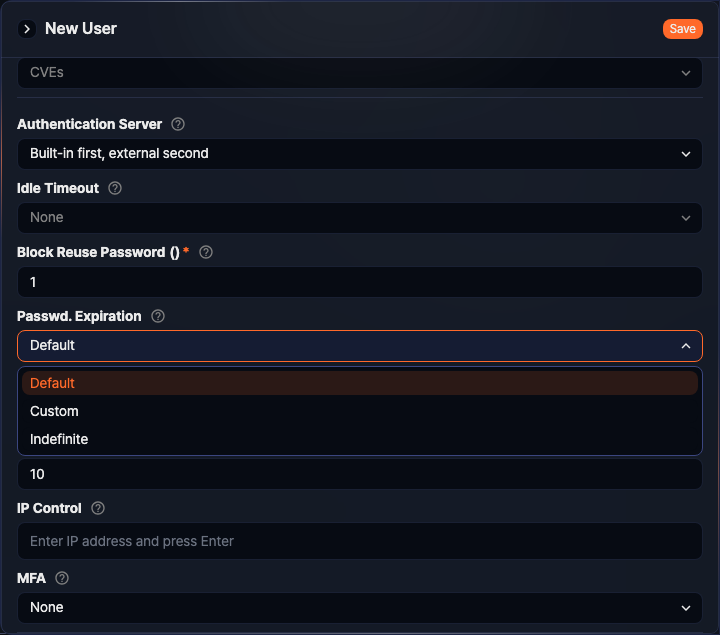
- Default: 365 days.
- Custom: Defaults to 7 days. You can set a value between 7 and 3,650 days.
- Indefinite: No expiration period is applied to the password.
-
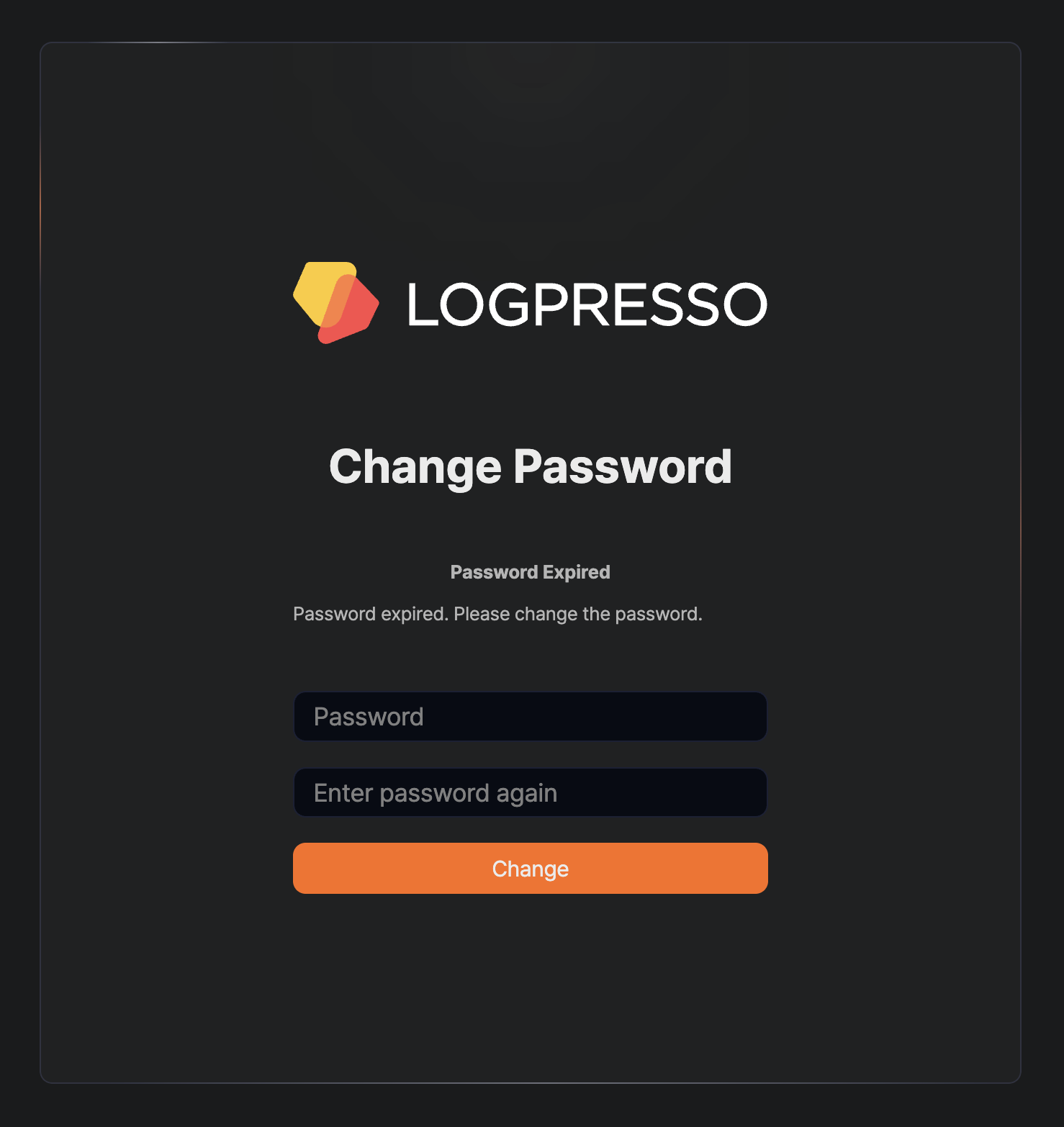
Starting 7 days before expiration, the server displays a password change popup showing the number of days remaining, at login and when unlocking a session. Click Change later to postpone the change.
-
Once the expiration date passes, Change later no longer appears, and the user must change the password to continue.
- Login Lock Threshold
-
The number of consecutive failed login attempts before locking the account. When the specified number of failures is reached, the account is locked and login is blocked. (Default: 5, valid range: 0-5) Setting this to
0disables account locking. - Login Lock Interval
-
The duration for which the account lockout is applied. The default is 10 minutes, and the maximum is 100,000,000 minutes (about 190 years). (Valid range: 1-100,000,000 minutes)
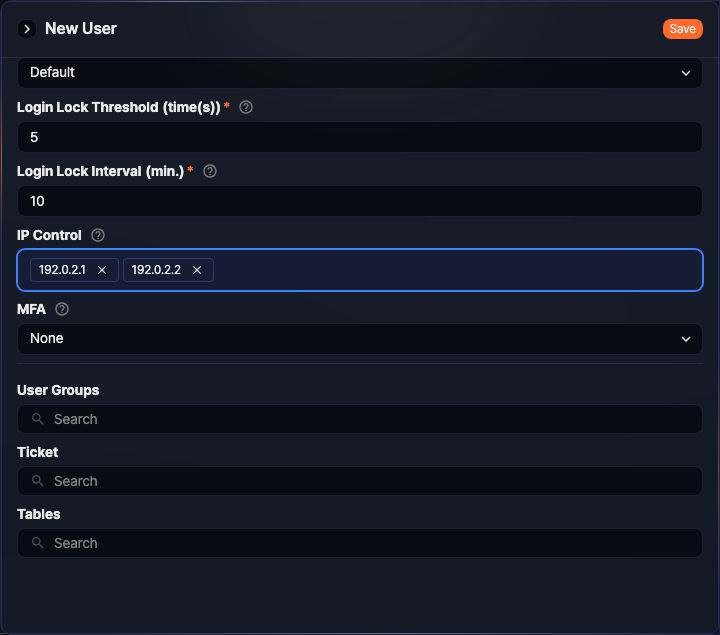
- IP Control
-
Used to restrict the IP addresses from which the account can log in. Enter an IPv4 address and press Enter. The maximum number of entries depends on the server configuration; the default maximum is 2. If you leave it empty, the account can log in from any IP address.
- MFA
-
The MFA method to apply. (Default: None) Choose from None, Email, or OTP.
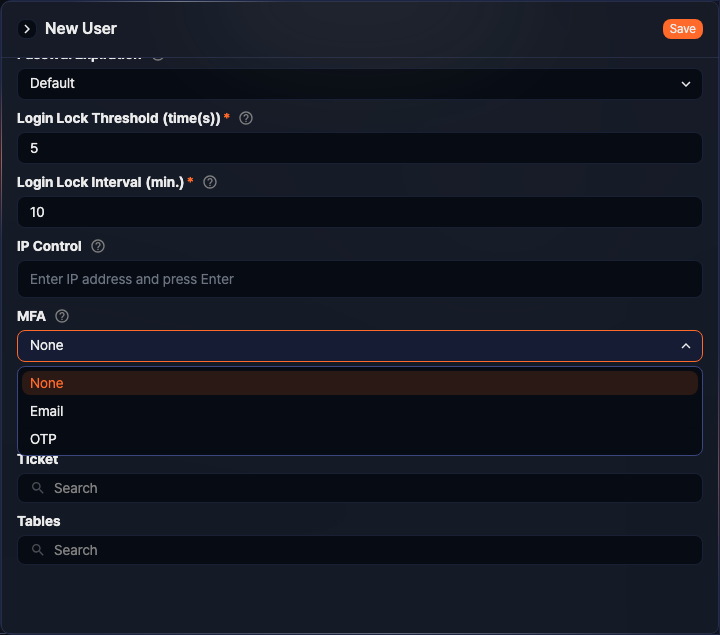
- None: MFA is not used.
- Email: Sends a verification code by email for two-factor authentication. An email server must be configured to use this option.
- OTP: Uses Google Authenticator or any OTP app that complies with RFC 6238.
-
For information on how users log in using MFA, refer to Two-factor authentication (2FA).
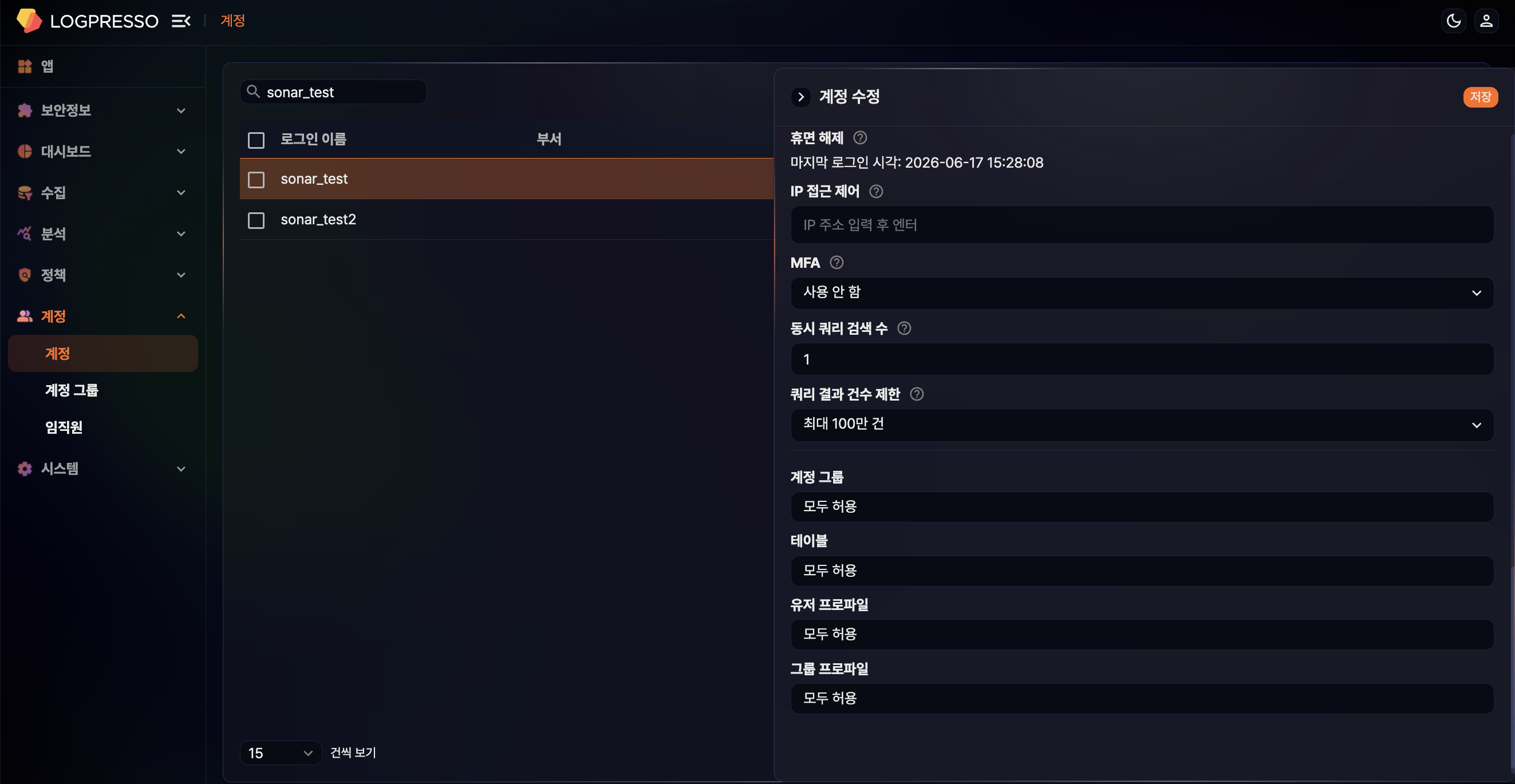
- Max concurrent queries
-
The concurrent execution limit checked when a user runs a query in the query menu (valid range: 1-999). It counts that user's queries running in the query menu and in the pivot and event screens. Queries run from a dashboard widget or the REST API are not counted. Leave it empty to apply no limit.
- Max query row limit
-
The maximum result row count the user can select in the query menu. Choose from Unlimited, Max 10,000, Max 100,000, or Max 1,000,000 (default: Unlimited).
Groups
In the User Groups section, you can assign the account to user groups. For an account with the Cluster Administrator or Administrator role, this field shows All allowed and you cannot assign it to a user group. To add such an account as a member, use User Groups instead.
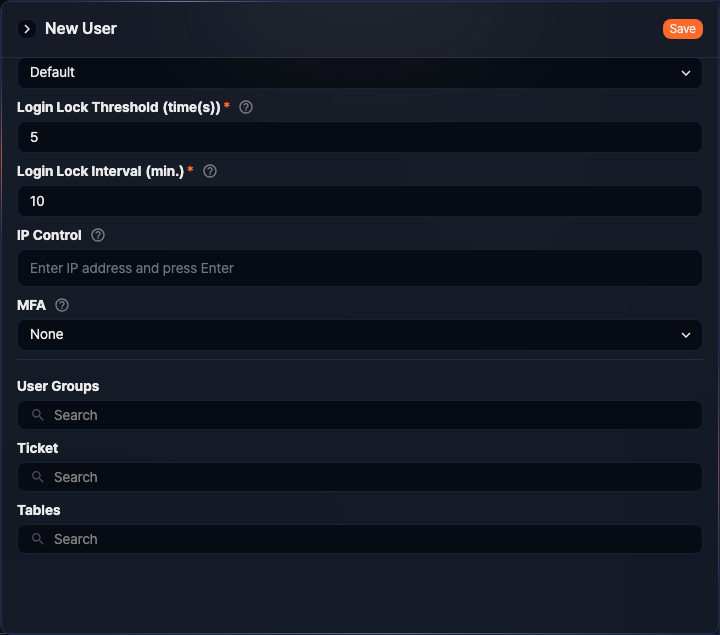
To assign the account to a group:
-
Click the user group input field to display the list of user groups. If you enter a search term, only user groups whose name or description contains that string remain (not case-sensitive). Click the user group to assign the account to it.
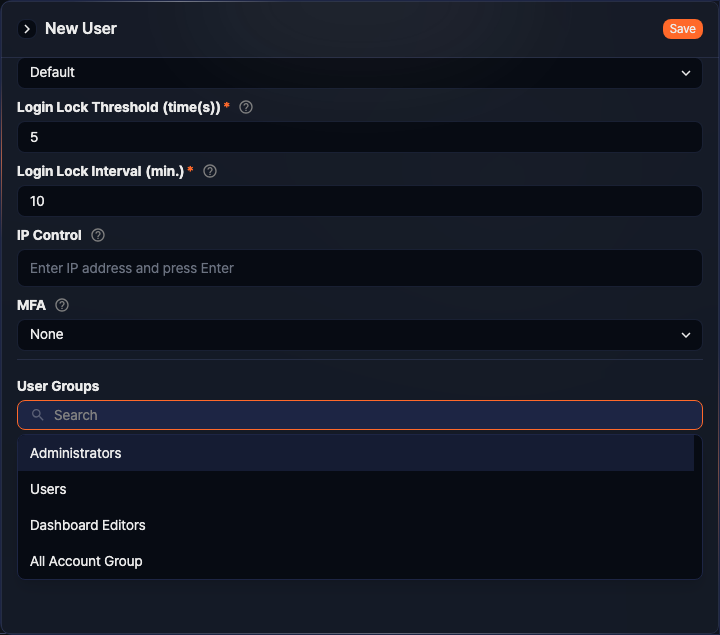
-
To assign the account to multiple groups, repeat the steps above.
-
To remove the account from an assigned group, click the remove icon next to the group name. The removal takes effect only after you click Save.
Permissions
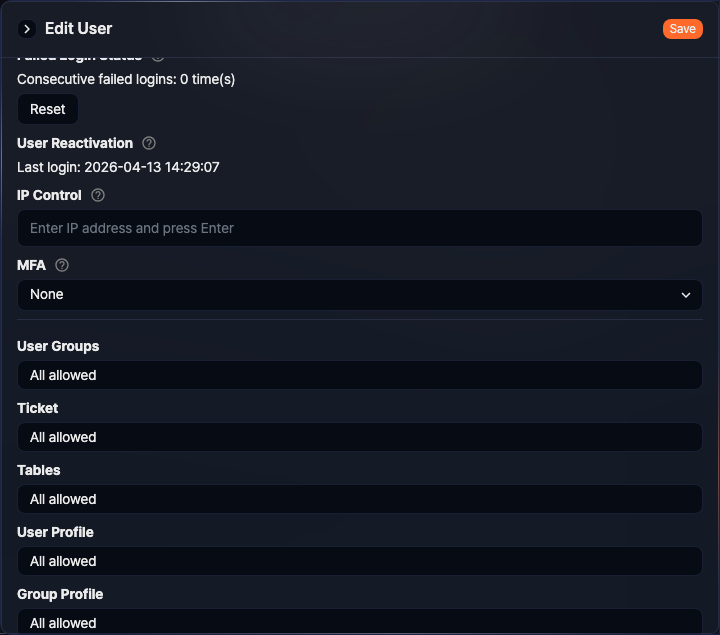
Permissions define the Ticket Repositories and Tables that the account can access. The fields on screen are labeled Ticket and Tables. When the role assigned to the account is User or Dashboard Publisher, access is granted only to the specified ticket repositories and tables. Cluster Administrators and Administrators have access to all tickets and tables, and this screen shows All allowed instead of individual selections for them.
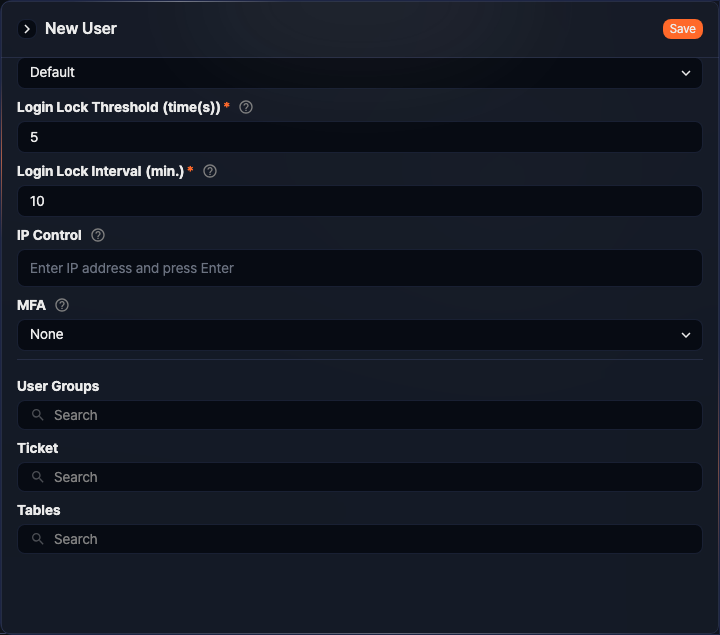
- Ticket
- The ticket repositories accessible with this account. No ticket repositories are selected by default. Select only the repositories you want to grant access to.
- Tables
- The tables accessible with this account. No tables are selected by default. Select only the tables you want to grant access to.
Edit user
To modify user properties such as the password, or to unlock a locked account:
-
Click the row of the account in the list.
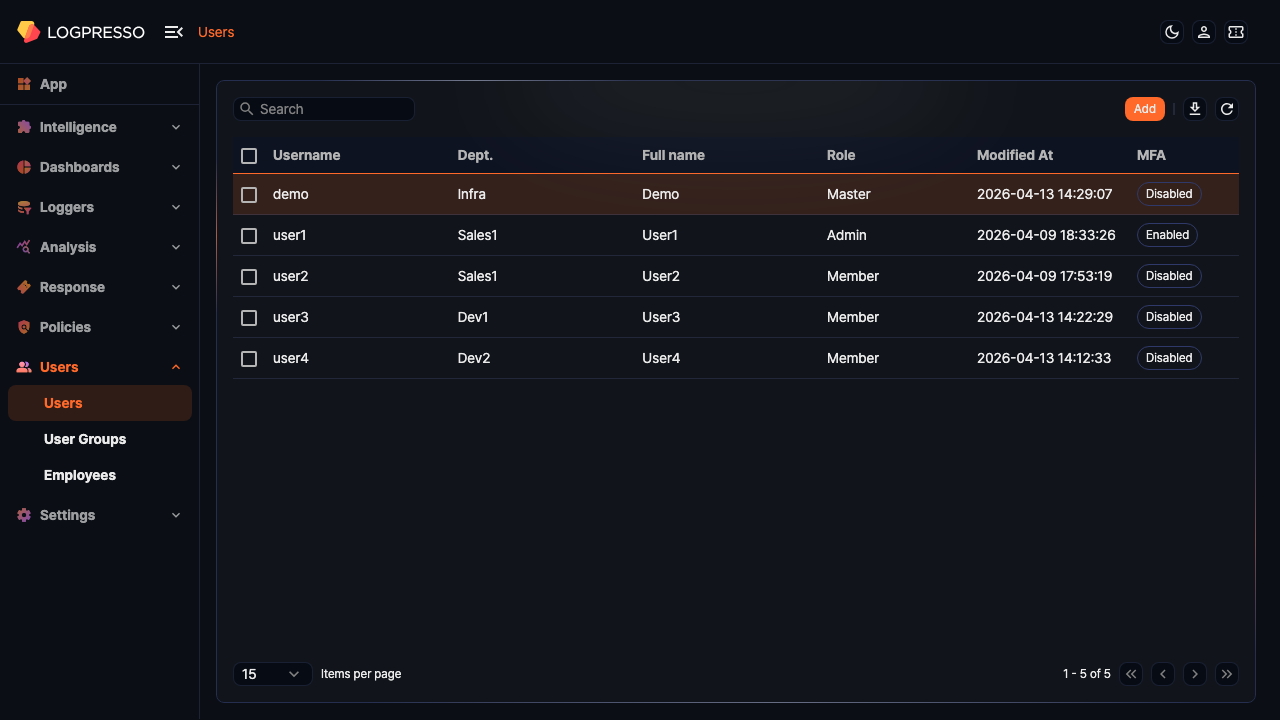
If an Administrator clicks the row of a Cluster Administrator or another Administrator account, the account information is shown as read-only and Save does not appear.
-
In the Edit User panel, modify the information and click Save. For descriptions of each property, refer to Add user.
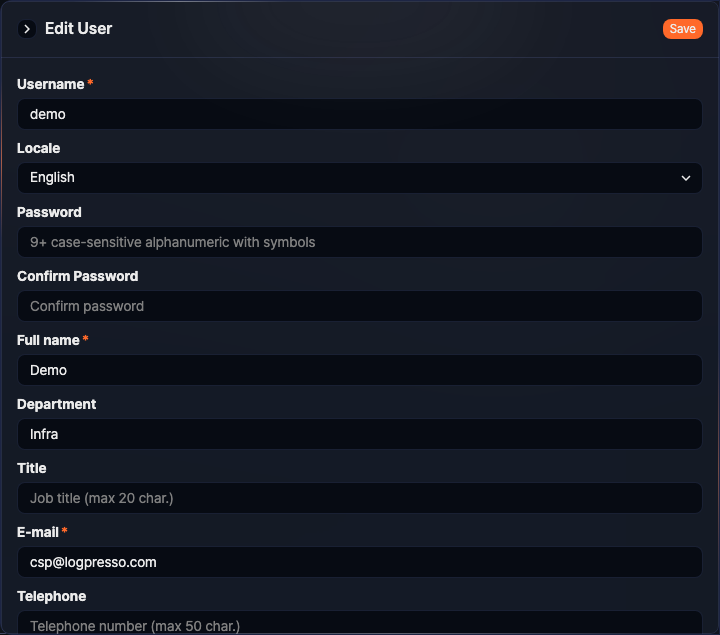
The following sections describe actions you can perform in the Edit User panel.
Per-user search volume control
In Security settings, a Cluster Administrator or Administrator can set per-user limits on the number of concurrent queries and the query result row count. Both items also appear on the add panel, and are shown only on accounts whose security settings are shown.
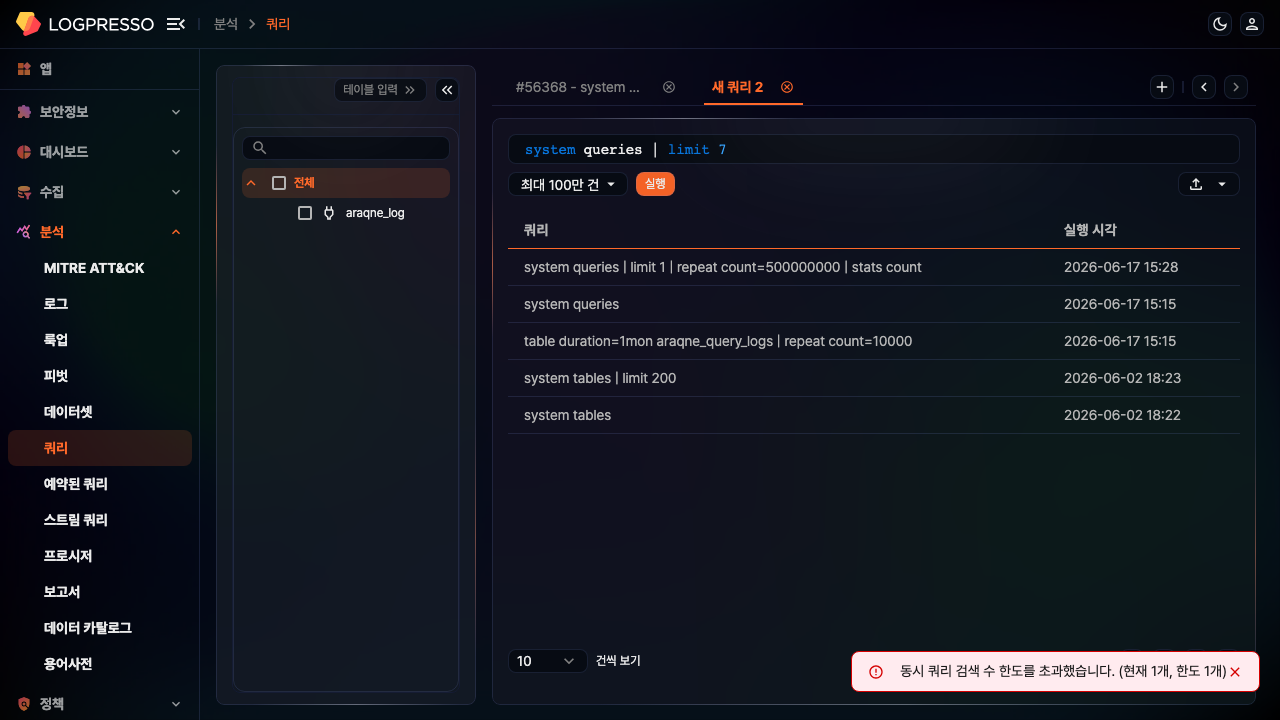
When a user with limits runs a query in the query menu, the server compares the number of currently running queries against the limit and, once the limit is reached, shows a message and blocks execution. Queries run from a dashboard or the REST API are not counted toward this limit.
Reset MFA
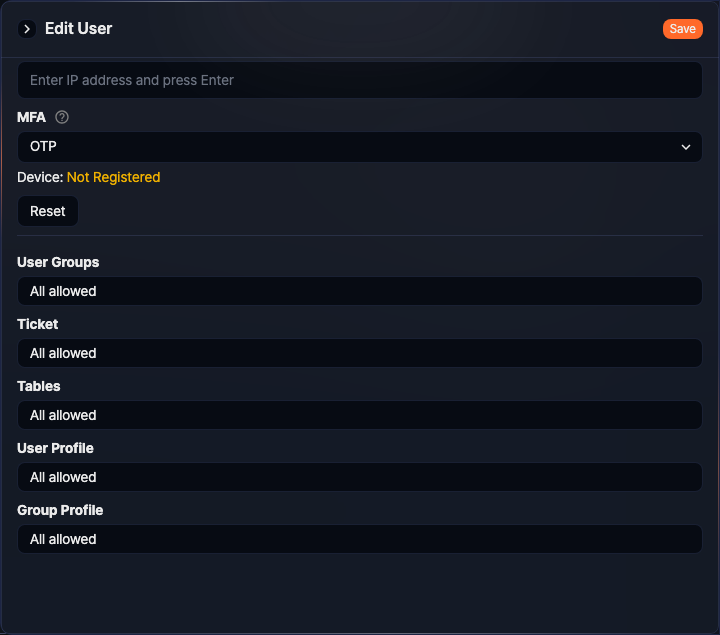
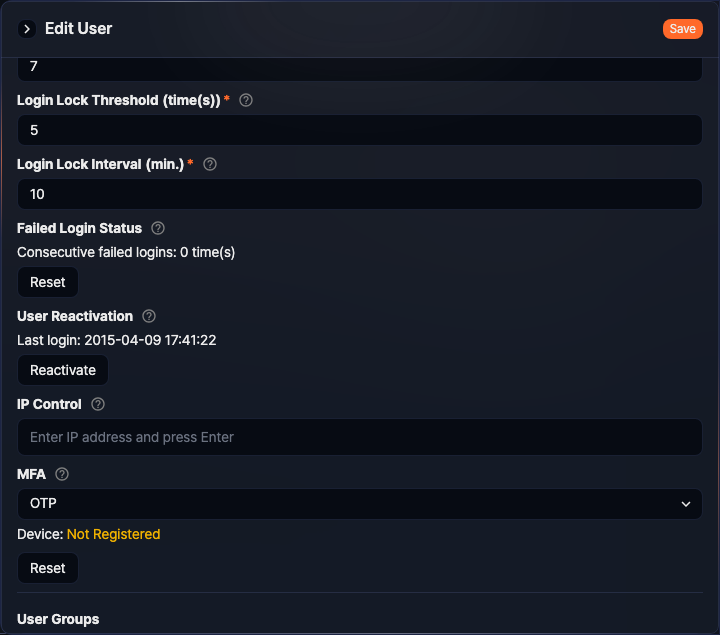
For an account whose MFA method is OTP, the MFA device registration status and Reset are shown under the MFA item in Security settings as below. For an account using the Email method or with no MFA applied, only the MFA selector is shown. For information on how users configure their MFA device and log in, refer to Two-factor authentication (2FA).
- Device
-
Indicates whether an MFA device is registered. Not Registered (yellow) indicates that the user has not yet set up MFA. If the user attempts to log in in this state, they are redirected to the MFA setup screen.
-
Registered (green) indicates that a device is registered and the user is ready to authenticate using MFA.
- Reset
-
If a user has lost their MFA device or needs to change it, they can request an MFA reset from the administrator on the login screen. The reset request is sent to the administrator's registered email address. To remove the registered MFA device information, click Reset, then click OK in the OTP Reset dialog. The user registers a device again at the next login. If you reset your own account, you are logged out immediately.
Issue or delete API key
An API key is required to use the Logpresso REST API. To issue an API key, click Generate in the API key field of Basic settings. The API key field appears only in the Edit User panel, and issuing, regenerating, or deleting an API key takes effect immediately, without clicking Save.
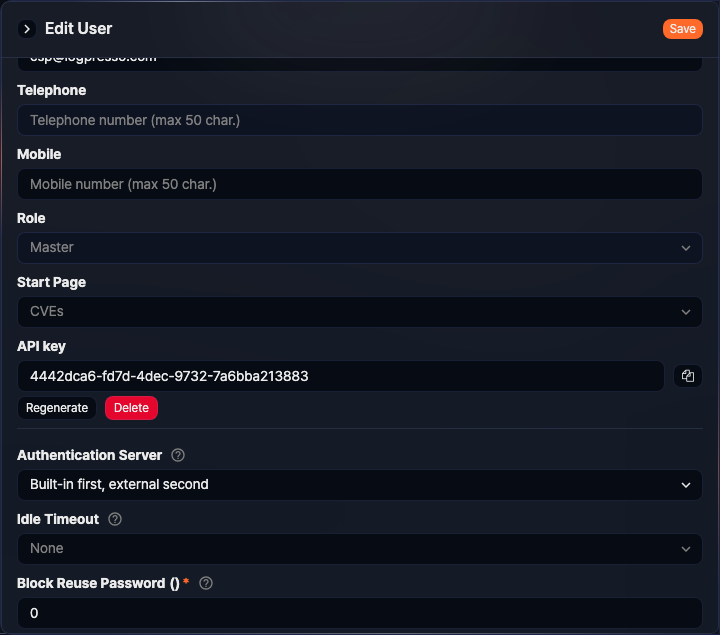
The following image shows the screen after an API key has been generated.
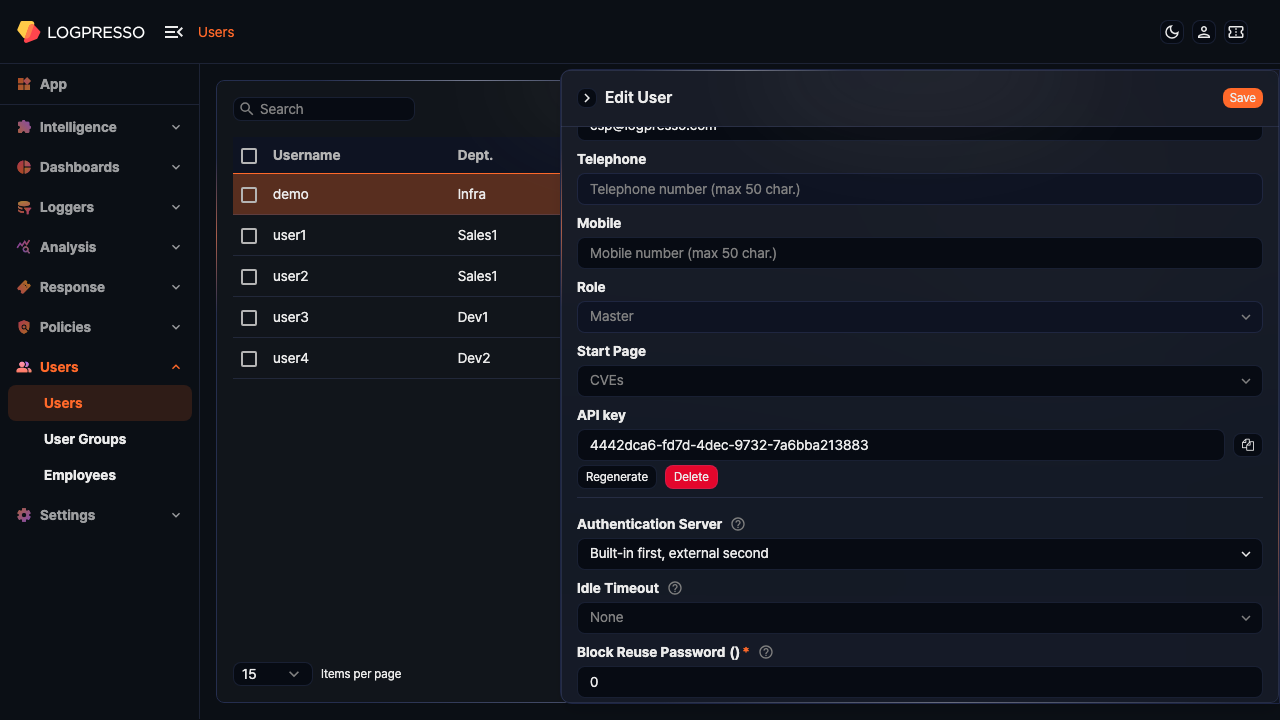
- Copy to clipboard
- Click the icon next to the generated API key to copy it to the clipboard.
- Regenerate
- Click Regenerate to open the Regenerate API key dialog. Click OK to issue a new key; the previous key can no longer be used.
- Delete
- Click Delete to open the Remove API key dialog. Click OK to delete the key.
Reset login failure count and unlock account
If a user fails to log in consecutively, the number of failed login attempts is displayed under Failed Login Status as shown below.
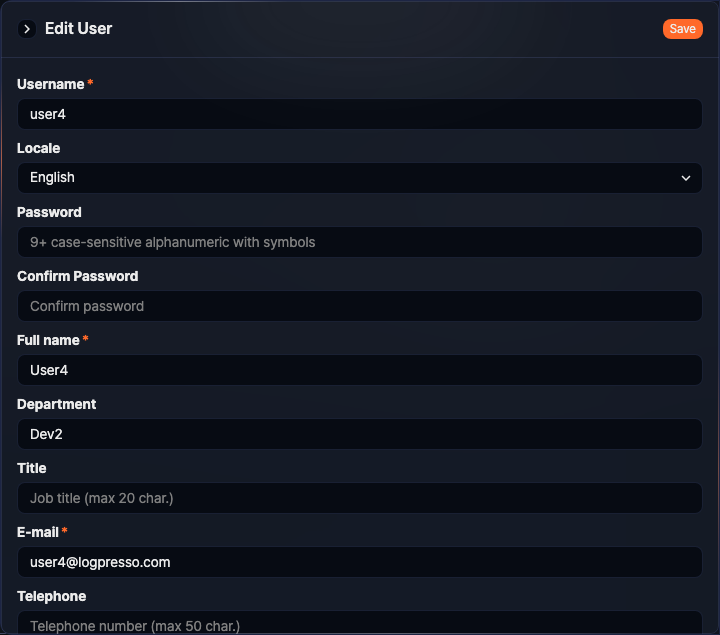
When the number of consecutive failures reaches the Login Lock Threshold, the unlock time is also displayed.
To reset the login failure count or unlock the account, click Reset in the Failed Login Status section.
Reactivate dormant account
If an administrator has configured the inactivity period as a global option, an account that has not logged in for that period is set to dormant status. You can check the Last login date in the Edit User panel. If the account is dormant, a Reactivate button is displayed. Click Reactivate to lift the dormant status.
View and edit permissions
In addition to tickets and tables, you can check the connect profiles available to the account.
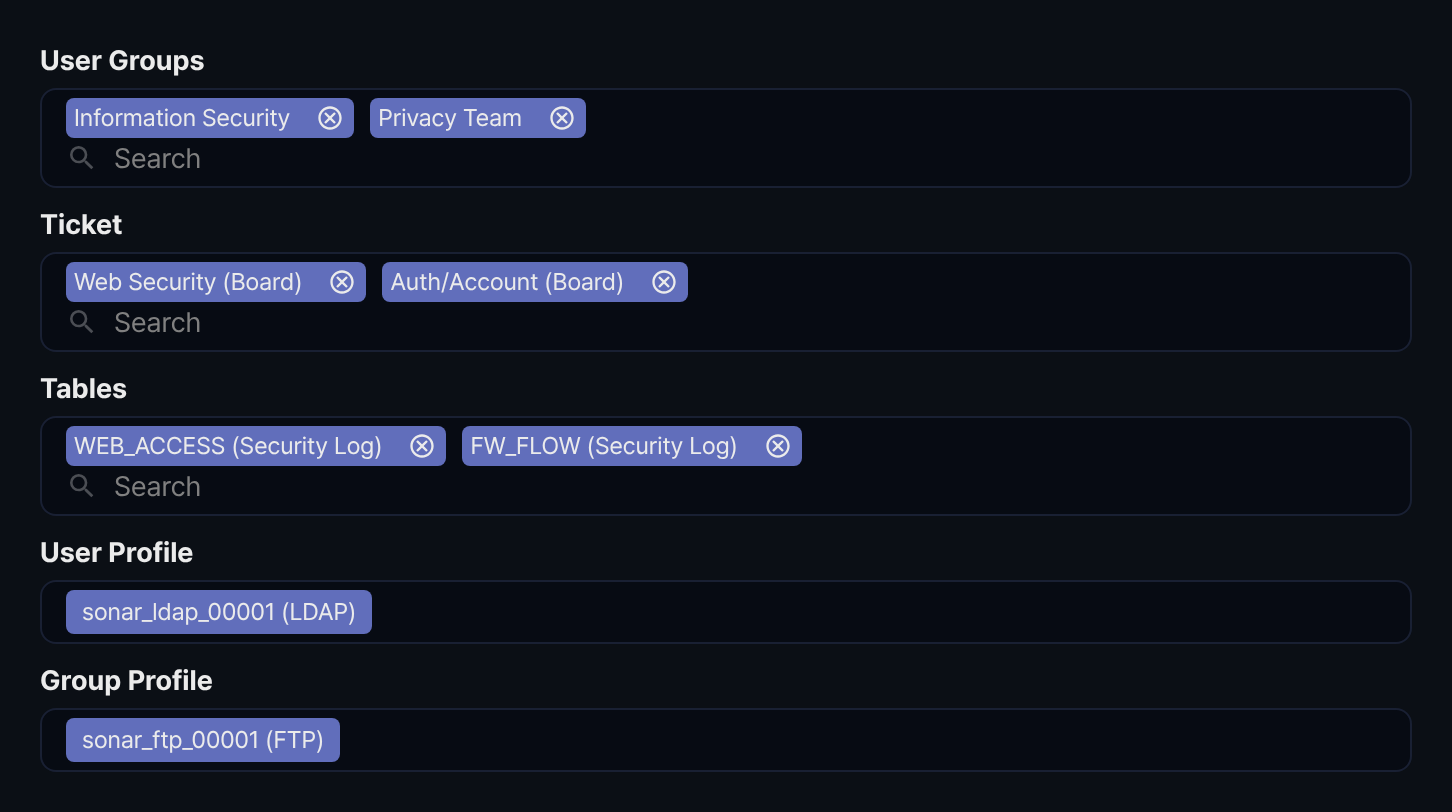
Ticket and Tables permissions can be changed in this panel, but User Profile and Group Profile can only be changed in Connect profile common settings.
- User Profile
- If the account is included in the account sharing settings of a connect profile, the profile name is listed here.
- Group Profile
- If a user group to which the account belongs is included in the group sharing settings of a connect profile, the profile name is listed here.
Configure MFA in bulk
To enable, disable, or change the MFA method for one or more accounts at once:
-
Select the checkbox for each account row you want to configure.
-
Select the action in the toolbar.
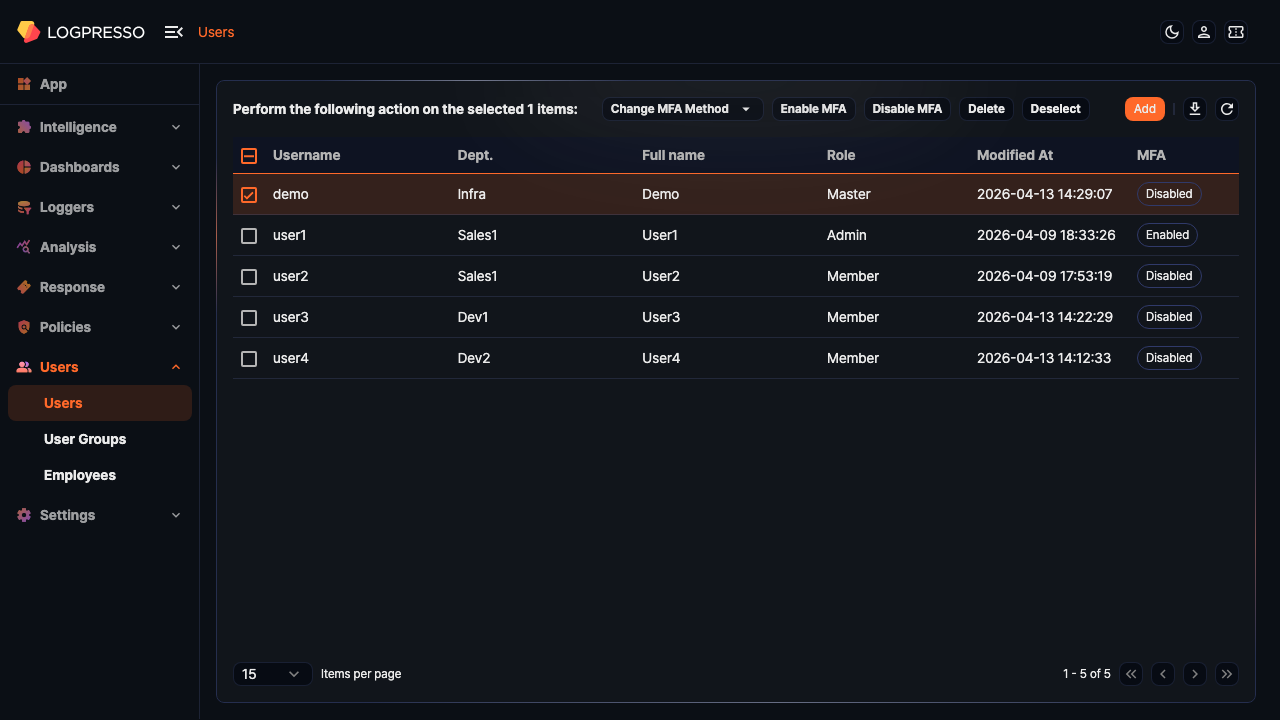
- Change MFA Method: Changes the MFA method for the selected accounts. Select E-mail or OTP from the dropdown to enable MFA with that method. The E-mail method requires an email server to be configured.
- Enable MFA: Enables MFA for the selected accounts. This applies only to accounts that already have an MFA method, so set a method with Change MFA Method first.
- Disable MFA: Disables MFA for the selected accounts.
Accounts that cannot be changed because of insufficient permission or unmet conditions are listed in a failure dialog.
Delete user
To delete a user:
-
Select the checkbox for the row containing the account you want to delete.
-
Click Delete in the toolbar.
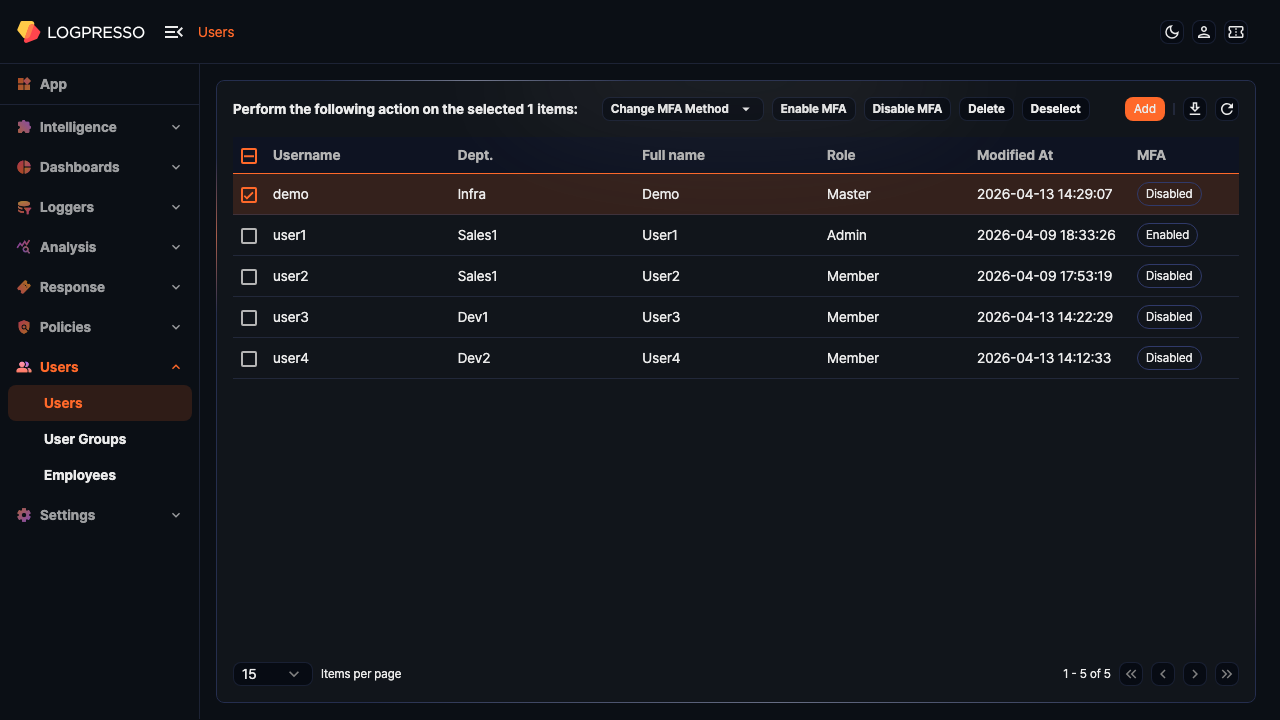
-
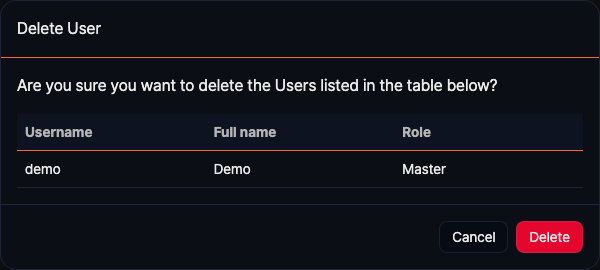
In the Delete User dialog, review the list of accounts to be deleted and click Delete. Click Cancel to abort.
When a user account is deleted, only the account itself is removed; related data is retained.
Resources owned by the deleted account, such as dashboards, datasets, detection rules, behavior profiles, and report groups and templates, are not deleted. Their ownership is transferred to the remaining Cluster Administrator or Administrator account that was added first, so that they remain manageable.
For historical data whose ownership is not transferred, such as tickets, the former owner's information is preserved for later reference and auditing.
You cannot delete your own account, and an Administrator cannot delete a Cluster Administrator or another Administrator account. If some of the selected accounts cannot be deleted, the rest are deleted and a message is shown.
Password policy
The password policy defines the length and complexity rules that a local account's password must satisfy, and a single policy applies system-wide. The server checks the policy when you create an account or change or reset a password. The password policy applies to accounts that use a local password, that is, accounts whose authentication server is Built-in first, external second.
Even if you do not configure it, the following default policy applies:
- At least 9 characters
- Includes at least one letter, one number, and one special character
- Does not repeat the same character three times in a row
- Cannot contain the username
An administrator can change the policy from the Logpresso shell using the following global options.
| Option | Description | Default | Valid range |
|---|---|---|---|
| min_password_len | Minimum password length | 9 | 3-100 characters |
| max_password_len | Maximum password length | 100 | Above the minimum length, up to 100 |
| password_complexity | Complexity rules (comma-separated) | digit,special,no_repeat=3 | See the rules below |
You can specify the following rules for password_complexity:
upper: Includes at least one uppercase letterdigit: Includes at least one numberspecial: Includes at least one special characterno_repeat=N: Does not repeat the same character N times in a row (N is 2-5, default 3)
Regardless of the complexity rules, a password must always include at least one letter.
For example, to enforce a policy of at least 12 characters, at most 20 characters, mandatory uppercase letters, numbers, and special characters, and no same character repeated four times in a row, configure it as follows:
sonar.setGlobalOption min_password_len 12
sonar.setGlobalOption max_password_len 20
sonar.setGlobalOption password_complexity upper,digit,special,no_repeat=4
To unset an option you have configured, run sonar.unsetGlobalOption [option name]. If you specify an invalid value or a value outside the allowed range for an option, the server adjusts it to the valid range or uses the default value.