
Employees
Overview
When a security event detected by Logpresso Sonar is related to members of the organization and you need to investigate the context of that event, you can request explanations from the involved employees via email or SMS. This workflow relies on the Explanations feature together with the Employees management feature.
For example, when a large-volume data exfiltration event is detected, you can request an explanation from the employee associated with that IP address. If the scenario does not specify a primary reviewer, the department lead becomes the primary reviewer for the request, creating a structured incident response workflow. Registering each employee's email address and mobile phone number enables automatic delivery of explanation requests via email or SMS.
Most organizations follow a tree structure based on departments. The Employees menu reflects this structure, allowing you to manage both employee information and their department details in one place.
Adding, editing, deleting, and transferring employees, and adding, editing, and deleting departments, requires the Cluster Administrator or Administrator role. All users can view the employee and department lists. For details, refer to the Account permission reference.
Employee and department list
The list of employees and departments can be viewed under Users > Employees. The department tree appears in the left sidebar. Drag the border between the department tree and the employee list to adjust the sidebar width: widen it when department names are truncated, or narrow it to give the employee list more room. Dragging it far enough to the left, or clicking the collapse icon at the right end of the tree toolbar, minimizes the tree.
When first opened, the tree shows only the All node at the top expanded, so the top-level departments are listed collapsed. Click the expand icon next to a department name to show its sub-departments. Selecting All shows all employees, including those without a department. Type part of a department name in the search box above the tree to filter it: departments whose names contain the text are shown expanded together with their parent departments, along with their own sub-departments (not case-sensitive). Click the refresh icon to reload the tree.
The following screen shows Information Technology and Development expanded.
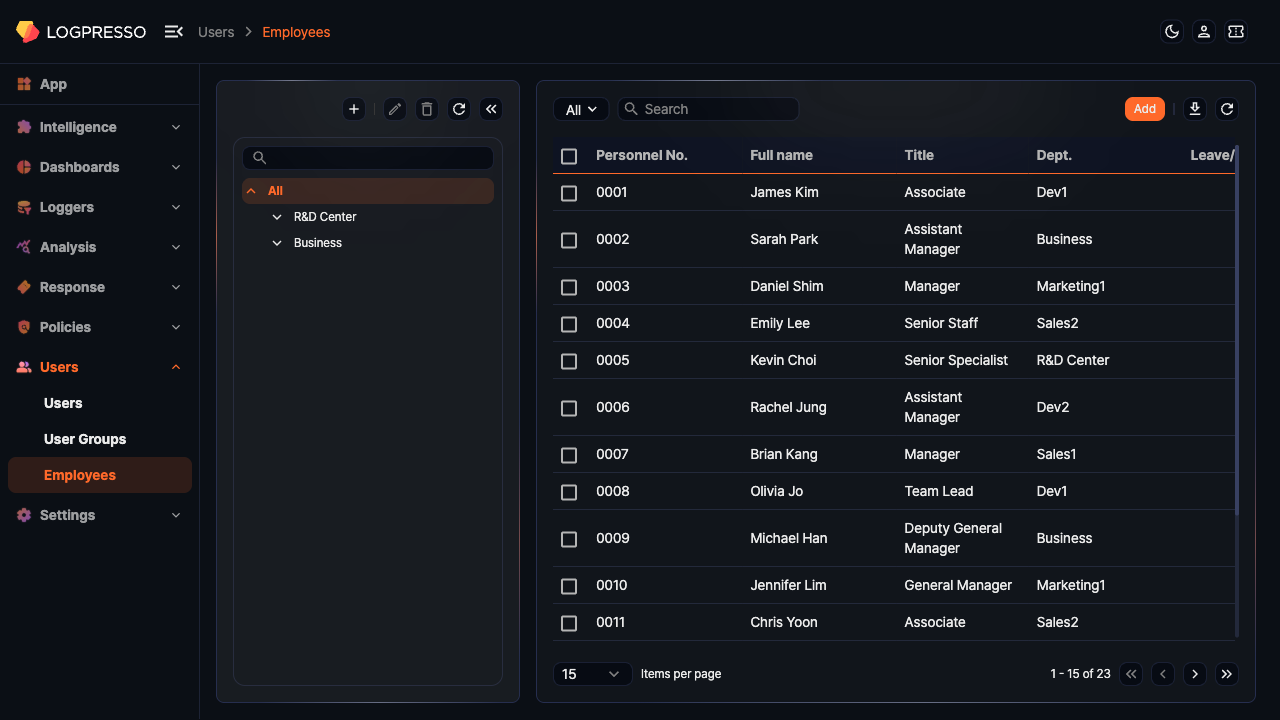
Initially, there may be no departments or employee information configured in the system at all. If there are no departments, No departments registered. appears in place of the tree.
Selecting a department in the tree shows employees belonging to that department and all of its sub-departments.
The list displays the following information:
- Personnel No.: The employee's personnel number
- Full name: The employee's name
- Title: The employee's job title
- Dept.: The employee's department
- Leave/Left At: The employee's departure date or expected departure date
Search for employees
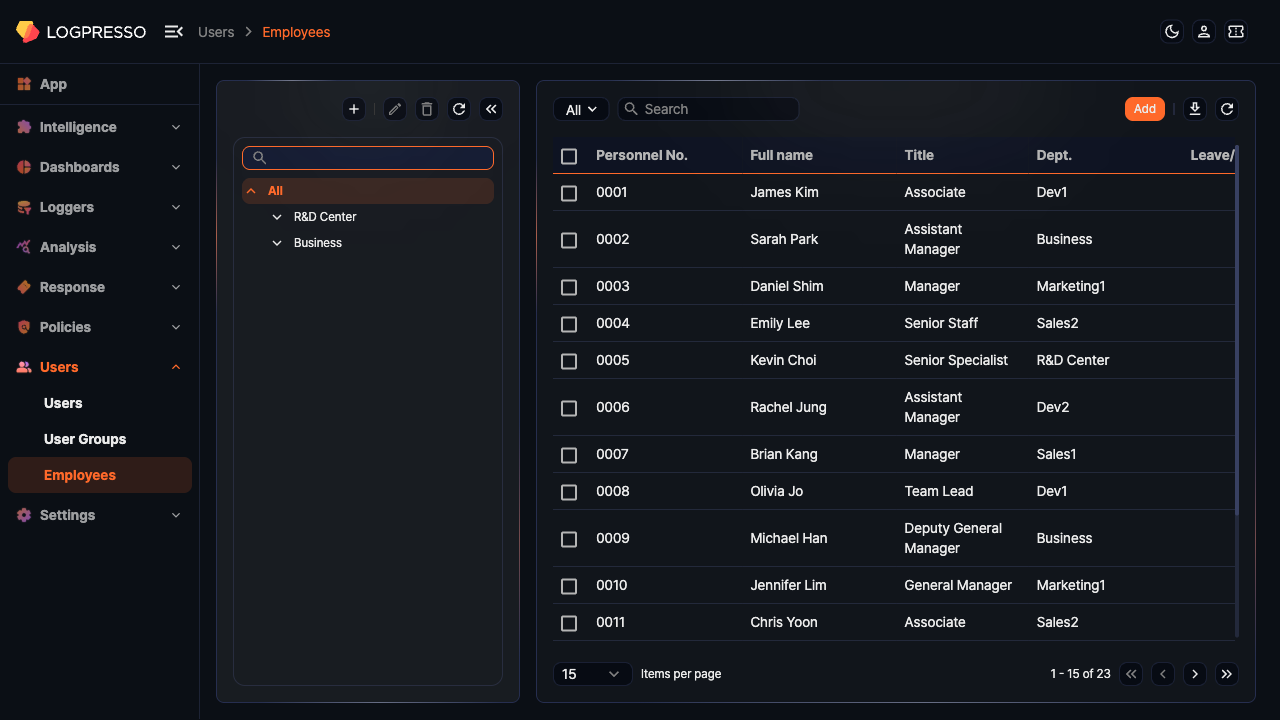
To find a specific employee in the list, use the search tool in the toolbar. Type a search term in the search box and press Enter to show only the employees in the selected department whose Personnel No. or Full name contains the entire text you typed. The search is not case-sensitive. Use the dropdown to narrow the results to All or Prospective resigner. Selecting Prospective resigner shows every employee with a leave date entered, including those who have already left.
Manage departments
Add a department
To add a department to the department list:
-
Click
 above the department list under Users > Employees.
 -
In the New Department dialog, enter the department information and click OK. Click Cancel to discard.
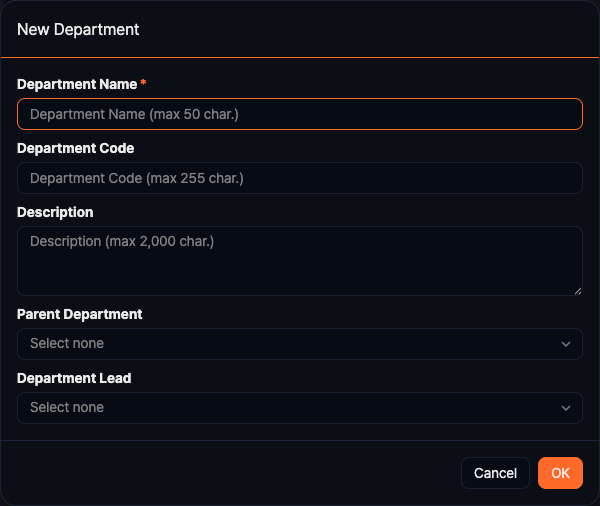
- Department Name (required): The name of the department (up to 50 characters)
- Department Code: The department code used in external systems such as an HR system (up to 255 characters)
- Description: A description of the department (up to 2,000 characters)
- Parent Department: If you select a department in the department list before adding, that department is entered by default. If no department is selected, or All is selected, the field starts as Select none. If no parent department is specified, the new department becomes a top-level department. There can be more than one top-level department.
- Department Lead: The head of the department. If the scenario does not specify a primary reviewer, explanation requests from employees in this department go to the department lead for the first review. If the department has no lead, the lead of the parent department reviews instead. For more details, refer to Explanations. An employee for whom Self Approval is enabled reviews their own explanation requests.
Edit a department
To edit a department:
-
Click on the department you want to edit in the department list under Users > Employees.
-
Click
 above the department list.
 -
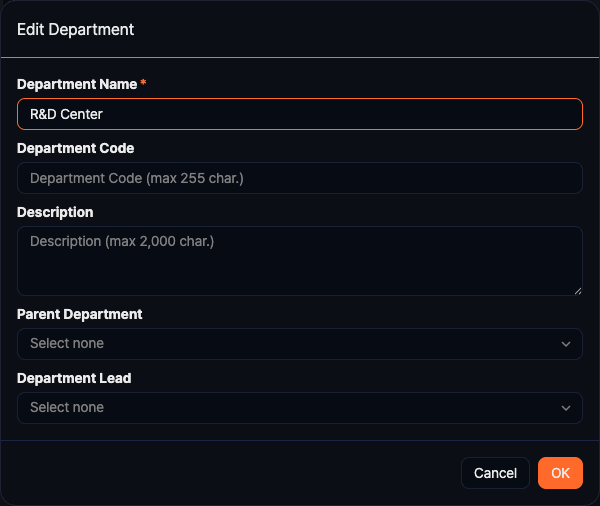
In the Edit Department dialog, make the necessary changes and click OK. Click Cancel to discard.
Delete a department
To delete a department:
-
Click on the department you want to delete in the department list under Users > Employees.
-
Click
 above the department list.
 -
In the Delete Department dialog, verify the selected department and click Delete. Click Cancel to discard.
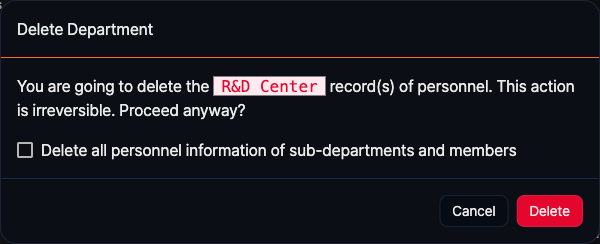
- Checking Delete all personnel information of sub-departments and members deletes the selected department and all of its sub-departments, and permanently removes the employee records in every one of those departments. Unlike deleting employees from the list, no employee records remain, and any asset vulnerability assigned to one of those employees is deleted along with it. The department cannot be deleted if any of those employees has written or reviewed an explanation, or is assigned as an asset administrator or a scenario reviewer. Deletion can also fail if any of those employees is the lead of another department, so change that department's lead first. If deletion fails, nothing is deleted.
- If you delete a department without checking Delete all personnel information of sub-departments and members, the department's own employees move to the parent of the deleted department, and its immediate sub-departments are moved under that parent. Deleting a top-level department leaves its employees without a department, and its sub-departments become top-level departments.
Add an employee
To add an employee:
-
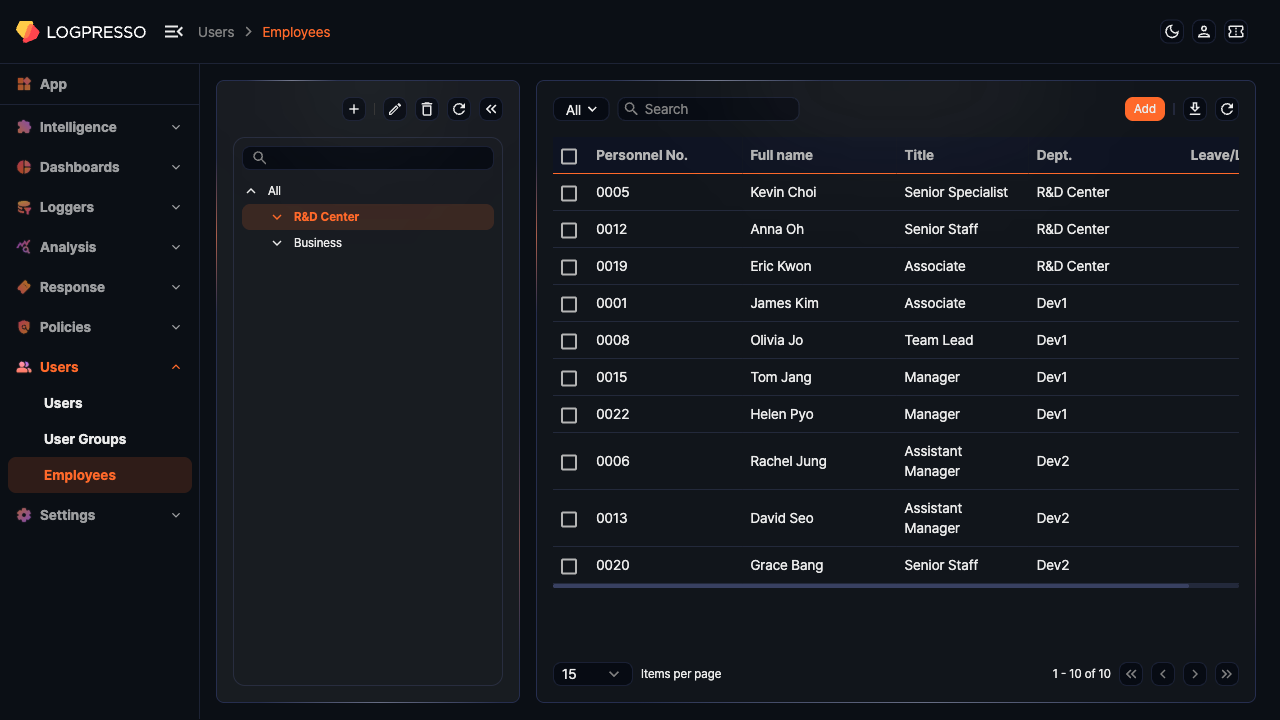
Click on the department where you want to add the employee in the department list under Users > Employees. If you do not select a department, the employee is added without department information.
-
Click Add in the toolbar.
-
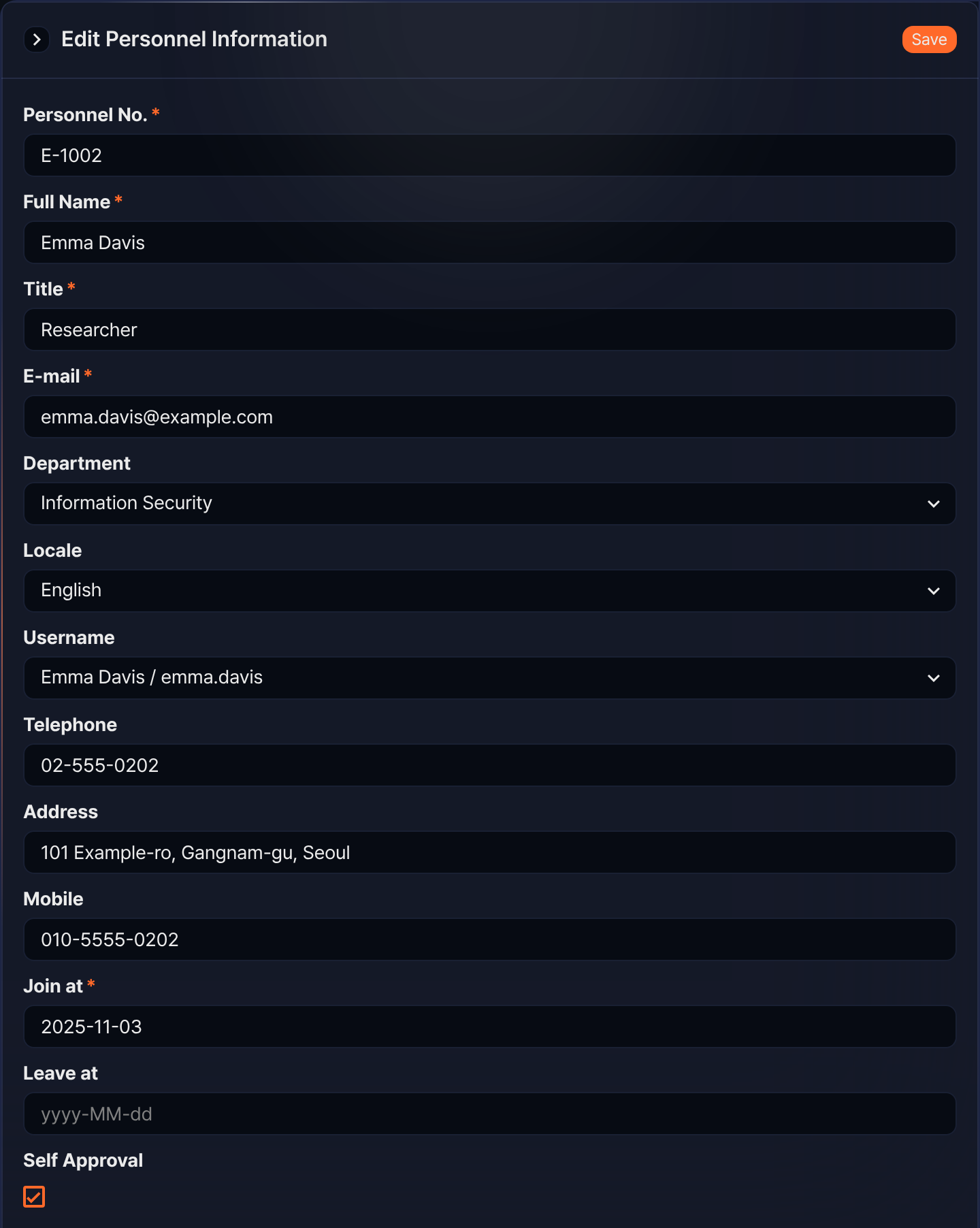
In the New Personnel Information panel, select or enter the employee information. Fields with an asterisk (*) next to the field name are required.
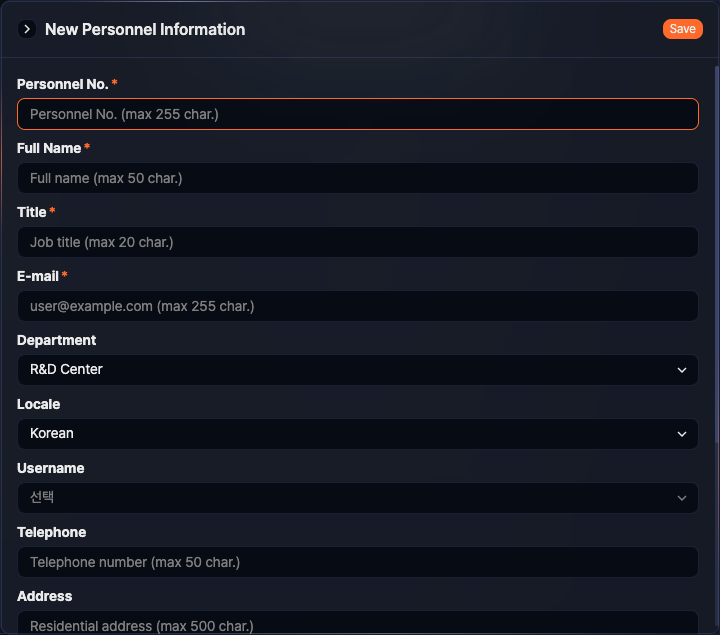
- Personnel No. (required): The employee's personnel number (up to 255 characters). Each employee must have a different personnel number, and the personnel number of a deleted employee cannot be reused.
- Full Name (required): The employee's full name (up to 50 characters)
- Title (required): The employee's job title (up to 20 characters)
- E-mail (required): The employee's email address (up to 255 characters). Used to send explanation request emails to the employee.
- Department: The employee's department. If a department was already selected, it is pre-filled. Changing it reassigns the employee to the selected department.
- Locale: The language used for explanation requests and other communications sent by Logpresso Sonar (default: Korean; options: Korean, English, Chinese (Simplified))
- Username: Links this employee record to a user account. Not selected by default. Select the login name of the account to link from the list.
- Telephone: The employee's phone number (up to 50 characters)
- Address: The employee's residential address (up to 500 characters)
- Mobile: The employee's mobile phone number (up to 50 characters). Used to send SMS explanation requests to the employee.
- Join at (required): The employee's join date. The current date is entered by default.
- Leave at: The employee's departure date or expected departure date. Entering a leave date classifies the employee as a departing employee.
- Self Approval: Whether the employee can directly approve their own explanation requests. This field is only displayed when the global option
self_explanationis set toenabled. For more details, refer to theself_explanationitem in Get Global Configs.
Running the following command from the Logpresso shell turns on the self-approval feature. Refresh the web console to display this field.
sonar.setGlobalOption self_explanation enabledTo unset the option, run
sonar.unsetGlobalOption self_explanation. Once unset, this field no longer appears after you refresh the web console, and the scenario's primary reviewer or the department lead reviews new explanation requests for employees who had Self Approval checked. -
Click Save when the information is correct. If you change any value and close the panel without saving, the Confirm Changes dialog appears. Click Confirm to discard your changes and close the panel.
Edit an employee
To edit employee information:
-
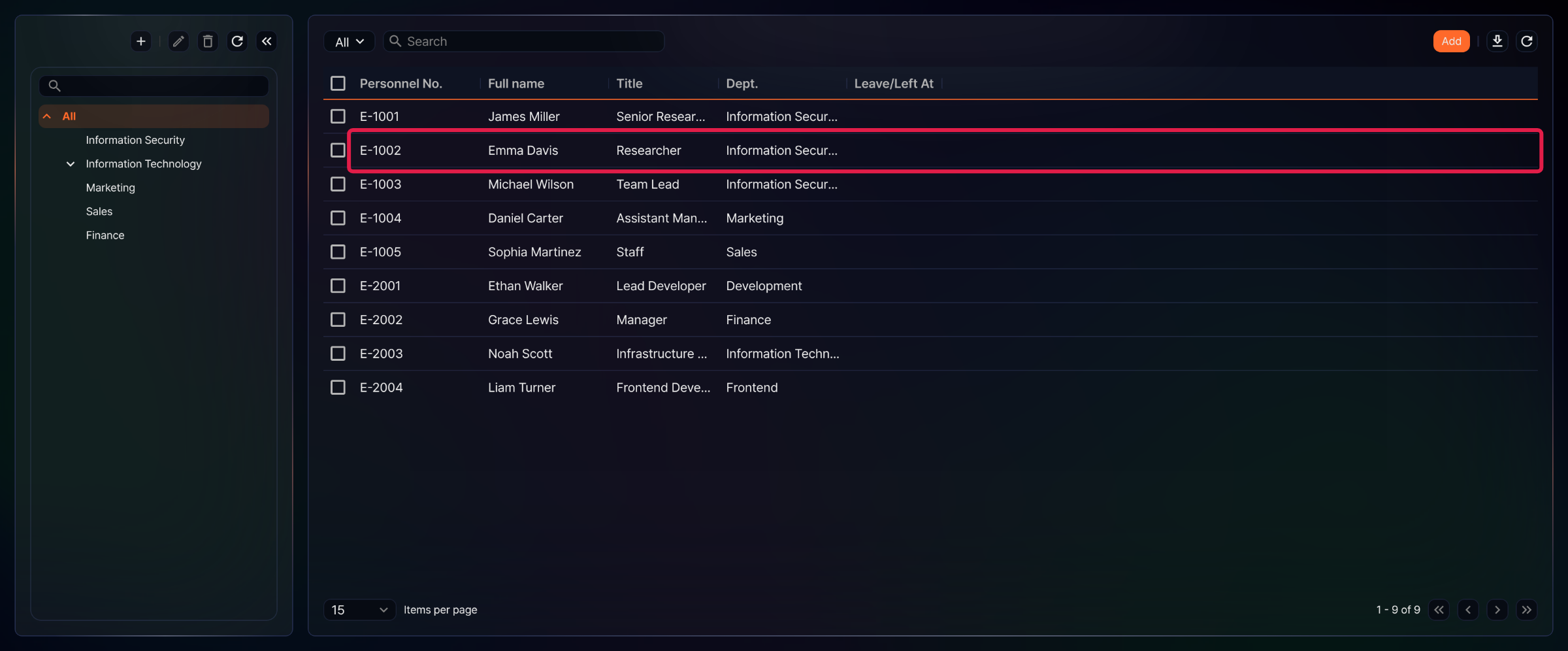
Click on the employee you want to edit under Users > Employees.
-
In the Edit Personnel Information panel, select or enter the updated information.
-
Click Save when the changes are correct. If you change any value and close the panel without saving, the Confirm Changes dialog appears. Click Confirm to discard your changes and close the panel.
Delete employees
To delete employees from the list:
-
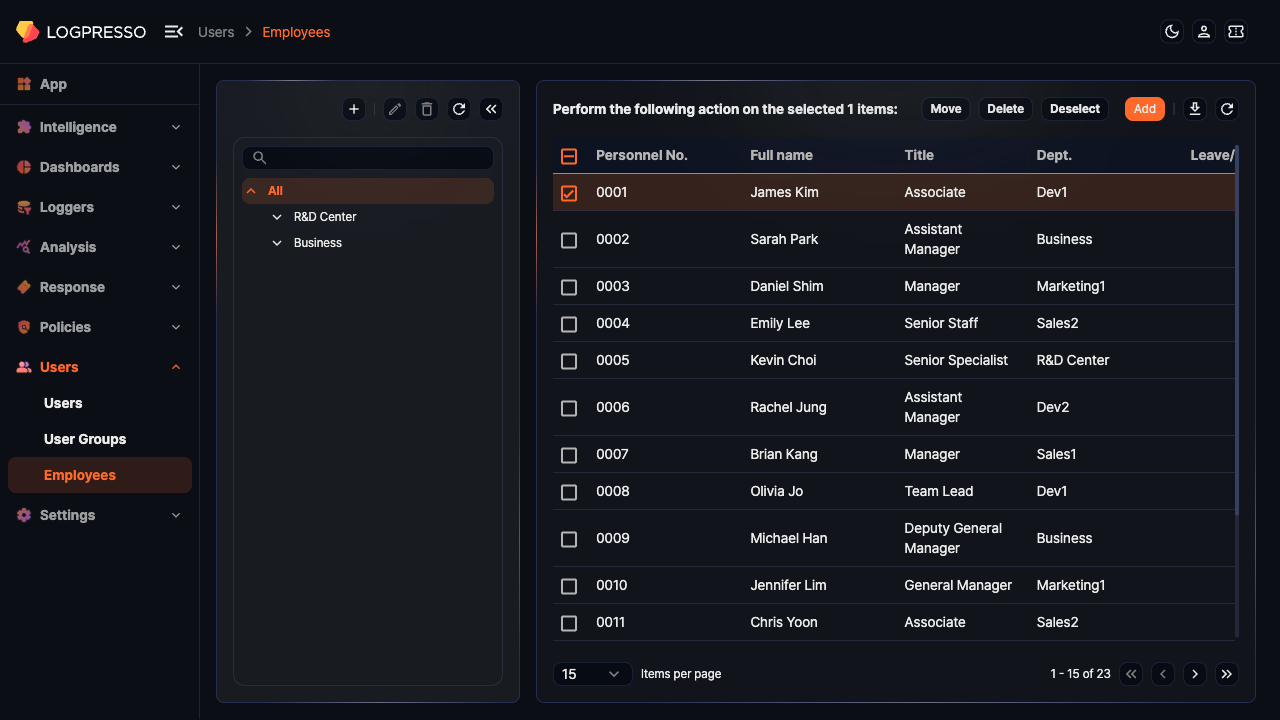
Select the checkbox of each row containing the employee you want to delete under Users > Employees.
-
Click Delete in the toolbar.
-
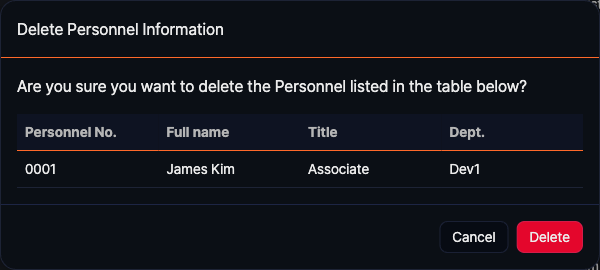
In the Delete Personnel Information dialog, review the list of employees to delete and click Delete. Click Cancel to discard.
Deleting an employee does not remove related records. For example, the history of explanation requests assigned to the employee is preserved.
Transfer employees
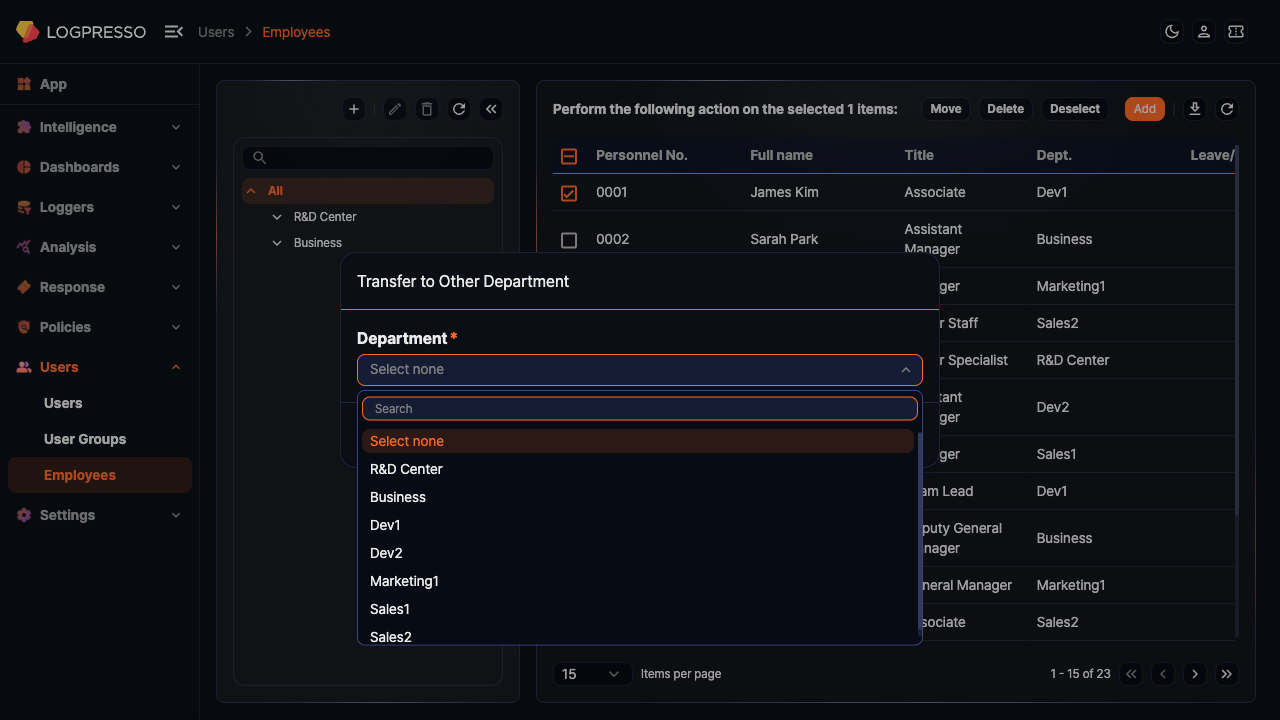
To change an employee's department, you can either follow the steps in Edit an employee or use the toolbar on the employee list.
To transfer employees using the toolbar:
-
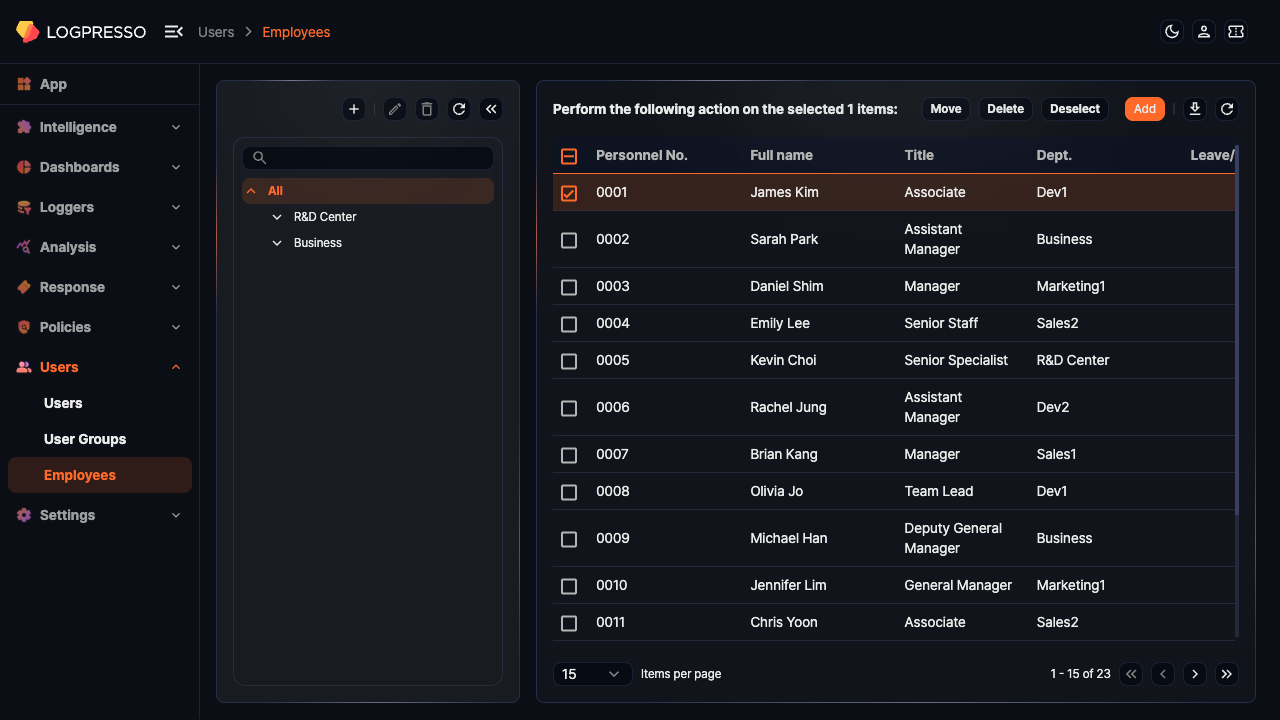
Select the checkbox of each employee whose department you want to change.
-
Click Move in the toolbar.
-
In the Transfer to Other Department dialog, select the target Department and click OK. Click Cancel to discard.
Download employee list
To download the employee list as a file, click  in the toolbar. The Download Employees dialog box opens.
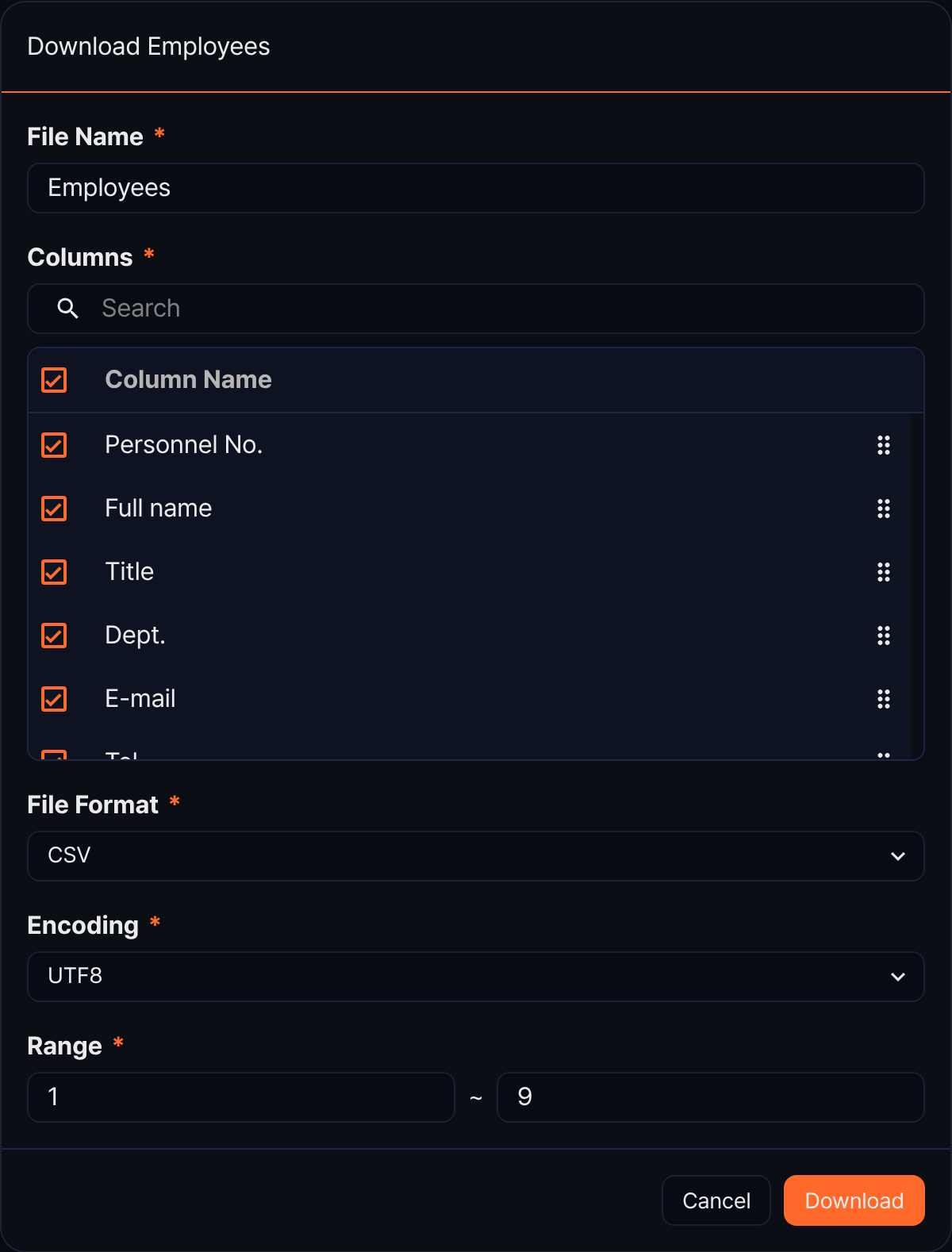
- File Name (required): The name of the file to download (default Employees, up to 200 characters)
- Columns (required): The columns to include in the file. All ten columns — Personnel No., Full name, Title, Dept., E-mail, Tel., Mobile, Address, Join at, and Leave/Left At — are selected by default, and you can clear checkboxes to remove columns or drag the handle on the right to reorder them.
- File Format (required): The format of the downloaded file. Choose from CSV (default), XML, Microsoft Word, HTML, JSON, and PDF.
- Encoding (required): The file encoding. This appears only when the file format is CSV or JSON, and the available values depend on the web console language.
- Range (required): The starting and ending numbers of the range to download (defaults to the first row number of the current page through the total count)
After you configure these settings, click Download. Only employees matching the currently selected department and search conditions are included. The download icon is disabled when the list is empty.