
CVE
Overview
CVE (Common Vulnerabilities and Exposures) is an international standard system that assigns unique identifiers to publicly known security vulnerabilities. It is managed by MITRE in the United States, and the NVD (National Vulnerability Database) provides CVSS (Common Vulnerability Scoring System) scores and detailed analysis information for each CVE.
In the CVE menu of the Sonar web console, you can browse the collected CVE database and check the CVSS scores (versions 2.0, 3.x, and 4.0) for each vulnerability. In environments with an active XDR license, you can also view a list of internal assets affected by a specific CVE.
On the CVE detail screen, you can view the CWE list corresponding to the root cause of the vulnerability. Click a CWE entry to navigate to the CWE detail page.
The CVE menu is read-only and does not provide add, edit, or delete functions. It is accessible to accounts with user-level permissions or higher.
Browsing and searching CVE list
You can browse or search the CVE list from Intelligence > CVE.
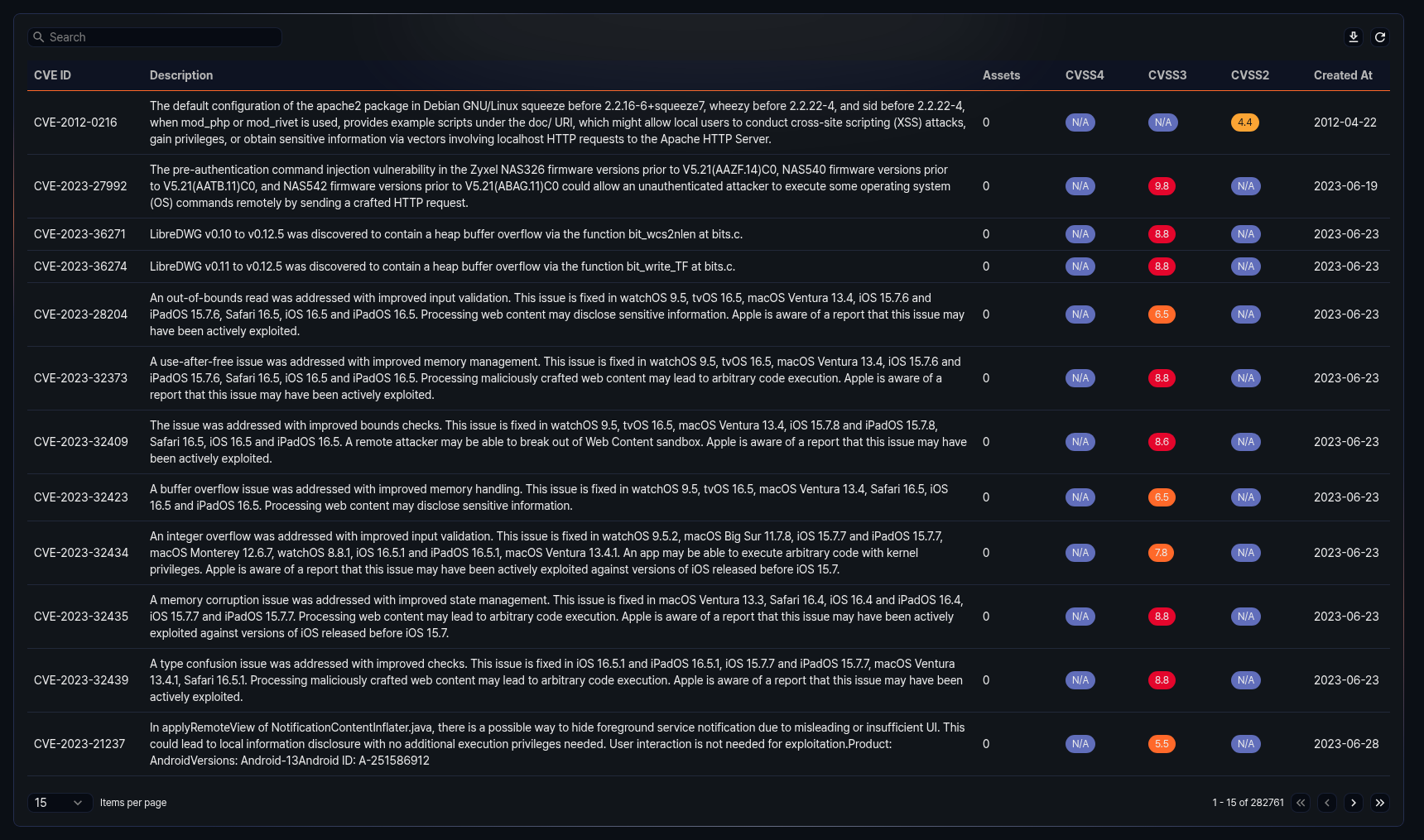
- CVE ID: CVE identifier (e.g., CVE-2024-12345)
- Description: Description of the vulnerability
- Assets: Number of assets affected by the CVE
- CVSS4: CVSS version 4.0 base score (0.0--10.0). Displayed as a color badge based on the score range.
- CVSS3: CVSS version 3.x base score (0.0--10.0). Displayed as a color badge based on the score range.
- CVSS2: CVSS version 2.0 base score (0.0--10.0). Displayed as a color badge based on the score range.
- Created: Date when the CVE was published
CVSS scores are color-coded by severity as follows:
| Score range | Severity | Color |
|---|---|---|
| 0.0--1.9 | Low | Green |
| 2.0--4.9 | Medium | Yellow |
| 5.0--7.9 | High | Orange |
| 8.0--10.0 | Critical | Red |
If a score is not available, it is displayed as N/A.
Enter a keyword in the search field at the top of the list to filter CVEs containing that keyword.
Downloading the list
To download the CVE list as a file, click Download at the top of the list. The download file includes CVE code, description, assets, CVSS4, CVSS3, CVSS2, and created date fields. You can download up to 1,000 entries.
Refreshing the list
To refresh the CVE list with the latest information, click Refresh at the top of the list.
CVE details
Click a specific row in the CVE list to open the detail panel on the right side of the screen.
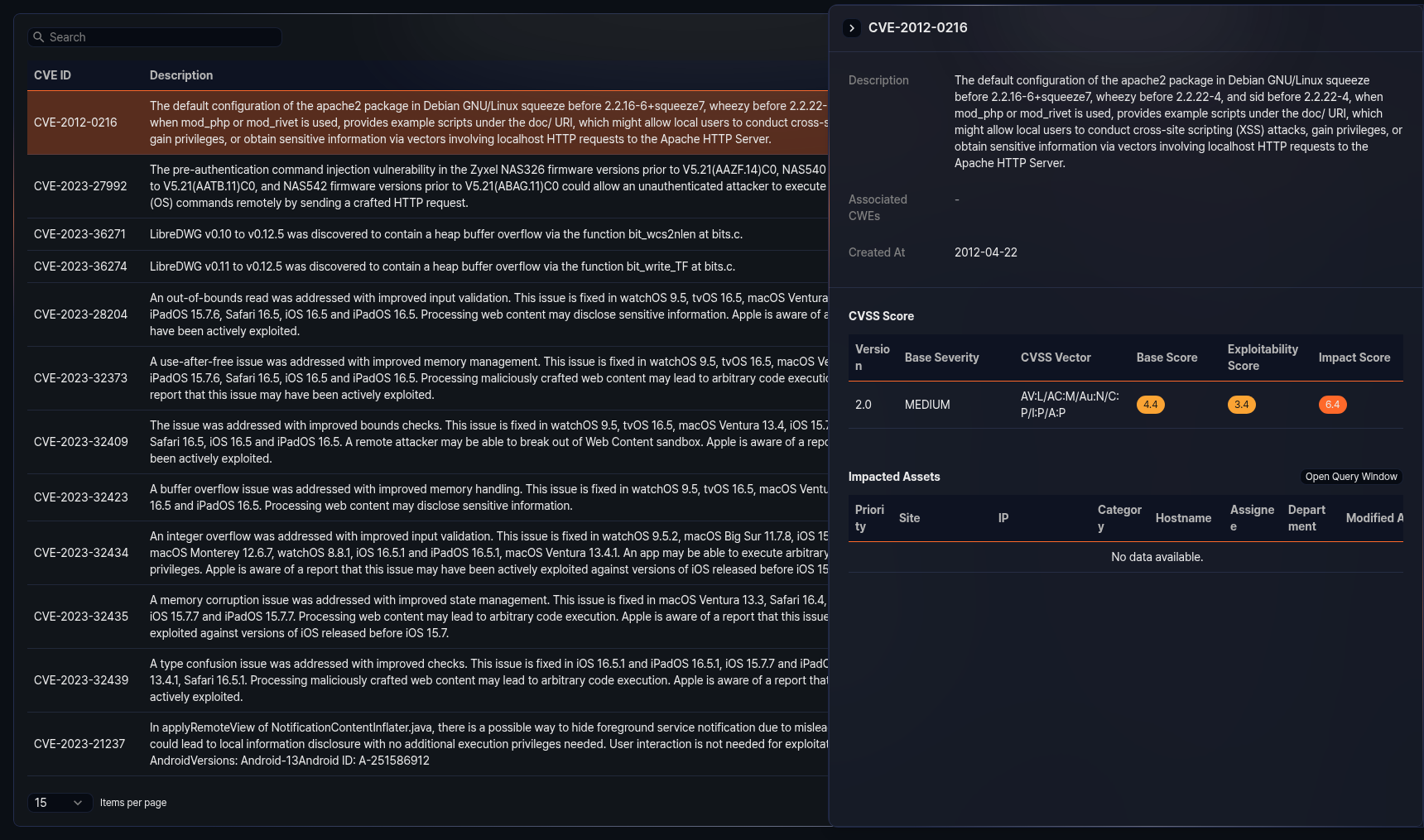
The detail panel displays the following items:
- Description: Detailed description of the vulnerability
- Associated CWEs: List of CWE (Common Weakness Enumeration) entries related to the CVE. Only CWEs classified by NVD are shown, and both the CWE ID and name are displayed. Click a CWE ID to navigate to the corresponding CWE detail page.
- Created: Date when the CVE was published
CVSS scores
In the CVSS scores section of the detail panel, you can check the CVSS scores for the CVE by version. The CVSS score table displays the following items:
- Version: CVSS version (4.0, 3.1, 3.0, 2.0)
- Base severity: Severity rating (e.g., CRITICAL, HIGH, MEDIUM, LOW)
- CVSS vector: CVSS vector string. Hover over it to view the details of each vector component (attack vector, attack complexity, privileges required, user interaction, etc.).
- Base score: Base score (0.0--10.0)
- Exploitability score: Exploitability score (0.0--10.0)
- Impact score: Impact score (0.0--10.0)
When multiple sources provide scores for the same version, only the entry with the highest score is displayed.
Affected assets
In environments with an active XDR license, the detail panel also displays the affected assets section. In this section, you can view the list of internal assets affected by the CVE.
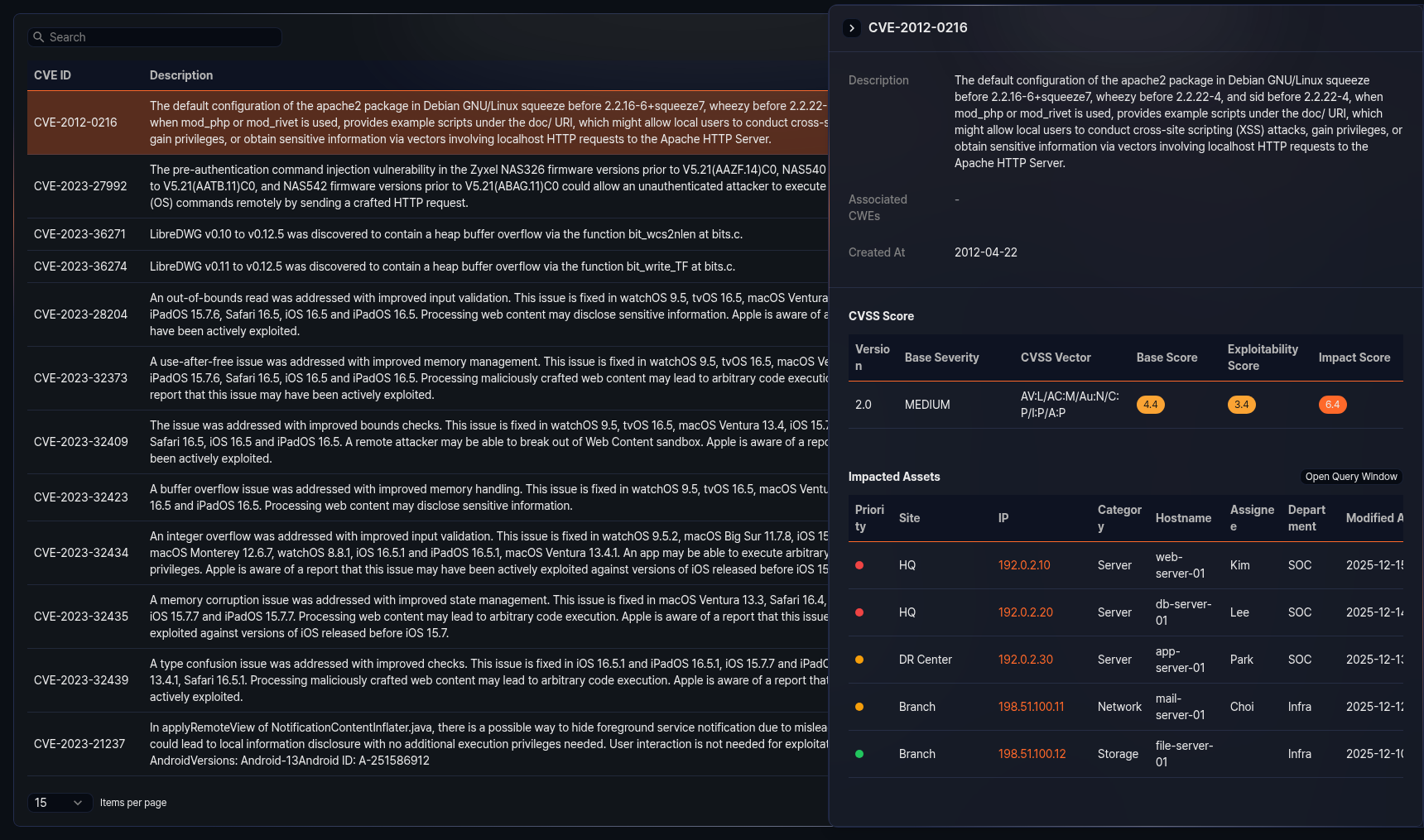
The affected assets table displays the following items:
- Criticality: Criticality level of the asset
- Site: Site to which the asset belongs
- IP address: IP address of the asset. Click to navigate to the asset detail page.
- Category: Category of the asset. If no category is assigned, it is displayed as Uncategorized.
- Hostname: Hostname of the asset
- Owner: Owner of the asset
- Department: Department to which the owner belongs
- Modified: Date when the asset information was last modified
Click Open query window in the affected assets list to run a query that retrieves the assets affected by the CVE in a new window. If there are assets, click Download to download the affected assets list as a file.