Packages
Overview
The Packages menu is where you upload Sentry installation packages to the Logpresso server. When you deploy a Sentry, the installation script looks up and downloads a package named sentry-<platform> from this list.
The list includes one row for the Sonar package that is currently running. The server generates this row automatically from the installation directory, so its description always reads auto-generated, and you cannot select or remove it. The remaining rows are Sentry installation packages that an administrator has uploaded.
Viewing the package list
You can view the list of packages installed on the Logpresso server in the Settings > Packages menu.
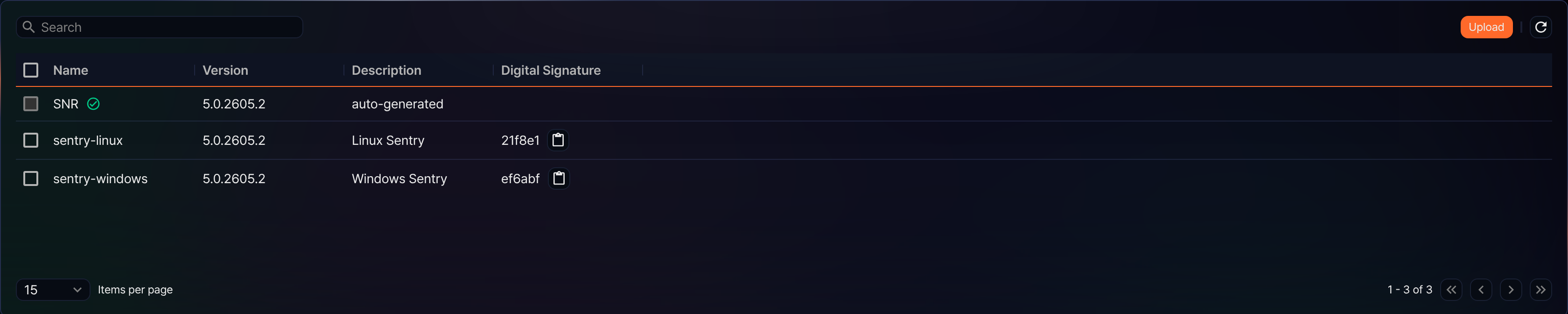
- Name: Package name. The currently running package shows a green check icon next to its name, and whenever it appears in a search result or a page, it is always shown at the top.
- Version: Package version
- Description: Description of the package. For the currently running package, this is always the fixed value auto-generated, which the server fills in automatically.
- Digital Signature: First 6 characters of the package's digital signature. Click the copy icon next to it to open a dialog where you can view and copy the full signature. The currently running package has no signature, so this column is empty for that row.
To find a specific package, enter a keyword in the search box at the upper left of the list.
Checking the digital signature
The Digital Signature column in the list shows only the first 6 characters. To view or copy the full signature value, click the copy icon.
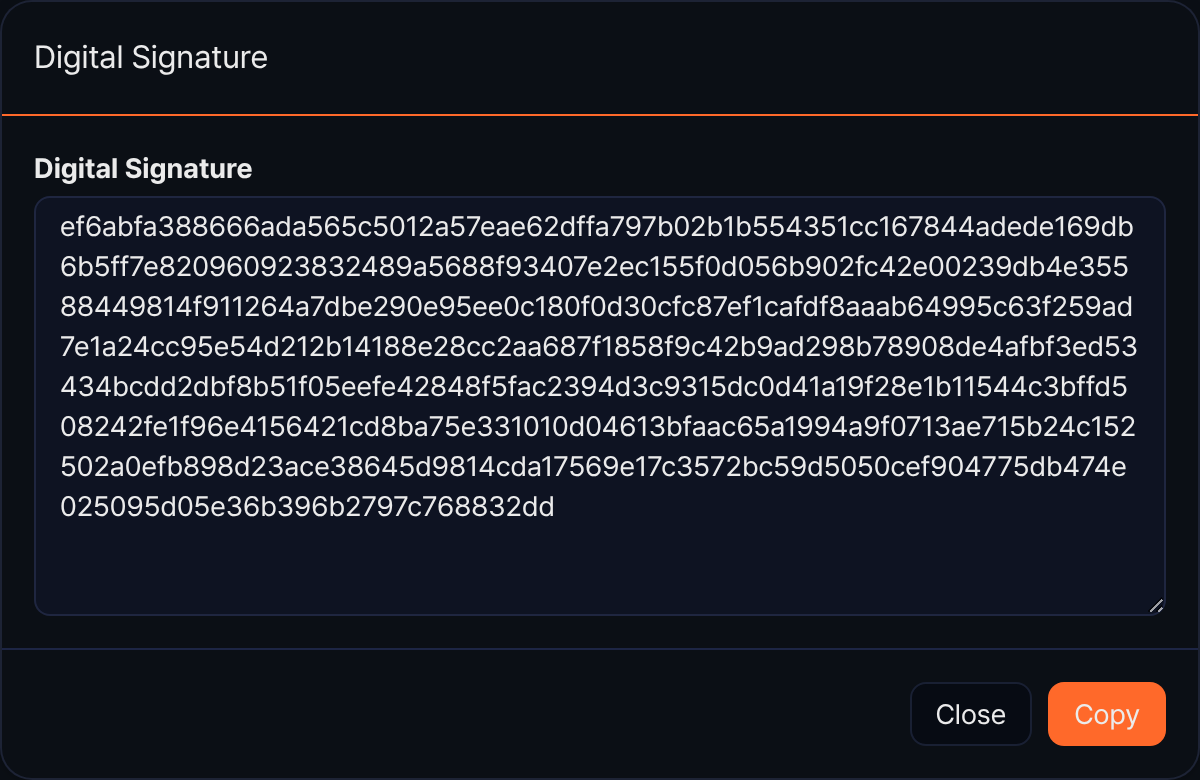
Click Copy to copy the full signature value to the clipboard and close the dialog. Click Close to close the dialog without copying.
Preparing a Sentry package
To deploy a Sentry, ensure you have the Sentry installation package and digital signature information.
- Log in to the Logpresso Store.
- Go to Packages > Linux Sentry or Packages > Windows Sentry. The package feature is currently available only for Linux and Windows. To deploy to a Unix environment (AIX, HP-UX, or Solaris), see Supported environments and contact Logpresso.
- Click Download at the bottom of the version card to download the installation package.
- Click Copy Digital Signature to copy the digital signature information to the clipboard. You will need it when uploading the package to the Logpresso server.
Uploading a Sentry package
In Logpresso Sonar, you can upload a Sentry package file to install Sentry on a remote server using the uploaded package.
-
In the Settings > Packages menu, click Upload at the upper right of the list.
-
In the Upload Package dialog, click Select File to select the Sentry package file (
.zip, up to 1 GB), then enter the Digital Signature and an optional Description (up to 2,000 characters). Once you're done, click OK to upload the file to the Logpresso server.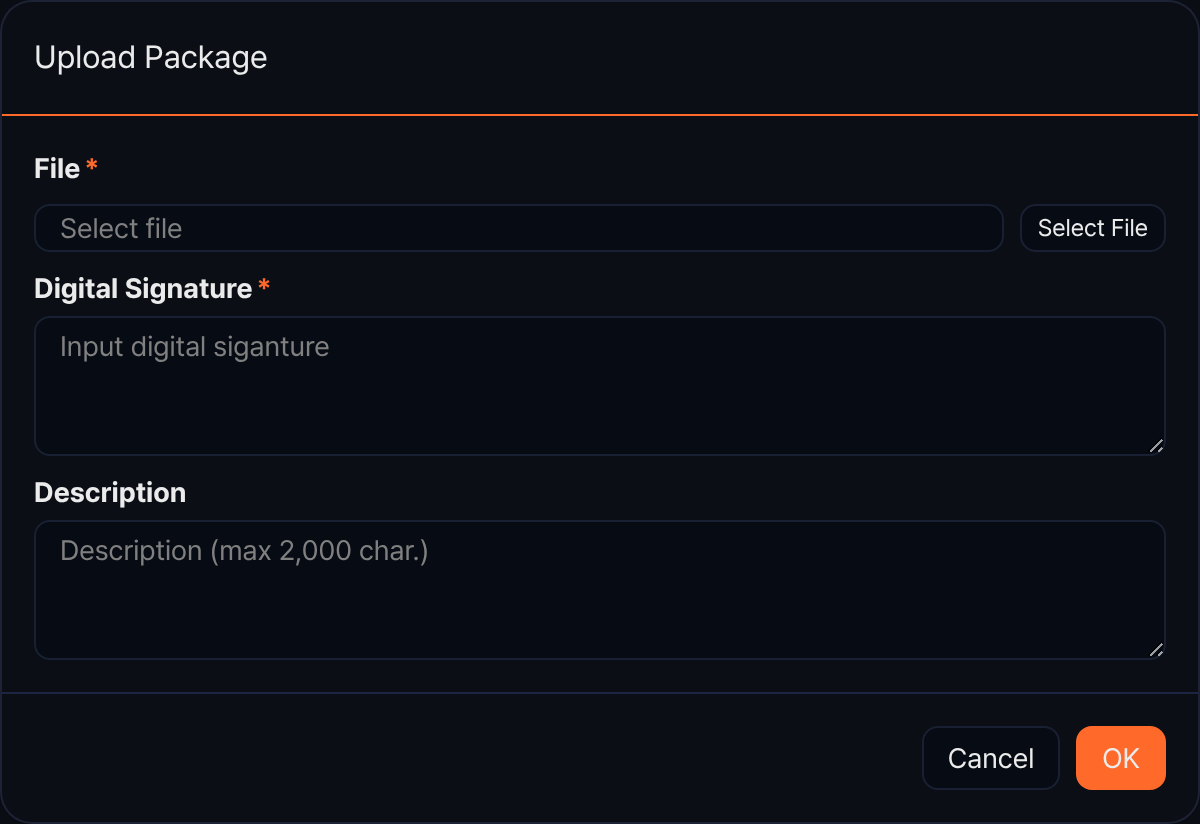
- File: Sentry installation package file (
.zip, up to 1 GB) - Digital Signature: Digital signature string you copied in Preparing a Sentry package
- Description: Description of the package (optional, up to 2,000 characters)
A progress bar appears in the dialog while the upload is in progress.
- File: Sentry installation package file (
-
Once the upload is complete, the package appears in the list.
Clicking Cancel while the upload is in progress stops the upload and shows an Aborted package upload. notification. If the digital signature does not match the package contents, a Package contents do not match its digital signature. notification appears and the upload fails.
You cannot upload a package whose name and version both match an existing one.
Removing a Sentry package
To remove a registered Sentry package:
-
Go to Settings > Packages and select the package you want to remove from the list.
-
In the selection bar that appears above the list, click Delete.
-
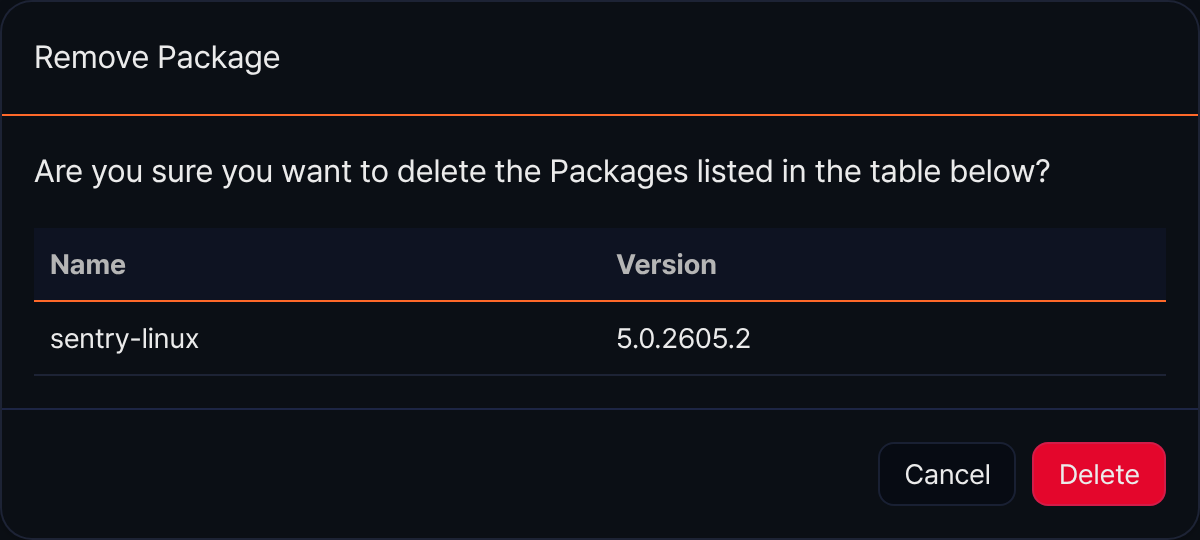
In the Remove Package dialog, click Delete to remove the selected package, or click Cancel to keep it.