
Scheduled queries
Overview
In Analysis > Scheduled Queries, you can register and manage queries that need to run repeatedly. This page is useful when a query should be executed on a fixed interval or when one query should start only after another scheduled query finishes.
For example, if you want to review allowed firewall traffic regularly, you can save a scheduled query and keep tracking its recent run status from the same page.
Only accounts with the Cluster Administrator or Administrator role can use this menu. Scheduled queries run with the permissions of the earliest-created Cluster Administrator account, not the account that registered them.
View and search the scheduled query list
Open Analysis > Scheduled Queries to see the list page.
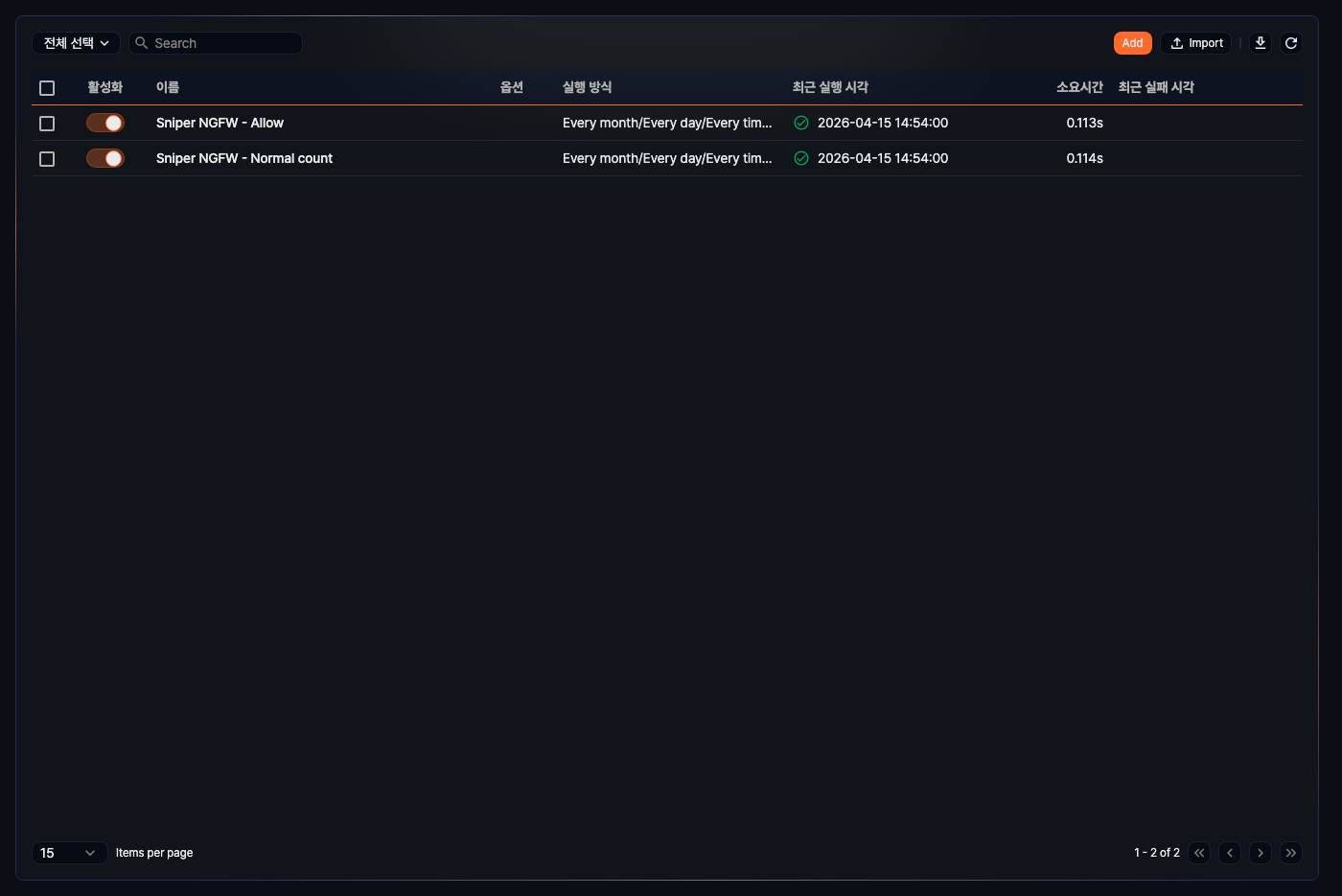
- Enabled: Shows whether the scheduled query is active. You can toggle it directly from the list.
- Name: The scheduled query name. Click it to open the edit panel on the right.
- Options:
 appears when Pass Result is enabled.
 - Execution Rule: For scheduled runs, the CRON schedule is shown as readable text. For queries that run after another query, the preceding query name and condition are shown together (for example, Daily login failure summary after succeeded).
- Last Run: Shows the latest run time with a state icon.
- Elapsed: Shows how long the latest run took, in seconds.
- Last Failure: Shows the latest failure time. If a failure reason exists, it appears as a tooltip when you hover over the time.
The left side of the toolbar narrows the list with these controls:
- Status filter: Choose Select All (default), Activated, Deactivated, Succeeded, or Failed from the dropdown.
- Search box: Shows only scheduled queries whose names contain the text.
When you select one or more items in the list, the Enable, Run, Export, Delete, and Deselect buttons appear in the toolbar.
Enable or disable scheduled queries
To change one item, click its Enabled toggle in the list.
To change several items at once:
- Select the checkboxes of the scheduled queries in the list.
- Click Enable in the toolbar, then choose Enable or Disable from the menu.
- In the Enable Scheduled Query (or Disable Scheduled Query) dialog, check the names and click Enable (or Disable).
Run or stop scheduled queries
You can run or stop scheduled queries manually regardless of their execution rule.
-
Select the checkboxes of the scheduled queries to run or stop.
-
Click Run in the toolbar, then choose Run or Stop from the menu.
-
In the Run Scheduled Query (or Stop Scheduled Query) dialog, check the names and click Run (or Stop).
-
If you chose Run and any selected query is already running, a dialog asks how to handle it. Choose an option and click OK.
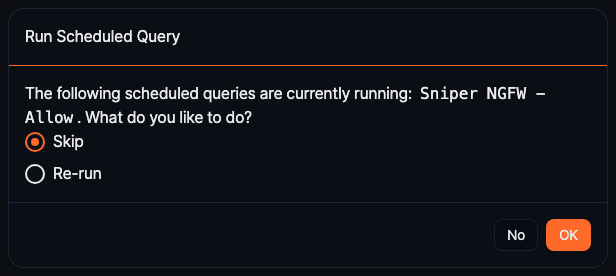
- Skip: Leaves the running queries as they are and runs only the rest (default).
- Re-run: Stops the running queries and starts them again.
Download the list
To export the list with the current keyword and status filter applied, click  in the toolbar. The Download Scheduled Query List dialog opens.
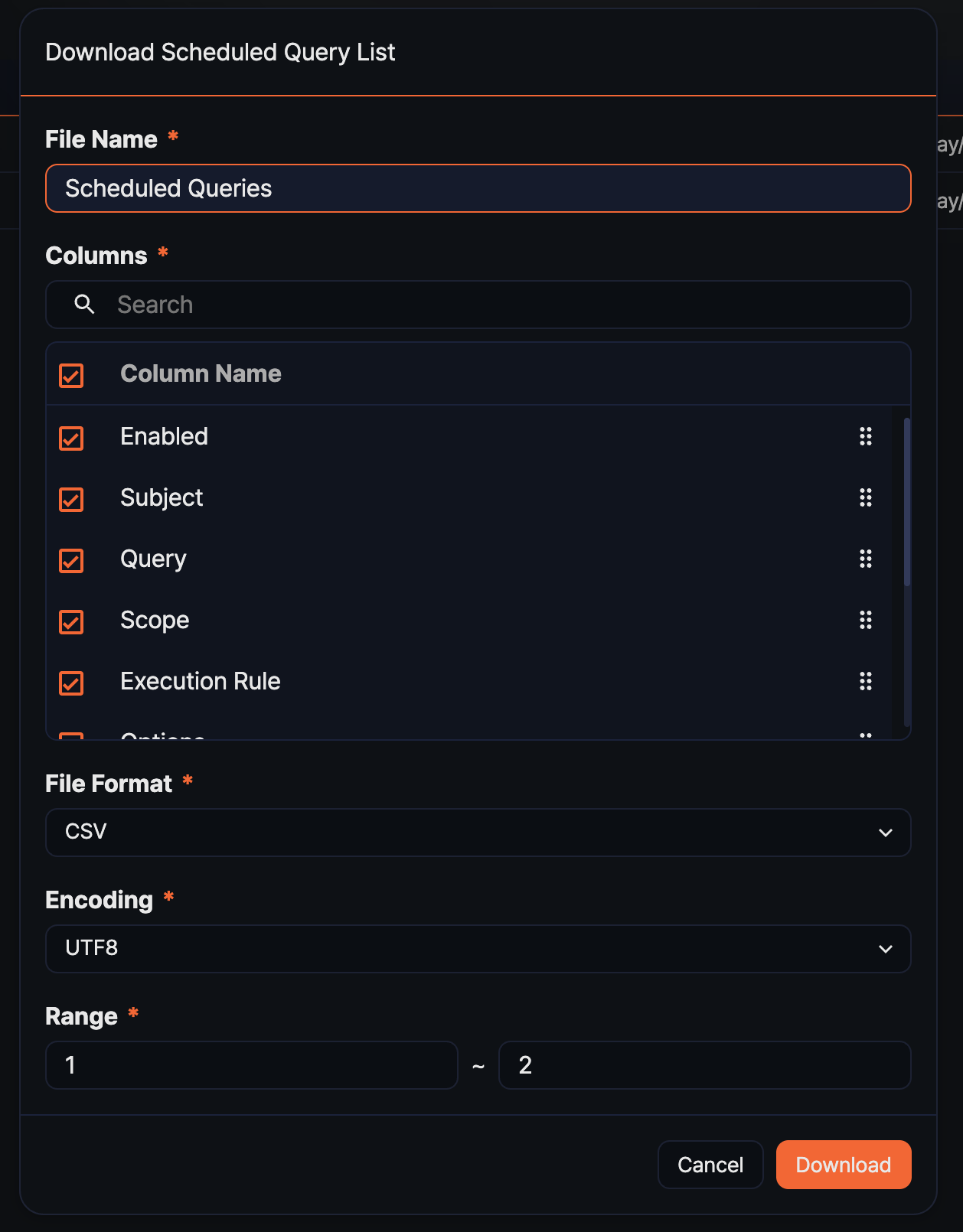
- File Name: Name of the export file (required, up to 200 characters, default: Scheduled Queries).
- Columns: Columns to include in the file. The 12 columns are Enabled, Subject, Query, Execution Rule, Schedule, Condition, Scope, Pass Result, Current, Elapsed, Last Run, and Last Failure, all selected by default. Drag the handle on the right to reorder them.
- File Format: Choose CSV, XML, Microsoft Word, HTML, JSON, or PDF (default: CSV).
- Encoding: Character encoding for the file. Shown only when File Format is CSV or JSON. The default depends on the console language (English: UTF8, Korean: MS949).
- Range: First and last item numbers to include. The default runs from the first item number on the current page to the total count.
When the settings are complete, click Download.
Refresh the list
To reload the list while keeping the current keyword and status filter, click  in the toolbar.
Add a scheduled query
To add a scheduled query:
-
Click Add in the toolbar.
-
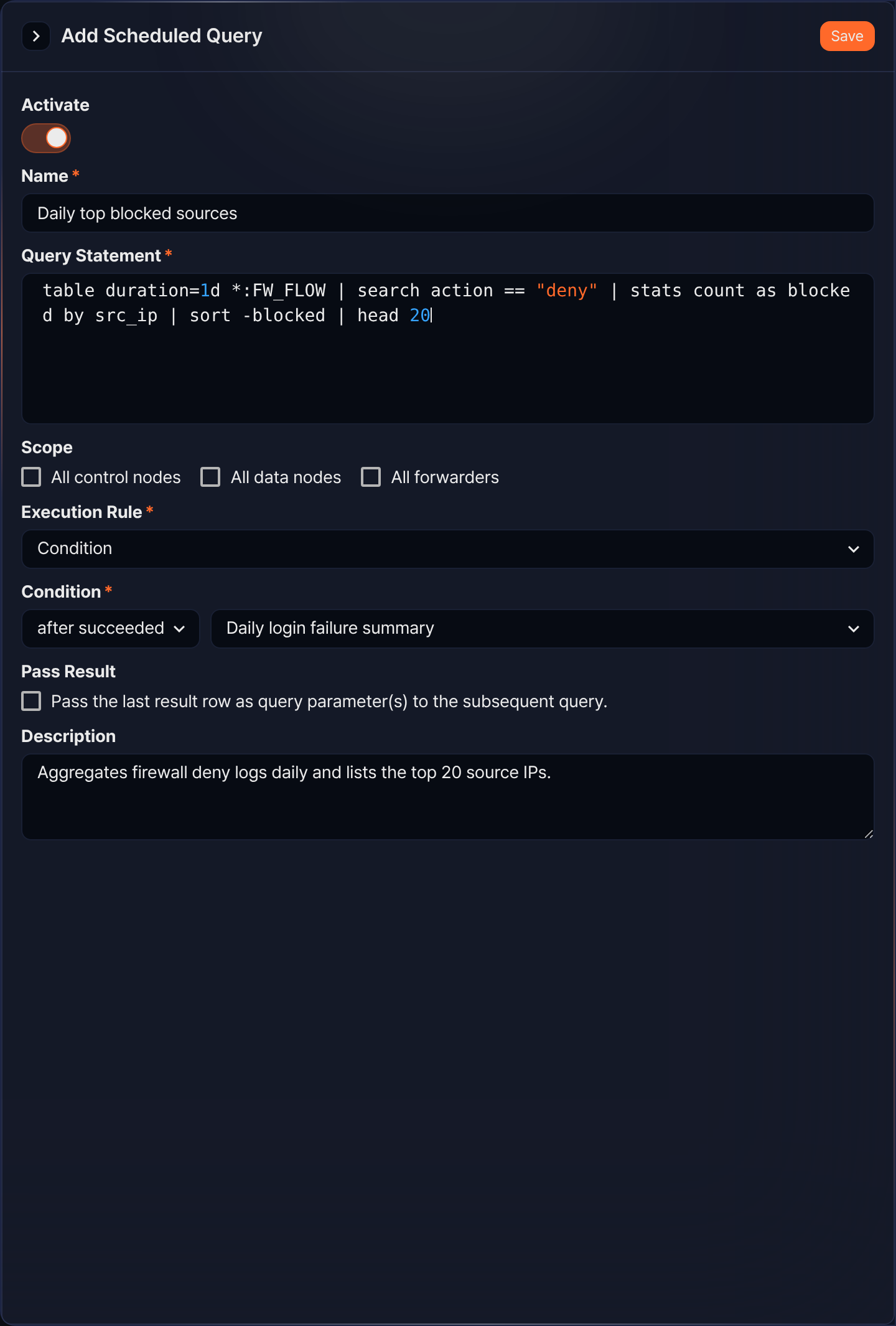
Fill in the fields in the Add Scheduled Query side panel.
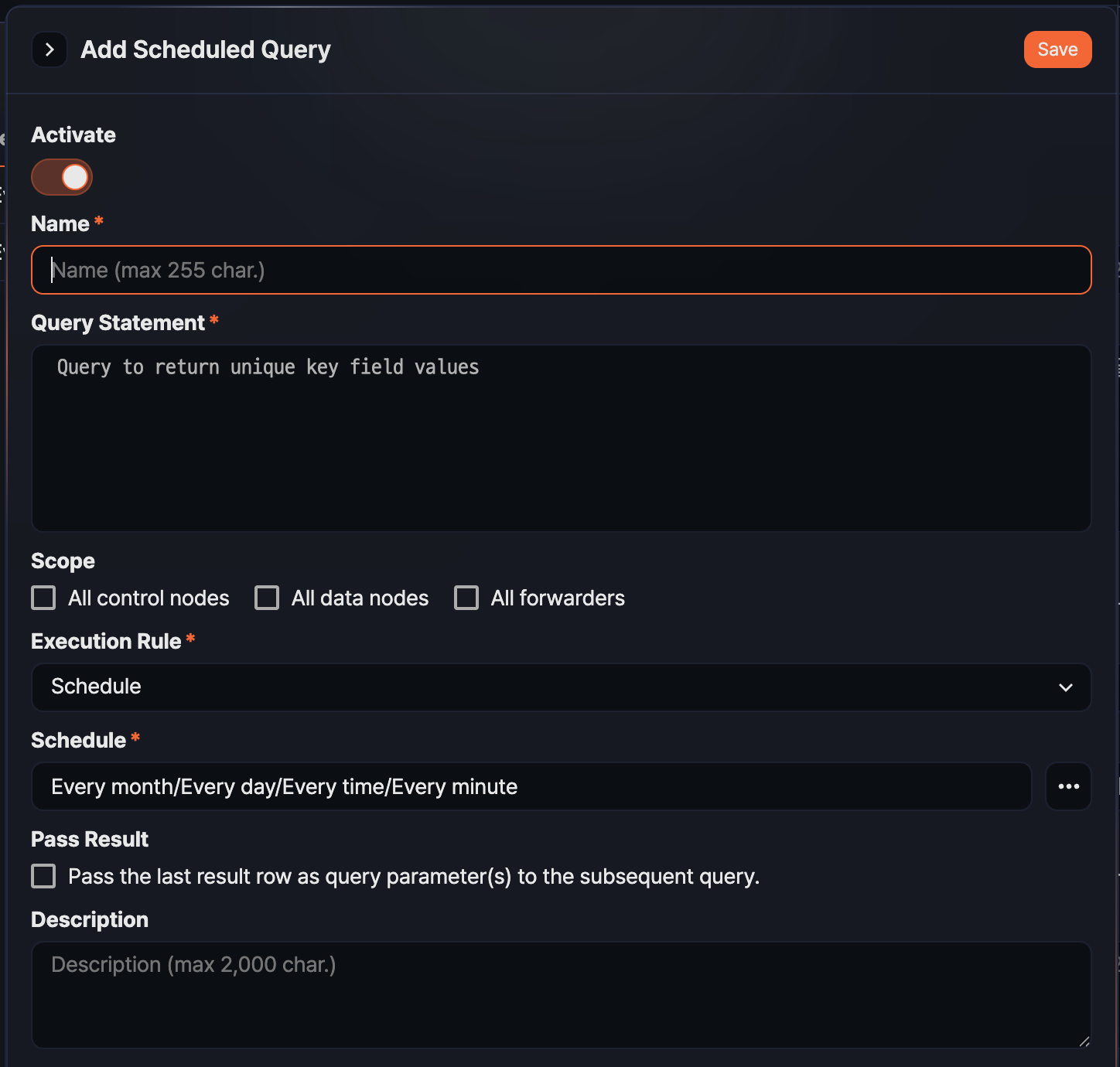
- Activate: Decides whether the query starts running on its schedule right after saving (default: on).
- Name: Scheduled query name (required, up to 255 characters). It cannot be blank only, and a duplicate name cannot be saved.
- Query Statement: Logpresso query to run (required, up to 10,000 characters). The query is validated before saving.
- Scope: Nodes that run the query. Combine All control nodes, All data nodes, and All forwarders. If nothing is selected, the query statement runs as is on the single active control node. If you select node types, the active control node runs the statement locally for itself and remotely on every other node of those types, then merges the results. For guidance on combining this setting with node qualifiers in the query statement (
*:,NODE:), see Scope and node qualifiers. - Execution Rule: Decides when the query runs (required).
- Schedule: Runs on the CRON schedule set in Schedule below.
- Condition: Runs after a preceding scheduled query finishes, according to Condition below.
- Schedule: Shown when Execution Rule is Schedule (required). The field cannot be edited directly. Click
 on the right to open the CRON editor dialog and set the interval there.
 - Condition: Shown when Execution Rule is Condition (required). Choose the condition on the left and the preceding scheduled query on the right.
- after finished: Runs when the preceding query finishes, whether it succeeded or failed.
- after succeeded: Runs only when the preceding query succeeds.
- after failed: Runs only when the preceding query fails.
- Select a preceding query: Pick a preceding scheduled query from the searchable list. You cannot save if you pick the query itself or create a circular reference.
- Pass Result: Select Pass the last result row as query parameter(s) to the subsequent query. to hand the last row of this query's result to the following scheduled query as query parameters.
- Description: Description of the scheduled query (up to 2,000 characters).
When you change Execution Rule to Condition, the Condition field replaces Schedule.
-
When the settings are complete, click Save at the top right of the panel.
Scope and node qualifiers
You can decide which nodes' data a query runs against in two places: the Scope setting, and the node qualifier placed before the table name in the query statement (*:TABLE, NODE:TABLE). The two settings work independently, so set the node range in only one of them and never combine them. For the node qualifier syntax, see the table command.
| Goal | Scope | Table reference |
|---|---|---|
| Query or aggregate data from all nodes into one result | None selected | *:TABLE |
| Query data from one specific node only | None selected | NODE:TABLE |
| Run independent work on each node with its own data (per-node file exports, loading local tables, node health checks, and so on) | Select the node types | TABLE without a node qualifier |
When no scope is selected and you specify *:TABLE, the distributed query planner of the query engine sends remote queries only to the nodes that hold the table, excludes the standby node of each pair, skips nodes that do not respond, and adds a _node field to every result row that names its source node. This is the most efficient combination for collecting data from the whole cluster.
When you select a scope, also check the following.
- Scope is for independent per-node work, not for merging results. Both the active and the standby node of a pair run the query, so it is not suitable for queries whose results are merged on the control node.
- The remote node runs the whole query statement as is. Tables, lookups, and file paths are resolved on that node, so a statement that references a resource that exists only on the control node fails on every node.
- A long-running query delays other scheduled queries. Scheduled queries have a limit on how many can run at once, so one query made heavy by a wrong combination can keep the queries behind it waiting.
When you use *:TABLE, narrow the time range with duration, from, or to, limit the fields to read with fields=, and put the filter conditions right after the table command. Reducing the data on the remote nodes first reduces the transfer volume.
You can check whether the settings are correct as follows.
- If the same rows at the same time repeat once per node with only the
_nodevalue differing, the scope and*:TABLEwere combined. - If the Scope column in the list is not Single run but the query statement contains
*:orNODE:, review the query.
Edit a scheduled query
To edit a scheduled query:
-
Click the name of the scheduled query in the list.
-
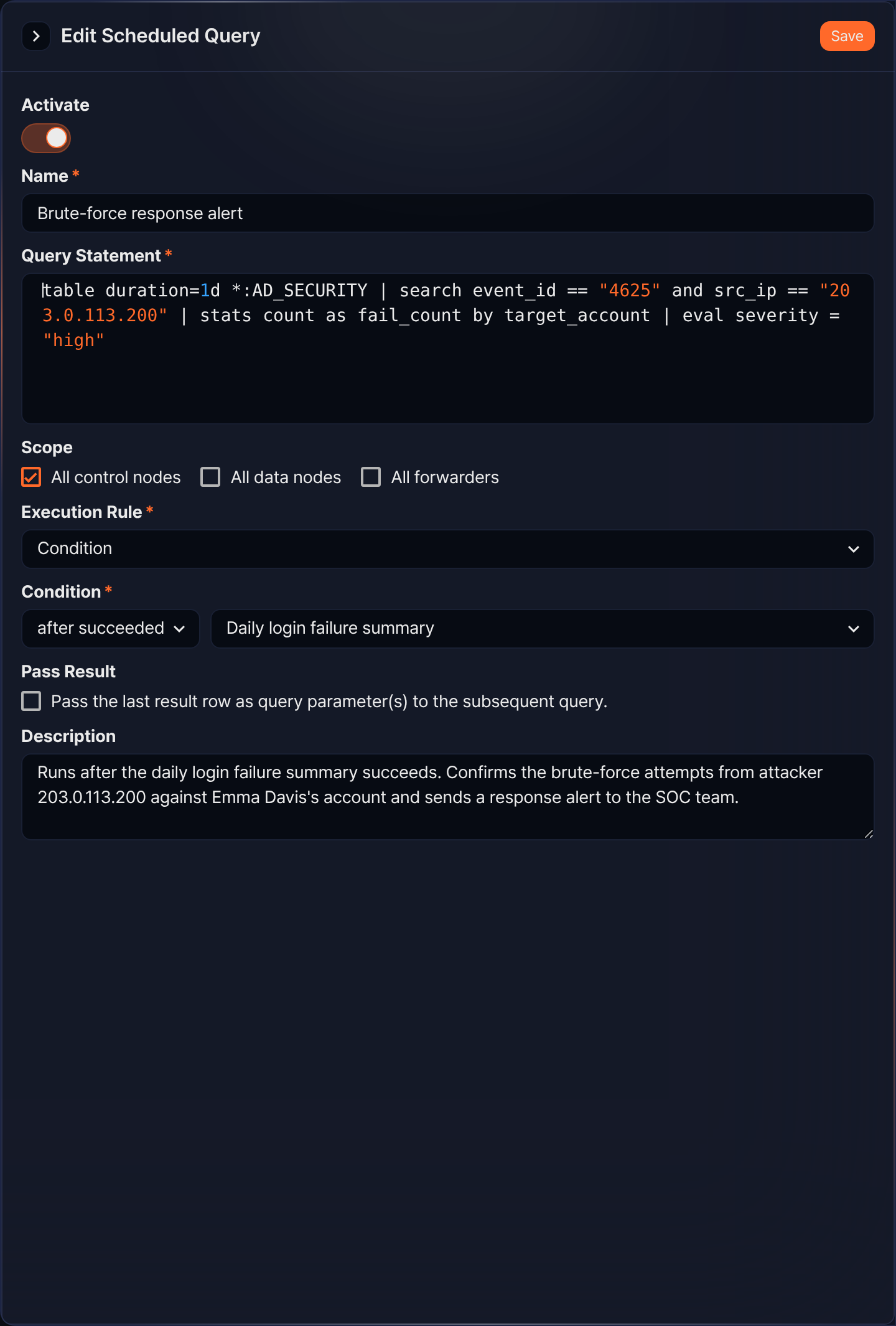
Update the fields in the Edit Scheduled Query side panel. The fields are the same as in the add panel.
-
Check the changes and click Save.
Export scheduled queries
To archive selected scheduled queries as a ZIP file or move them to another system:
- Select the checkboxes of the scheduled queries to export.
- Click Export in the toolbar.
- Check the ZIP file downloaded by the browser.
Import scheduled queries
To register scheduled queries from an exported ZIP file:
-
Click Import in the toolbar.
-
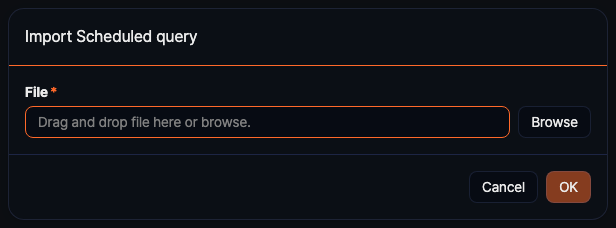
In the File field of the Import Scheduled query dialog, click Browse to choose the ZIP file, or drag the file onto the field.
-
Click OK. The upload progress is shown, and then the list is refreshed.
Delete scheduled queries
To delete scheduled queries:
-
Select the checkboxes of the scheduled queries to delete.
-
Click Delete in the toolbar.
-
In the Delete Scheduled Query dialog, check the names and click Delete.
-
If another scheduled query uses one of the selected queries as its preceding query, a confirmation dialog listing the affected names follows. Click Yes to continue.
-
If any selected query is running, a dialog asks how to handle it. Choose an option and click Delete.
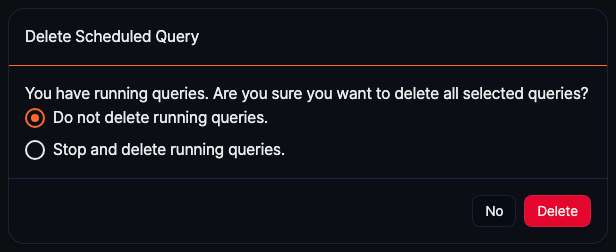
- Do not delete running queries.: Keeps the running queries and deletes only the rest (default).
- Stop and delete running queries.: Stops the running queries and deletes them as well.