Rule categories
Overview
Rule categories let you group stream rules and batch rules by attack type for easier management. Both detection types share one category list, and you pick a category from it in the Category field when you add or edit a rule. Define categories under Policies > Rule Categories to split detection policies by attack stage or threat nature. You can also group detection results in Event Summary by the same category criteria.
When you install Sonar, 13 rule categories that correspond to MITRE ATT&CK tactics are registered by default. When you design a category scheme of your own, using MITRE ATT&CK tactics as a baseline also lets you organize rules systematically by attack stage.
| Category | MITRE ATT&CK tactic |
|---|---|
| Initial Access | Initial Access |
| Execution | Execution |
| Persistence | Persistence |
| Privilege Escalation | Privilege Escalation |
| Defense Evasion | Defense Evasion |
| Credential Access | Credential Access |
| Discovery | Discovery |
| Lateral Movement | Lateral Movement |
| Collection | Collection |
| Command and Control | Command and Control |
| Exfiltration | Exfiltration |
| Impact | Impact |
| Reconnaissance | Reconnaissance |
In a default installation, the Policies > Rule Categories menu appears only for accounts with the Cluster Administrator role. Permission to add, edit, and delete categories belongs to the Cluster Administrator and Administrator roles. See Account permissions for the permissions of each role.
View/search rule categories
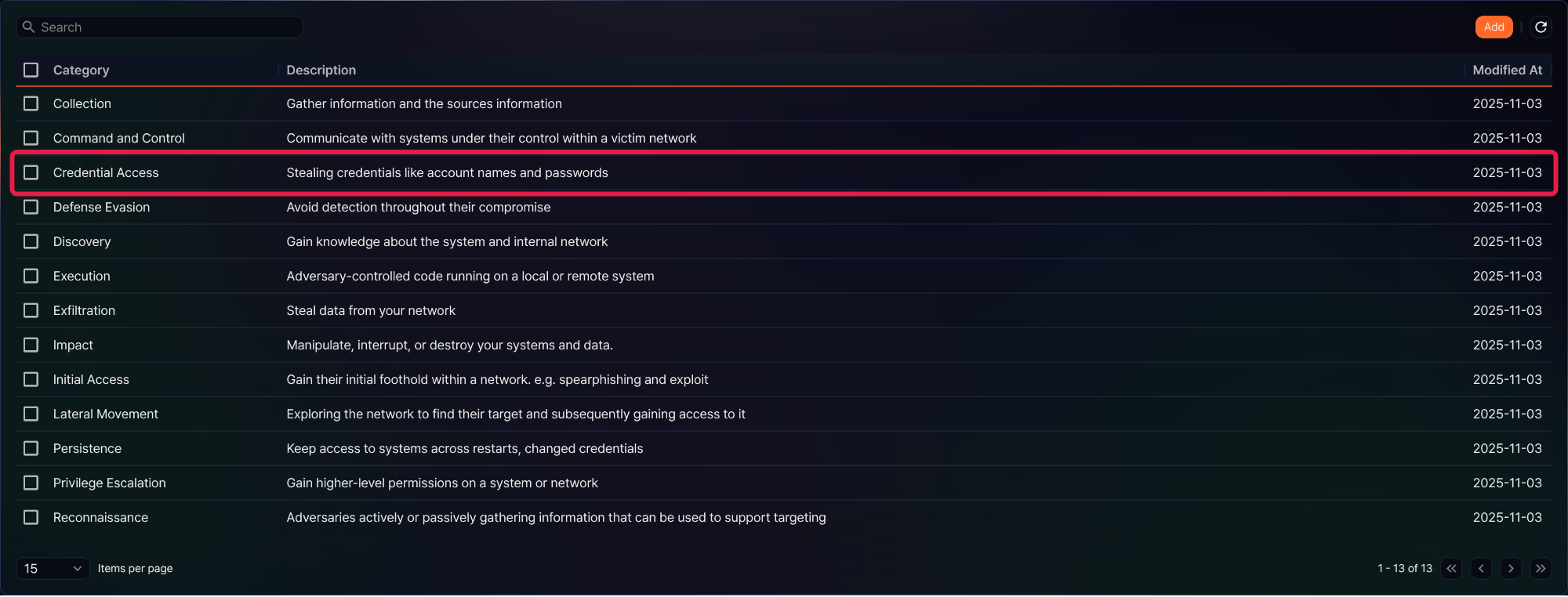
You can view or search rule categories under Policies > Rule Categories. The list is sorted by category name in ascending order, and you cannot change the sort order by clicking a column header. It shows 15 items per page by default, and you can change the page size in the selector below the list.
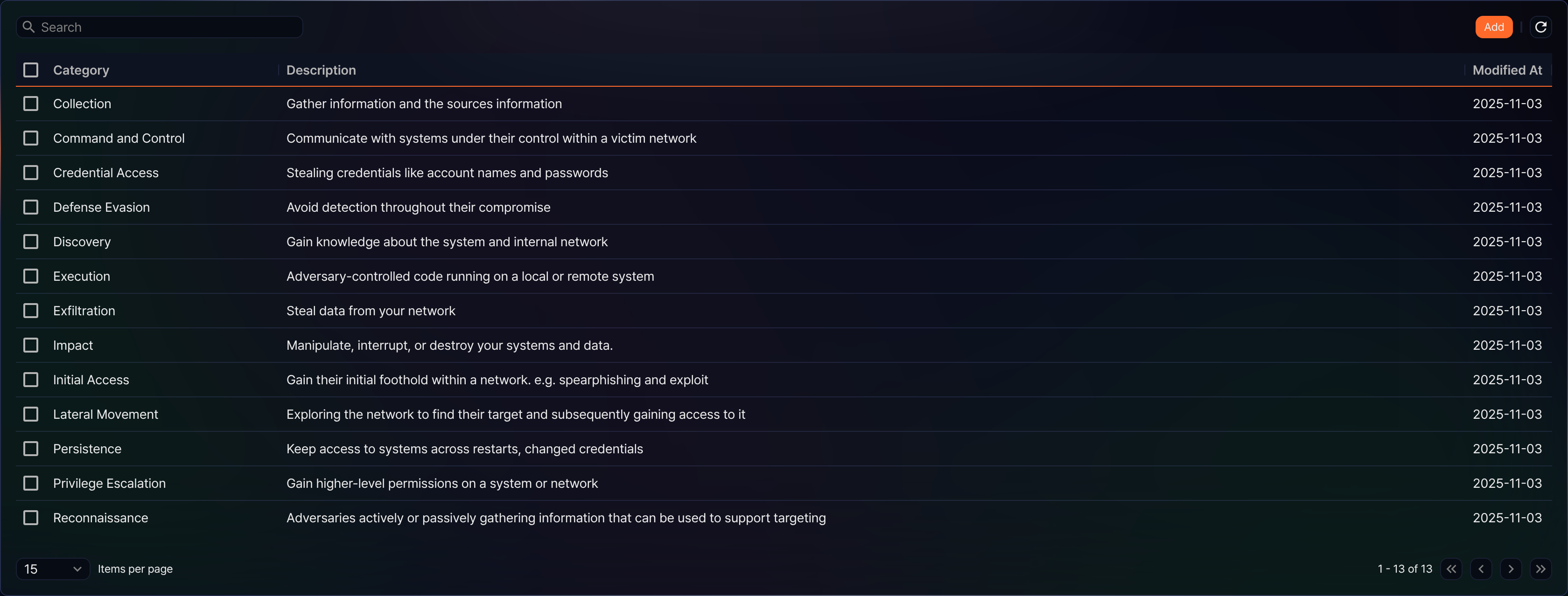
- Category: Name of the rule category
- Description: Description of what the rule category is for
- Modified At: Date the rule category was last modified
To find a specific rule category in the list, enter a keyword in the search box in the toolbar and press Enter. The search matches Category and Description with partial matching. If you enter several words separated by spaces, a category appears in the results only when one of the two fields contains all of the words.
You cannot download this list.
Select items
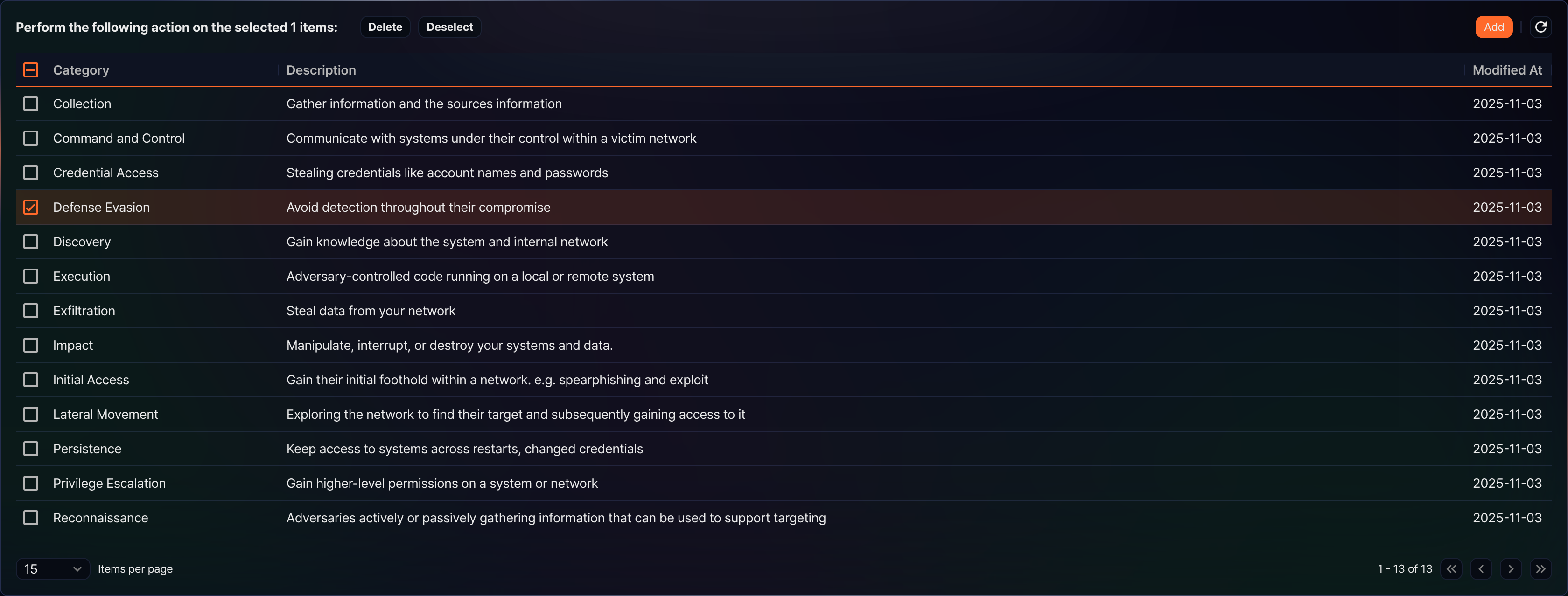
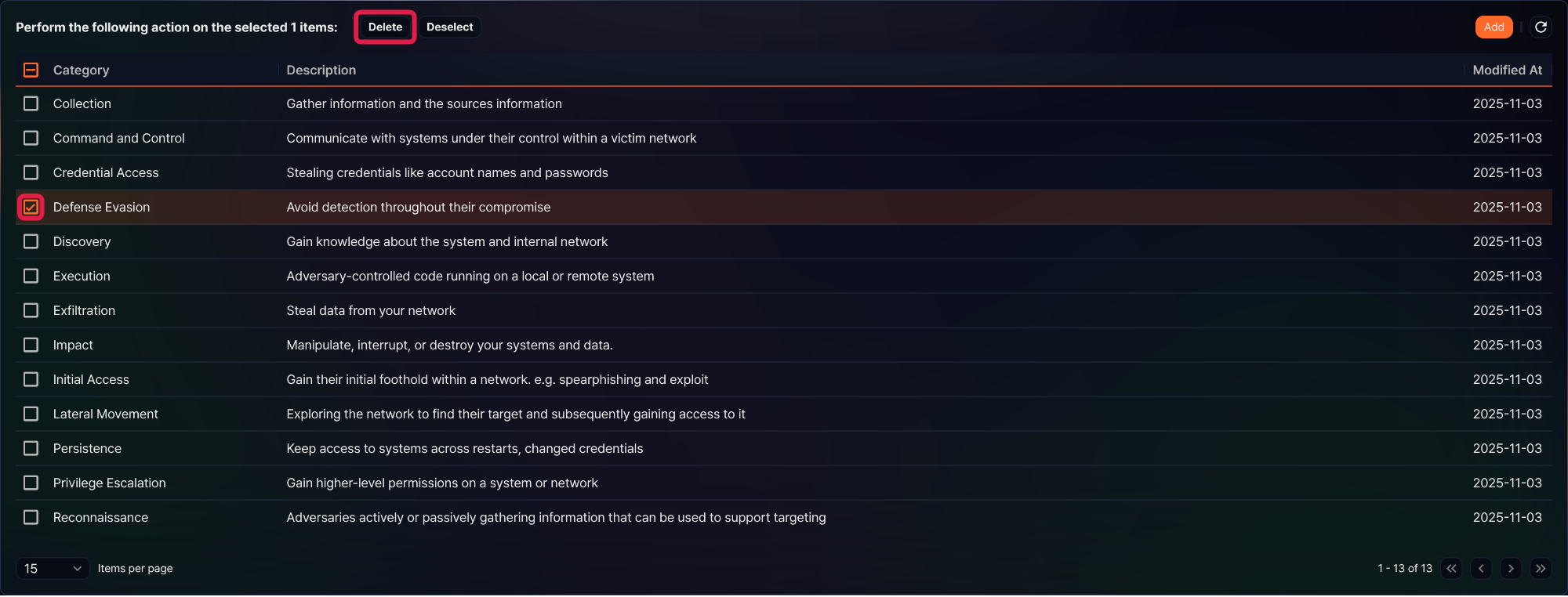
When you select the checkbox of a category row, the search box in the toolbar is replaced by the number of selected items and the selected-item action buttons (Delete, Deselect). Deleting a category starts from this state. Select the checkbox in the header to select every category on the current page, and click Deselect to clear the selection.
Refresh the list
To refresh the rule category list with the latest information, click  in the toolbar.
Add a rule category
To add a rule category:
-
Under Policies > Rule Categories, click Add in the toolbar.
-
In the New Rule Category panel that opens on the right, enter the following items and click Save.
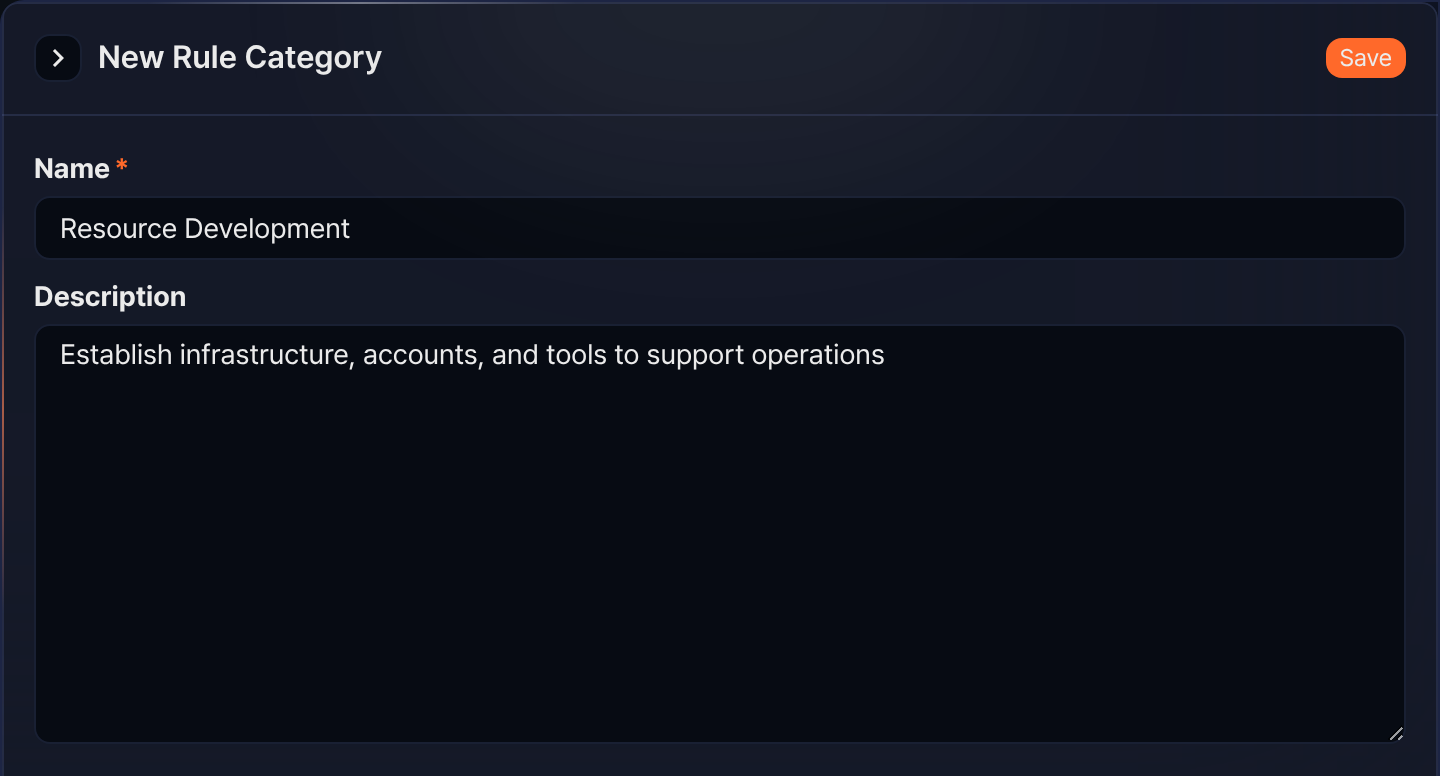
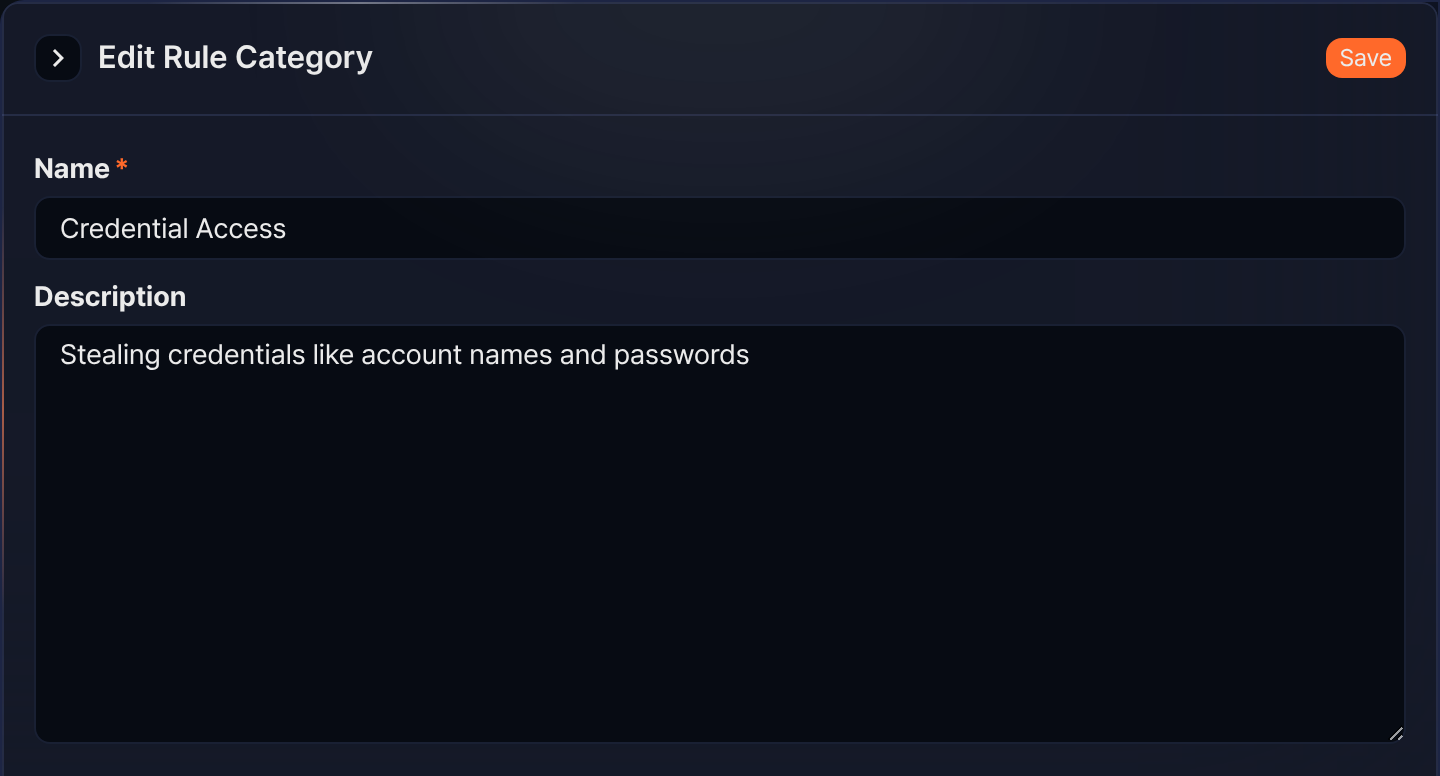
- Name (required): Name of the rule category. You can enter up to 50 characters.
- Description: Description of what the rule category is for. You can enter up to 1,000 characters.
To close the panel without saving, click  at the top left of the panel or press Esc. If you have unsaved changes, a dialog asks you to confirm before the panel closes.
Edit a rule category
To edit a rule category:
-
In the rule category list, click the row of the rule category you want to edit.
-
In the Edit Rule Category panel that opens on the right, change Name and Description, then click Save. The panel has the same layout and closes the same way as the new rule category panel. You cannot change the name to one that another category already uses.
When you rename a category, the detection rules that use it show the new name. Rules and categories are linked by an internal identifier rather than by name, so renaming does not break the link.
Delete rule categories
To delete rule categories:
-
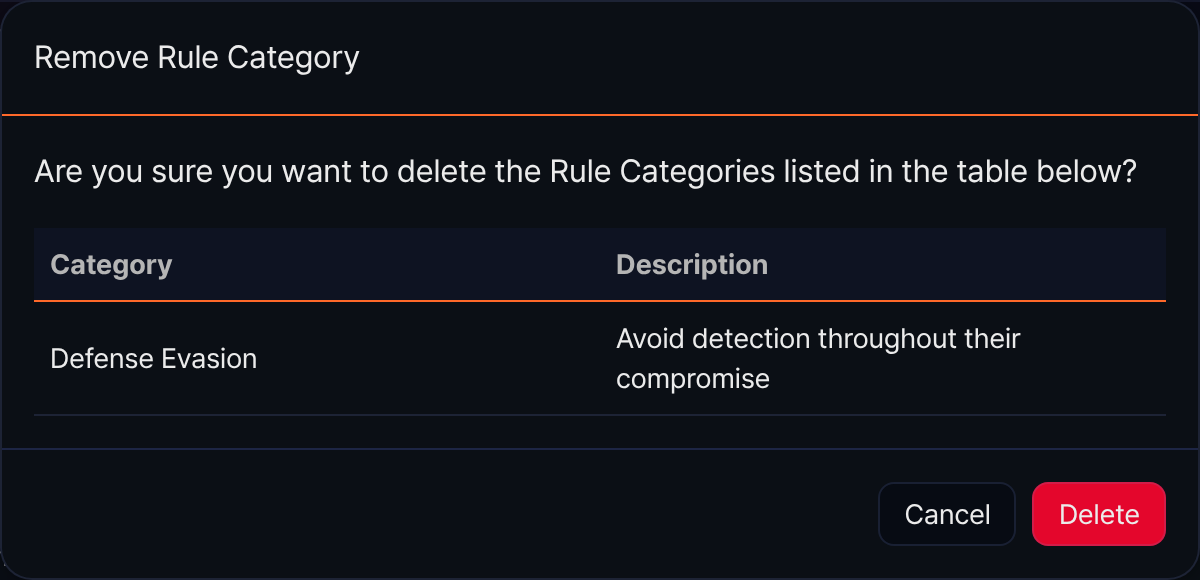
In the rule category list, select the checkboxes of the rule categories you want to delete, then click Delete in the toolbar.
-
In the Remove Rule Category dialog, review the rule categories to delete and click Delete. To cancel, click Cancel.