
Stream rules
Overview
Stream rules evaluate normalized logs during ingestion to immediately detect anomalies or threat activity. Manage rules in Policies > Stream Rules. Detection results can flow into follow-up features such as Event Summary, Tickets, Explanations, and Playbooks.
For example, stream rules can immediately detect events that match specific patterns in IPS, EDR, or firewall logs, or apply multi-step conditions based on normalized field values to quickly identify data exfiltration, C&C communication, or abnormal behavior. Administrators can add, edit, and delete rules and change their enabled state, and operators can review detection policies based on the rule list and status. In Sonar 5, you can link rules to MITRE ATT&CK techniques and tactics to manage detection goals more systematically.
The following diagram shows how a stream rule operates. Stream rules apply to data that has been normalized during the ingestion phase. When you need to enter a field name while writing a stream rule, use the field names normalized by the log schema.

A stream rule performs the following key actions:
- Event detection: Match the detection library against normalized field values.
- Response actions:
- Issue tickets and send alerts for detected events.
- Request an explanation if the actor is an employee.
- Register the IP address associated with the event in an address group.
- If necessary, send a command to the connected device to block the related traffic.
- Trigger playbook execution.
In most cases, stream rules issue tickets on event detection or request an explanation from the actor. Excessive ticket creation increases the workload of malware analysts and security operators, so you should minimize duplicate tickets. Logpresso Sonar consolidates events with the same content into a single ticket based on the alert message, ticket subject, or specified duplicate-detection fields.
Accounts with the Cluster Administrator or Administrator role can view stream rules and add, edit, delete, and duplicate them; restoring versions and managing exception conditions require the same permission. Accounts with the User role can only view the list and settings.
Search stream rules
You can view or search the list of stream rules in Policies > Stream Rules. The list is sorted by rule name.
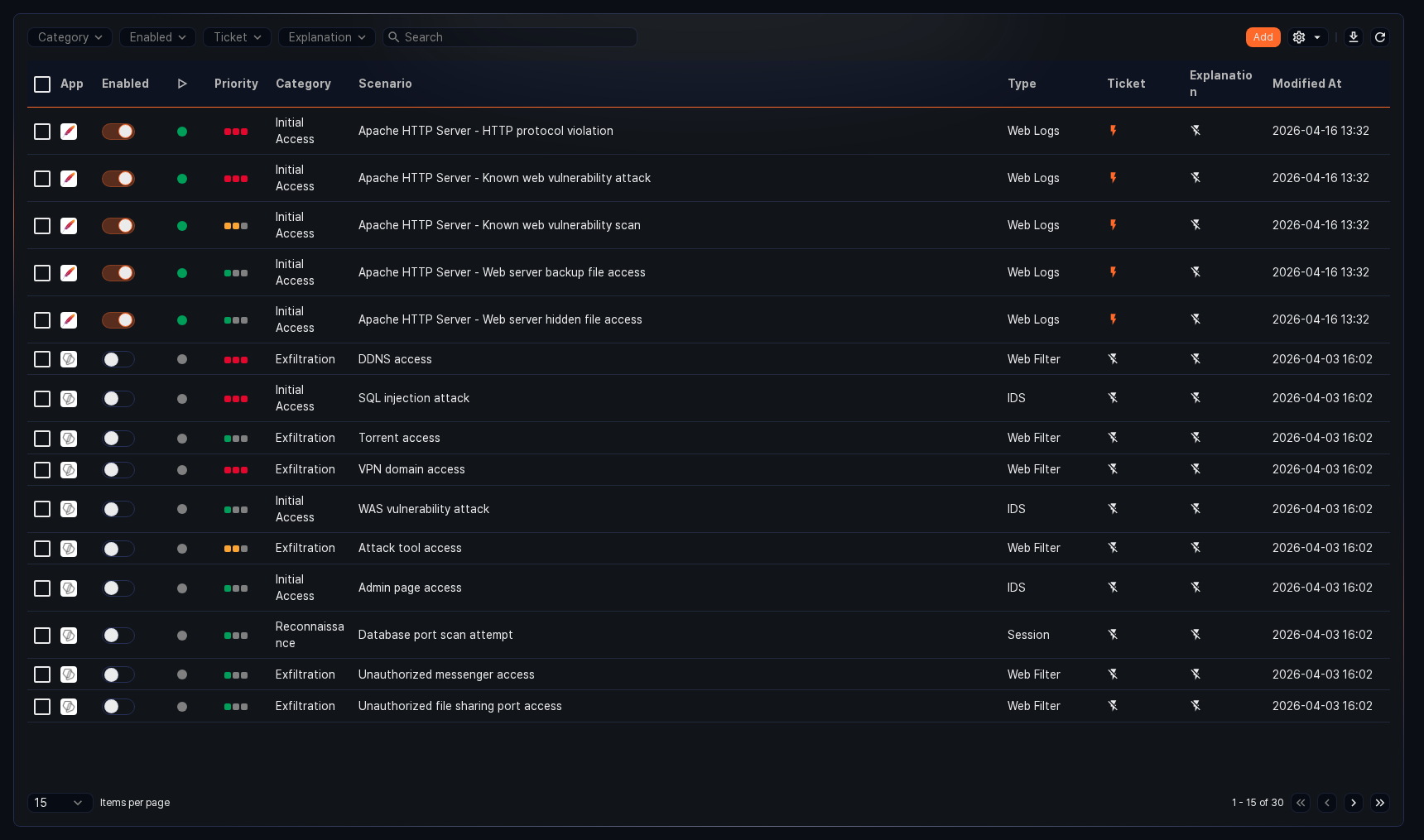
- App: The icon of the app associated with the rule. Built-in rules and rules added by users show the Logpresso icon; rules provided by an installed app show that app's icon.
- Enabled: Toggle button for enabling the rule (
 : enabled,
  : disabled)
 - ▷: Whether the rule is applied. Enabled rules show
 , and disabled rules show
  .
. - Priority: The priority of the rule, shown as
 high,
high,  medium, or
  low.
low. - Category: The category assigned to the rule
- Scenario: The rule name
- Type: The log schema configured for the rule
- Ticket: Whether ticket issuance is configured (
 : configured,
  : not configured)
 - Explanation: Whether explanation requests are configured (: configured, : not configured)
- Modified At: The date and time the rule was last modified (or created)
To find a specific stream rule in the list, use the search tool in the toolbar. The keyword is matched against the rule name, description, and scenario query. The message and category name are not searched.
Use the Category, Enabled, Ticket, and Explanation filters in the toolbar to quickly narrow the list down to the rules you need.
Enable or disable a rule
To enable or disable a stream rule, click the toggle button in the Enabled column of the rule (: enabled, : disabled).
Download the list
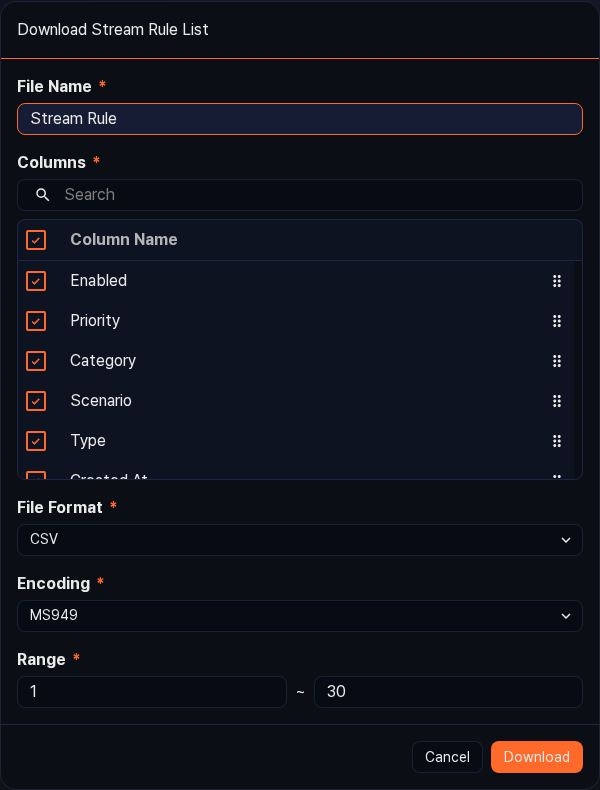
To save the stream rule list to your local PC, click  in the toolbar and select the file format you want.
Refresh the list
To reload the stream rule list with the latest information, click  in the toolbar.
Set the acceptable risk
In environments with an XDR license, you can set an acceptable risk score to estimate the expected number of tickets. The acceptable risk score is not configured per rule; there is a single value for the whole system, shared by stream rules and batch rules.
This score works together with the Ticket condition at the bottom of the rule settings. A rule whose ticket condition is Occur when acceptable risk score is exceeded issues a ticket only when the risk score of a detected event exceeds the score you set here. That option is also available only with an XDR license.
To set the acceptable risk:
-
Click
 in the toolbar, then click Acceptable Risk in the menu. This menu appears only when an XDR license is active and your account can edit rules.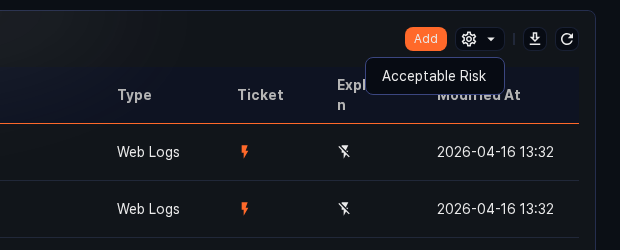
-
In the Acceptable Risk Setting dialog, enter the Acceptable Risk Score (1-100) and click Estimate Ticket Count. Estimation shows the Ticket Count for the one-day window from midnight yesterday to midnight today. Click Save to apply, or Cancel to discard.

Add a stream rule
To add a stream rule:
-
In Policies > Stream Rules, click Add in the toolbar.
-
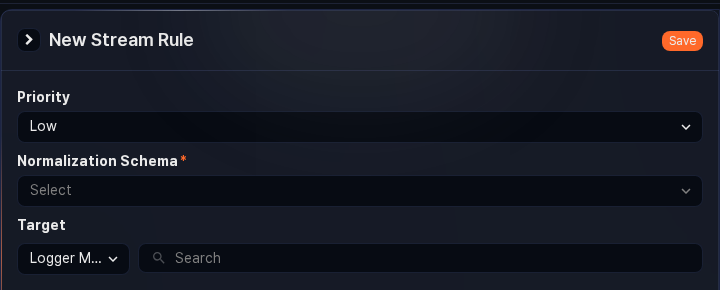
On the New Stream Rule screen, configure the detection target.
- Priority: The priority of detected events (default: Low; options: High, Medium, Low)
- Normalization Schema (required): The log schema the rule applies to. The list shows the schema name together with its identifier, such as 세션 (Session) (
session), and you can type a name in the search box to find it. The product installs base log schema names in Korean regardless of the language chosen at installation or the console language, so the English console shows them in Korean as well; the English in parentheses is an explanation added by this document. The schema determines the field list in the scenario builder and the target list. If you change an already selected schema to another one, a confirmation dialog warns you that the configured target and scenario information will be cleared. - Target: The logger models or loggers the rule applies to. Choose Logger Model or Loggers in the left list, then click the search box on the right and select one or more targets from the list. You cannot specify logger models and loggers at the same time. The list shows only logger models that have a log schema rule referencing the selected schema, and loggers that use those logger models.
NoteA logger model that has only the Original log schema rule does not reference any log schema, so it does not appear in the target list. When you configure a logger model, define a log schema rule that references a log schema.
-
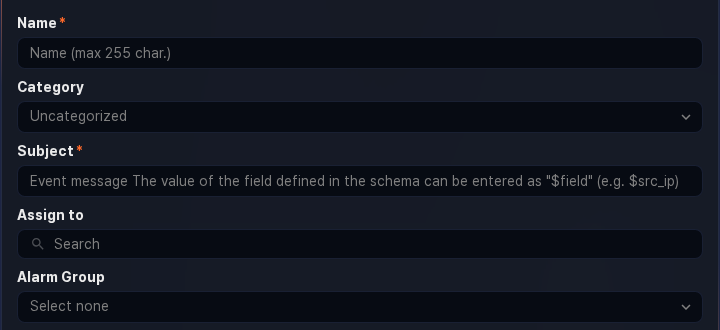
Enter the rule information.
-
Name (required): The rule name (up to 255 characters). Duplicate names are not allowed.
-
Category: The rule category (default: Uncategorized). The category appears in the Category column of Analysis > Event Summary. You can add categories in advance in Rule Categories.
-
Subject (required): The subject assigned to tickets when an event is detected (up to 2,000 characters)
- Enter a field name defined in the log schema as
$fieldnameor$fieldname$to pull the field value from the log that triggered the detection (for example,$src_ip). If the field name contains Korean characters, use the$fieldname$format. - If Detect Duplicates on is not set, duplicate tickets are suppressed based on whether the generated subject is identical.
- Enter a field name defined in the log schema as
-
Assign to: The user accounts to assign issued tickets to. Click the search box or type a name to select one or more accounts. If none is specified, tickets are created without an assignee.
-
Alarm Group: The alarm group to notify when a new ticket is issued
NoteConfigure how alarms are received in the alarm group.
-
-
To separately manage the IP addresses of attackers or abnormal actors, or to pass address group information to a firewall or IPS, configure the following settings.
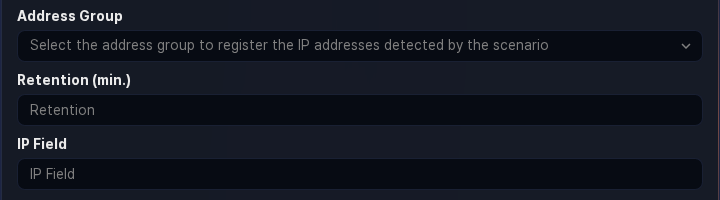
- Address Group: The address group to which the value (IP address) of the IP Field is added
- Retention (min.): How long (in minutes) to keep the IP address in the Address Group. The IP address is automatically removed from the address group after this period. If not specified, the address is retained indefinitely (range: 1-100,000,000).
- IP Field: The IP address field to add to the address group when an event is detected. Enter an IP address field name defined in the log schema (for example,
src_ip,dst_ip) (up to 50 characters).
For block integration with third-party security systems, refer to Response Targets.
-
To link the stream rule to an app and to MITRE ATT&CK techniques and tactics, configure the following settings.
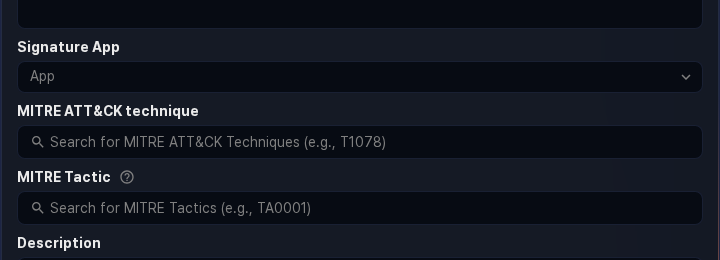
- Signature App: Determines which app's signatures to search when resolving the
signaturefield value of a detected event (selected from the installed apps). This field appears only in environments with an XDR license. - MITRE ATT&CK Technique: The MITRE ATT&CK techniques the rule detects. Type a technique ID such as
T1078or a technique name in the search box and select from the list to add it as a tag. You can select one or more techniques. - MITRE ATT&CK Tactic: The MITRE ATT&CK tactics the rule addresses. When you select a technique, the tactics it belongs to are added automatically, and you can click a tactic tag to exclude or re-include it. If you have not selected a technique, type a tactic ID such as
TA0001or a tactic name in the search box to select tactics directly. - Description: A detailed description of the rule (up to 2,000 characters)
- Signature App: Determines which app's signatures to search when resolving the
-
Write the detection rules in Scenario (required). You must select the Normalization Schema in step 2 before you can use the scenario builder and the query tab.
A scenario consists of at least one rule, applied in order from the top of the rule list. When data arrives through the Target selected in step 2, the rules are matched in order, and a rule runs only when the preceding rule matches. The order can affect system performance. Put simple, fast conditions at the top so that irrelevant logs are filtered out as early as possible.
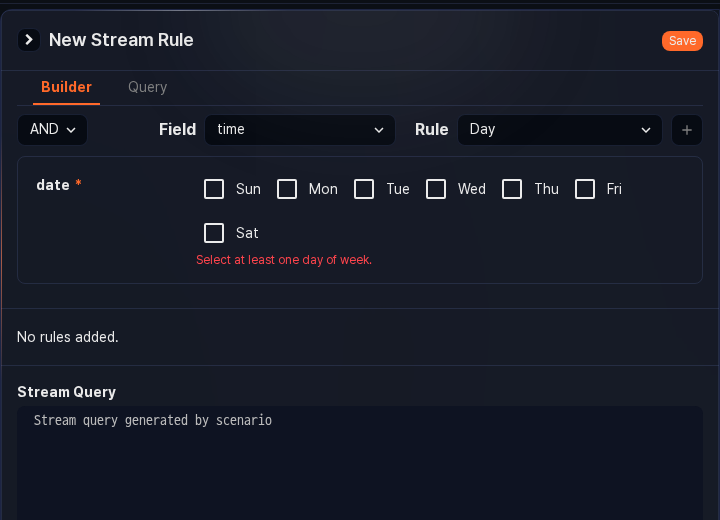
- Builder tab: Select the condition, Field, and Rule in turn, enter the rule's parameters, and click
 to add the rule to the rule list. For the parameters and their values, refer to Rules and parameters by field type.
- Condition: The leftmost select box. The condition for applying the rule (default: AND). The next rule runs when the comparison between the data and the rule is true.
- AND: True when the data matches the rule
- NOT: True when the data does not match the rule
- Field: The field to compare against the Rule. The fields defined in the log schema are listed by display name (default: Time).
- Rule: The rule to apply to the Field. Only rules that fit the field's data type are listed, and selecting a rule shows its parameter inputs below.
- Condition: The leftmost select box. The condition for applying the rule (default: AND). The next rule runs when the comparison between the data and the rule is true.
- Query tab: To write a rule directly as a query, enter the query and click Add. Invalid or non-executable queries (for example, ones that reference a nonexistent address group or pattern group) cannot be added.
- Rule list: Each added rule shows its condition, field, rule, and parameter values. Use the four icon buttons on the right of the rule (from left to right: edit, move up, move down, and delete) to modify a rule, change its order, or remove it.
- Stream Query: The rule list converted to a read-only stream query, one line per rule. You cannot add more rules once the combined length of the rule queries exceeds 10,000 characters.
- Builder tab: Select the condition, Field, and Rule in turn, enter the rule's parameters, and click
-
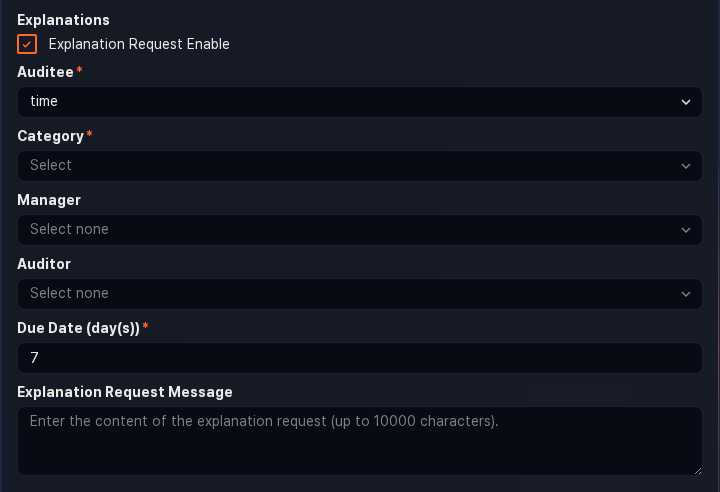
If detected events are related to an employee of your organization, you can request an explanation from that employee. Select the Explanation Request Enable checkbox under Explanations to show the following fields.
-
Auditee (required): The field that holds the personnel number of the employee to request an explanation from. Select the personnel number field from the list of log schema fields. If the schema has an
emp_keyfield (or a field whose display name is Personnel No.) and you turned on Explanation Request Enable before selecting the schema, that field is selected automatically. If you selected the schema first, the first field in the list is filled in, so check that the personnel number field is selected in either case. If the schema has no personnel number field, prepare one first by following Notes on configuring explanation requests.When a threat is detected, an explanation request email is automatically sent to the employee mapped to that personnel number. Configure the employee information (personnel number, account, email) in Users > Employees first.
-
Category (required): The explanation category. You can add categories in advance in Explanation Categories.
-
Manager, Auditor: The first and second reviewers of the explanation, selected from the employee search box. If no manager is specified, the auditee's superior becomes the first reviewer, and if no superior information exists, the explanation request is not created. If no auditor is specified, the explanation closes without a second review. For details, refer to Explanations.
-
Due Date (day(s)) (required): The deadline for submitting the explanation (default: 7 days; range: 1-255 days). After the deadline, the auditee can no longer submit an explanation.
-
Explanation Request Message: The message delivered with the explanation request (up to 10,000 characters). The text is inserted where the
$user_notetext macro appears in the email or SMS template body. You can include field macros such as$src_ipto describe the detection evidence.
-
-
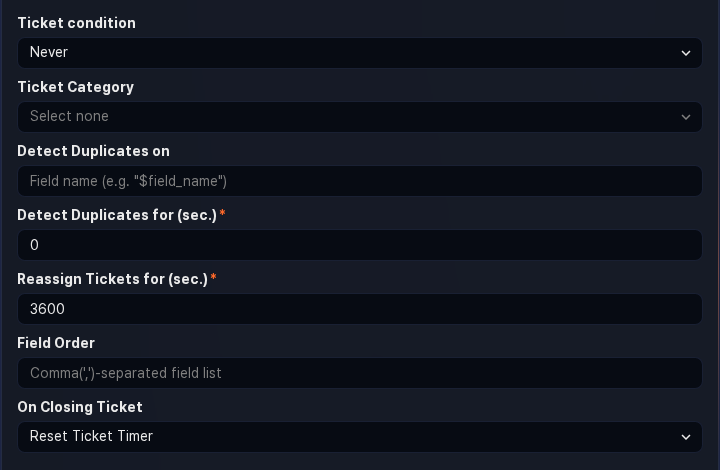
To issue tickets when events are detected, configure the following settings.
-
Ticket condition: When to issue a ticket for a detected event (default: Never)
- Always: Issue a ticket every time an event is detected.
- Occur when acceptable risk score is exceeded: Issue a ticket only when the risk score of the detected event exceeds the score set in Set the acceptable risk. This option appears only in environments with an XDR license.
- Never: Do not issue tickets. Events are recorded only in Analysis > Event Summary.
-
Ticket Category: The ticket category that classifies issued tickets. Required unless the Ticket condition is Never; it cannot be selected when the condition is Never.
NoteTo let a playbook triggered by the event decide whether to create a ticket, leave the ticket condition set to Never.
-
Detect Duplicates on: The field names used as the duplicate-detection key, entered as macros such as
$fieldnameand separated by commas (,) (up to 2,000 characters). If not set, the Subject string is used.For example, if Subject is
C&C server connection: $src_ip -> $dst_ipbut you do not want a flood of events or tickets when the same host connects to different C&C servers, set Detect Duplicates on to$src_ip. -
Detect Duplicates for (sec.): How long to ignore the same event after a ticket is issued (required; default: 0; range: 0 - 86,400 seconds)
- When
0: Follows the Reassign Tickets for setting. - When not
0: Ignores the same event for the specified period and does not add it as evidence to the ticket.
- When
-
Reassign Tickets for (sec.): How long to add only evidence and occurrence counts to the existing ticket instead of issuing a new one when the same event recurs (required; default: 3,600; range: 0 - 86,400 seconds)
- When
0: A ticket with the same subject is created every time the event occurs. - When not
0: Only evidence and occurrence counts are recorded in the existing ticket for the specified period.
- When
-
Field Order: The order of fields shown in the ticket evidence and alarm emails. Enter field names in display order, separated by commas (
,) (up to 2,000 characters). -
On Closing Ticket: How a ticket with Reassign Tickets for is handled after it is closed (default: Reset Ticket Timer)
- Keep Ticket Timer: Even after the ticket is closed, the same threat event occurring before the period expires is recorded as evidence and occurrence count on the closed ticket.
- Reset Ticket Timer: Closing the ticket ends the period, and the next occurrence of the same threat event issues a new ticket.
-
-
To finish adding the stream rule, click Save at the top right of the screen. The stream rule is enabled as soon as it is added.
Rules and parameters by field type
The scenario builder lets you configure rules for each field type defined in the log schema. The rules and parameters available for each field data type are as follows. Except for the selection lists, the screen does not validate the format or length of the values you enter, so enter values that fit the field type. The 0-23 hour range of the time range rule is limited only by the spinner buttons; typed values are not checked.
The rule names and parameter labels in the scenario builder are shown as the product displays them. The English console currently shows rule names in Korean and parameter labels as their internal names, so the tables below list them the same way. The English in parentheses after each rule name is an explanation added by this document and does not appear on screen.
STRING
| Rule | Parameter | Value | Load | Description |
|---|---|---|---|---|
| 대상 문자열과 일치 (matches string) | string | String to compare | Low | Filter field values equal to the comparison string |
| 대상 문자열에 포함 (contains string) | string | Substring to look for | Low | Filter field values containing the substring |
| 시그니처 패턴탐지 (signature pattern) | signature | Select a signature group | Medium | Filter field values by signature |
BOOL
| Rule | Parameter | Value | Load | Description |
|---|---|---|---|---|
| 참 혹은 거짓 (true or false) | value | Select true or false | Low | Filter field values that are true or false |
SHORT/INT/LONG/DOUBLE
| Rule | Parameter | Value | Load | Description |
|---|---|---|---|---|
| 대상 값과 일치 (equals) | value | Number to compare | Low | Filter fields whose value matches |
| 대상 값 범위 (in range) | from, to | Start and end values (numbers) | Low | Filter field values within the range |
| 대상 값보다 큼 (greater than) | value | Number to compare | Low | Filter field values greater than the value |
| 대상 값보다 크거나 같음 (greater than or equal) | value | Number to compare | Low | Filter field values greater than or equal to the value |
| 대상 값보다 작음 (less than) | value | Number to compare | Low | Filter field values less than the value |
| 대상 값보다 작거나 같음 (less than or equal) | value | Number to compare | Low | Filter field values less than or equal to the value |
DATE
| Rule | Parameter | Value | Load | Description |
|---|---|---|---|---|
| 요일 매칭 (day of week) | date | Multi-select days (Sun-Sat) | Low | Filter data generated on the selected days |
| 주중 매칭 (weekday) | - | - | Low | Filter data generated on weekdays |
| 주말 매칭 (weekend) | - | - | Low | Filter data generated on weekends |
| 시간 범위 (time range) | from, to | Start and end hours (0-23) | Low | Filter data generated within the specified hours |
COUNTRY
| Rule | Parameter | Value | Load | Description |
|---|---|---|---|---|
| 국가 코드 일치 (country code) | country | Select a country | Low | Filter field values matching the country code |
PORT
| Rule | Parameter | Value | Load | Description |
|---|---|---|---|---|
| 포트 번호 일치 (port number) | port | Port number | Low | Filter field values matching the port number |
| 포트 그룹에 포함 (in port group) | port_group | Select a port group | Low | Filter field values included in the port group |
IP
| Rule | Parameter | Value | Load | Description |
|---|---|---|---|---|
| IP 주소 일치 (IP address) | ip | IP address | Low | Filter field values matching the IP address |
| IP 주소가 네트워크 대역에 포함 (in subnet group) | subnet | Select a subnet group | Low | Filter field values included in the subnet group |
| IP 주소가 주소 그룹에 포함 (in address group) | guid | Select an address group | Low | Filter field values included in the address group |
| IP 주소가 특정 평판 DB에 포함 (in specific reputation DB) | name | Select a threat intelligence feed | Medium | Filter field values included in the specified reputation DB |
| IP 주소로 이벤트 연관 대기 (event context add) | topic, timeout | Event name, retention time (for example, 30m) | High | Create an event context by name and keep the IP address for the timeout period |
| IP 주소로 이벤트 연관 탐지 (event context match) | topic | Event name | High | Filter IP addresses included in the specified event context |
| IP 주소로 이벤트 발생 임계치 초과 (event threshold) | topic, threshold | Event name, threshold (number) | High | Filter IP addresses exceeding the occurrence threshold in the event context |
| IP 주소가 평판 DB에 포함 (in any reputation DB) | - | - | Medium | Filter field values included in any threat intelligence feed at least once |
MD5/SHA1/SHA256
The table shows the rule names for MD5 fields. For SHA1 and SHA256 fields the prefix and the Korean particle change, for example SHA1이 평판 DB에 포함 and SHA256이 특정 평판 DB에 포함.
| Rule | Parameter | Value | Load | Description |
|---|---|---|---|---|
| 대상 해시값과 일치 (matches hash) | value | Hash value | Low | Filter field values matching the hash |
| MD5가 평판 DB에 포함 (in any reputation DB) | - | - | Medium | Filter field values included in any threat intelligence feed at least once |
| MD5가 특정 평판 DB에 포함 (in specific reputation DB) | name | Select a threat intelligence feed | Medium | Filter field values included in the specified reputation DB |
URL
| Rule | Parameter | Value | Load | Description |
|---|---|---|---|---|
| URL이 평판 DB에 포함 (in any reputation DB) | - | - | Medium | Filter field values included in a reputation DB |
| URL이 특정 평판 DB에 포함 (in specific reputation DB) | name | Select a threat intelligence feed | Medium | Filter field values included in the specified reputation DB |
DOMAIN
| Rule | Parameter | Value | Load | Description |
|---|---|---|---|---|
| 대상 문자열과 일치 (matches string) | string | String to compare | Low | Filter field values equal to the comparison string |
| DOMAIN이 평판 DB에 포함 (in any reputation DB) | - | - | Medium | Filter field values included in a reputation DB |
| DOMAIN이 특정 평판 DB에 포함 (in specific reputation DB) | name | Select a threat intelligence feed | Medium | Filter field values included in the specified reputation DB |
Other
| Rule | Parameter | Value | Load | Description |
|---|---|---|---|---|
| 행위 프로파일 탐지 (behavior profile) | profile_guid | Select a behavior profile | Low | Filter field values matching the key field of the behavior profile |
Notes on configuring explanation requests
To configure explanation requests, you need a data field that can be mapped to the auditee, such as the user's personnel number, account, or source IP address. Most log schemas do not include such a field, so additional configuration is needed.
There are several ways to map auditee information. This section introduces one representative approach: look up the employee's personnel number (emp_key) from the account (user) in the collected log, append it to the log, and use that field as the auditee field.
-
Configure a lookup table that maps accounts to personnel numbers
-
In Analysis > Lookups, add a lookup that maps accounts to personnel numbers. The following example defines the
employee_keylookup with the key fielduserand the value fieldemp_key. The key field name must match the account field name in the collected log so that thelookupcommand can match it directly.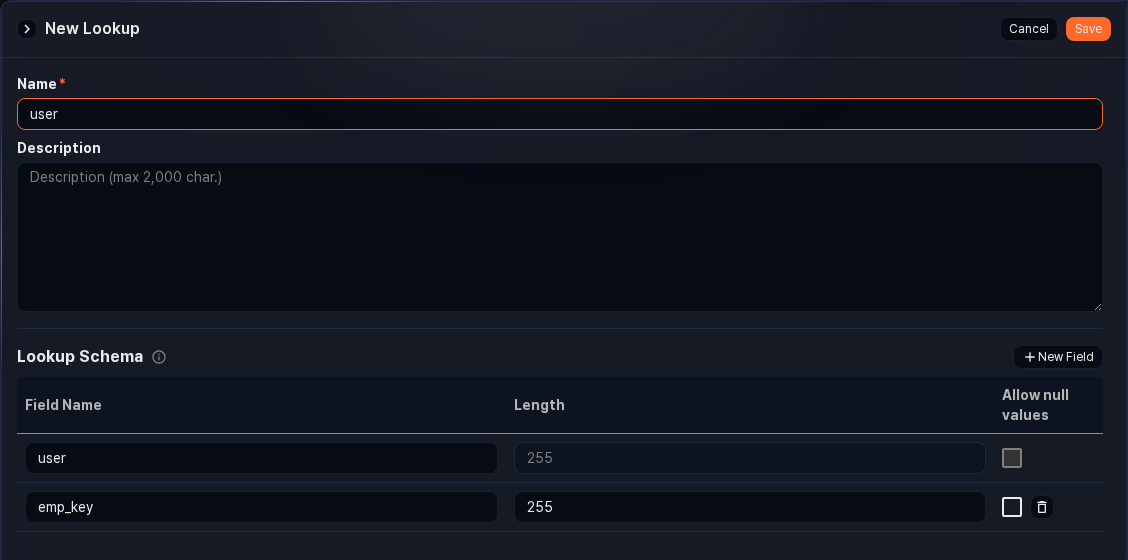
-
For how to add a lookup and enter its data, refer to Lookups.
-
-
Configure the log schema to normalize the personnel number field
-
In Loggers > Log Schemas, add a personnel number field to the log schema used for detection. The following example adds the string field
emp_key(display name: Personnel No.) to the 인증 (Authentication) (auth) schema. This field must exist for the personnel number to appear in the rule's Auditee list.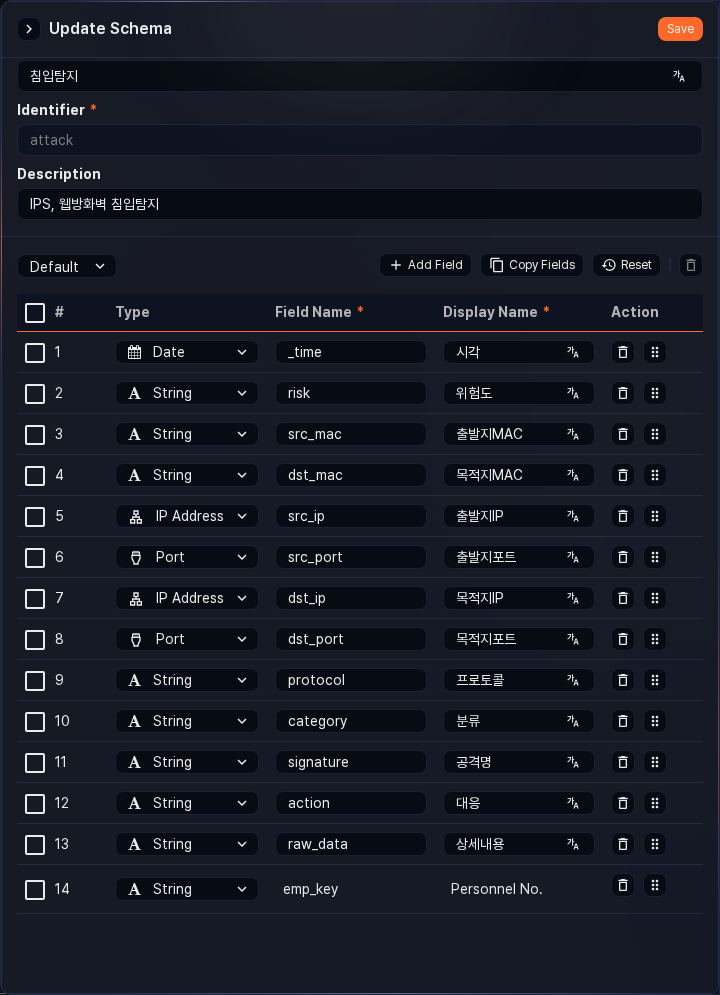
-
-
Configure a stream query that adds the personnel number field by matching the lookup table
-
In Loggers > Logger Models, open the Stream Query of the log schema rule that normalizes to that schema and add a
lookupcommand on the Extended tab. The All tab is read-only and shows the base, extended, and common queries combined, and the Base tab can be overwritten when an app is updated, so put the queries you add on the Extended tab. The format islookup <lookup name> <account field name> output <personnel number field name>. The following example setslookup employee_key user output emp_keyon the Extended tab of the 인증 (Authentication) schema rule.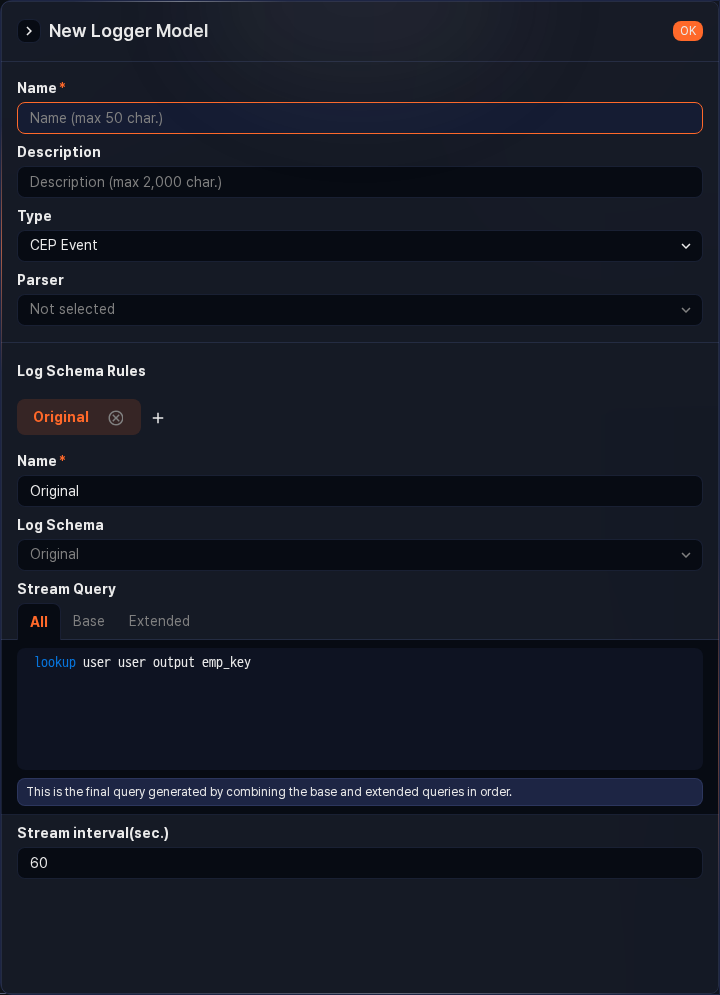
-
If no logger uses this logger model, add a logger.
-
-
Register employee information including personnel numbers and accounts
-
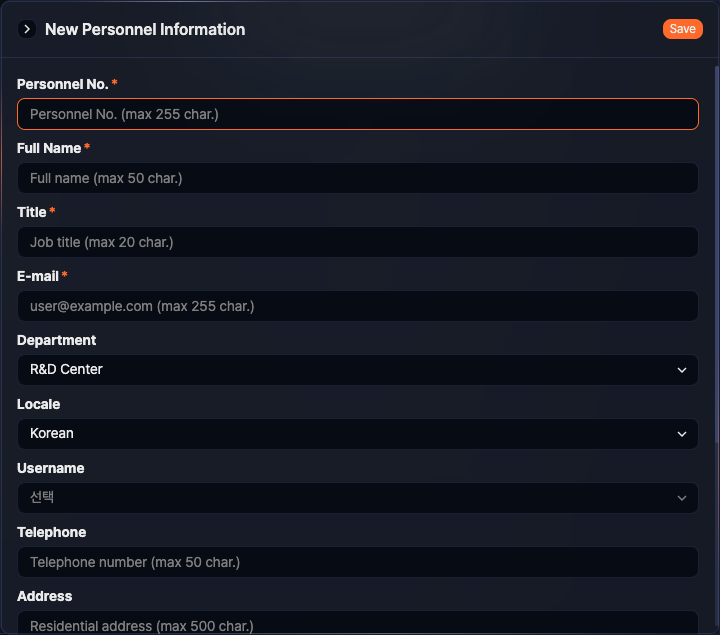
In Users > Employees, register the personnel number, email, and department of the employees who may receive explanation requests. The personnel number in the lookup must match the employee's personnel number for the request to reach that employee. If the employee has a corresponding user account, select it in Login Name.
-
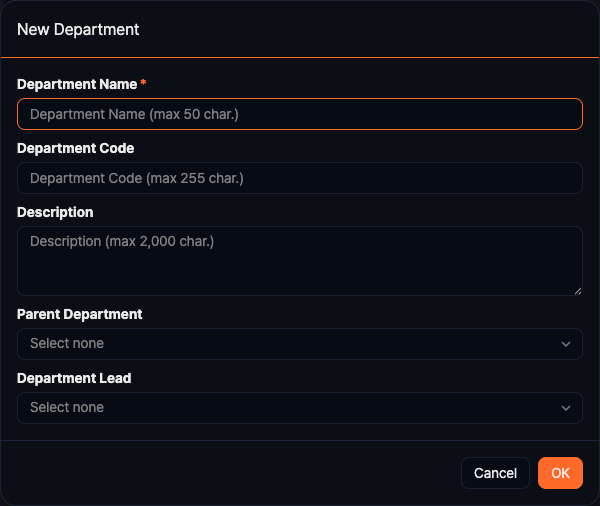
If the rule does not specify a manager, the review goes to the auditee's superior, so assign a department head to each department. For details, refer to Employees.
NoteYou can import employee information from a database. For details, contact our technical support team.
-
-
Configure the explanation request in the detection rule
- In the stream rule, turn on Explanation Request Enable as in step 7 of Add a stream rule, and select the personnel number field added in step 2 as the Auditee.
Duplicate a stream rule
To duplicate an existing stream rule:
- Select the checkbox of the stream rule you want to duplicate in the list.
- An action menu appears in the toolbar. Click Duplicate in the action menu.
- In the Clone Stream Rule dialog, review the list of rules to duplicate, then click Duplicate. Click Cancel to abort.
- A rule named original rule name의 사본 is added in the disabled state. The server builds this suffix, so it appears in Korean in the English console. If a rule with that name already exists, a number such as (2) is appended to the name.
Edit a stream rule
To edit a stream rule:
- Click the name of the stream rule you want to edit in the list.
- On the Settings tab of the Edit Stream Rule screen, update the information and click Save. For descriptions of each field, refer to Add a stream rule.
The edit screen has three tabs: Settings, Version history, and Exception Conditions. See the following sections for version history and exception conditions.
View stream rule version history
A new version is automatically created each time you add or edit a stream rule. On the Version history tab of the edit screen, you can review past versions and restore a specific version or duplicate it as a separate rule.
-
In the stream rule list, click the name of the rule whose version history you want to review.
-
Click the Version history tab at the top of the edit screen. Cards are listed from the most recent version in reverse chronological order. Cards load 10 at a time; if there are more, click Load More below the list.
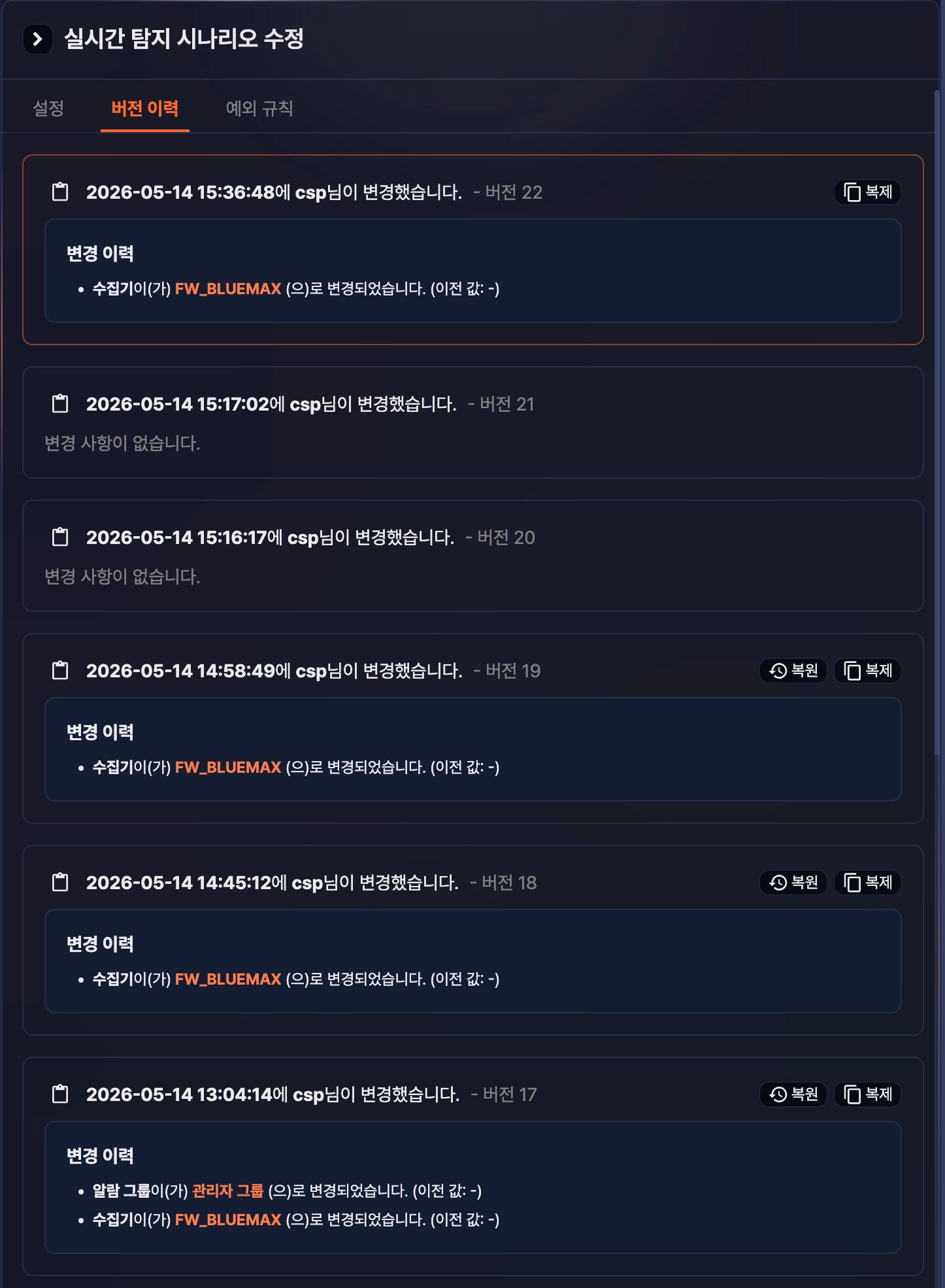
Each version card shows the following information:
- The time the version was changed, the account that made the change, and the version number (for example,
Changed by Michael Wilson at 2026-04-12 17:00:00. - Version 4) - The stream query body at that version
- Change History: The items changed compared to the previous version, in the format
Item is changed to New value. (previous: Previous value). When more than three items changed, click Show N more + to expand the full list and Show Less to fold it again. If nothing changed, it showsNo changes to show. - If the version was created by a restore, the base version number next to the Change History heading (for example,
Restored to version 2.)
Restore a previous version
To roll a rule back to a previous version's settings:
- On the Version history tab, find the card of the version you want to restore. The card of the version currently in use, and any version with no changes, does not show a Restore button.
- Click Restore on the card.
- In the confirmation dialog, review the version to restore and proceed with the restore.
- On success, the restored settings are created as a new version, and you return to the Settings tab. If validation fails, a dialog with the failure reason is displayed; click Edit Scenario to load the settings you tried to restore into the Settings tab and edit them directly.
Duplicate a previous version as a new rule
To create a separate rule based on a previous version's settings:
- On the Version history tab, click Duplicate on the card of the version you want to duplicate. Versions with no changes do not show a Duplicate button.
- In the Clone Scenario dialog, enter a name for the new rule and proceed with the duplication. The default name is Clone of rule name Version N.
- The new rule is added to the list with the name you entered. It keeps the enabled state of the duplicated version, so check the Enabled column in the list.
Manage exception conditions for a stream rule
To exclude events that match a specific condition from detection, register an exception condition. Exception conditions are managed per rule and apply only during the validity period you set.
-
In the stream rule list, click the name of the rule whose exception conditions you want to manage.
-
Click the Exception Conditions tab at the top of the edit screen.
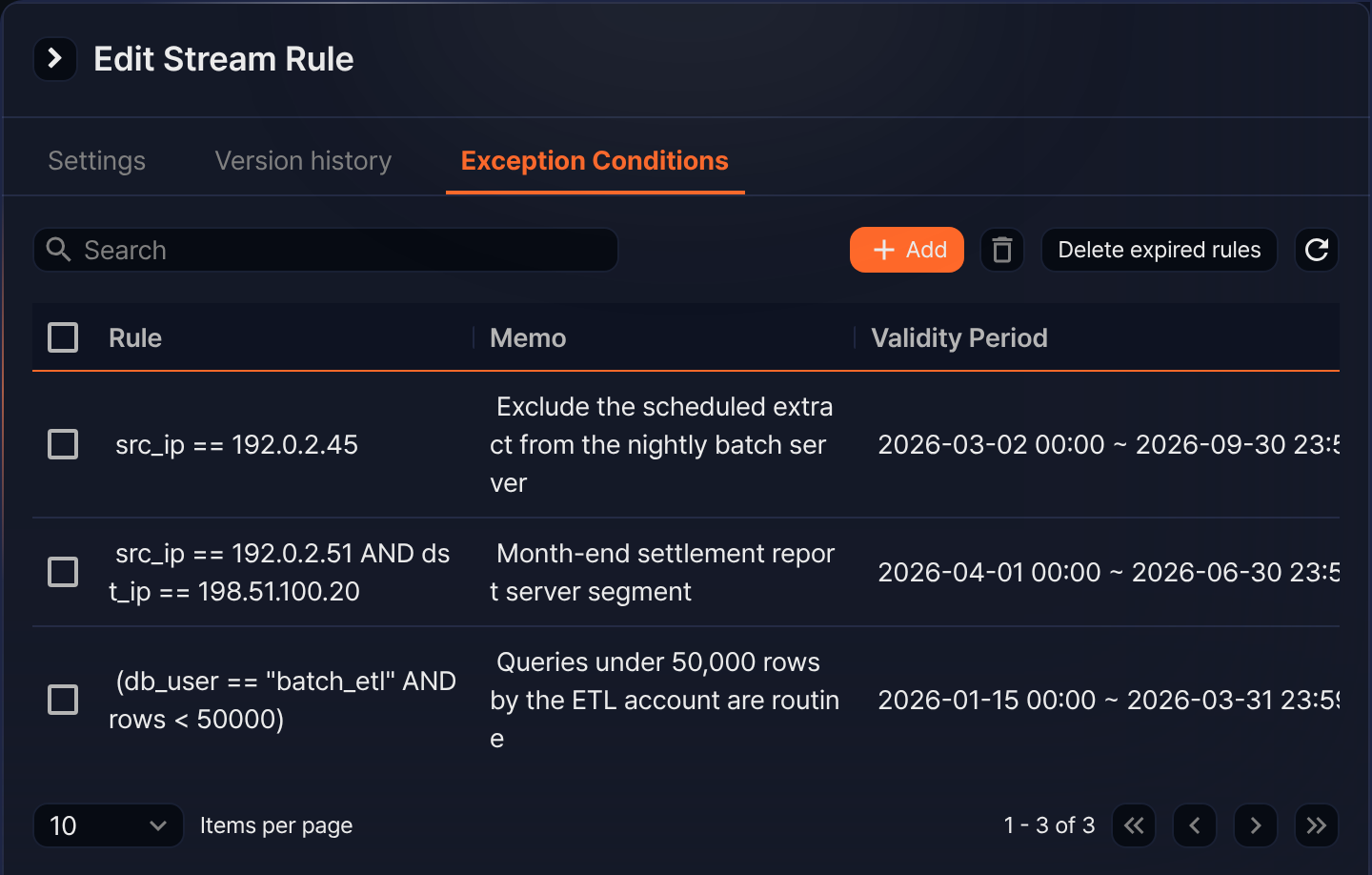
- Rule: The registered exception condition. The stored condition is shown as a string made up of the field, operator, and value, and several conditions are grouped with AND or OR.
- Memo: A description, such as why you registered the exception.
- Validity Period: The start and end date and time during which the exception applies.
- Author: The account that registered the exception condition. This column sits at the far right of the table, so depending on the panel width you must scroll horizontally to see it.
Enter a keyword in the search box to filter the list by Memo and by the stored condition. The search matches the stored condition rather than the rule string shown on screen, so characters that exist only in the display, such as comparison operator symbols, find nothing.
Add an exception condition
-
On the Exception Conditions tab, click Add.
-
In the dialog, select Type.
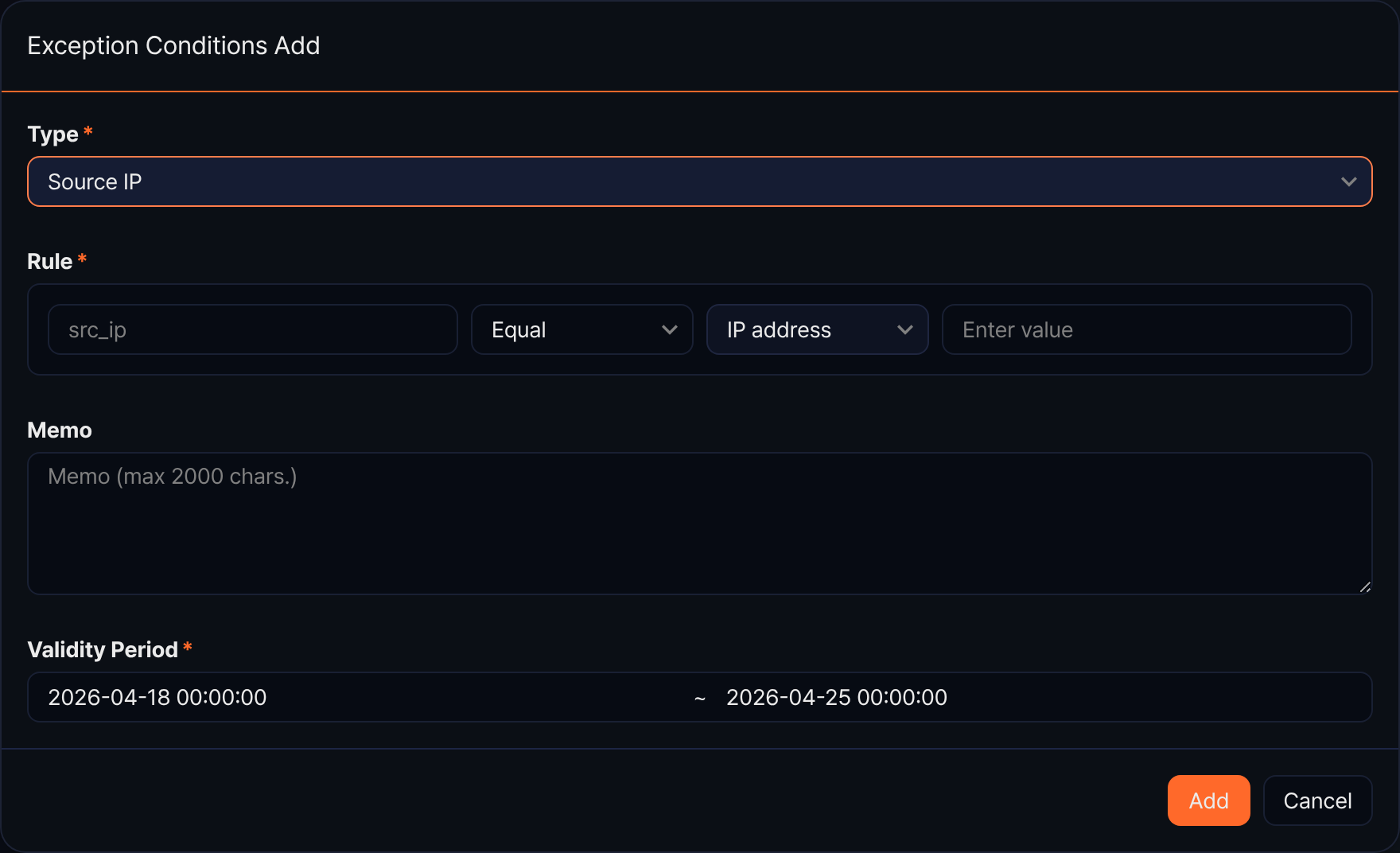
- Source IP: Builds a condition on the source IP address field alone.
- Destination IP: Builds a condition on the destination IP address field alone.
- Source IP / Destination IP: Combines conditions on both fields with AND.
- Custom: Lets you build fields and conditions yourself in the condition builder.
-
Enter the condition in Rule. Selecting Custom shows the condition builder.
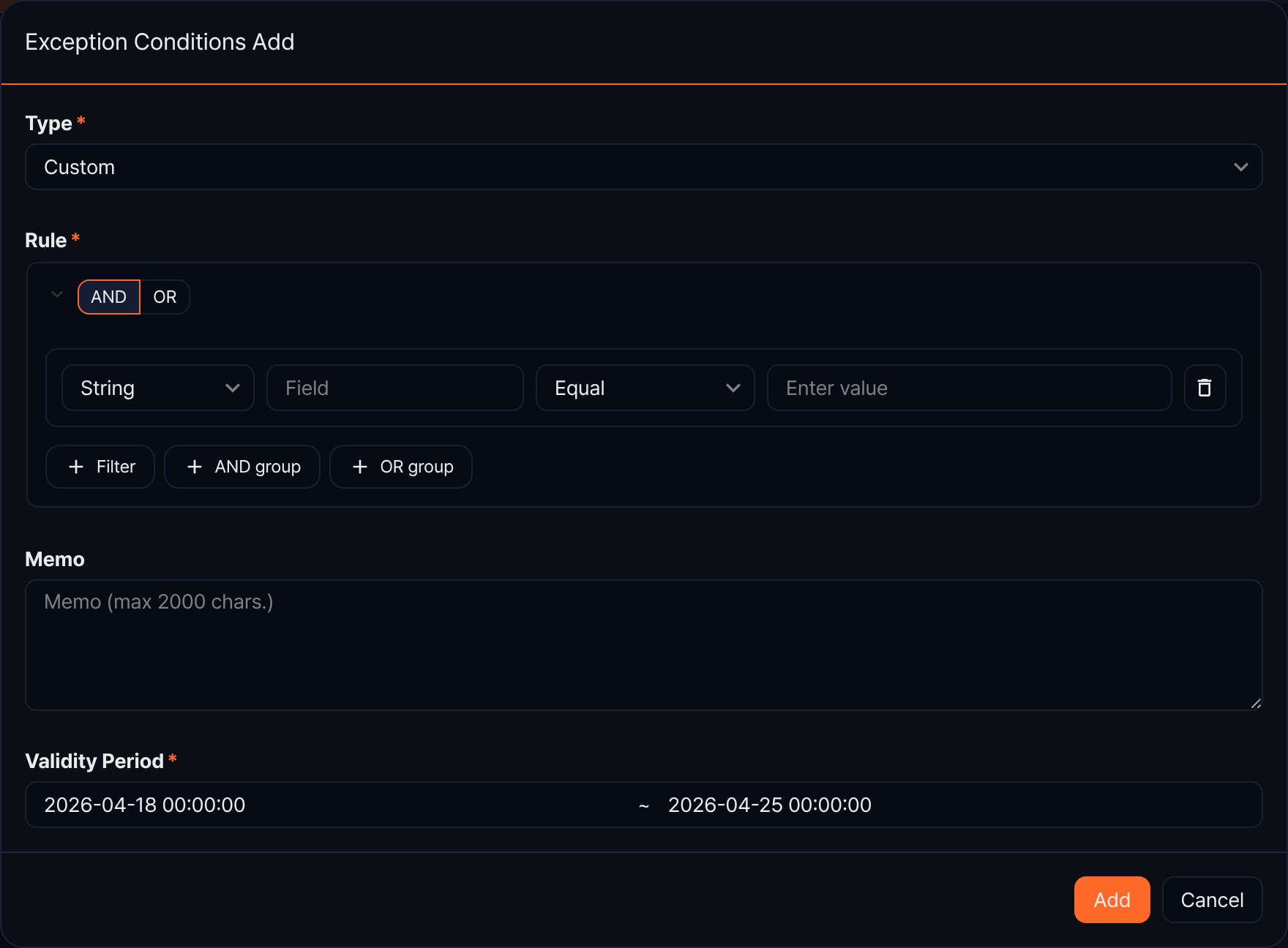
- Click AND or OR on a group to set how its child conditions combine.
- A filter row consists of a value type (String, Number, Boolean, IP address), a field name, a comparison, and a value.
- Click Filter to add a condition to the same group, or AND group or OR group to create a nested group. Groups can be nested up to three levels, and you can add up to 50 filter conditions and 10 condition groups.
-
In Memo, enter why you registered the exception (up to 2,000 characters).
-
In Validity Period, set the start and end date and time (default: today plus seven days). The end cannot be earlier than the start and must be later than the current time.
-
Click Add. To cancel, click Cancel.
Delete exception conditions
- To delete individual conditions, select their checkboxes in the list and click
 in the toolbar.
 - To clear every condition whose validity period has passed, click Delete expired rules. Review the list of targets in the confirmation dialog and proceed with the deletion.
Delete stream rules
To delete stream rules:
- Select the checkboxes of the rules you want to delete in the stream rule list.
- An action menu appears in the toolbar. Click Delete in the action menu.
- In the Delete stream rule(s) dialog, review the list of rules to delete, then click Delete. Click Cancel to abort.