
Assets
Overview
Assets let you manage the IP addresses of the systems you protect together with their asset information. Under Policies > Assets, register internal assets and then manage attributes such as site, priority, administrator, operating system, and location.
Organizing assets as reference data lets you quickly identify which asset an IP address belongs to when you review an event or a ticket. Used together with sites, it also lets you distinguish assets by operating location or organizational unit even when they share the same IP range. In environments with an active XDR license, you can also register the known vulnerabilities (CVEs) of each asset and track their remediation status.
Accounts with the Cluster Administrator or Administrator role can view assets and add, edit, and delete them. Accounts with the User role can view and download the list, but the Add button and the row checkboxes do not appear, and the asset details screen opens read-only. See Account permission reference for the permissions of each role.
Viewing and searching the asset list
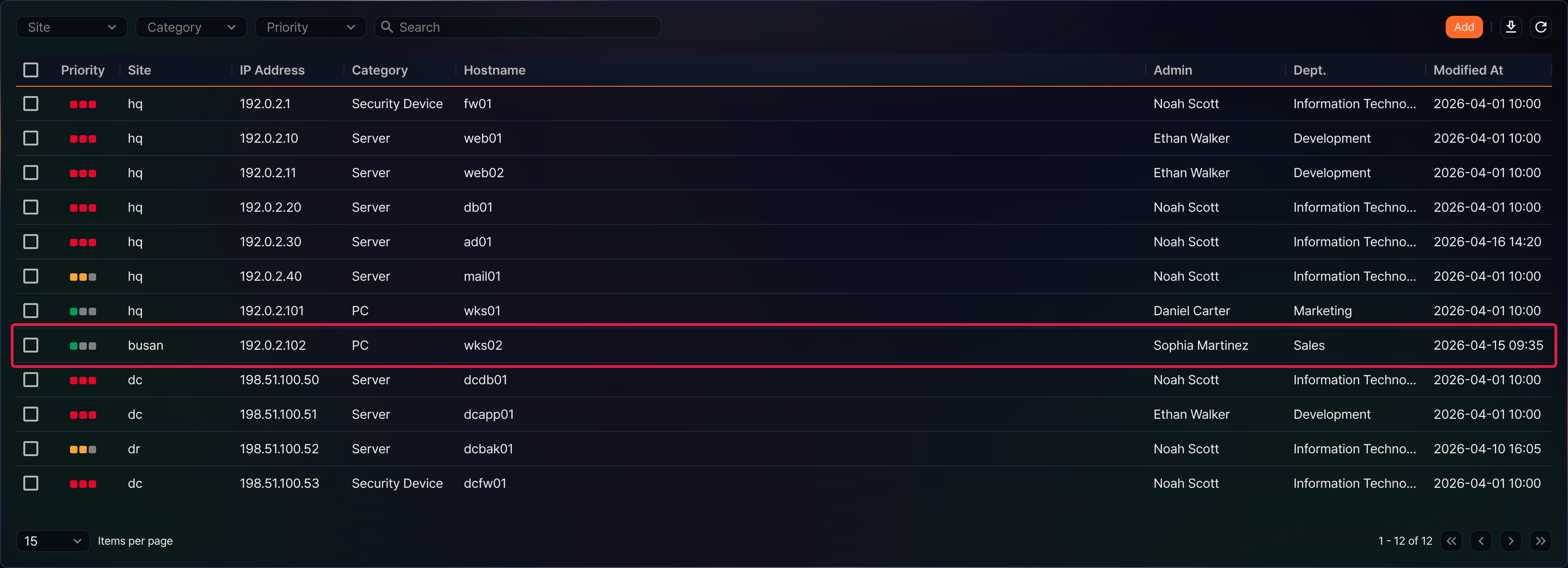
You can view or search the list of registered assets under Policies > Assets. The list is sorted by IP address in ascending order, and you cannot change the sort order by clicking a column header. It shows 15 items per page by default, and you can change the page size in the selector below the list.
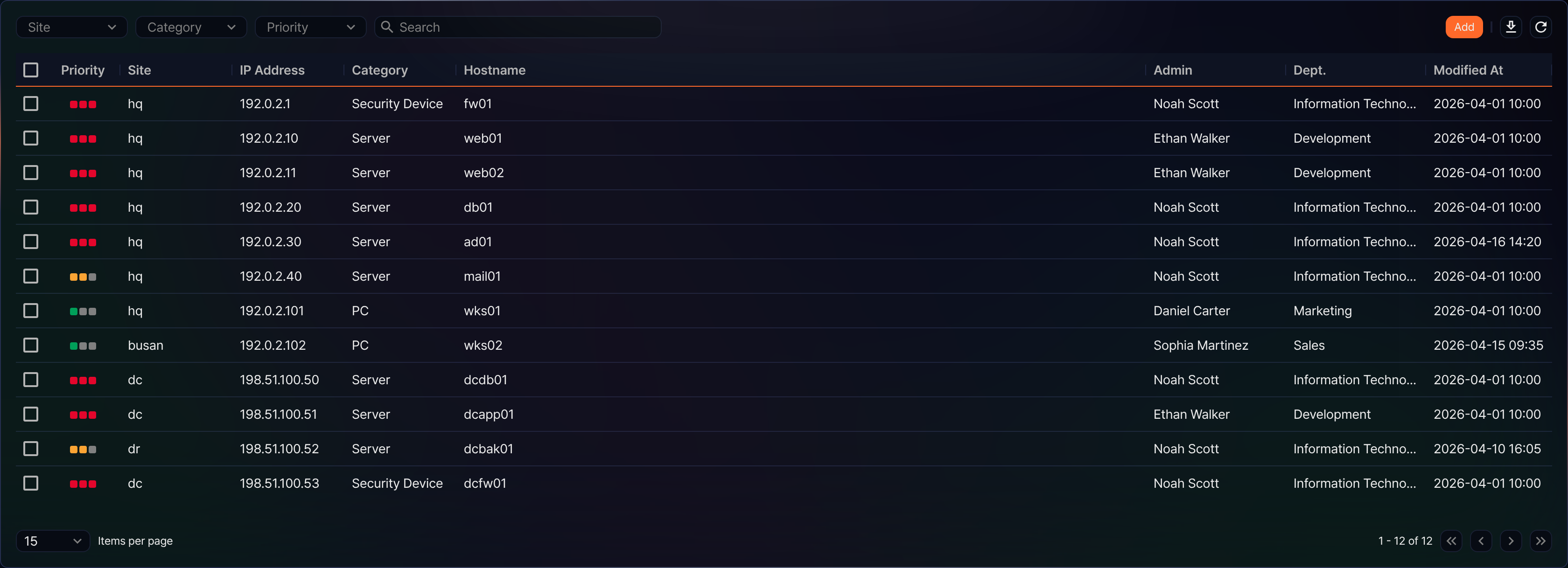
- Priority: Priority of the asset. High appears as a three-cell red indicator, Medium as a two-cell orange indicator, and Low as a one-cell green indicator.
- Site: Identifier of the site the asset belongs to. It is empty for an asset with no site.
- IP Address: IPv4 address of the asset
- Category: Asset category. An asset with no category appears as Uncategorized.
- Hostname: Hostname of the asset
- Admin: Name of the employee assigned as the primary administrator
- Dept.: Department of the primary administrator
- Modified At: Date and time the asset was last modified
To narrow the list, use the Site, Category, and Priority selectors in the toolbar. The three filters apply together, and you clear a filter by selecting the first item in its list again.
To find a specific asset, enter a keyword in the search box in the toolbar. The search matches the IP address, hostname, work group, primary administrator name, and description as a partial match. When you enter several words separated by spaces, only the assets that contain every word appear. Category names and site identifiers are not searched, so use the Category and Site filters instead.
Downloading the list
To download the asset list as a file, click  in the toolbar. The icon is disabled when the list contains no assets.
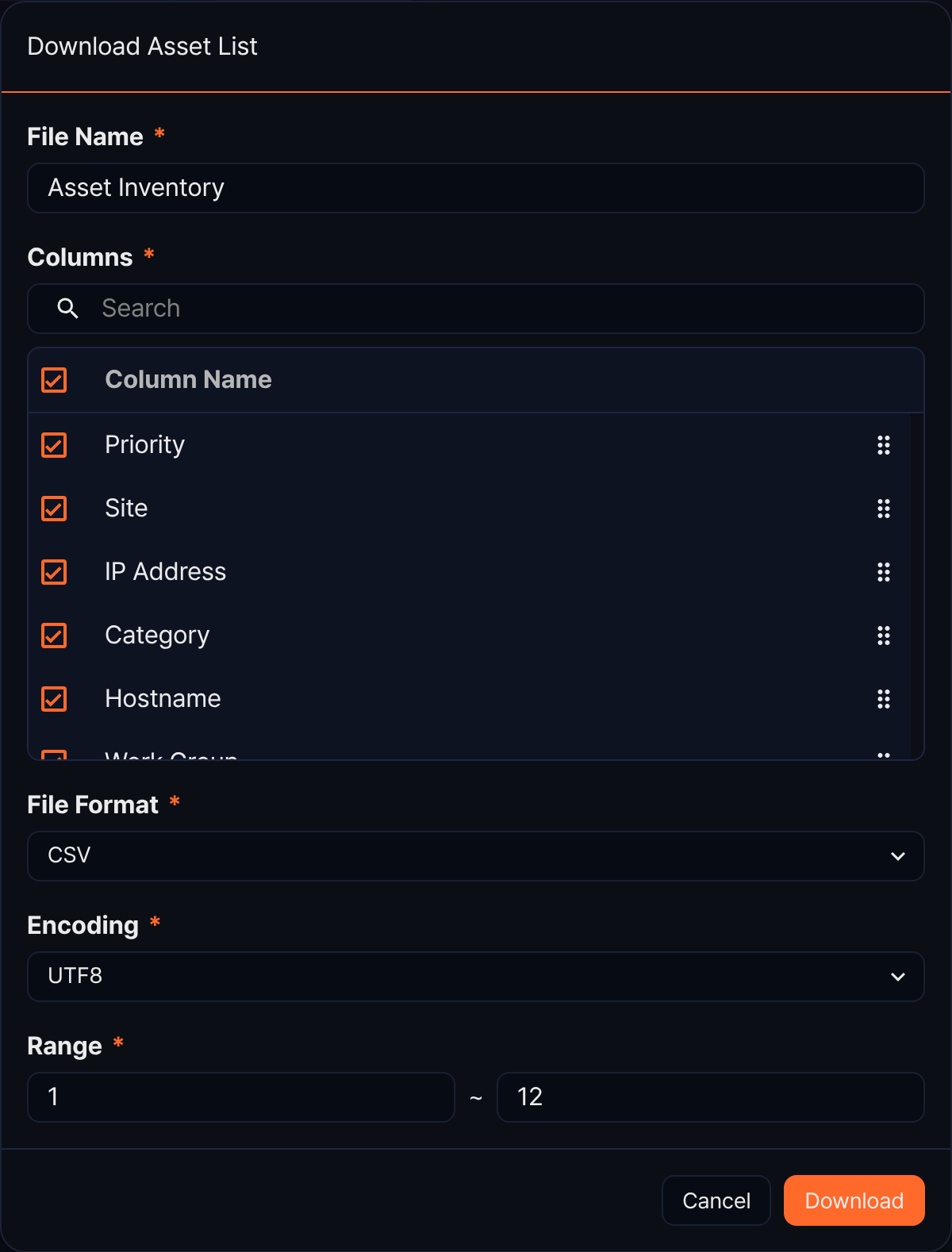
- File Name: Name of the file to download. The default is Asset Inventory.
- Columns: Columns to include in the file. All 10 columns — priority, site, IP address, category, hostname, work group, description, administrator, department, and modified date — are selected when the dialog box opens, and you can drag the handle on the right to change their order. Work group and description are available here even though they do not appear in the list.
- File Format: Format of the file to download (CSV, XML, Microsoft Word, HTML, JSON, or PDF). The default is CSV.
- Encoding: Character encoding of the file. It appears only when the file format is CSV or JSON, and the default in the English console is UTF8.
- Range: Range of asset numbers to download. The default runs from the first item on the current page to the last asset in the list.
Review what you entered, then click Download.
Refreshing the list
To reload the asset list with the latest information, click  in the toolbar.
Adding an asset
Add an asset to register the internal asset information you use for ticket analysis or asset management.
-
Under Policies > Assets, click Add in the toolbar.
-
On the New Asset screen, enter or select the asset information. IP Address is the only required item; everything else is optional.
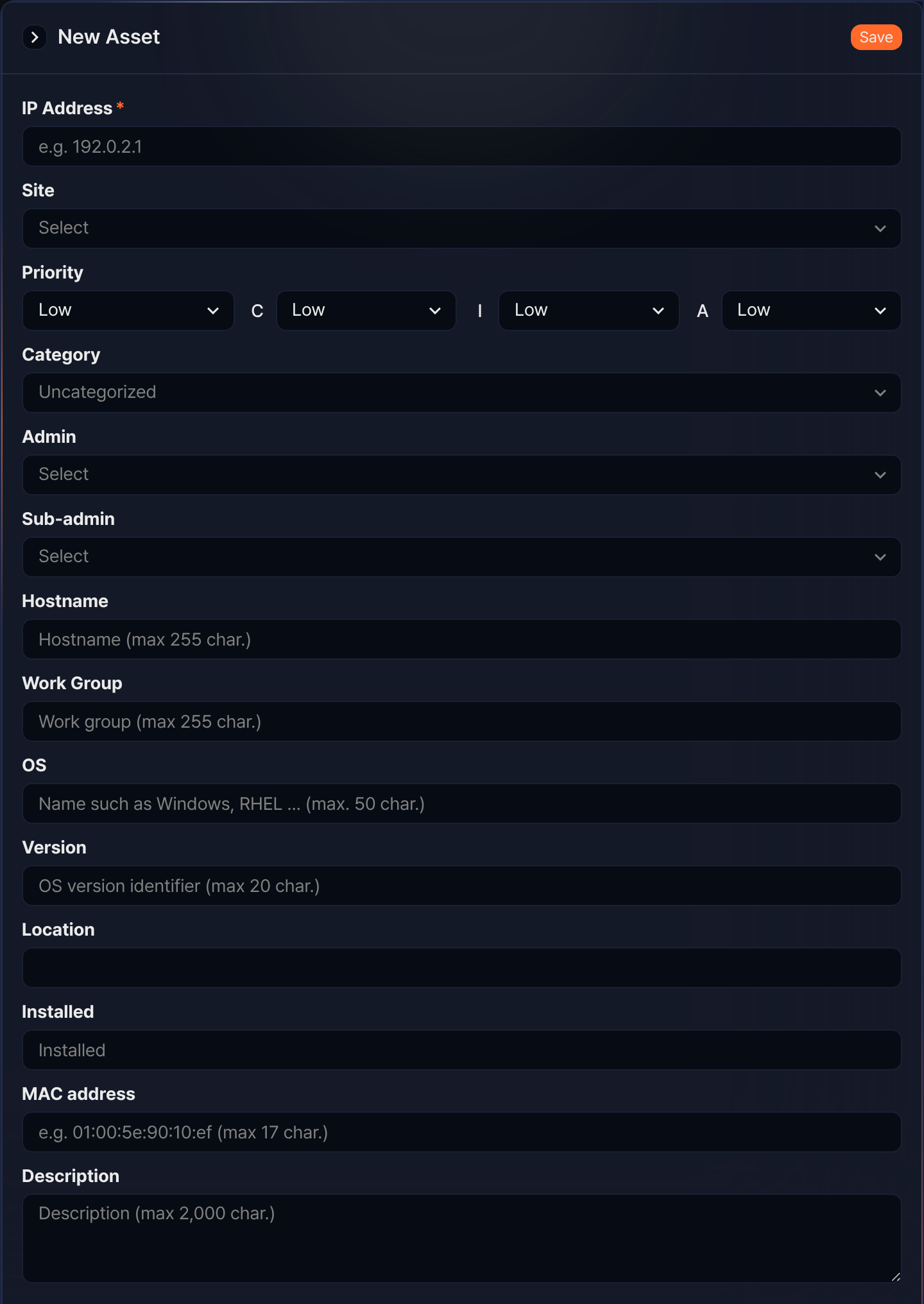
- IP Address: IPv4 address of the asset (required)
- Site: Site the asset belongs to. Open the selector and search for a site identifier. If you leave it empty, the asset is saved without a site.
- Priority: Priority of the asset (High, Medium, or Low). The default is Low, and it is linked to the C, I, and A ratings next to it.
- C, I, A: Confidentiality, integrity, and availability ratings. All three default to Low.
- Category: Asset category. The default is Uncategorized, and the installation provides seven categories: PC, Server, Mobile, Network Device, Security Device, Printer, and VOIP.
- Admin: Primary administrator of the asset. Search for an employee and select one; the list shows the name and the department together.
- Sub-admin: Secondary administrator of the asset
- Hostname: Hostname of the asset (up to 255 characters)
- Work Group: Work group or domain the asset belongs to (up to 255 characters)
- OS: Name of the operating system on the asset (up to 50 characters). You type this value; it is not a selector.
- Version: Operating system version of the asset (up to 20 characters)
- Location: Physical location of the asset (up to 255 characters)
- Installed: Date and time the asset was installed. The date picker also takes a time.
- MAC address: MAC address of the asset (up to 17 characters)
- Description: Description of the asset (up to 2,000 characters)
When custom asset fields are configured in your environment, additional input items appear below Description.
-
Review what you entered, then click Save in the upper right. To close the panel without saving, click
 in the upper left of the panel.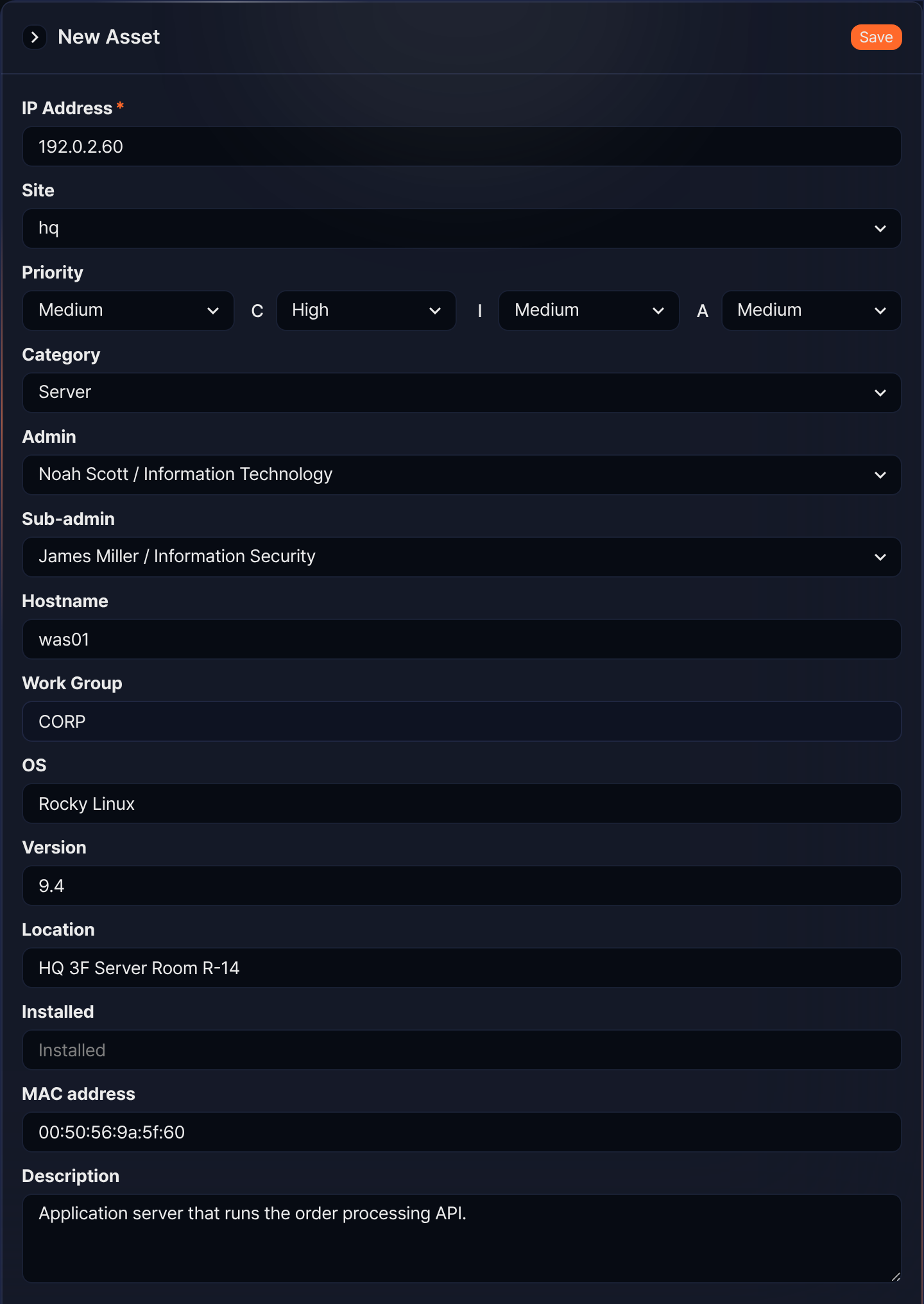
How priority and C/I/A are determined
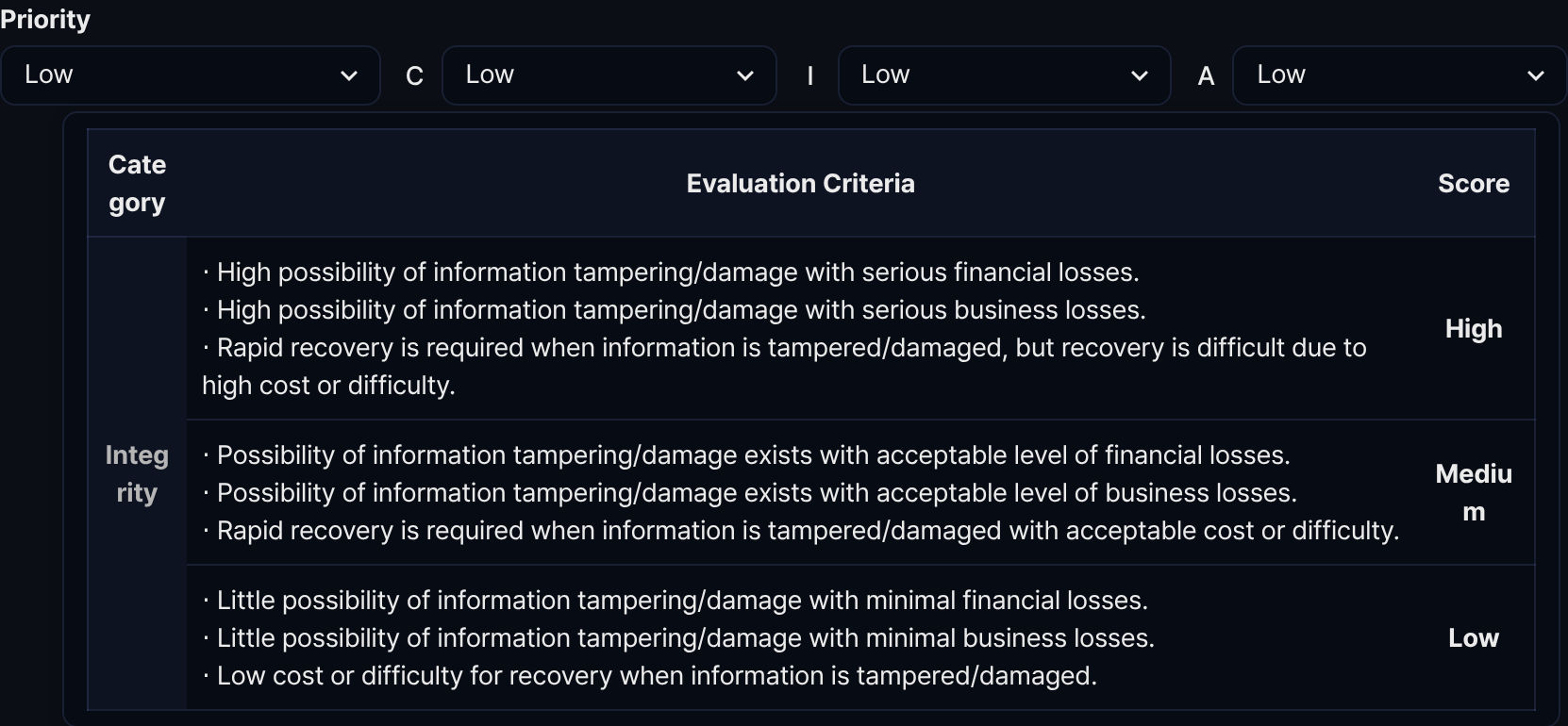
Priority and the C, I, and A ratings are linked. When you select a Priority, all three ratings change to the same value. Conversely, when you change one of the C, I, and A ratings, the priority is recalculated from the sum of the three ratings (Low counts as 1, Medium as 2, and High as 3). A sum greater than 7 gives High, a sum greater than 4 gives Medium, and anything else gives Low. When you save, the console sends only the three ratings, and the server recalculates the priority by the same rule.
To review the criteria behind each rating, hover the pointer over the C, I, or A label. The evaluation criteria for that item appear in a table with three columns — category, evaluation criteria, and score — and each of the three items uses its own criteria.
Editing an asset
When asset information changes, update it to the latest state on the edit screen.
-
In the asset list, click the row of the asset you want to edit.
-
On the Edit Asset screen, change the information, then click Save. The items and input rules are the same as on the add screen.
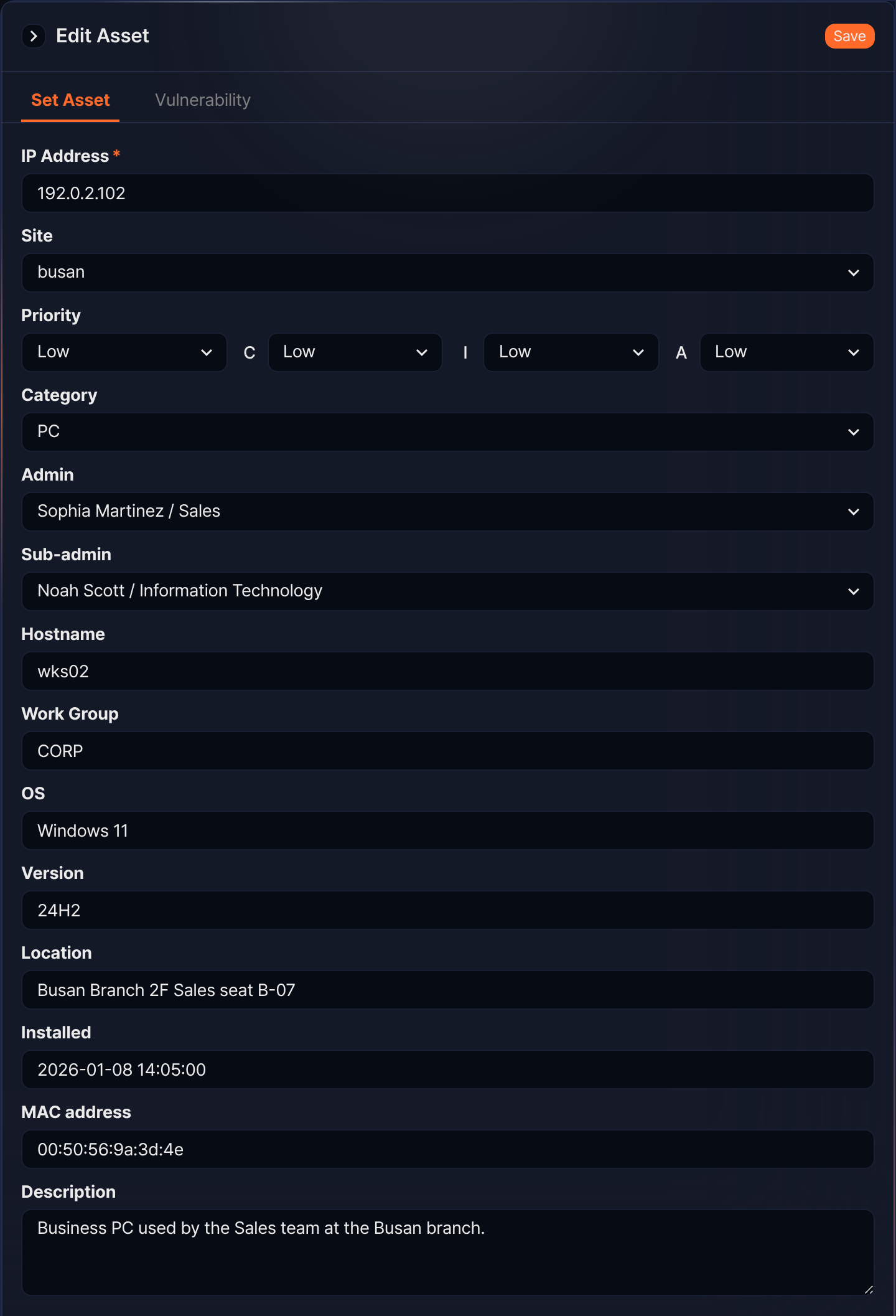
The edit screen shows tabs below the header. The Set Asset tab always appears, and the Vulnerability tab appears only in environments with an active XDR license. When you select the Vulnerability tab, the Save button in the upper right disappears, because each vulnerability is saved from its own dialog box.
Managing asset vulnerabilities
In environments with an active XDR license, the Vulnerability tab on the asset edit screen lets you register the vulnerabilities that affect the asset and manage their remediation status. The tab is not available on the add screen, so save a new asset first and then add its vulnerabilities on the edit screen.
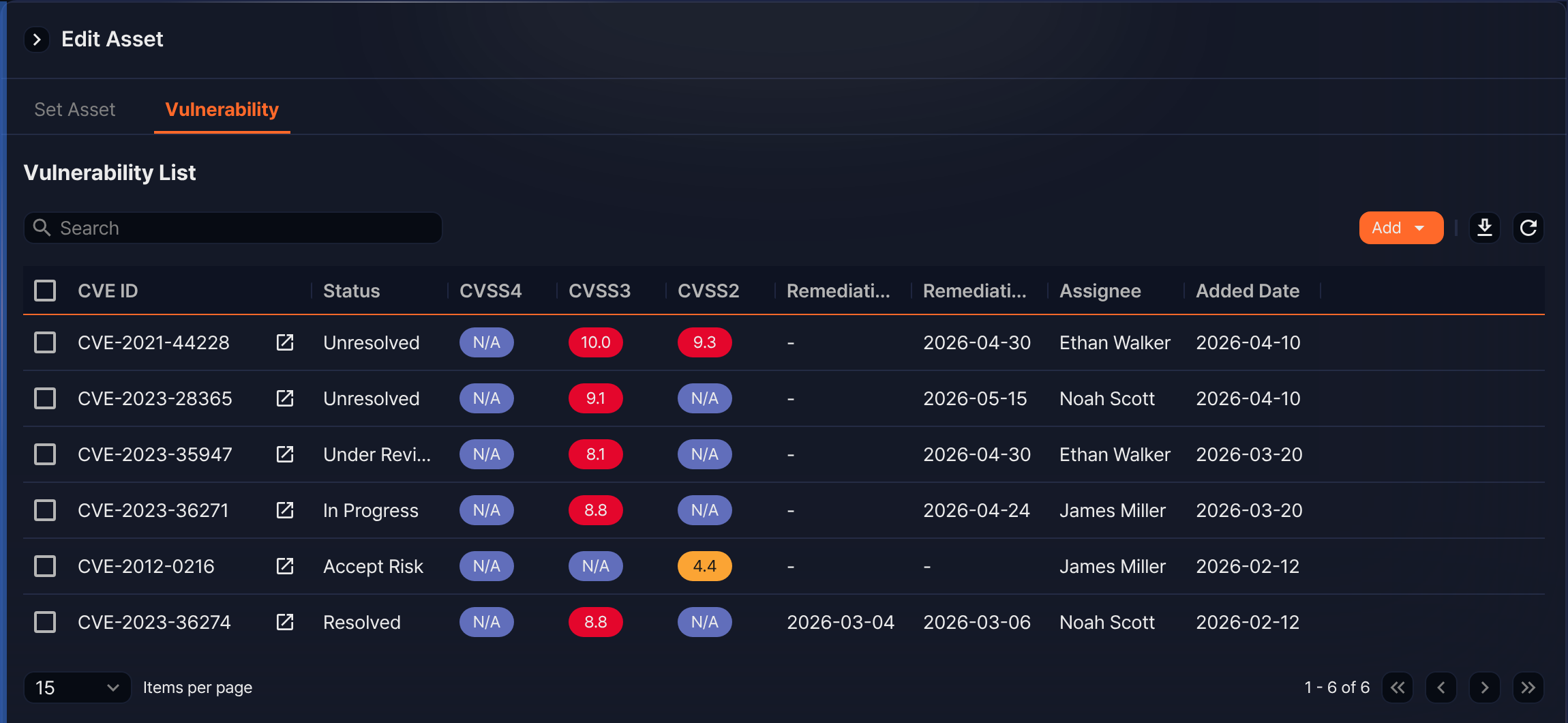
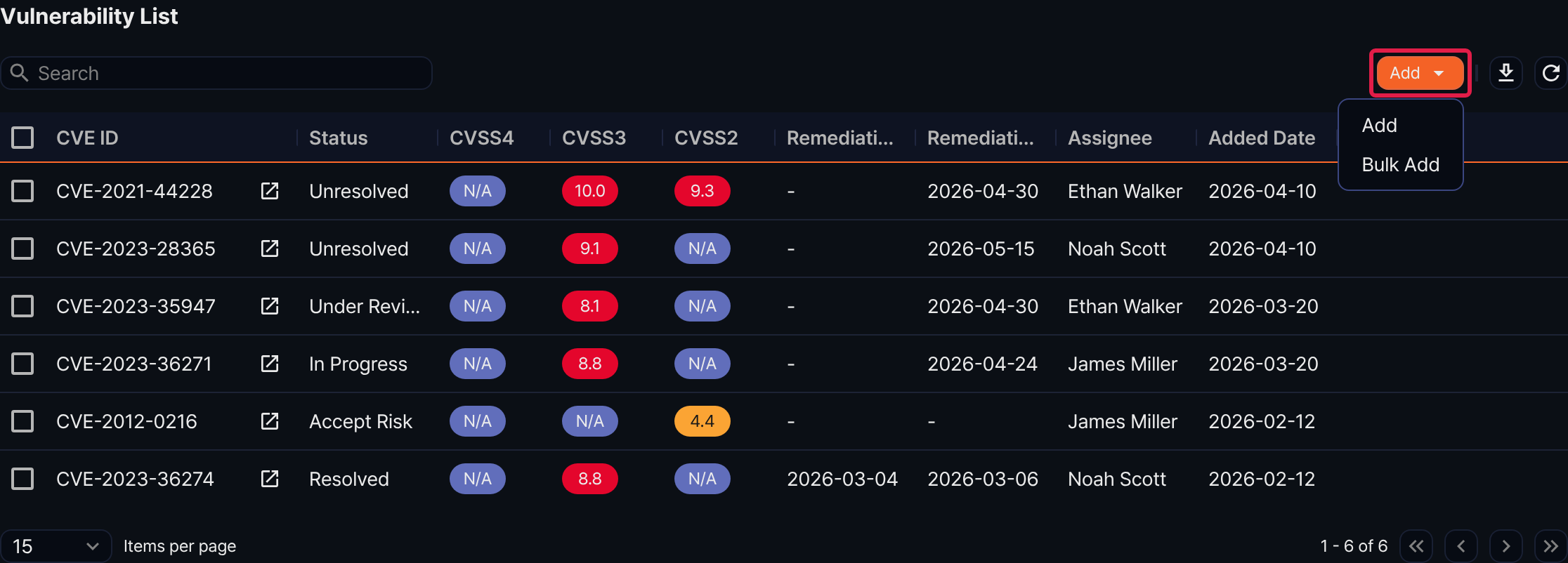
- CVE ID: Identifier of the vulnerability. Click the icon next to it to open the CVE details screen for that vulnerability.
- Status: Remediation status (Unresolved, Under Review, In Progress, Accept Risk, or Resolved)
- CVSS4, CVSS3, CVSS2: CVSS score for each version. The badge color depends on the score band (0.0-1.9 green, 2.0-4.9 yellow, 5.0-7.9 orange, 8.0-10.0 red), and a missing score appears as N/A.
- Remediation Date: Date the remediation was completed
- Remediation Due Date: Date the remediation is due
- Assignee: Employee responsible for the remediation
- Added Date: Date the vulnerability was diagnosed or registered
The list truncates both remediation column headers to the same text: the left column is Remediation Date and the right one is Remediation Due Date.
The list is sorted by status first (Unresolved, Under Review, In Progress, Accept Risk, Resolved) and then by descending CVSS score within the same status. The search box matches the CVE ID only. To download the vulnerability list as a file, click . The dialog box works the same way as the one for the asset list.
Adding a vulnerability
-
On the Vulnerability tab, click Add in the toolbar and select Add in the menu that appears.
-
In the Add Asset Vulnerability dialog box, enter the vulnerability information, then click OK.
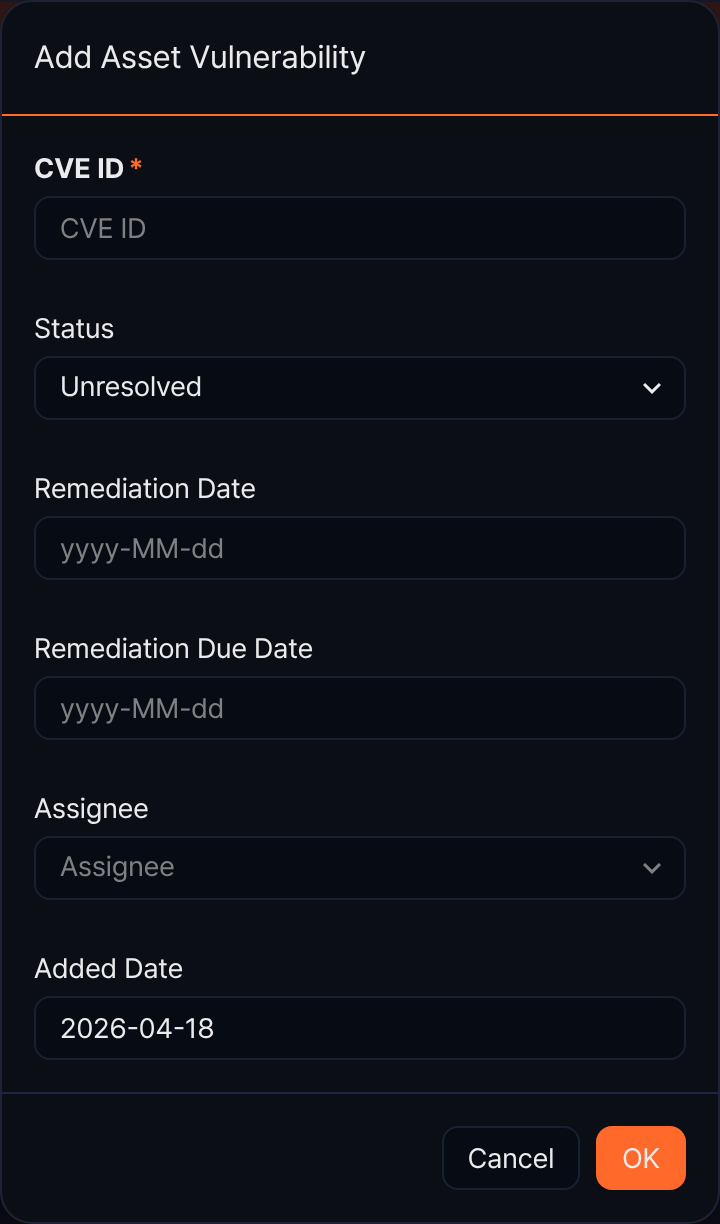
- CVE ID: Identifier of the vulnerability (required). Enter it as CVE-year-number with at least four digits in the number, such as
CVE-2021-44228. - Status: Remediation status. The default is Unresolved. Selecting Resolved fills Remediation Date with today's date, and changing the status back to Unresolved clears it.
- Remediation Date: Date the remediation was completed
- Remediation Due Date: Date the remediation is due
- Assignee: Employee responsible for the remediation
- Added Date: Date the vulnerability was diagnosed. The default is today.
- CVE ID: Identifier of the vulnerability (required). Enter it as CVE-year-number with at least four digits in the number, such as
To change a registered vulnerability, click its row in the list. The Edit Asset Vulnerability dialog box opens, where you can change every item except CVE ID, then click Save.
Bulk adding vulnerabilities
To register several vulnerabilities at once, click Add and select Bulk Add.
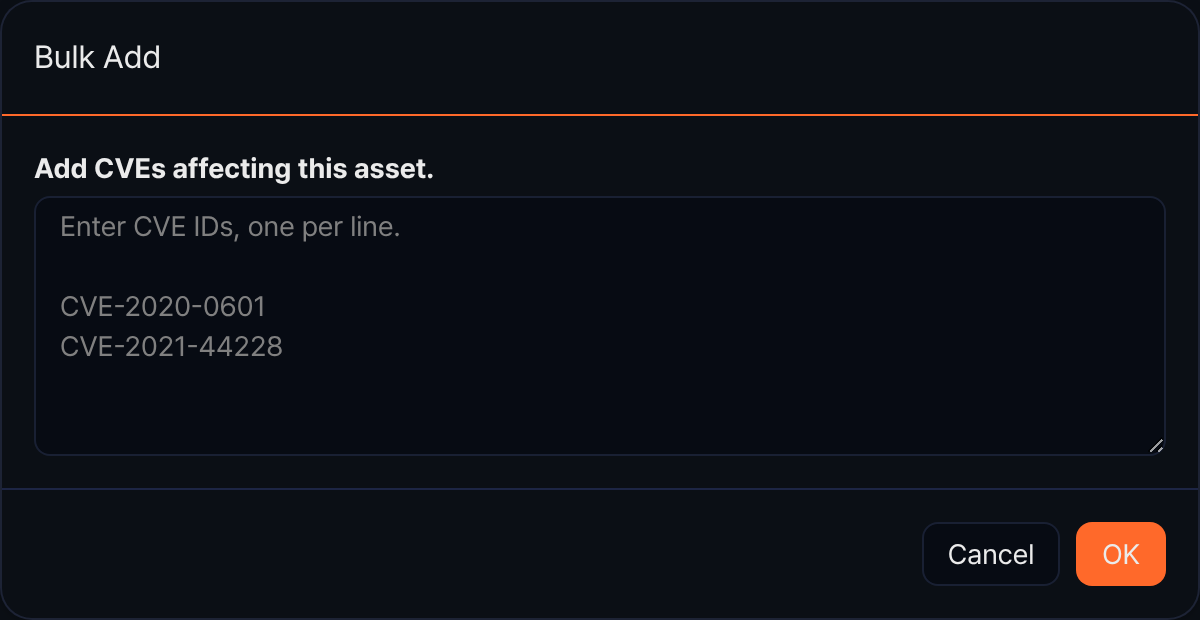
Enter one CVE ID per line, then click OK. If even one value does not match the required format, nothing is registered. Vulnerabilities added this way get the status Unresolved and today's date as the added date, so set the remediation due date and the assignee afterward on each row.
Changing status and assignee
When you select the checkbox on a row in the vulnerability list, the action tools for the selected items replace the search box.
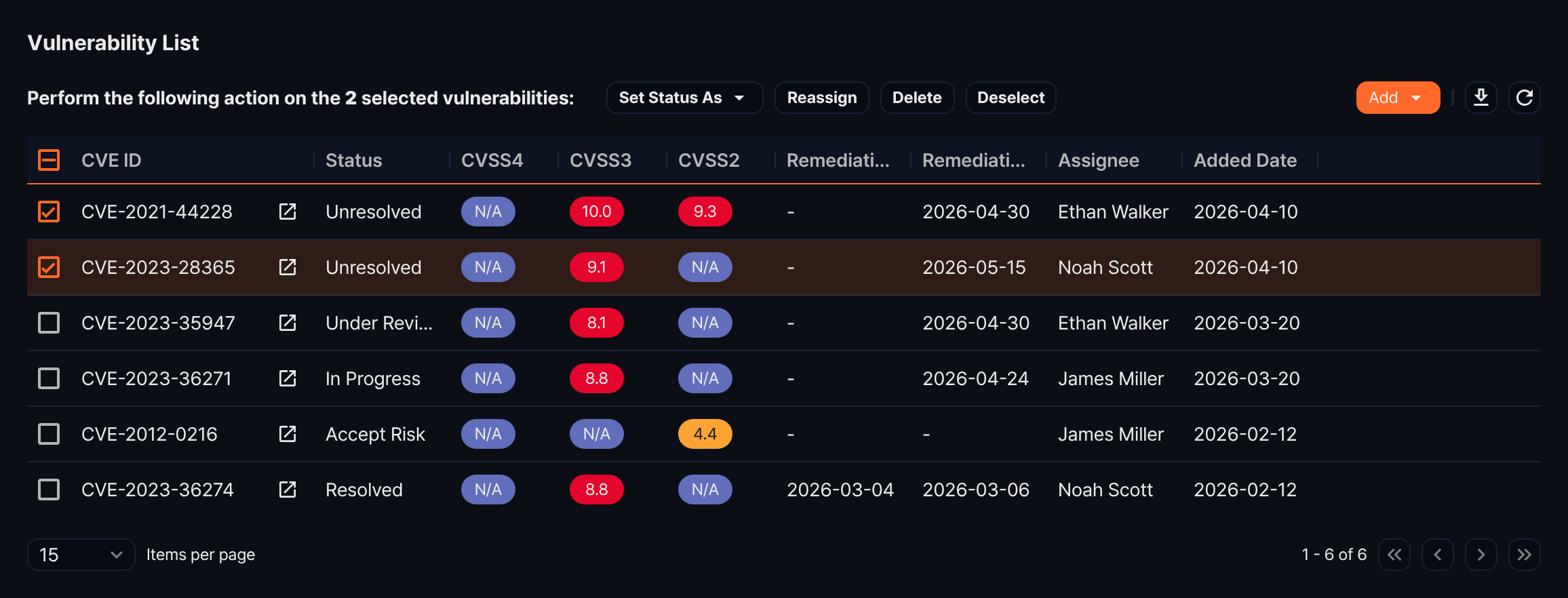
- Set Status As: Changes the status of every selected vulnerability at once. Click the button to see the five statuses.
- Reassign: Opens the Designate Assignee dialog box, where you select an employee to assign every selected vulnerability at once. If you click OK without selecting an employee, a warning asks you to select an assignee.
- Delete: Deletes the selected vulnerabilities.
- Deselect: Clears the selection.
Deleting vulnerabilities
- In the vulnerability list, select the checkbox on the row of each vulnerability you want to delete.
- Click Delete.
- In the Delete Asset Vulnerability dialog box, review the CVE IDs to delete, then click Delete. To cancel, click Cancel.
Deleting an asset
To clean up an asset you no longer manage, delete it from the list.
-
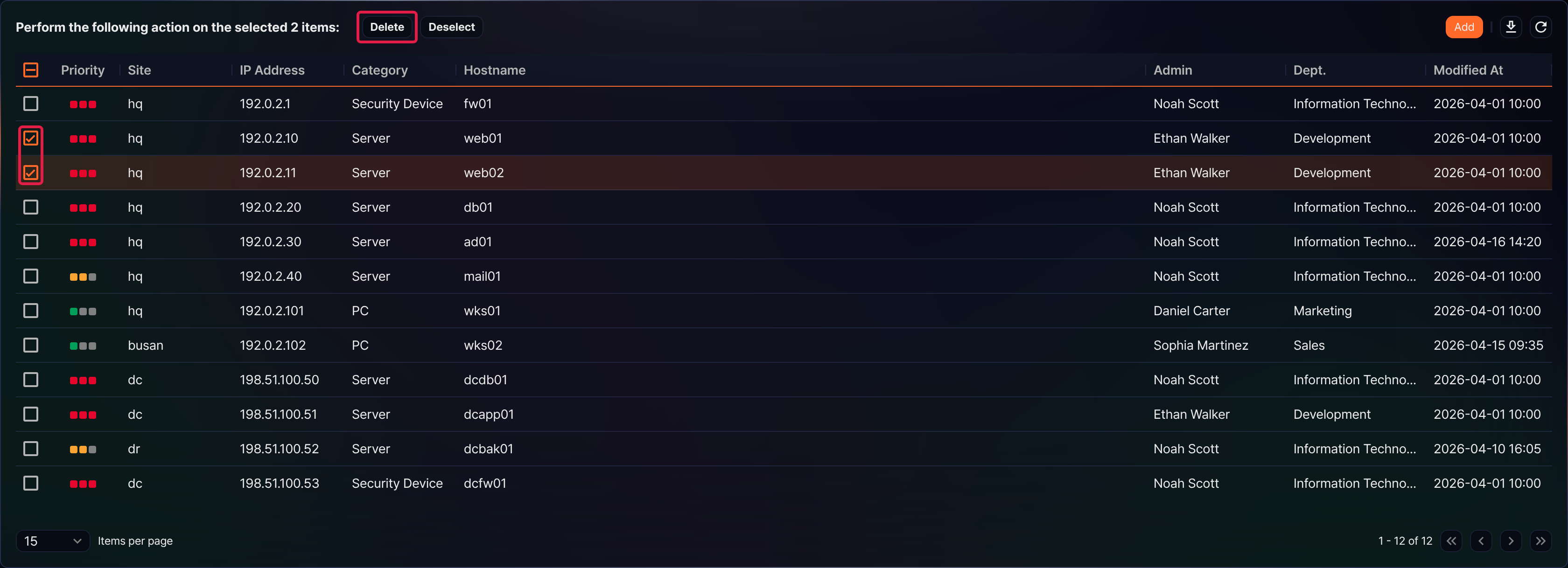
In the asset list, select the checkbox on the row of each asset you want to delete. As soon as you select one, the action tools for the selected items replace the filters and the search box. Deleting is the only action available for selected assets.
-
Click Delete.
-
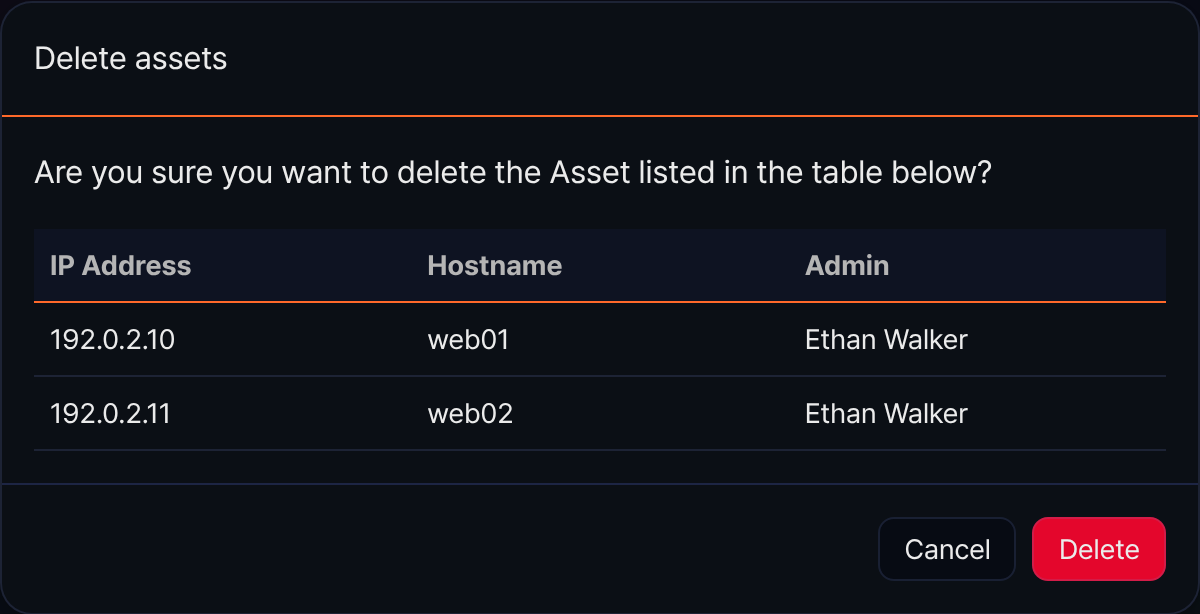
In the Delete assets dialog box, review the list of assets to delete, then click Delete. To cancel, click Cancel.
Using assets
Linking to loggers
When you link an asset to a logger, the logger automatically adds asset information to the data it collects. When you add or edit a logger, specify the asset for the data source in the Asset field in the basic information section at the top of the screen. Each item in the selector shows the IP address, the hostname, and the site identifier in that order.
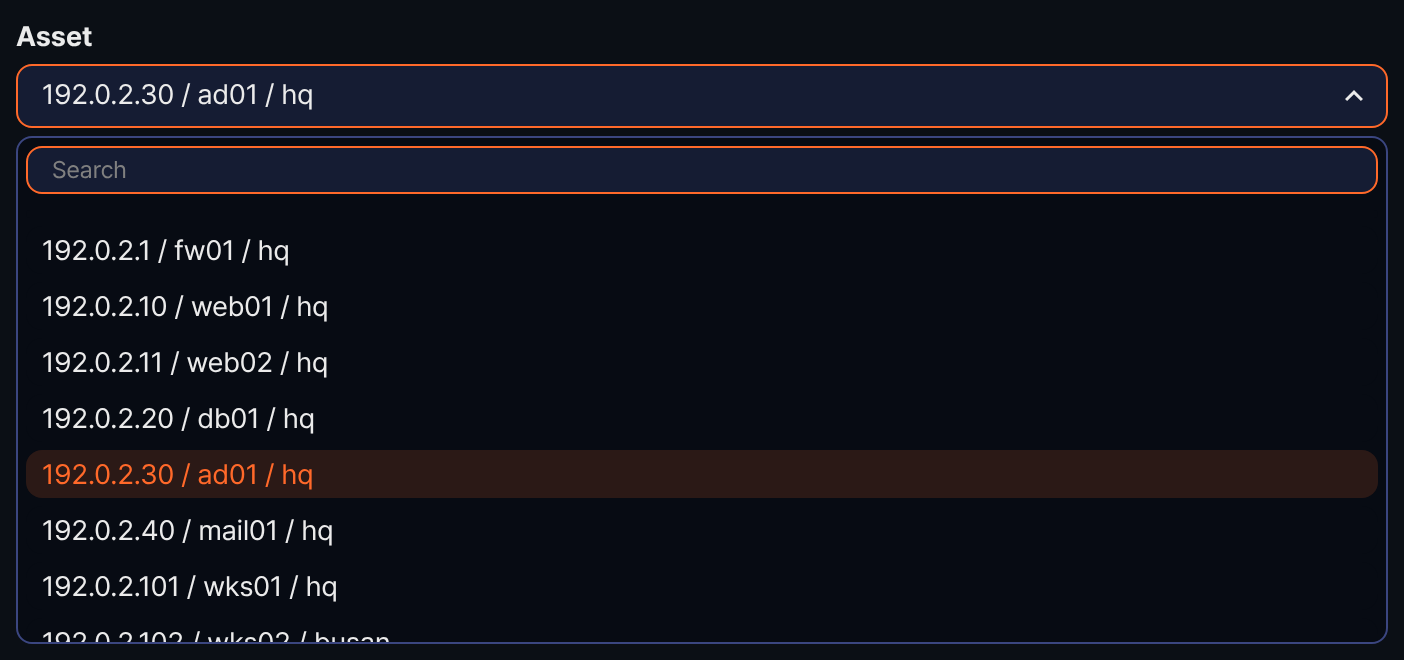
The logger adds the specified asset information to the data as the _device_name (hostname), _device_ip (IP address), and _site (site identifier) fields. You can therefore identify which asset the data came from when you analyze queries or events later.
Looking up assets in queries
To retrieve the asset list in a query, or to check whether an IP address in a log belongs to a registered asset, use the iplookup command. Without the key option it returns the whole asset list, and with an IP address field in the key option it matches that value against the asset list and adds the administrator and priority information to the input record.
References from other screens
Other asset-related screens also reference the assets you register. Clicking the IP address of an asset in the affected assets list on the CVE details screen opens the edit screen for that asset, and the View Asset menu for an IP address on the MITRE ATT&CK screen opens the same screen. Managing attributes such as administrator, department, and site together helps you grasp the asset context faster when you analyze a security event.
The MITRE ATT&CK screen uses the hostnames of your assets for endpoint hostnames and for the Hostname filter. Which IP addresses that screen counts as internal hosts, however, is decided by 내부망 대역 (internal network ranges) in Subnet groups, not by Assets. An asset outside 내부망 대역 is not counted on the MITRE ATT&CK screen, so make sure the ranges your assets use are included in 내부망 대역.