Reports
Overview
The report template creation and generation feature lets you produce scheduled reports, summarize analysis results, and create materials that support decision-making.
You can easily build customized reports using predefined templates. Reports are composed by processing data with queries and arranging the results into components such as grids, charts, and text.
This feature helps automate repetitive reporting tasks and enables teams to share consistent, standardized analysis results quickly.
Viewing the report template list requires the Report View (REPORT_VIEW) permission, opening a template's details requires the Report Template View (REPORT_TEMPLATE_VIEW) permission, and adding, editing, deleting, or moving report templates and report groups requires the Report Template Edit (REPORT_TEMPLATE_EDIT) permission. Downloading a generated report as a file requires the Report Download (REPORT_DOWNLOAD) permission. The Add, Delete, and Move buttons in the list, the add, edit, and delete buttons in the group tree, the View column, and the period, run, and download tools in the View Report panel appear only for accounts with the cluster administrator or company administrator permission.
View and search report templates
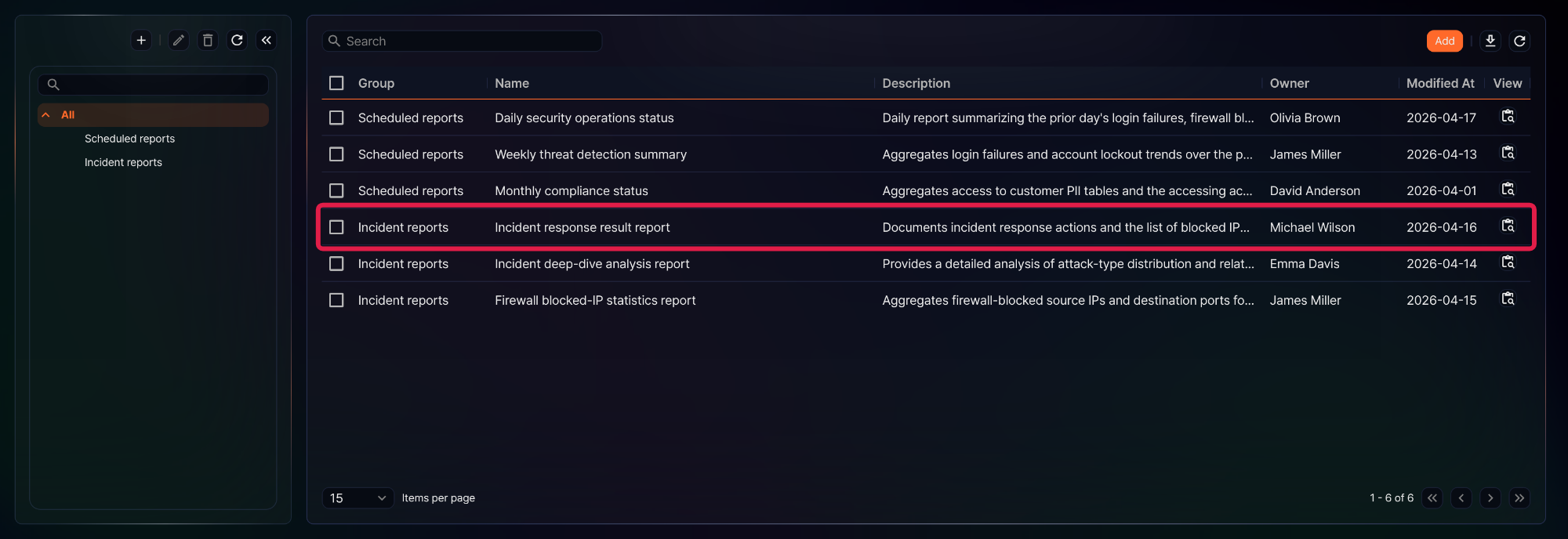
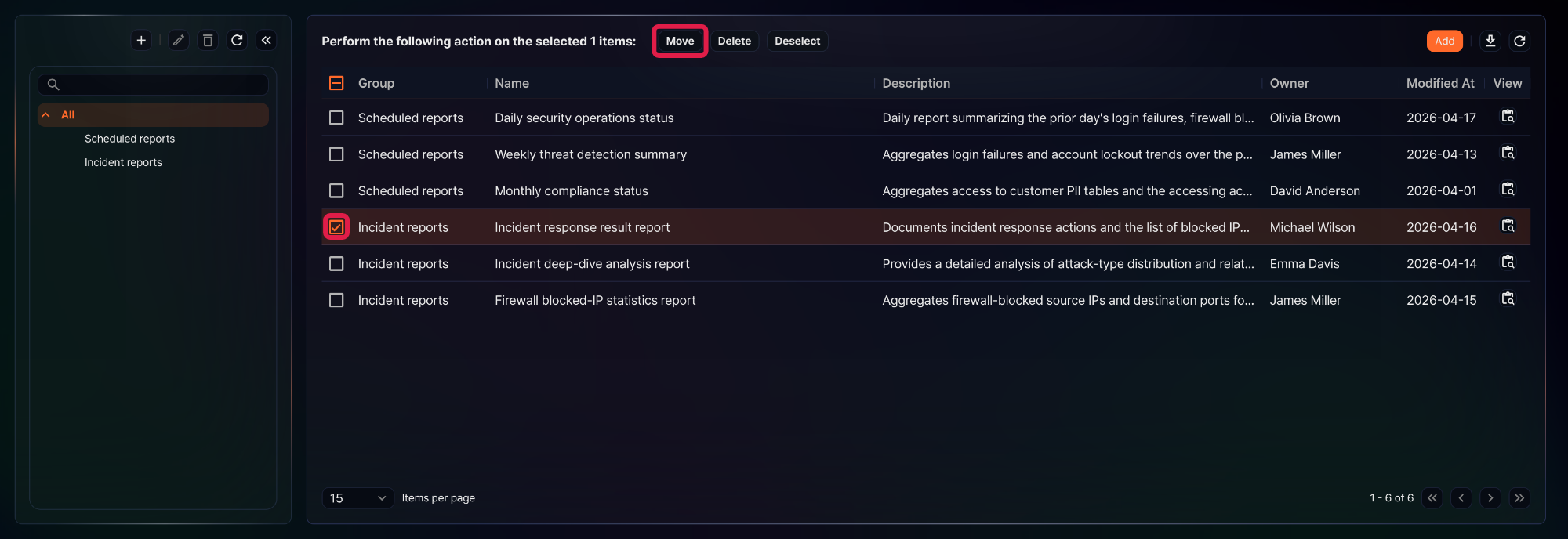
You can view or search report templates under Analysis > Reports. The report group tree appears in the left sidebar, and the right side lists the report templates that belong to the selected group and its subgroups. Select All at the top of the tree to list every report template.
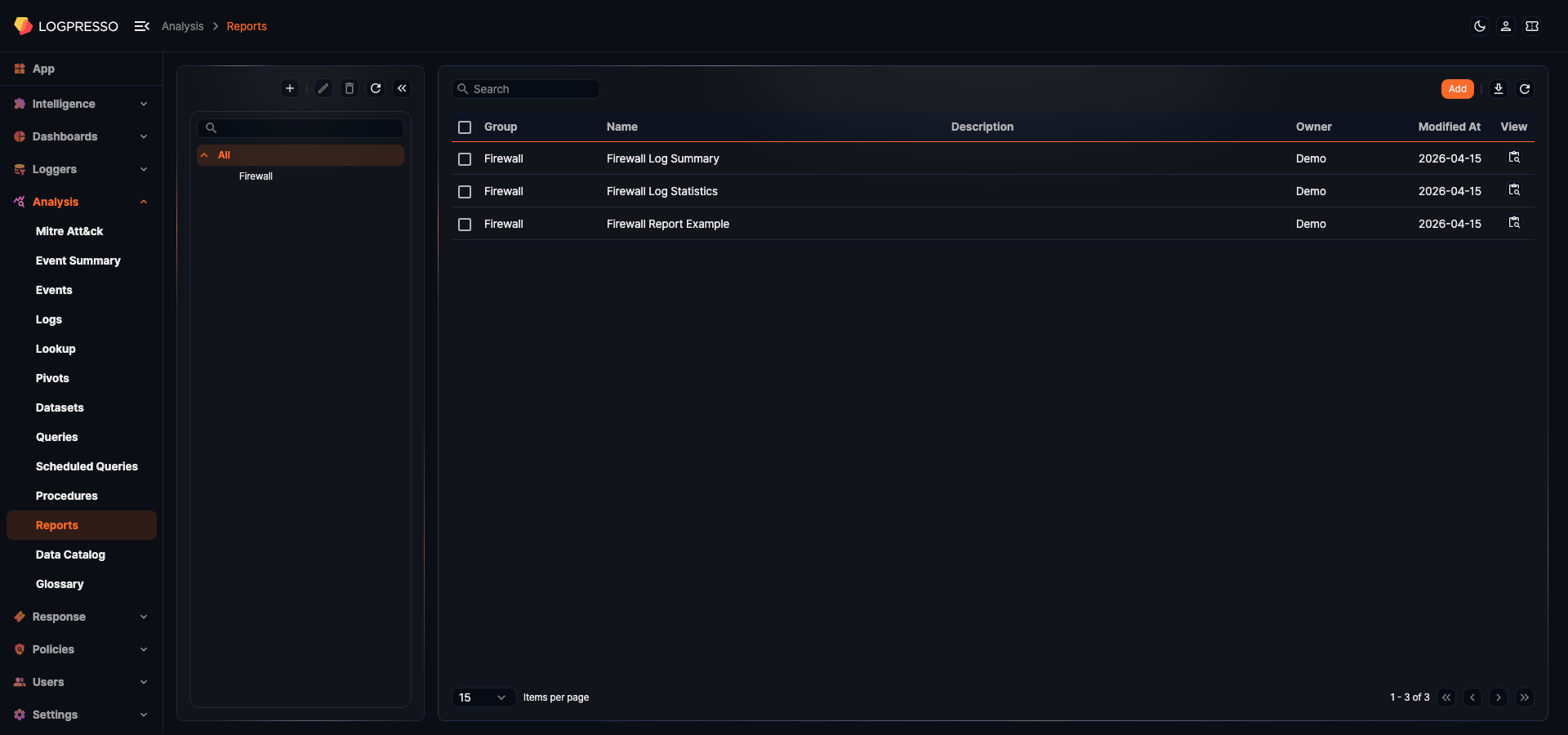
- Group: The report group the template belongs to. This column is empty for templates that belong to no group.
- Name: Name of the report template
- Description: Description of the report template
- Owner: The account that created the report template
- Modified At: The date the report template was last modified (
yyyy-MM-ddformat) - View: Generates and displays a report for a specified period using the template.
To find a specific report template, use the search tool in the toolbar. The search tool finds templates whose Name or Description contains the entered keyword. If you enter several words separated by spaces, only templates that contain all of them are listed. The search is not case-sensitive. Click the download button ( ) in the toolbar to choose a file format and columns in the Download Report Template List dialog and save the current list as a file.
You can work with the report group tree as follows:
- Type a group name in the search box at the top of the tree to show only matching groups.
- Drag the border between the group tree and the report list to adjust the sidebar width. Use this when group names are truncated, or when you want more room for the list.
- Click the collapse button at the far right of the tree toolbar, or drag the border far enough to the left, to collapse the tree into an icon bar. Click the expand button in the collapsed bar to expand it again.
Create report template
To create a report template:
- Click Add in the toolbar of the report template list.
- In the New Report Template panel, complete the Basic settings and Component settings, then click Save at the top of the panel.
Basic settings
Configure the general information for the report template at the top of the panel.
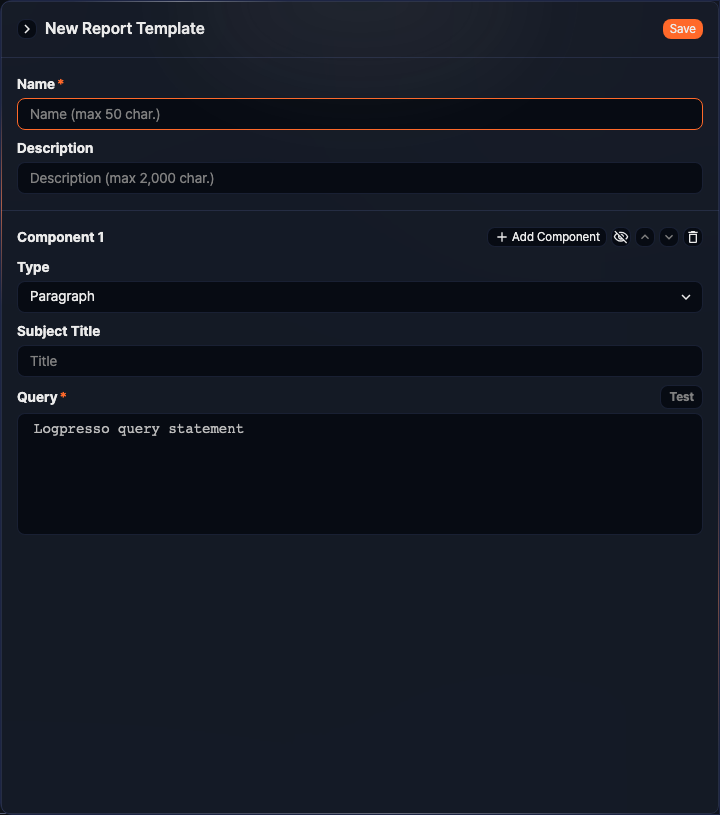
- Name: Name of the report template (required, up to 50 characters)
- Description: Description of the report template (up to 2,000 characters)
Component settings
Add the components that make up the report template. A new template starts with Component 1 already in place. To add another component, click Add Component in the toolbar on the right side of a component. The new component is inserted below that component. If you have removed every component, click Add Component in the center of the panel.
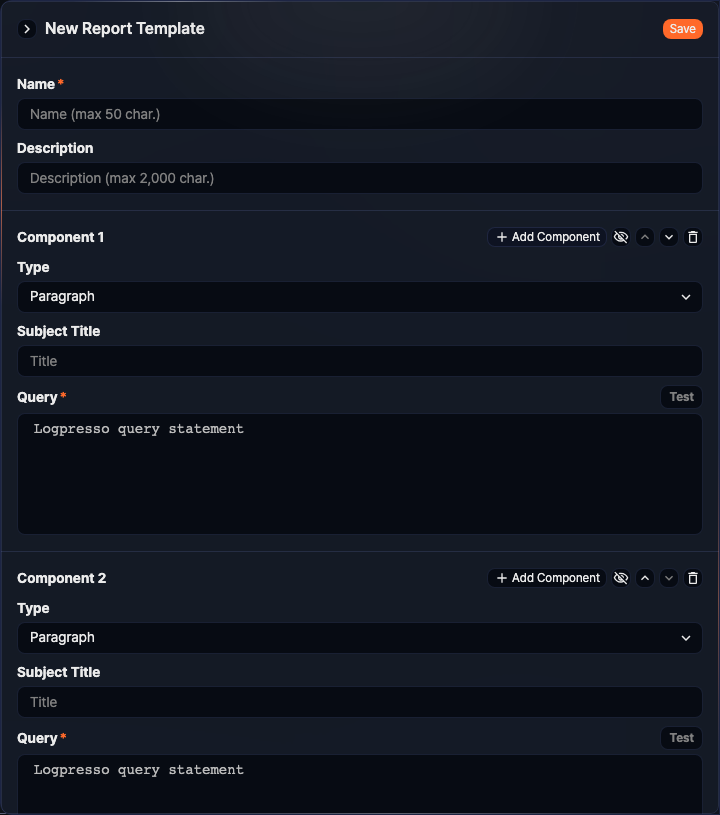
- Type: The type of the component
- Paragraph: Inserts plain text into the report. The value of the
linefield from the query result is displayed as paragraph text. If multiple records are returned, each paragraph is rendered in sequence. - Grid: Inserts a table into the report. The query result is displayed as a table. The column order follows the order shown in the query result window, as specified by the
fieldsorordercommand. - Graph: Inserts a chart into the report.
- The chart automatically detects the independent variable field (X-axis) and dependent variable fields (Y-axis) from the query result.
- Independent variable field: The baseline field for the chart (date, string, or IP address type fields)
- Dependent variable fields: Value fields to plot against the independent variable (integer or float type fields)
- The query result must contain exactly one field that can serve as the independent variable, and at least one field that can serve as a dependent variable.
- For pie charts, there must be exactly one dependent variable field.
- The chart automatically detects the independent variable field (X-axis) and dependent variable fields (Y-axis) from the query result.
- Memo: Inserts boxed text into the report. The value of the
linefield from the query result is displayed as memo text inside a bordered box. If multiple records are returned, each memo is rendered in sequence.
- Paragraph: Inserts plain text into the report. The value of the
- Chart: Shown only when the type is Graph. Select the chart type.
- Line: Displays changes over time as a line.
- Bar: Displays data as horizontal bars.
- Column: Displays data as vertical bars.
- Stacked Area: Stacks multiple series as filled areas.
- Pie: Displays proportions of a whole as a circular chart.
- Stacked Bar: Stacks multiple series as horizontal bars.
- Stacked Column: Stacks multiple series as vertical bars.
- Chart Options: Shown only when the type is Graph. The available options depend on the chart type, and changing the chart type resets the selected options.
- Log scale: Displays the Y-axis on a logarithmic scale. Available for Line, Bar, Column, Stacked Area, Stacked Bar, and Stacked Column charts.
- Percentage: Fixes the dependent variable axis from 0 to 100 to display percentage data. Available for Line, Bar, Column, Stacked Area, Stacked Bar, and Stacked Column charts.
- Donut: Hollows out the center of the pie chart to display it as a donut. Available for Pie charts only.
- Label: Displays value labels on each data segment. Available for Bar, Column, Stacked Bar, Stacked Column, and Pie charts.
- Subject Title: The heading of the component. It appears as a subheading in the report and can be omitted.
- Query: The query that produces the data for this component (required, up to 10,000 characters). Up to the first 10,000 records of the query result are included in the report.
- When a report is generated, the start and end of the selected period are passed as the query parameters
fromandto. Use$("from")and$("to")so that the query processes only that period. Example:table from=$("from") to=$("to") *:FW_FLOW | search action == "deny" | timechart span=1h count as blocked - For Paragraph and Memo components, write a query that produces a
linefield. Example:json "{}" | eval line=concat("Report period: ", string($("from"), "yyyy-MM-dd HH:mm"), " - ", string($("to"), "yyyy-MM-dd HH:mm")) - Test becomes active once you enter a query. For a Graph component, clicking Test opens the Preview dialog with the rendered chart image. For other types, the query result opens in the query viewer in a new window. Queries tested in a new window are limited to 2,000 characters.
- When a report is generated, the start and end of the selected period are passed as the query parameters
Toolbar
Use the toolbar in the upper right corner of each component to manage it.
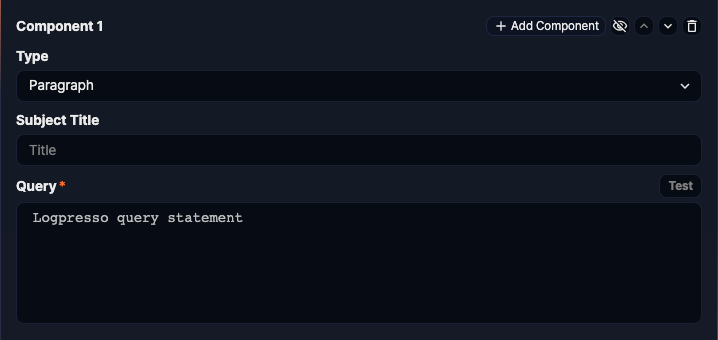
Toolbar actions, from left to right:
- Add Component: Adds a new component below this component.
- Show/Hide (
 ): Chooses whether to include the component in the report. A hidden component is collapsed in the editor and left out when the report is generated.
 - Up/down arrows: Move the component one position up or down. Hold Alt while clicking to move it to the very top or bottom.
- Delete (
 ): Removes the component after you click OK in the confirmation dialog. Hold Alt while clicking to open a dialog that asks whether to delete every component in the template.
Edit report template
To modify an existing report template:
-
Click the row of the report template you want to edit in the report template list.
-
In the Edit Report Template panel, update the Basic settings and Component settings, then click Save. To discard changes, click the close button (
 ) at the top of the panel.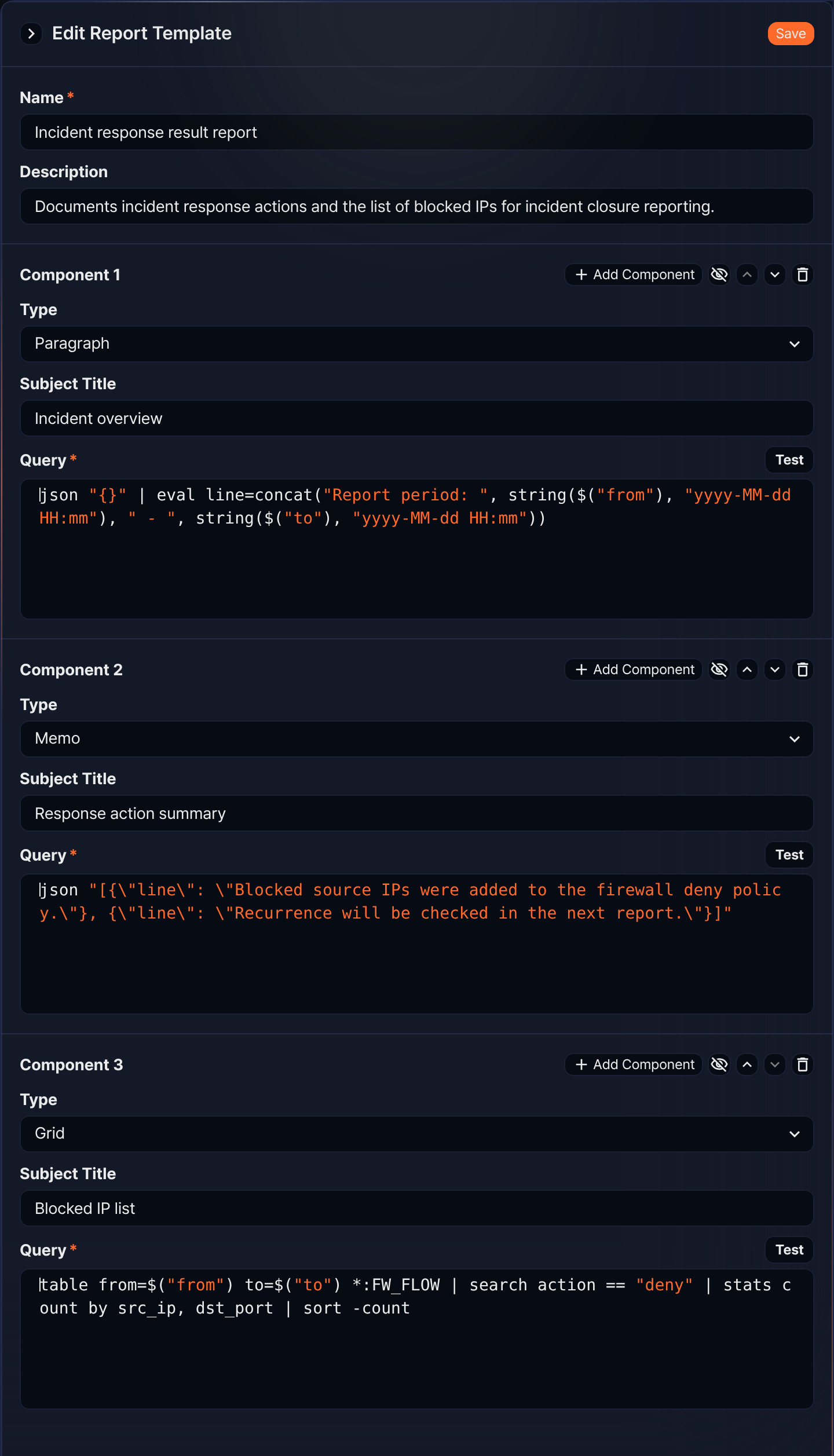
If you open the panel with an account that lacks the Report Template Edit permission, the panel is read-only and Save is not shown.
Generate and view reports
Viewing reports in the web console
You can view a report for any period using an existing report template.
-
Click View for the desired report template in the report template list.
-
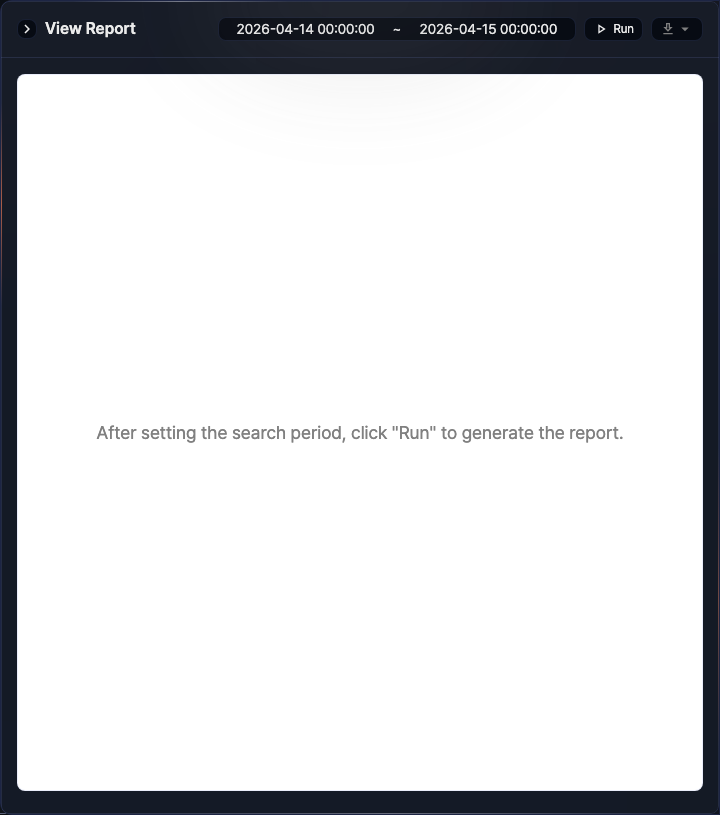
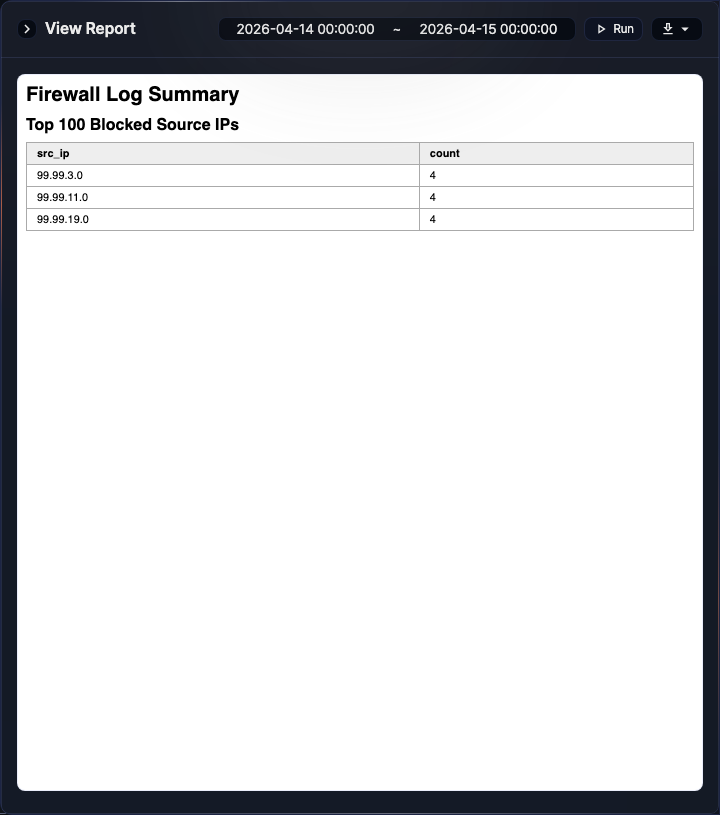
Set the start and end of the period at the top of the View Report panel, then click Run. The default period is from midnight of the previous day to midnight of the current day. While the report is being generated, Run changes to Stop. Click Stop to cancel. When generation finishes, the report appears in the preview pane.
-
After the report is generated, click the download button (
) in the upper right corner of the panel and select a format (MS Word document (docx), Hangul document (hwpx), Web document (html), or PDF (pdf)) to save it to your local PC. The download button is enabled only after a report has been generated, and downloading requires the Report Download (REPORT_DOWNLOAD) permission.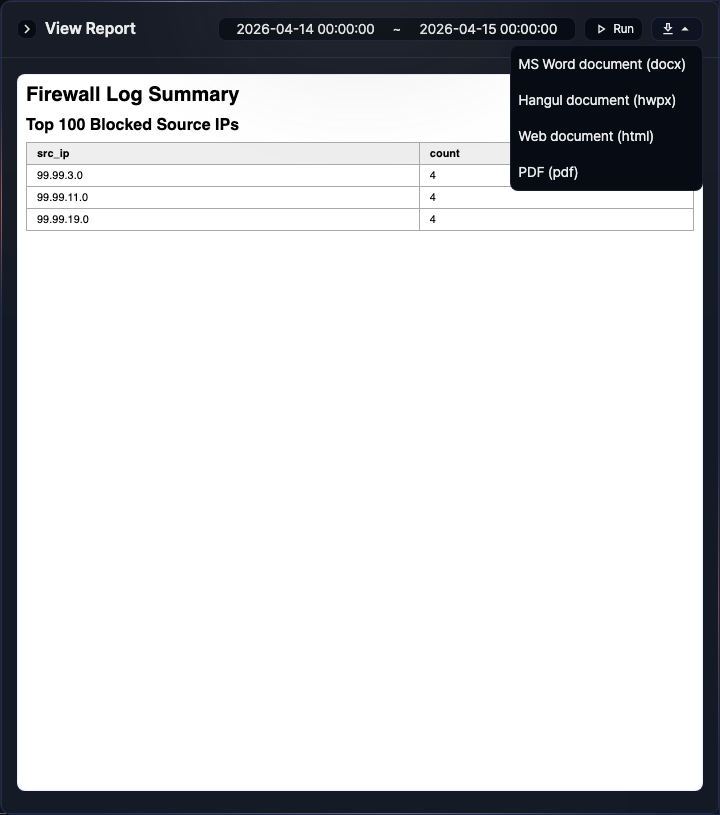
Generating and viewing query-based reports
You can also generate reports and receive them by email using the sonar-send-report command. Use scheduled queries to automate periodic report generation and delivery.
To use the sonar-send-report command, you must know the GUID of the report template. Click the row of the report template in the report template list and check your browser's address bar. For example, if the address looks like .../report/a6e2d9f1-5b74-4c38-8e91-0d2f6a4b7c53, the GUID is a6e2d9f1-5b74-4c38-8e91-0d2f6a4b7c53.
Delete report template
To delete a report template:
-
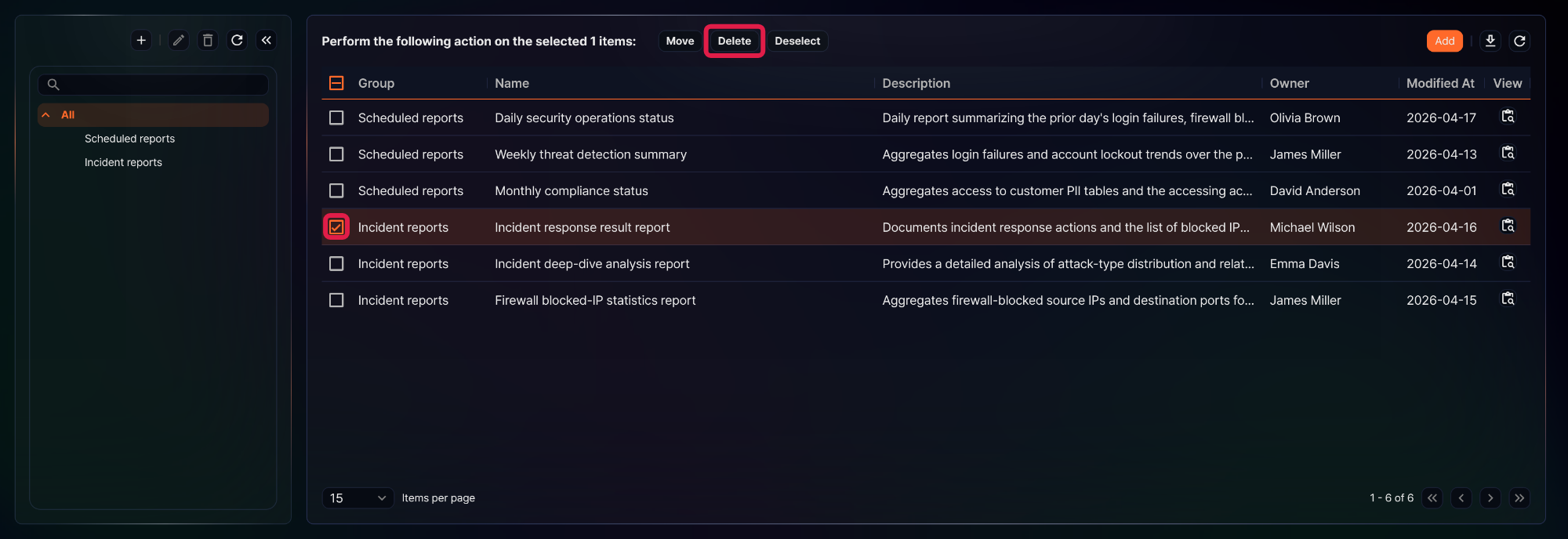
Select the checkbox of the row for the report template you want to delete in the report template list.
-
Click Delete in the toolbar.
-
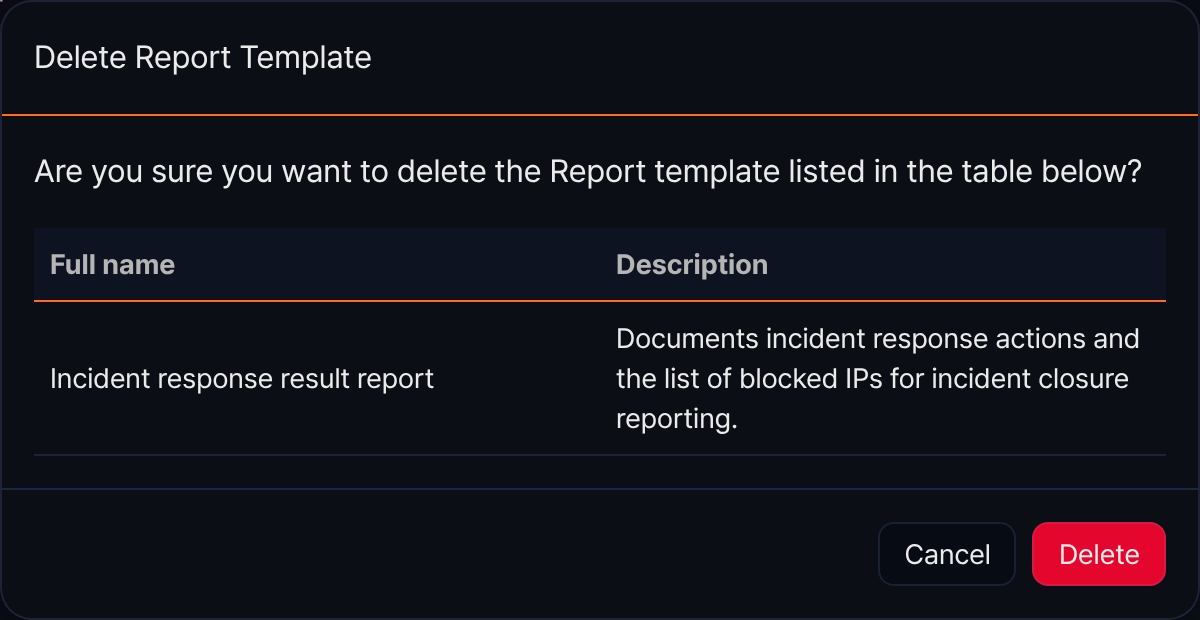
In the Delete Report Template dialog, check the name and description of the template and click Delete. Click Cancel to cancel the operation.
Manage report groups
Report groups are used to organize and classify registered report templates. Groups can be nested by placing subgroups under a parent group.
Add report group
To add a report group:
-
Click the add button (
 ) above the report group tree in Analysis > Reports.
 -
In the New Report Group dialog, enter the group details and click OK. Click Cancel to cancel the operation.
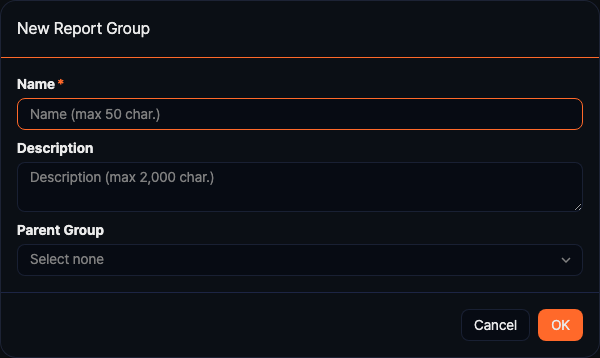
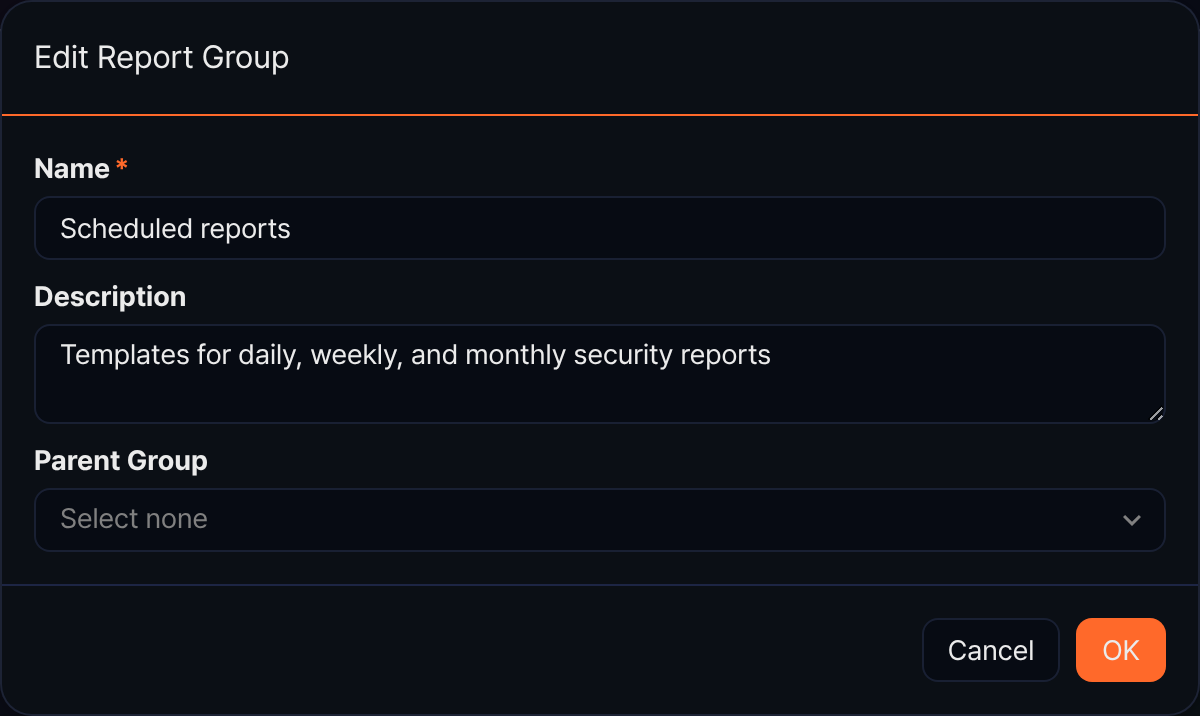
- Name (required): Name of the report group (up to 50 characters; cannot consist of spaces only)
- Description: Description of the report group (up to 2,000 characters)
- Parent Group: The group under which the new group is placed. Leave it as Select none to create a top-level group. If a group is selected in the tree when you open the dialog, that group is preselected as the parent.
Edit report group
To modify a report group:
-
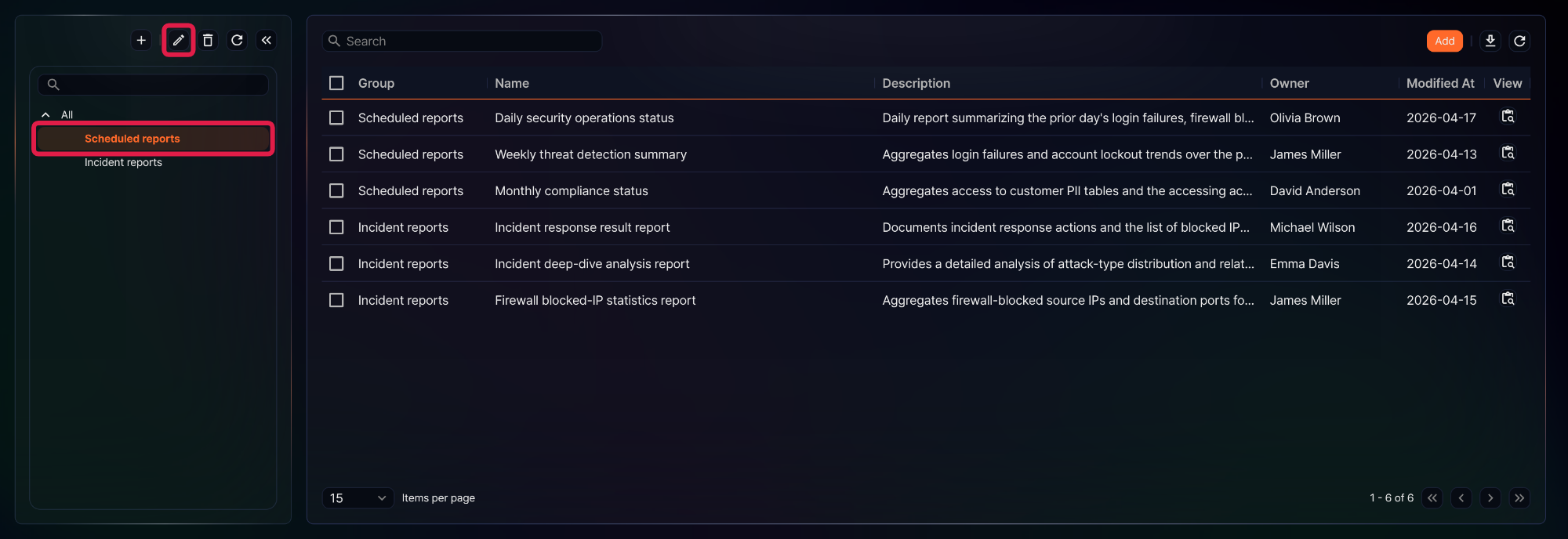
Click the report group you want to modify in the report group tree under Analysis > Reports.
-
Click the edit button (
 ) above the tree.
 -
In the Edit Report Group dialog, make the necessary changes and click OK. Click Cancel to discard changes.
Delete report group
To delete a report group:
-
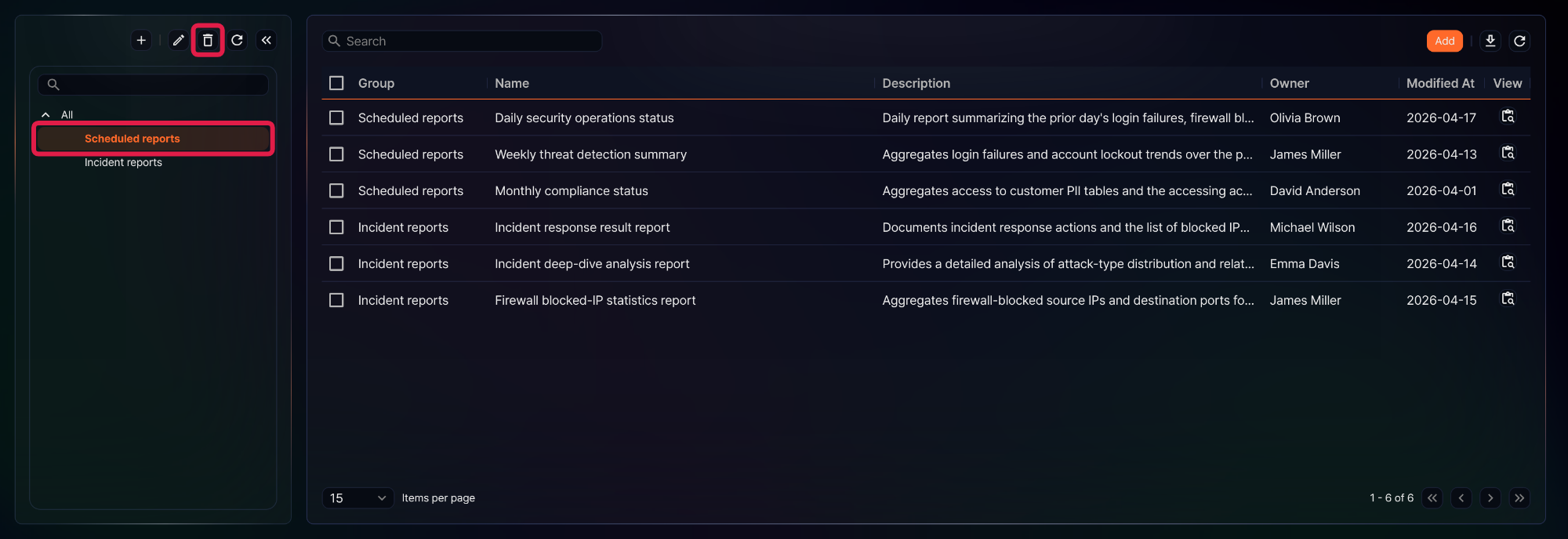
Click the report group you want to delete in the report group tree under Analysis > Reports.
-
Click the delete button (
) above the tree. -
In the Delete Report Group dialog, confirm the group and click Delete. Click Cancel to cancel the operation.
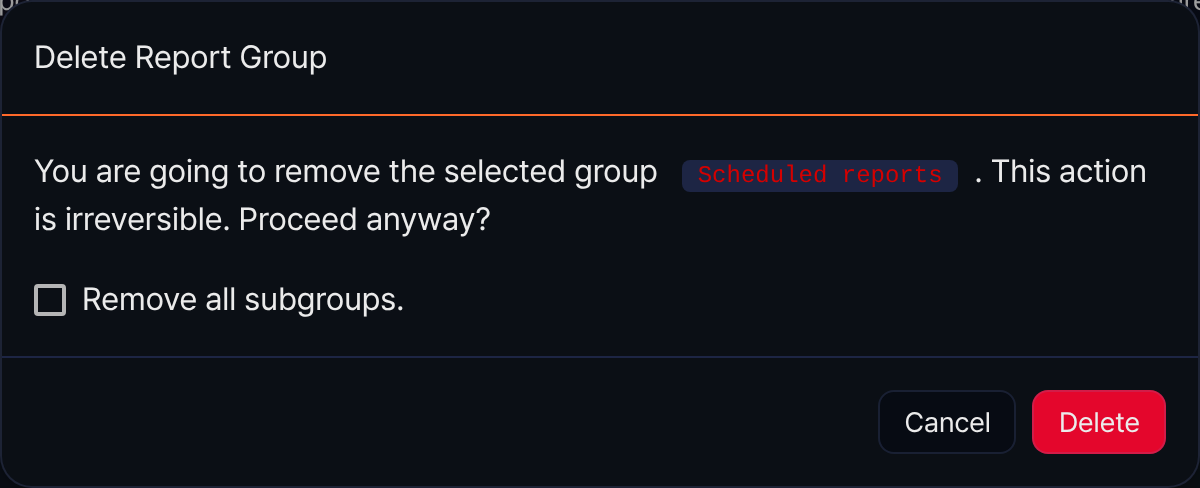
- If you check Remove all subgroups., all subgroups are deleted, and the report templates that belonged to the deleted groups are moved to the parent of the deleted group. If there is no parent group, the Group column for those templates is empty in the report template list.
- If you delete the group without checking Remove all subgroups., the subgroups and the report templates in the deleted group are moved to the parent group.
Move report template to another group
To move a report template to a different group:
-
Select the checkbox of the row for the report template you want to move in the report template list.
-
Click Move in the toolbar.
-
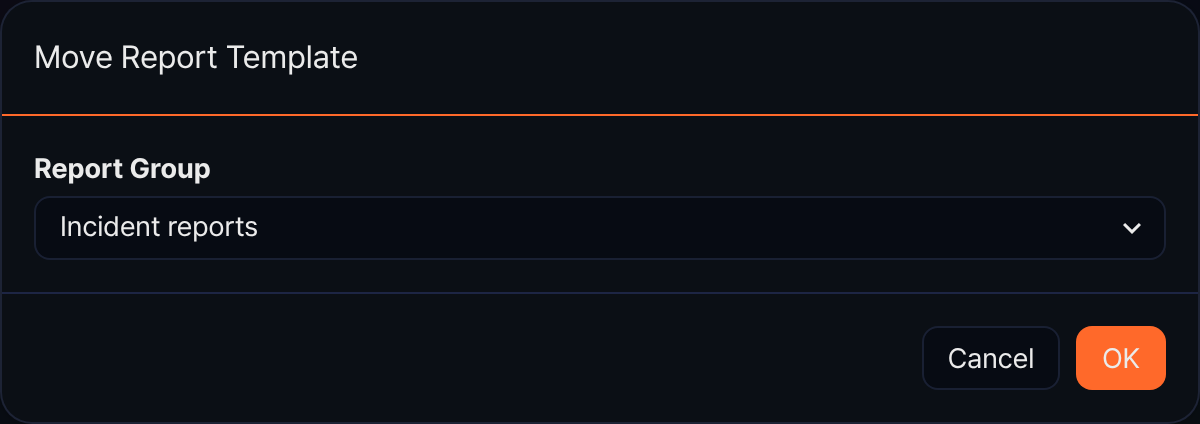
In the Move Report Template dialog, select the destination group under Report Group and click OK. The group currently selected in the tree is not listed, and choosing Select none removes the templates from their group. Click Cancel to cancel the operation.