
User-defined variables
Overview
User-defined variables are parameters that connect input controls and query widgets on dashboards. Values entered in input controls are stored in variables, and query widgets reference those values to dynamically change the displayed data.
For example, to view only events from a specific IP address on a security monitoring dashboard, create a string-type user-defined variable named src_ip and connect it to a text input control. When a dashboard user enters an IP address in the input control, the value is stored in the variable, and query widgets use that value as a filter condition to display only matching events.
Variable values are injected into queries through dashboard dynamic filters. When a filter is activated, the variable value is prepended to the query as a set <variable_name> = <value> command, changing the query widget output. You can view or reset currently set variables and values in the dashboard filter panel.
The type of variable that can be connected depends on the input control type.
| Input control | Variables shown in the list |
|---|---|
| Date input control | Date-type variables and the reserved variables _from, _to |
| Text input control | Variables of all types and the reserved variable _span |
| List input control | Variables of all types and the reserved variable _span |
Because a text input control passes a string value, connecting a string-type variable is typical.
Accounts with any of the Dashboard Admin, Dashboard Edit, Widget Edit, Dashboard View, or Widget View permissions can view the variable list. To add, edit, or delete variables, you need the Dashboard Admin or Widget Edit permission.
View and search variables
You can view the user-defined variable list under Dashboards > User-Defined Variables.
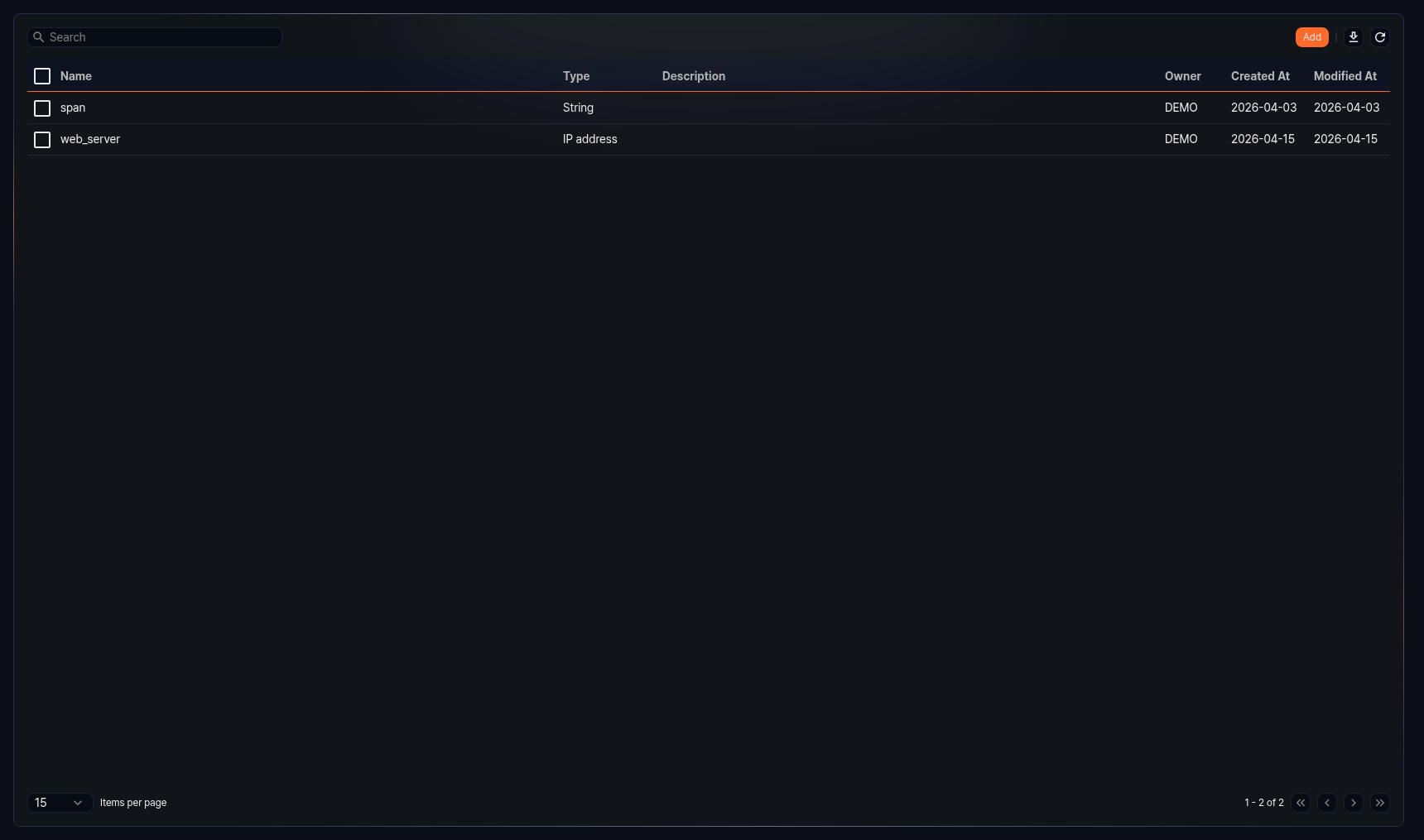
- Name: Name of the user-defined variable. Click the variable row to open the edit side panel.
- Type: Data type of the variable
- Description: Description of the variable
- Owner: Account that created the variable
- Created At: Date the variable was created (
yyyy-MM-ddformat) - Modified At: Date the variable was last modified (
yyyy-MM-ddformat)
To find a specific variable, enter a keyword in the  search box in the toolbar. The search finds variables whose Name contains the keyword. The search is not case-sensitive. If you enter multiple words separated by spaces, only names that contain all of the words are listed.
Download list
To download the variable list as a file, click  in the toolbar.
Refresh list
To refresh the list with the latest data, click  in the toolbar.
Add variable
To add a user-defined variable:
-
Click Add in the toolbar of the variable list.
-
Enter the variable properties in the side panel, then click OK.
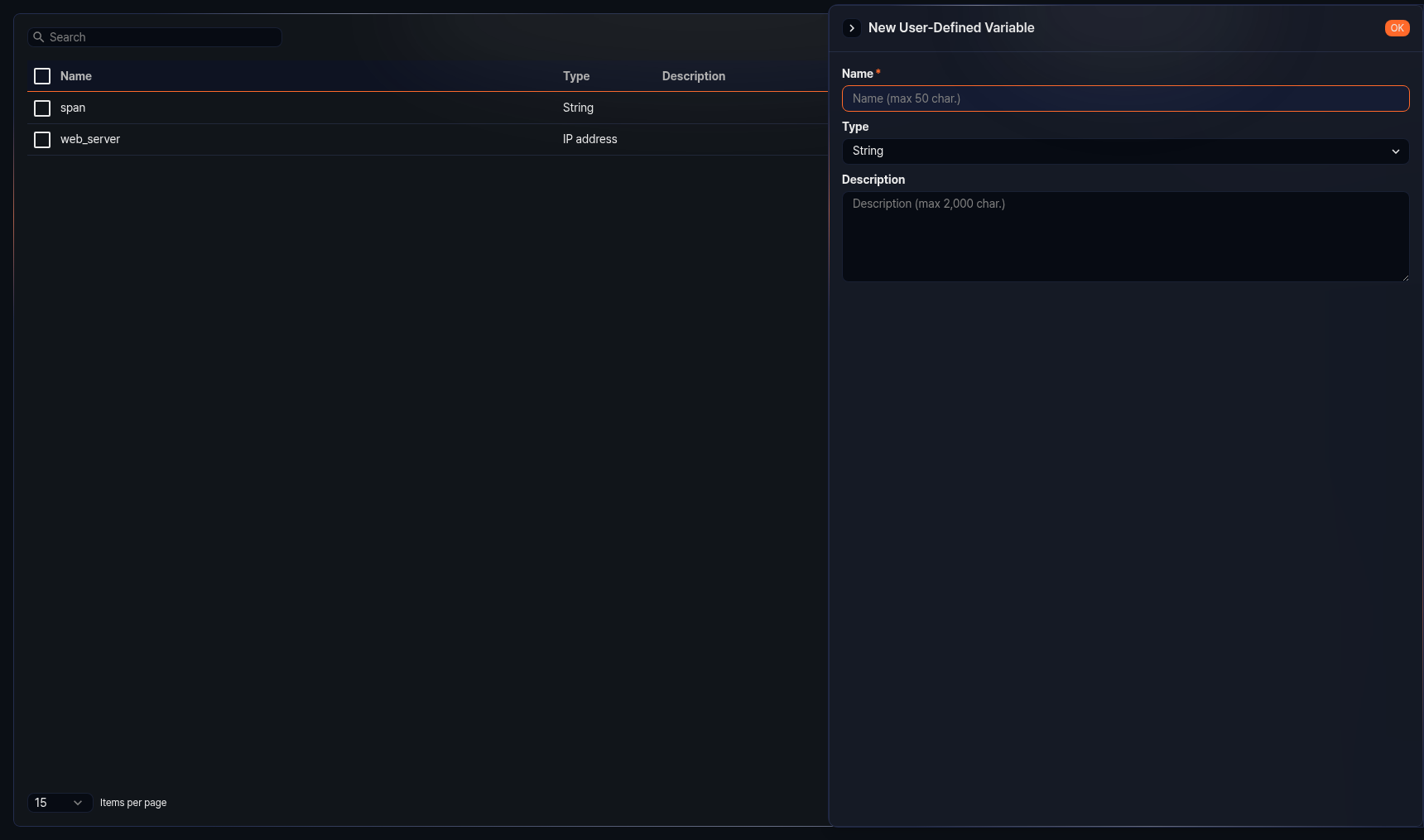
- Name: Unique name of the variable (required, up to 50 characters). Only Korean, English, numbers, and underscores (
_) are allowed. The name cannot start with an underscore. - Type: Data type of the variable (default: String). Available types are:
- String: Text data
- Boolean: True/false value
- Short (16 bits): 16-bit integer
- Integer (32 bits): 32-bit integer
- Long (64 bits): 64-bit integer
- Float (32 bits): 32-bit floating-point number
- Double (64 bits): 64-bit floating-point number
- Date: Date and time
- Country: Country code
- Port: Port number
- IP address: IP address
- Description: Detailed description of the variable (up to 2,000 characters)
- Name: Unique name of the variable (required, up to 50 characters). Only Korean, English, numbers, and underscores (
Edit variable
To edit a user-defined variable:
- Click the row of the variable you want to edit in the variable list.
- Modify the information in the side panel, then click OK. The Name cannot be changed.
Delete variable
To delete a user-defined variable:
- Select the checkbox of the variable row you want to delete in the variable list.
- Click Delete in the toolbar.
- In the Remove User-Defined Variable dialog, confirm the list of variables to delete, then click Delete. Click Cancel to cancel the operation.
Accounts other than administrators can delete only the variables they own. If you select a variable owned by another account, that item is not deleted and appears in the failure list.