
App mode
Overview
When you run an app, the web console switches to app mode. In app mode, the running app appears at the top of the left menu, and if the app provides menus, the left menu changes to the app's menus. The app menus open the app's screens and features directly, so you can focus on the work you do with that app.
You run an app from the card menu on the app management screen or from the quick launch panel. For the procedure and the roles that can run apps, see Run an app.
App mode applies only to your current login session. It stays when you refresh the page and ends when you log out. Other tabs in the same browser also show app mode after you refresh them. Other sessions logged in with the same account elsewhere and the web consoles of other users do not change.
Screen layout
The following screen shows the web console running the Logpresso Graph app.
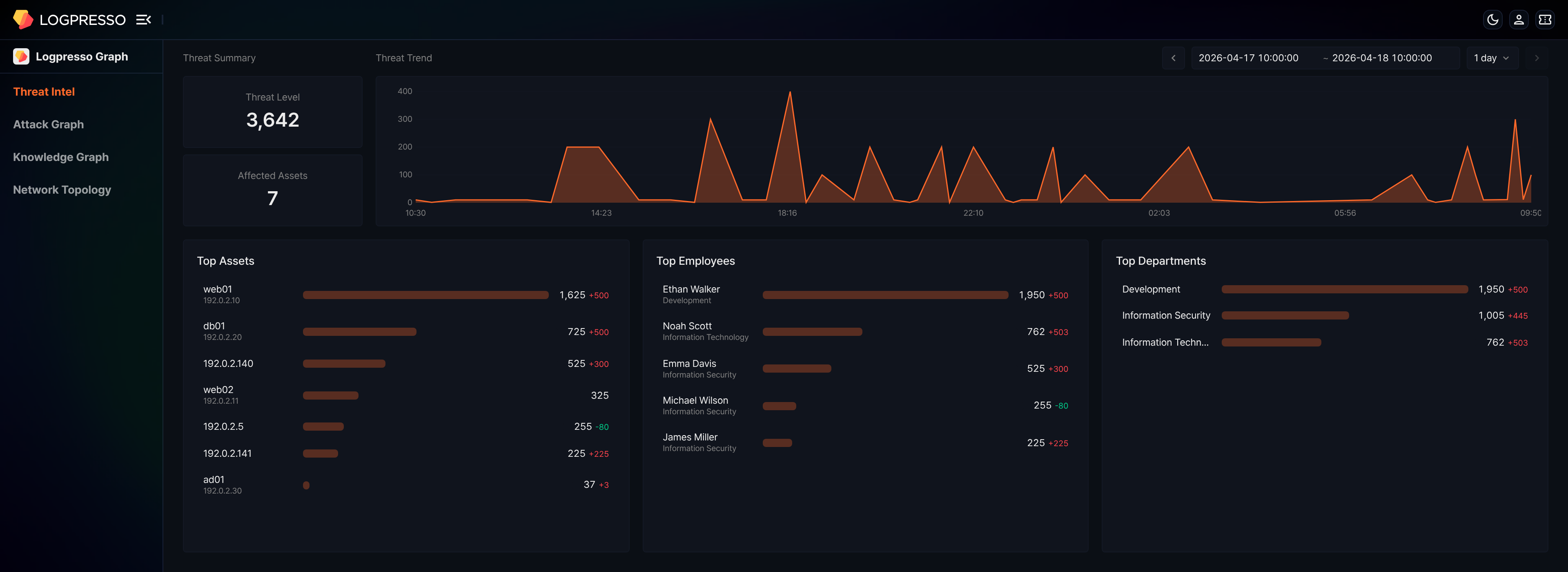
In app mode, the web console changes as follows:
- At the top of the left menu, the icon and name of the running app appear in place of App. Clicking the app name opens the quick launch panel (see Quick launch), and clicking another app card in the panel switches to that app without exiting app mode.
- If the app provides menus, the menus defined by the app appear in place of the default menu. App menus appear without menu icons. Clicking a menu that has two or more submenus expands it, and clicking a menu that has only one submenu opens that submenu's screen directly.
- Clicking an app menu opens the screen linked to that menu in the work area. The screen can be one that the app provides itself or an existing web console screen such as the query screen.
If the app provides menus, the app's first menu screen opens when you run the app. In app mode, clicking the logo in the upper left corner also opens this screen instead of the start screen. If the app provides no menus, only the top of the left menu changes and the default menu stays as it is.
App menu names appear in the display language of the web console. If the app does not provide a name in that language, the English name appears.
Layouts differ by app
The app mode layout differs from app to app. The app decides which menus it provides and how many, and whether each menu opens a screen of the app or an existing web console screen.
- If the app provides its own screens along with menus, both the left menu and the work area change to the app's layout. The Logpresso Graph app below is an example.
- App menus can include menus that open existing web console screens such as the dashboard or query screen. These menus open the same screens that the default menu opens.
- Some apps provide no menus. The Apache HTTP Server app and the Okta app are examples.
Each app has its own page on the Logpresso Store. The app page shows the app overview and release history and, for some apps, installation instructions and a guide to the menus and screens that the app provides.
Example: Logpresso Graph
The Logpresso Graph app accumulates security entities such as IP addresses, hosts, domains, vulnerabilities, employees, and threat intelligence as a graph of nodes and edges, and presents the graph in threat analysis screens. When you run the app, the left menu changes to the following four menus, and the screen of the first menu, Threat Intel, opens.
| Menu | Description |
|---|---|
| Threat Intel | Summarizes threats by period and shows the threat history of assets, employees, and departments as cards. |
| Attack Graph | Expands detection events into a relationship graph between IP addresses so you can trace attack flows. |
| Knowledge Graph | Lets you browse and edit the nodes and edges of the graph. |
| Network Topology | Places IP addresses on network zones and replays the flow of detection events in time order. |
All four menus open screens that the app provides itself. For how to use each screen, see the Logpresso Graph user guide on the Logpresso Store.
This example is based on Logpresso Graph 0.2.2609.0. The menus can differ depending on the app version.
Exit app mode
There are three ways to exit app mode and return to the default menu. Logging out also ends app mode.
The start screen is the screen set in Start Page for your account, or the default start screen if none is set (see Basic settings).
Exit with the close icon
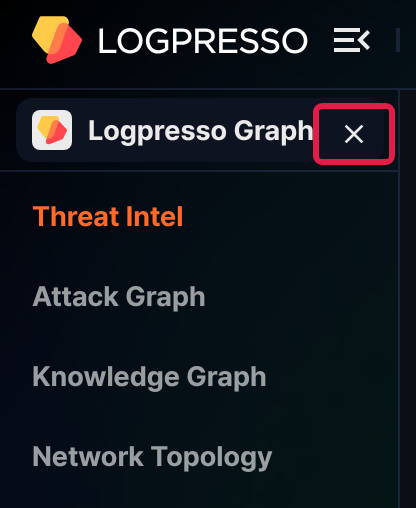
When you hover over the app name at the top of the left menu, a close icon appears on the right. Click the close icon to exit app mode. The start screen opens with the default menu.
Exit from the app card menu
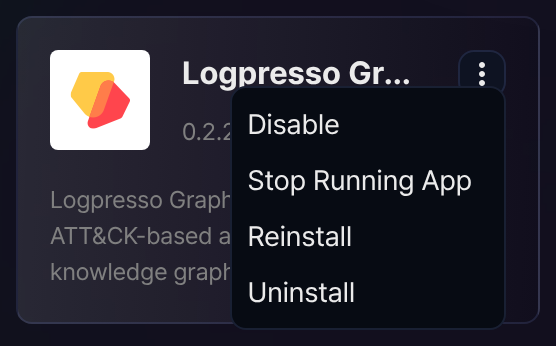
On the app management screen, the card menu of the running app shows Stop Running App instead of Run. In app mode, clicking App Management in the quick launch panel ends app mode before the app management screen opens, so open the app management screen from the address bar as follows.
-
Enter the
/appspath in the address bar to open the app management screen. -
Click
 on the running app card.
 -
From the menu, click Stop Running App.
App mode ends, and the start screen opens with the default menu.
Exit from the quick launch panel
-
Click the app name at the top of the left menu to open the quick launch panel.
-
Click App Management.
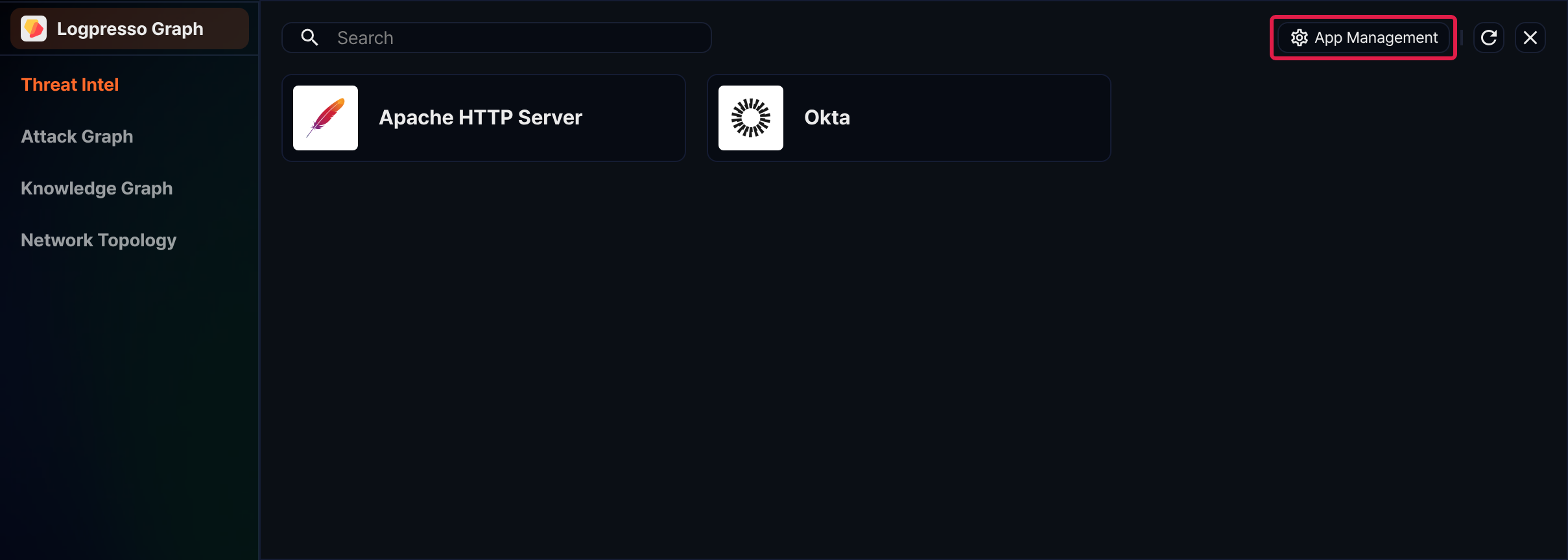
App mode ends, and the app management screen opens with the default menu.