Queries
Overview
In Analysis > Queries, you can write and execute Logpresso queries directly. For query syntax and command details, refer to the Logpresso Query Documentation.
The current v5 query screen is split into a left-side table-selection area and a right-side tabbed workspace. You can start from selected tables, rerun recent queries, or load saved results and datasets without leaving the page.
In practice, the Queries menu is commonly used for these tasks:
- Searching raw or normalized data directly
- Validating query logic before building rules or pivot analysis
- Reopening saved results or datasets for follow-up investigation
Screen layout
The query screen consists of a logger tree on the left and a tabbed workspace on the right.
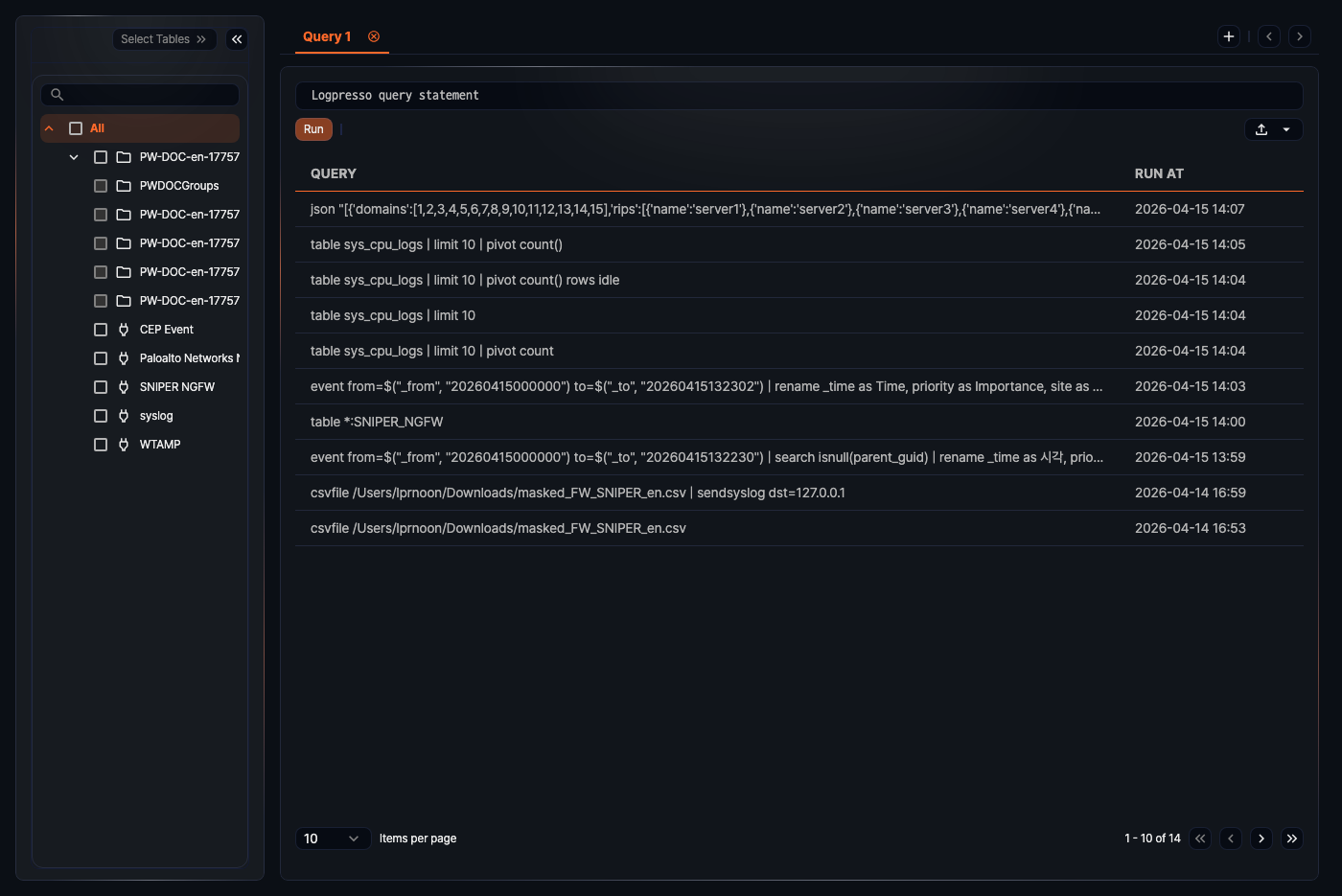
Table tree
The left panel shows logger groups and loggers as a tree under All.
- Type part of a name in the search box above the tree to keep only matching loggers.
- Select one or more loggers with the checkboxes and click Select Tables to insert the names of the tables that those loggers write data to into the query editor.
- Use the collapse button at the top right of the panel to hide it, and drag the border to resize it.
Query tabs
The upper-right area contains the tab navigation.
- Besides the default Query 1, click the add button on the right to open more tabs and work on several queries at once.
- Each tab keeps its own execution state and result. After you run a query, the tab name changes to #query ID - query statement.
- Close a tab with the close button next to its name.
- A tab that has run a query at least once is registered on the server, so within the same login session it is restored along with its running query when you refresh the page or move to another menu and come back. You can leave a long-running query and return to it later. Tabs that have not run a query, and query text you only typed, do not survive leaving the screen.
Query editor and execution area
The current tab shows the query editor at the top, with the execution controls and result area below it.
- Result limit dropdown: To the left of Run, caps the result count (default: Unlimited, range: Max 10,000, Max 100,000, Max 1,000,000). You can limit results without adding a
limitcommand to the query. If the account has a query result row limit, only options within that limit are shown and the default changes to that limit. - Run: Executes the current query.
- Cancel: Shown only while a query runs. Stops the running query.
- Reset: Shown when you change the query after running it. Restores the editor to the query that was run.
- View Query Status: Shown after a run. Opens or closes the execution information panel, next to the elapsed time in seconds.
- The icon menu at the far right offers Load query result and Load Dataset before a run, and Download query result, Save query result, and Save as dataset after a run.
Writing queries
The query editor supports multi-line editing and execution shortcuts.
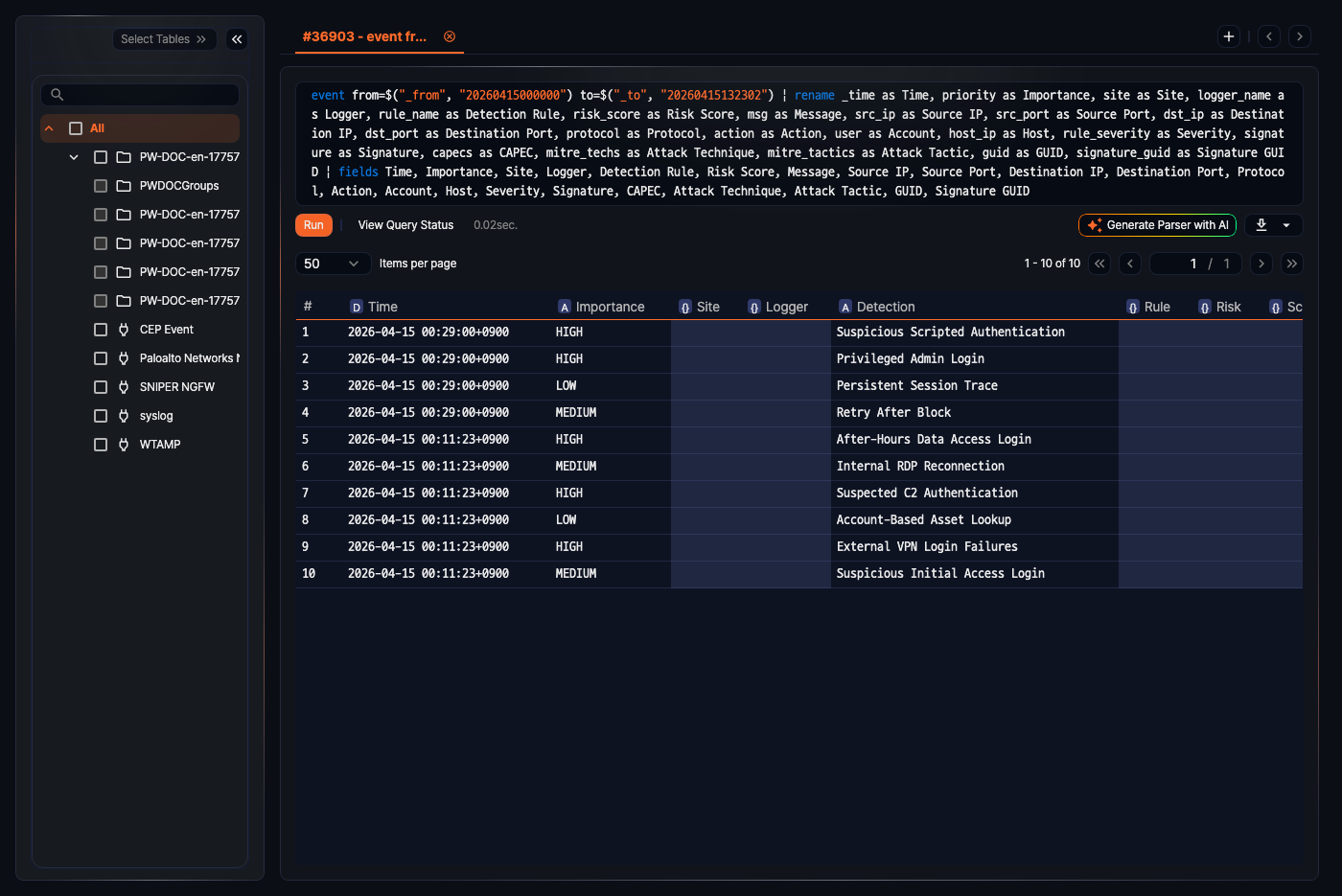
- Chain commands with the pipe (
|) character. - The editor grows to several lines as the query gets longer.
- Lines starting with
#are treated as comments. - Run the query with Shift + Enter or Ctrl + Enter.
Auto-completion
The query editor supports command and option auto-completion.
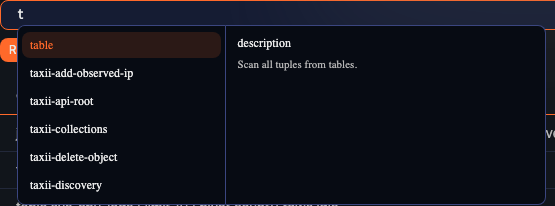
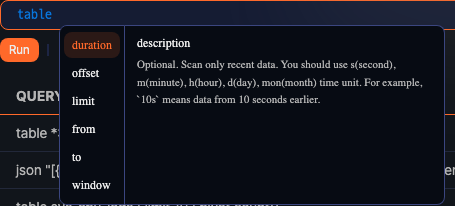
- Open completion suggestions with the following shortcuts:
- All platforms: Ctrl + Space
- Windows only: Ctrl + Shift + Space (alternative)
- macOS only: Cmd + Space (alternative)
- If the current prefix matches exactly one command or option, it can be inserted immediately.
Auto line wrap
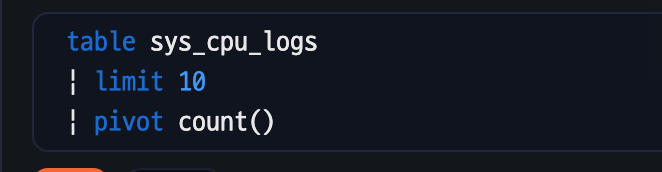
Use auto line wrap to tidy up a long query.
Before wrapping, a long query stays on one line and is hard to read.

Press Ctrl + Shift + F to break the line before each pipe (|) so you can read the query command by command. Use Ctrl + Shift + F on macOS as well, not the Cmd key.
Select tables and table input
Selecting loggers in the left tree lets you insert the names of the tables that they write data to directly into the query.
-
Place the cursor in the query editor where the table name should go. For example, type
table duration=1dfirst. -
Type part of a logger name in the tree search box and select the logger with its checkbox.
-
Click Select Tables. The table name is inserted at the cursor as
*:table, separated by commas if you selected several loggers.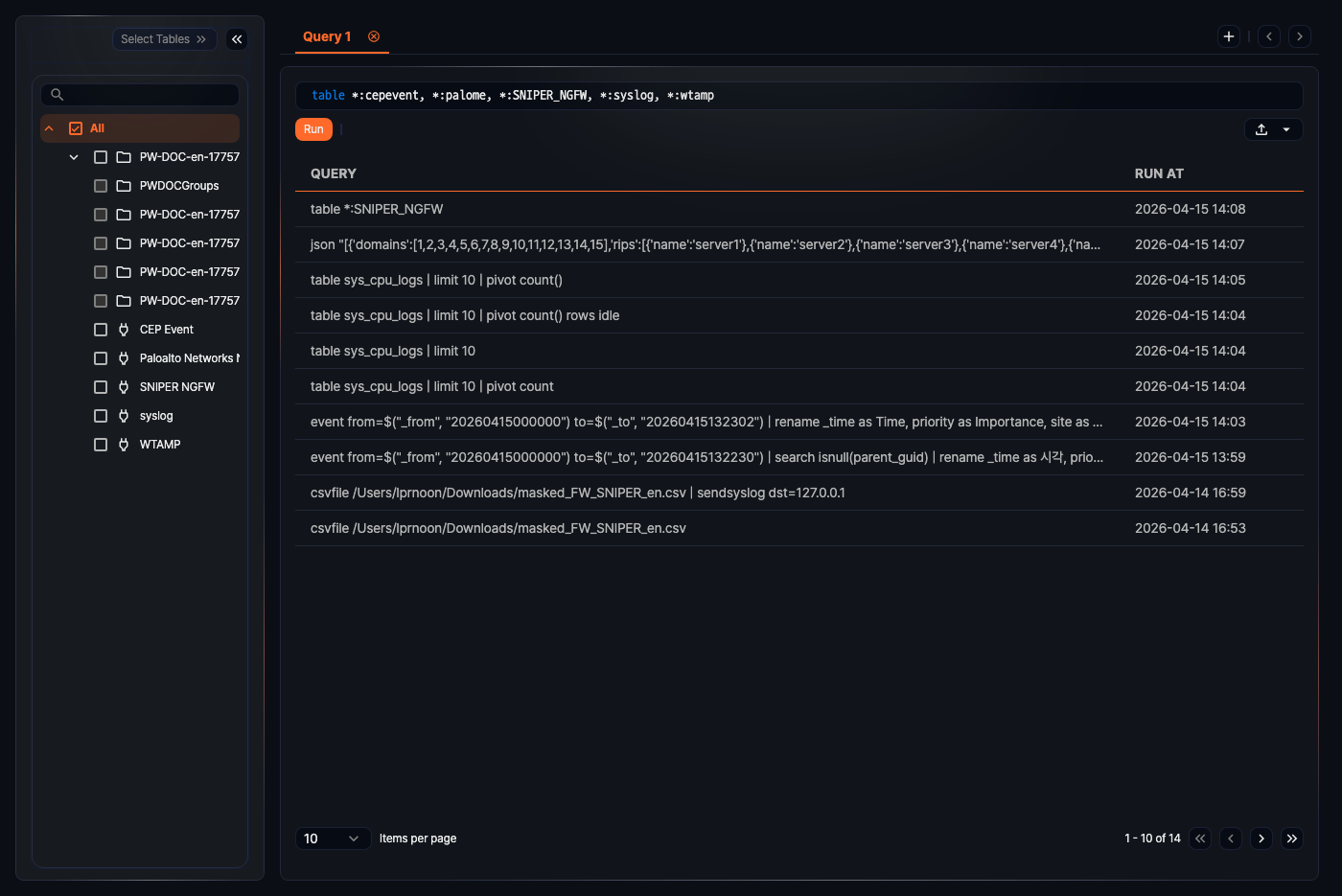
Run queries and review results
When you click Run or use a shortcut, the result grid appears below the editor.
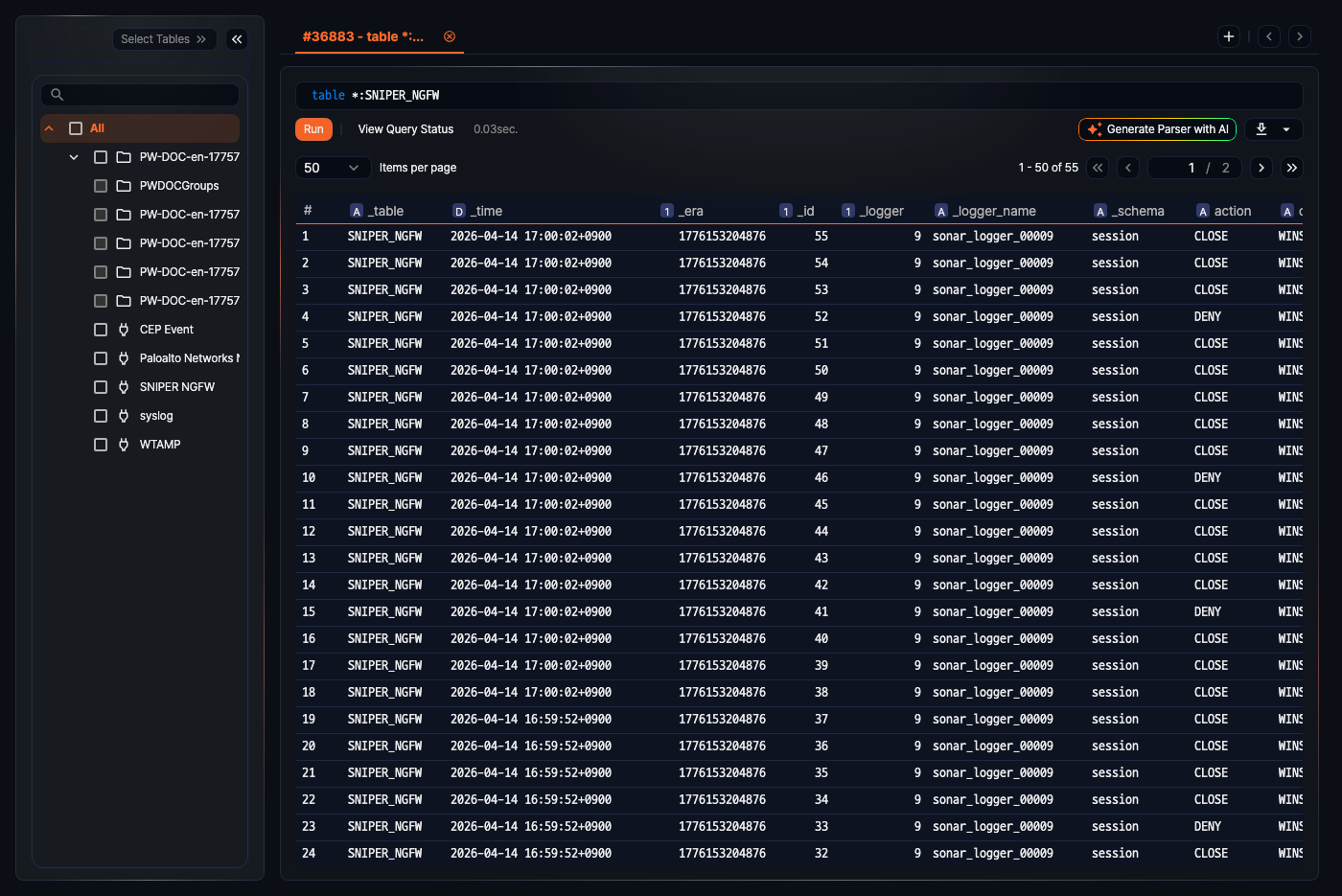
- While the query runs, a spinner appears on the Run button and a Cancel button appears next to it.
- When the run finishes, a pager appears above the result grid, and View Query Status and the elapsed time appear in the toolbar.
- The icons in the grid header show the field type (IP, string, number, and so on).
- Long text or JSON/array values in a cell are shown as a preview. Use the more (⋯) button or the Shift+V shortcut to open the full value in a modal. For the full rules, see Grid - View cell details.
Rerun recent queries
A tab that has not run a query yet shows the recent query history as a Query and Run At table (10 items per page).
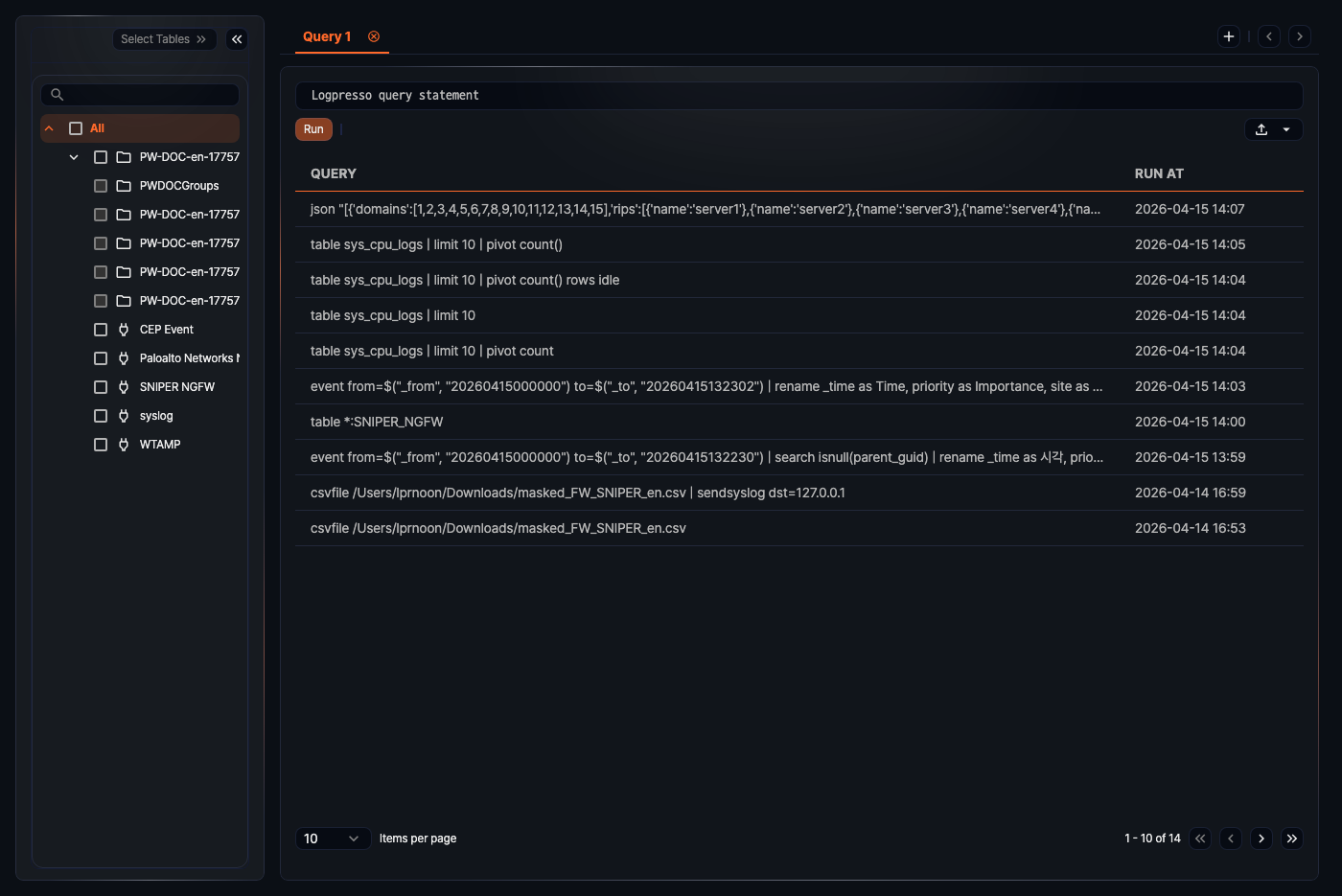
- Click an item to fill the editor with that query and run it immediately.
Load saved data
In a tab that has not run a query yet, the load menu at the far right lets you open saved query results or datasets.
Load query results
Click Load query result in the load menu to open the list of saved query results.
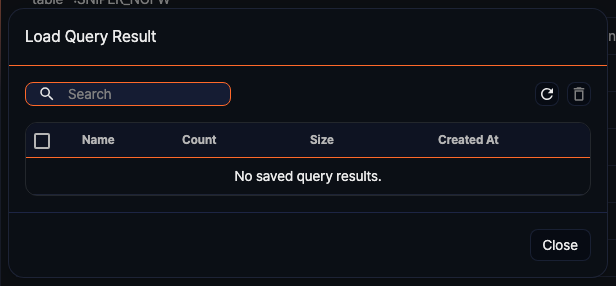
- The table shows Name, Count, Size, and Created At. The search box searches by name, and the refresh icon at the top right reloads the list.
- Click an item to show the result exactly as it was saved in the current tab. Saved results are static data and are not rerun.
- Select items with the checkboxes and click the delete icon at the top right to delete saved results.
Load datasets
Click Load Dataset in the load menu to open the dataset list.
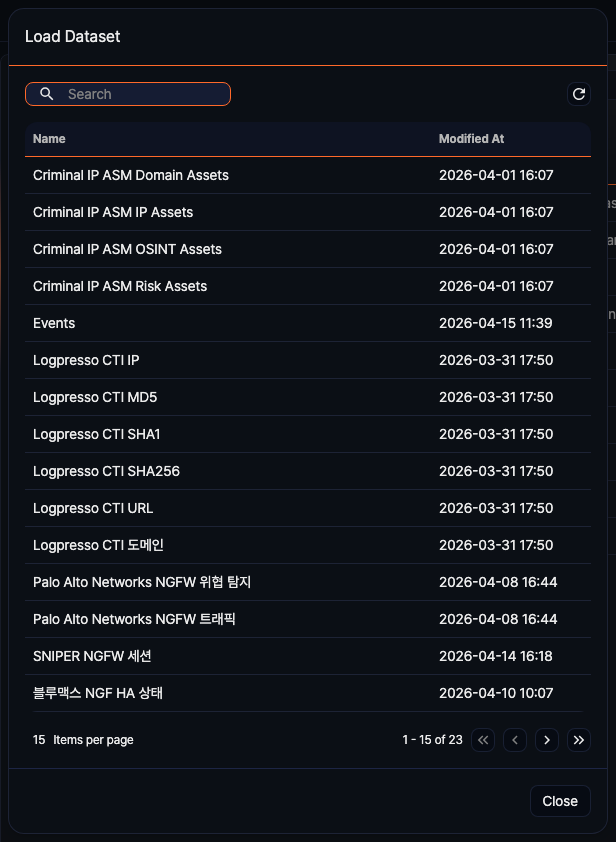
- The table shows Name and Modified At. The search box searches by name, and the refresh icon at the top right reloads the list.
- Click an item to rerun the dataset's saved query as of now. The same dataset can return different results depending on its time conditions and the source data.
Save and download query results
After you run a query, the icon menu at the far right becomes the download menu.
Save as dataset
Click Save as dataset in the download menu to open the New Dataset dialog.
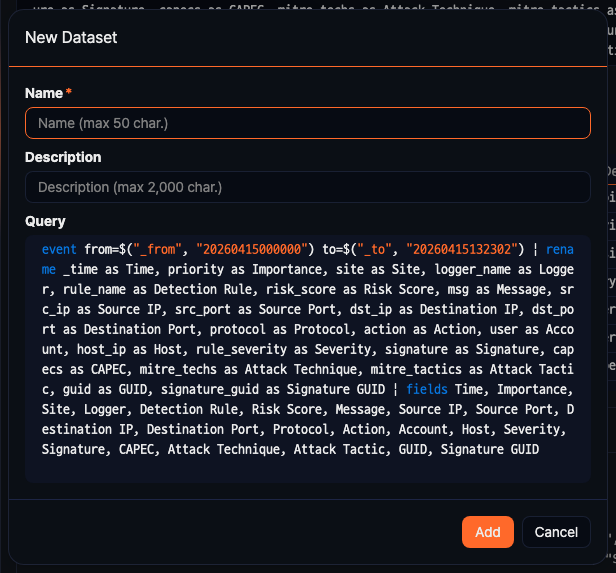
- Name: Dataset name (required, up to 50 characters).
- Description: Dataset description (up to 2,000 characters).
- Query: Prefilled with the query you ran.
Click Add to save the query as a dataset that you can reuse in other features such as Pivot and Widgets.
A query saved as a dataset is easier to reuse when its first command, such as table or fulltext, bounds the period with the duration option or the _from and _to time variables. For example, rewriting the query shown above to take the period from _from and _to gives the following. When a dashboard input control passes the two variables, the query uses that period; otherwise it uses the nvl default of the last day.
set _from=string(nvl($("_from"), datetrunc(ago("1d"), "1d")), "yyyyMMddHHmmss")
| set _to=string(nvl($("_to"), now()), "yyyyMMddHHmmss")
| table from=$("_from") to=$("_to") sonar_login | search action == "fail" | stats count as fail_count by src_ip, user | sort -fail_count
Save query result
Click Save query result in the download menu to open the Save Query Result dialog.
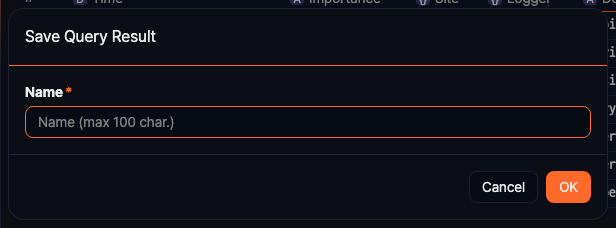
- Name: Name of the saved result (required, up to 100 characters).
Click OK to store the current result as static data that you can reopen with Load query result.
Download query result
Click Download query result in the download menu to open the Download Query Result dialog.
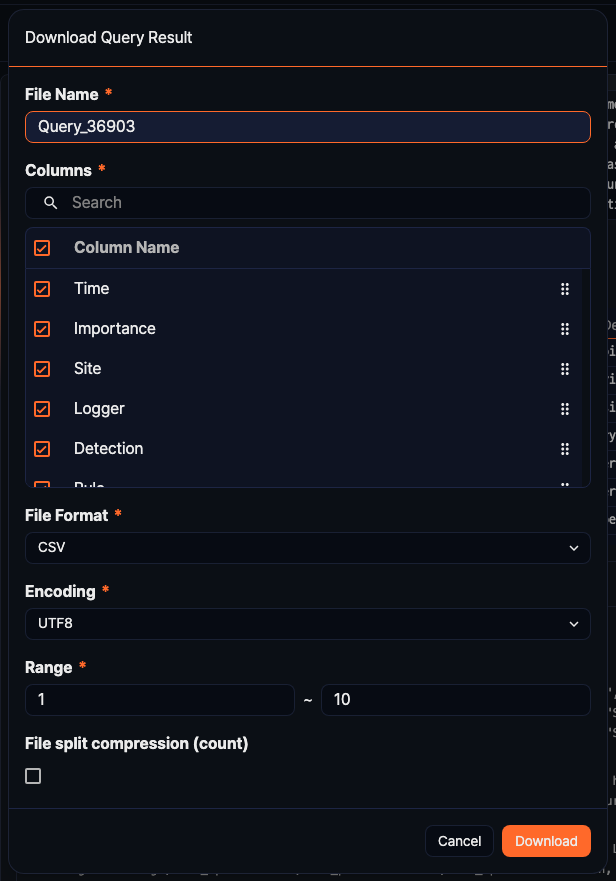
- File Name: Name of the file (required, up to 200 characters, default: Query_query ID).
- Columns: Fields to include in the file. All result fields are selected by default. You can filter them by name with the search box and drag the handle on the right to reorder them.
- File Format: Choose CSV, XML, Microsoft Word, HTML, JSON, or PDF (default: CSV).
- Encoding: Character encoding for the file. Shown only when File Format is CSV or JSON.
- Range: First and last row numbers to download (default: the whole result).
- File split compression (count): Shown only when File Format is CSV. Select it to split the file every specified number of rows and download them as a ZIP archive.
When the settings are complete, click Download.
Generate parser with AI
When the query result is raw text log, the Generate Parser with AI button appears in the toolbar to the left of the download menu. Click it to generate a parser from the current query result. The button appears only when all of the following are true:
- Your account has parser edit permission.
- The result contains a
linefield that holds one raw text line. - The result has no
_schemafield (results that already have a schema applied are not eligible).
View query execution status
After a run, click View Query Status to open the execution information panel below the result grid.
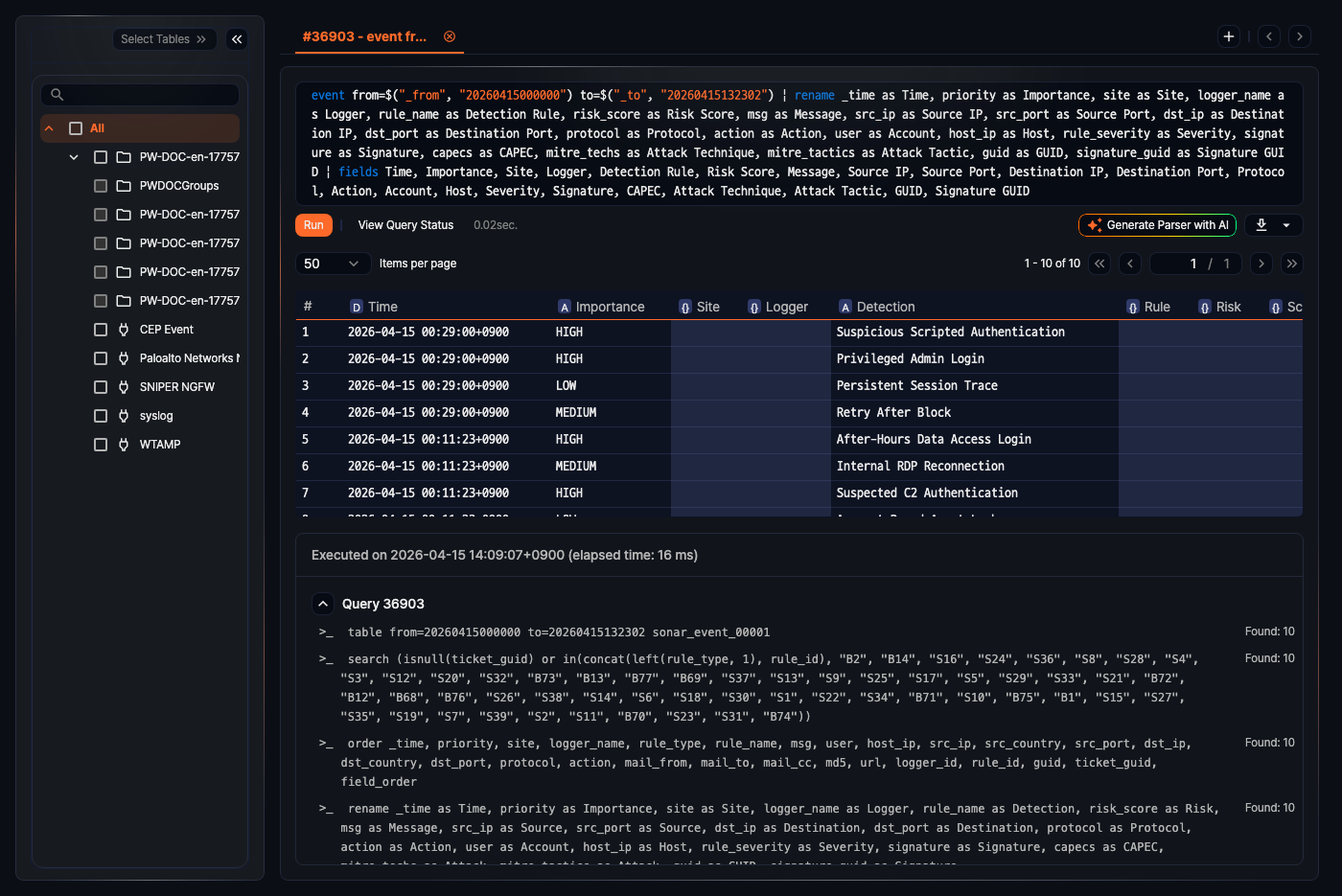
- Run time and elapsed time (ms)
- Query ID and the list of executed command stages
- Records processed per command stage
- Command stages of each sub-query, if any
Change the number of displayed rows
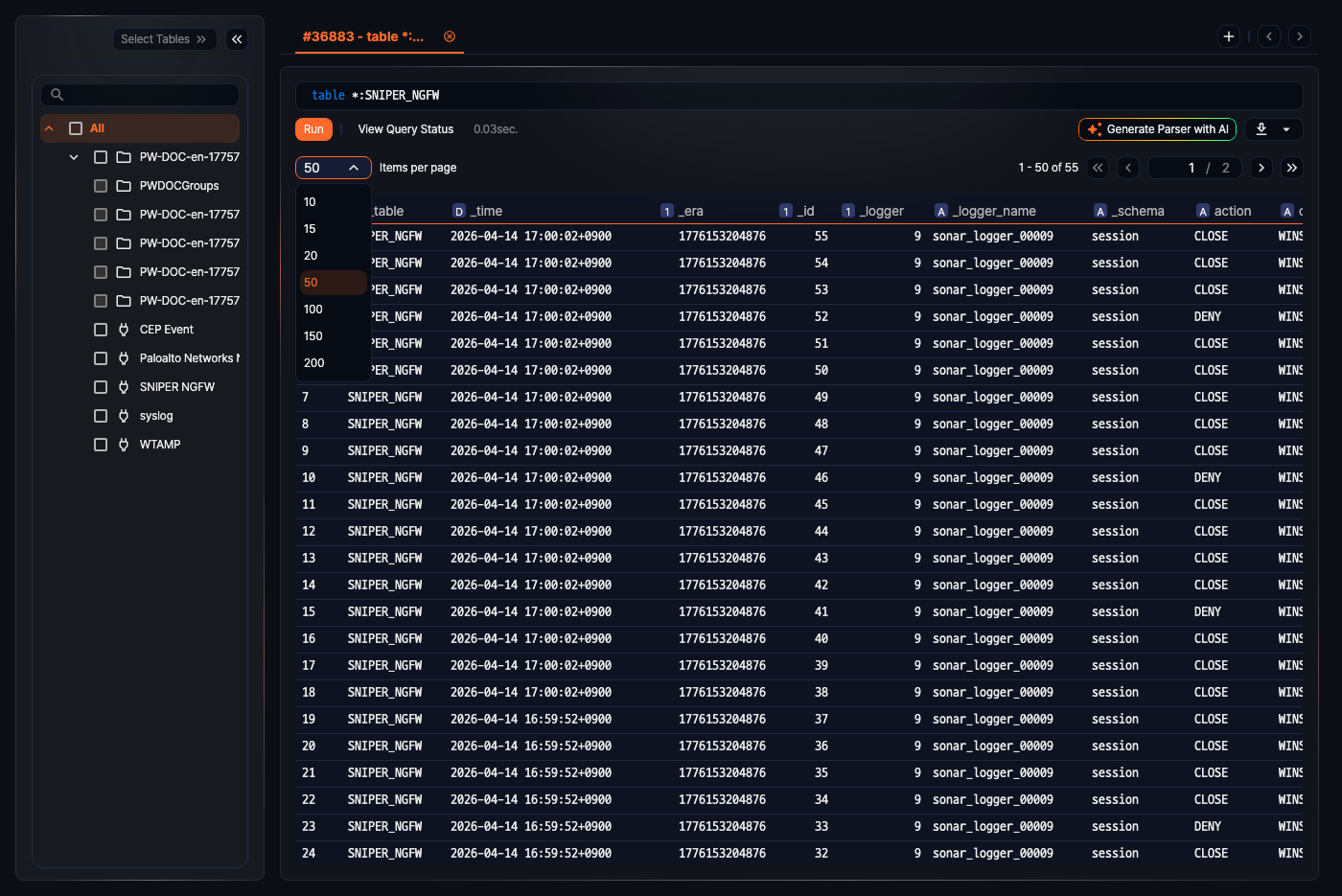
Use the rows-per-page dropdown in the pager above the result grid to change how many rows a page shows (default: 50, range: 10, 15, 20, 50, 100, 150, 200).