
Signatures
Overview
A signature is metadata that assigns a name and CAPEC (Common Attack Pattern Enumeration and Classification) classification to an attack pattern identified by a detection rule. When a stream rule or batch rule detects an event that has a signature field, the system looks for a signature whose name matches that value and attaches its mapped CAPEC IDs to the event. If the rule's Signature App is set, the lookup searches that app's signatures; if it is blank, the lookup searches signatures that have no app. CAPEC defines the severity of an attack, so the severity of a signature's mapped CAPEC is added to the impact value of the event's risk score. For more information, see Using signatures.
An app can bundle signatures together with its detection rules. When you install such an app, its built-in signatures are registered automatically. In the edit panel, you cannot change the app, name, description, or CAPEC IDs of a built-in signature.
To use a signature with a custom detection rule, register it directly on this page, or upload a CSV file to register signatures in bulk. In the signature list, click a CAPEC ID to go to its CAPEC detail page, where you can review the attack pattern's execution flow, prerequisites, and mitigations.
The Policies > Signatures menu appears only when your license includes the XDR feature (see Features by license). In that case, the menu is shown to accounts with the cluster administrator, administrator, and user roles, and all three roles can view the signature list and details. Only the cluster administrator and administrator roles can add or edit signatures in the side panel and delete them from the list — accounts with the user role do not see Add, Save, or the row checkboxes. However, Upload appears for all three roles, and accounts with the user role can also add or update signatures by uploading a CSV file. For role-based permissions, see Account permissions.
Viewing and searching the signature list
You can view or search the signature list at Policies > Signatures.
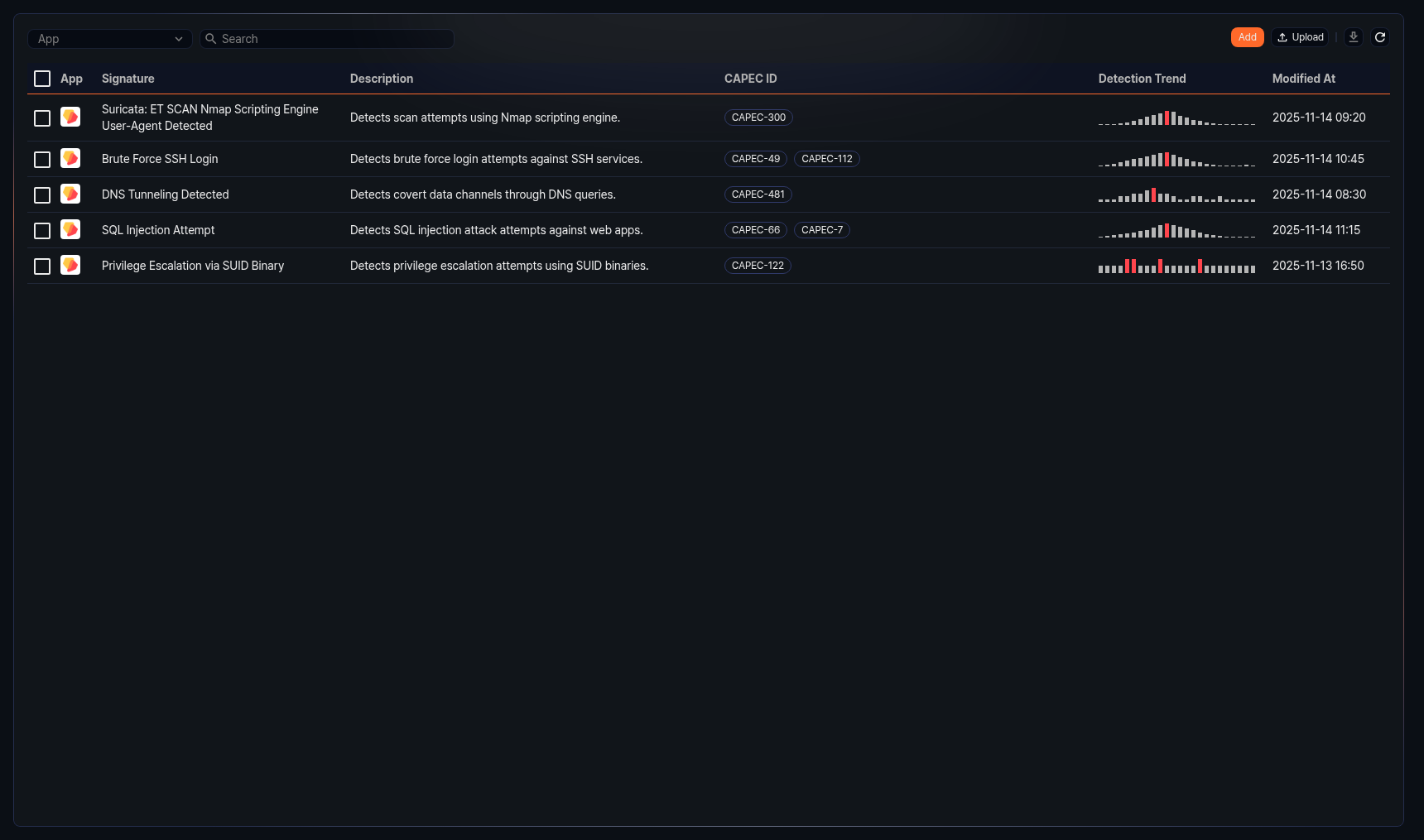
- App: The icon of the app the signature belongs to. Signatures with no assigned app show the default logo.
- Signature: The signature name
- Description: A description of the signature
- CAPEC ID: Up to the first 3 CAPEC IDs mapped to the signature. If there are 4 or more, click +N Show More to see the full list. Click an ID to go to its CAPEC detail page.
- Detection Trend: A bar chart of hourly detection counts over the last 24 hours. The bar with the highest value is highlighted in red. Hover over a bar to see the time and detection count for that period.
- Modified At: The date and time the signature was last modified (
yyyy-MM-dd HH:mmformat)
To filter the list by app, select an app from the App dropdown in the toolbar. Only signatures belonging to that app are displayed.
To find a specific signature, enter a search term in the toolbar's search box and press Enter. If you enter multiple words separated by spaces, each word must appear in at least one of the signature name, description, or mapped CAPEC ID. The search is not case-sensitive.
Refreshing the list
To refresh the signature list with the latest data, click  in the toolbar.
Downloading signatures
To download the signature list as a file, click  in the toolbar. The Download Signatures dialog opens.
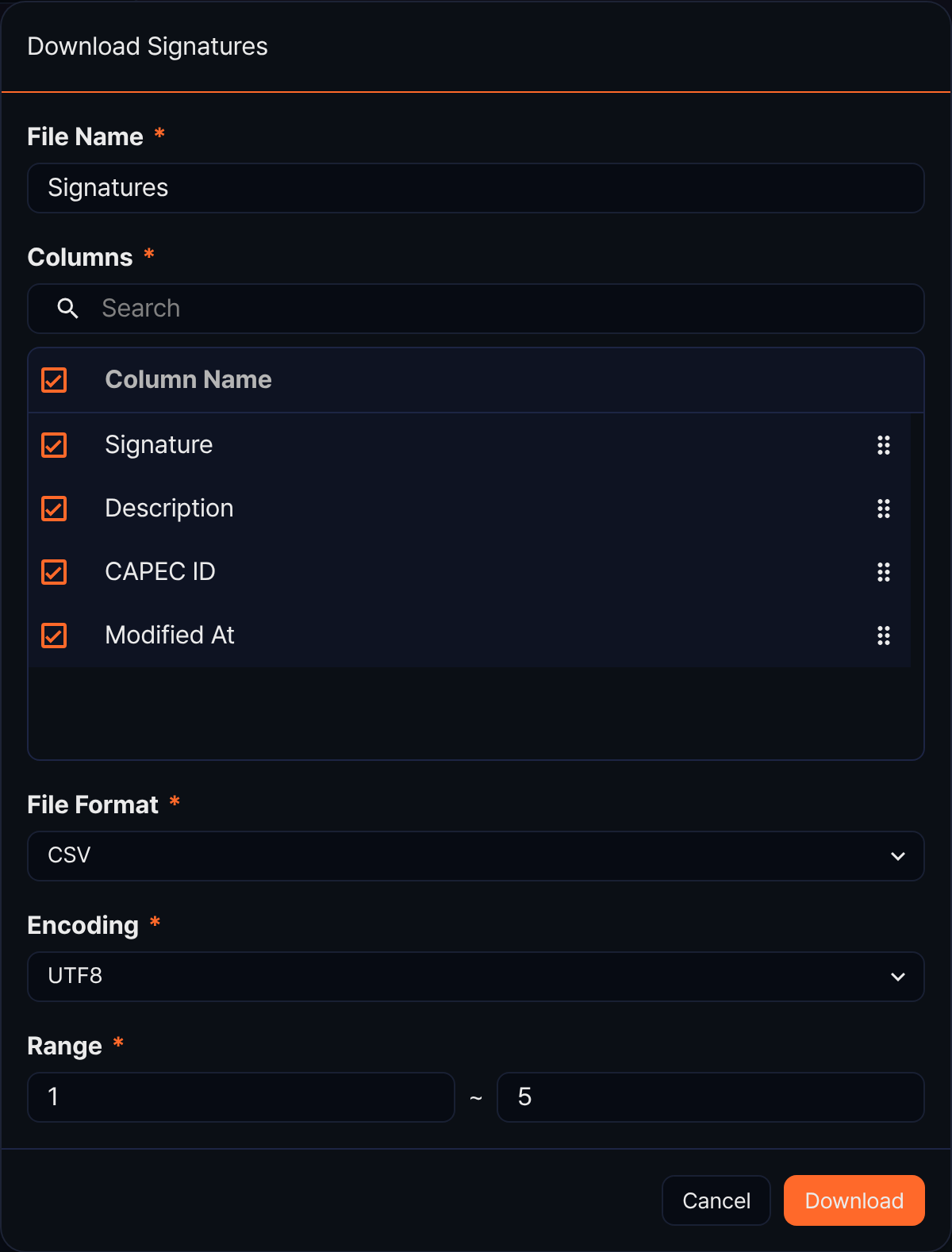
- File Name (required): The name of the file to download (default Signatures, up to 200 characters)
- Columns (required): The columns to include in the file. All four columns — Signature, Description, CAPEC ID, and Modified At — are selected by default. Use the checkboxes to remove columns, or drag the handle on the right to reorder them.
- File Format (required): The format of the file to download. Choose from CSV (default), XML, Microsoft Word, HTML, JSON, or PDF.
- Encoding (required): The file encoding. This field appears only when the file format is CSV or JSON.
- Range (required): The starting and ending row numbers to download (defaults to the first row number of the current page through the total count)
Click Download when you are done. If the list is empty, the download icon is disabled.
Adding a signature
To create a new signature to match against in a detection rule:
-
On Policies > Signatures, click Add in the toolbar.
-
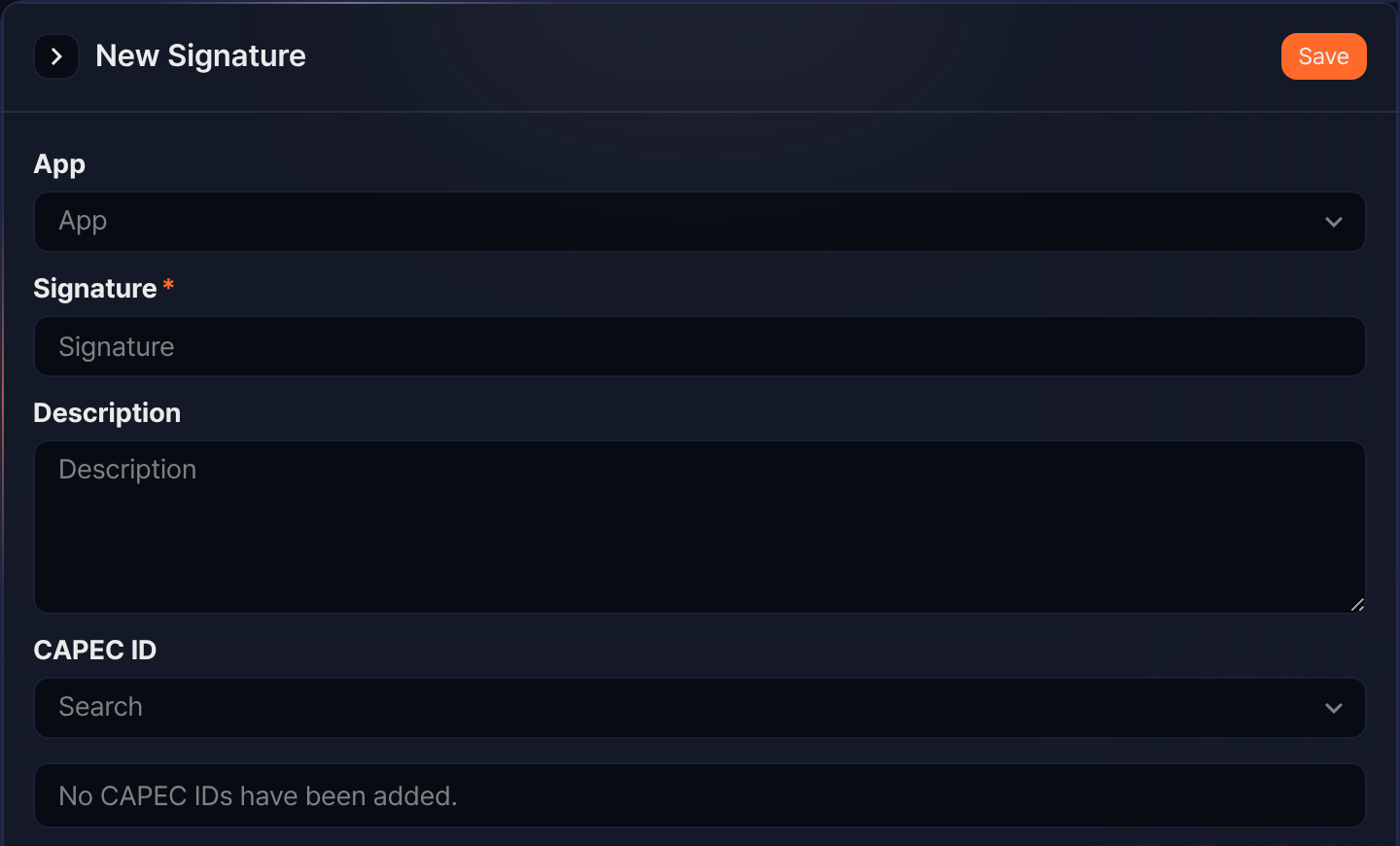
In the New Signature panel, enter the following fields:
-
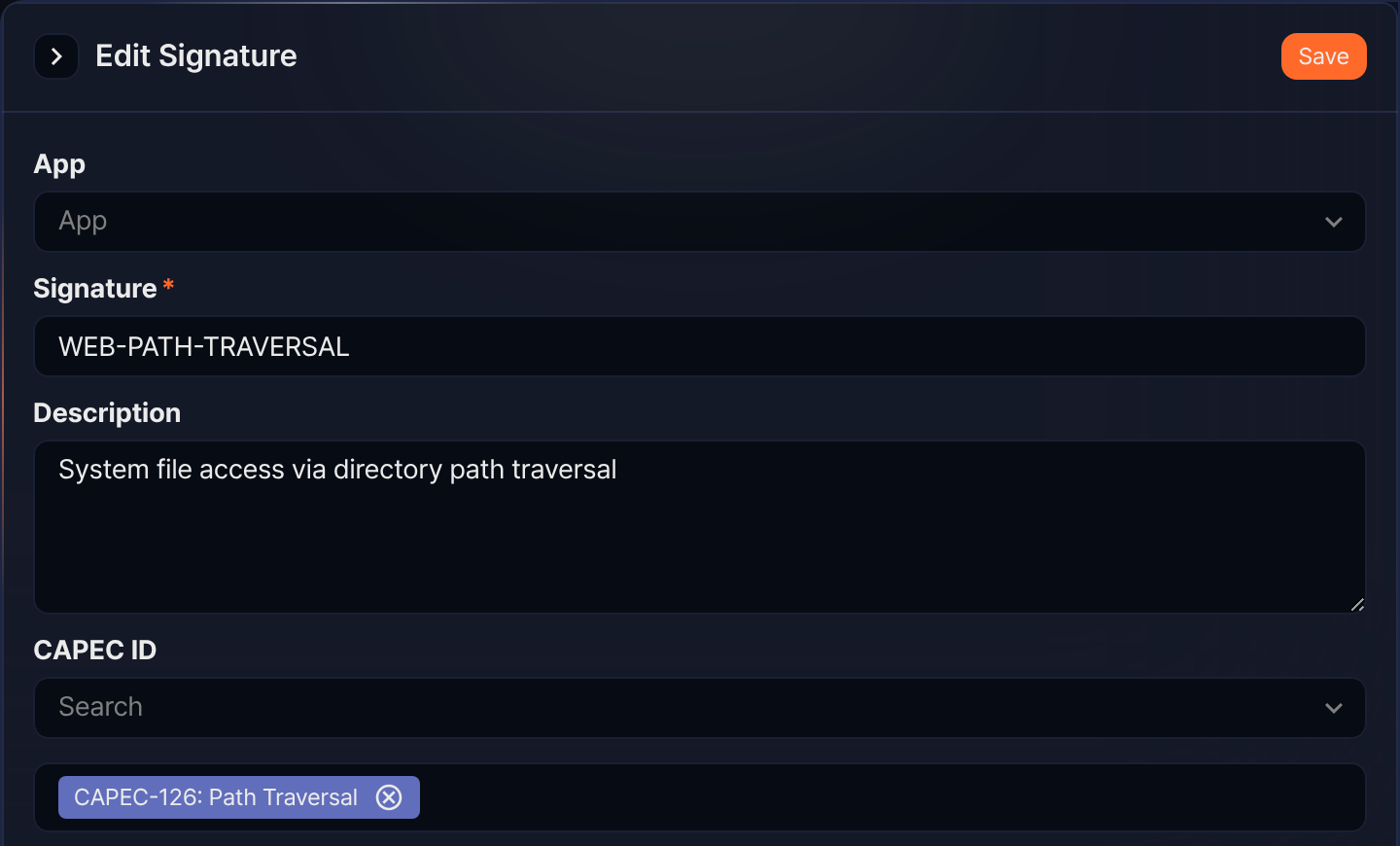
App: The app the signature belongs to. Leave this blank for a signature that does not belong to any app.
-
Signature (required): The signature name. You can enter up to 500 characters. A name consisting only of whitespace cannot be saved.
-
Description: A description of the signature. You can enter up to 2,000 characters.
-
CAPEC ID: Search for and select the CAPEC IDs to map to the signature. The search matches CAPEC ID, name, and description, and only CAPEC entries of the attack pattern type appear as candidates. As you type a CAPEC ID or part of a name into the search field, candidates appear in the format CAPEC-63 / Cross-Site Scripting (XSS).
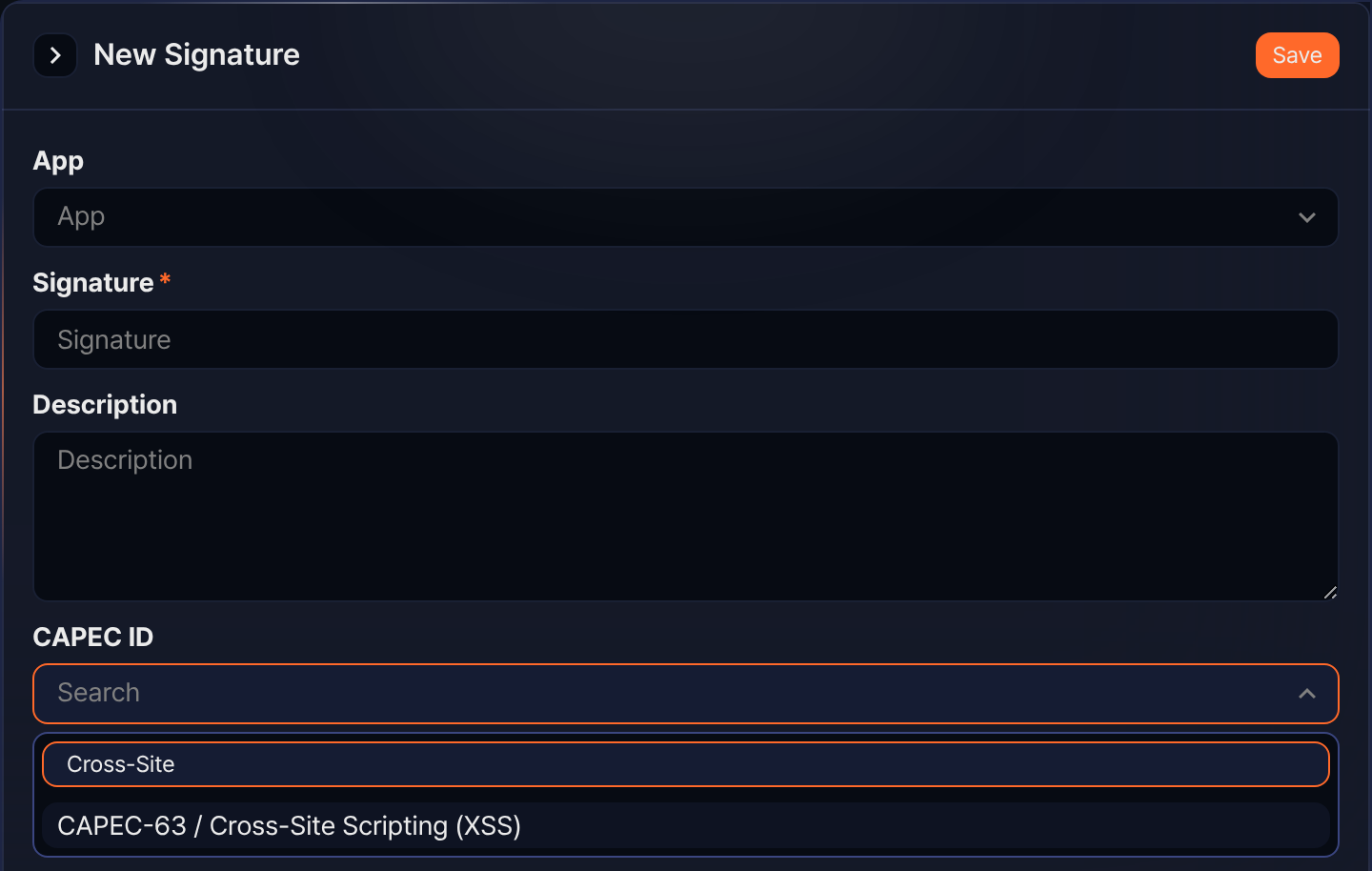
Click a candidate to select it. You can select multiple CAPEC IDs. Selected CAPEC IDs appear below the search field as tags in the format CAPEC-66: SQL Injection. Clicking the remove button on a tag removes it from the list, and clicking Save unmaps it.
-
-
Click Save at the top right of the panel. The panel closes and the new signature appears in the list.
Editing a signature
To change a signature's app, name, description, or CAPEC IDs:
-
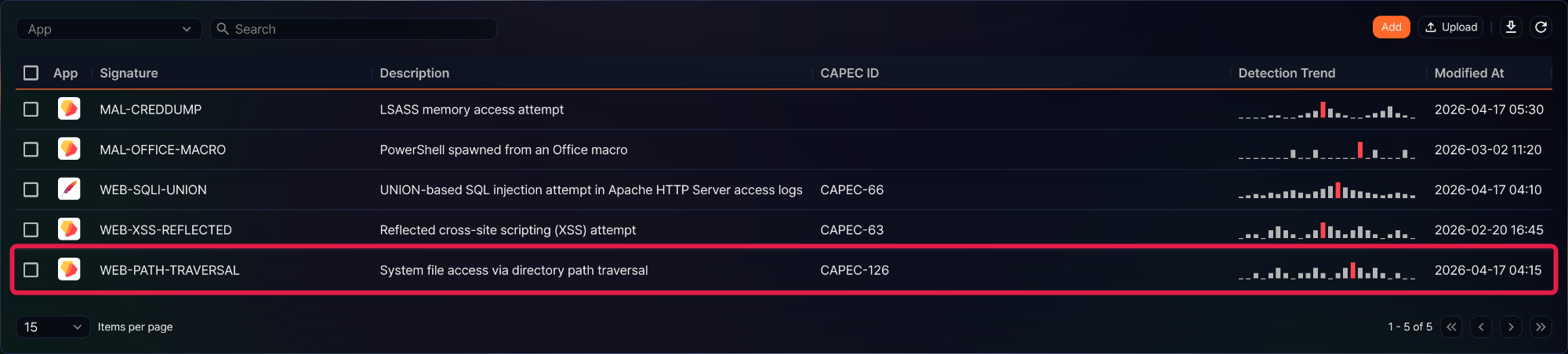
In the signature list, click the row of the signature you want to edit.
-
In the Edit Signature panel, change the values. The fields are the same as in Adding a signature.
-
Click Save at the top right of the panel. Saving closes the panel.
Deleting signatures
To delete signatures:
-
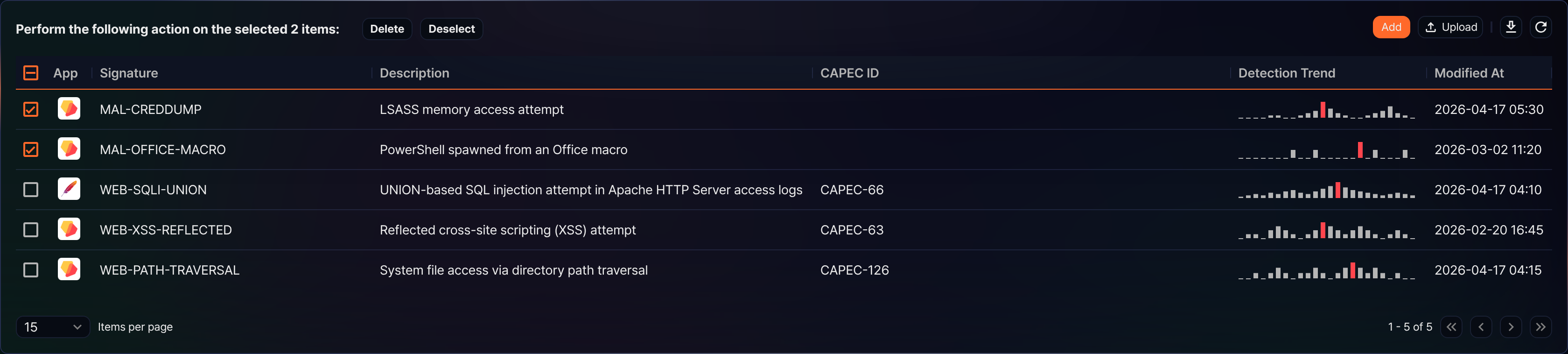
In the signature list, select the checkboxes of the signatures you want to delete. Selecting one or more changes the left side of the toolbar to ask what action to perform on the selected items.
-
Click Delete. To undo the selection, click Deselect.
-
In the Delete Signature dialog, verify the names and descriptions of the signatures to delete, then click Delete.
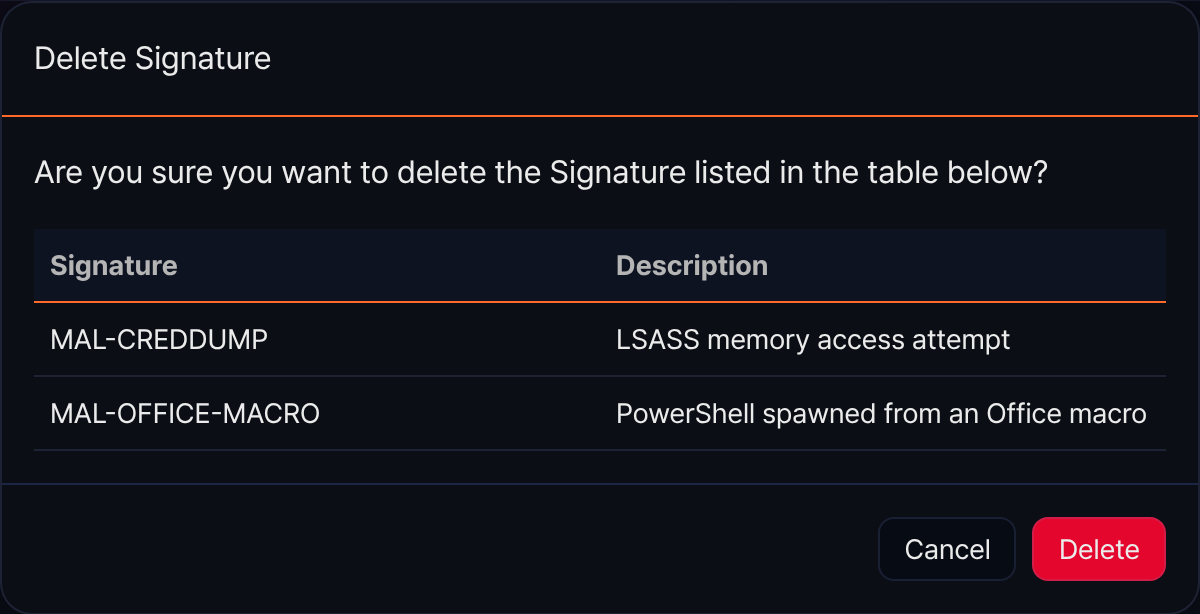
Deletion takes effect immediately without checking references from other features. Because scenarios look up signatures by name, events detected after the deletion no longer get the signature's CAPEC IDs (events already recorded are unchanged).
Uploading signatures
To register or update signatures in bulk from a CSV file:
-
On Policies > Signatures, click Upload in the toolbar.
-
In the Upload Signatures dialog, specify the following:
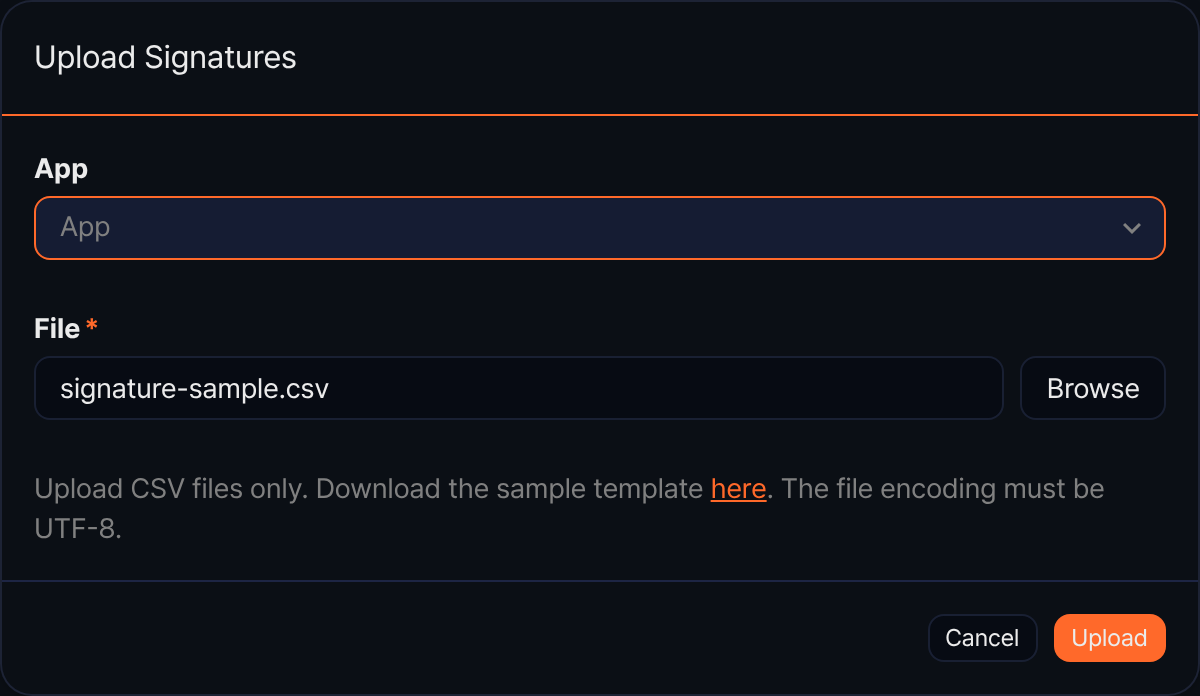
- App: The app the uploaded signatures will belong to. Leave this blank to register signatures with no app.
- File (required): The CSV file to upload. Click the here link in the instructions to download a sample template file.
The CSV file must follow this format:
- If the first line is exactly
signature,description,capecs, it is treated as a header and skipped (you can also omit it; otherwise the first line is read as data). - Each row must have exactly 3 columns (signature, description, list of CAPEC IDs).
- The
capecscolumn lists CAPEC IDs separated by spaces (for example,CAPEC-192 CAPEC-230). - The file encoding must be UTF-8.
-
Click Upload.
-
When the upload finishes, the results are displayed. Review the counts of added, updated, and failed entries, then click OK.
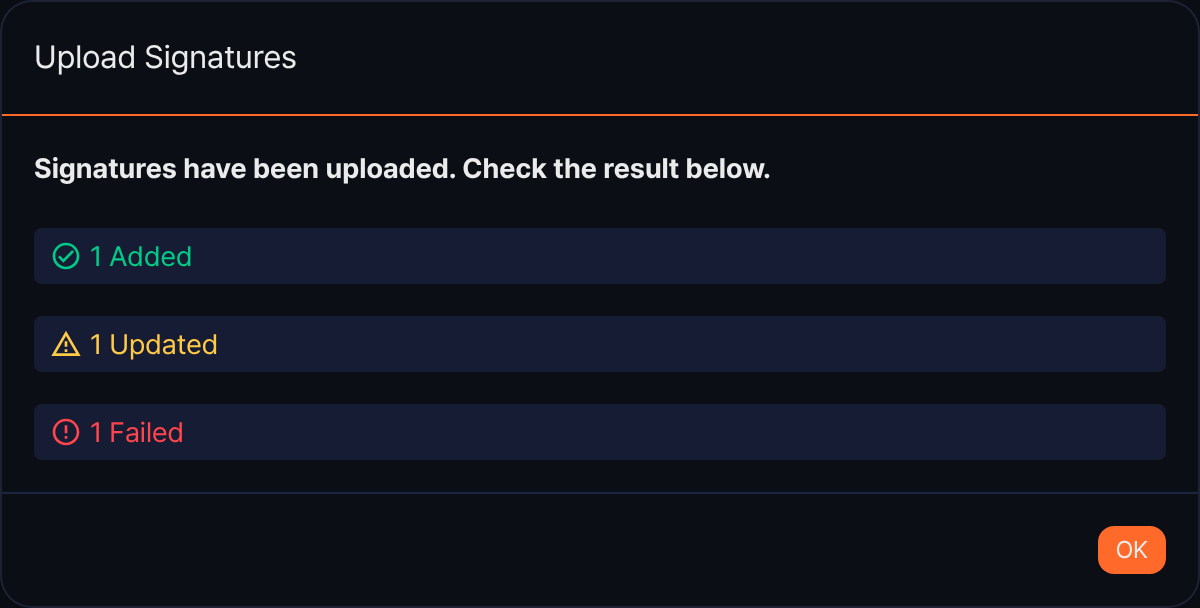
If a signature name in the CSV matches an existing signature in the same app, that signature is updated. However, if that existing signature is a built-in signature provided by an app, only its description is updated, and this count is not included in any of the added, updated, or failed counts on the results screen. If the same name appears twice in one file, only the last occurrence is applied and the earlier one is ignored. A row with the wrong number of columns, an invalid CAPEC ID format, an empty signature, or a description longer than 2,000 characters is skipped and counted as a failure. If any row has a signature name longer than 500 characters, the file cannot be uploaded, and the line number appears below File.
Using signatures
Registered signatures are used in stream rules and batch rules. The Signature App field on both forms appears only when your license includes the XDR feature.
When a detected event has a signature field, the system looks up a signature by that value. If you set the rule's Signature App, it looks for a signature with the same name in that app; if you leave Signature App blank, it looks only among signatures that have no app. To use signatures that you registered on this page without an app, leave Signature App blank. When a matching signature is found, its mapped CAPEC IDs are attached to the event. In a query, you can perform the same lookup with the sonar-signature-to-capecs command.
The scenario builder rule 시그니처 패턴탐지 (signature pattern detection) does not match against the signatures on this page — it matches against pattern groups. The names are similar, but these are different features; do not confuse them.