
AI assistant
Overview
The AI Assistant helps analysts continue investigation work in a conversational flow. It can explain how to use queries, retrieve operational data, and execute follow-up actions based on natural-language requests.
Investigating detected events, re-querying required data, and following up with subsequent actions typically involves navigating across multiple screens, including Queries. The AI Assistant helps users in this workflow so they do not need to remember query syntax or API call methods, and responds in one of three modes depending on the task purpose: Q&A, Action, and Plan.
What the AI Assistant can do
- Question answering
- The assistant can answer explanatory questions about Logpresso query syntax, functions, parser guidance, and general product usage.
- Task execution
- The assistant can interpret a request and run the required Logpresso query or REST API call to retrieve or update data.
- Multi-step work
- The assistant can break one request into multiple steps and execute them in sequence. This is useful when a later step depends on the output of an earlier lookup.
- Result interpretation
- After a query or API call is completed, you can ask the assistant to summarize or interpret the returned result.
What the AI Assistant is not suitable for
The AI Assistant does not create features that are not supported by Logpresso Sonar. It is also not suitable for image understanding, condition-based scheduling, or unrelated general-purpose requests outside the Logpresso Sonar domain.
Preparation
Before using the AI Assistant, make sure the following requirements are met.
- Obtain an AI Assistant license.
- Make sure the Logpresso Sonar analysis node can reach
https://ai.logpresso.com. - Create an AI Assistant connect profile with an API key issued by Logpresso.
- Refresh the web console or sign in again after the connect profile is created.
Confidentiality and security
The AI Assistant is subject to the OpenAI Business Terms. Before submitting operational data, credentials, or sensitive text, review your internal security policy and data handling requirements.
Screen Layout
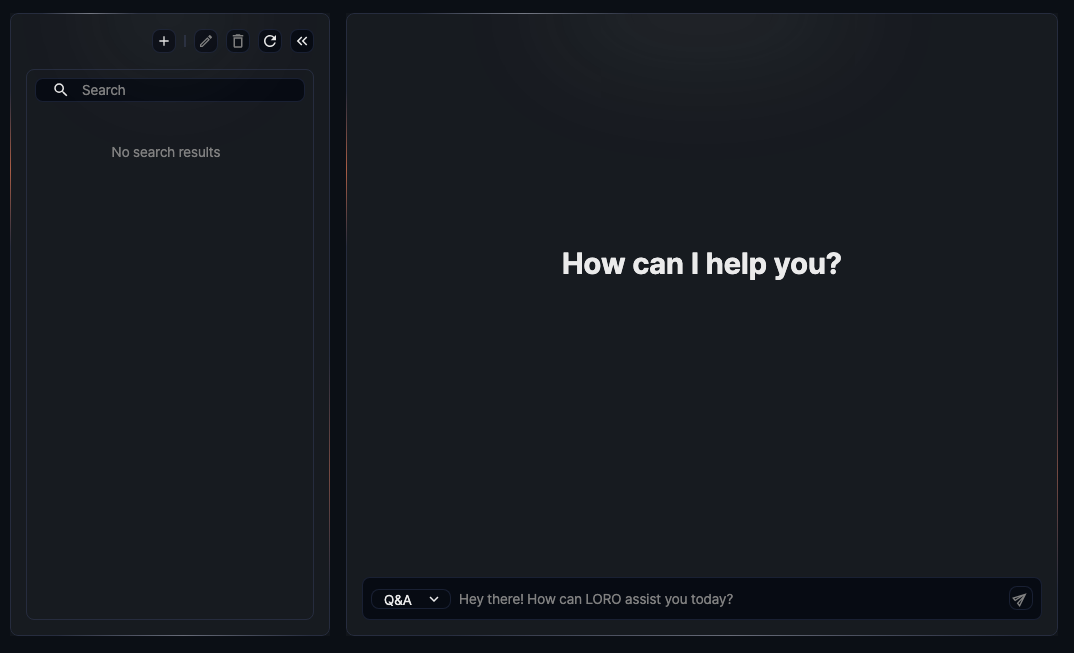
The AI Assistant is available from Analysis > AI Assistant. The page is divided into a conversation list on the left and a chat workspace on the right.
Conversation list
The conversation list appears in the left sidebar. Drag the border between the list and the chat area to adjust the sidebar width, or drag it far enough to the left to minimize the list. This is useful when conversation titles are truncated, or when you want to expand the chat area.
The conversation list shows saved chat sessions grouped by date.
- Use New Chat to start a fresh conversation.
- Type a title keyword in the search box and press Enter to filter the list.
- The currently open conversation is highlighted.
- Checkboxes are used when selecting conversations to delete.
- Renaming applies to the currently open conversation.
- Scrolling to the bottom loads older conversations.
The action buttons above the list provide the following functions.
- New Chat: Starts a new conversation.
- Edit: Renames the currently open conversation.
- Delete: Deletes the checked conversation entries.
- Refresh: Reloads the conversation list.
- Collapse and expand buttons: Hides or reopens the left-side list area.
Chat workspace
The chat workspace displays user prompts and LORO responses as cards. When a new conversation opens, the center area shows the How can I help you? welcome message.
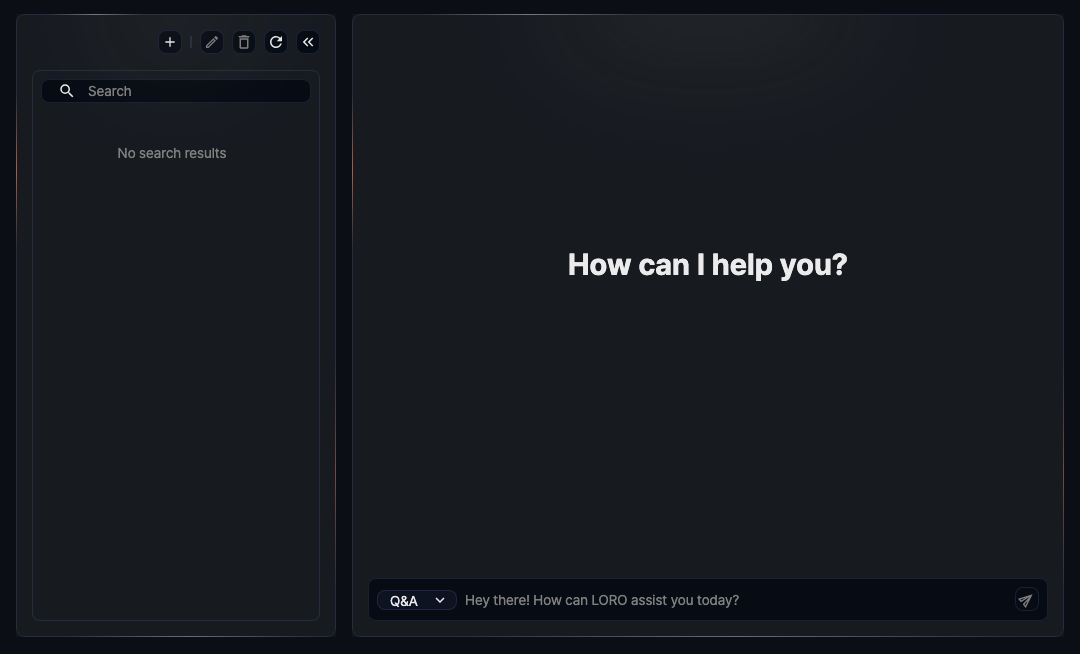
The input area includes the following elements.
- Mode dropdown: The current page shows Q&A, ACTION, and PLAN.
- Input field: The default placeholder is
Hey there! How can LORO assist you today? - Send button: Sends the current prompt.
- Stop button: Stops the current response while LORO is still generating it.
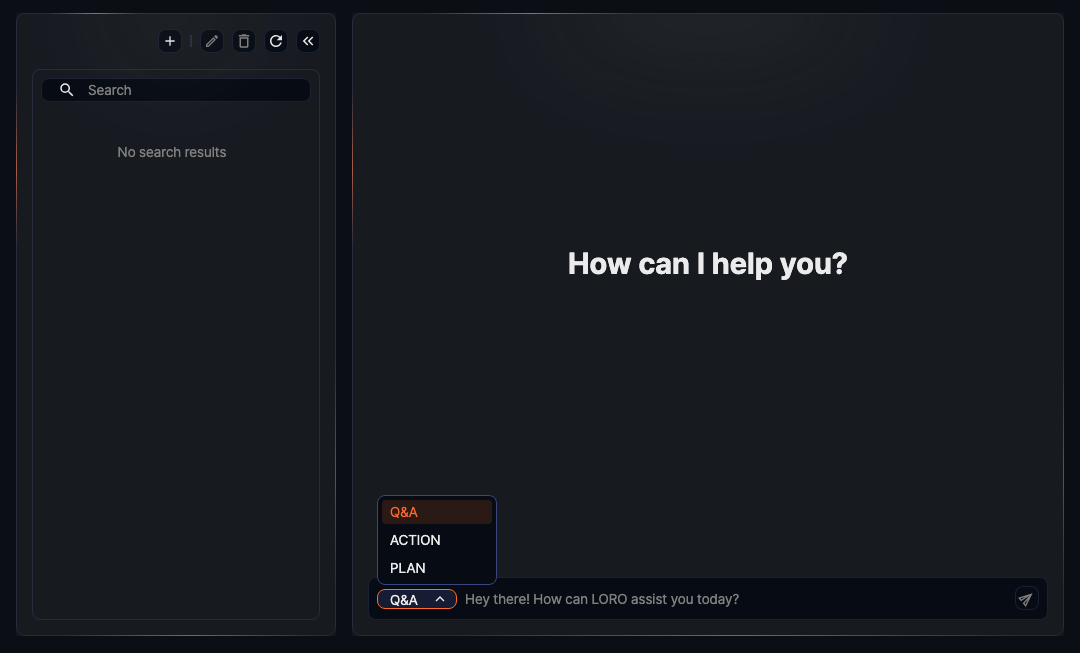
Conversation modes
- Q&A
- Use this mode when you need explanations, examples, or usage guidance.
- Action
- Use this mode when the assistant should execute a query or REST API call and return the result.
- Plan
- Use this mode when the request needs multiple sequential steps and later steps depend on earlier outputs.
Chatting with the AI Assistant
Starting a new chat
- Go to Analysis > AI Assistant.
- If needed, click New Chat in the conversation list.
- Select Q&A, ACTION, or PLAN from the dropdown to the left of the input field.
- Enter your question or instruction, then click the send button or press Enter.
When a response starts, the send button changes to the stop button. While LORO is responding, additional input is temporarily disabled. Progress messages such as Waiting for model response... or Loading results... may appear depending on the response type.
Writing effective prompts
The AI Assistant can use earlier context from the same conversation, but response quality may decline if too many unrelated topics are mixed into one session. The following practices are recommended.
- Keep one conversation focused on one topic.
- Write prompts with a clear goal.
- Expand ambiguous terms with concrete context.
- If execution is required, include the target name, time range, conditions, or values that the action needs.
- After the result is returned, continue with summary, interpretation, or the next action.
Stopping a response
To stop the current response, click the stop button on the right side of the input area.
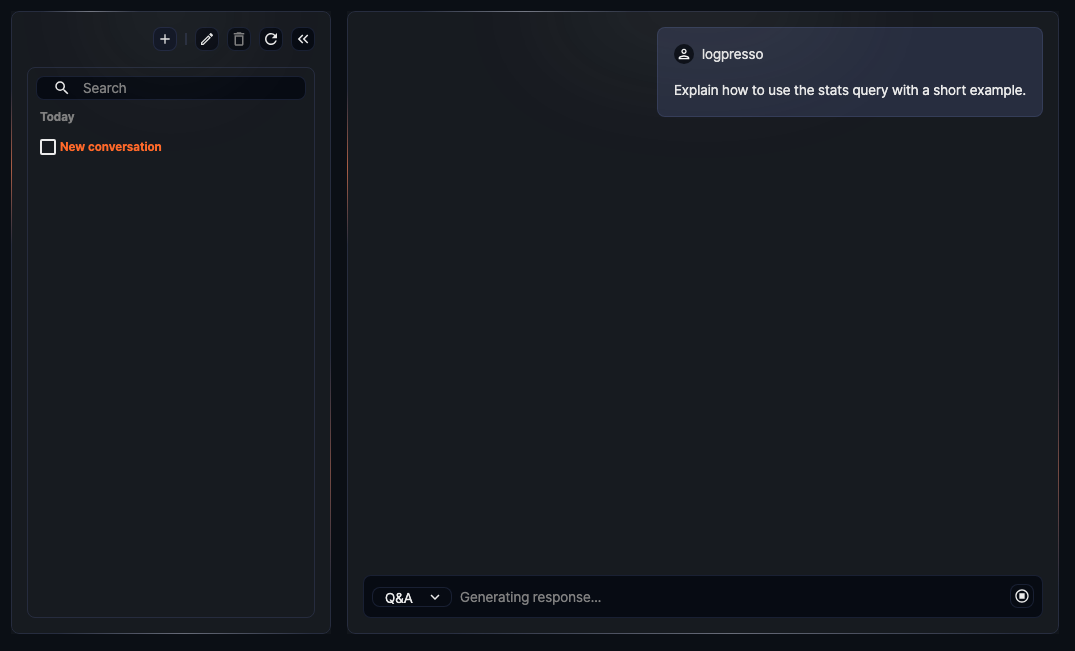
After the response is stopped, you can type a new prompt again.
Managing conversations
Renaming a conversation
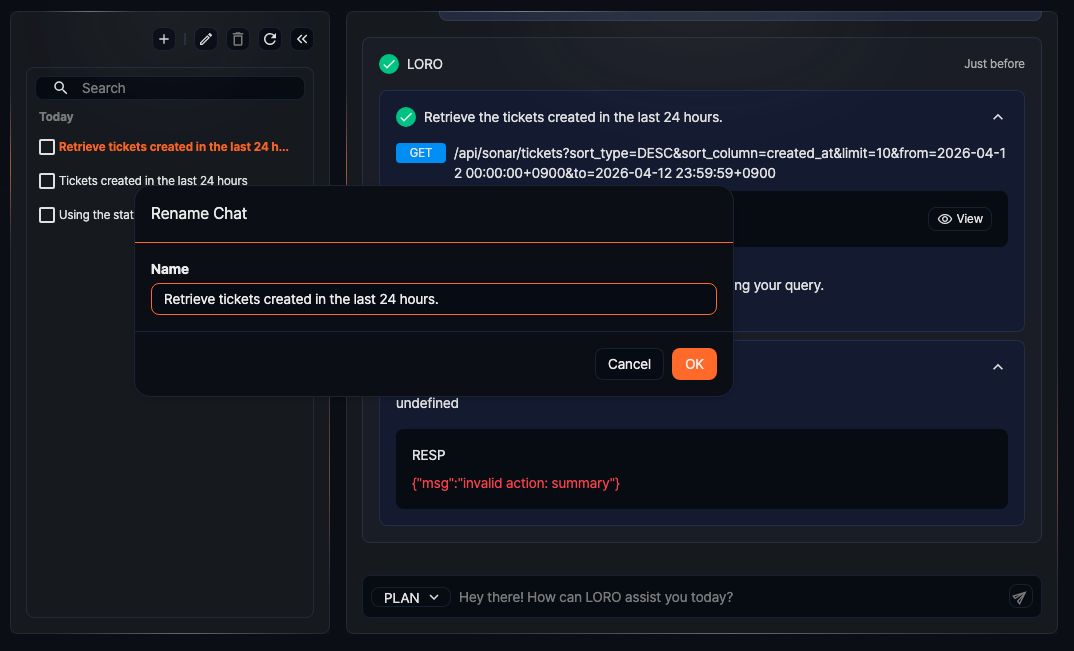
When a new chat starts, the title is generated automatically from the first prompt. To rename it:
- Open the conversation you want to rename.
- Click Edit above the conversation list.
- Enter a new title in the Rename Chat dialog and click OK.
The title cannot be empty and is limited to 50 characters.
Deleting conversations
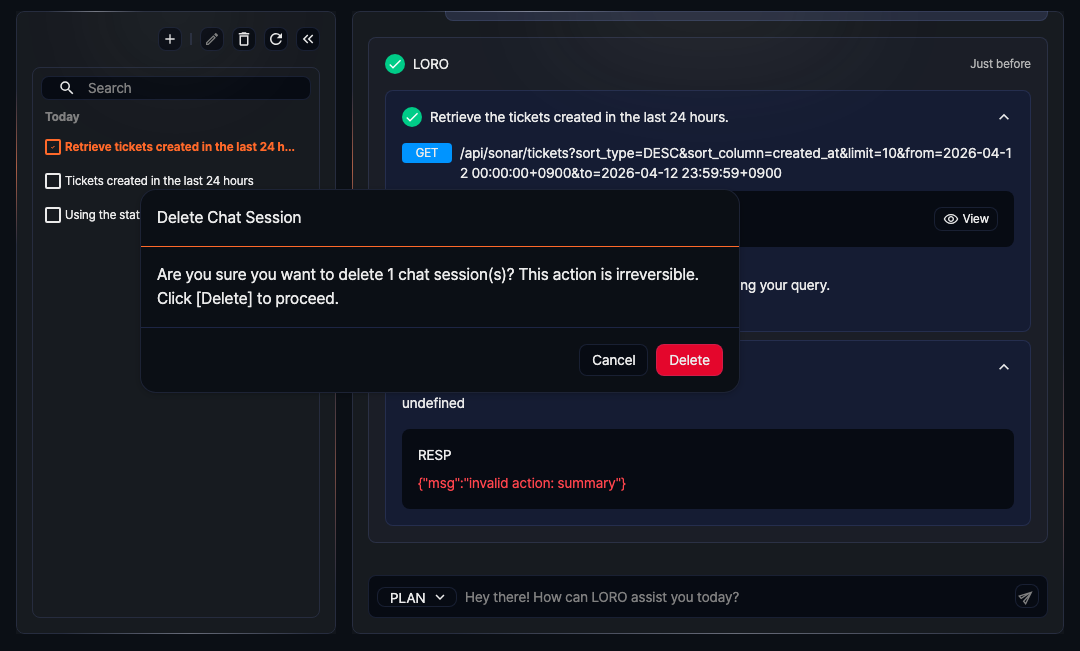
- Select the checkbox for the conversation you want to delete.
- Click Delete above the conversation list.
- Confirm the action in the delete dialog.
Reviewing execution results
In Action and Plan conversations, each execution step is displayed as a separate card. Expanding a step lets you inspect the actual query text or API path, input parameters, and response payload.
If user confirmation is required before an API call is sent, the assistant first displays a parameter table. In that table, you can review the parameter name, current value, and description. Required fields are marked inside the input control. After validating the values, click Approve to continue.
Long responses may appear collapsed at first. You can expand the content to inspect the full response. Query results may be rendered in a table, while REST API outputs may appear in the RESP section as raw response text.
Examples by mode
Q&A example
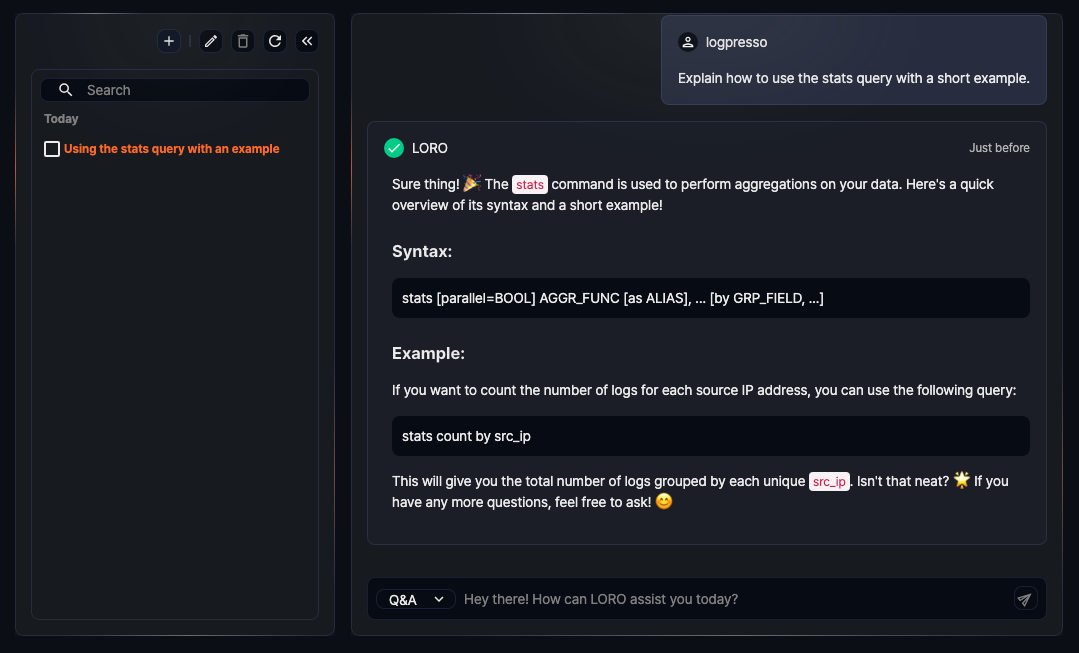
The following kinds of prompts are appropriate for Q&A.
Explain how to use the stats query with a short example.Explain how to build a normalization query for a parser.Show me common conditions analysts use when reviewing recent ticket lists.
In Q&A mode, you can follow up with prompts such as Show another example or Rewrite that explanation for our environment.
Action example
The following kinds of prompts are appropriate for Action.
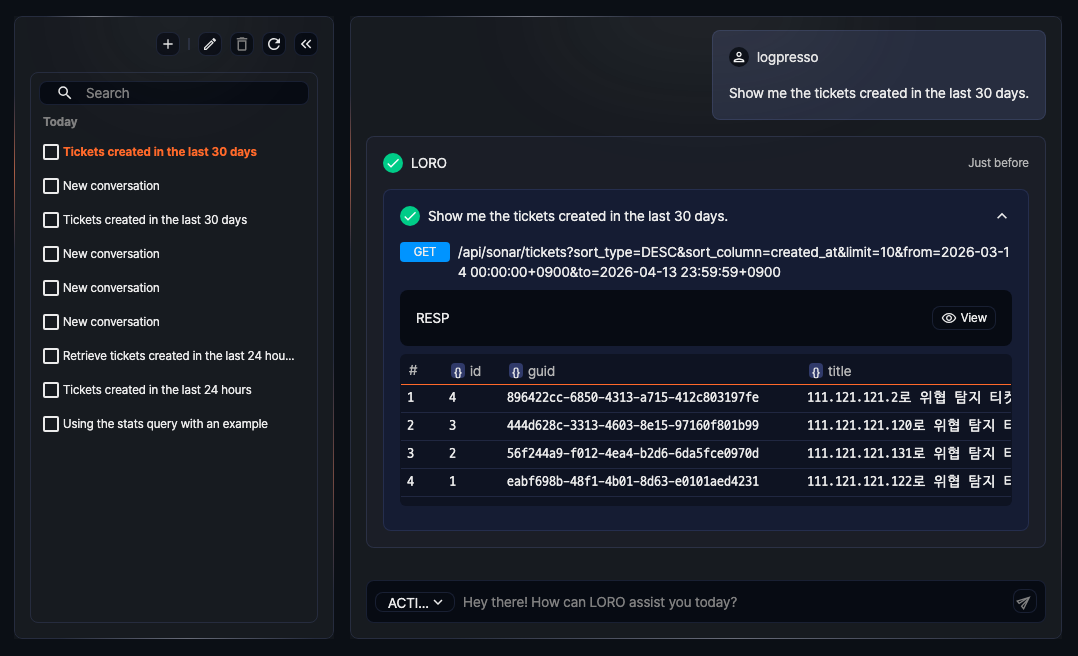
Show me the tickets created in the last 30 days.Check threat intelligence information for 192.0.2.4.Show the logger configuration named firewall-prod.
Action mode is best for a single lookup or execution request. After the result is returned, you can continue with prompts such as Summarize this result or Explain the top items only.
The Action result card shows the actual API path together with the returned result, so analysts can review the lookup outcome and continue with a follow-up question.
Plan example
The following kinds of prompts are appropriate for Plan.
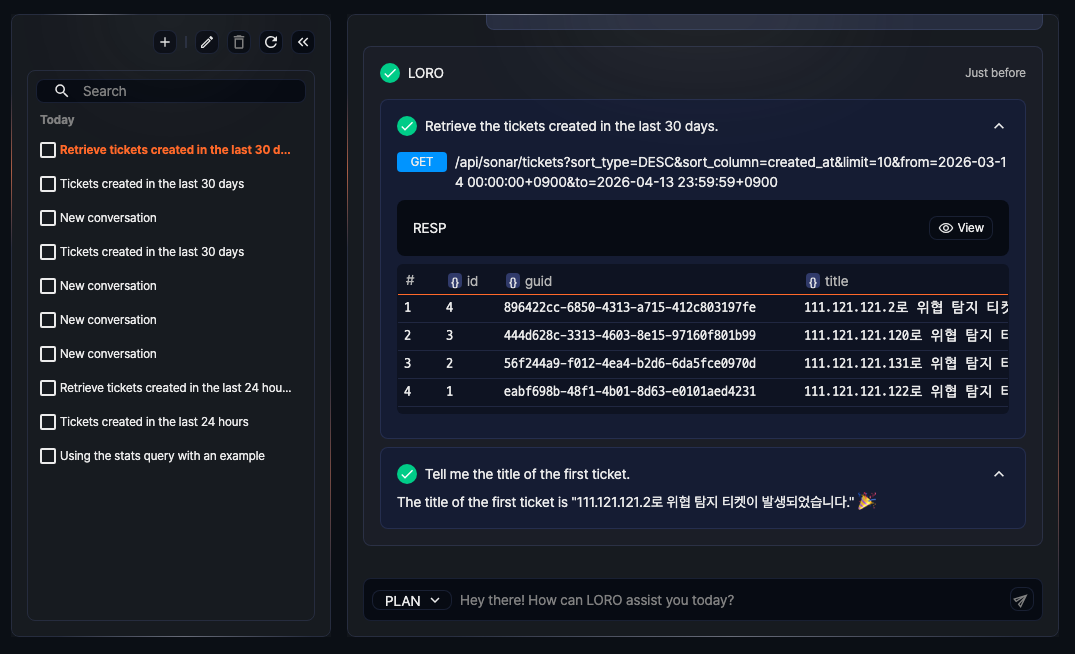
Retrieve the tickets created in the last 30 days and tell me the title of the first ticket.Check the most frequent failed-login IP from the last 24 hours and then look up its reputation.Retrieve today’s high-severity tickets and then list only the ones without an assignee.
Plan mode is useful when the output of one step must be reused as the input of the next step. Start with a read-only sequence to verify the workflow, then extend it to follow-up changes if needed.
In a ticket workflow, the first step can retrieve the ticket list and the next step can continue with a follow-up answer based on that result, such as returning the first ticket title.
Use Cases
Finding the right direction from a log sample
When you first encounter an unfamiliar log format, you can paste a sample into the AI Assistant and ask which app or normalization approach would fit it. This is useful when onboarding a new data source and preparing an initial parsing strategy.
Example:
Recommend the right app or normalization direction for this log sample.
Drafting a normalization query
When you need to build a query-based parser, the first normalization query can be hard to write from scratch. In that situation, you can ask the AI Assistant for a draft based on a raw log sample.
Example:
Create a draft normalization query for the following log sample.
Chaining follow-up work
When a task does not end with a simple lookup and must continue into another action, starting with Plan is usually more efficient. This is especially useful when you must find an object GUID first, filter a result set, or pass a retrieved value into the next API call.