
Address groups
Overview
An address group collects IP addresses that serve the same purpose so you can manage them together. Under Policies > Address Groups, organize addresses of a similar nature — attacker IPs, addresses to block, or addresses excluded from detection — into a single group.
An address group consists of a name, a description, and the list of IPv4 addresses registered in it. Each address can carry its own description and retention period, and an address whose retention period has passed drops out of the group automatically. A group therefore works both as a long-lived blocklist and as a temporary one that clears itself after a set time.
Address groups are used by stream rules, batch rules, pivots, response targets, the matchblackip command, and the matchblackip() function. See Using address groups for the details.
The Policies > Address Groups menu appears for the Cluster Administrator, Administrator, and User roles, and all three can view address groups and the IP addresses inside them. Only the Cluster Administrator and Administrator roles can add, edit, and delete address groups or register and delete the IP addresses in a group; accounts with the User role do not see the add, upload, and delete tools. See Account permissions for the permissions of each role.
View and search address groups
You can view or search the address group list under Policies > Address Groups. The list is sorted by Name in ascending order and you cannot change the sort order by clicking a column header. One page shows 15 groups by default, and you can change the page size with the selector below the list.
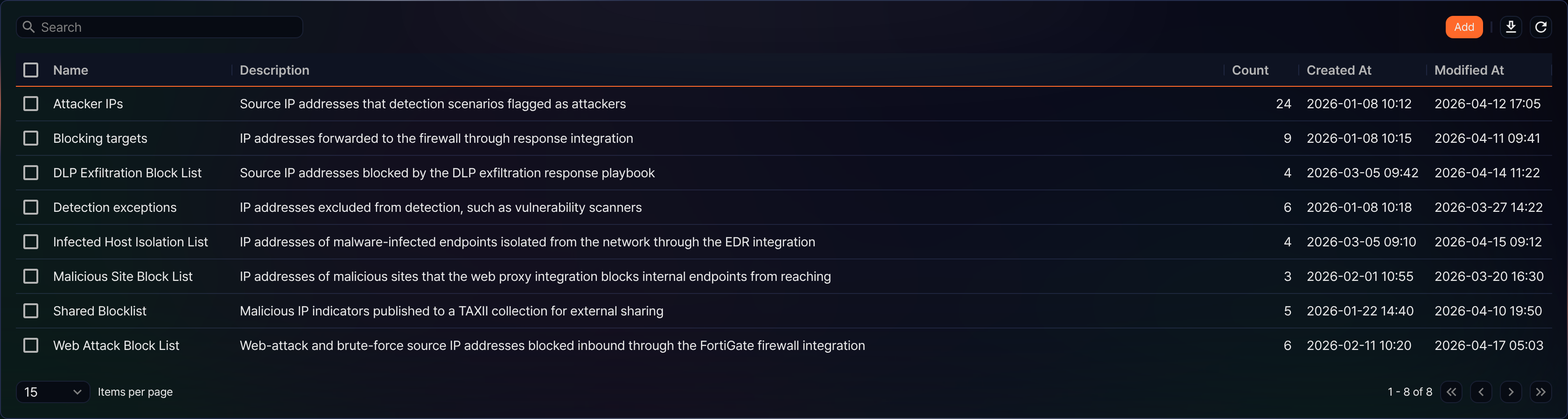
- Name: Name of the address group
- Description: Description of the address group
- Count: Number of IP addresses registered in the group. An address counts once no matter how many times it has been registered.
- Created At: Date and time the address group was created
- Modified At: Date and time the name or description was last changed
To find a group, type a keyword in the search box in the toolbar and press Enter. The search matches both Name and Description, ignores case, and matches partial strings. If you enter several words separated by spaces, each word must appear in either Name or Description; a group is dropped as soon as one word is found in neither column.
Download the list
To download the address group list as a file, click  in the toolbar. The Download Address Groups dialog opens.
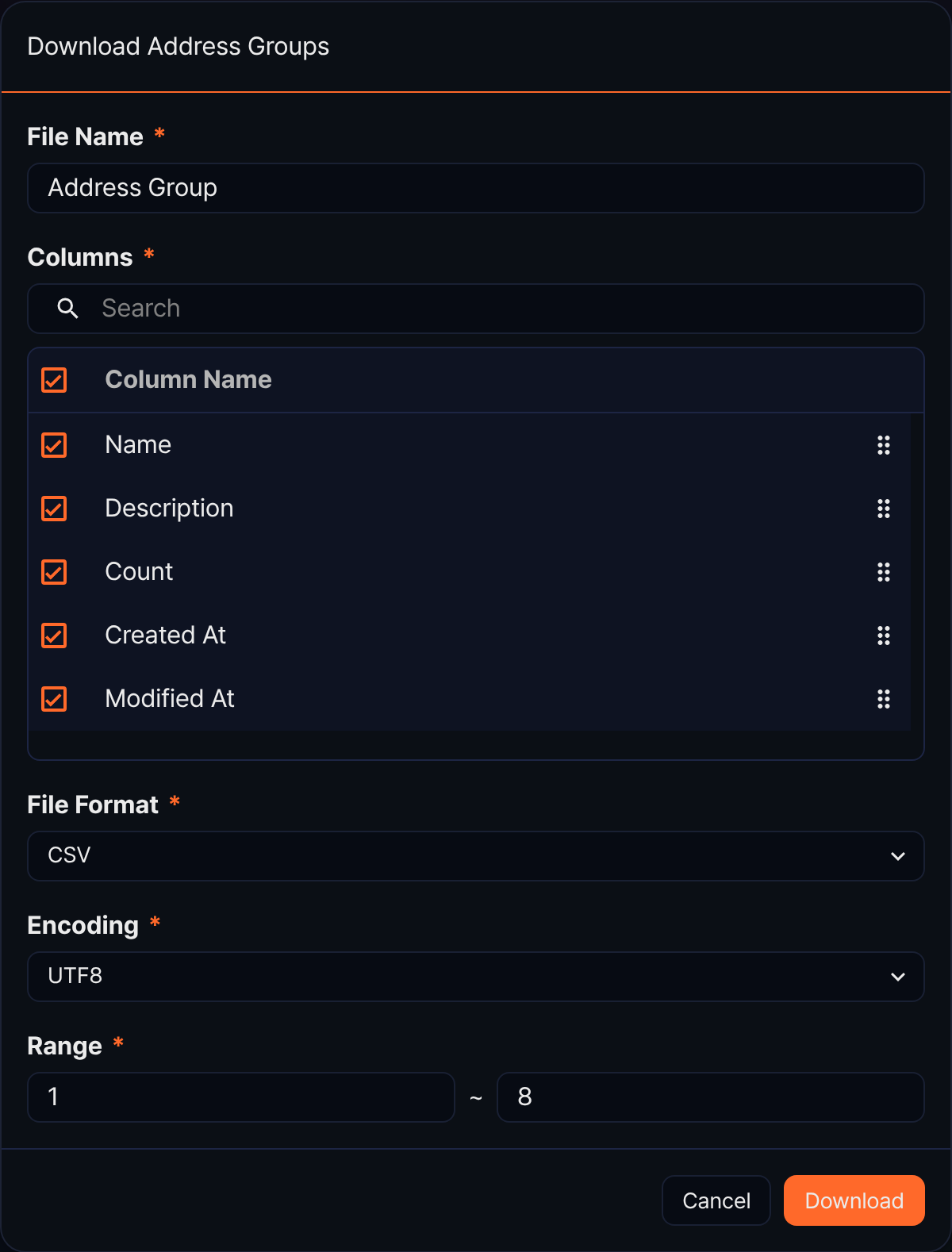
- File Name (required): Name of the downloaded file (default: Address Group)
- Columns (required): Columns to include. All five columns of the list are selected; clear a checkbox to leave a column out, or drag the handle on the right to reorder the columns.
- File Format (required): Format of the downloaded file (default: CSV)
- Encoding (required): Encoding of the file. The English console uses UTF8 by default.
- Range (required): First and last row number to download (default: from the first row of the current page to the total number of groups)
Click Download when you are done.
Refresh the list
To reload the address group list with the latest data, click  in the toolbar.
Add an address group
To create an address group for detection scenarios or response targets, follow these steps.
-
Under Policies > Address Groups, click Add in the toolbar.
-
Enter the group information on the New Address Group panel.
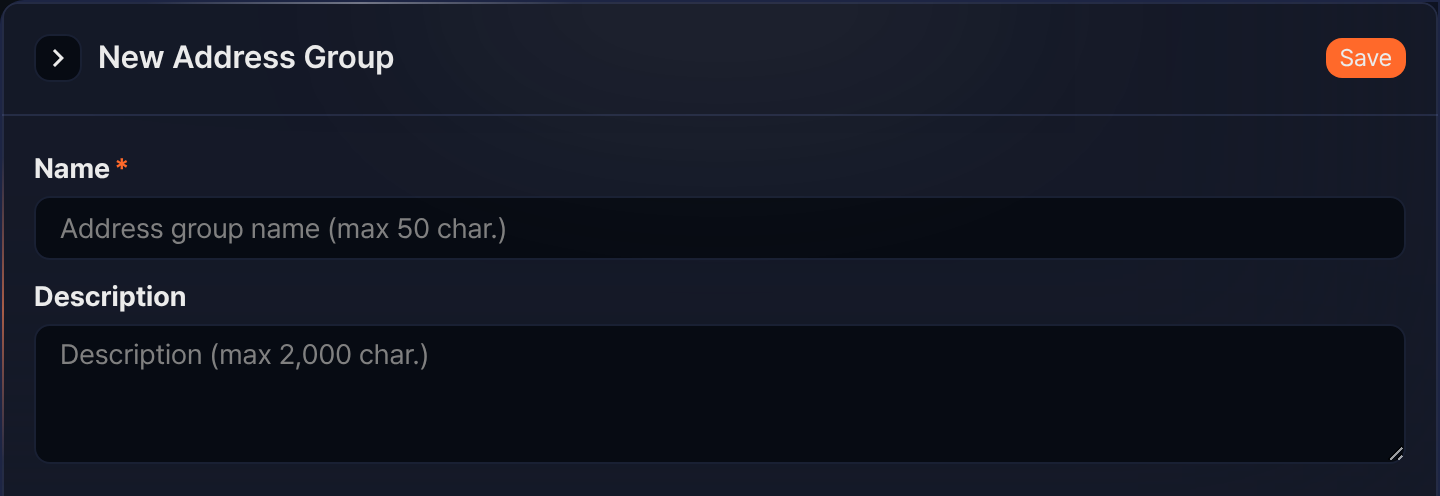
- Name (required): Name of the address group, up to 50 characters
- Description: Description of the address group, up to 2,000 characters
-
Click Save at the top right of the panel.
Update an address group
To change the name or description of an address group, follow these steps.
- Click the row of the address group in the list. The Update Address Group panel opens.
- Change Name or Description, then click Save at the top right of the panel.
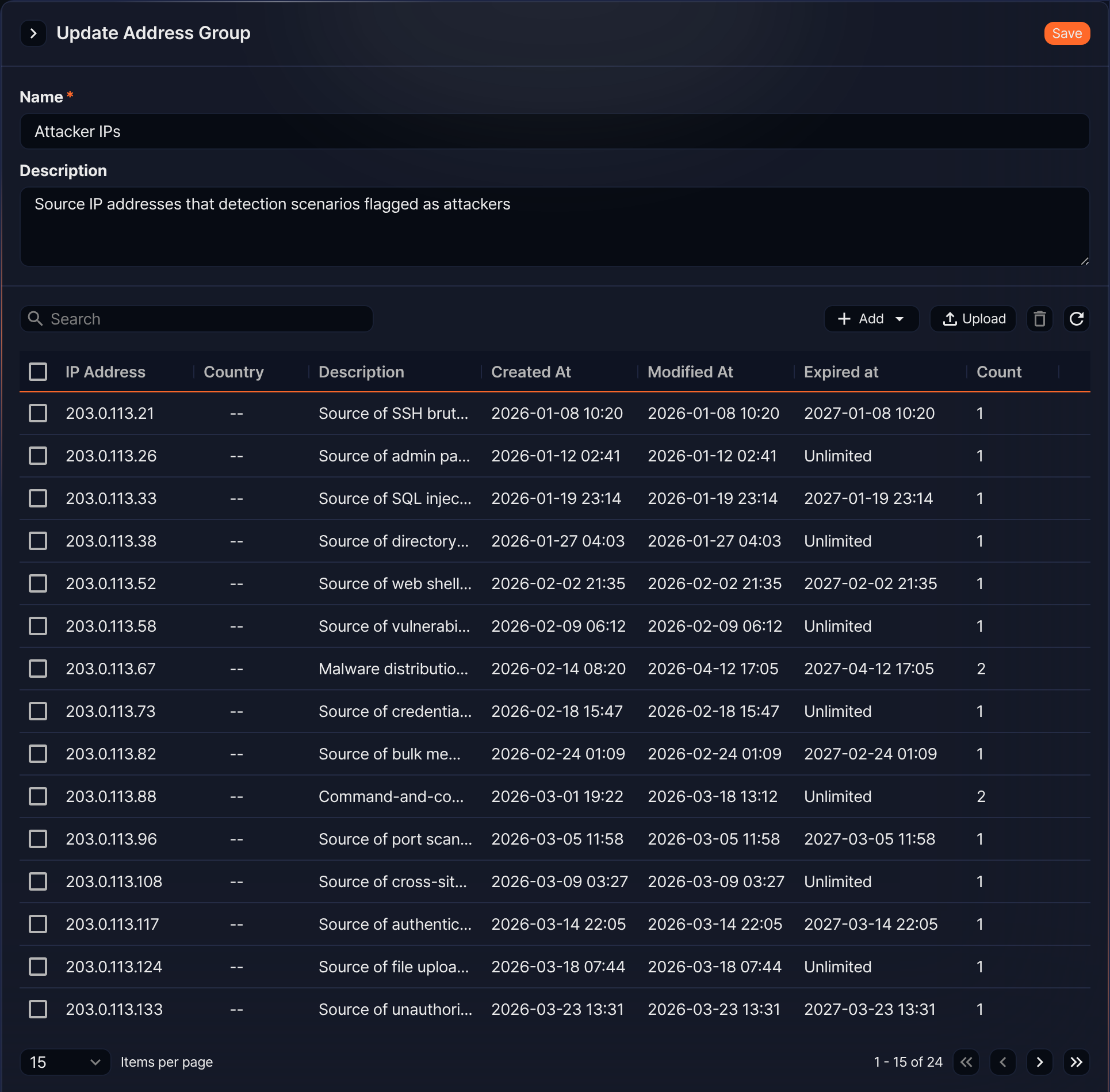
The lower half of the panel is the list of IP addresses registered in the group. Registering or deleting an IP address takes effect immediately, so Save applies only to the name and the description. If the rightmost columns of the table are cut off, drag the left edge of the panel to widen it.
View and search IP addresses
The IP address list on the Update an address group panel shows the addresses registered in the group. One page shows 15 addresses by default, and you can change the page size with the selector below the list. No sort order is defined, so the entries do not always appear in the same order. To check a specific address, use the search box instead of paging through the list.
- IP Address: IPv4 address registered in the group
- Country: Country looked up in the GeoIP database. When a country code is available, the flag and the country name appear together; addresses that the database does not cover, such as private or documentation ranges, appear as --.
- Description: Description entered when the address was registered
- Created At: Date and time the address was first registered in the group
- Modified At: Date and time the address was last updated
- Expired at: Time at which the address drops out of the group according to its retention period. An address with no retention period shows Unlimited.
- Count: Number of times the address has been registered. It starts at 1 and increases by 1 each time the same address is registered again.
To find an address, type a value in the search box of the IP address list and press Enter. The value is not split into words: the whole string is matched as a substring against IP Address and Description. Entering 203.0.113.2, for example, keeps every address that contains that string, such as 203.0.113.21 and 203.0.113.26.
The toolbar of the IP address list holds the search box on the left and Add, Upload, the delete icon, and the refresh icon on the right. Unlike the group list, it has no download tool.
Add an IP address
To register a detected threat IP or an address to exclude from detection, follow these steps.
-
Click the row of the address group in the list.
-
In the IP address list toolbar, click Add and select Add Individually.

-
Enter the address in the Add IP Address dialog.
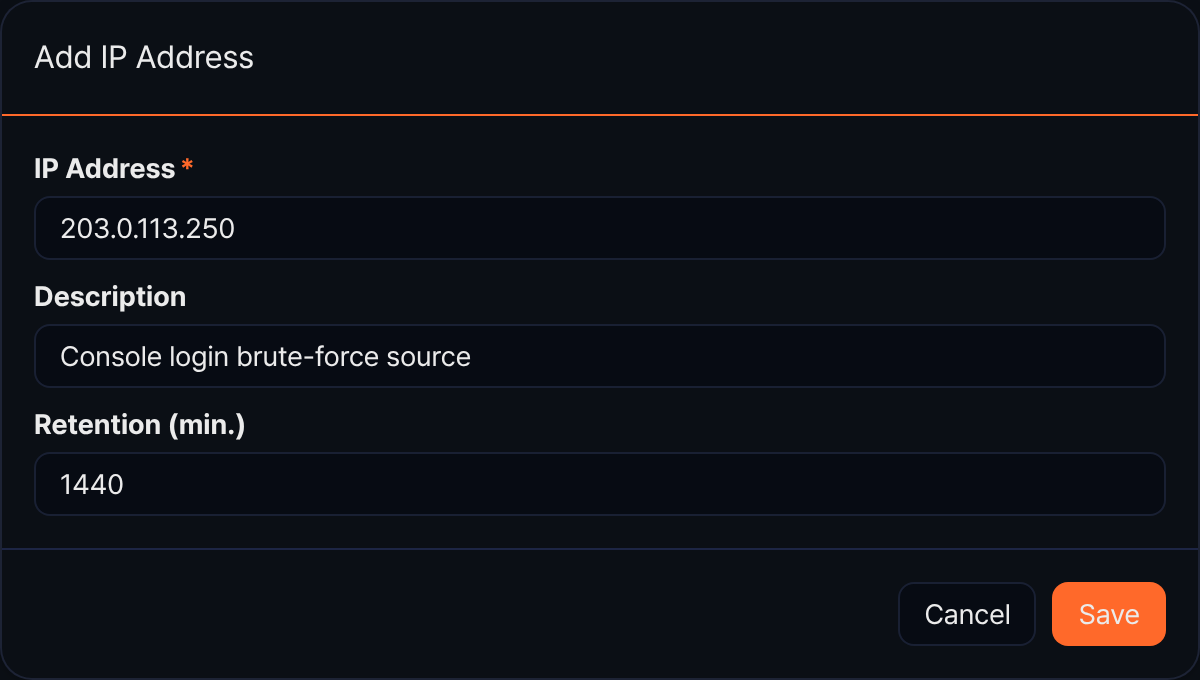
- IP Address (required): IPv4 address to register in the group. IPv6 addresses cannot be registered.
- Description: Why the address is registered, or anything else you need later, up to 255 characters
- Retention (min.): How long to keep the address in the group. Enter an integer between 1 and 52,560,000 minutes, or leave it empty to keep the address indefinitely.
-
Click Save.
Bulk add IP addresses
To register several IP addresses at once, follow these steps. This is convenient when you paste a list of addresses copied from another system.
-
Click the row of the address group in the list.
-
In the IP address list toolbar, click Add and select Bulk Add.
-
Enter the addresses in the dialog.
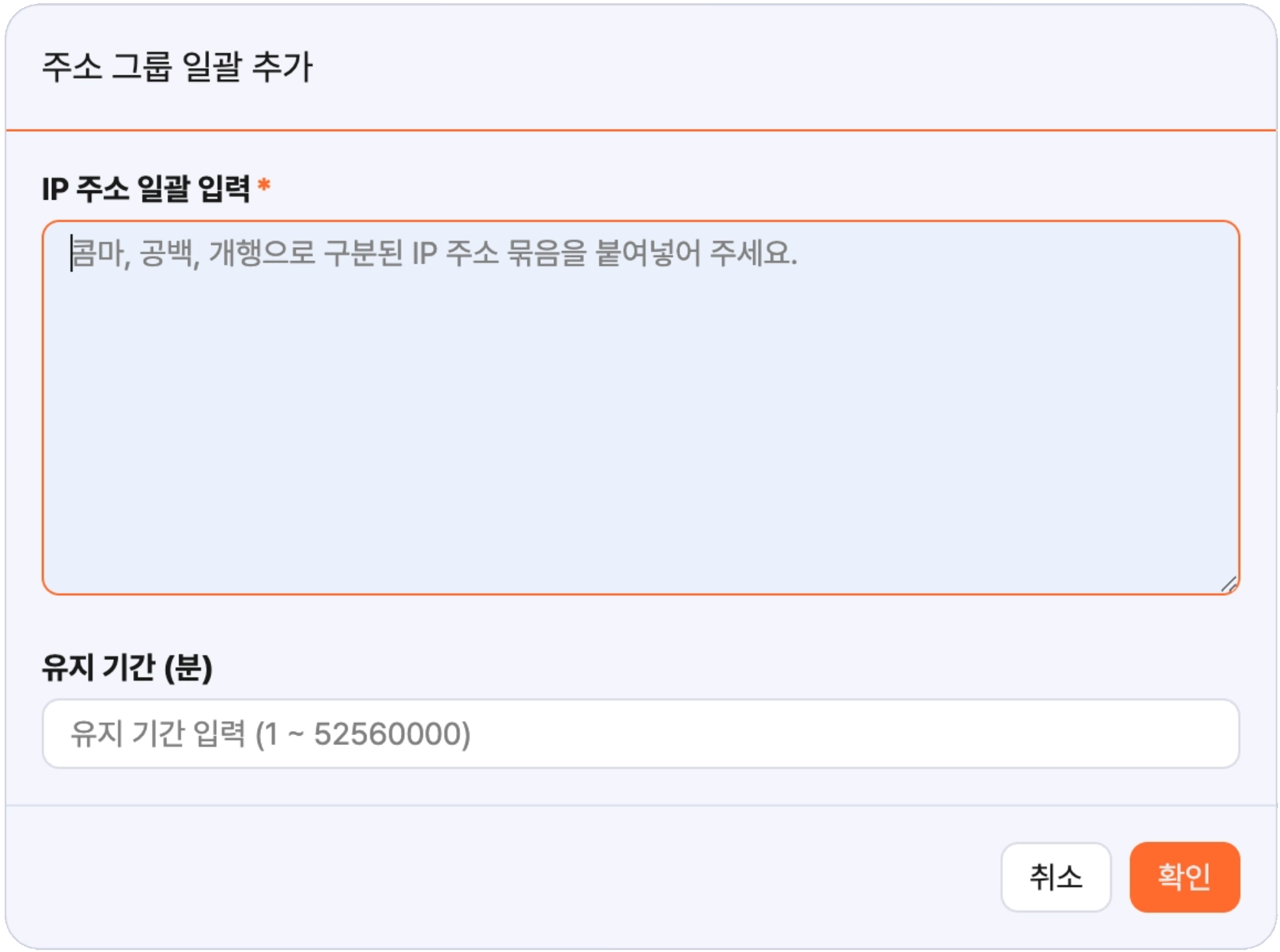
- Enter IP Addresses in Bulk (required): IPv4 addresses to register. Separate them with commas, spaces, tabs, or line breaks; the dialog rewrites them one per line shortly after you type.
- Retention (min.): Retention period applied identically to every address you register this time. Leave it empty to keep the addresses indefinitely.
-
Click OK.
To give each address its own description, upload a CSV file as described in Bulk upload IP addresses instead. The bulk add dialog has no field for a description.
If any address cannot be registered, only the failed entries are listed in a table. The remaining addresses are registered, so click OK to close the dialog, correct the failed values, and register them again.
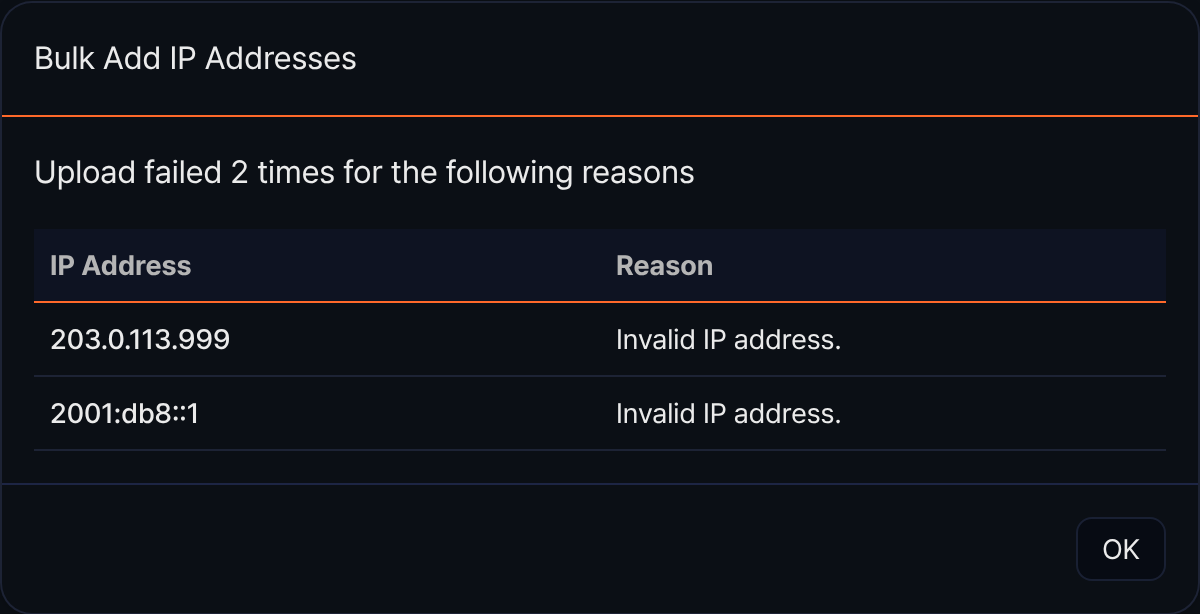
- IP Address: Value that could not be registered
- Reason: Why it could not be registered. An entry fails on its own when the value is not a valid IPv4 address (IPv6 addresses cannot be registered either) or when it exceeds the number of addresses the group can hold. The dialog rejects empty values and retention periods outside the allowed range before they are sent, so they never reach this table.
Bulk upload IP addresses
To register several IP addresses at once from a CSV file, follow these steps. Unlike a bulk add, an upload can give each address its own description and retention period.
-
Click the row of the address group in the list.
-
In the IP address list toolbar, click Upload.
-
Choose the file and the encoding in the Upload IP address items dialog.
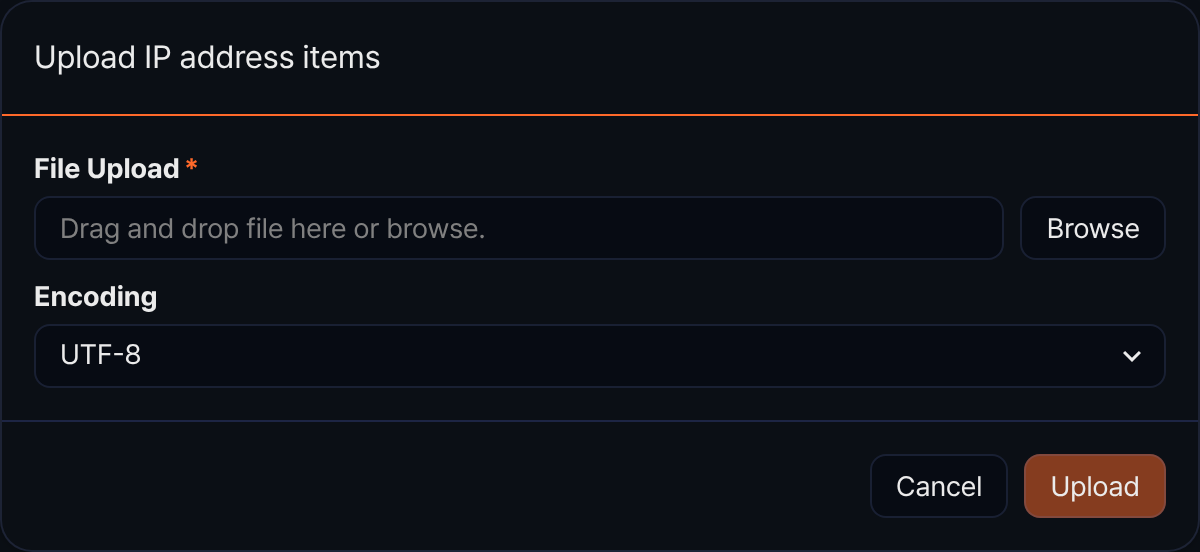
- File Upload (required): CSV file to upload. Click Browse to choose a file, or drag a file onto the input box. Only files with the
.csvextension are accepted, up to 10 MB. - Encoding: Encoding of the file (default: UTF-8). Choose UTF-8, UTF-16 BE, or MS949 to match the file.
- File Upload (required): CSV file to upload. Click Browse to choose a file, or drag a file onto the input box. Only files with the
-
Click Upload. The button stays disabled until you choose a file.
-
Wait for the progress bar to finish. If any rows could not be registered, the dialog shows a table with the row number, IP Address, Retention (min.), Description, and Reason. A row is listed here mainly when
addressis empty or is not a valid IPv4 address, whendescriptionis longer than 255 characters, or whenperiodfalls outside 1-52,560,000, and rows that fail for other reasons appear in the same table with their own reason. Every other row is registered.
The CSV file must follow these rules.
- The first line is the header and must consist of exactly the three columns
address,description, andperiod. The columns may appear in any order, but a file whose header has a different number of columns or a different column name is rejected as a whole. - Put an IPv4 address in
address, a description of up to 255 characters indescription, and a retention period in minutes inperiod. An emptyperiodkeeps the address indefinitely. - One upload can carry up to 10,000 entries, not counting the header.
Delete an IP address
To remove an address you no longer manage in the group, follow these steps.
-
Click the row of the address group in the list.
-
Select the checkboxes of the entries to delete in the IP address list.
-
Click
 in the toolbar. The icon is disabled while nothing is selected.
 -
Confirm the entries in the Delete IP Address dialog and click Delete.
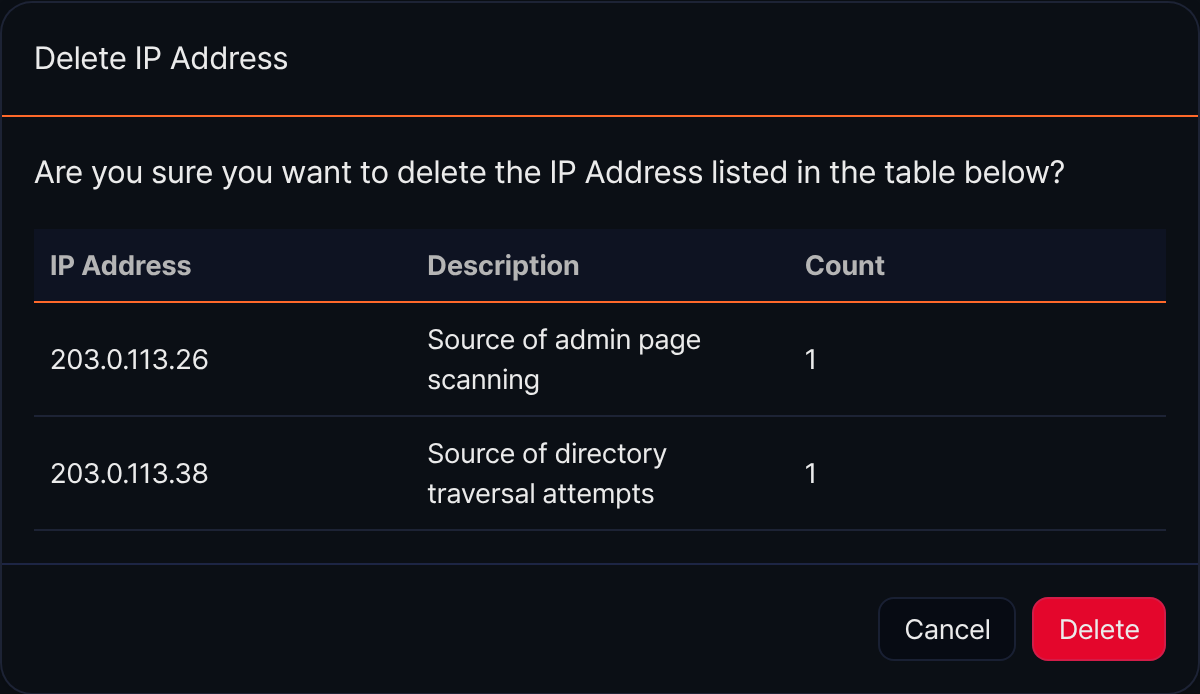
When the address group is linked to response targets, removing an IP address from the group sends an unblock command to the enabled targets among them. The same happens when an address drops out because its retention period has passed. You can review the commands that were sent in Response logs.
Delete an address group
To clean up address groups that are no longer in use, follow these steps.
-
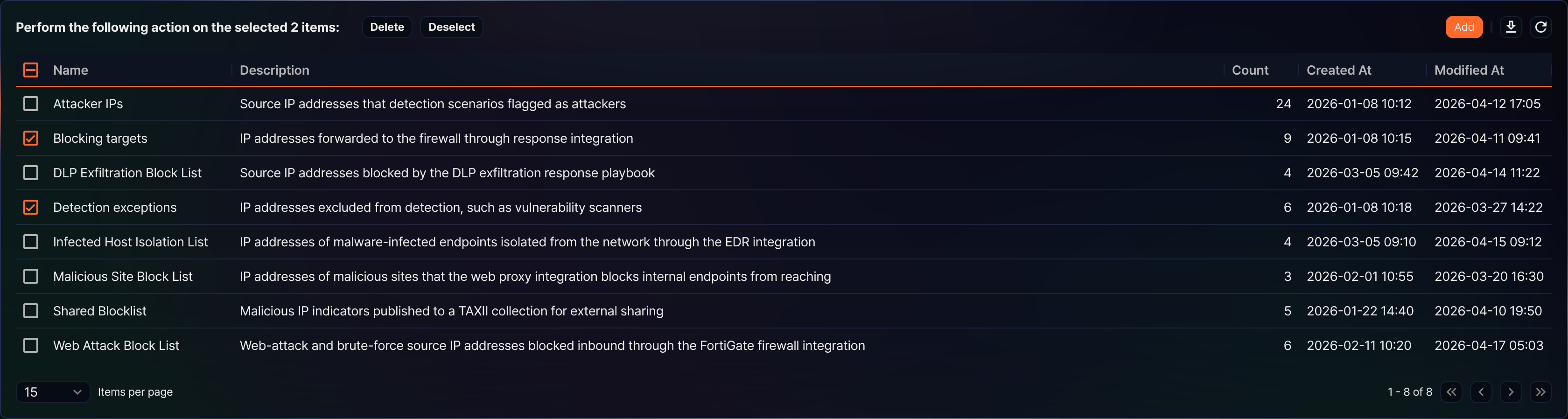
Select the checkboxes of the address groups to delete in the list. Once at least one row is selected, the left side of the toolbar changes to ask which action to perform on the selected items.
-
Click Delete. To clear the selection instead, click Deselect.
-
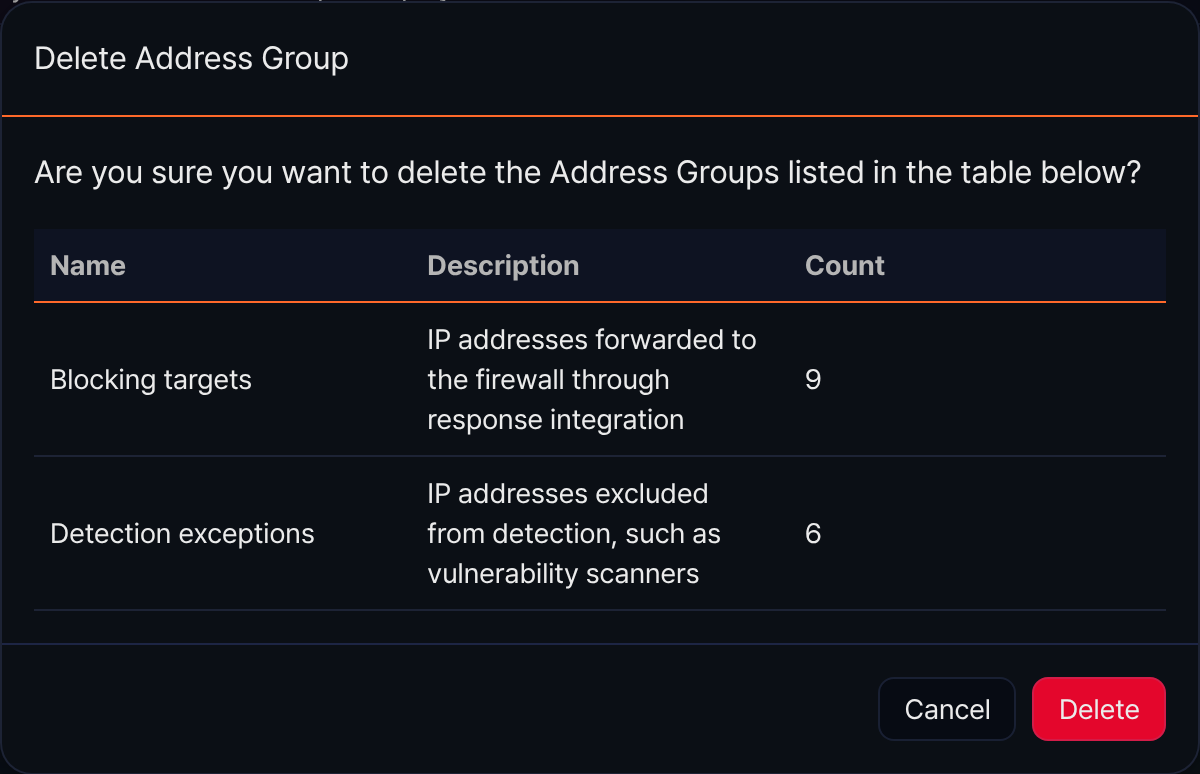
Confirm the groups in the Delete Address Group dialog and click Delete.
Using address groups
Registered address groups can be used in the following ways.
Manage IP addresses from detection scenarios
Stream rules and batch rules can register the IP address extracted from a detected event into an address group automatically. Use this to accumulate detected attacker IPs in one group and hand them to a response target, or to run a temporary blocklist that clears itself after a short retention period.
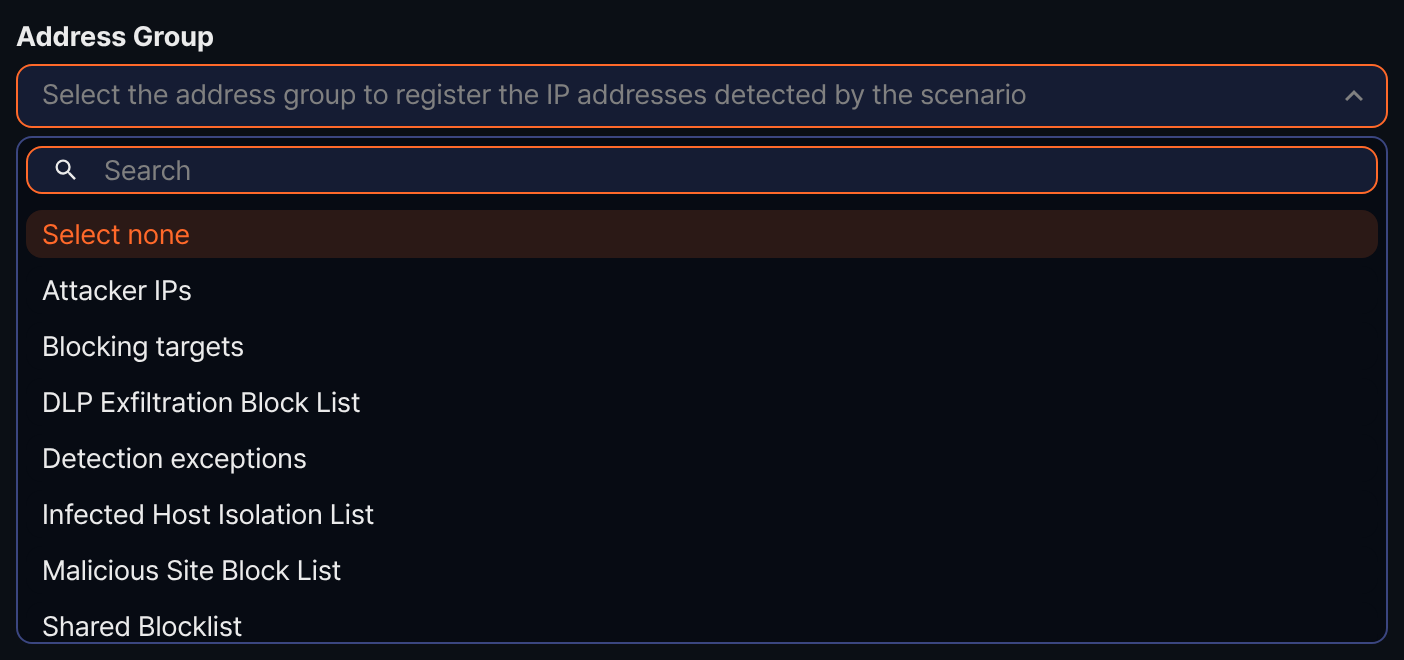
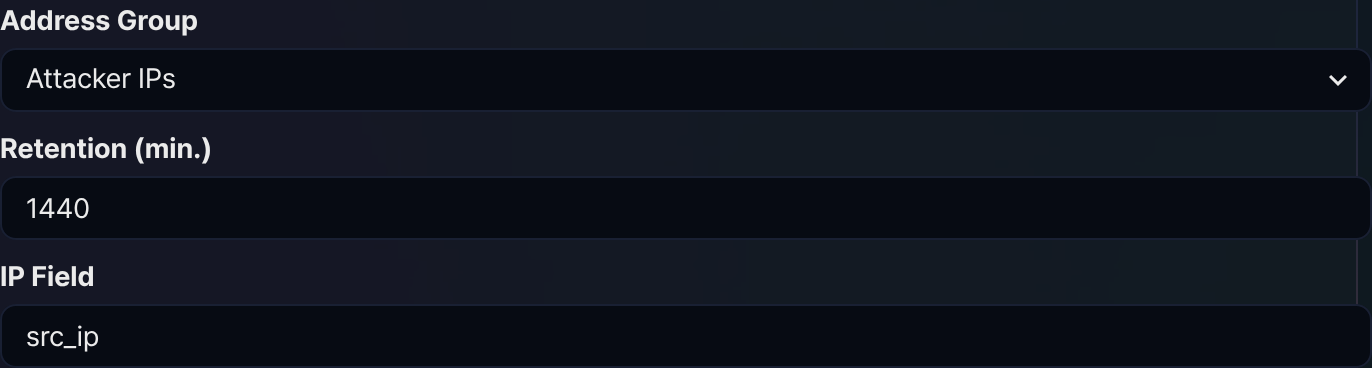
Both stream rules and batch rules set Address Group, Retention (min.), and IP Field together in the scenario settings. The value of the field named in IP Field is registered in Address Group, and Retention (min.) becomes the retention period of that address.
In a stream rule, use the Address Group selector to choose the group the addresses go into. The placeholder of the selector states what the setting does, and choosing Select none at the top of the list registers nothing.
A batch rule sets the same three items, and its settings screen looks like this.
Match address groups in the scenario builder
The scenario builder of a stream rule can test whether the IP address of an event belongs to an address group. Use it to match a known list of attacker IPs against the source or destination IP of an event.
Select an IP field in Field, select the rule IP 주소가 주소 그룹에 포함 (in address group) in Rule, and a selector for the address group to compare against appears below. Choose the group and click  to add the rule.
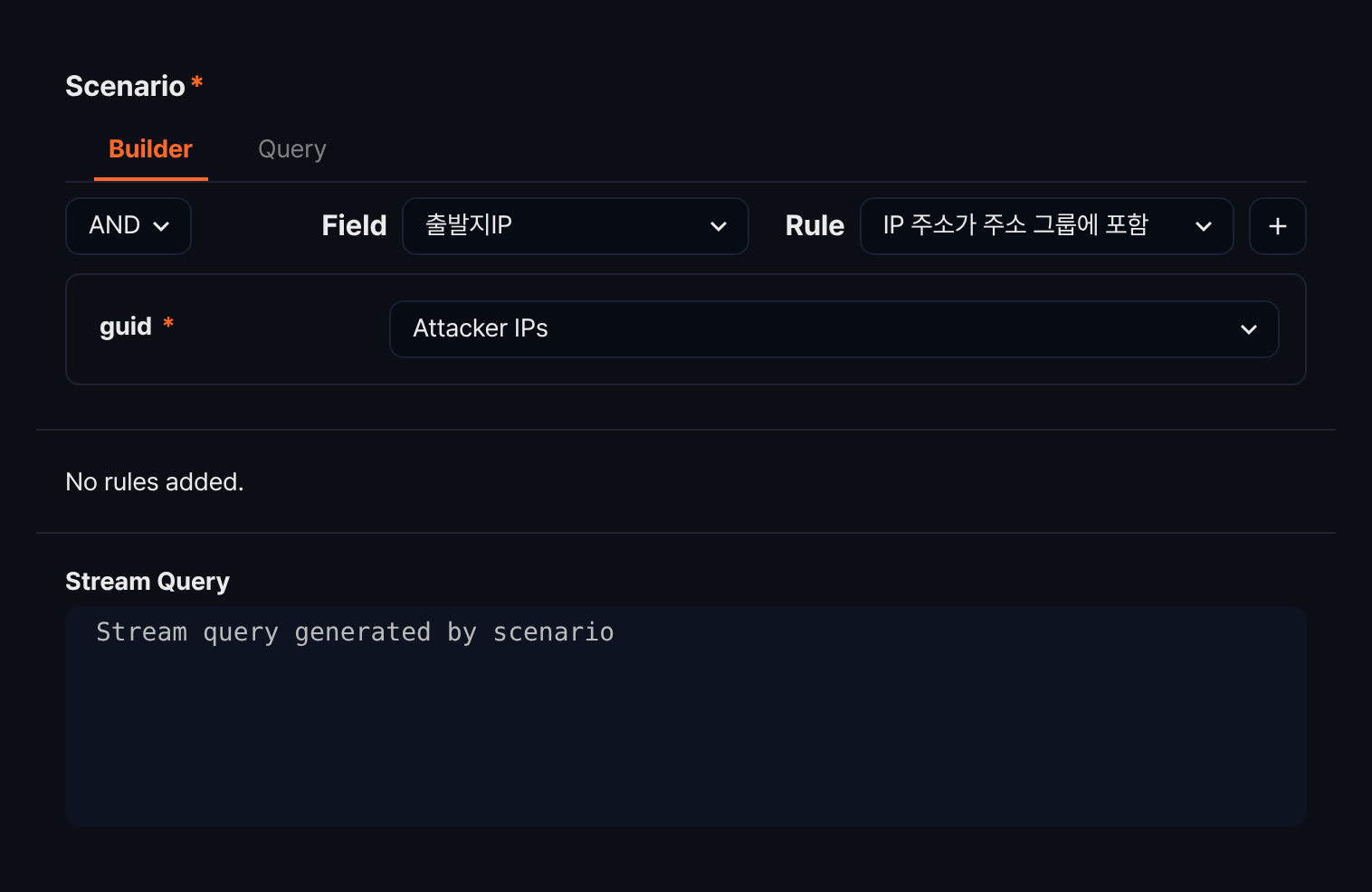
Rule names and parameter labels in the scenario builder are shown as the product displays them. The English console currently shows the rule name in Korean and the parameter label as its internal name, guid. The English in parentheses after the rule name is an explanation added by this document and does not appear on screen.
The query that the scenario builder generates carries the GUID of the group, not the name shown on screen. For the rules and parameters available for each field type, see Rules and parameters by field type.
Match address groups in pivots and queries
In a pivot, right-click the header of an IP column and select Address Group Filter to keep only the IP addresses that belong to an address group, or to exclude them.
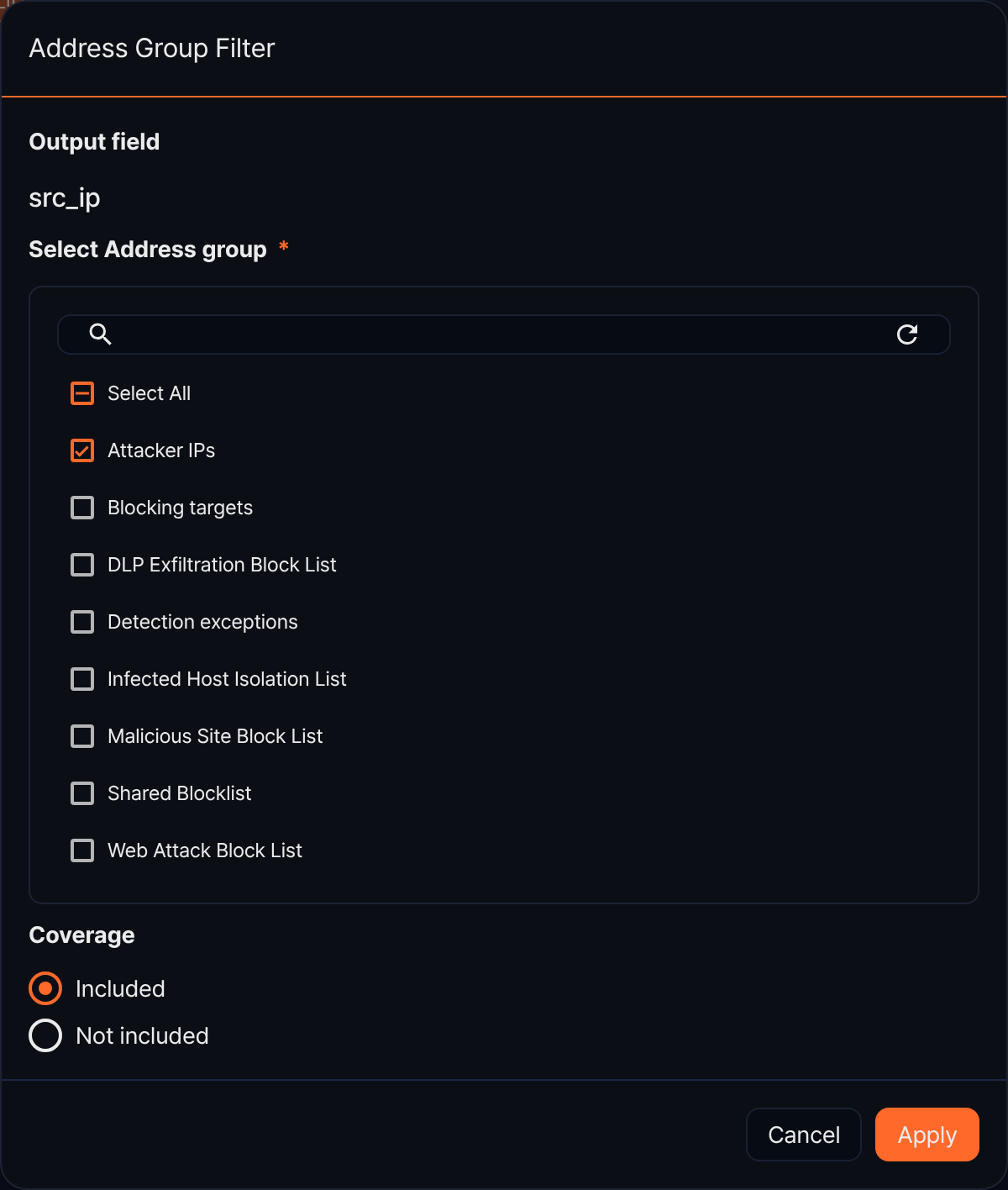
- Output field: Name of the column the filter applies to
- Select Address group (required): Address groups to match against. Select at least one; Select All selects every group at once.
- Coverage: Included keeps only the rows that belong to the selected groups, and Not included removes those rows from the result.
Click Apply to add the matching condition to the pivot query. Conversely, selecting Add to Address Group in the context menu of a pivot cell registers the IP value shown on screen into an address group.
In queries, use the matchblackip command and the matchblackip() function to test whether the IP address in a field belongs to an address group. Both identify the group by its GUID, not by its name.
The following example keeps only the firewall log records whose source IP belongs to the Attacker IPs address group. The GUID of an address group is the value that follows /ip-blacklist/ in the browser address bar while the edit panel of that address group is open.
table duration=1d *:FW_FLOW | matchblackip guid="fa92eec2-d749-40ad-98ec-361baaab0c53" fields=src_ip
To keep only the records that do not belong to the address group instead, set invert=t. For the fields added to the result, see the output fields of the matchblackip command.
Use with response targets
A response target uses an address group as its blocklist. Once you set Address Group in a response target, a block command is sent to the enabled targets linked to that group as soon as an IP address is registered in it, and an unblock command is sent when the address leaves the group. An address that drops out because its retention period has passed also triggers an unblock command, so both blocking and unblocking can be driven from the address group.
Clicking New Address Group on the response target screen creates a group without leaving that screen. Review the commands that were sent in Response logs.