
Logs
Overview
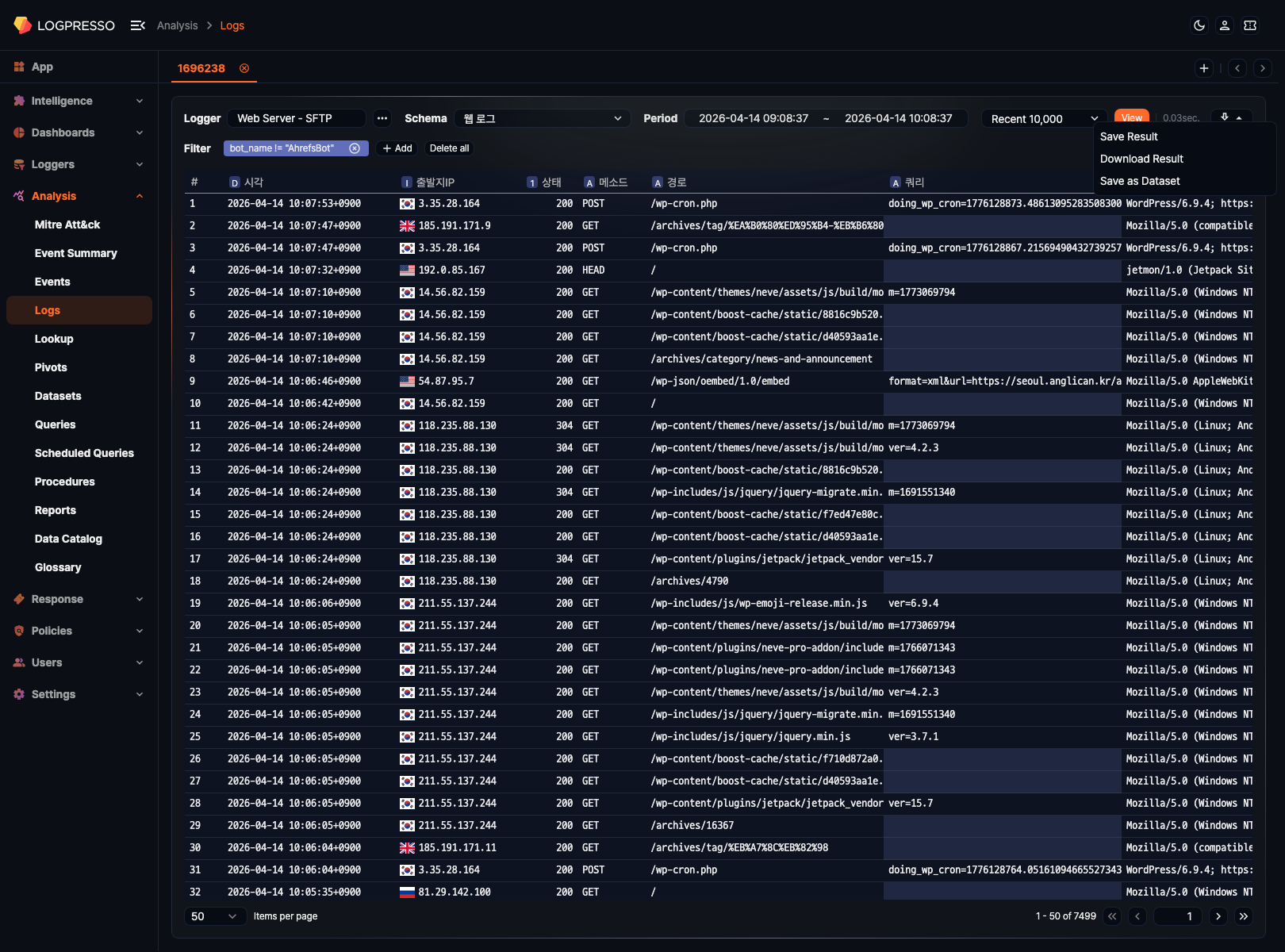
The Analysis > Logs menu is the main screen for reviewing data ingested by loggers. Because logger, logger model, and log schema settings are reflected directly in the search results, this page is useful when you need to compare raw records with normalized fields, validate ingestion quality, or inspect only the fields needed for analysis.
To understand log search properly, it helps to look at the ingestion path first. A logger model defines the parser, normalization rules, and schema mapping, while the logger uses that configuration to ingest raw data into a table. Because of that relationship, the Logs page lets you move between the raw form and the normalized form of the same data depending on the task at hand.
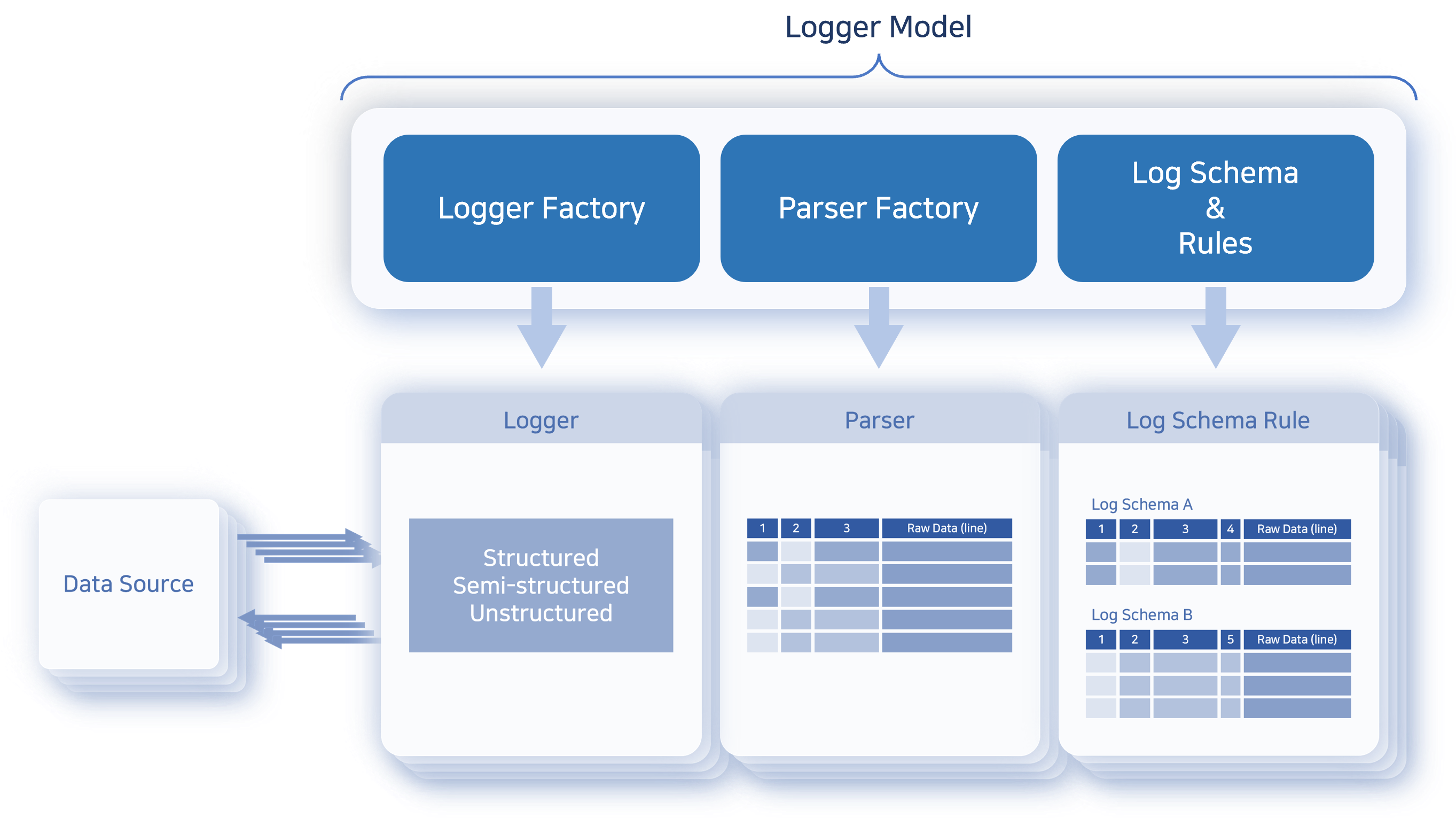
On this screen, you first choose which logger to query, then switch schemas if you need a normalized field set instead of raw records. After the query is complete, you can continue on the same page with follow-up actions such as adding filters, sorting fields, hiding columns, downloading results, or saving the query as a dataset.
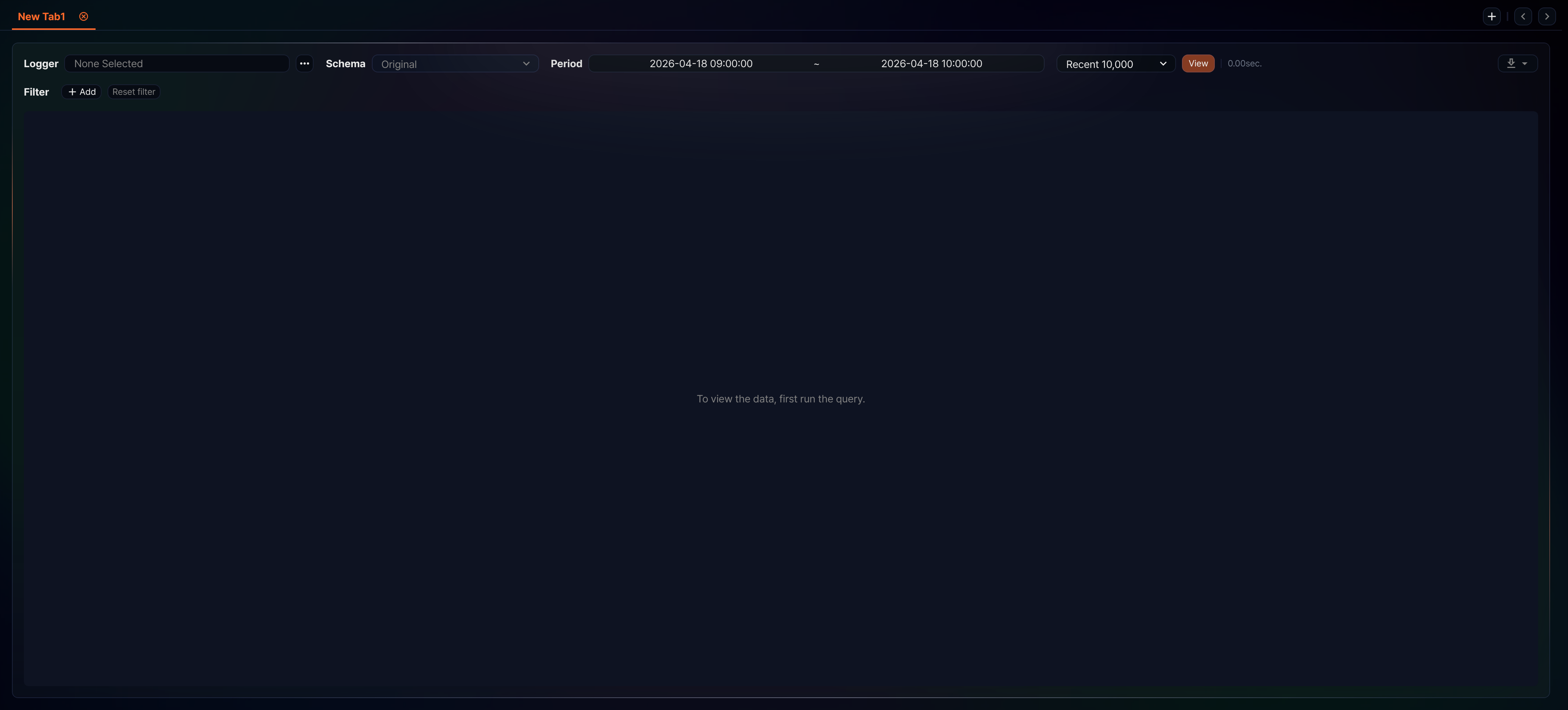
You must select at least one logger before you can run a query. When you first enter the page, the result area is empty. Click  next to Logger to select a logger and proceed.
Query logs
- Go to Analysis > Logs.
- In the toolbar, specify the Logger, Schema, Period, and maximum record count, then click View.
- After the search results appear, continue with follow-up actions such as adding filters, sorting fields, hiding columns, saving, or downloading.
Toolbar
The toolbar at the top of the page contains the basic conditions that define the query target. The image below shows the toolbar with a logger selected.
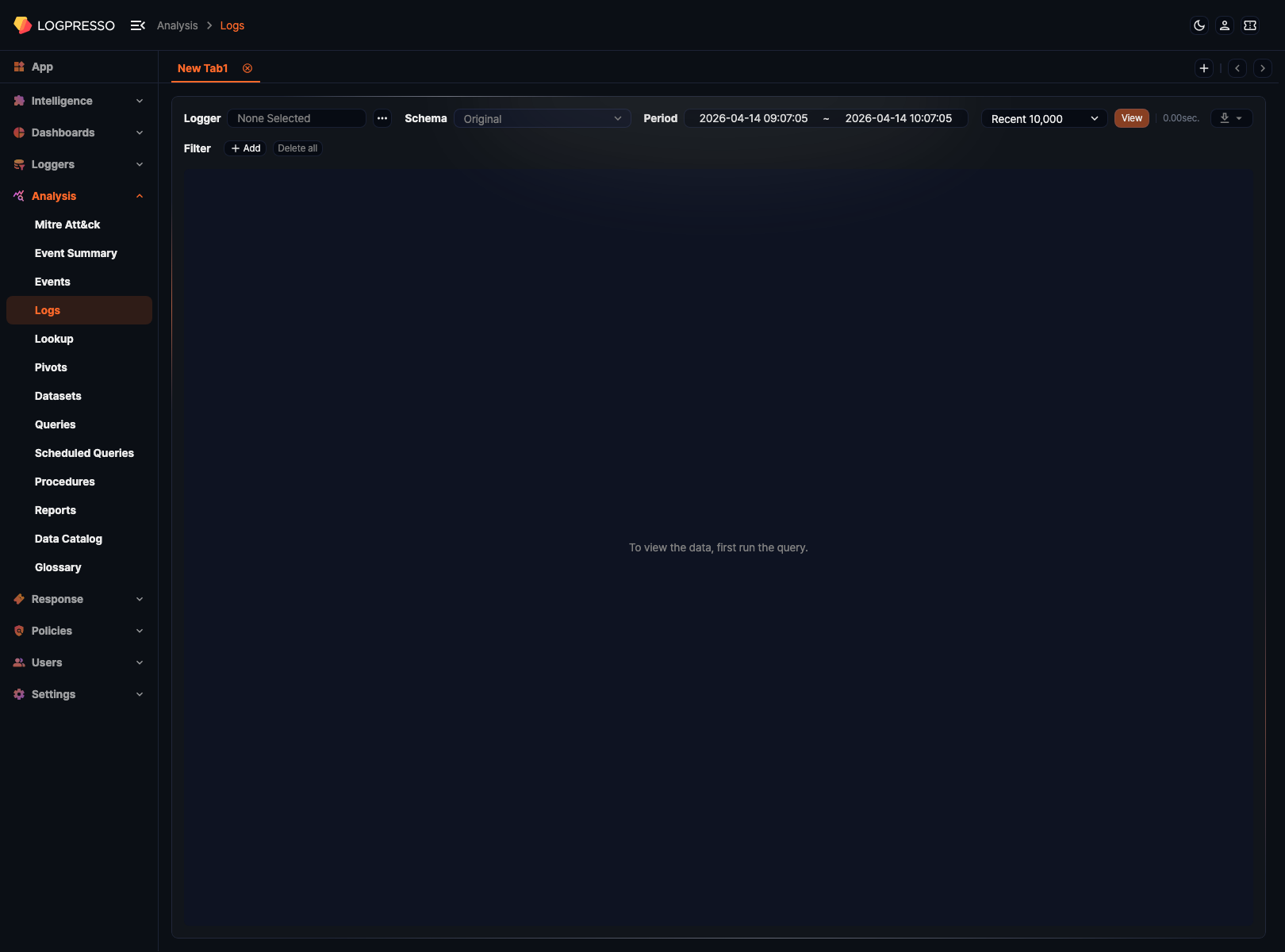
Logger
Selecting a logger is required before you can query logs. Click next to Logger to open the Logger select modal, check the target loggers, and click Select. Loggers are collapsed under their logger groups, so expand a group or type a name in the search box to find them.
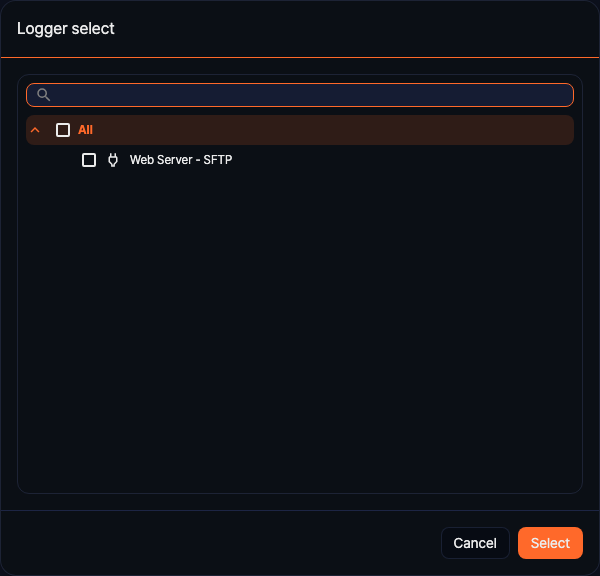
- You can select multiple loggers at once.
- When only one logger is selected, its name appears in the input field. When multiple loggers are selected, the field summarizes the number of selected items.
- Before a logger is selected, both Schema and View remain disabled.
Schema
Use Schema to decide whether to view the raw records or a normalized field structure. If you do not select a schema, logs are displayed in their original form.
The schemas listed in the dropdown depend on the selected logger's logger model. Only log schemas referenced by the normalization rules defined in the logger model appear in the list, so changing the logger also changes the available schemas.
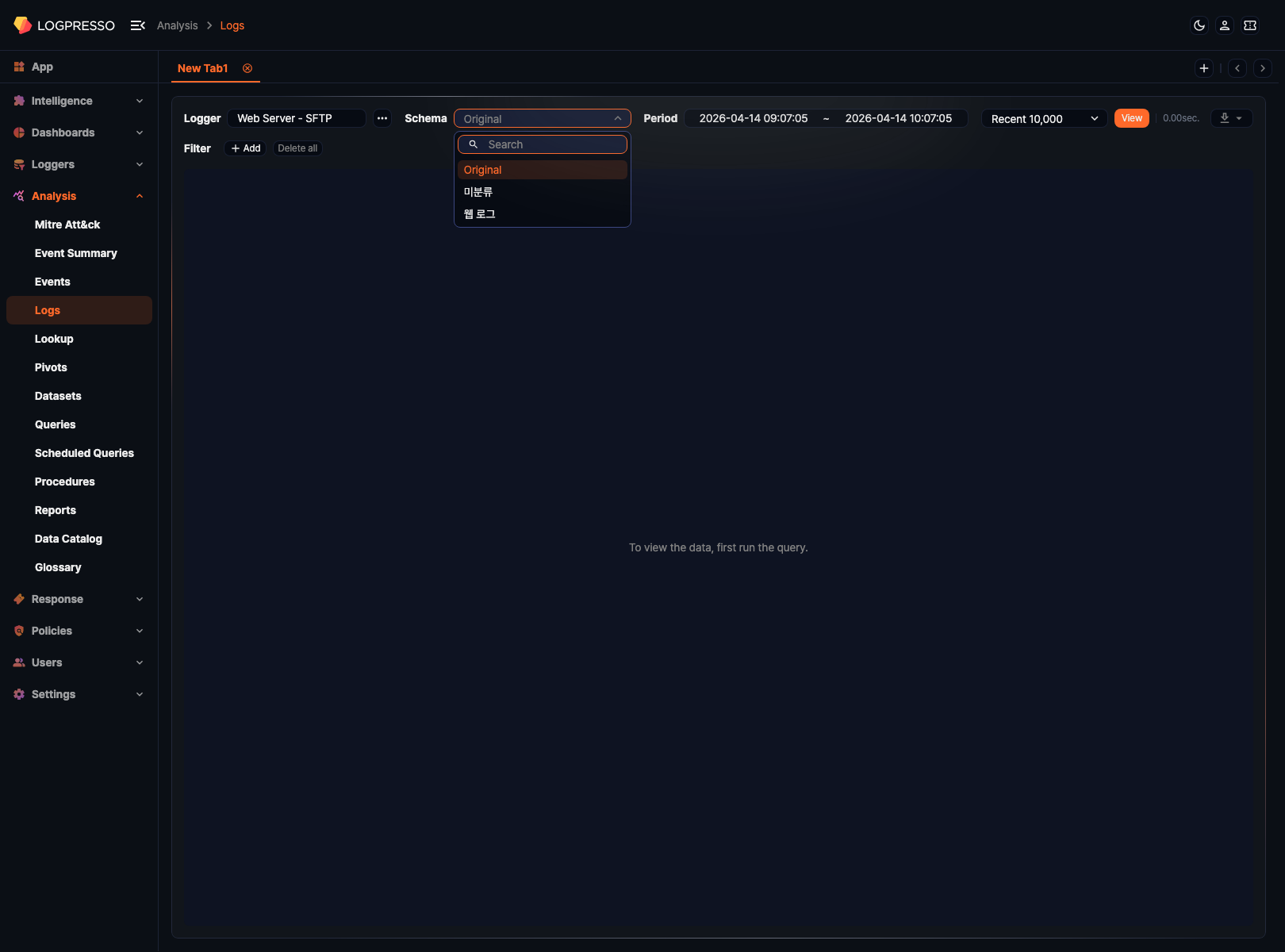
- Original
- The default state when no schema is selected. Displays the original records together with parser-extracted fields. Fields such as
_time,_logger,_schema, and the original message string are the most useful when checking ingestion immediately after collection. - Normalized schemas (e.g., 웹 로그, Web Log)
- Displays logs using the field structure defined by the logger model's normalization rules. The available schemas depend on the selected logger. The column set changes when you switch schemas, even if the underlying data is the same. A field defined in the log schema but empty in every row of the result is not shown as a column on this screen. The product installs base log schema names in Korean regardless of the language chosen at installation or the console language, so the English console shows them in Korean as well; the English in parentheses is an explanation added by this document.
Period
Use Period to specify the query window down to the time level. Click the period input to open the range picker, where you can adjust the start and end calendars together with hours, minutes, and seconds, and use the Today, 7 days ago, 30 days ago, 60 days ago, and 90 days ago buttons at the upper right to fill in common ranges. Click Set to Current Time below the time fields to insert the current time, and click OK to apply the period.

- On first load, the page fills in the most recent one-hour range by default.
- Both a start time and an end time are required before the query can run.
Maximum records
Use the maximum record count dropdown to the right of the period to define how many records to load in a single query.
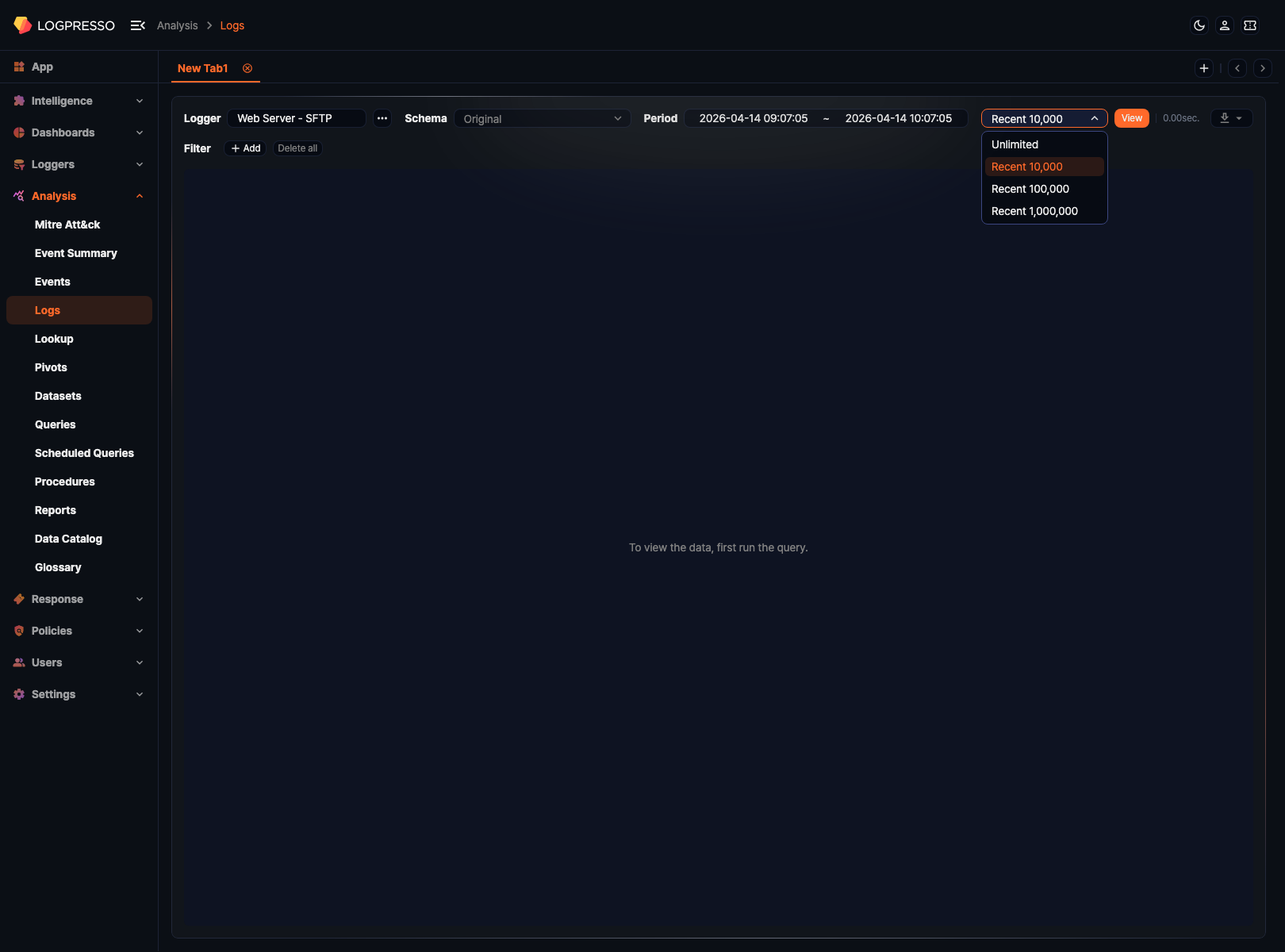
- The default value is Recent 10,000.
- Choose from Unlimited, Recent 10,000, Recent 100,000, and Recent 1,000,000.
Query results
After you specify a logger and the query conditions, click View to load results into the grid below. The table is paginated (50 records per page by default); change the page size at the lower left of the grid and move between pages at the lower right.
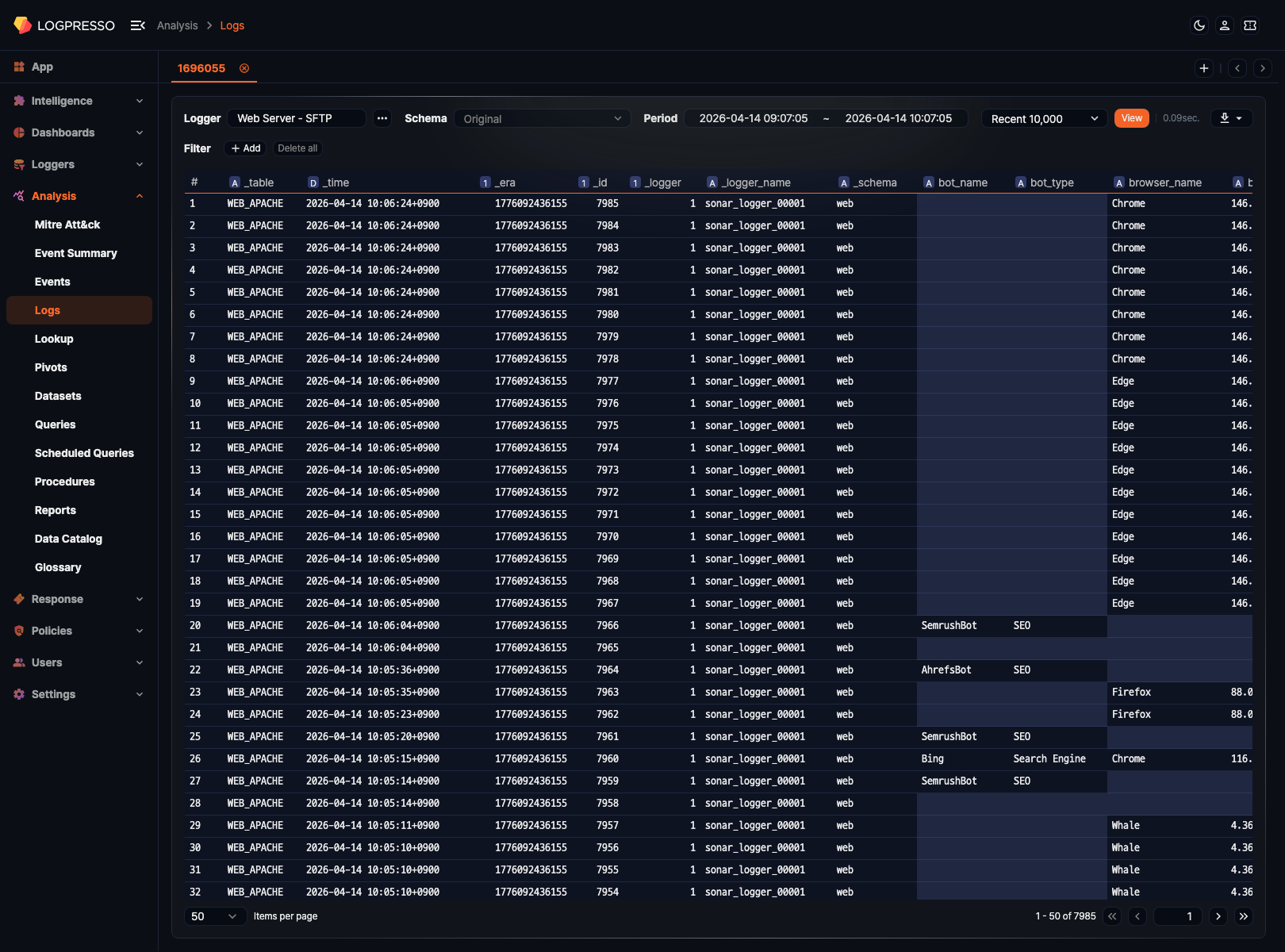
- In the original schema view, you can inspect metadata and parser-extracted fields such as
_table,_time,_logger_name, and_schema. - The bottom area of the grid shows the total number of records and the current page range.
- After the query completes, the elapsed search time appears to the right of the View button.
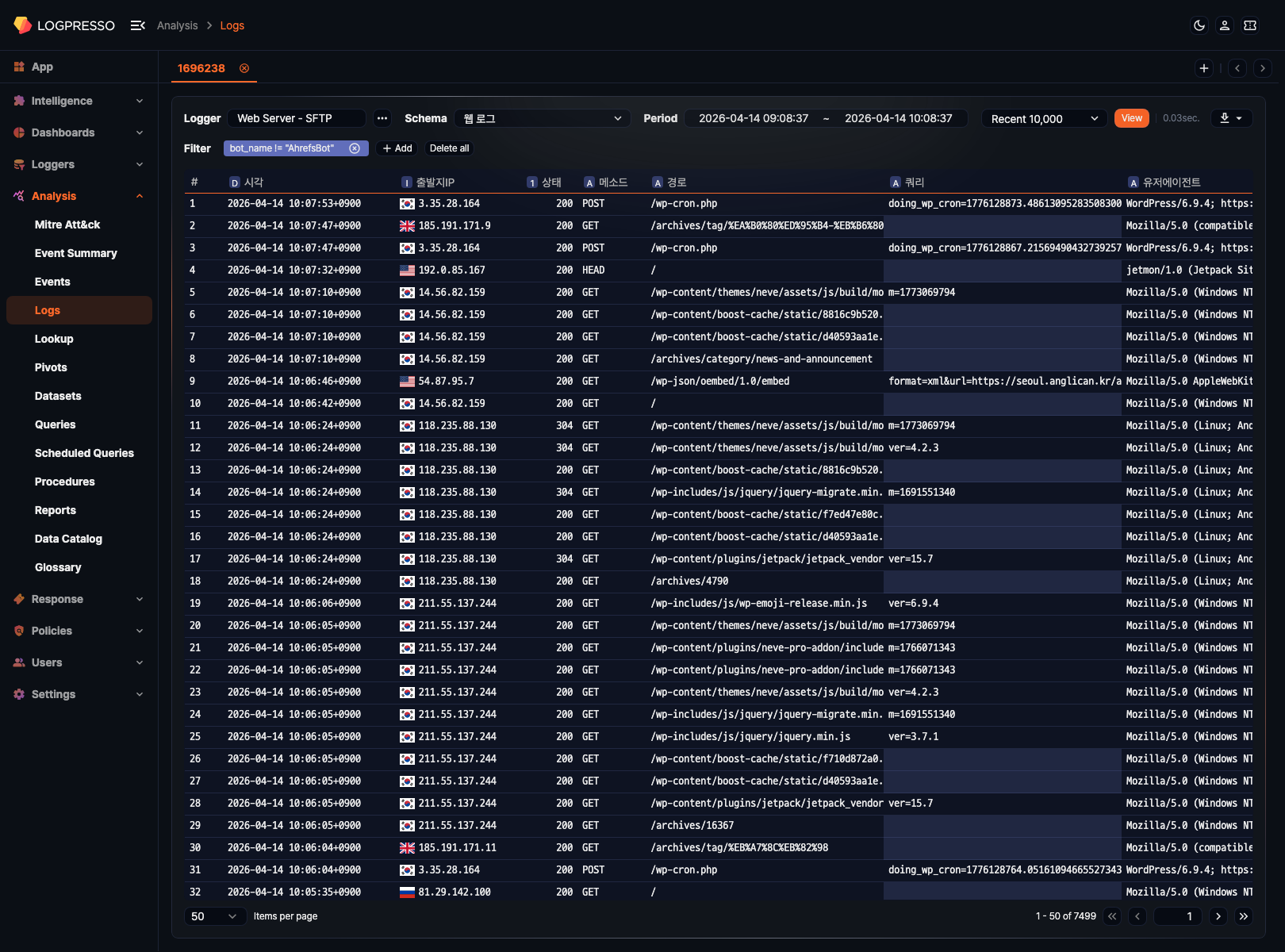
If you switch to a normalized schema such as 웹 로그 (Web Log), the result columns change accordingly.
Filters
Use filters to narrow the results to logs that match specific field values. Click Add in the Filter area above the grid to open the filter modal. When you confirm a condition, the query runs again with that condition applied.
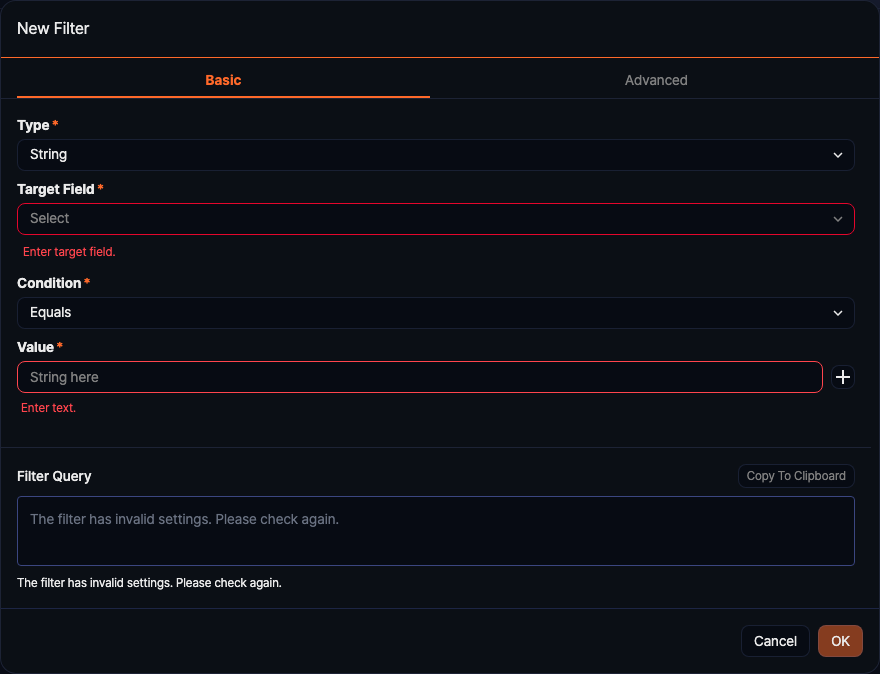
- Type: Defines the comparison method. Choose from String, Integer, Date, IP address, IP address (range), and Expression.
- Target Field: Selects one of the fields currently available in the query result. Only fields that match the selected Type are listed.
- Condition: Provides comparison operators appropriate for the selected type.
- Value: Defines the comparison value.
- Filter Query: Shows how the selected condition is converted into a query expression.
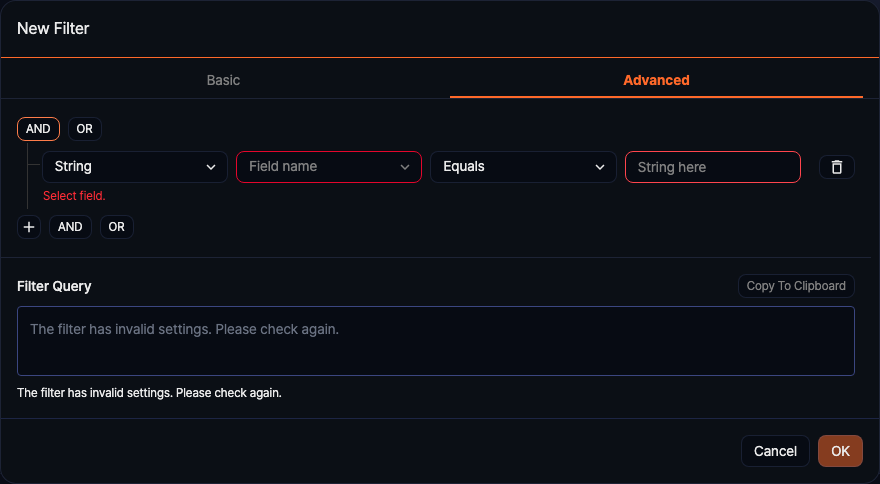
If you need more complex logic, switch to the Advanced tab and combine conditions with AND or OR.
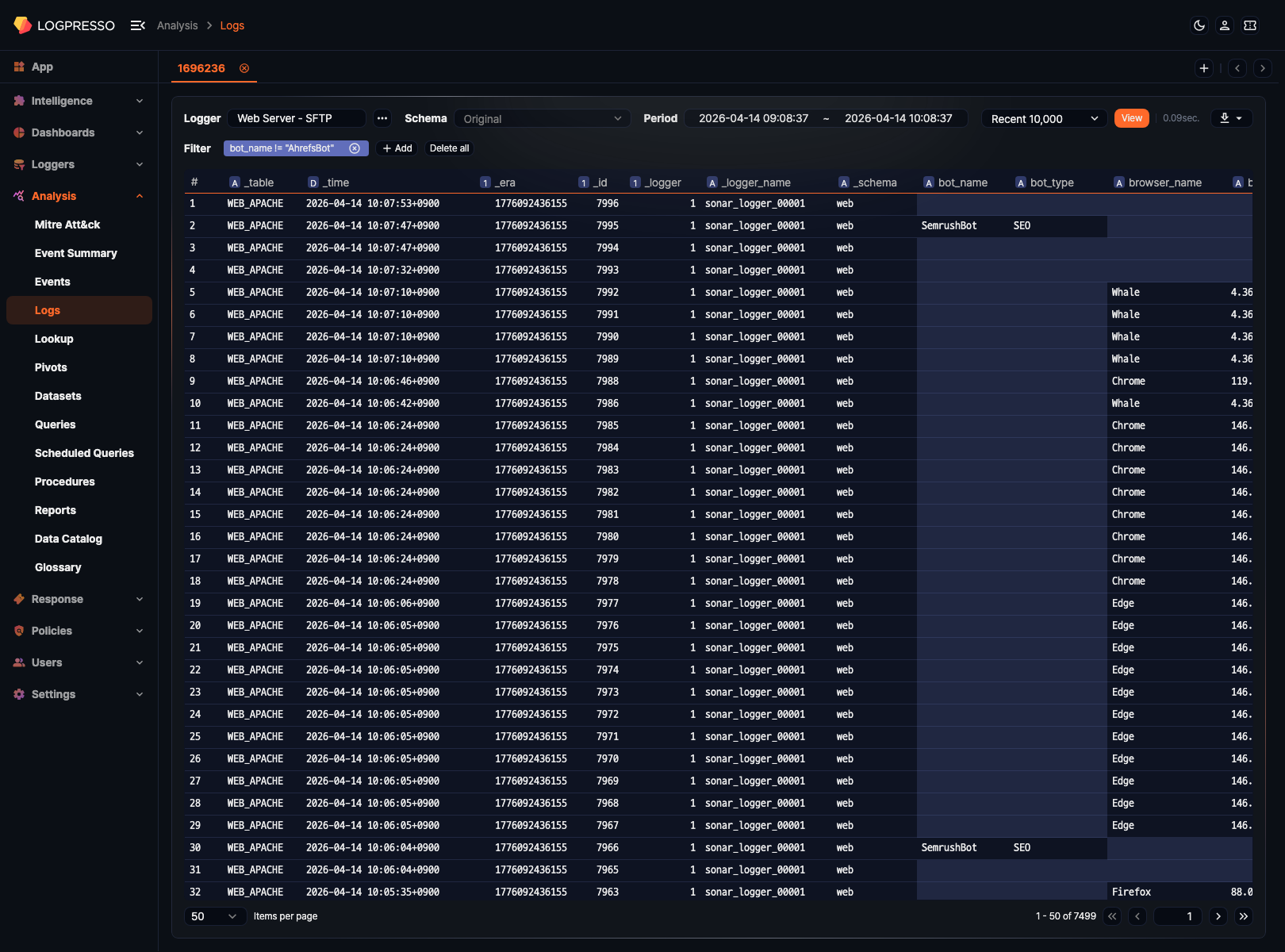
After a filter is applied, the condition appears as a chip in the filter area above the result grid, and the grid shows only the matching logs. Remove a condition with the delete icon on its chip, or remove all of them with Reset filter.
Field sorting and display management
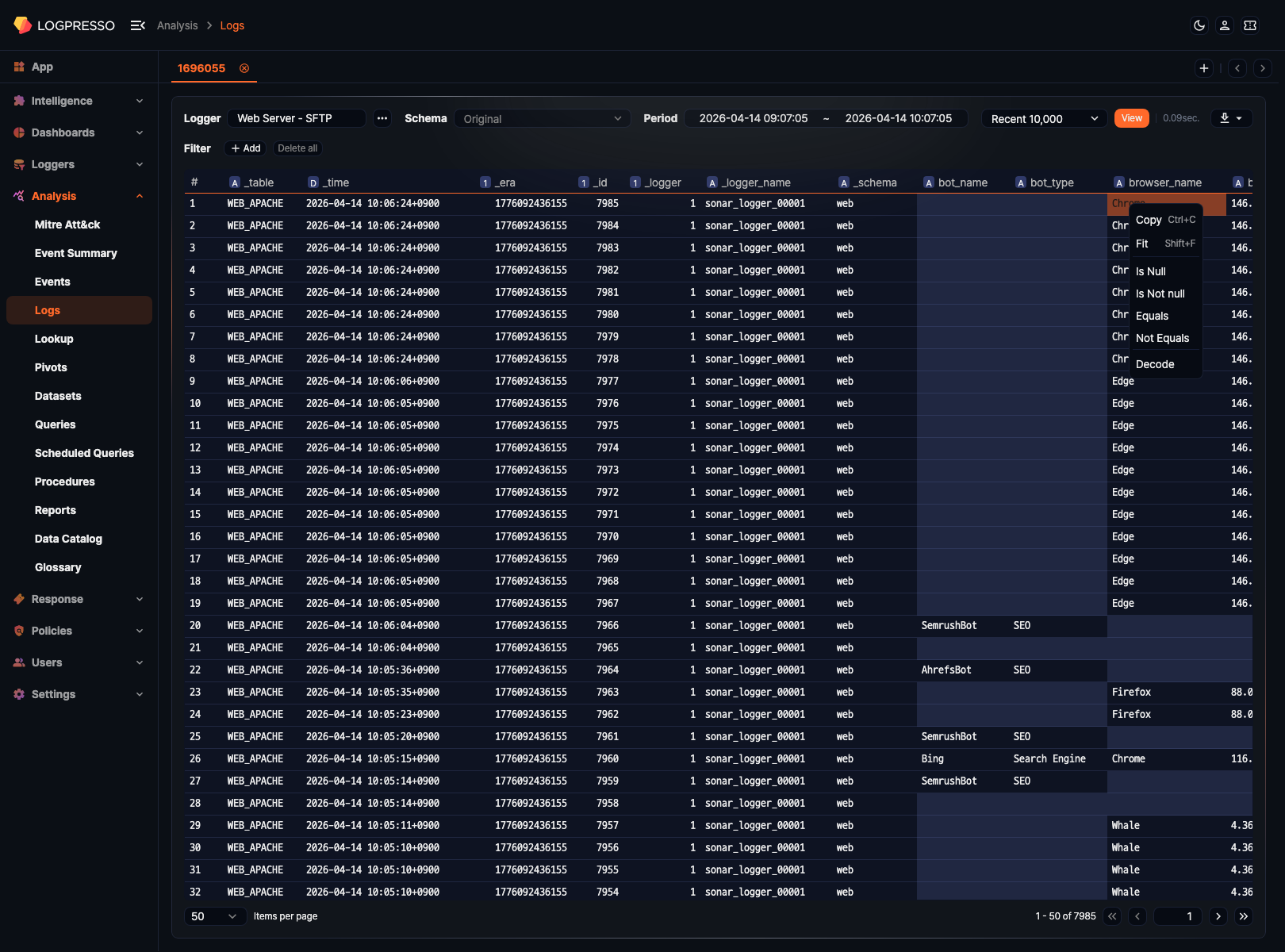
Right-click a field name (column header) in the result table to open a popup menu. From the popup menu, you can Sort Ascending or Sort Descending, Hide the field (or Unhide hidden fields), Fit the column width, align the text (left, center, right), Copy the value, or expand the cell content with More. Right-clicking a value cell shows Copy, Fit, and More together with value-condition filter items (null check, match) and Decode for decoding the value.
Tabs
The Logs page supports multiple tabs so you can compare different searches side by side. Click  in the upper-right area to open a new tab, and close tabs you no longer need. A new tab is named New TabN and changes to the query ID when you run a query.

Save and download results
After a query finishes, use the  menu on the right side of the toolbar to choose how to reuse the result. The menu lists Save Result, Download Result, and Save as Dataset, in that order.
Save as dataset
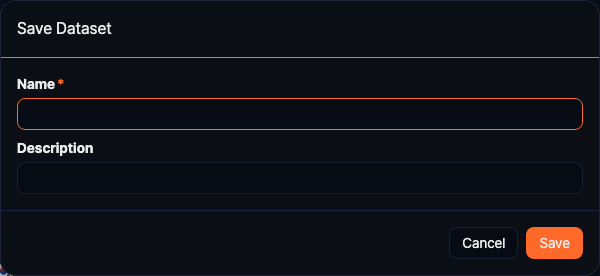
Use Save as Dataset when you want to rerun the same search conditions later to collect data again.
-
Name: Dataset name (required)
-
Description: Dataset description
-
Saved datasets can be reviewed later in the Dataset menu.
-
You can use saved datasets as the basis for follow-up work in Pivot or Query.
Save query result
Use Save Result when you want to preserve the current result exactly as it is at this point in time.
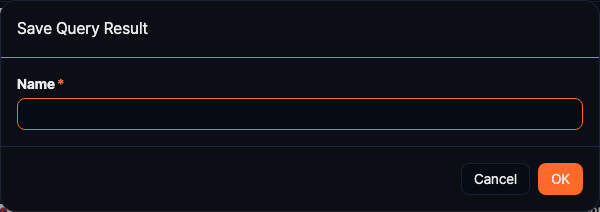
- Name: Name of the saved result (required)
Download query result
Use Download Result when you want to export the search result to a file. The Download Query Result dialog opens.
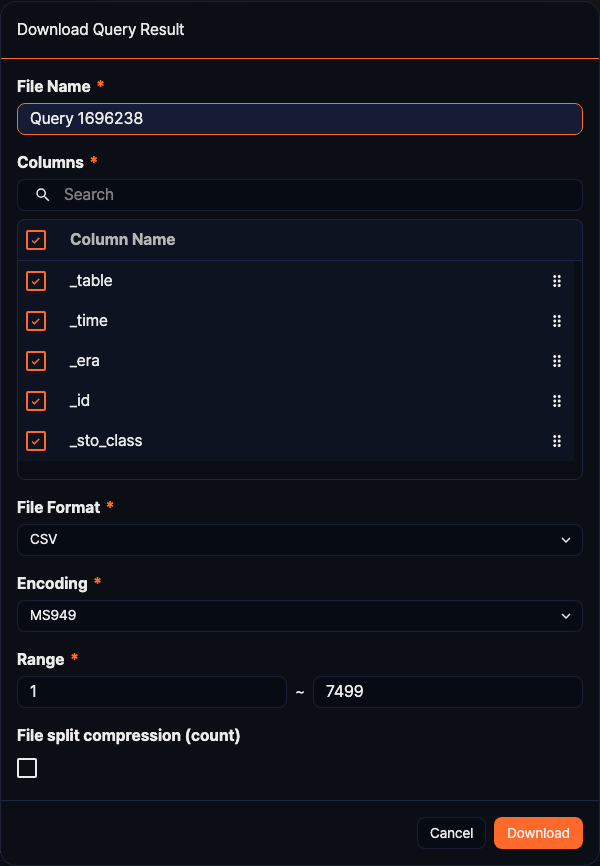
- File Name: Defines the name of the exported file. The default follows the
Query <query ID>format. - Columns: Selects which fields to include in the exported file.
- File Format: Chooses one of CSV, XML, Microsoft Word, HTML, JSON, and PDF.
- Encoding: Selects the text encoding. The available options depend on the console language. In the English console you can choose UTF8, UTF16, or Latin 1, and the default is UTF8.
- Range: Defines the sequence range of log records to export.
- File split compression (count): Splits the file every specified number of records and compresses the parts.