ML datasets
Overview
ML Datasets prepare the log data used for training before you create a machine learning model. Under Policies > ML Datasets, define a dataset with a query that extracts the data, and select the saved dataset when adding a machine learning model. When you save a dataset, the server runs the query, loads the result into a table dedicated to the dataset, and uses the fields of the result as the candidate input variables and target variable of a model. A field whose values contain strings is classified as categorical, and the others as numeric.
In practice, you first explore the data in Analysis > Queries or Analysis > Pivots, keep only the fields you need or preprocess them, and save that query as an ML dataset. If string fields are hard to train on as they are, consider converting them into numeric vectors with a query command such as tfidf.
Accounts with the Cluster Administrator or Administrator role can view ML datasets and add, edit, delete, export, and import them. Accounts with the User role can only view the list and the data of a dataset and download the list. See Account permissions for the permissions of each role.
Considerations
Prepare ML datasets so that they reflect the data of your actual operating environment as closely as possible. Keep the following in mind when creating a dataset.
- Include diverse information
- Prepare data that contains the various characteristics of the real environment, such as time, location, user information, event type, and success or failure.
- Choose a target variable for supervised learning
- A supervised learning model such as Random Forest needs a target variable field to predict. Include the target variable when you build a dataset for supervised learning.
- Preprocess the data
- Remove or correct data errors and extreme values, and apply normalization or scaling when the value ranges of fields differ too much.
- Vectorize strings
- Plain strings are hard to train on, so they need to be converted into numbers. Vectorize them with a query command such as
tfidfwhen needed. - Data quality and volume
- The data should be accurate, complete, and consistent, and there should be enough of it to cover both normal and abnormal patterns.
- Prevent overfitting
- Consider techniques such as cross-validation and regularization so that the model does not fit a particular training set too closely.
- Follow changing patterns
- Security threat patterns change over time, so retrain models in operation periodically.
View/search ML datasets
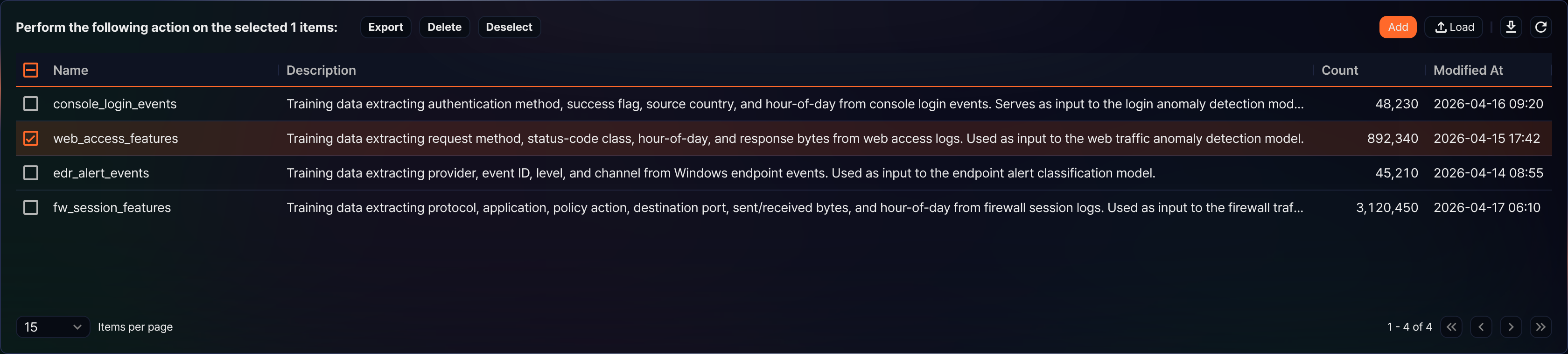
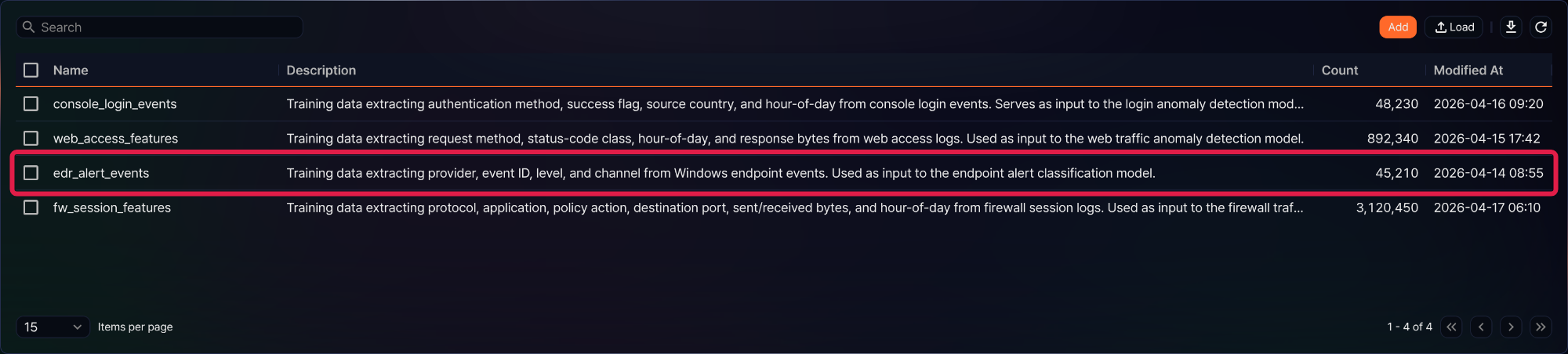
You can view or search the list of ML datasets under Policies > ML Datasets. The list shows datasets in the order they were registered, and you cannot change the sort order from the column headers. Each page shows 15 datasets by default, and you can change the page size in the selector below the list.

- Name: The name of the ML dataset. You select a dataset by this name when adding a machine learning model.
- Description: The purpose or composition of the ML dataset.
- Count: The number of records loaded into the dataset.
- Modified At: The date and time the ML dataset was last modified.
To find a specific ML dataset in the list, enter a keyword in the search box in the toolbar. The search matches partial text in Name and Description. If you enter several words separated by spaces, only datasets containing all of them are shown.
Select items
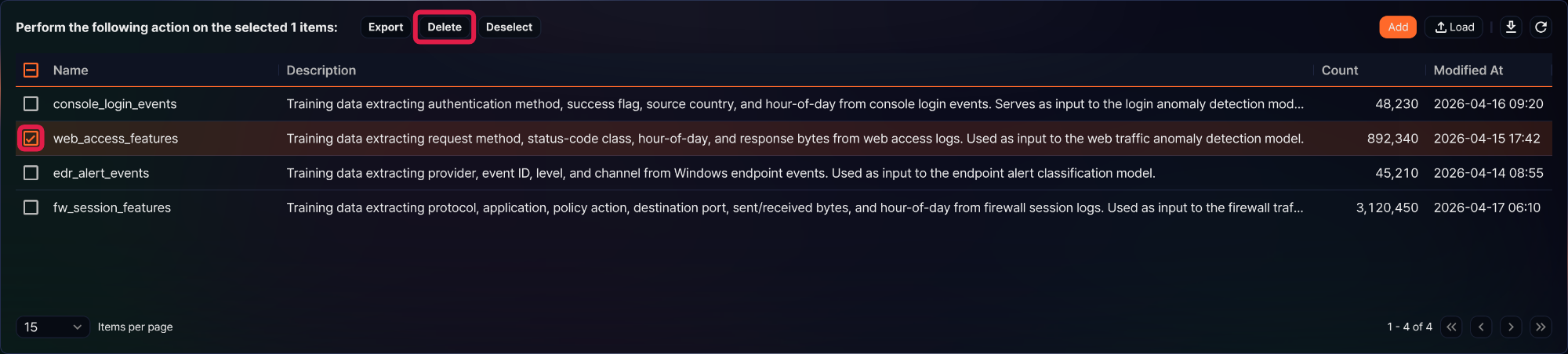
When you select the checkbox of a dataset row, the search box in the toolbar is replaced by the number of selected items and the selected-item action buttons (Export, Delete, and Deselect). Exporting and deleting datasets start from this state. Select the checkbox in the header to select every dataset on the current page, and click Deselect to clear the selection. The Add and Load buttons, the row checkboxes, and the selected-item action buttons appear only for the Administrator role or higher.
Download the list
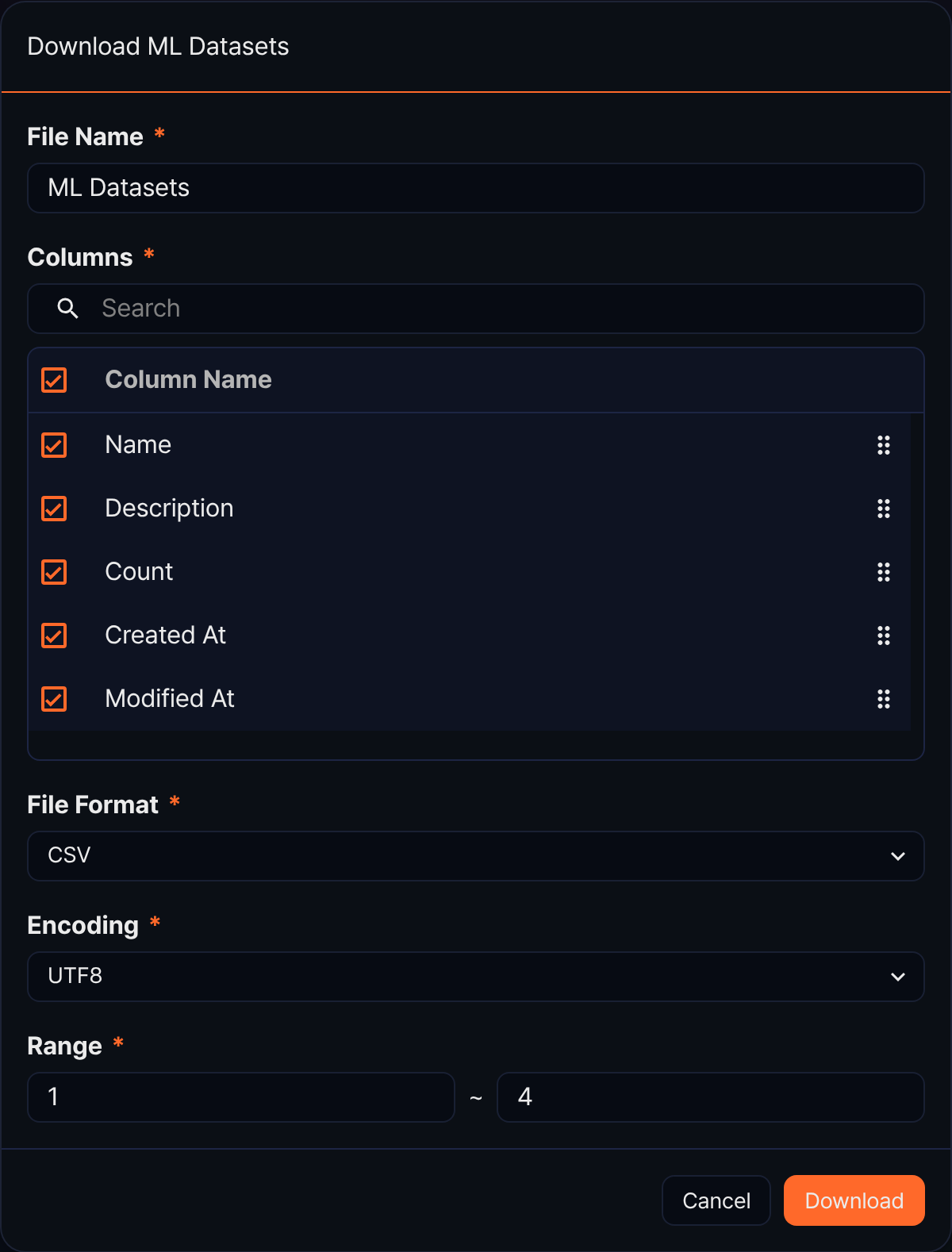
To save the list of ML datasets to your local PC, click  in the toolbar, then set File Name, the Columns to include, File Format, Encoding, and Range in the Download ML Datasets dialog and click Download. The columns can also include Created At, which the list does not show.
Refresh the list
To reload the ML dataset list with the latest data, click  in the toolbar.
Export ML datasets
To back up ML datasets or move them to another Logpresso Sonar, export them to a file. The file contains the dataset information together with the loaded data, and it has the .mldataset extension.
-
Select the checkboxes of the dataset rows you want to export in the list. If you select several datasets, they are exported to a single file.
-
Click Export among the selected-item action buttons in the toolbar.
-
In the Export ML Dataset dialog, check or change the file name and click OK. The default file name is ML Dataset followed by an underscore and today's date, and the
.mldatasetextension is added automatically. The file name cannot contain reserved words or the special characters\ / : * ? " < > |, and it cannot start with a period (.).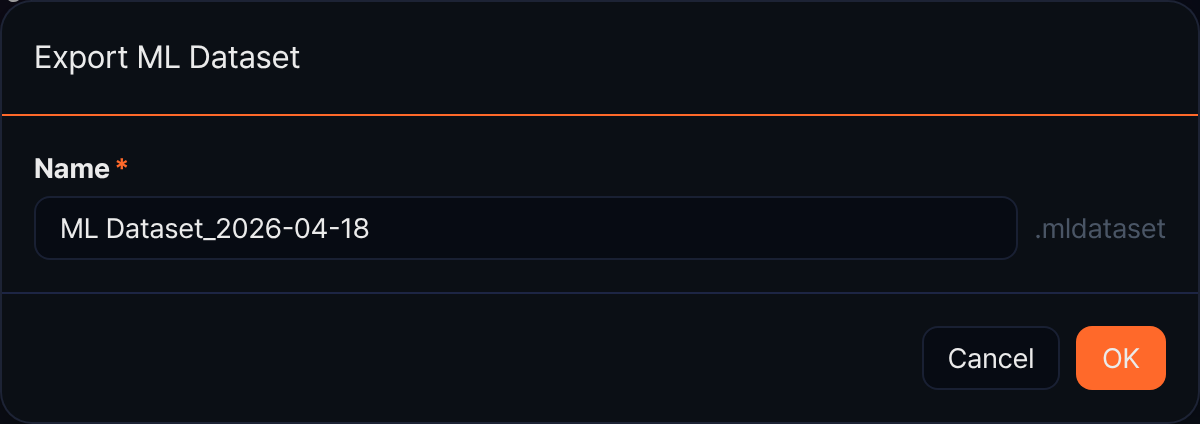
Import ML datasets
To register an exported ML dataset file again:
-
Click Load in the toolbar.
-
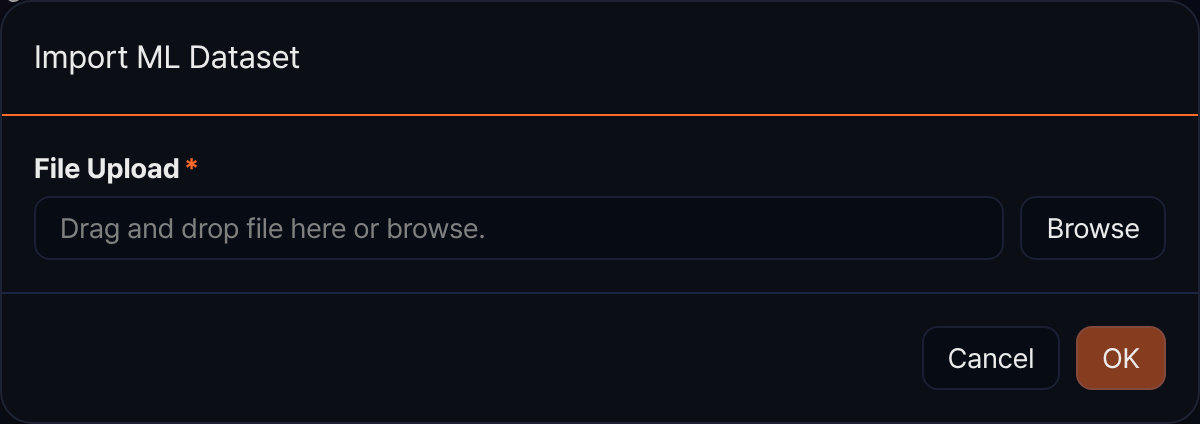
In the Import ML Dataset dialog, click Browse under File Upload and select a
.mldatasetfile, or drag the file onto the input box. The file cannot be larger than 100MB. -
Click OK. OK stays disabled until you select a file. When the import finishes, the list is reloaded, so check the list to confirm that the dataset was actually added. If a dataset with the same name already exists, that dataset is not registered.
Add an ML dataset
To prepare input data for training a machine learning model, add an ML dataset.
-
Under Policies > ML Datasets, click Add in the toolbar.
-
On the New ML Dataset panel, enter the required values, then click Save.

- Name: The dataset name (required, up to 50 characters). It cannot be the same as another dataset's name. Because you pick the dataset by this name when adding a machine learning model, we recommend letters, digits, and underscores (_) without spaces.
- Description: The purpose or composition of the dataset (up to 2,000 characters).
- Query Statement: The Logpresso query that extracts the training data (required, up to 10,000 characters). The fields of the query result become the fields of the dataset, and those fields become the candidate input variables and target variable of a machine learning model. Keep only the fields to train on with the
fieldscommand. The query syntax is checked as you type, and if you click Save while it is invalid, the message Enter valid query. appears. After a failed save, Save stays disabled until the input becomes valid.
After you save, the server runs the query, loads the result into a table dedicated to the dataset, and builds the field information. When loading finishes, the Count column of the list shows the number of records. If you save with a name that already exists, the message Failed to add ML dataset [Duplicated ML dataset name] appears and the dataset is not saved.
View an ML dataset
Click a dataset row in the list to open the Edit ML Dataset panel, which also shows the data loaded into the dataset. There is no separate view screen.

- Name, Description: The name and description of the dataset. You can edit them on this panel.
- Data Count: The number of records loaded into the dataset. It is the same value as Count in the list and cannot be edited.
- Dataset: A table for browsing the loaded data. When the panel opens, a query that reads the dataset table runs and the table shows 50 records per page. You can move between pages or change the page size with the pager below. The internal fields
_id,_table,_time, and_eraare excluded from the table. Hover over a column header and click the menu icon that appears to choose Sort Ascending or Sort Descending. The menu you open on a cell offers filter items that apply a condition built from that cell's value.
Click Add in the Filter row above the table to open the New Filter dialog.
- Basic tab: Choose Type (String, Integer, Date, IP address, IP address (range), or Expression) and set Target Field, Condition, and Value. Click + next to the Value box to add several values to the same condition. Selecting Expression as Type replaces Target Field, Condition, and Value with a Query box where you type the condition as query syntax.
- Advanced tab: Add several condition rows, combine them with AND and OR, and nest condition groups.
- Filter Query: Shows the condition as query syntax. Click Copy To Clipboard to copy the query.
- OK: Reloads the table with the condition. Copy To Clipboard and OK stay disabled while the condition is incomplete.
Added filters appear in the Filter row together with any sort you set from a column header. Click a filter to edit it or its delete icon to remove it, and click Reset filter to remove everything, including the sort. Filters and sorting only narrow what the table shows and do not affect the loaded data or model training. The data used for training is determined only by the query statement entered when the dataset was added.

Edit an ML dataset
To edit an ML dataset:
-
Click the row of the dataset you want to edit in the list.
-
On the Edit ML Dataset panel, change Name and Description, then click Save. The query statement and the loaded data cannot be changed.
Renaming a dataset does not affect the machine learning models trained on it. If you change the name to one that another dataset already uses, the message Failed to modify ML dataset [Duplicated ML dataset name] appears and the change is not saved.
Delete ML datasets
To delete ML datasets:
-
Select the checkboxes of the dataset rows you want to delete in the list.
-
Click Delete among the selected-item action buttons in the toolbar.
-
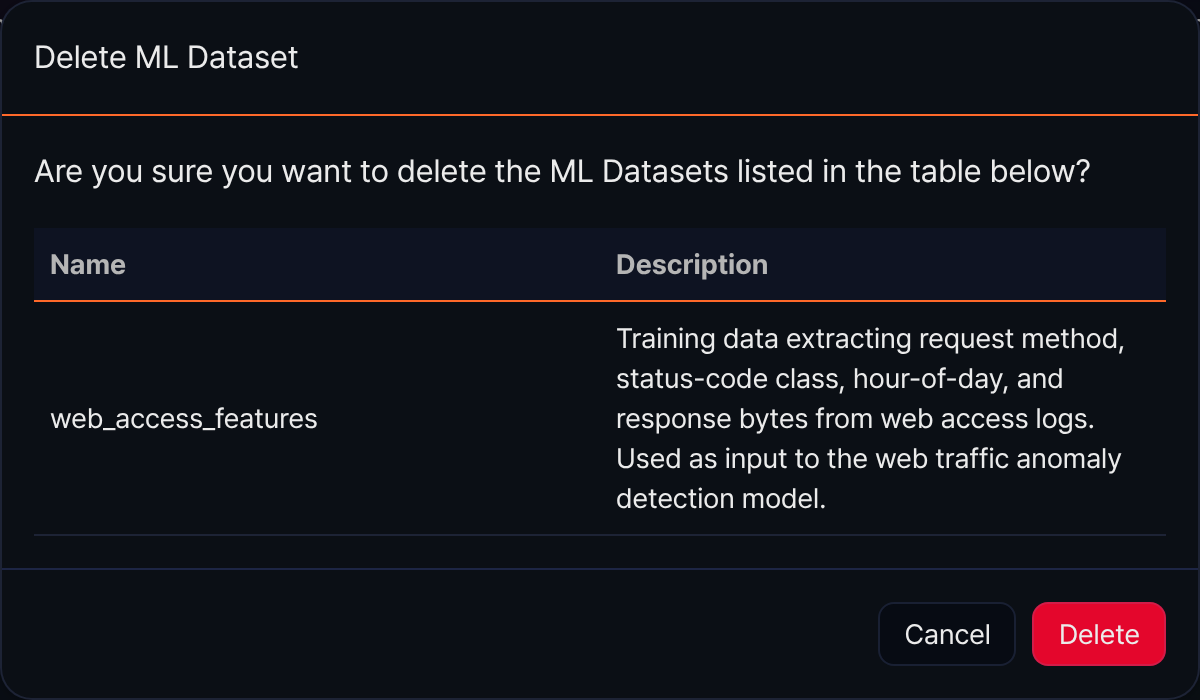
In the Delete ML Dataset dialog, check the name and description of the datasets to delete, then click Delete. Click Cancel to abort.
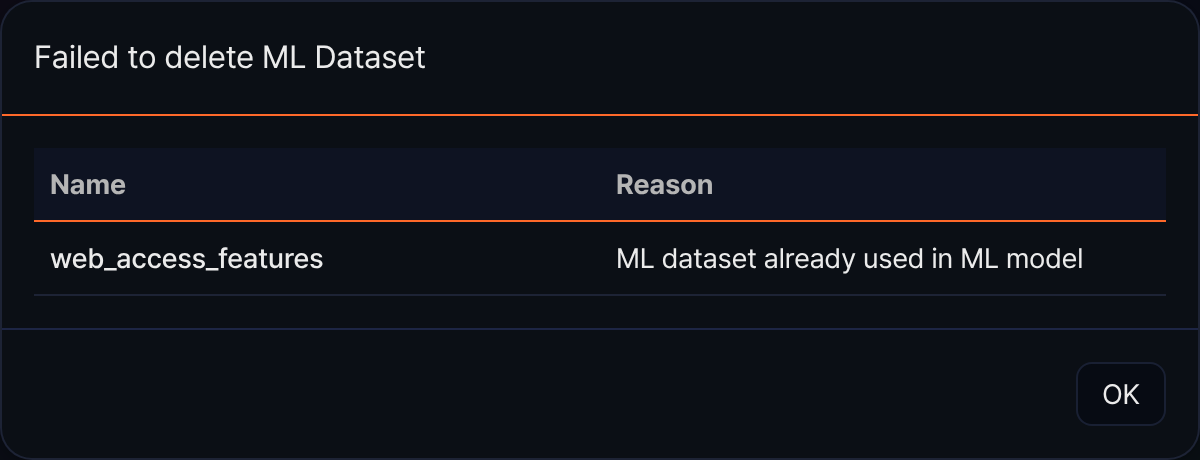
An ML dataset that a machine learning model refers to is not deleted; instead, the Failed to delete ML Dataset dialog lists it in a Name and Reason table with the reason ML dataset already used in ML model. Click OK to close the dialog. To delete such a dataset, delete the model first under ML Models. Deleting a dataset also deletes its data table.