
Area
Overview
The area widget displays changes in a dependent variable over an independent variable like a line chart, but fills the area below the line with color to more intuitively represent the magnitude of data. It is suitable for emphasizing the scale of data over time, such as event volume or traffic.
For general information about query widgets, see Query widget.
Chart settings
Select Area as the chart type in the pivot table editor and click the chart settings button.
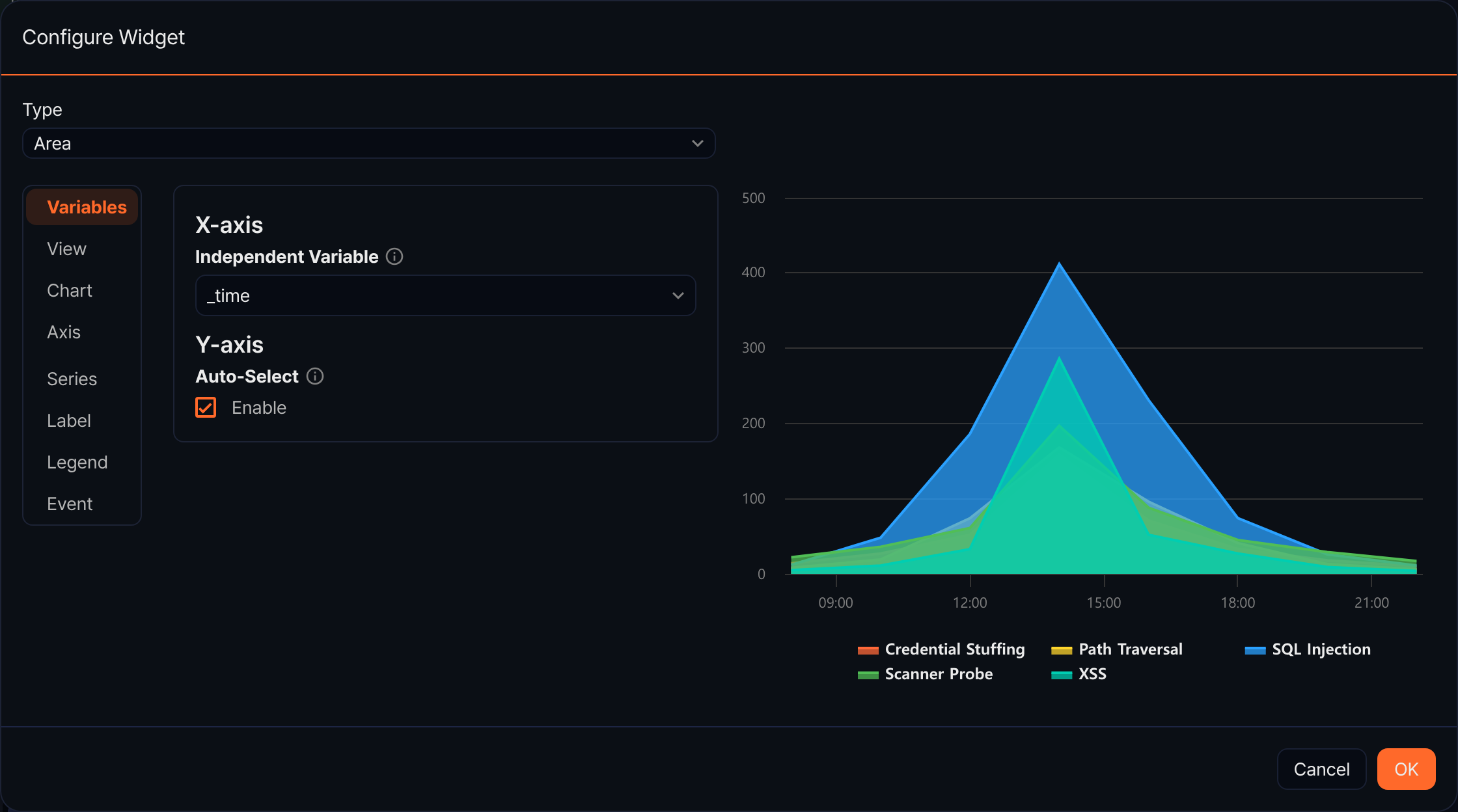
Variables
- Independent Variable: Select the field to display on the X-axis.
- Auto-Select: Automatically select all numeric fields as dependent variables.
- Dependent Variable(s): Specify dependent variables manually.
View
- Zoom-In: Select the direction for drag-to-zoom (default: None, options: x, y, xy).
- Concatenate Empty Values: Connect data points across empty intervals.
Chart
- Headline: Enter a chart title and subtitle.
- Chart Area: Set the background color, border thickness, and border color.
Axis
- X-axis: Set the title and format.
- Y-axis: Set the title, format, min, and max.
Series
- Chart Type: Override the series chart type (default: Auto-Select).
- Series Color: Set the area color.
- Border Style: Select the line style.
- Show Point Marker: Set whether to display data point markers. When enabled, you can select the Marker Shape.
Label
- Label All Series: Display values above data points.
Legend
- Show: Set whether to display the legend.
- Legend Arrangement: Options: Horizontal, Vertical.
- Horizontal Align / Vertical Align: Set the legend position.
Event
Configure click and drag events.